Legacy Products
While these products may no longer be sold, you can still find some information and links to archived product pages. If you need information on these products that can't be found on the archived page, please contact us at support@plugable.com. Thanks!
Audio Devices
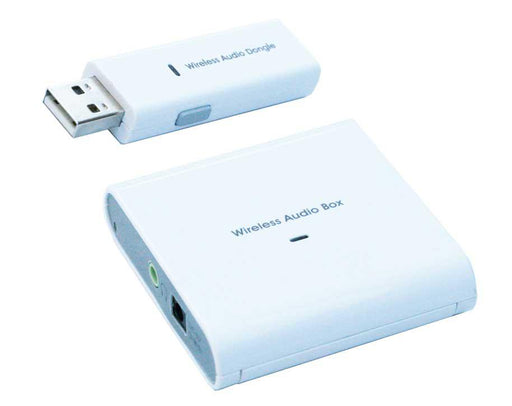
USB2-SYNIC2
Plugable's USB 2.0 Wireless Audio Adapter and Receiver uses a SYNIC chipset to broadcast audio from your computer to remote speakers and headphones via a standard 3.5mm stereo audio jack.
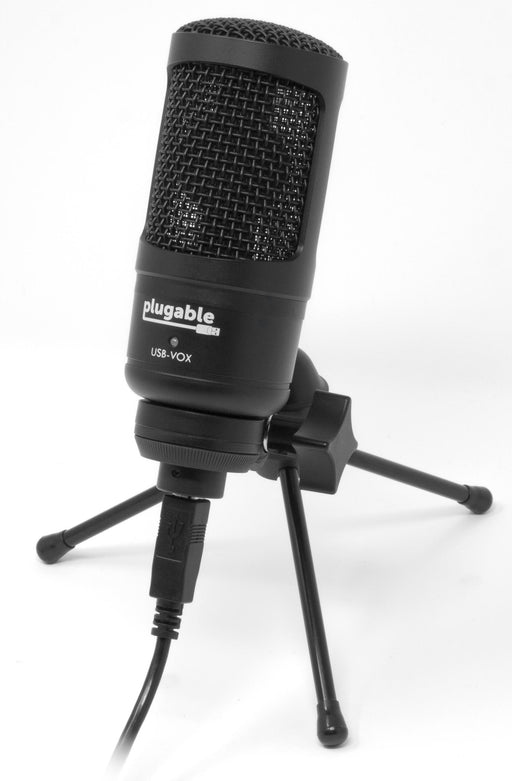
USB-VOX
The Plugable Performance USB Studio Microphone (USB-VOX) designed with streamers and content creators in mind.
Bluetooth
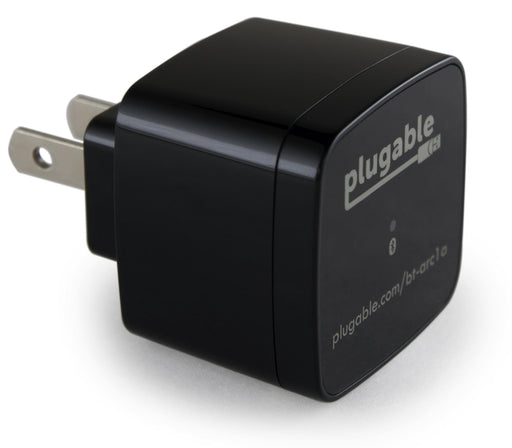
BT-ARC1A
Plugable's Bluetooth Wireless Stereo Audio Receiver allows you to stream audio to a 3.5mm output without a physical connection, and features a USB charging port to power mobile devices.
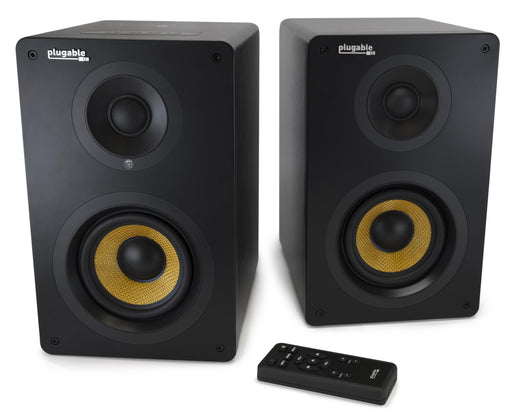
BT-BOX4S
Plugable Bluetooth 2-Channel Monitor Speaker Set delivers excellent sound quality and a wealth of features in one complete package.
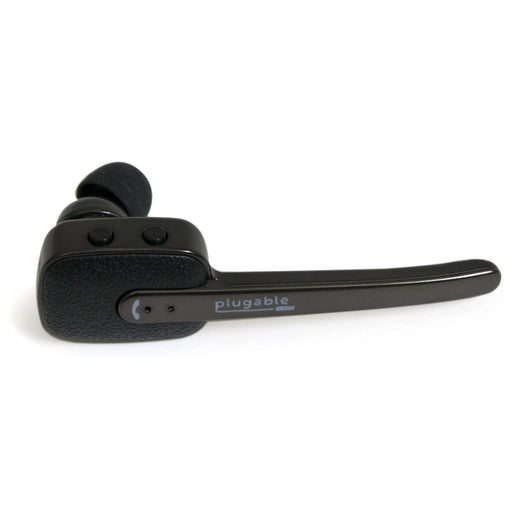
BT-HS40B
The Plugable Bluetooth Voice Assistant Headset makes it easy to interact with your device's voice assistant and make calls at the touch of a button.
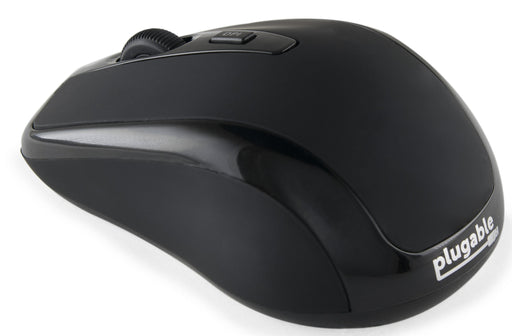
BT-MOUSE3
Plugable's Portable Bluetooth Mouse is a compact, travel-friendly mouse with a long-lasting battery and easily-adjustable sensitivity.
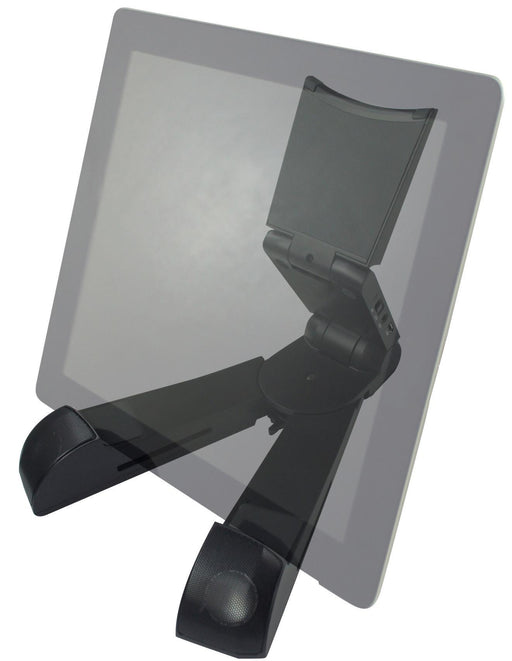
BT-STAND
Plugable's portable stand for phones and tablets comes with built-in Bluetooth speakers featuring surprisingly rich stereo sound.

PS-BTAPS1
The Plugable Bluetooth Home Automation Switch allows you to control any AC outlet from your Android/iOS device .
Cables
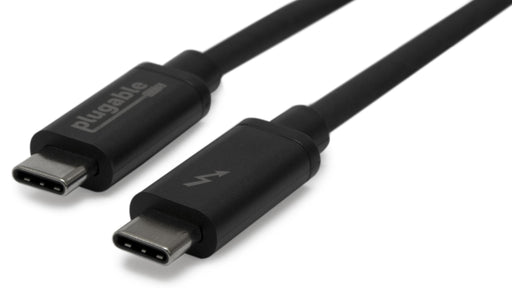
TBT3-20G1M
The Plugable 20Gbps 1 Meter Thunderbolt 3 Cable (TBT3-20G1M) which doubles as a universal USB-C cable.
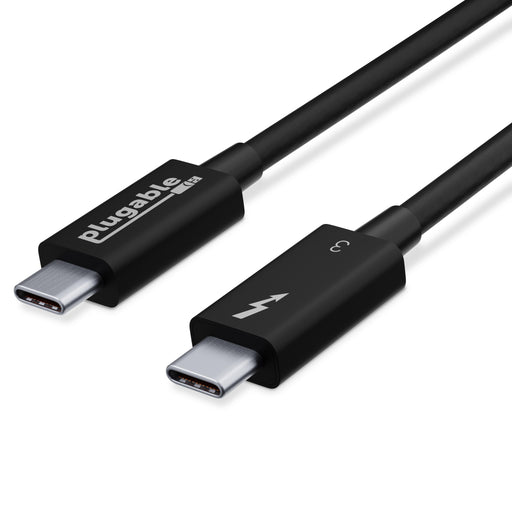
TBT3-40G50CM
The Plugable 40Gbps 0.5 Meter Thunderbolt 3 Cable (TBT3-40G50CM) which doubles as a universal USB-C cable.
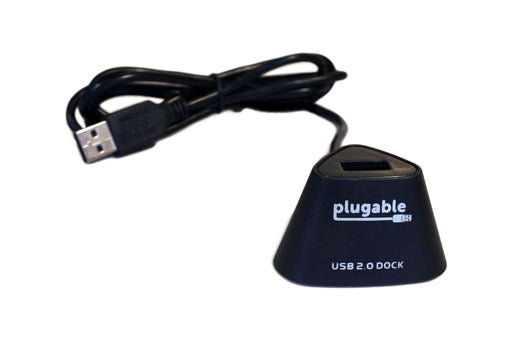
USB2-EXT-D1
Plugable's 44-Inch USB 2.0 Extension Cable features a vertical standing dock-style port, convenient for any accessory does not have its own cable.
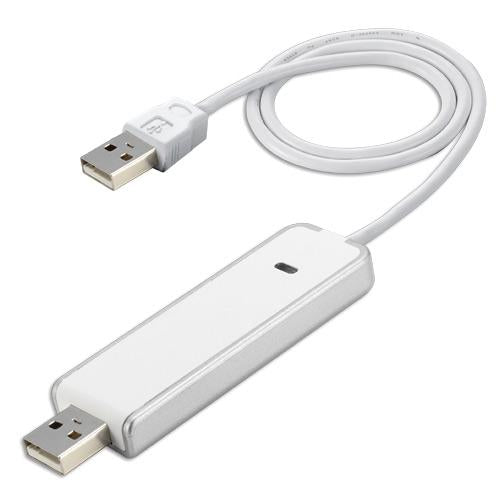
USB2-TRAN2
The Plugable USB 2.0 Transfer Cable makes it easy to transfer files from one computer to another.
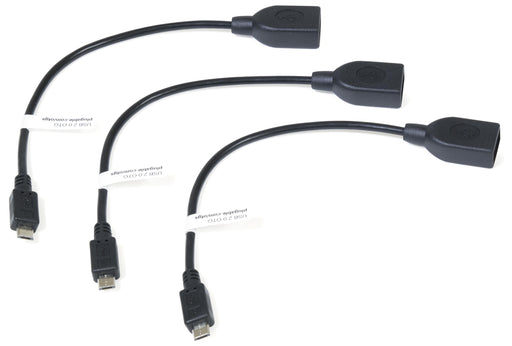
USB2-OTGS-3X
We sell our USB 2.0 OTG Type A Female to Micro B Male Cables in a pack of three.
Docking Stations
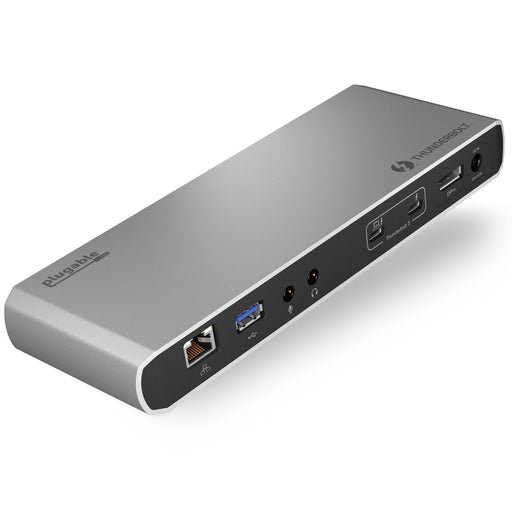
TBT3-UD1-85W
Thunderbolt 3-enabled Mac, or compatible Windows Thunderbolt 3 systems, gain 9 ports of connectivity and up to 85 watts of host charging with this Plugable Thunderbolt 3 Docking Station (TBT3-UD1-85W).
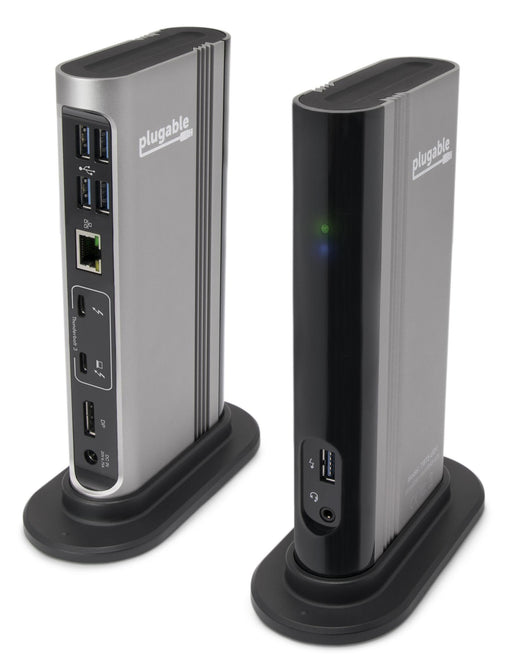
TBT3-UDV
Plugable's Thunderbolt 3 Single-Display Docking Station (TBT3-UDV) offers up to 60W of power to charge the host. Connect a single display up to 4K at 60Hz via the integrated DisplayPort output, or an HDMI display using the included Active DisplayPort to HDMI adapter.
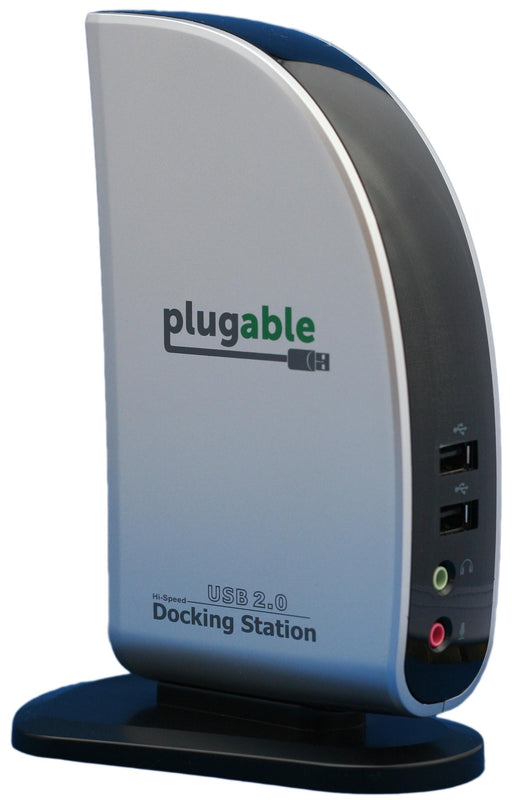
UD-160-A
The Plugable Universal USB 2.0 Single Display Docking Station extends your computer to an extra display, speakers, Ethernet, and 4 USB 2.0 ports, all from single USB cable back to your computer.
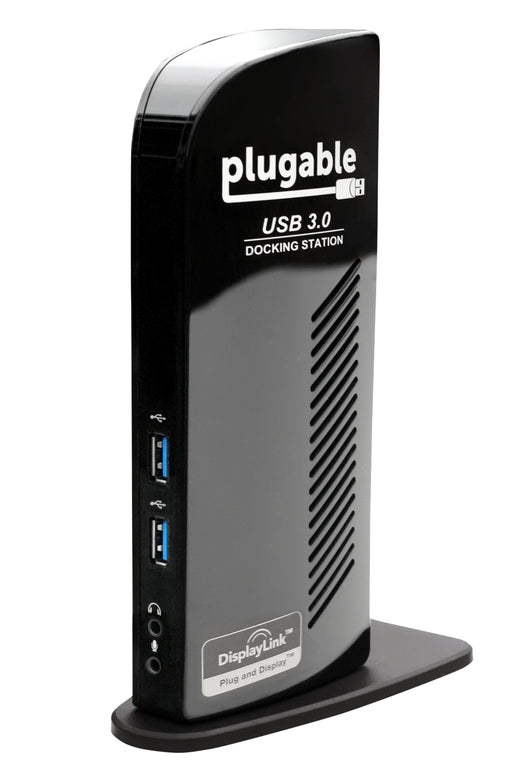
UD-3000
The Plugable USB 3.0 Single Display Docking Station serves as a link from computer to video, audio, network, and two additional USB 3.0 ports.
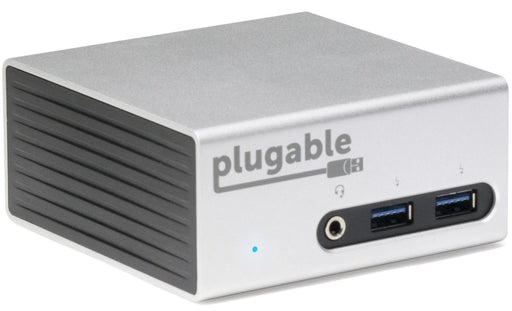
UD-5900
The Plugable USB 3.0 4K Aluminum Mini Docking Station for Windows (UD-5900) allowed adding dual monitors, and connecting peripherals, all through a single cable back to a laptop.
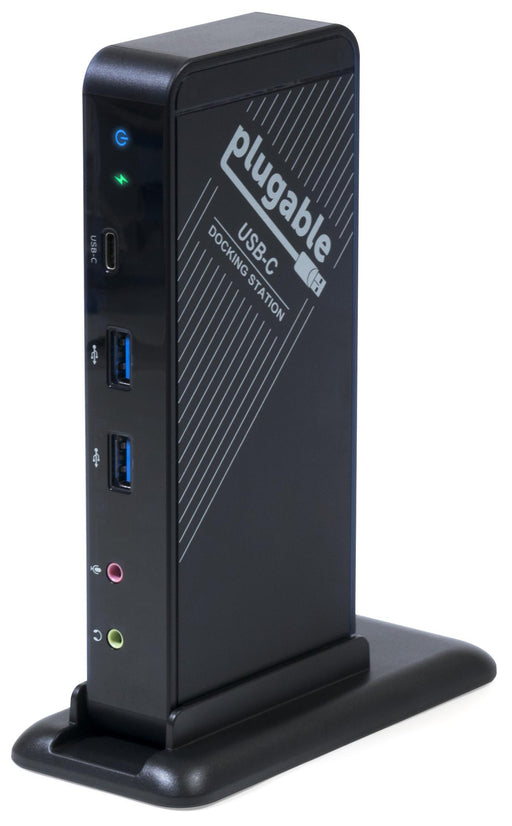
UD-CA1
This award-winning USB-C docking station allows you to simultaneously add an external HDMI display, charge your laptop, and connect to Ethernet, audio input/output, and five USB ports.
Expansion Cards
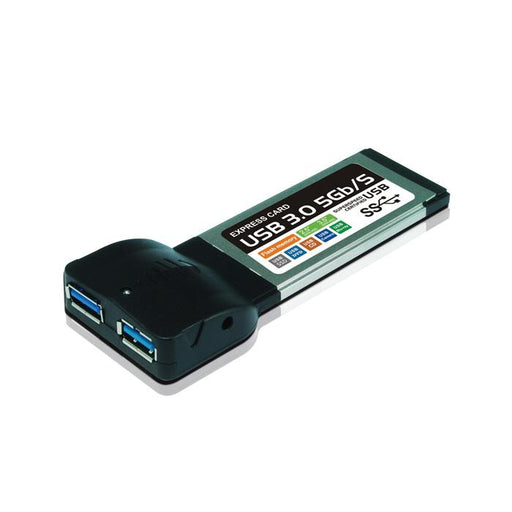
ECARD-USB3
The Plugable 2-Port SuperSpeed ExpressCard/34 Adapter lets you upgrade your laptop to USB 3.0 via any available ExpressCard slot.
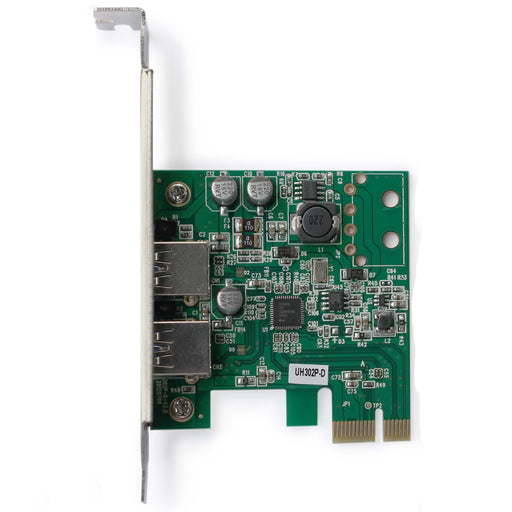
PCIE-USB3-SP
Plugable's 2-Port Expansion Card allows you to upgrade any Windows-based desktop to SuperSpeed USB 3.0 using its PCIe 1x slot.
Graphics Adapters
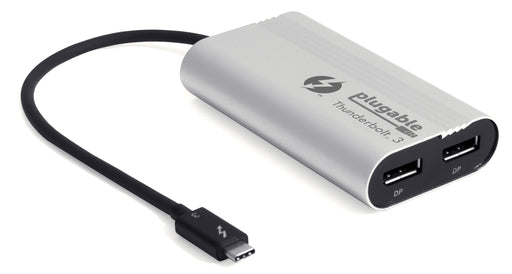
TBT3-DP2X
Plugable's Thunderbolt 3 Dual DisplayPort Display Adapter (TBT3-DP2X) enables content creators and power users to connect two additional displays.
TBT3-DP2X-83
Plugable's Thunderbolt 3 Dual DisplayPort Display Adapter (TBT3-DP2X-83) enables content creators and power users to connect two additional displays.
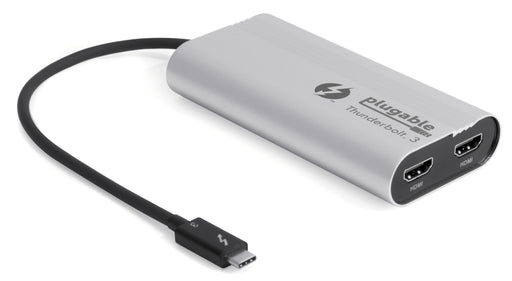
TBT3-HDMI2X
This Plugable Dual Display Graphics Adapter harnesses Thunderbolt™ 3's 40 Gbps bandwidth to enable two additional HDMI displays with resolutions up to 4096x2160@60Hz.
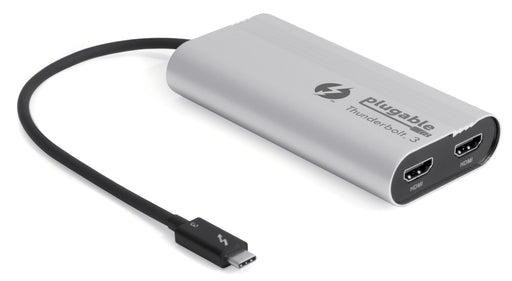
TBT3-HDMI2X-83
Plugable's Thunderbolt 3 Dual DisplayPort Display Adapter (TBT3-DP2X-83) enables content creators and power users to connect two additional displays.
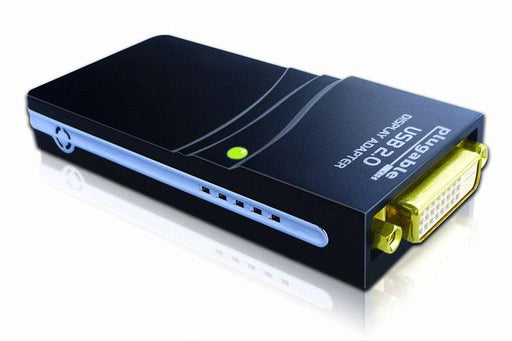
UGA-125
The Plugable USB to VGA/DVI/HDMI adapter connects 3+ monitors to any brand of laptop or desktop (one adapter required per monitor, up to 6).
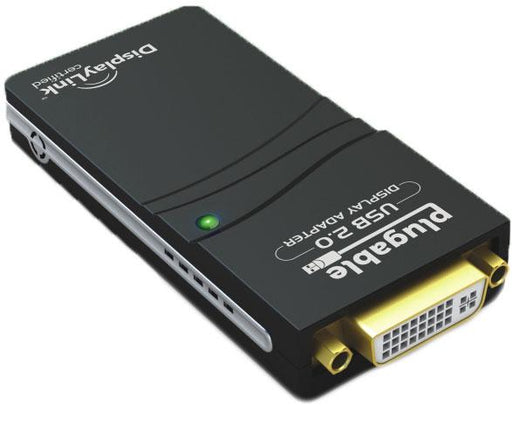
UGA-2K-A
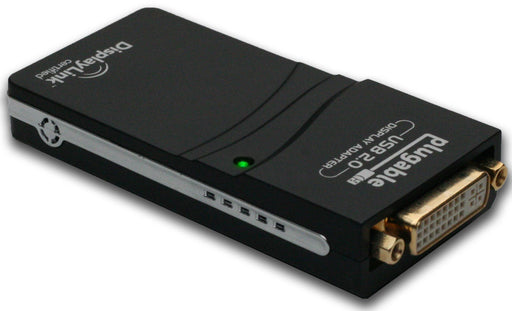
The Plugable USB to VGA/DVI/HDMI adapter connects 3+ monitors to any brand of laptop or desktop (one adapter required per monitor, up to 6).
UGA-M165
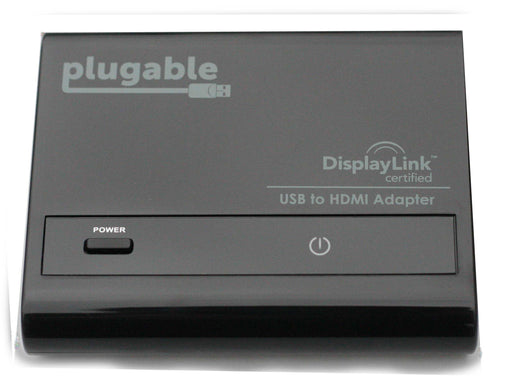
The UGA-M165 is ideal for digital signage, presentation environments, information kiosks, retail displays, or any scenario where display mirroring to monitors with varied input types is needed.
USB2-HDMI-165
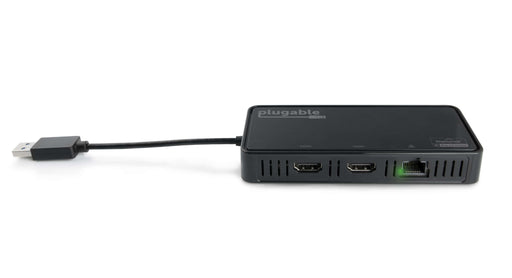
This adapter adds HDMI connectivity via any available USB 2.0 port, allowing for high quality audio and video.
USB3-6950-DP
Featuring 2x DisplayPort ports, connect up to 2 displays at up to 4K 60Hz, through a single USB 3.0 port. Also includes Gigabit Ethernet connectivity.
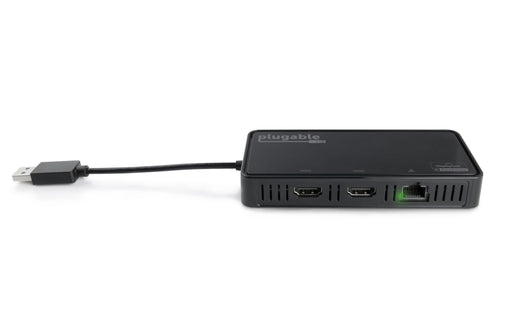
USB3-6950-HDMI
Featuring 2x HDMI 2.0 ports, connect up to 2 displays at up to 4K 60Hz, through a single USB 3.0 port. Also includes Gigabit Ethernet connectivity.
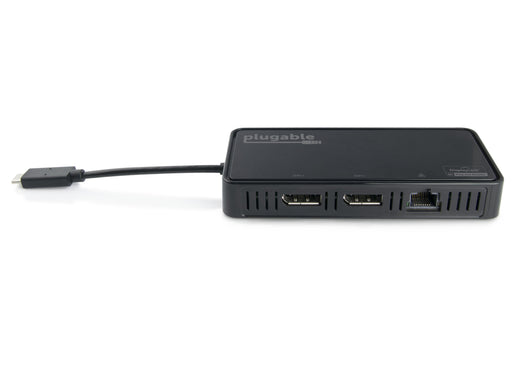
USBC-6950-DP
Featuring 2x DisplayPort ports, connect up to 2 displays at up to 4K 60Hz, through a single USB-C 3.0 port. Also includes Gigabit Ethernet connectivity.
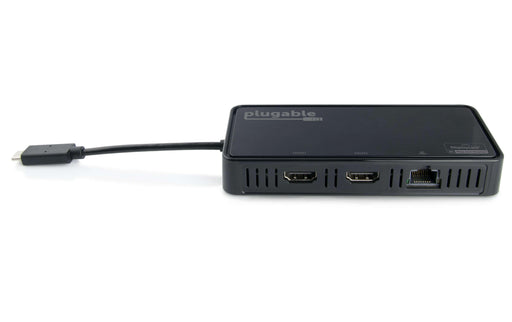
USBC-6950-HDMI
Featuring 2x HDMI 2.0 ports, connect up to 2 displays at up to 4K 60Hz, through a single USB-C 3.0 port. Also includes Gigabit Ethernet connectivity.
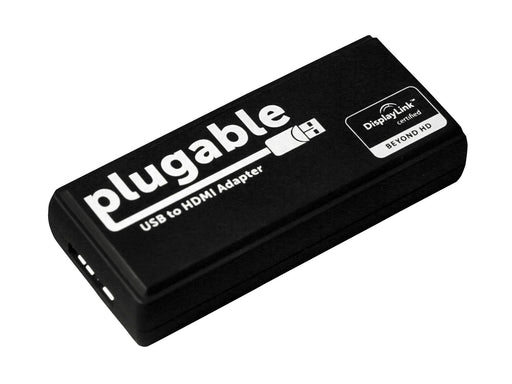
USB3-HDMI-DVI
With Plugable's USB 3.0 to HDMI/DVI adapter, you can connect up to six monitors to a laptop or desktop PC (one adapter required per monitor).
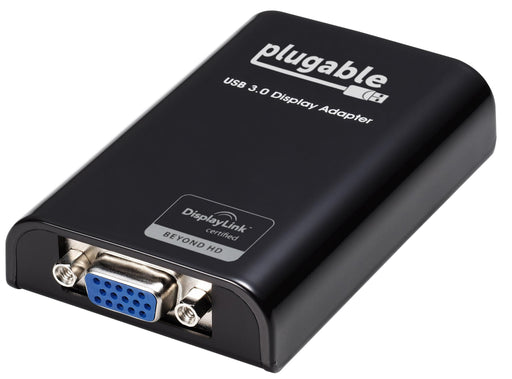
USB3-VGA
With Plugable's USB 3.0 to VGA graphics adapters, you can connect up to six monitors to a Windows laptop or desktop PC (one adapter required per monitor).
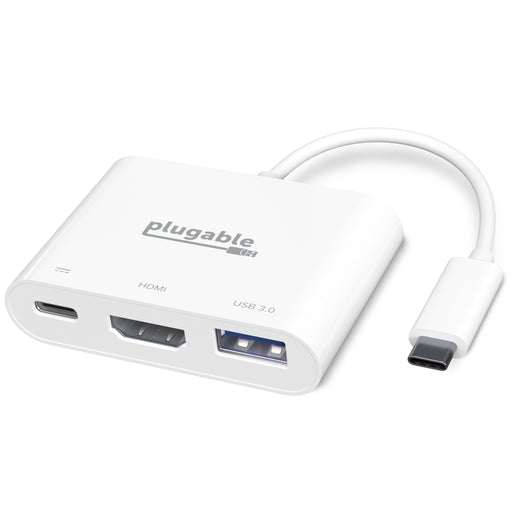
USBC-MD101
The portable Plugable USB Type-C Mini Dock is equipped with an HDMI 1.4 port and a USB 3.0 port and allows for pass-through charging of the host device.
Input Devices

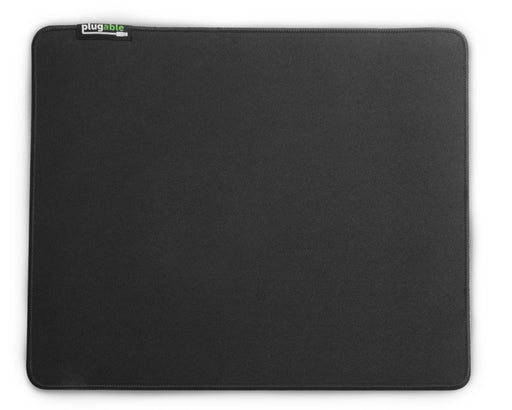
USB-PM3360
The Plugable Performance Mouse is a lightweight and precise gaming mouse. No software installation required.
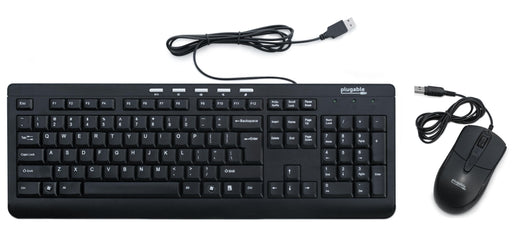
USB-KMB1
Plugable's desktop bundle consists of a slim, attractive and sturdy matching black keyboard and high-definition optical mouse that works with any system supporting USB keyboards and mice.
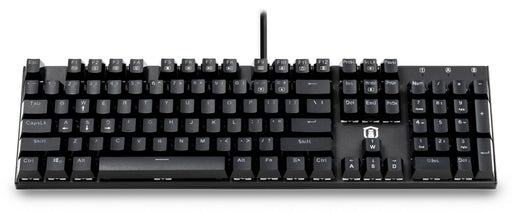
USB-MECH104BW
Plugable's mechanical full-size 104-key keyboard with hot-swappable clicky blue switches.
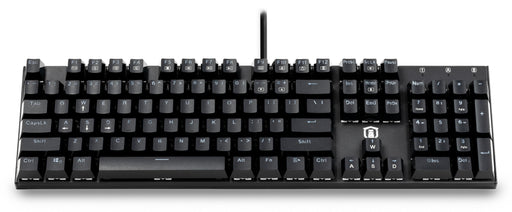
USB-MECH104RW
Plugable's mechanical full-size 104-key keyboard with hot-swappable linear red switches.
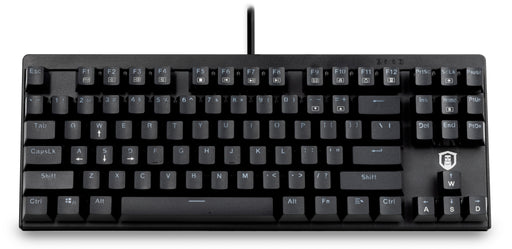
USB-MECH87BW
Plugable's mechanical tenkeyless 87-key keyboard with hot-swappable clicky blue switches.
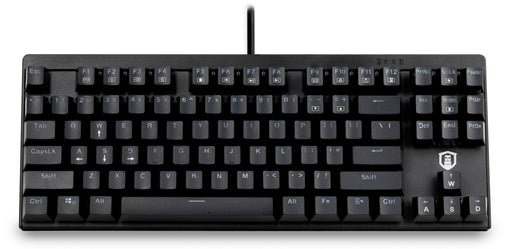
USB-MECH87RW
Plugable's mechanical tenkeyless 87-key keyboard with hot-swappable linear red switches.
Power Devices
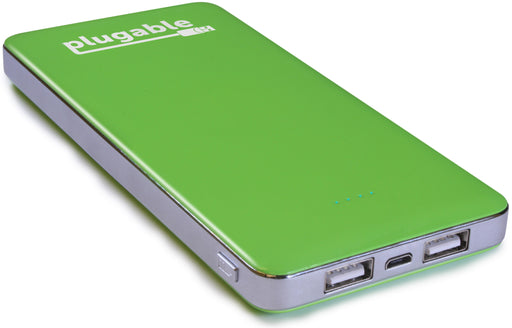
PB-12K2
This Plugable Power Bank offers a lightweight, environmentally friendly, high-capacity portable battery with 12,000 mAh of charge.
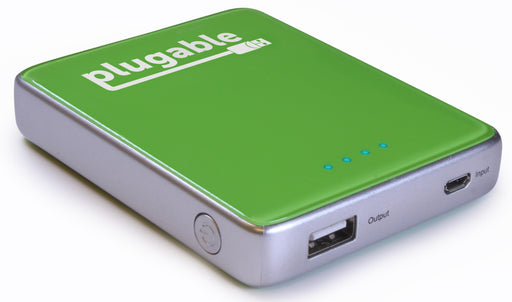
PB-6K2
The Plugable PB-6K2 Power Bank offers a lightweight, environmentally-friendly, high-capacity, compact battery solution with 6,000 mAh of charge.
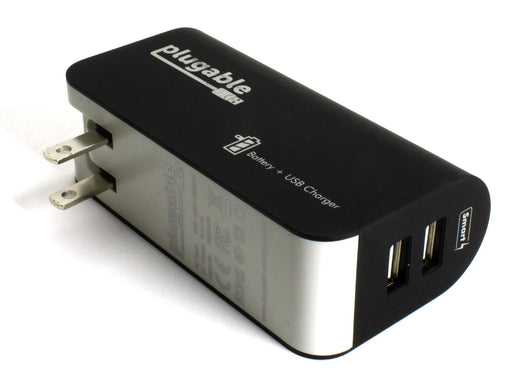
PB-WA5K
The Plugable PB-WA5K is a lightweight combination high-capacity portable battery pack and wall-charger.
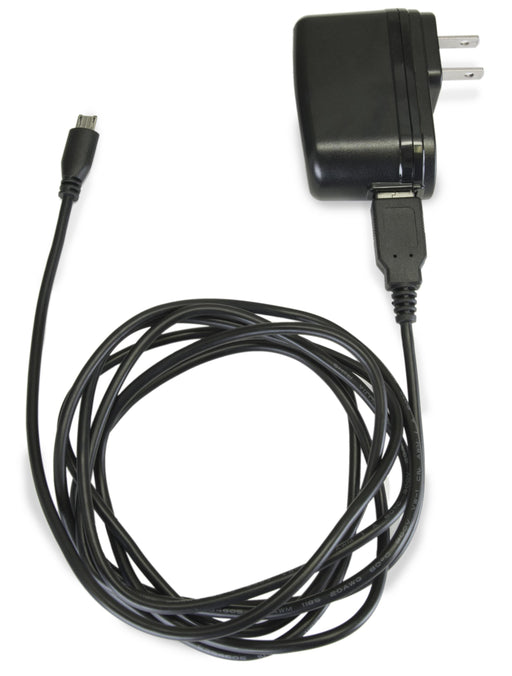
USB-C1M
This Plugable Power Adapter powers single-board computers like the Raspberry Pi.
USB-C2W
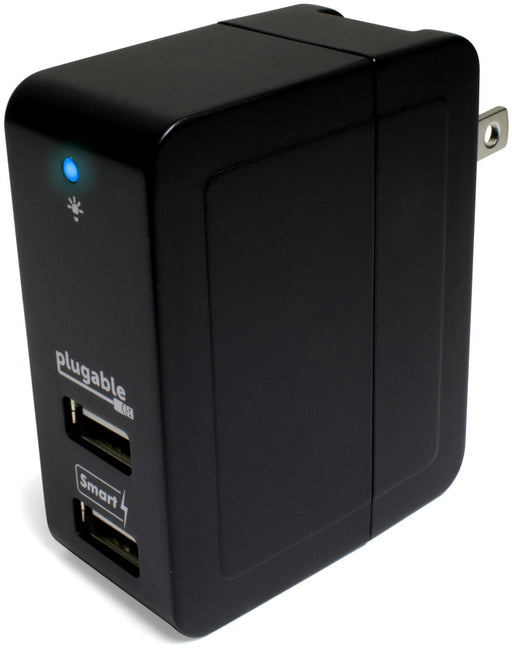
This incredibly compact travel adapter provides smart charging for two USB devices simultaneously.

USB-C3C
This Plugable USB Car Charger offers three USB smart charging ports while tucking away cleanly and securely in your vehicle's cup holder.
USB-C3T
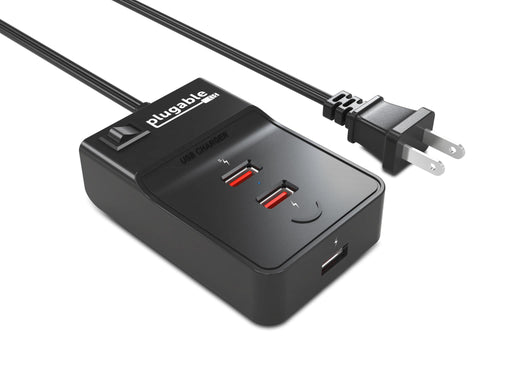
This USB charger supports up to 3.8A to share between 3 smart charging USB ports.
USB-C5T
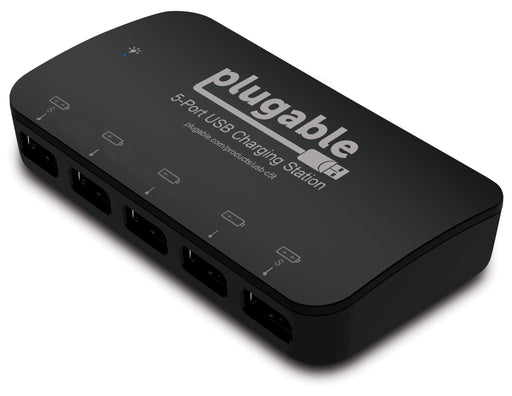
This 5-port USB charger is powered by a 36W power adapter and features two dedicated smart charging ports.
USB-C5TX
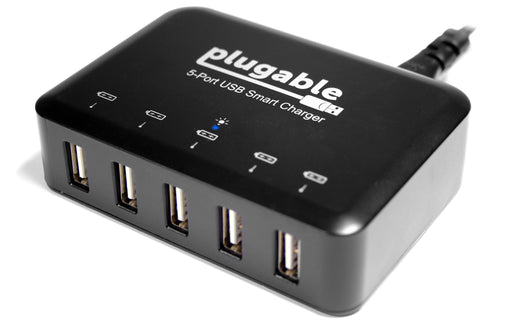
This 5-port USB charger is powered by a 40W power adapter and features 5 dedicated smart charging ports.
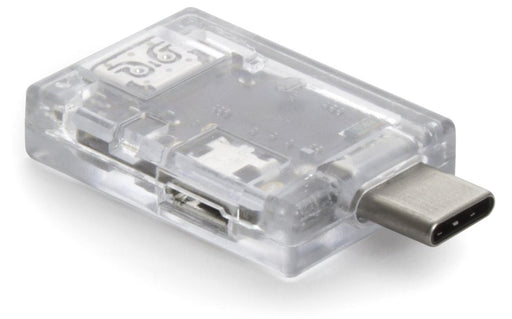
USBC-TKEY
The Plugable USB 3.1 Type-C Power Delivery Sniffer enables the monitoring of USB power delivery traffic between two USB Type-C devices.
Storage Devices
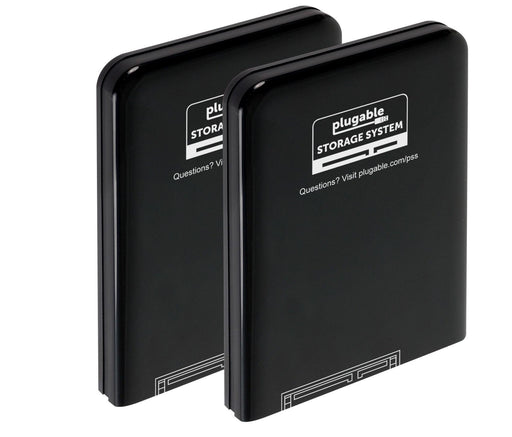
PSS-CASE2
Part of the Plugable Storage System, this case protects 2.5" SATA hard drives.
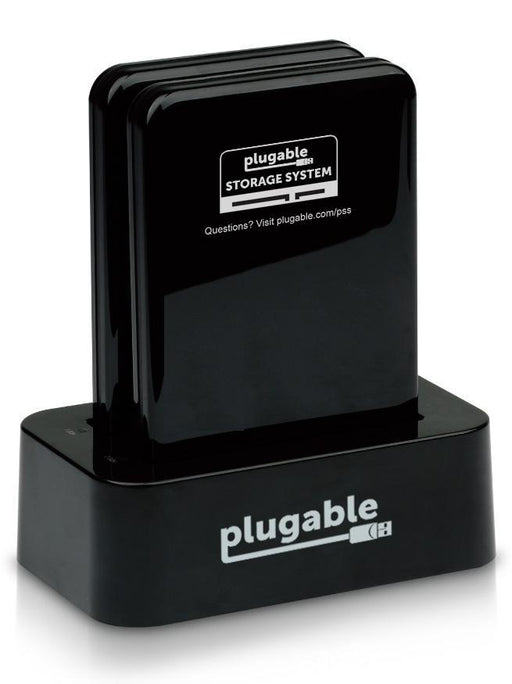
PSS-DD1
The Plugable Storage System USB 3.0 Dual 2.5" SATA Drive Dock allows for two drives to be connected to a computer using one USB 3.0 cable, as well as clone one drive's content to an empty drive.
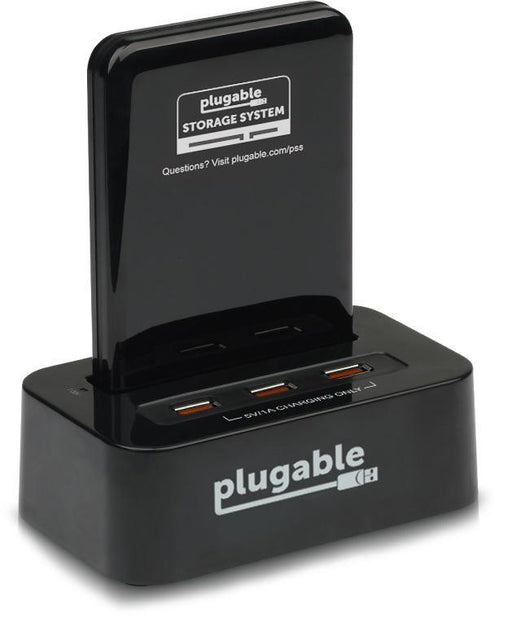
PSS-SDC1
This member of the Plugable Storage System combines a 2.5" SATA drive dock with a 3-port USB charger.
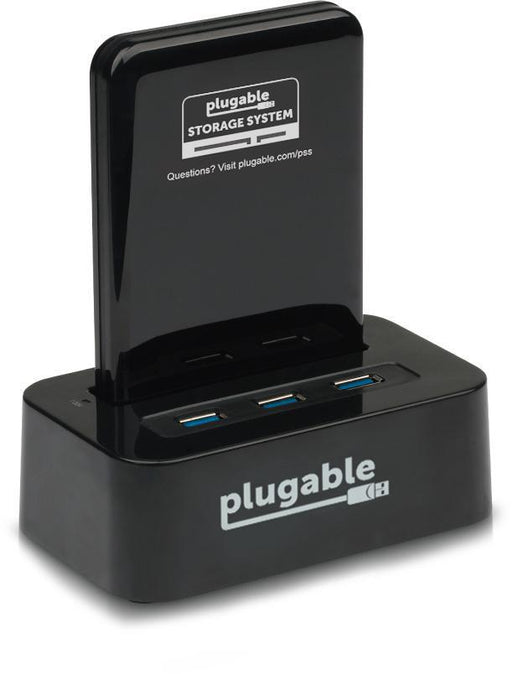
PSS-SDH1
This Plugable Storage System USB 3.0 2.5" SATA Drive Dock features a 3-port USB 3.0 hub.
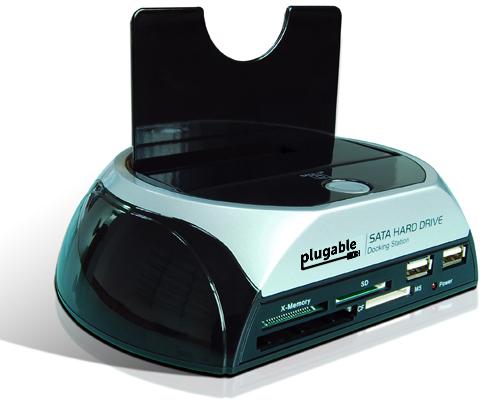
SATADOCK-USB2-C1
The Plugable USB 2.0 Storage Dock: a comprehensive external solution for docking SATA I/II drives, flash memory cards, and USB memory.
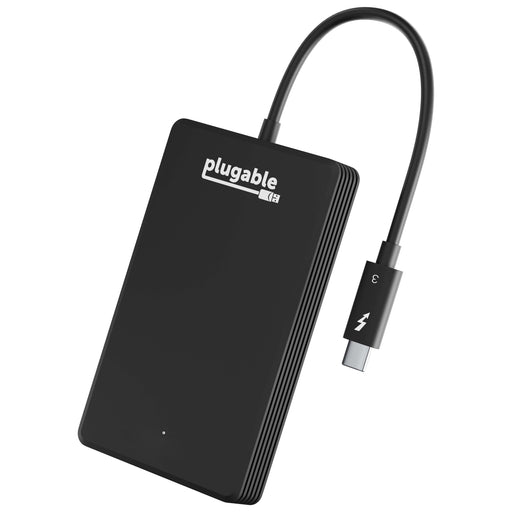
TBT3-NVME480
Plugable Thunderbolt 3 480GB NVMe SSD (TBT3-NVME480) offered external storage performance levels not possible before Thunderbolt 3.
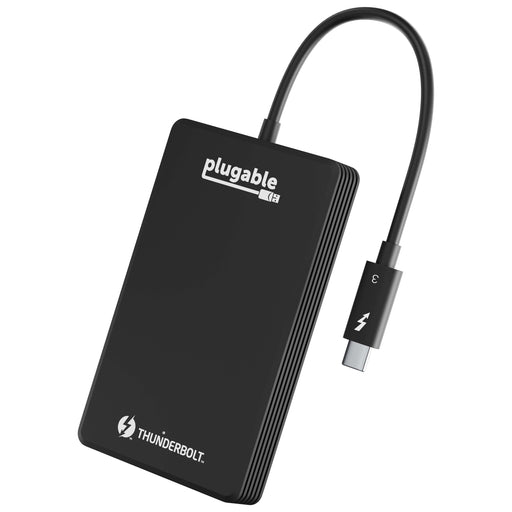
TBT3-NVME512
Plugable Thunderbolt 3 512GB NVMe SSD (TBT3-NVME512) offered external storage performance levels not possible before Thunderbolt 3.
TBT3-NVME1TB
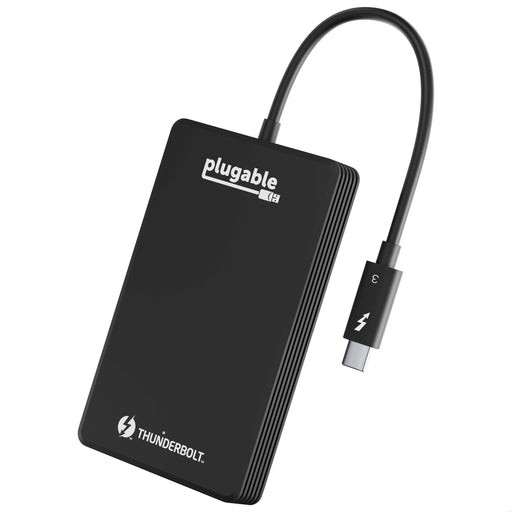
Plugable Thunderbolt 3 1TB NVMe SSD (TBT3-NVME1TB) offered external storage performance levels not possible before Thunderbolt 3.
TBT3-NVME2TB
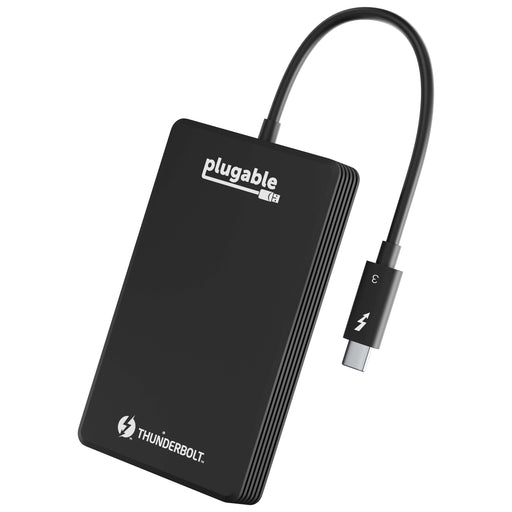
Plugable Thunderbolt 3 2TB NVMe SSD (TBT3-NVME2TB) offered external storage performance levels not possible before Thunderbolt 3.

USB2-CARDRAM3
Plugable's USB 2.0 Flash Memory Card Reader adds support for the most common storage media types used in digital cameras, MP3 players, and mobile phones.
USB3-CARD6A
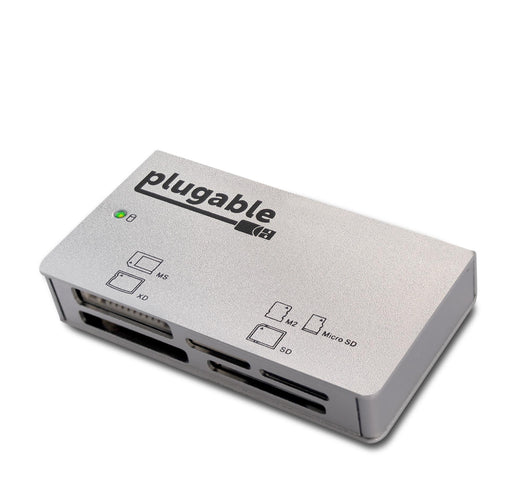
The Plugable USB 3.0 Aluminium 6-Slot Memory Card Reader supports most common media card types..
USBC-SATA24
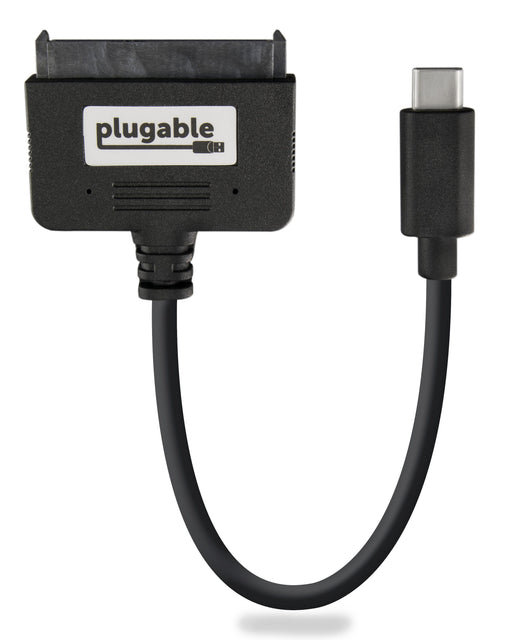
The Plugable USBC-SATA24 is a single-bay port SATA 2.5 inch Hard Drive (HDD) and Solid State Drive (SSD) adapter cable.
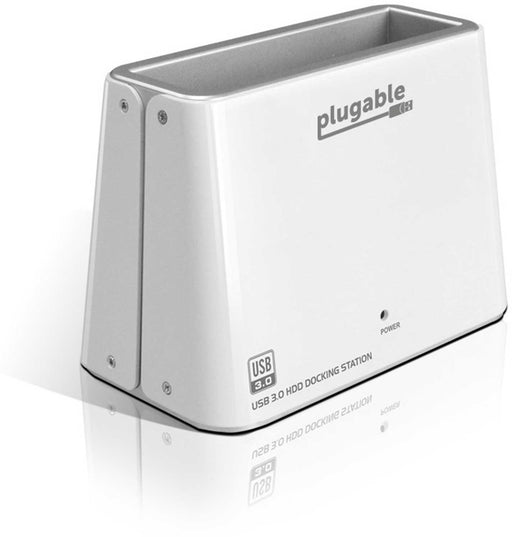
USB3-SATA-U3
The Plugable USB3-SATA-U3 is a standard single bay hard drive docking solution that features a convenient tool-less design as well as hot-swap support and driver-less, plug and play installation.
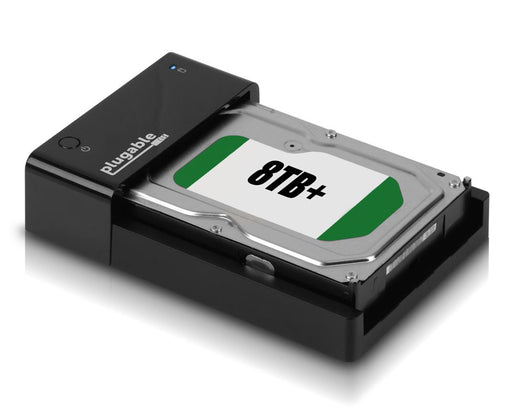
USB3-SATA-UASP1
Plugable's USB 3.0 SATA Lay Flat Hard Drive Dock features an open horizontal docking bay designed for easy dock/undock of bare/internal SATA disk drives.
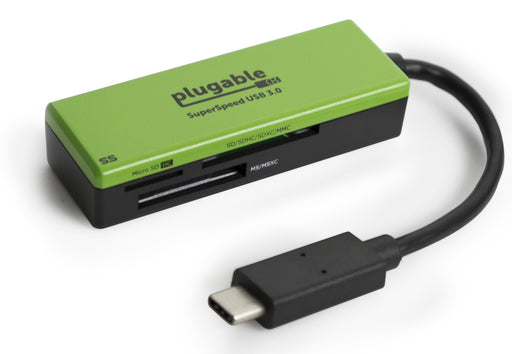
USBC-FLASH3
Plugable's USB Type-C Flash Card Reader is a great option for anyone looking for an easy way add support for the most common storage media types used in common digital cameras, MP3 players, and mobile phones.
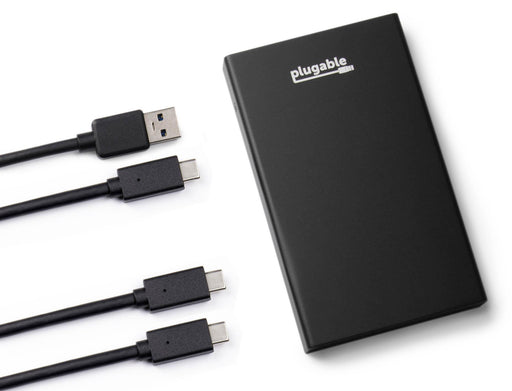
USBC-SATA-E
The Plugable USB 3.1 Gen 2 SATA 2.5" Portable Drive Enclosure turns 2.5" internal SSDs and HDDs into a portable external drive with a rugged black airbrushed aluminum case.

BANDS
Plugable's innovative silicone wrist watches and snap bands integrate a hidden 8GB USB flash drive in the band, so all your important files are right on your wrist.
Thin Clients
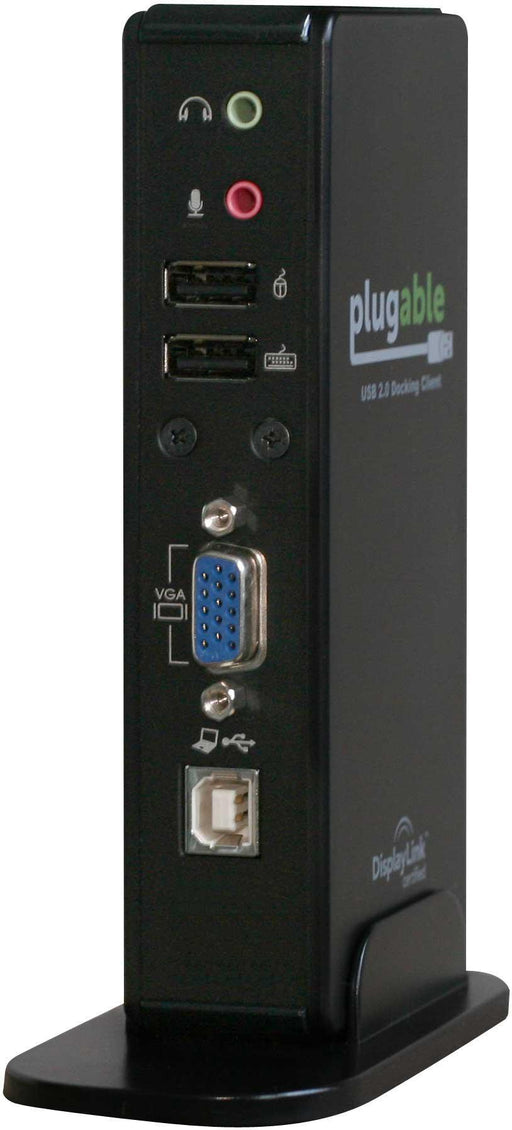
DC-125
Plugable's Thin Client connects via a single USB 2.0 port to help you turn one computer into many (one USB thin client required per user).
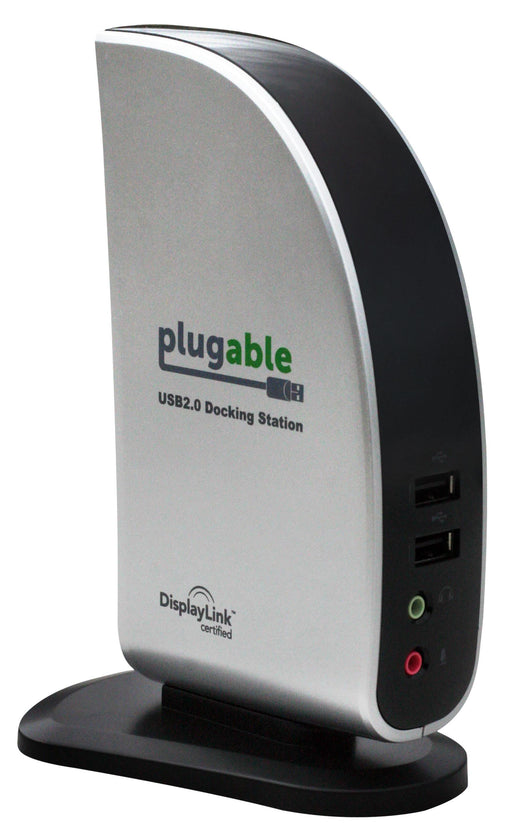
UD-160-M
The Plugable USB 2.0 Thin Client Full HD turns one computer into many, so a single computer can serve a whole class, family, or small office (one USB thin client required per simultaneous user).
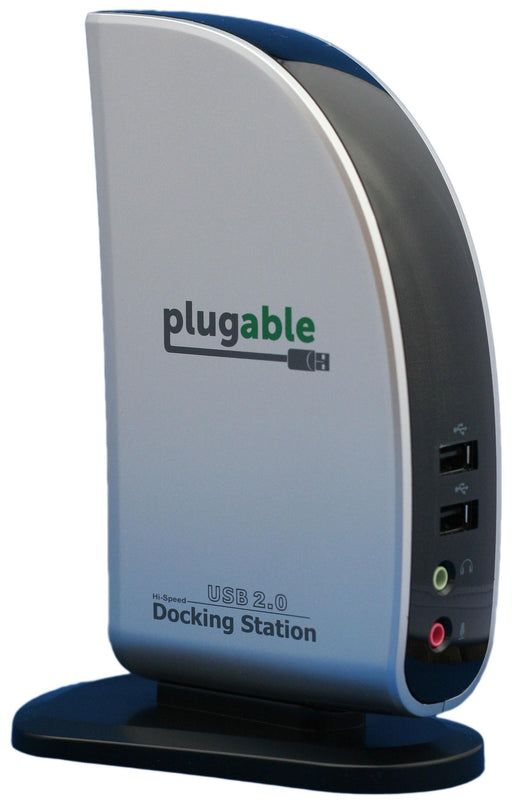
UT-1
The Plugable USB 2.0 Universal Terminal extends one computer to support several users at once (one additional user per USB terminal), providing each user with connectivity for VGA/DVI display, keyboard, mouse, audio headset, and 2 free USB ports.
USB Hubs
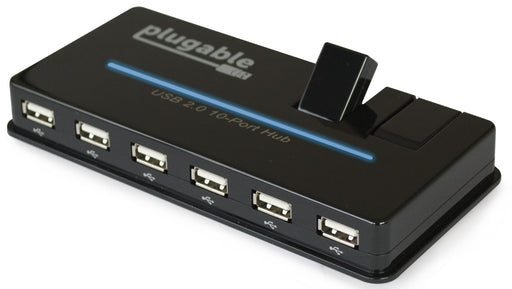
USB2-HUB10S
Plugable's USB 2.0 10-Port hub, succeeded by Plugable's updated model 10-Port Hub model with 20W Power.
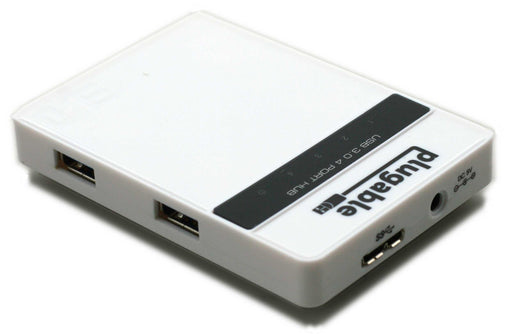
USB3-HUB4
The Plugable 4-Port USB hub is compact and compatible with USB 3.0, USB 2.0, and USB 1.1 devices.
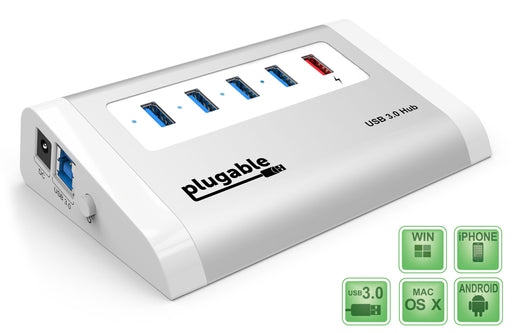
USB3-HUB4AC1
This Plugable USB 3.0 4-port hub features an additional USB smart charging port.
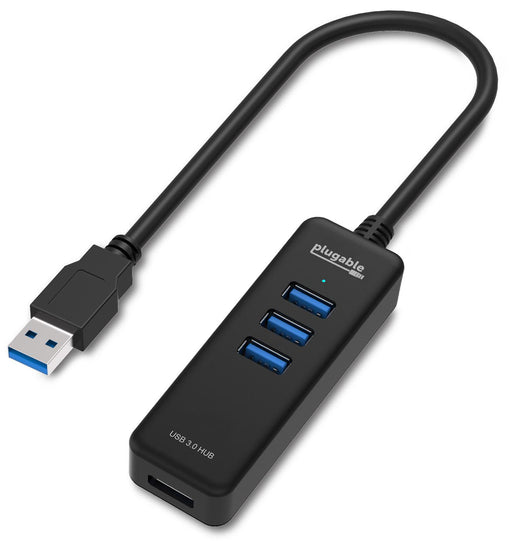
USB3-HUB4M
Plugable's compact and portable 4-port hub is fully bus-powered and requires no external power source.
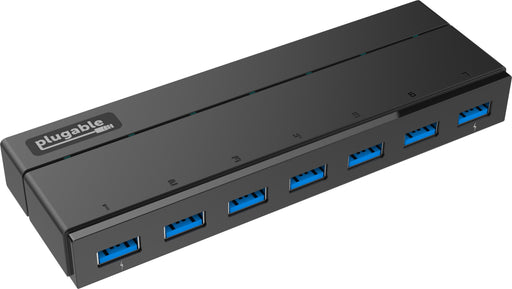
USB3-HUB7-81X
This Plugable 7-port hub is among the first of USB 3.0 hubs that does everything existing USB hubs do, plus has support for the Battery Charging Standard (BC 1.2) on the two outer ports.
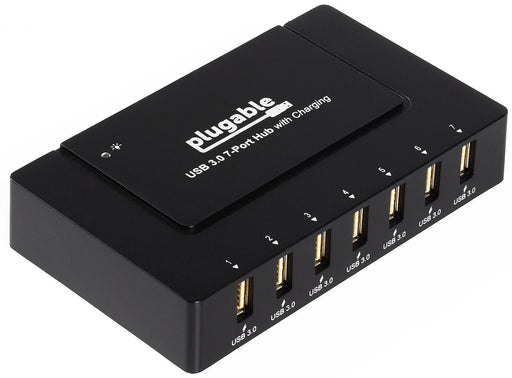
USB3-HUB7BC
Plugable's flagship USB 3.0 7-Port SuperSpeed Hub. Upgraded to include a USB-C adapter in the USBC-HUB7BC.
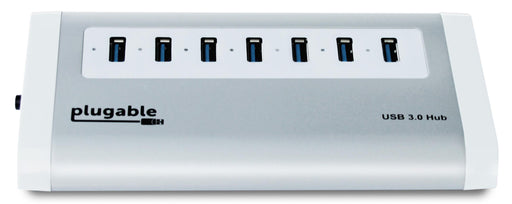
USB3-HUB7A
Plugable's attractive aluminum 7-port USB 3.0 self powered hub features high transfer rates.
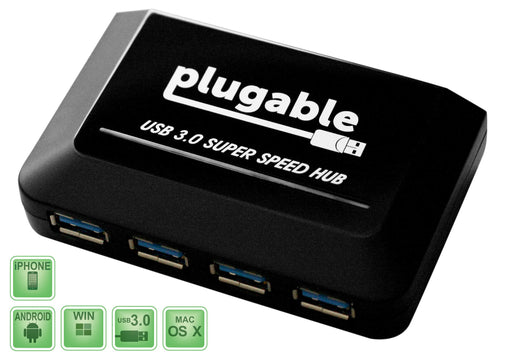
USB3-HUB81X4
The Plugable USB3-HUB81X4 is among the first of USB 3.0 hubs that does everything existing USB hubs do, plus has support for the Battery Charging Standard (BC 1.2).
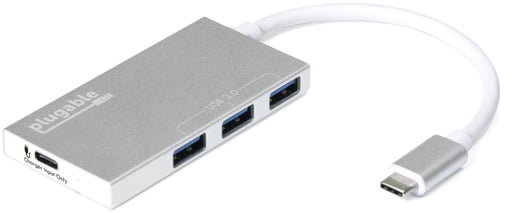
USBC-HUB3P
This Plugable USB-C 3-Port Hub allows up to three standard USB-A devices to be attached to a host computer while simultaneously charging the host using its existing USB-C power adapter.
Video Capture and Microscopes
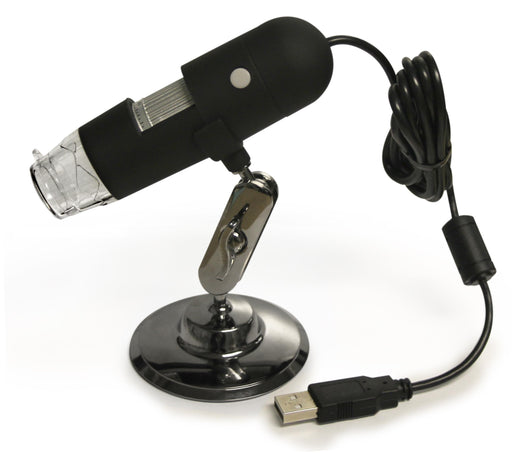
USB2-MICRO-200X
This Plugable USB microscope provides up to 200x magnification and can be used with Windows, Mac OS X, or Linux simply by plugging it into a spare USB 2.0 port.
April Fools
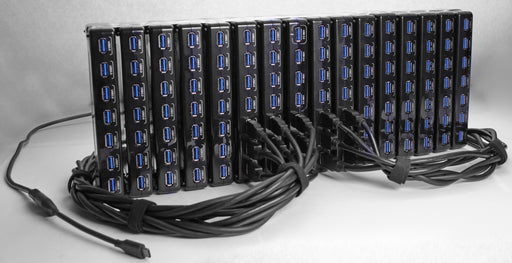
USB3C-HUB97XXX
The Plugable USB3C-HUB97XXX (aka "The Plugable") is the world's first 97-port USB 3.0 Type-C hub, and is fully backward, forward, and sideways compatible with all USB hosts and devices.

USB-MICRO-9000
Plugable's USB-connected DNA microscope magnifies subjects in view of it's robotic armature by 9000x!
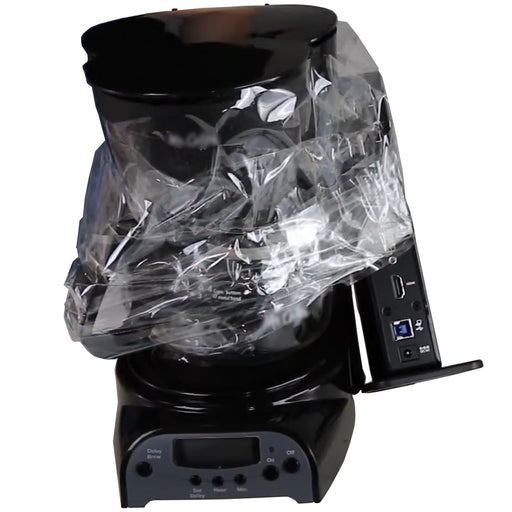
UD-99000-C
A revolutionary dock that combines world-class drip coffee with world-class USB docking station functionality.
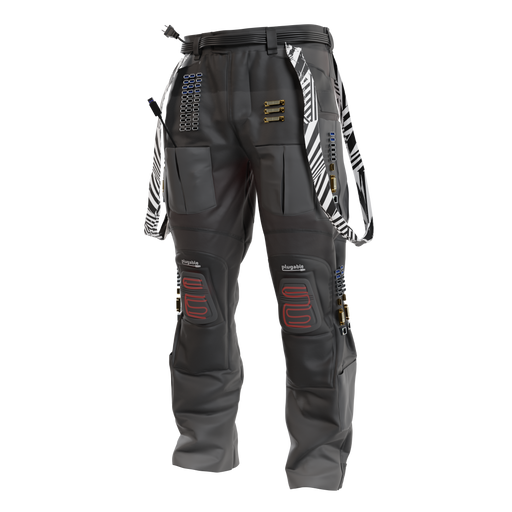
UD-PANTS-87
The only pants with a docking station built right in. With 87 ports—including not just one, but three 25-pin D-subminiature serial adapters—you'll be making connections you haven't thought of in years.
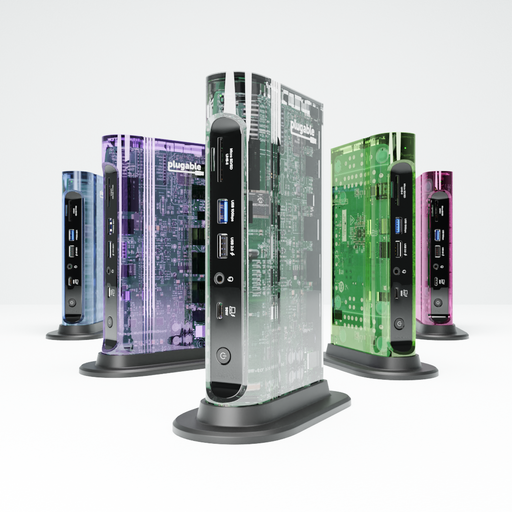
TBT-CLEAR
Plugable's new TBT-CLEAR combines the modern performance of Thunderbolt with peak 90s aesthetic—a see-through case. This is going to look rad on your desk.
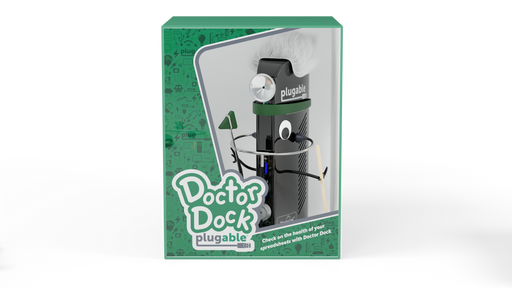
UD-DOCKIES
Plugable is introducing Dockies, the only docking station that lets you customize your docking experience. Yes, these colorful characters will take your desk from boring to bananas at Thunderbolt speeds!


