


Hassle free, 2-Year Warranty
Fast, Free Shipping on Orders $35+
Lifetime Technical Support
30-Day Money Back Guarantee
Plugable USB-C Voltage & Amperage Meter for High Power Devices (240W EPR)
$29.95 USD
SKU: USBC-VAMETER3Amazon Rating : (407 Reviews)
Features
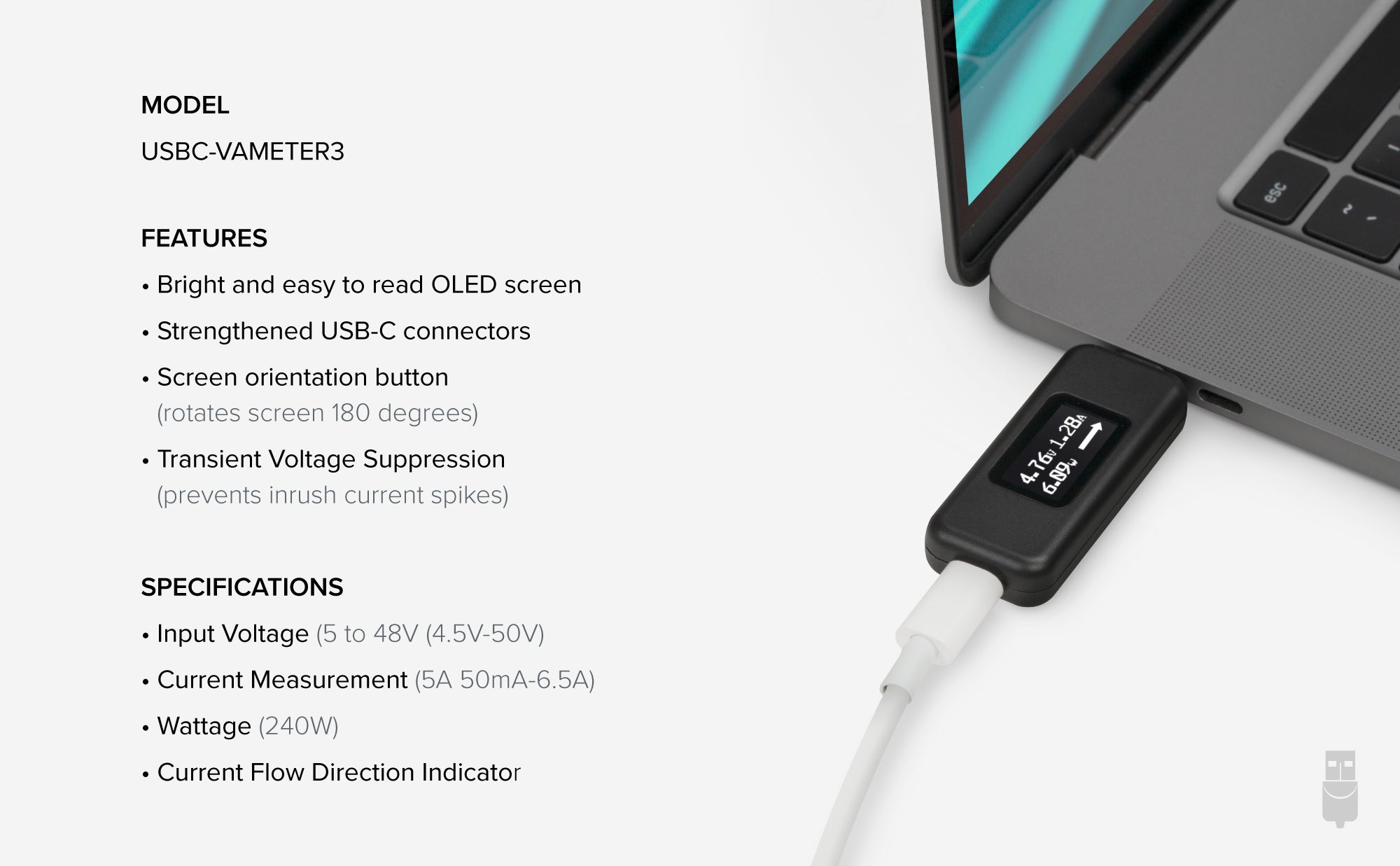
- At a Glance— USB C Tester monitors USB-C power and charging up to 240W. Measure voltage and amperage. Visualize the directional flow of electrical current. Updated OLED display is brighter and easier to read. New orientation button lets you flip the screen 180 degrees
- Bidirectional— USB power meter can be connected in either orientation, allowing for the full range of USB Extended Power Range (EPR) voltage from 5 to 48V (4.5V-50V, 50mA-6.5A operating range)
- Broad USB Support— Used as a data and power quality meter, device allows USB data pass through, USB-C Alt Mode video, USB-C charging. Use USB-C tester with USB-C docking stations, chargers, accessories, etc. Not compatible with Thunderbolt 3 devices
- Small and Tough— Small enough to go anywhere you need a USB C voltage meter. Even fits most phones and tablets without removing protective case. Strengthened USB-C connections ensure it's sturdy enough to be your go-to USB C power tester
- 2-Year Coverage, Lifetime Support— Every Plugable product, including this USB C power meter tester , is covered against defects for 2 years and comes with lifetime support. If you ever have questions, contact our North American-based team - even before purchase
For volume orders or business inquiries contact sales@plugable.com
Free 3-Day Continental U.S. Shipping on Orders Over $35!





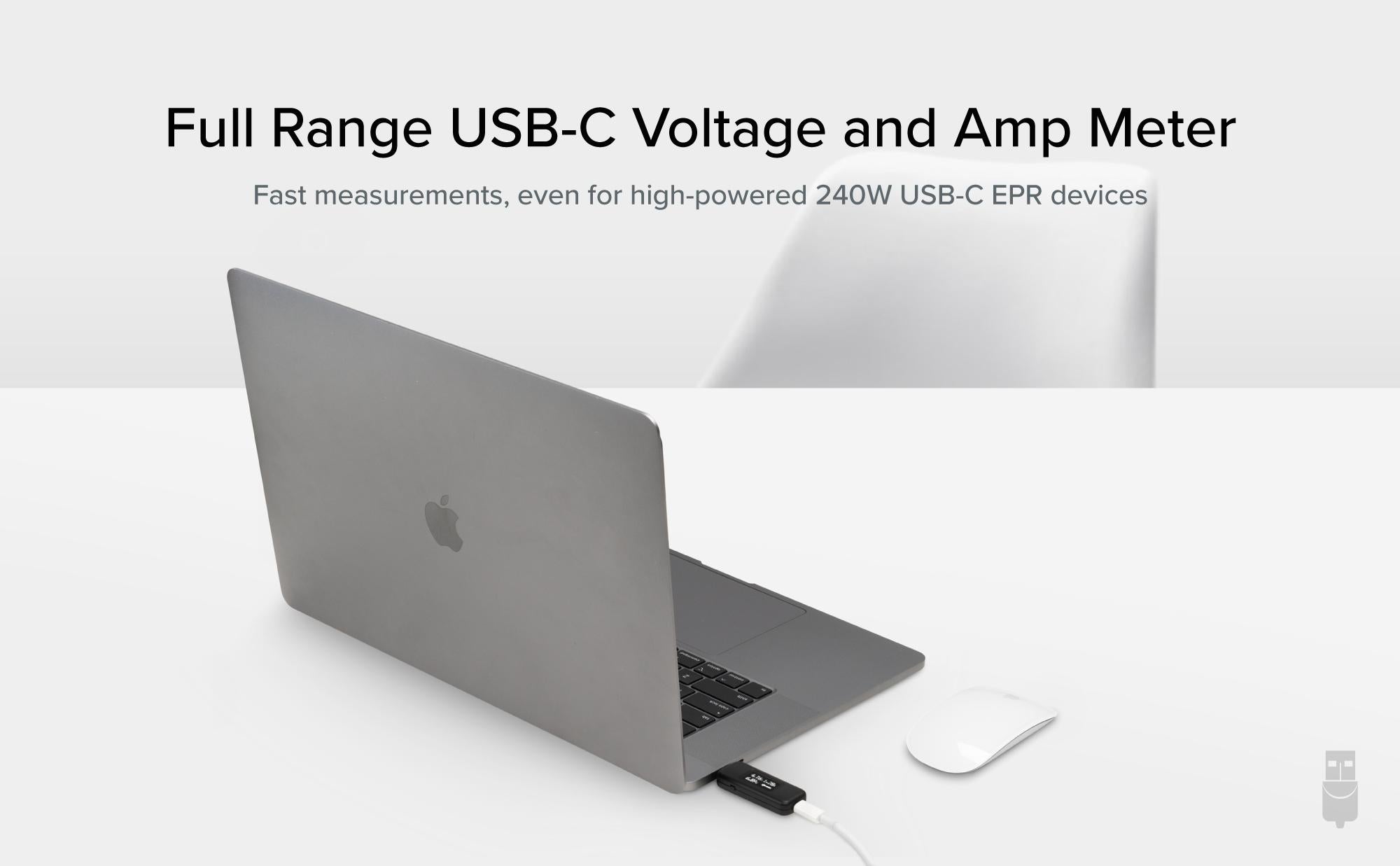
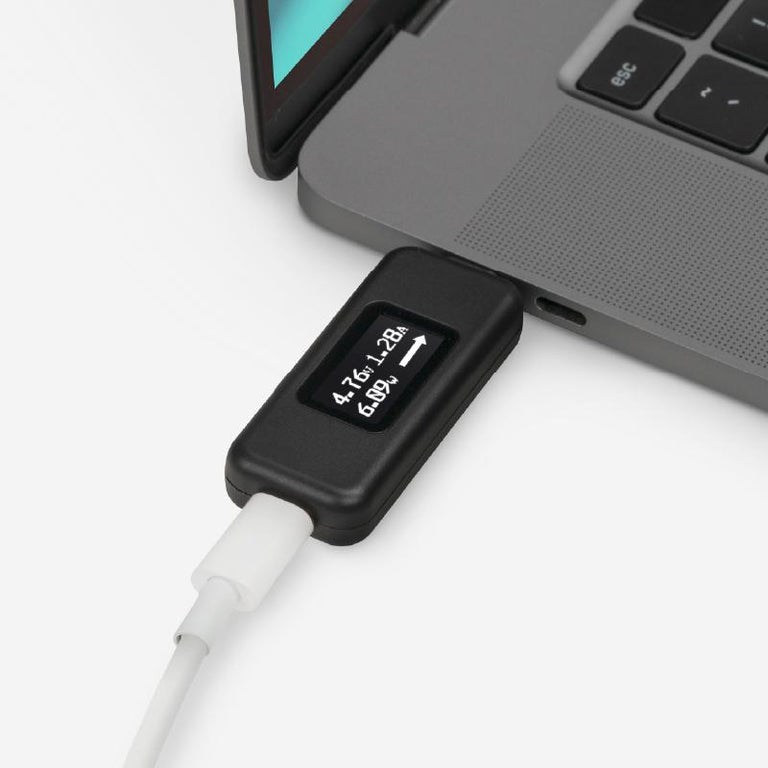
For a multimeter, the Plugable USB-C Amperage and Voltage Tester (USBC-VAMETER3) manages to fit a lot of useful features into a sturdy little package. About the size of a USB flash drive, this bidirectional USB tester allows for full USB data passthrough while it monitors USB-C power and charging, measures voltage and amperage, even visualizes the directional flow of electrical current–all in real time.
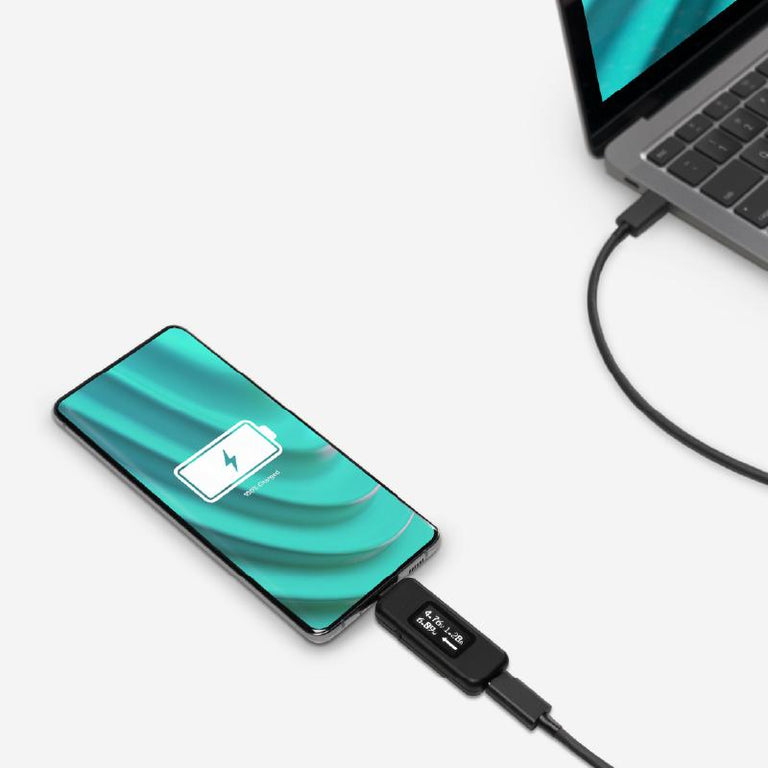
Connect the USBC-VAMETER3 inline between a USB-C host system like a laptop, tablet, or cell phone and a charger to use it as a USB voltage meter or power consumption meter. An updated OLED screen means a brighter and easier-to-read display in any lighting conditions, and a new orientation button lets you flip the screen with a click.
How it works:
This meter is a transparent interposer–it should not interfere with the USB data (1.1 through 3.1 Gen 2), USB-C Alternate Mode video, or USB-C charging. The meter can be used in-line with USB-C docking stations, chargers, and other USB-C accessories. The meter is able to achieve this without interfering with normal USB-C operation as it only taps into the power (VBUS) and ground connections to measure values and leaves the data lines untouched.
Common uses:
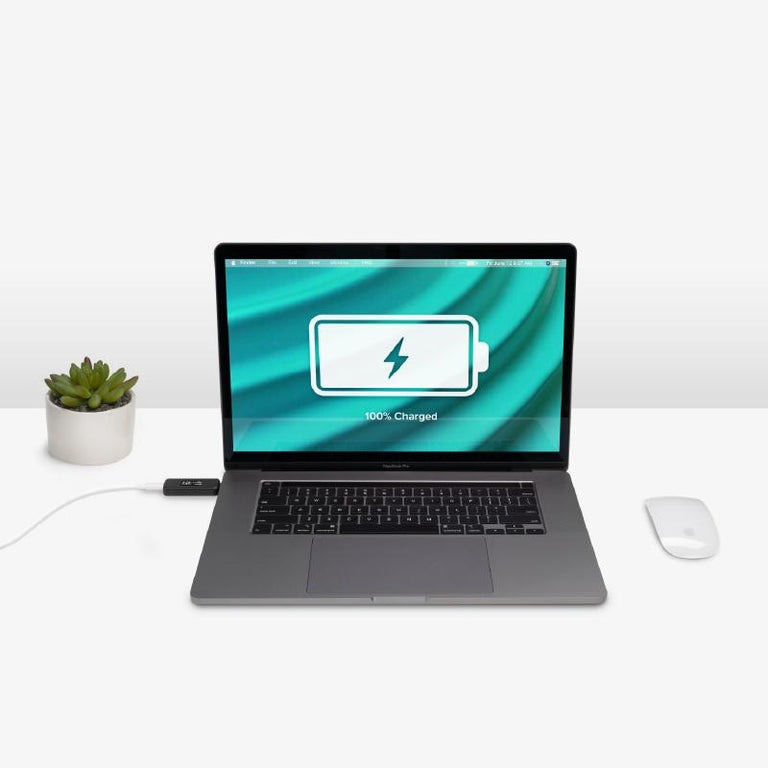
- Connecting between a USB-C host system like a laptop, tablet, or cell phone and a charger to monitor charge information.
- Connecting between a USB-C host and docking station to monitor charge information.
- Connecting between a USB-C host system and a USB-C bus powered accessory like an external hard drive, flash drive, etc to measure power draw of a device.
- Testing for USB-C port spec compliance such as a VBUS hot condition, voltage drop under load, etc.
Important notes:
- This meter is not meant to replace professional USB-C test equipment, it is designed for quick/easy measurements for users of any skill level.
- Not compatible with Intel Thunderbolt 3 devices.
Specifications:
- Meter is bidirectional and can be connected in any direction
- Supports 4.5-50V, 50mA-6.5A operating range
- Support USB-PD R3.1 Extended Power Range (101W-240W)
- Supports all USB data (1.1 through 3.1 Gen 2)
Additional Notes:
Please note that under normal circumstances the meter will not power on without a device connected (host, charger, accessory, etc) at both ends. If the meter turns on when only connected at one end, the attached device is "VBUS hot" which is against USB-C specifications.
Filter Help Articles and Frequent Questions by Category
Choose one or more filters within each category to narrow down the articles. Each selection will result in only displaying articles that include all of your choices.
Articles
Well how about that, it looks like we don't have any articles matching your filters! Try removing one of your choices or clear the filters to show all articles.
You can always contact support if you need help too!
Why can't I drive two external extended displays with my Google Pixel phone?
Google Pixel phones support USB-C DisplayPort Alternate Mode for wired video output, but due to Android OS limitations, they cannot produce two extended external displays using MST, DisplayLink, or Thunderbolt docking technologies. This is a platform constraint, not a hardware or dock issue.
Understanding the Limitation
Google Pixel phones are limited by the Android operating system’s handling of external displays. While many Pixel models (such as the Pixel 7 and Pixel 8 series) support USB-C DisplayPort Alternate Mode, they can only output to a single external display at a time. Android is designed primarily for screen mirroring, and extended display support is extremely limited across Android phones.
Key Point:
Android OS currently restricts Pixel phones to one external display, regardless of the dock or adapter used.
Dock Behavior with Pixel Phones
MST Docks (e.g., Plugable UD-MSTH2)
MST (Multi-Stream Transport) requires the host device to support splitting one DisplayPort signal into multiple independent video streams. While common on Windows and many Chromebooks, Pixel phones do not support MST for extended displays.
When using an MST dock, a Pixel phone will:
- Output to one external display only, or
- Mirror the same content to two connected monitors
- Dual extended desktops are not supported
DisplayLink Docks
DisplayLink technology works on Android through a companion app (e.g., DisplayLink Presenter). However:
- Android only supports a single external display via DisplayLink
- DisplayLink docks cannot be used to achieve multiple extended monitors from a Pixel device
- DisplayLink is not recommended for dual display use on Android
Thunderbolt Docks
Google Pixel phones are not Thunderbolt-certified hosts. When connected to a Thunderbolt dock:
- They revert to basic USB-C DisplayPort Alternate Mode
- Only a single mirrored display is possible
Visual Summary
| Dock Type | Extended Displays | Mirroring | Notes |
|---|---|---|---|
| MST Dock | ❌ | ✅ | No MST support on Android |
| DisplayLink Dock | ❌ | ✅ | Requires DisplayLink app |
| Thunderbolt Dock | ❌ | ✅ | Functions as USB-C only |
Recommended Alternatives
If your goal is to use two independent external displays, consider the following instead:
- Windows laptops with DisplayPort MST support
- Chromebooks that support MST
Frequently Asked Questions
Q: Can I extend my Pixel’s screen to two monitors using any method?
A: No. As of now, Android does not support multiple extended displays. Only mirroring to one display is possible.
Q: Does DisplayLink allow multiple displays on Android?
A: No. Even with DisplayLink’s Android app, you are limited to one external display.
Q: Why do Windows and ChromeOS devices work with MST but not Android?
A: Android lacks support for DisplayPort MST and advanced GPU capabilities required for multiple display outputs. This is a software/platform-level limitation.
Conclusion
While Google Pixel phones are capable of driving a single external display, dual extended monitors are not possible due to Android OS restrictions. This applies across all dock types, including MST, DisplayLink, and Thunderbolt. For users requiring robust multi-display setups, we recommend using a Windows or Chromebook device that supports MST alongside a compatible docking station like the Plugable UD-MSTH2.
If you have any questions or need help selecting a compatible dock, reach out to our support team at support@plugable.com.
USB Port Types
USB-A

pietz, CC BY-SA 3.0 , via Wikimedia Commons
This is the standard USB connection that most computers offered prior to the introduction of USB Type-C (USB-C). Even after the introduction of USB Type-C, this is still quite common.
It can provide data transfer rates up to the USB 3.1 Gen 2 (10 gbps) specification depending on the host and device, but does not directly support video in the way that USB-C Alternate Mode does. This limitation makes DisplayLink USB graphics adapters and docking stations ideal on systems that do not have USB-C, or in instances where more displays are needed beyond available video outputs of a PC.
USB-B

Fred the Oyster, CC BY-SA 4.0 , via Wikimedia Commons


IngenieroLoco, CC BY-SA 4.0, via Wikimedia Commons
This type of connection comes in a couple different styles depending on whether USB 3.0 and higher transfer rates are supported (bottom graphic). Usually this type of connection is used to plug into USB devices that do not have a fixed cable connected, such as USB docking stations, USB hubs, printers, and others.
USB Mini-B
Fred the Oyster, CC BY-SA 4.0 , via Wikimedia Commons
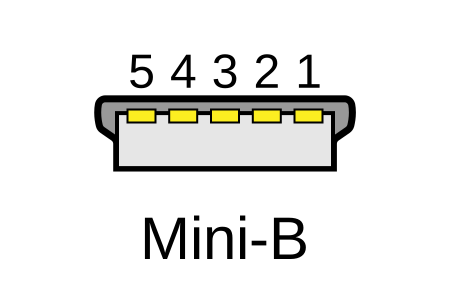
One of the first connectors for charging a smartphone, wireless game controller (such as the Sixaxis and DualShock 3), and other small devices such as external hard drives. Not commonly used today, but is still used in some cases. Most devices using USB Mini B are using USB 2.0, though a USB 3.0 variant does exist. This specification also added USB On-The-Go (OTG) functionality, though it is more commonly implemented with Micro USB.
USB Micro-B

Fred the Oyster, CC BY-SA 4.0, via Wikimedia Commons
IngenieroLoco, CC BY-SA 4.0 , via Wikimedia Commons

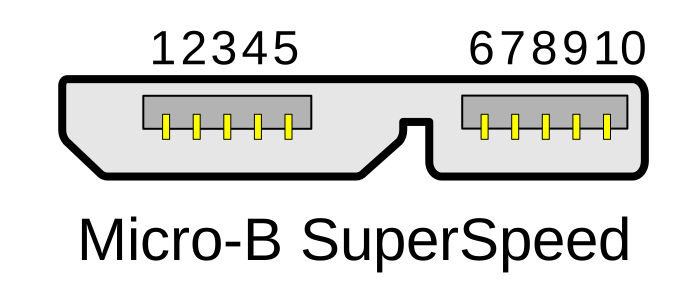
A smaller connector that serves many of the same uses as the Mini B connector, with added optional features such as Mobile High-Definition Link (MHL) to allow devices like smartphones to output video to larger displays without requiring a dedicated port for video output.
The larger variant of USB-B is most commonly used for external hard drives for higher 5Gbps transfer rates.
USB-C, Thunderbolt™ 3, and Thunderbolt™ 4
Niridya , CC0, via Wikimedia Commons
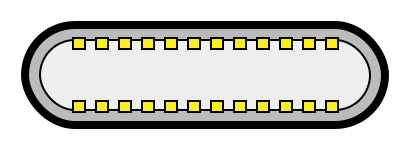
The most recent USB connection, USB Type-C (USB-C), represents a major change in what USB can do. The connector is smaller, can be connected in two orientations, is able to carry substantially more power and data, and can directly carry video signals of multiple types (HDMI, DisplayPort, etc.) Intel has also adapted the USB-C connector for use with Thunderbolt 3 and Thunderbolt 4.
It is important to note that while all Thunderbolt 3 and Thunderbolt 4 connections are USB-C, not all USB-C connections can be used with Thunderbolt 3 or Thunderbolt 4 devices.
More details regarding physical USB connections can be found on Wikipedia . The graphics depicted here are adapted from Wikimedia Commons by various artists under the Creative Commons Attribution-Share Alike 3.0 Unported license.
How Do I Calculate the Wattage From the Provided Voltage and Amperage Information on the USBC-VAMETER or USBC-VAMETER3?
The USBC-VAMETER and USBC-VAMETER3 display voltage, amperage, and the calculated wattage directly on the screen. To manually calculate the wattage (how much power a device is using), simply multiply the voltage by the amperage.
How to Calculate Wattage
The power (P) in watts (W) is equal to the voltage (V) in volts times the current (I) in amps (A), using the formula: P = V × I.
Example: If a device is charging at 20V and 5A, the calculation is 20V × 5A = 100W.
Applicable To
- Plugable USBC-VAMETER
- Plugable USBC-VAMETER3
How Accurate Are the Voltage and Amperage Measurements From the USBC-VAMETER3?
In our testing we’ve found that compared to a professional multimeter, our USBC-VAMETER3 is within +/- 3% of the true value (measured at 20V).
Please note that this meter is not meant to replace professional USB-C testing equipment, it is designed for quick and easy measurements for users at any skill level.
How Do I Calculate the Wattage From the Provided Voltage and Amperage Information on the USBC-VAMETER3?
The USBC-VAMETER3 will display voltage, amperage, and the calculated wattage on screen. If you would like to manually calculate the wattage (how much power a device using) you can follow this simple formula:
The power (P) in watts (W) is equal to the voltage V in volts (V) times the current (I) in amps (A), P = V × I.
Example: A device is charging at 48V, 5A: 48V × 5A = 240W.
What is the Difference Between the USBC-VAMETER and USBC-VAMETER3?
The USBC-VAMETER is designed for USB-C Power Delivery Revision 3.0 (5-20 volts, up to 5 amps, 100 watts maximum). Most devices currently on the market use PD R3.0.
The USBC-VAMETER3 is designed for the latest USB-C Power Delivery Revision 3.1 Extended Power Range (EPR) (5-48 volts, up to 5 amps, 240 watts maximum). As of July 2022 there are not many EPR devices available yet, but a good example is the 16" Apple MacBook Pro with 140W charger.
If unfamiliar with Extended Power Range feel free to take a look at our blog post on this topic here: https://plugable.com/blogs/news/what-is-240w-usb-extended-power-range-epr
What is USB-C Power Delivery R3.1 Extended Power Range (EPR)?
The new USB Power Delivery specifications allow for the delivery of up to 240W via a USB Type-C cable (an increase from the previous 100W max). The previous Power Delivery range has been relabeled as Standard Power Range (SPR), and the new specifications (between 100W and 240W), have been labeled as Extended Power Range (EPR).
For a more in-depth look feel free to check out our blog post on this topic here: https://plugable.com/blogs/news/what-is-240w-usb-extended-power-range-epr
Do Plugable products support the Apple SuperDrive?
No, Plugable products do not support the Apple SuperDrive.
Why do Plugable products not support the Apple SuperDrive?
The Apple SuperDrive has stringent power requirements that can only be met by directly connecting the SuperDrive directly to the host computer. As a result at this time Apple recommends only using their USB-C adapter cables. Apple provides more information on this topic here → How to connect the Apple USB SuperDrive
Applicable To
- All Plugable brand products
USB-C vs. Thunderbolt: Understanding the Differences
While USB-C and Thunderbolt share the same physical rounded rectangle connector they operate in fundamentally different ways.
The Main Differences Aren't Physical
USB 3 at 5Gbps and 10Gbps with Type-C - often simplified to USB-C - is both the hardware connector standard, and the included data types: USB 5Gbps or 10Gbps data rates, as well as optionally DisplayPort Alternate Mode video and USB Power Delivery for powering and charging both host computers, and downstream devices.
Thunderbolt, specifically Thunderbolt 3 and newer and USB4 use the same physical USB Type-C port, and support a backwards compatibility with USB-C devices, however the signaling and data structure is completely different. Both Thunderbolt and USB4 operate at between four to sixteen times the speed of USB 3. While USB offers optional display and charging, these are mandatory for Thunderbolt hosts. The way display data is transmitted is also different.
DisplayPort Alternate Mode for USB 3 occupies two or four of the physical data lanes in the USB Type-C connector and cable. Tunneled DisplayPort video in Thunderbolt (and USB4) packetizes the DisplayPort video data and transmits it within Thunderbolt/USB4 data packets. Tunneled DisplayPort allows for more native DisplayPort streams enabling multiple external displays at higher resolutions and refresh rates.
Power Delivery is the USB Type-C (as in the port) charging and power standard - this allows a power source and device to negotiate a voltage and maximum amperage both devices can support. For example a phone might negotiate a 9V 3A charge rate which is close to optimal for a phone size battery, while a notebook computer is more likely to negotiate 20V 5A both for improved battery charging and to power the system under moderate to heavy workloads.
Why USB-C and Thunderbolt Capabilities Differ
USB Type-C is a connector standard where features such as video output (DisplayPort Alt Mode) and USB Power Delivery (PD) are optional and depend on the host device manufacturer. In contrast, Thunderbolt sets mandatory performance and hardware requirements across data, video, and power protocols.
- USB 3.0 / 3.1 Gen 1: Up to 5Gbps data transfer speed.
- USB 3.2 Gen 2: Up to 10Gbps data transfer speed.
- USB 3.2 Gen 2x2: Up to 20Gbps data transfer speed. This is very rarely implemented and most computers do not support it.
- Thunderbolt 3: Up to 40Gbps data transfer speed, supports dual DisplayPort 1.2 enabling two 4K or a single 5K displays, USB, DisplayPort, PCIe over a single cable, and up to 100W Power Delivery.
- USB4: Up to 40Gbps data transfer speed, supports DisplayPort 1.4 either one or two external displays, PCIe, and optional Thunderbolt 3 compatibility, USB 3.2 Gen 2 10Gbps, and Power Delivery.
- Thunderbolt 4: Up to 40Gbps data transfer speed, supports dual 4K or single 8K displays, USB4 compatibility, USB 3.2 Gen 2 10Gbps, and Power Delivery.
- Thunderbolt 5: Up to 80Gbps bi-directional bandwidth (DisplayPort up to 120Gbps using Bandwidth Boost), supports dual 6K or single high-refresh-rate 8K displays, PCIe, and backward compatibility with Thunderbolt 4 and USB4, USB 3.2 Gen 2 10Gbps.
Effectively each tier from this list supports all of the features of the tier above as well as some new features. Thunderbolt 4 is Intel's implementation of USB4 with all optional features enabled.
How to Identify Ports and Ensure Compatibility
- Port Identification: Thunderbolt ports are usually marked with a lightning bolt symbol with a downward pointing triangle at the bottom point, this should be next to the port, while USB-C ports may be unmarked or feature symbols indicating power delivery (a simple lightning bolt is common) or DisplayPort capabilities ("DP" logo is often used). Always refer to device technical specifications for confirmation.
- Connecting Thunderbolt Devices to USB-C Ports: Thunderbolt 3, 4, or 5 devices connected to standard USB-C ports typically operate at reduced capabilities, such as lower speeds or fewer display outputs.
- Connecting USB-C Devices to Thunderbolt Ports: USB-C devices connected to Thunderbolt ports function normally, but cannot take advantage of full Thunderbolt features.
Applicable To
- Plugable docking stations, hubs, and video adapters
- USB-C standards (USB 3.0, 3.1 Gen 1, 3.2 Gen 2, 3.2 Gen 2x2, USB4)
- Thunderbolt standards (Thunderbolt 3, Thunderbolt 4, Thunderbolt 5)
If you have any questions please feel free to contact us at support@plugable.com and we'll be happy to help!
Can I connect this product to a computer's Thunderbolt/Thunderbolt 2 port?
Many users assume that USB-C devices can work with older Thunderbolt 2 Macs if they use a Thunderbolt 3 to Thunderbolt 2 adapter, such as the one made by Apple. However, this is not the case. These adapters are specifically designed to support Thunderbolt devices only - not standard USB-C peripherals.
While Thunderbolt 3 and USB-C share the same connector type, they use different underlying data protocols. Non-Thunderbolt USB-C devices, rely on USB standards for data and power. The Thunderbolt 3 to Thunderbolt 2 adapter does not carry USB signals; it only passes Thunderbolt data. Because of this, plugging a USB-C device into a Thunderbolt 2 Mac using this adapter will not work - the computer will not detect or communicate with the device.
If you need to connect peripherals to a Thunderbolt 2 system, we recommend using a USB-A dock or hub (if available on your system). This ensures compatibility without relying on unsupported adapter chains.
In short, even though the connectors may fit, USB-C devices are not compatible with Thunderbolt 2 Macs via Thunderbolt adapters - only Thunderbolt devices will work in that setup.


- Choosing a selection results in a full page refresh.
