


Hassle free, 2-Year Warranty
Fast, Free Shipping on Orders $35+
Lifetime Technical Support
30-Day Money Back Guarantee
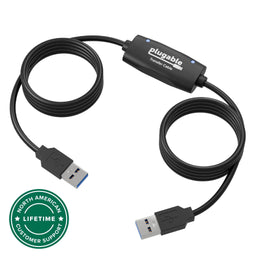
Plugable USB Windows Transfer Cable
$39.95 USD
SKU: USB-EASY-TRANAmazon Rating : (6231 Reviews)
Features
- Hassle-Free File Transfers (Windows Only)— Quickly transfer files and folders when upgrading from an older Windows 11, 10, 8.1, 8, 7, Vista, or XP computer to a newer one. 32-bit and 64-bit versions are supported. macOS and other operating systems are not compatible. Not compatible with Windows S Mode, or Windows Server editions.
- Includes Transfer Software & License Key— Comes with a full license (16-character key included on the cable) for Bravura Easy Computer Sync ($19.95 value). Software is downloadable and manages all file and folder transfers.
- Protect Sensitive Data— This transfer cable does not require a network connection, no file size restrictions, and is ideal for environments with limited or restricted network access. Provides peace of mind for transferring sensitive information.
- What Can Be Transferred - Move important documents, photos, music, videos, and other files with drag-and-drop ease. Note— Programs and installed applications cannot be transferred - they must be reinstalled from the original source or downloads.
- What’s Included— The USB-EASY-TRAN includes 6 ft (2 m) USB cable, quick start guide, and software key. Backed by Plugable’s 2-year warranty and lifetime North American support.
For volume orders or business inquiries contact sales@plugable.com
Free 3-Day Continental U.S. Shipping When Buying Direct!





Plugable USB Transfer Cable

Unlimited Use for Transferring Data
Our USB 3.0 Transfer Cables (USB-EASY-TRAN) give you the power to transfer your important files and data between two Windows PCs at a time. With convenient data transfer over USB 3.0, plug-and-play ease, and point-to-point simplicity and security, you can transfer your important files and data with confidence.
Featuring USB 3.0 High Speed “Type A” on both ends, and a Prolific PL-27A1 chipset, our Transfer Cables provide transferring without the storage limitations you’d find by using discs or drives.
A great solution for transferring files and folders when upgrading from an older Windows computer to a newer one, or for regular transfers. Provides unlimited use to transfer what you need, when you need.
Important: This cable is designed for transferring files and folders only. Installed programs and applications cannot be transferred and must be reinstalled from their original discs or installation files.


A: Product Key is a 16-character code unique to each order. Since 12/01/2017, keys are on a tag attached to the Transfer Cable. For earlier purchases, check your email or contact Amazon with your order number for assistance.
A: The Product Key is linked to the Amazon Order ID from the first purchase and is sent to that purchaser. To receive a Product Key, buy the Transfer Cable new from Plugable on Amazon. Purchases from third parties or used do not include a Product Key.
A: Yes, each PC will need a monitor, keyboard, and mouse so that you can launch and operate the transfer program.
A: No. Our Transfer Cables are not compatible with any macOS version.
A: Transfer time varies with the speed of the old “source” system (and hard drive in particular). The amount of data to be transferred will also affect transfer times, so some systems will transfer in minutes while others will take hours.
A: Yes, each PC will need a monitor, keyboard, and mouse so that you can launch and operate the transfer program.
A: We recommend installing the transfer software first because it will copy the necessary driver files to your PC so they are ready to load when the cable is attached.
A: No. Computers must be in full working order to install and run the Bravura Easy Computer Sync software to perform transfers. We would suggest finding a local and trusted technician to help.
A: You’ll receive the USB 3.0 transfer cable, a quick start guide, and a 16-character product key attached to the cable for software activation.
A: It's not required but we recommend each PC to have its own monitor, keyboard, and mouse so that you can launch and operate the transfer program.
You can set up the transfer with one monitor, but you will need to either physically unplug and plug in each monitor, or switch over to a different input if your monitor supports this.
 |
 |
 |
|
|---|---|---|---|
Link Speed |
5Gbps |
5Gbps |
10Gbps |
Approximate 20Gb Transfer Time |
4min 57sec |
4min 57sec |
42sec |
Software Included |
Yes - Bravura Easy Computer Sync |
Yes - Bravura Easy Computer Sync |
Yes - Bravura Easy Computer Sync |
Cable Length |
6.6ft (2m) |
6.6ft (2m) |
6.6ft (2m) |
Connection to Host |
USB 3.0 |
USB 3.0 and USB-C |
Thunderbolt 3/4 |
Compatibility |
Windows XP, Vista, 7, 8, 10, 11 |
Windows XP, Vista, 7, 8, 10, 11 |
Windows 10 and 11 |
Step-By-Step Instructions
The video below provides complete step-by-step instructions to get you started transferring.
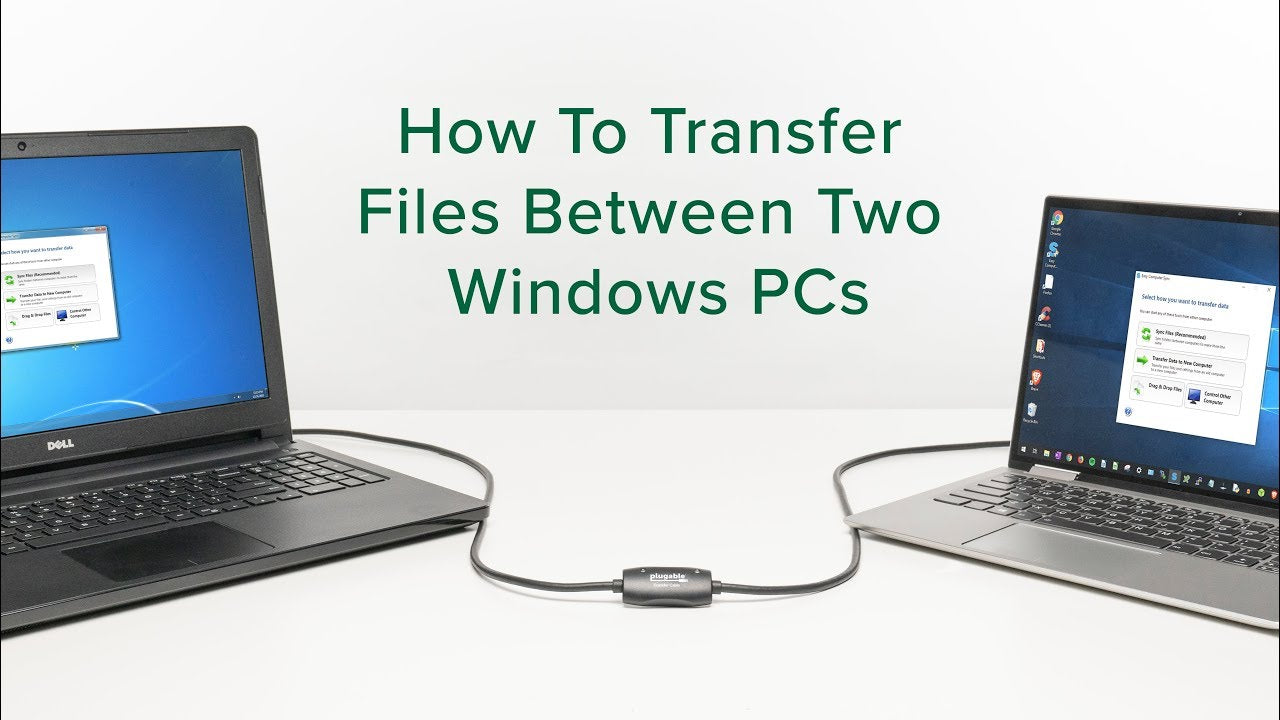
- Install Easy Computer Sync software on both computers. You can find the software download link and get further info in the Downloads tab
- Give both computers a restart to ensure the software installation process has finalized
- Connect the Transfer Cable, and start the software on both computers to initiate the connection
- At this point, you can register the software with the included 16 character Product Key
- Now, pick the transfer mode you want to use and begin transferring
Questions? We're here to help! Please reach out to us at support@plugable.com
Filter Help Articles and Frequent Questions by Category
Choose one or more filters within each category to narrow down the articles. Each selection will result in only displaying articles that include all of your choices.
Articles
Well how about that, it looks like we don't have any articles matching your filters! Try removing one of your choices or clear the filters to show all articles.
You can always contact support if you need help too!
How to - Install Easy Computer Sync Software
This guide will help you install Bravura Easy Computer Sync software onto your Windows computers for use with our Easy Transfer Cables. Click the link below to download the latest version of Easy Computer Sync. A window will open for you to save You can use your default Downloads folder, or pick another folder that works for you. Once you've picked a folder, click Save, to start the download.
Easy Computer Sync v3.0.0.3.zip
Follow the ordered steps below after you've downloaded the software installation package.
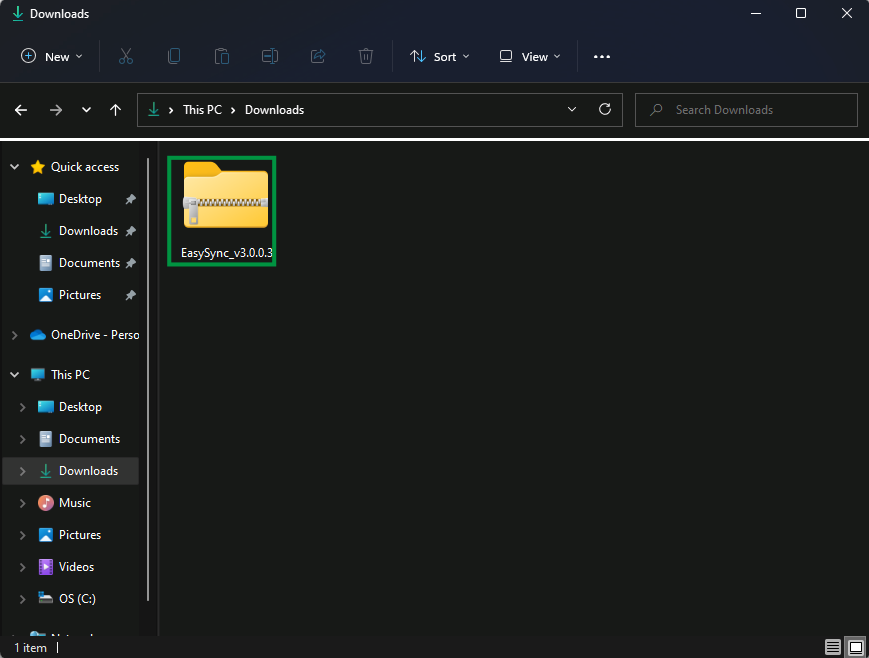
- When the download finishes, go into the folder you picked and double-click on the EasySync_v3.0.0.3.zip file to open the archive
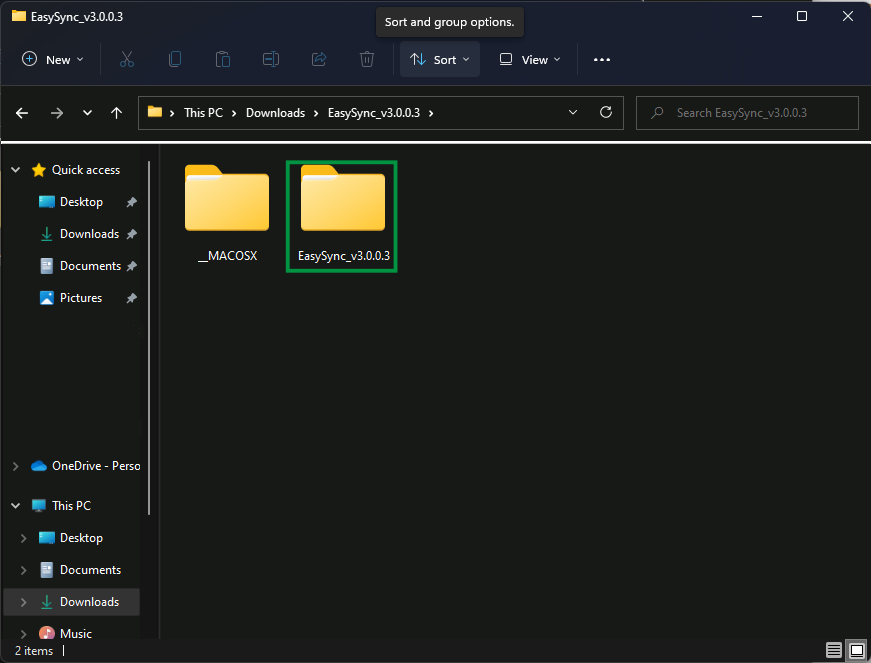
- Next, double-click on the EasySync_v3.0.0.3 folder which is inside the archive to open it
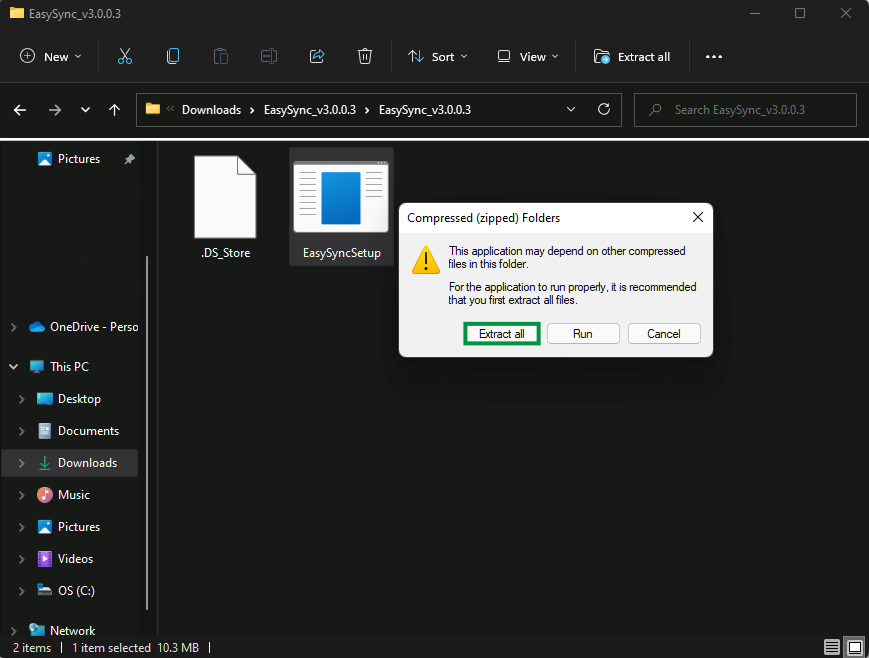
- Double-click on the EasySyncSetup application to start. A message will pop up stating that it is recommended for the application to be extracted. Let's take that recommendation, and click Extract All
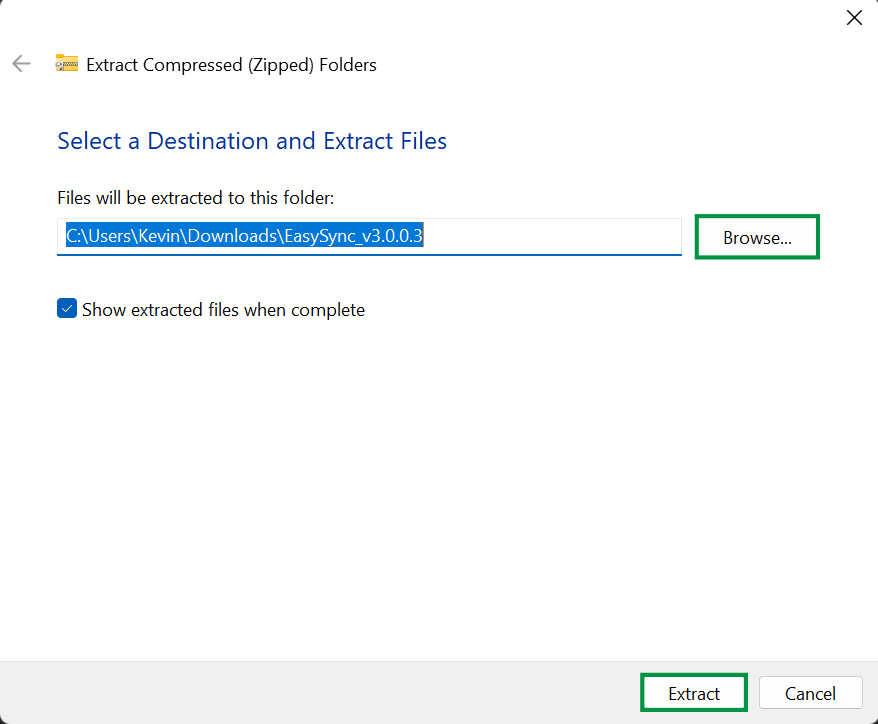
- Here we can click Browse to pick a new location, and we can click Extract to extract the files
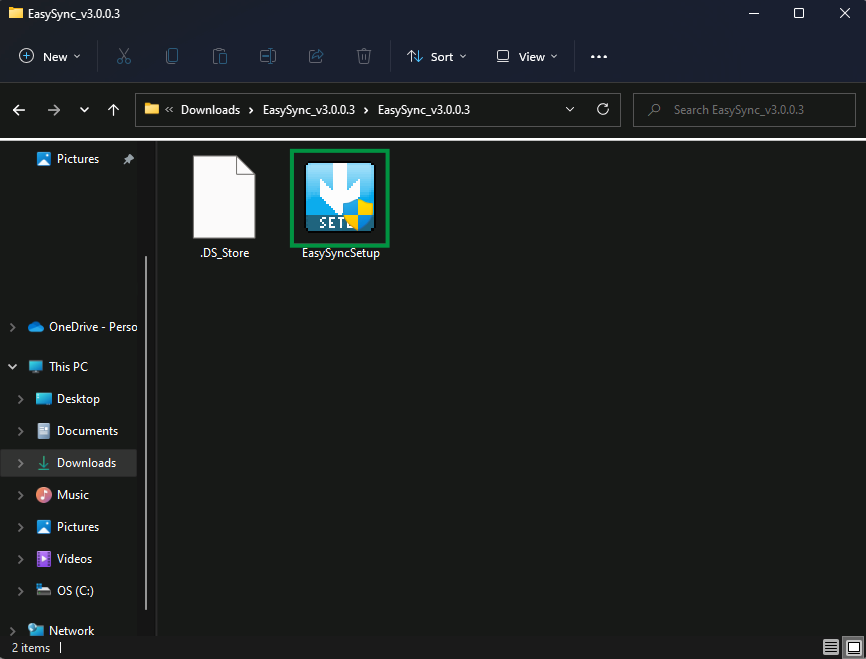
- A new window should automatically open with the extracted folder inside. But if it doesn't, you may need to navigate there yourself. Click on the EasySyncSetup application in the extracted folder to start the installation process. Note - Windows User Account Control (UAC), may pop up and ask you for permission to run the application. If it does, click Yes to allow the changes
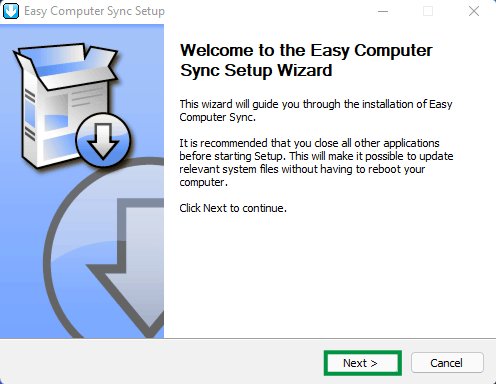
- You'll be greeted by the software welcome screen. Click Next > to continue
- Now we come to the License Agreement. Feel free to take your time to read through the license information, and click I Agree when you're ready to move on
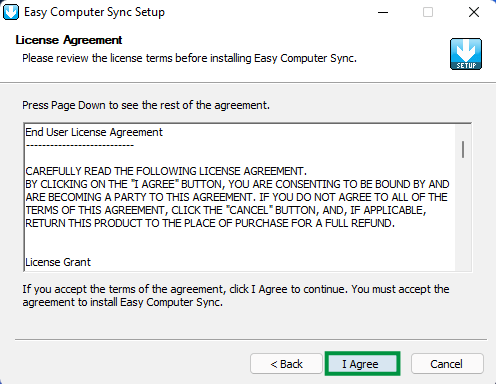
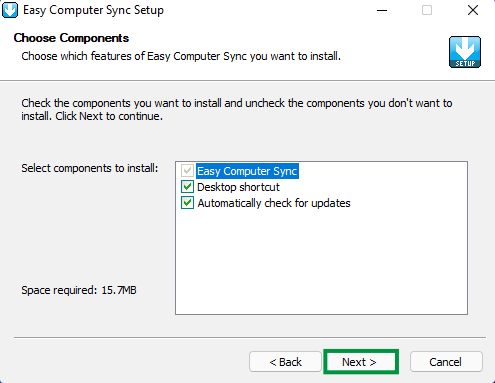
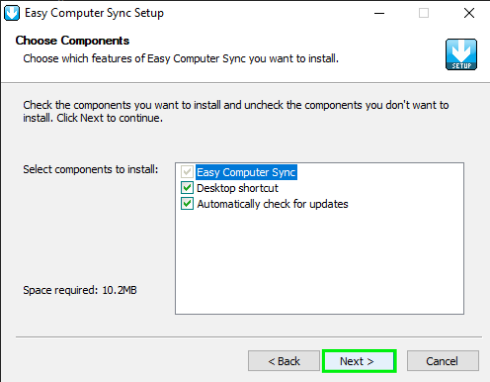
- Choose the components to install. Let's leave the default settings alone for easy operation. Click Next > to move on
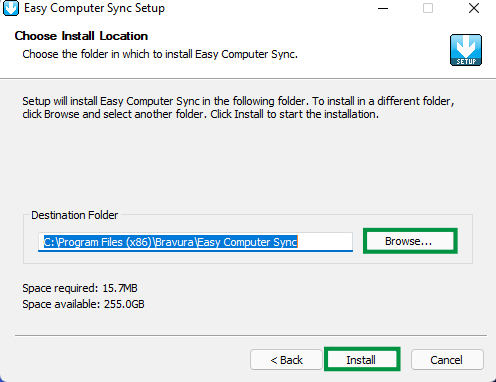
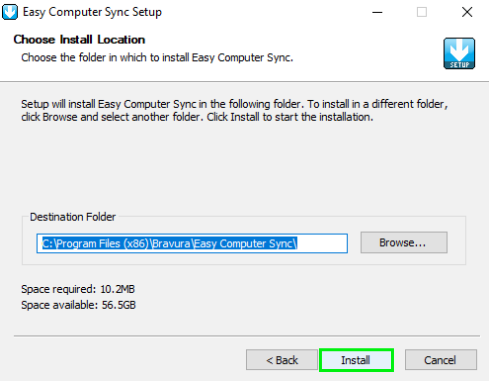
- We need to choose the location for installation. The software uses C:\Program Files (x86)\Bravura\Easy Computer Sync\ as the default folder. But, you can click Browse to pick a new folder if you'd like. Click Install once you've made your decision and the installation will start
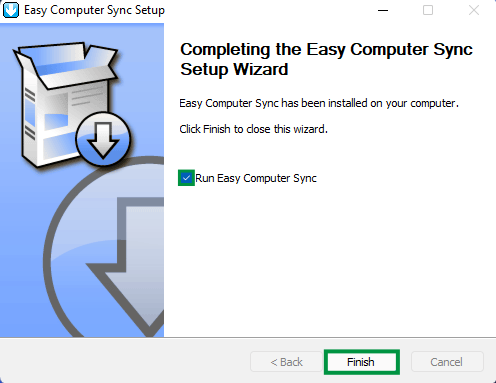
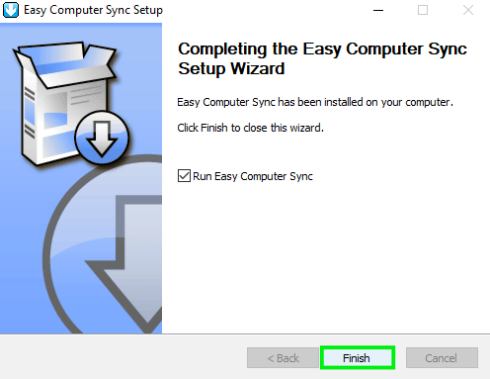
- Great! The installation is complete. Let's restart both computers for good measure after installing the software. Click the box to uncheck the option to Run Easy Computer Sync, and then click Finish to exit the installer and then restart your computers
There we have it! The software is installed, and ready to use! Plug the cable in, start the software and make the connection, then choose the transfer mode that works for you.
We hope this was helpful! Feel free to reach out to us directly at: support@plugable.com if you have any questions or concerns.
The Bravura Easy Computer Sync software is asking me for a Product Key. Where do I find my Product Key?
The Product Key is a 16-character alphanumeric code and is unique to each order. Since 12/01/2017, Product Keys are printed on a tag and are physically tied to our Plugable Transfer Cables like this:
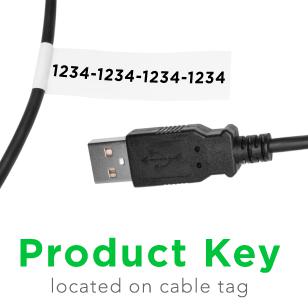
Our Product Keys:
- Use letters A-F only
- Use the number zero 0, and not the letter O.
- Do not expire
- Can be used to register as many computers as you need
If you purchased your Transfer Cable before 12/01/2017, you should have received an email containing the Product Key. Please reach out to us directly at: support@plugable.com with your Amazon order number for help with your Product Key, or if you have any questions.
I’ve installed the Bravura Easy Computer Sync software on both systems, and instead of starting the transfer process both systems say “Waiting for Connection” indefinitely. What’s going on, and how can I get the connection to work?
We can help!
First, we'd suggest downloading and installing the latest version of Bravura Easy Computer Sync onto both computers. You can download the latest version of Easy Computer Sync directly from this link: Download Easy Computer Sync . This latest software version improves compatibility and stability and should take care of any connection issues.
I downloaded and installed the latest software from the link above, but I'm still having trouble. What do I do?
Downloading and installing the latest software from the link above should take care of any connection issues. But, if you're still having trouble after that, give these steps a try:
- Give both computers a restart. This is a basic first step, but, it's always a good practice to restart your computer after installing software to allow the installation and changes to complete.
- Try plugging the cable into different ports on both computers, and let's swap the cable ends around as well to see if that gets the connection to go through.
- Try running the program as an administrator. You can do this by right-clicking the application, and choosing Run as administrator. The transfer program grants direct access to files, so Windows User Account Control may flag it, and keep it from running.
- Finally, if these steps don’t work, let’s try temporarily disabling any antivirus/firewall/security software on both computers. The software can definitely be re-enabled again, and if the connection works properly, you may need to just add an exception for the Transfer Software to your security program.
We hope this was helpful! Feel free to reach out to us directly at support@plugable.com, if you still need help with the connection or have any questions and we'll be glad to help you!
How to - Use the Transfer Data to New Computer mode
What is the Transfer to New Computer Mode?
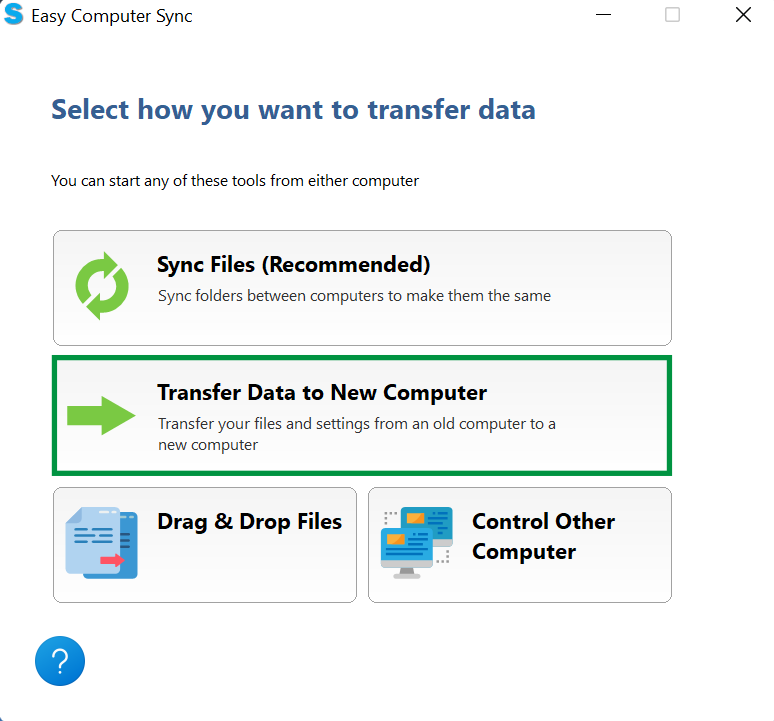
The Transfer Data to New Computer mode is one of the three main Transfer Modes available in Easy Computer Sync. This mode is designed for one-way transfers, and files should transfer between folders with the same name. For example, if we pick the Pictures folder on the first computer the files transfer to the Pictures folder on the second computer. Let's look at the steps:
- Click the Transfer Data to New Computer button on the main menu after you've made the connection
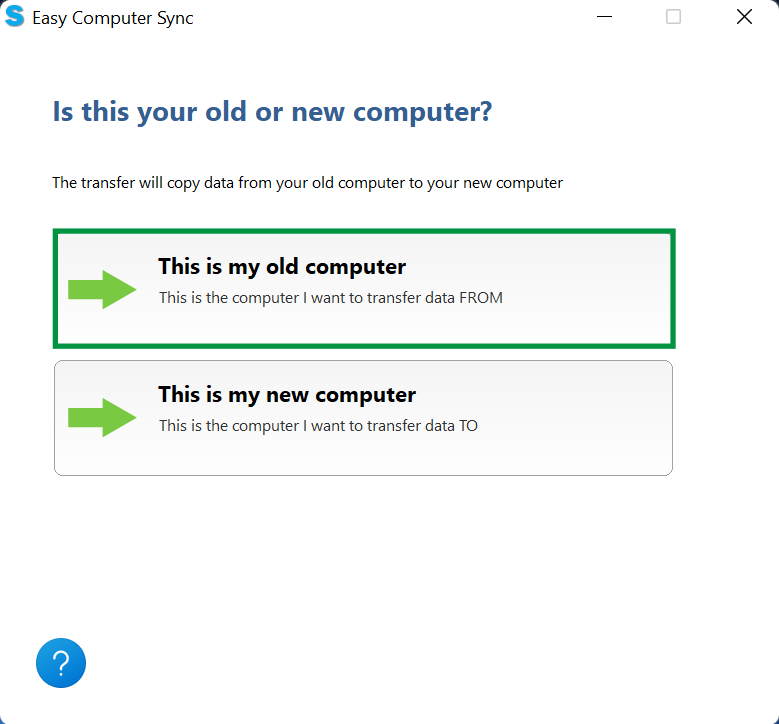
- We can pick which computer we're transferring from, and which computer you're transferring to. Typically this is mode is used to transfer from an older machine to a newer one, which is what we're doing here. So, we'll click This is my old computer
- In the top-left corner of the page we'll see the main folders where files are kept in Windows. We can click the boxes to pick folders. Please note, clicking these boxes will select all content in the folder. At this point we could:
- Click Next to start transferring
- Click Add Folder, to look for specific folders to transfer
In this example, we're going to look for specific folders transfer, so let's click Add Folder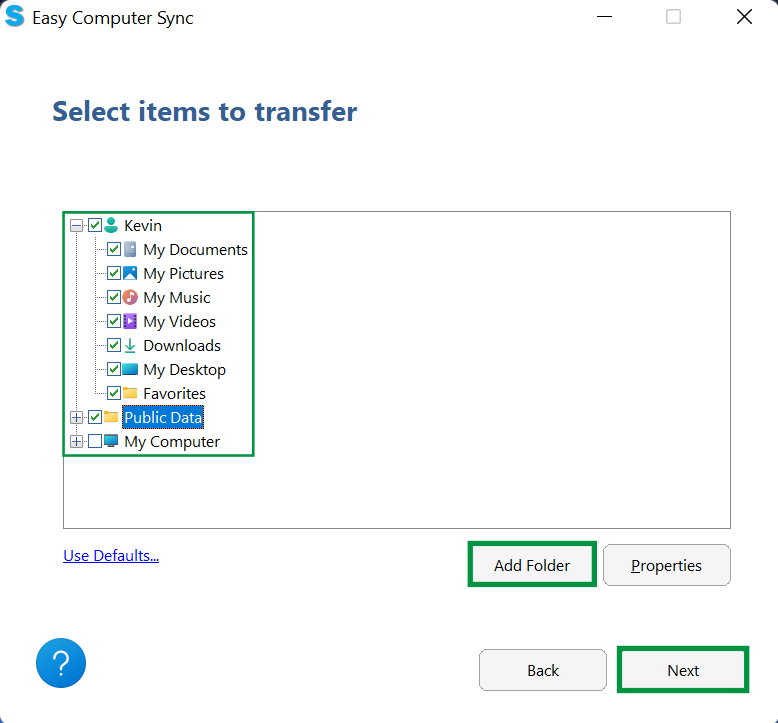
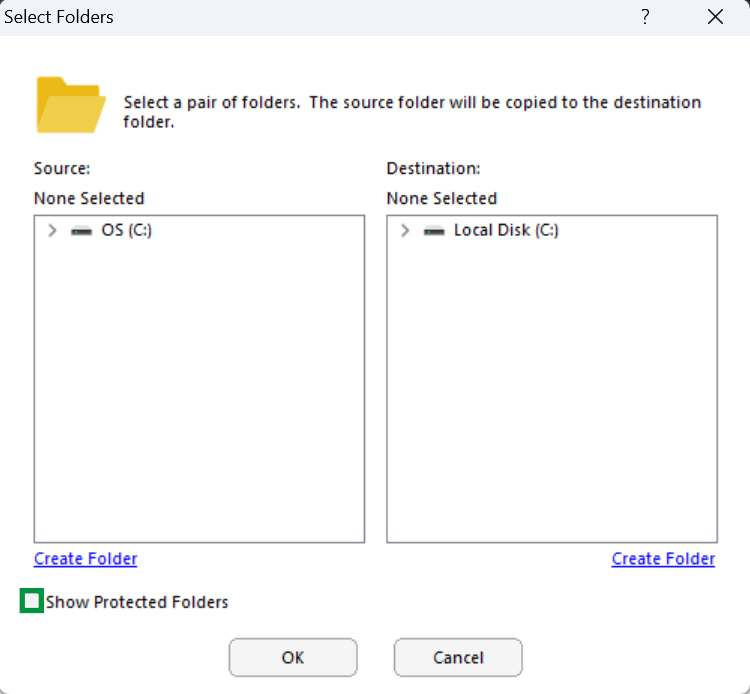
- Now, we see a screen with the first computer we're using on the left, and the second computer on the right. As a precaution, folders such as Users, Program Files, Documents, Pictures and more aren't available when the software is started. Click the box in the bottom-left of the screen that says Show Protected Folders, and we can get further access to files and folders
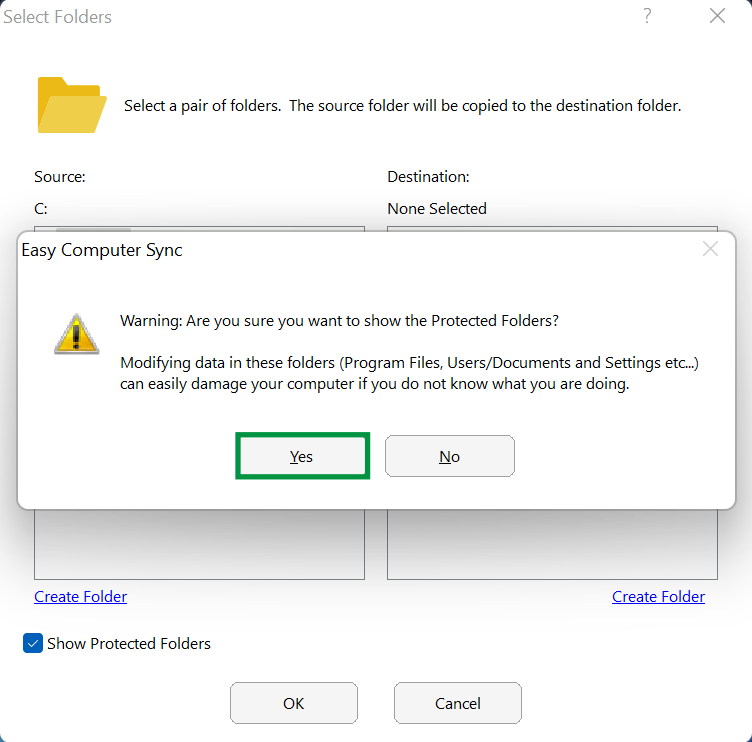
- A message will pop up with information about viewing Protected Files. Click Yes to begin
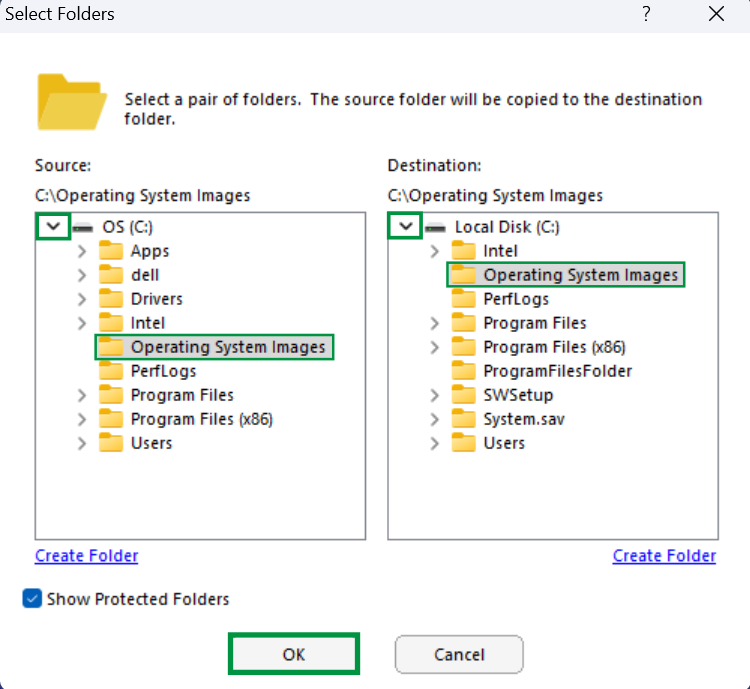
- We can click the arrows here that are next to drives and folders to expand them out, and see the content inside. Once we've found the folders needed, click OK
- Now, we have the folders we've selected ready, and can click Next, to start the transfer
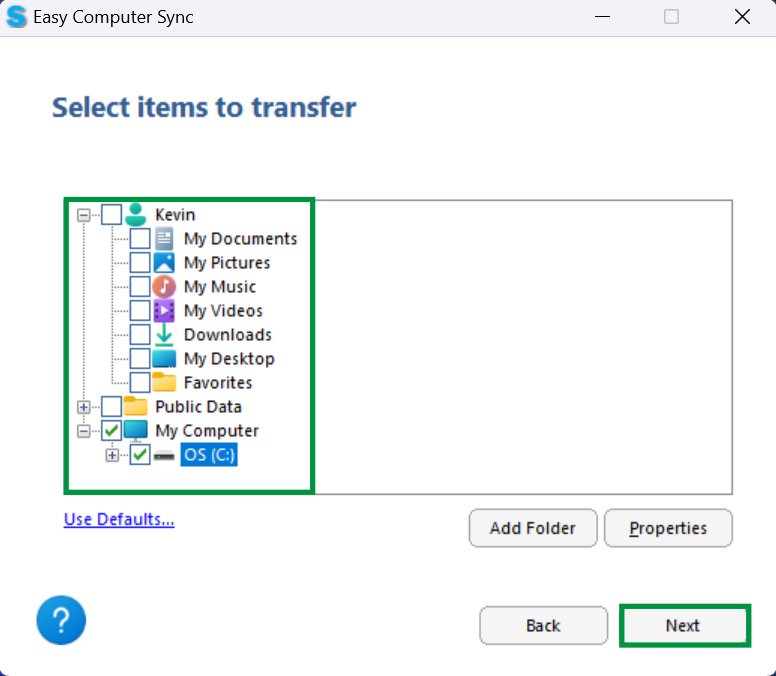
- We see the folder ready for transfer. Click Next to begin
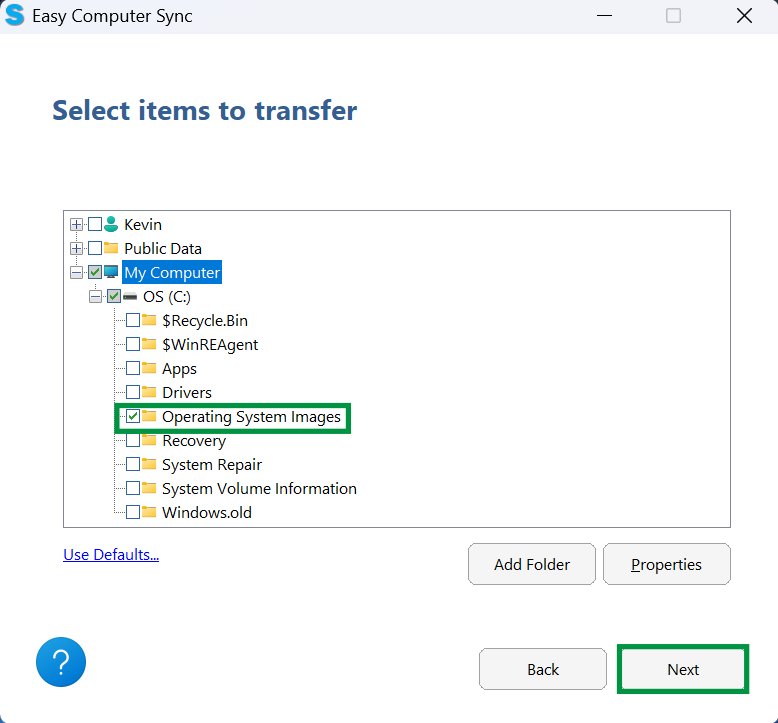
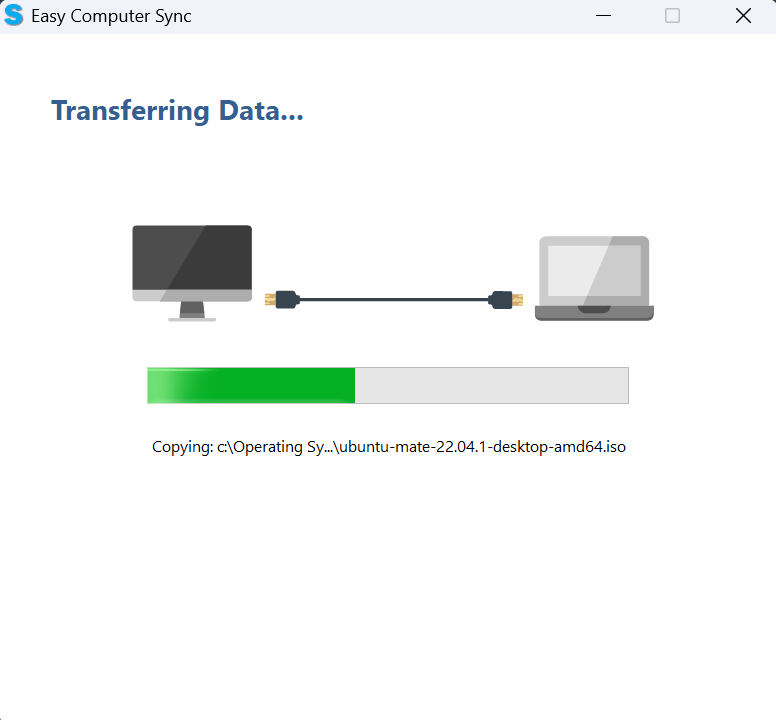
- The progress bar will fill up green as files are transferred
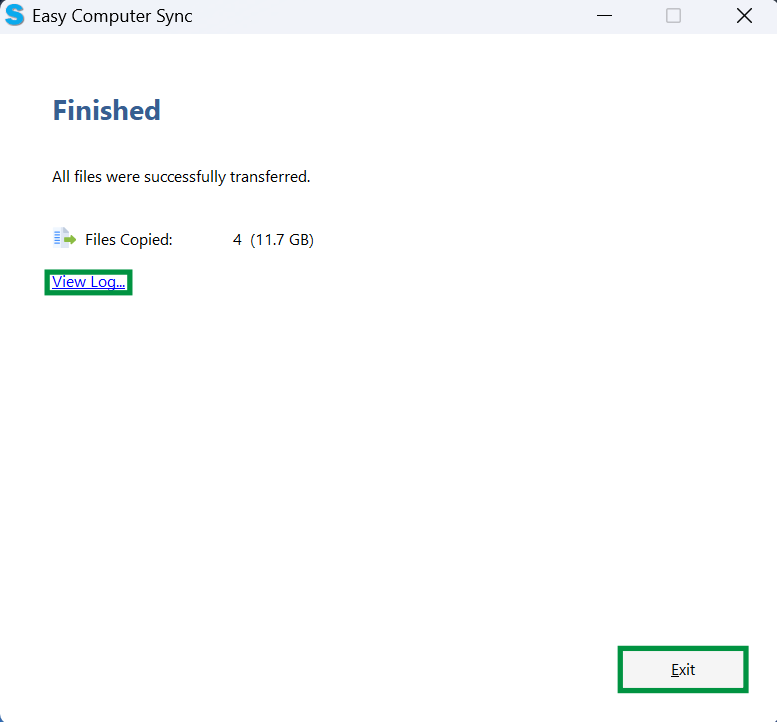
- Finished, great! At the end we'll get information about the number of files sent, and the amount of data transferred. We can click View Log, to see a log with further information, and click Exit, when finished
We hope this was helpful! Feel free to reach out to us directly at: support@plugable.com with any questions or concerns.
How to - Use the Drag & Drop mode
What is the Drag & Drop Mode?
The Drag & Drop mode is one of the three main Transfer Modes available in Easy Computer Sync. This is great for accessing specific files and folders, and let's us manually drag and drop files and folders between our computers.
- Click the Drag & Drop button on the main menu after you've made the connection
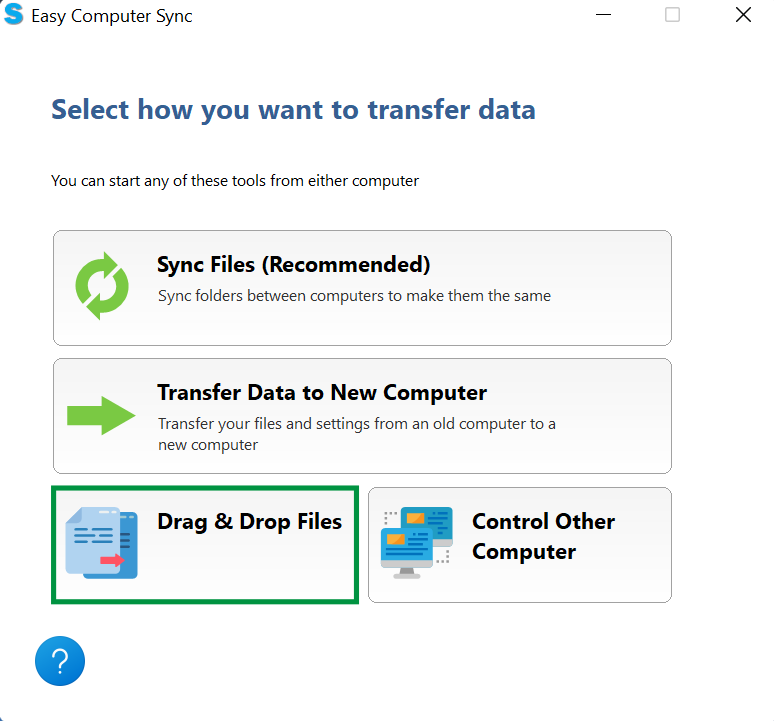
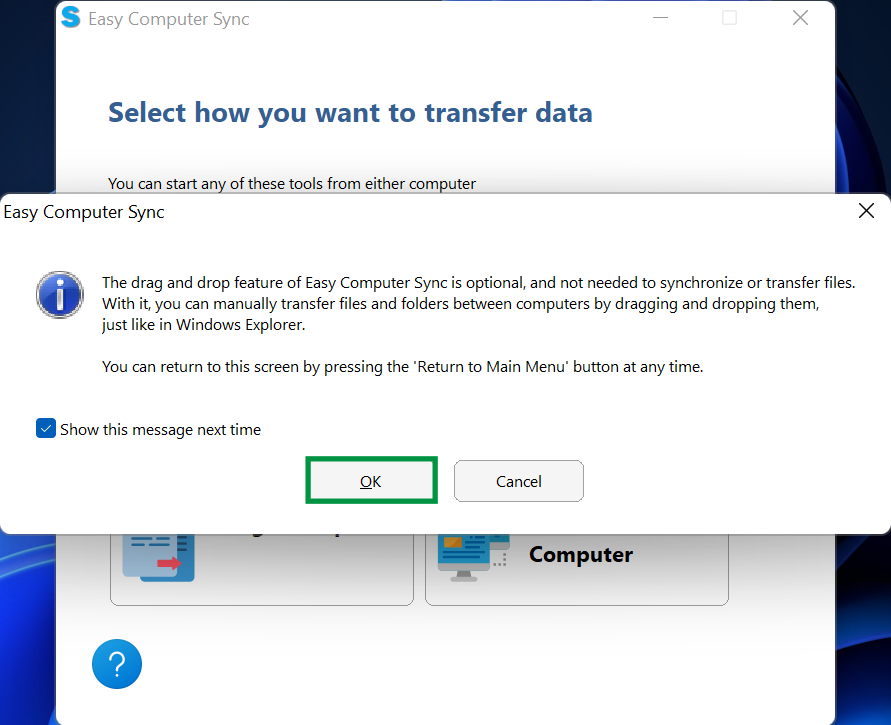
- A screen will pop up with some further information about the Drag & Drop Mode. Click OK to begin
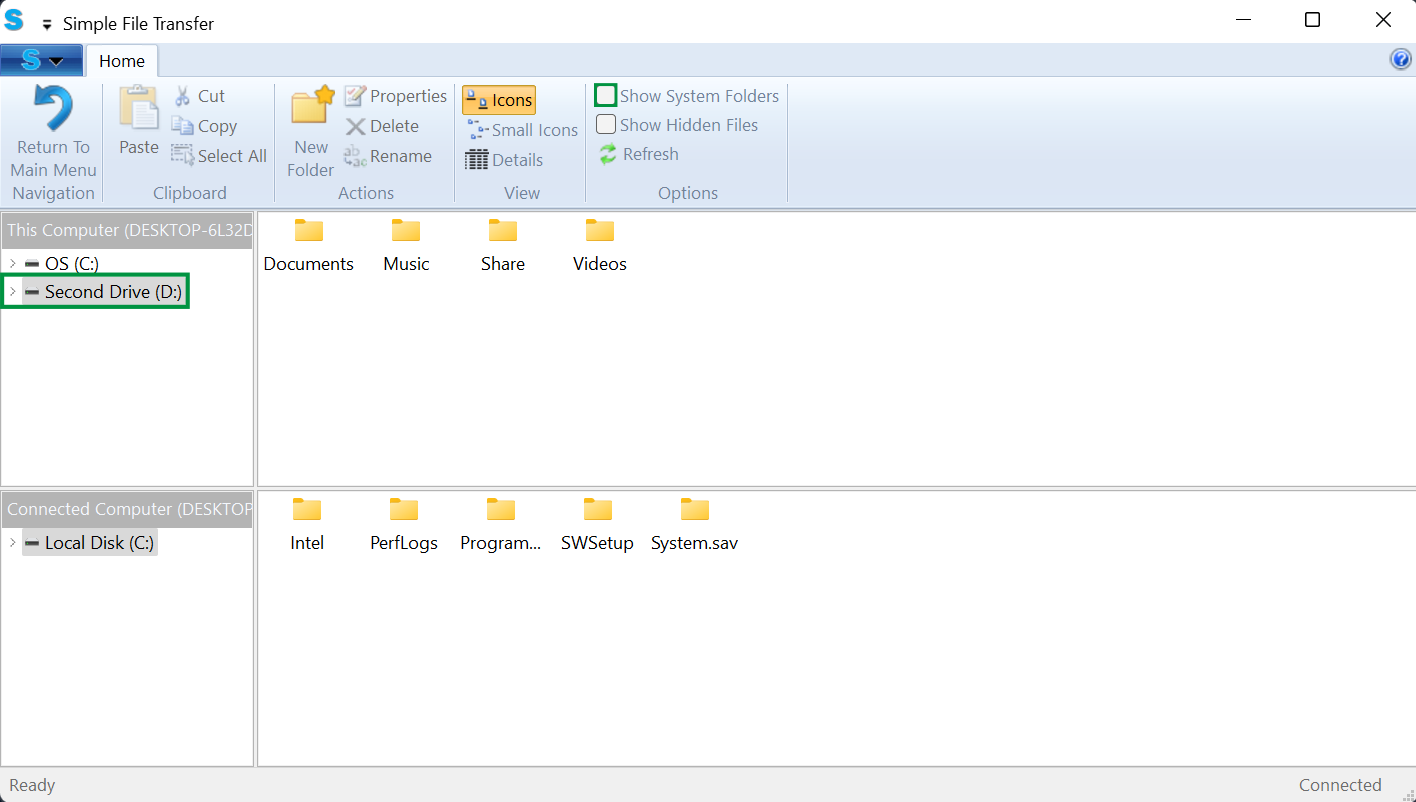
- Now, we get to the main screen of the Drag & Drop mode. Here, we can see the computer we're currently using in the top of the screen and the connected computer below. We can also see any additional hard drives automatically, like this Second Drive. Some folders aren't accessible right away, and we may need to click the Show System Folders button to get access to certain items
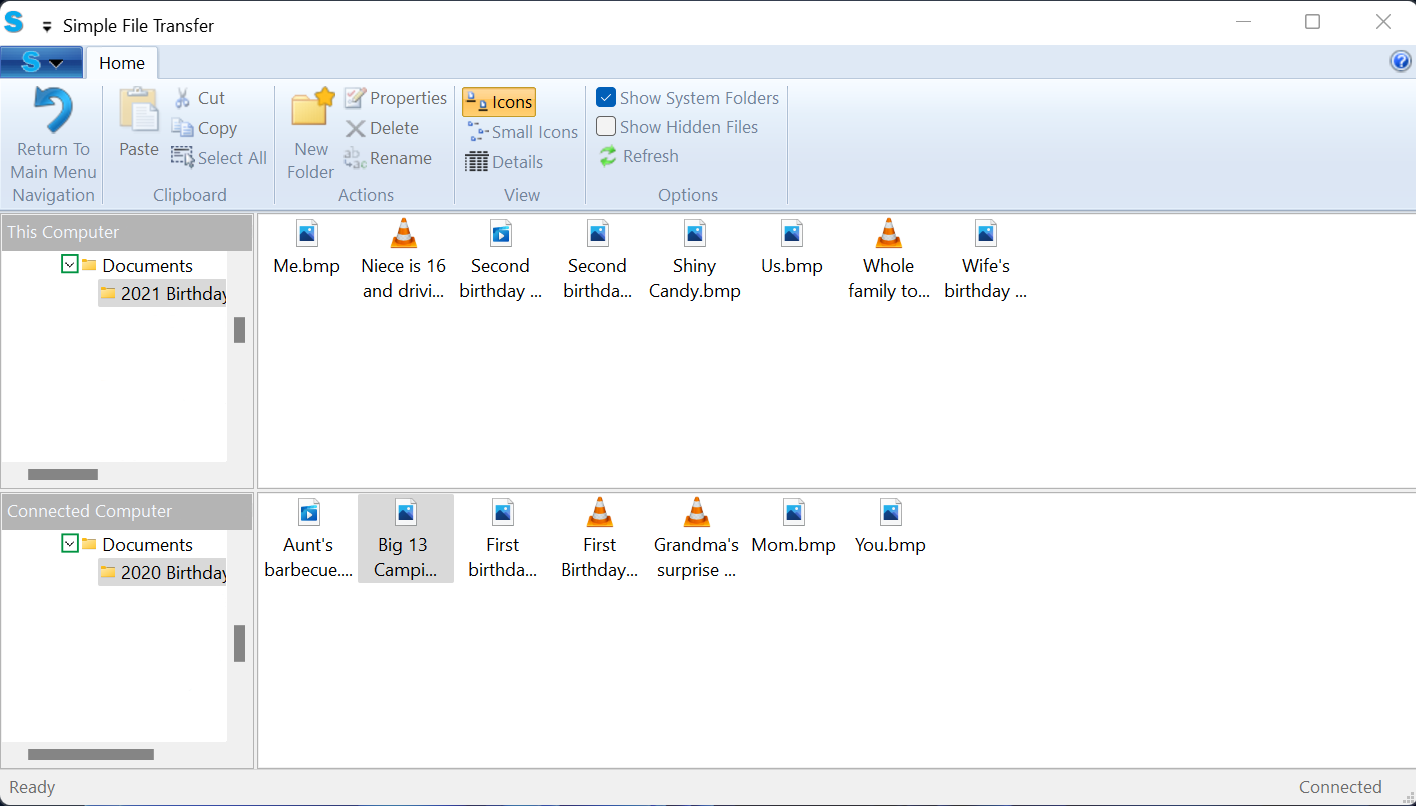
- We can click the arrows that are next to drives and folders to expand them out, and see the content inside. Now, we can see into the folders and get the content we need. Simply click, and drag files between computers to drop them to start a transfer
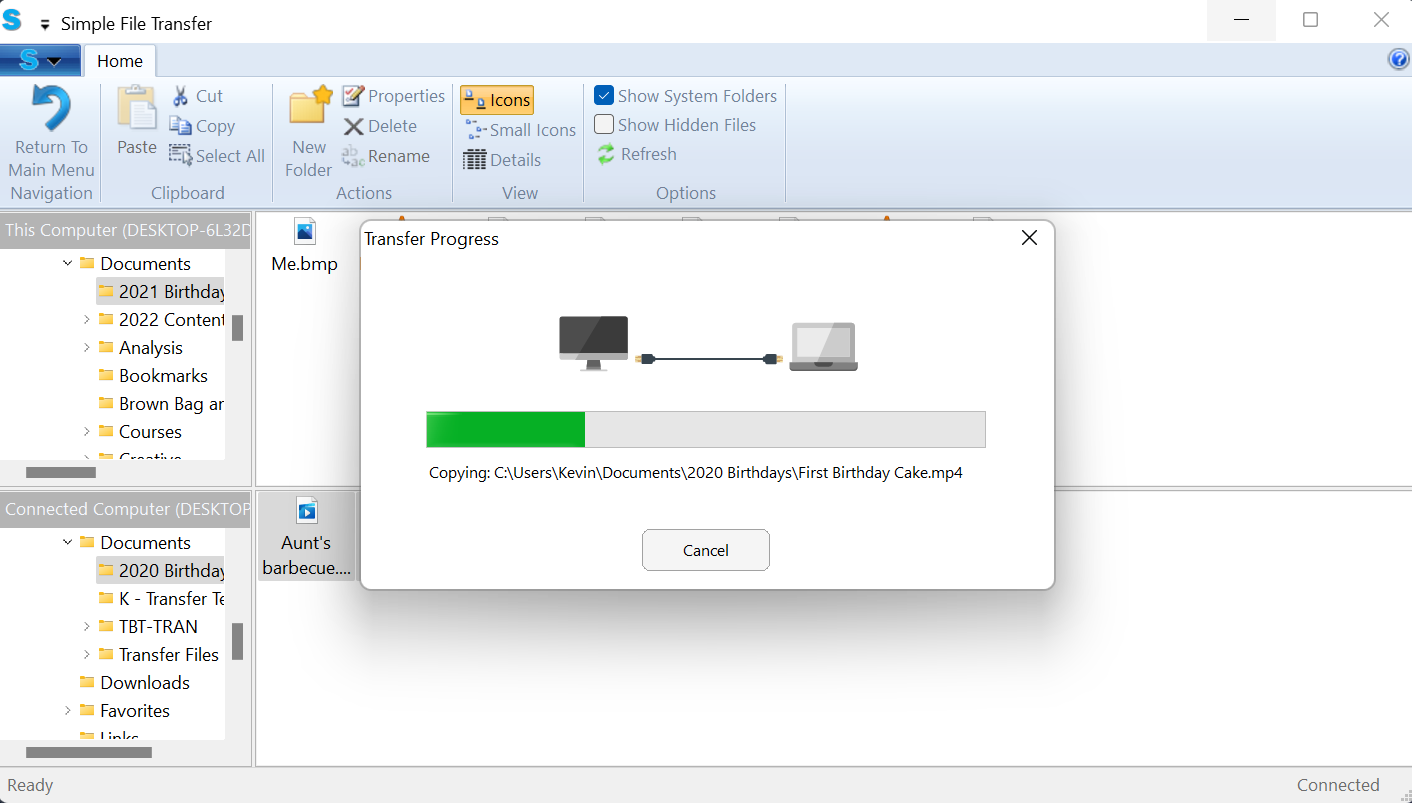
- A green progress bar will fill up a files transfer
- Great! Now we have all of the items on the top computer
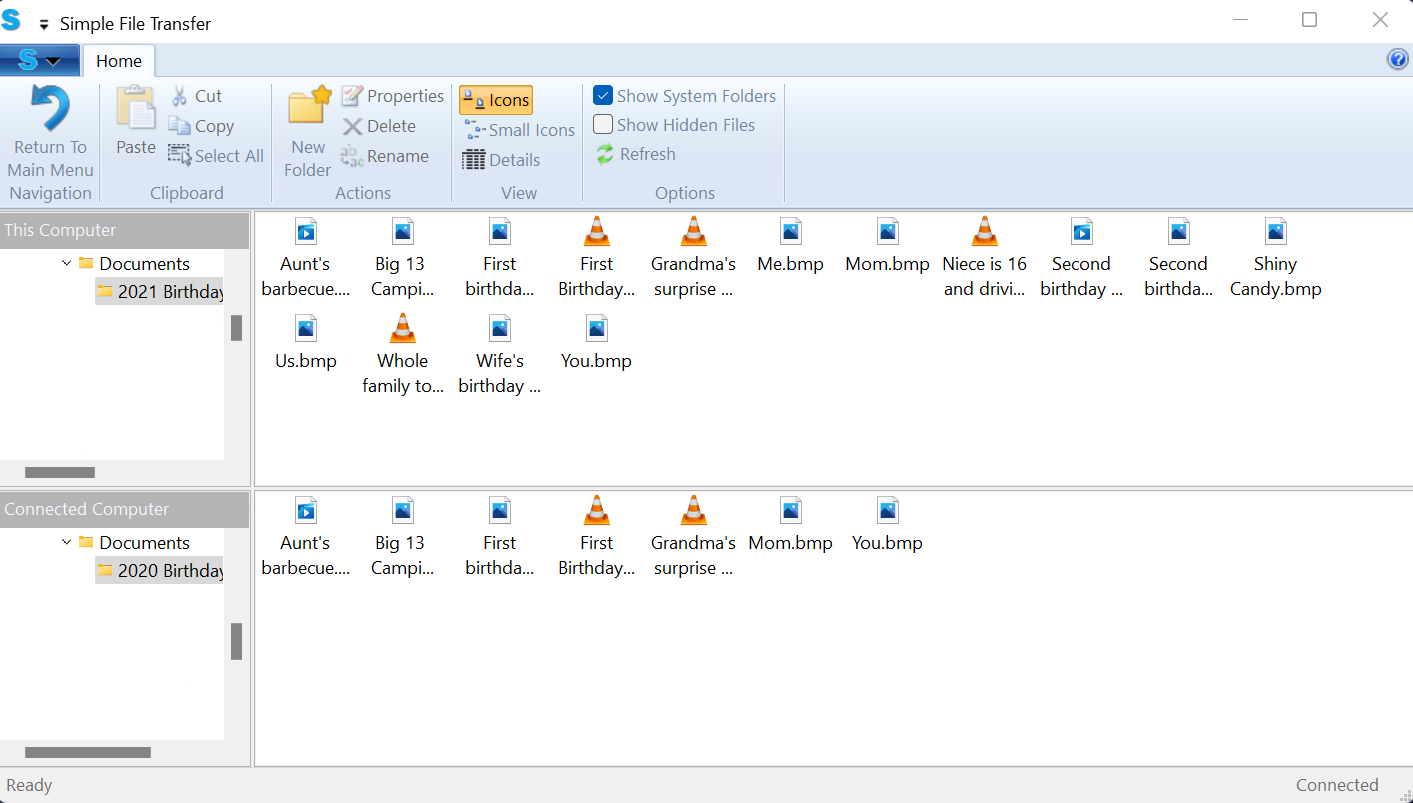
We hope this was helpful! Feel free to reach out to us directly at: support@plugable.com with any questions or concerns.
How to - Use the Sync Files mode
What is the Sync Files Mode?
The Sync Files mode is one of the three main Transfer Modes available in Easy Computer Sync. Let's say we have photos from 2021 on the first computer, and photos from 2020 on the second computer. We want to sync the computers up, and get all of the photos on both computers. That's where the Sync Files mode comes into play, and here's what we need to do:
- Click the Sync Files Button on the main menu after we've made the connection
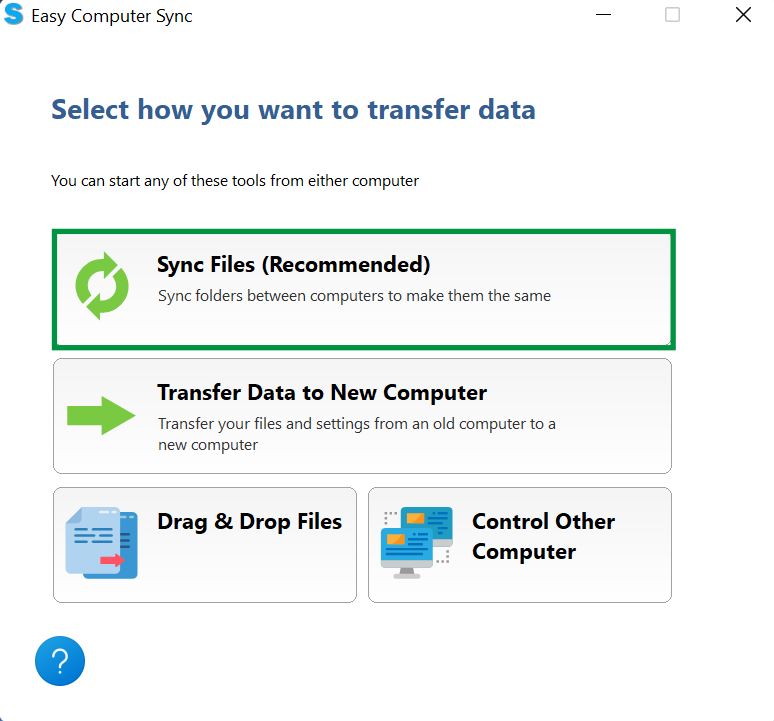
- In the top-left corner of the page we'll see the main folders where files are kept in Windows. We can click the boxes to pick folders. Please note, clicking these boxes will select all content in the folder. At this point we could:
- Click Next, to start syncing
- Click Add Folder, to look for specific folders to sync up
In this example, we're going to look for specific folders to sync up, so let's click Add Folder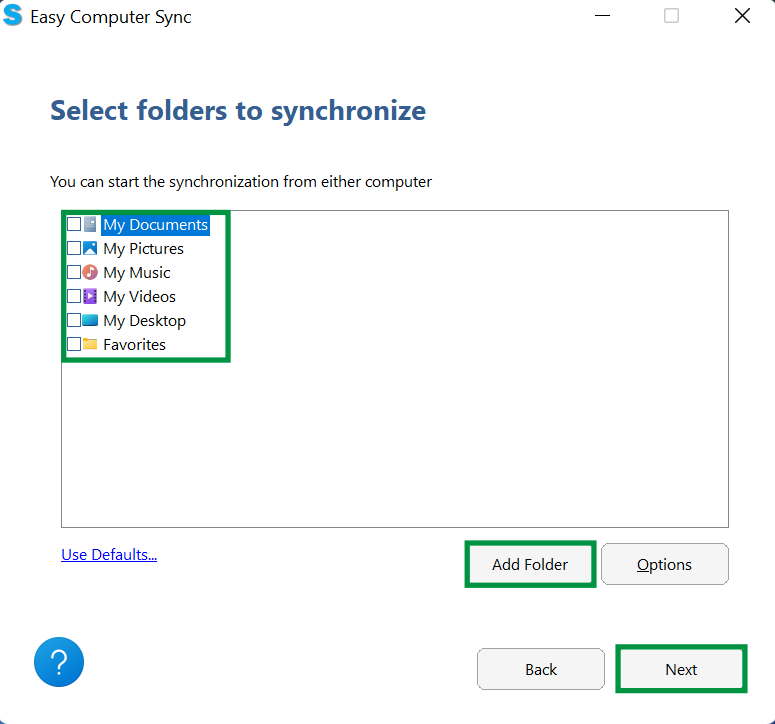
- Now, we see a screen with the first computer we're using on the left, and the second computer on the right. As a precaution, folders such as Users, Program Files, Documents, Pictures and more aren't available when the software is started. Click the box in the bottom-left of the screen that says Show Protected Folders, and we can get further access to files and folders
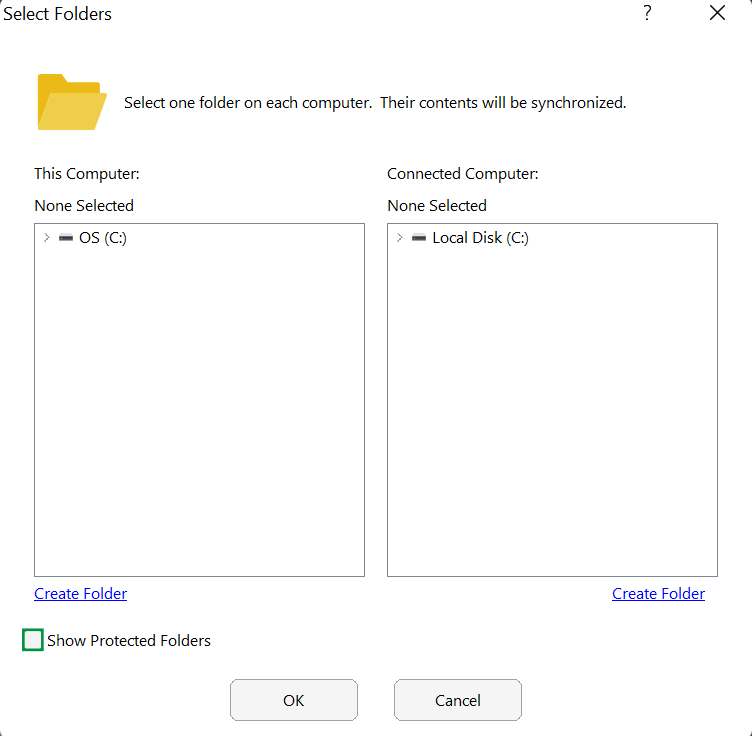
- A screen will pop up with some information about accessing files. Click Yes, when ready to move on
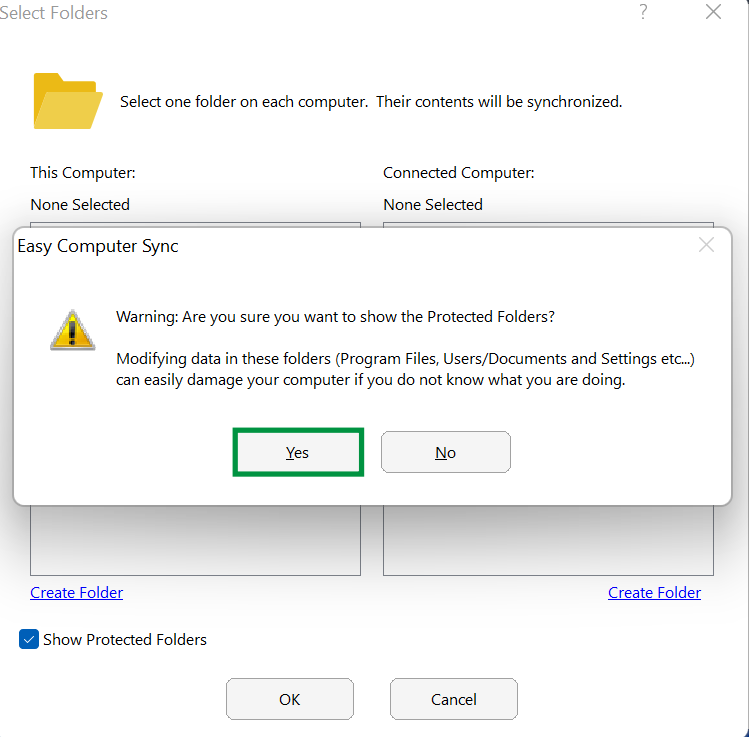
- We can click the arrows here that are next to drives and folders to expand them out, and see the content inside. Once we've found the folders needed, click OK
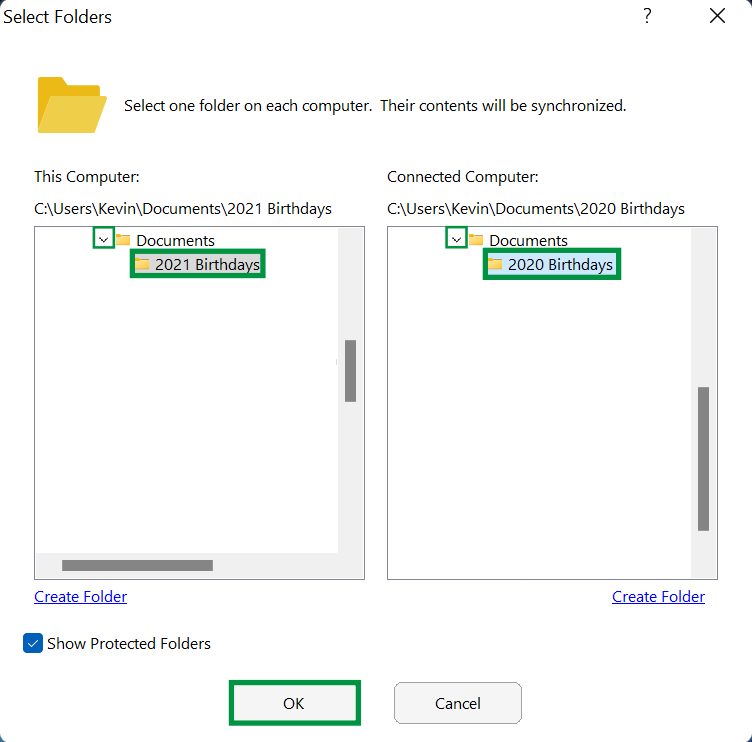
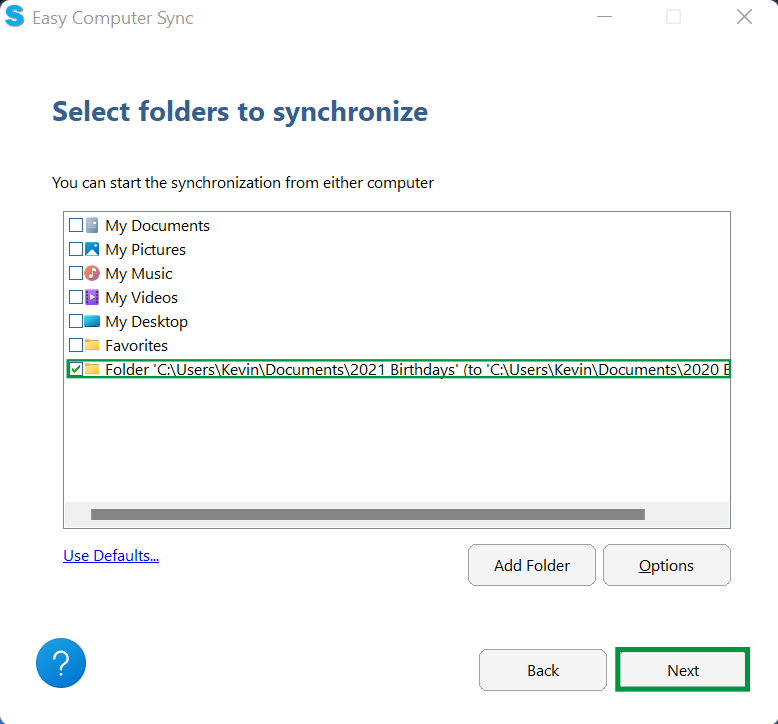
- Now, we can see that the folders we've selected are ready to be synchronized. Click Next, to begin
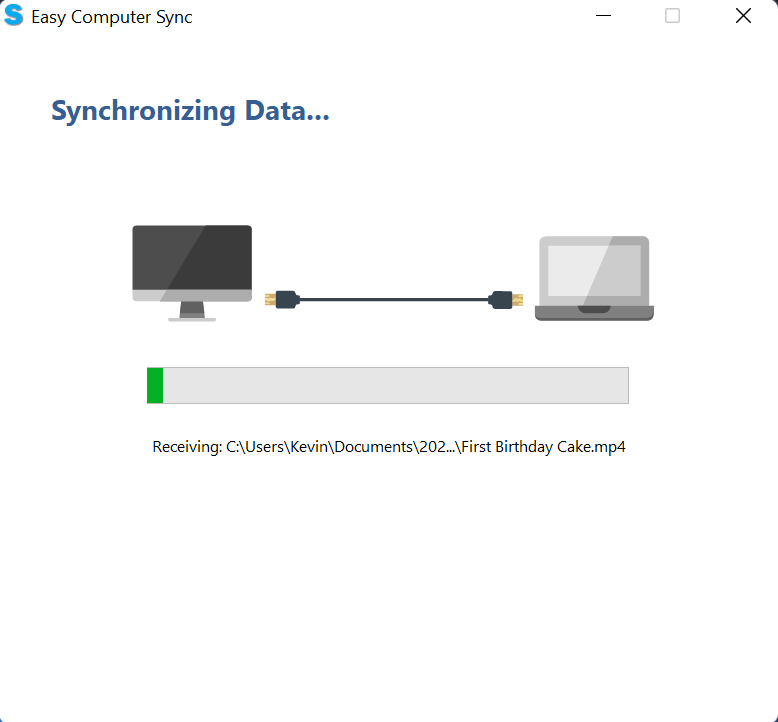
- The Progress bar will fill up green as files are synced up
-
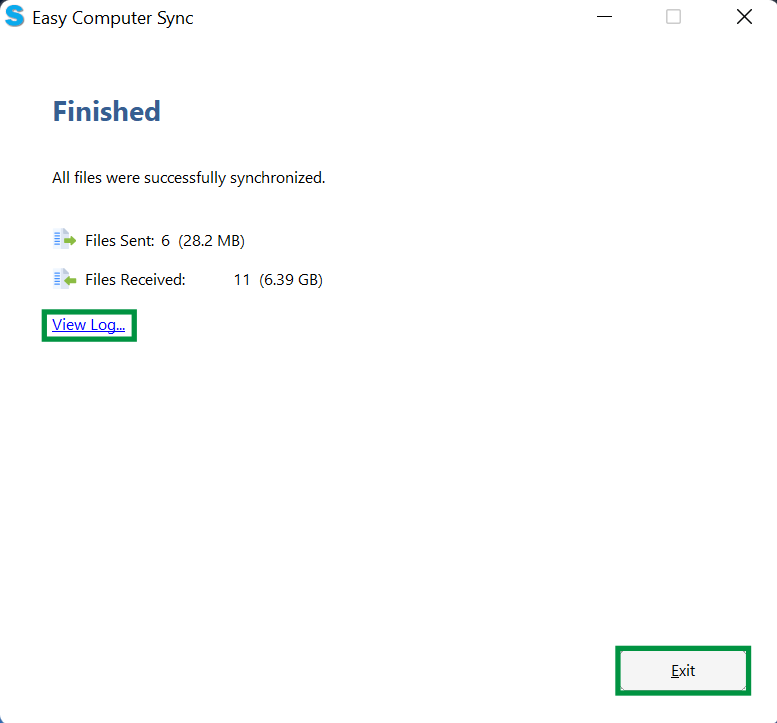
Finished! At the end, we can see the number of files sent and received and the amount of data transferred. We can click View Log, to see a log with further information, and click Exit, when finished
We hope this was helpful! Feel free to reach out to us directly at: support@plugable.com with any questions or concerns.
Should I install the software before plugging in the cable, or the other way around?
The Bravura Easy Computer Sync software should be installed first. This is because it will copy the necessary driver files to your PC so they are ready to load when the cable is attached.
Be sure to download and install the latest version of the software from the link below Download Easy Computer Sync .
Will this transfer my programs and games?
No.
Programs and games must be installed using the original discs, installation files, or installed from the original service platforms like Steam, and Adobe for example.
Does each computer need a monitor, keyboard, and mouse attached?
Our Transfer Cables and Bravura Easy Computer Sync software are designed for use with two monitors (one monitor, mouse, and keyboard for each computer which is the most convenient) but, we realize this isn't always possible.
You can set up the transfer with one monitor, but you will need to either physically unplug and plug in each monitor, or switch over to a different input if your monitor supports this. Here's a basic summary of the steps you'll need to take to set up and perform transfers:
- Plug the Transfer Cable in between both computers.
- Connect one computer to the monitor, start the Easy Computer Sync software, and get the software to the point where it is waiting for the connection from the other computer.
- Unplug the current computer from the monitor, and plug the other one in. (Or, switch inputs over if your monitor supports it).
- Start the software on the other computer, and complete the connection.
- Once the connection is made between the computers you can control the transfer process from one computer.
We hope this was helpful. Feel free to reach out to us directly at: support@plugable.com, if you have any further questions or concerns.
Thank you!
My old computer won't turn on. Can I use this to transfer content to my new computer?
No. Computers must be in full working order to both install, and run the Bravura Easy Computer Sync software to perform transfers. We would suggest finding a local and trusted technician to see about data recovery if your computer cannot turn on.
My laptop turns on, but the screen is broken and I can't see anything. Can I still transfer?
Possibly. Are you able to to connect the laptop to an external monitor or TV with an HDMI or other compatible video cable and see your computer screen? If you can, it should be possible to transfer. Ultimately, it may be your best bet to take the computer to a trusted technician for further help, especially if this doesn't work.
Feel free to reach out to us directly at support@plugable.com with any questions or concerns, and we'll be glad to help you!
Is there a specific port that I should connect the cable to on either system?
Connecting to any open port will work! In situations where the transfer software cannot establish a connection between the two PCs or is losing the connection mid-transfer, attaching the cable to a different port is a good troubleshooting step. On older PCs especially, we’ve found that trying the cable in another port (preferably on the rear of the computer if possible) can help resolve various issues.
Are Plugable Transfer Cables compatible with macOS?
No. Our Transfer Cables are not compatible with any macOS version, Linux, Chrome OS, iOS, Android, or any other operating systems. Our Transfer Cables are compatible with:
- Windows 11 and 10 - (Please note, this is not compatible with Windows S mode. Please see this official FAQ from Microsoft for more information: Official S mode FAQ)
- Windows 8.x
- Windows 7
- Windows Vista
- Windows XP
Please note: Thunderbolt transfer cables are only compatible with Windows 10 and newer. For macOS systems, any of our Thunderbolt cables will work with Apple's macOS Migration Assistant without additional software.
We hope this was helpful! Please reach out to us directly at: support@plugable.com if you have any questions or concerns.
Why do my files have a red X in File Explorer after doing a Easy Computer Sync transfer?
If you happen to see a red X after transferring files using the Bravura Easy Computer Sync software, this means that Windows is detecting a syncing issue exists with its file related to its OneDrive cloud storage service.
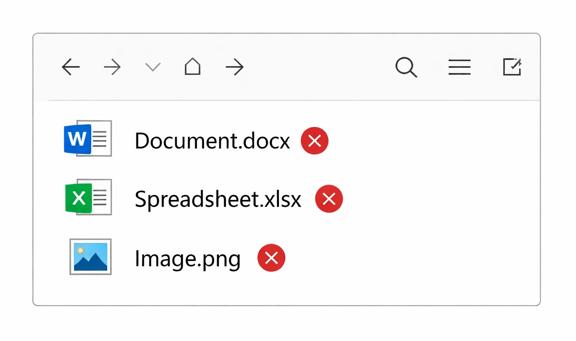
That usually means Windows thinks those files aren’t available on the not synced to their online storage service, it is not a problem with the cable itself.
Generally this can be resolved by giving OneDrive some time to upload those newly transferred files or restarting the OneDrive from closing it from the Windows taskbar then restarting it can resolve upload issues and it should also remove the red X from these files.
Using Easy Computer Sync to transfer data to a second drive on your new computer
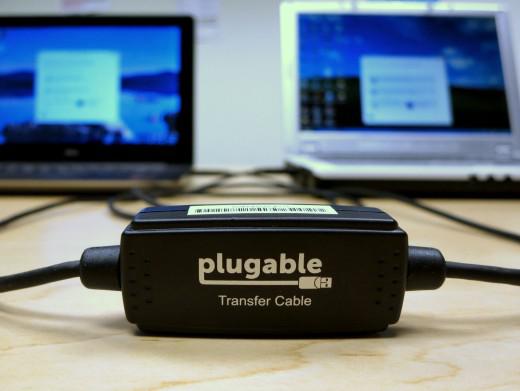
** This is a legacy article. Updated information may be available. Please see the product pages for the USB-EASY-TRAN, and USB3-TRAN for more details on current topics.
Many recent computers combine a small, speedy solid-state drive (SSD) for system files with a larger, slower hard disk for data files. This can pose a problem when migrating from an older computer using the Plugable Windows Transfer cable because the data files and operating system files should go to two different drives. In some cases, even without an SSD, people want to put their data on a second drive separate from their system drive.
These scenarios are not well supported in the Bravura Easy Computer Sync software supplied with the Plugable Windows Easy Transfer cable. By default, Easy Computer Sync tries to transfer all the data from the main drive on the old computer to the main drive on the new computer. If the main drive on the new computer can’t hold all that data, an error message will complain that there is not enough space on the destination drive.
Otherwise, the data will end up on the wrong drive. In this post, we will look at a method for getting your data stored where you want it on the new computer. I will assume the common scenario where all the user files are transferred to the second drive on the new computer. I will use a Windows XP computer as the old one and a Windows 8.1 computer for the new one, but this will work with any combination of supported operating systems. With appropriate modifications, this same method can be used to select any collection of files or folders from any fixed disk on the old computer and send them to any location on any fixed disk on the new computer.
I’ll assume you have downloaded the Bravura Easy Computer Sync software, installed it on each computer, and entered your Product Key. If you haven’t, follow the Install Instructions section of this article.
Preparing the Old Computer:
1. Plug the Windows Transfer cable into each computer and start the Bravura Easy Computer Sync software. You will see the Welcome window.
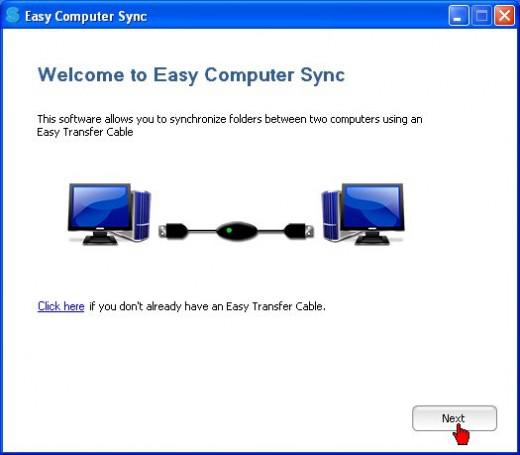
2. On both computers, click Next twice until the screen says “Waiting for Connection.”
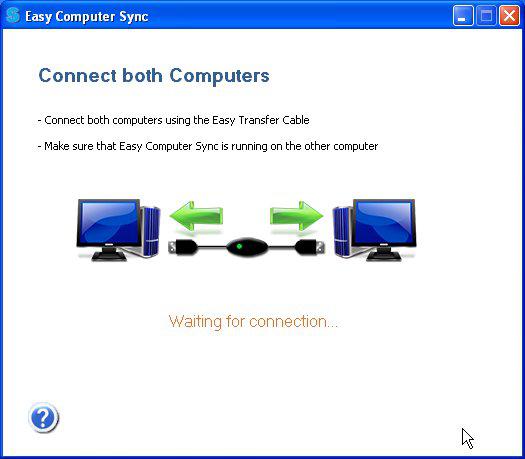
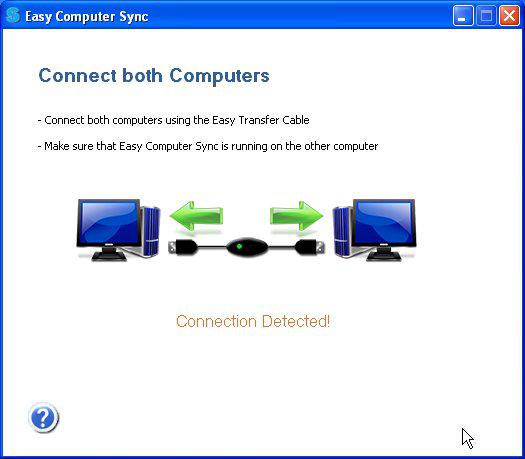
3. In a moment, the on-screen message should change to “Connection Detected.” If it doesn’t change within a minute or so, temporarily disable any anti-virus or firewall software and try again. If this doesn’t work, contact Plugable support for help.
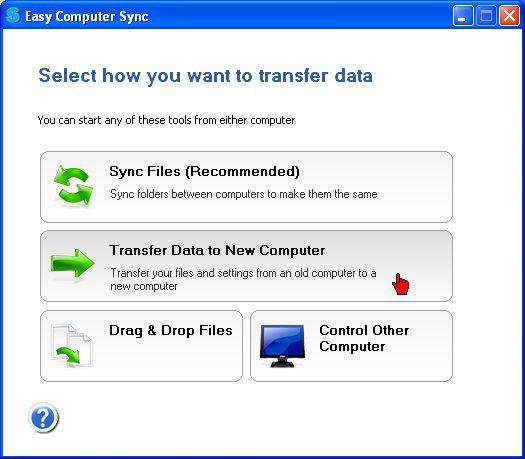
4. After the connection is detected, Easy Computer Sync will display the Tools window. This is where you select the type of transfer you want to do. Since we are transferring files from an old computer to a new one, select Transfer Data to New Computer.
The Sync Files option is used when you want to send data back and forth between two computers on an ongoing basis. However, the technique mentioned here will work for the Sync Files function also. The Drag & Drop function is used for manually transferring individual files and folders.
5. Easy Computer Sync will display a list of user folders it wants to transfer to the main drive on your new computer. Although the user folders under the user name—such as My Documents and Pictures— are frequently accessed, the individual files they contain are infrequently accessed and should go to the second drive on your new computer. Unfortunately, the software will not allow you to change the transfer location in this window. If these folders are left in their currently selected state, they will go to the smaller SSD drive, which is the system drive (usually the C drive).
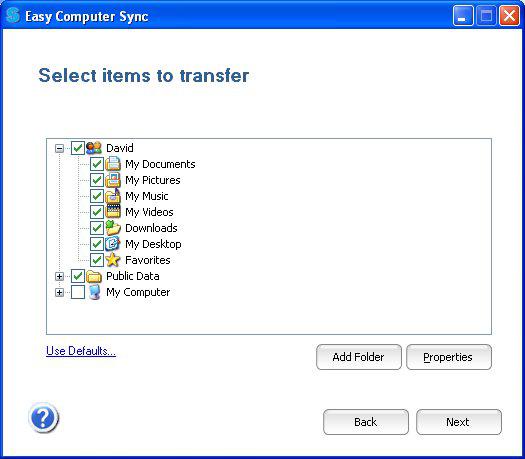
6. Since you don’t want these user folders on your SSD, clear the check mark next to each folder here, including the Public folder. In another window, you will individually select the destination disk and folder on your new computer for each user folder you see here
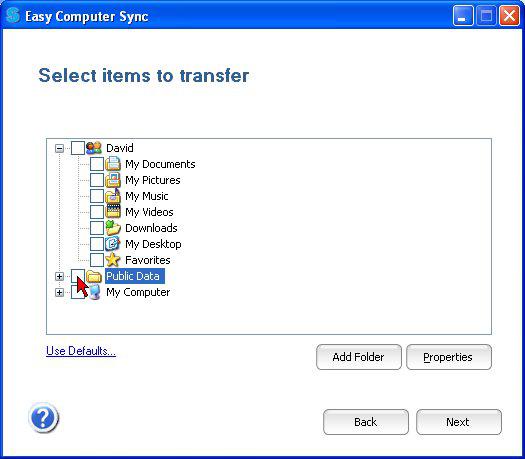
In the following Steps 7 through 17, we will select the destination for a single user folder on the old computer. This procedure must be repeated for each user folder you want to transfer from the Select Items to Transfer window. At the end of this post, I will show you how to make the newly transferred folders the default user folders on your new computer.
7. To make a gathering place for those folders on your new computer, start by creating a folder on the destination drive with your Windows user name. Do this before proceeding to the next step.
In this example, I want to transfer folders belonging to the user named “David” on the XP computer to a folder named “David” on the second drive of the new computer. So I use Windows Explorer to create a folder named “David” on that drive.
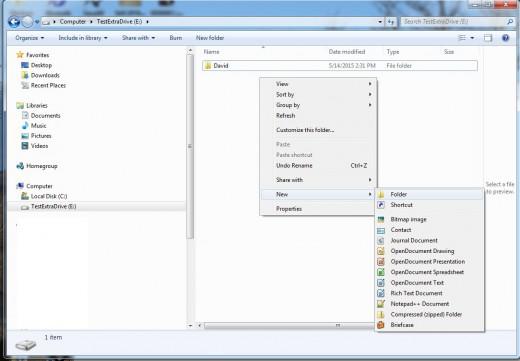
Setting up a folder for transfer to the second drive of the new computer (repeat for each folder)
Do Steps 8 through 17 for each user folder you want to transfer from those shown in the Select Items to Transfer window. You can also use this procedure to transfer other data folders on your old computer if you know where they are. In this example, I will transfer the My Documents and Desktop folders from the David user in the XP computer to folders I will create with the same names in the David folder on the second disk of the new computer. In real life, you will probably want to transfer all the folders shown under your user name in this window.
8. Click Add Folder
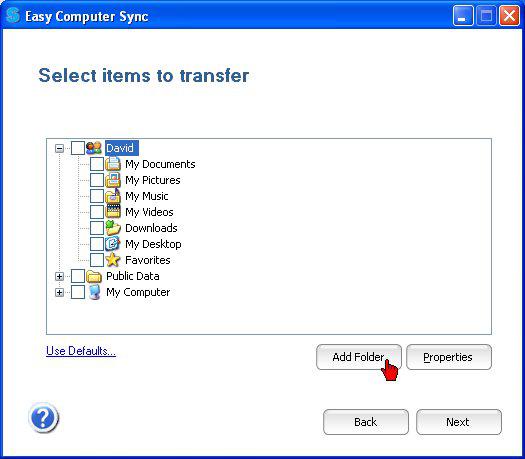
9. This opens a new window that shows drives on the old computer and the new computer. You can expand a drive and reveal its folders by clicking the + (plus) sign next to it.
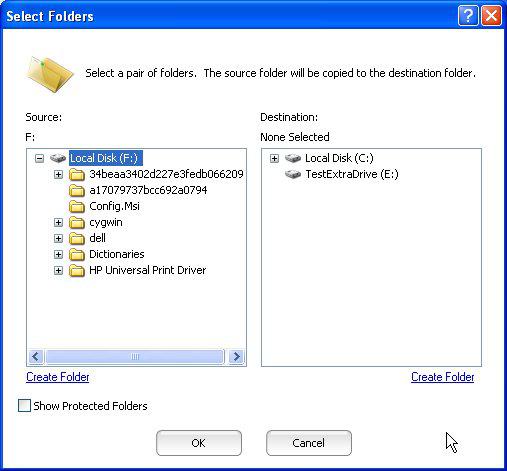
10. Unfortunately, in this view Easy Computer Sync does not automatically show the user folders we want to transfer, such as Documents, Pictures, Desktop, Music, Videos, and the like. This is because they are located under Documents and Settings folder on the system disk in Windows XP or under Users in later Windows versions. Easy Computer Sync hides these folders to protect them. To display and transfer them, you have to make these protected folders visible. To do this, click Show Protected Folders at the lower-left
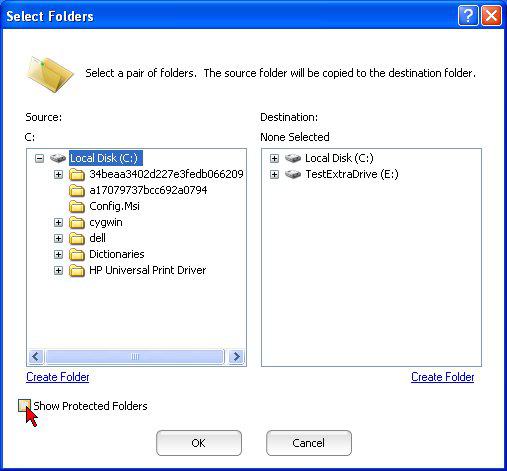
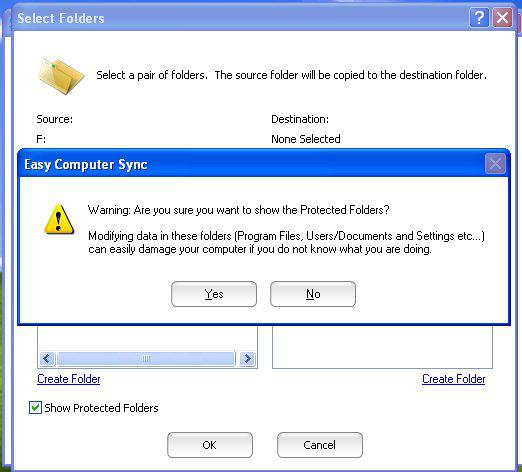
11. A confirmation window will appear. Click Yes.
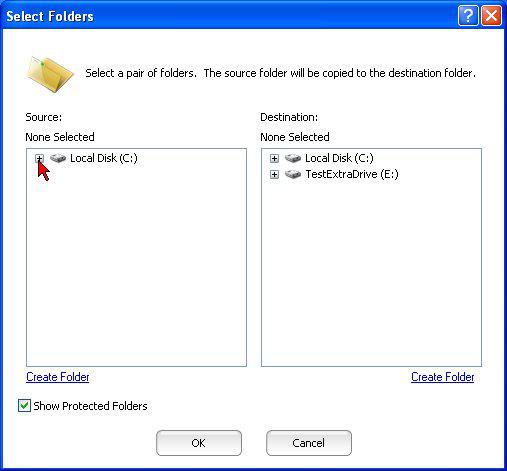
12. Expand the local disk again by clicking the + (plus) sign
13. The User folders are now visible. Expand the Documents and Settings folder in Windows XP or the Users folder in later Windows versions to view them. Expand the folder of the user you are transferring (David in this example.)
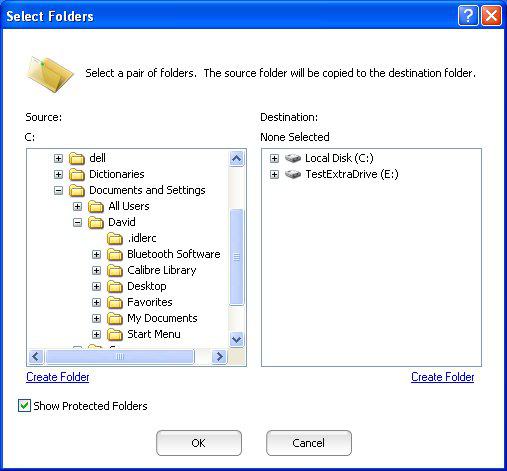
14. In the left-side panel, highlight the folder on the old computer (such as My Documents) that you want to transfer. With it still highlighted, go to the right-side panel and expand the drive you want to transfer that folder to, and highlight the user name folder you made on that drive in Step 7.
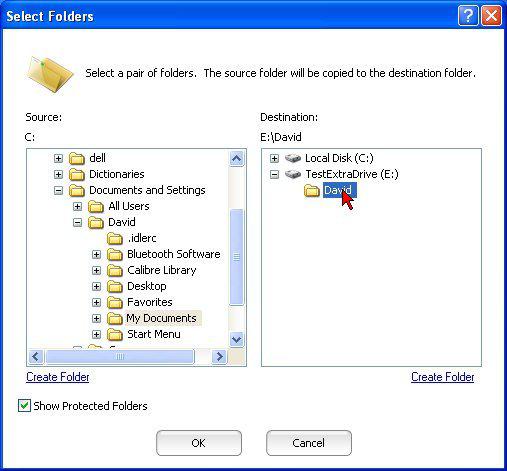
15. Use the Create Folder function to create a new folder for the contents of the folder you are transferring. The new folder will be created under the one highlighted in the right-side panel.
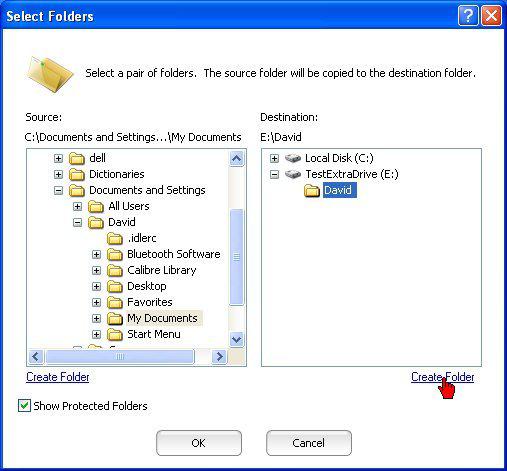
16. Click Create Folder
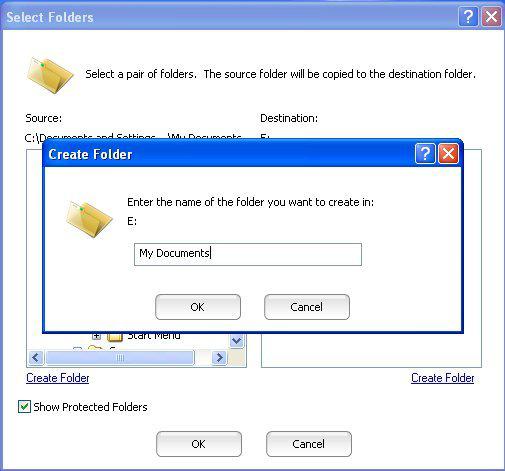
17. A text entry box will appear. Type in the name of the folder and click OK. The new folder will be created in the Select Folders Window. Making sure both the source folder and the destination folder are highlighted, and click OK in the Select Folders window to save this pair of folders.
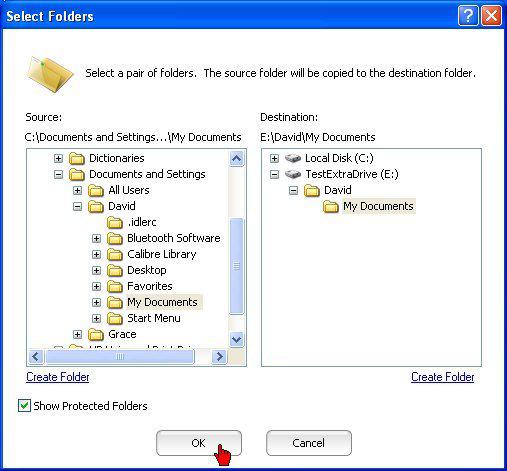
The Select Folders Window will close, and you will be returned to the Select Items to Transfer window, where you should see a checkmark next to the name of the folder you just added.
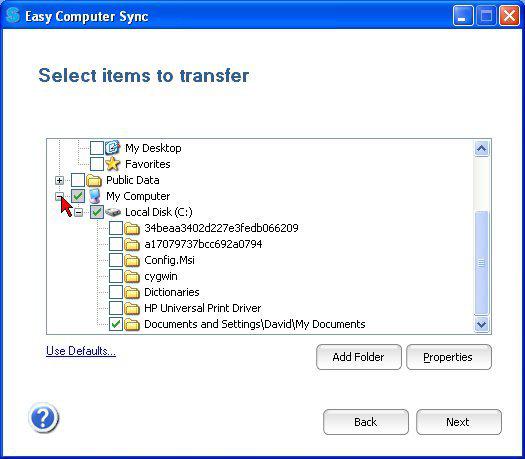
18. Use the same procedure to add each folder you want to transfer. The screenshot below shows the Desktop folder being added
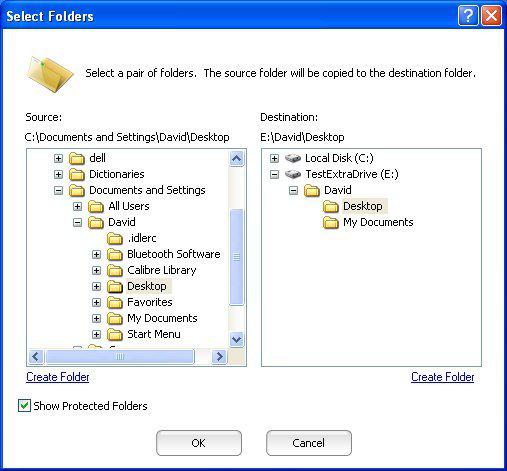
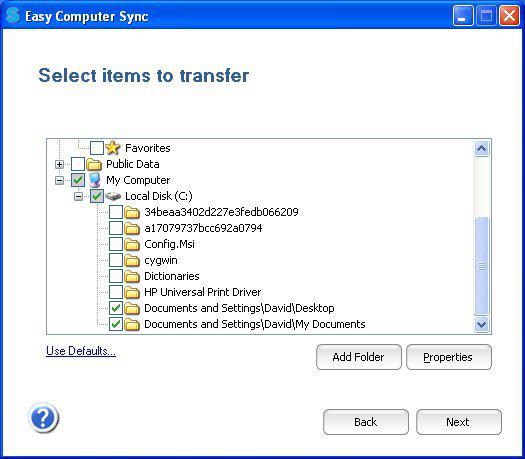
19. When finished adding each new folder to be transferred, click OK in the Select Folders window. After the final folder has been selected, make sure each folder you selected has a checkmark next to it in the Select Items to Transfer window, as shown below. Make sure any folders you don’t want to be transferred are not checked. Easy Computer Sync will remember these settings for future transfers between the two computers.
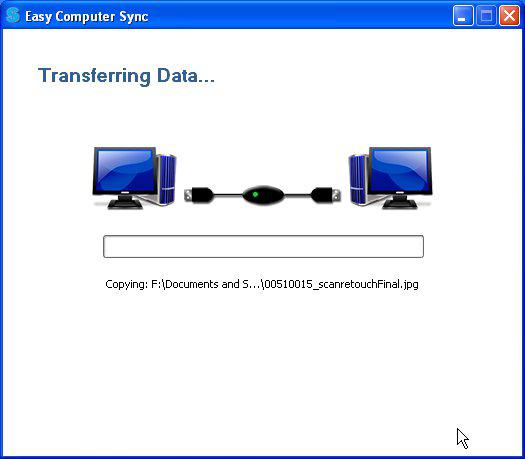
20. When all is ready, click Next in the Select Items to Transfer window to start the transfer. The Transferring Files window will show a progress bar while the files are being transferred. This may take a long time for large amounts of data.
21. When the transfer is finished, the Finished window will be displayed, showing how many files were transferred.
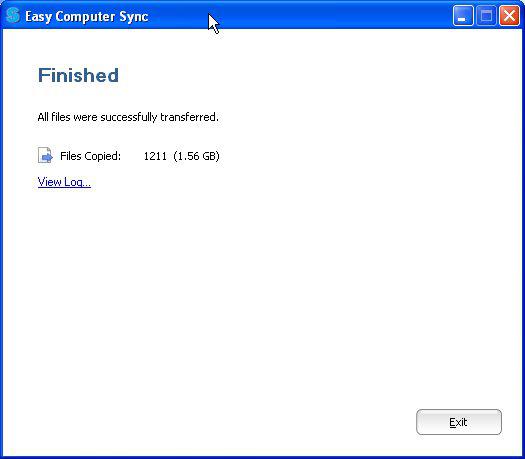
22. Click View Log to see a detailed view of which files were transferred. This is useful if Easy Computer Sync reports some files are not transferred. The log opens in Notepad as a text file and can be saved from there.
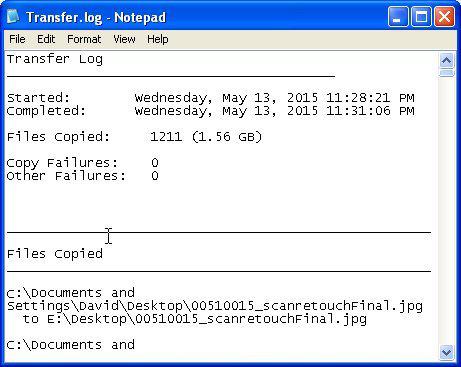
This completes the procedure for transferring the user folders to your new computer. If you want to make those newly transferred folders your default user folders, follow the procedure below.
Changing your default user folders to the ones you transferred
After transferring your user folders to the second drive on your new computer, you may wish to set those folders as the default user folders in place of the original ones on your SSD drive. Windows and many programs automatically select the default folders as the save location for files. For example, Word saves documents in the Documents folder. Photo programs like Picasa save photos in your Pictures folder. Many music programs save music in your Music folder. You change the default separately for each user folder. Please note that this will permanently alter your computer’s setup.
1. Open Explore, and navigate to the current default folder. Right-click and select Properties.
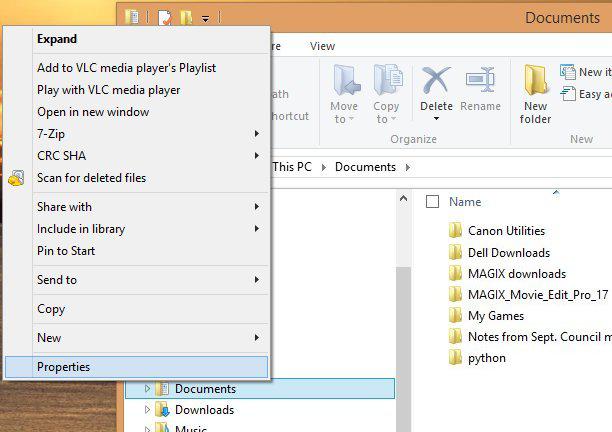
2. In the Properties Window, select the Location tab.
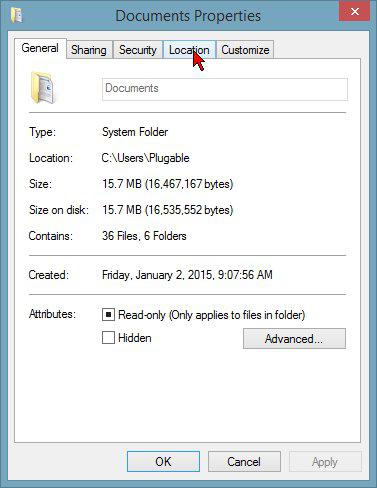
3. In the Location tab, edit the text box to show the location of the newly transferred folder. Clicking the Find Target… button will open another Explorer window where you can locate the target. Enter the location of that folder in the text box.
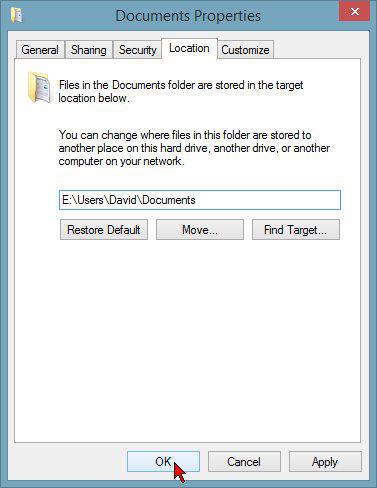
4. Click OK. You will be asked if you want to move your documents and other files from the current default folder to the new one. Click Yes here to consolidate all the files in one folder. A window will appear showing the transfer operation.
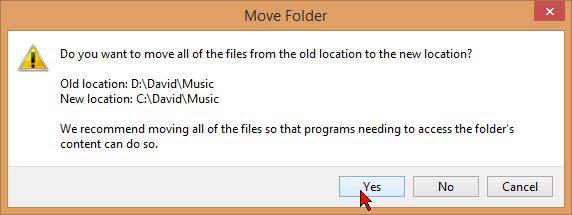
If you have any questions or issues following these instructions, please leave a comment on this post, or contact us at support@plugable.com
How to - Transfer Bookmarks, Favorites and Files from Web Browsers and Outlook
We can help with this! Please note, Easy Computer Sync can't directly access or otherwise communicate with other programs. But, files can be exported, transferred between computers, and then imported for access. Bookmarks and Favorites from Edge (or other browsers) must be exported into HTML files first, which can then be transferred over to another computer.
Content from Outlook can be exported and transferred over as well, and then imported into another computer. There are more specifics to Outlook to pay attention to, so please see the Outlook section below for more information. Let's get started!
Exporting Bookmarks and Favorites
- Open the Edge browser on the first computer and click the three dots in the top-right side of the browser which will open the browser options. Then, click on Favorites
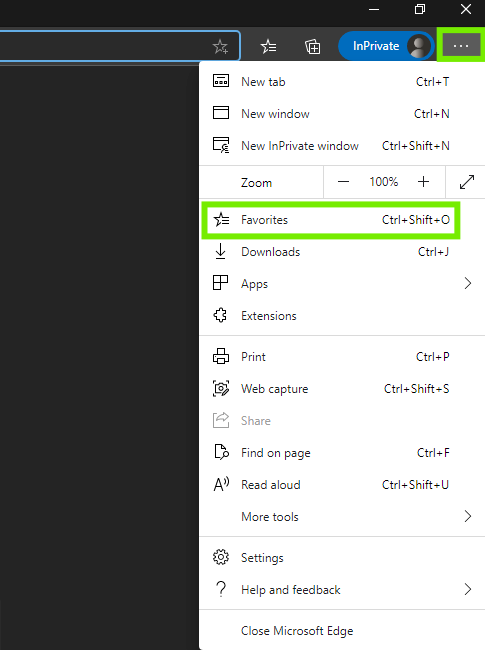
- Now, we can see the favorites we have. Click the three dots in this Window which will give us the option to export
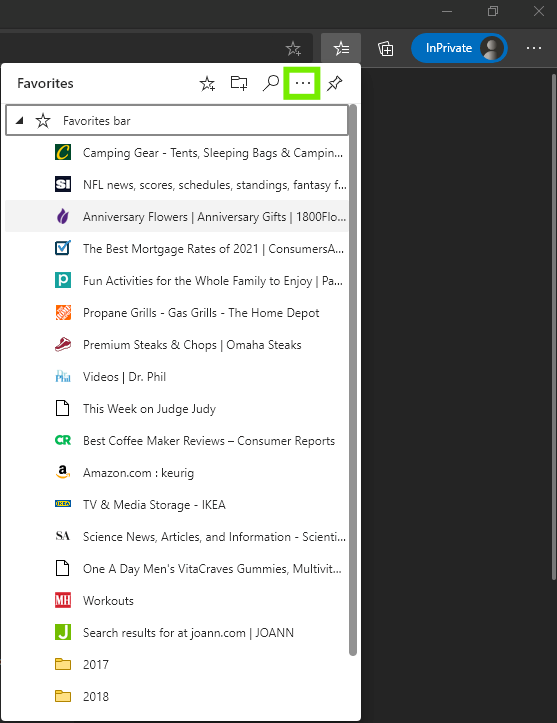
- Click Export Favorites, which will get our favorites ready to export
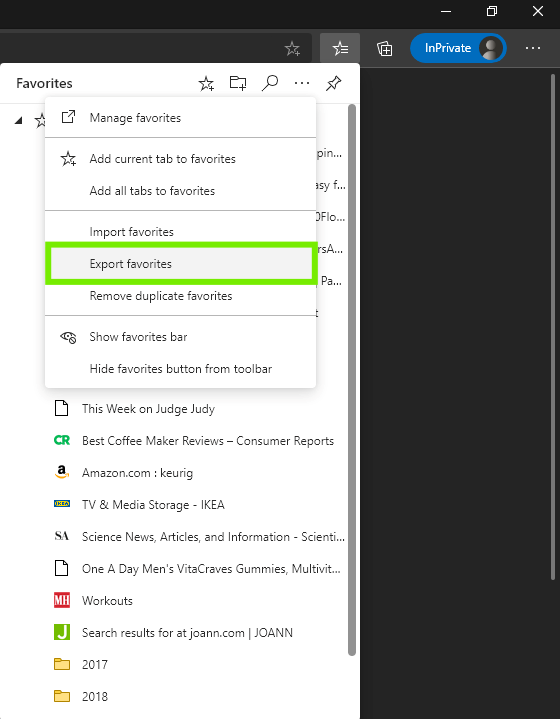
- Choose the folder to export the favorites. The exported HTML filename will default to a Month/Date/Year format, but, feel free to rename it to something else. Click Save to start the export
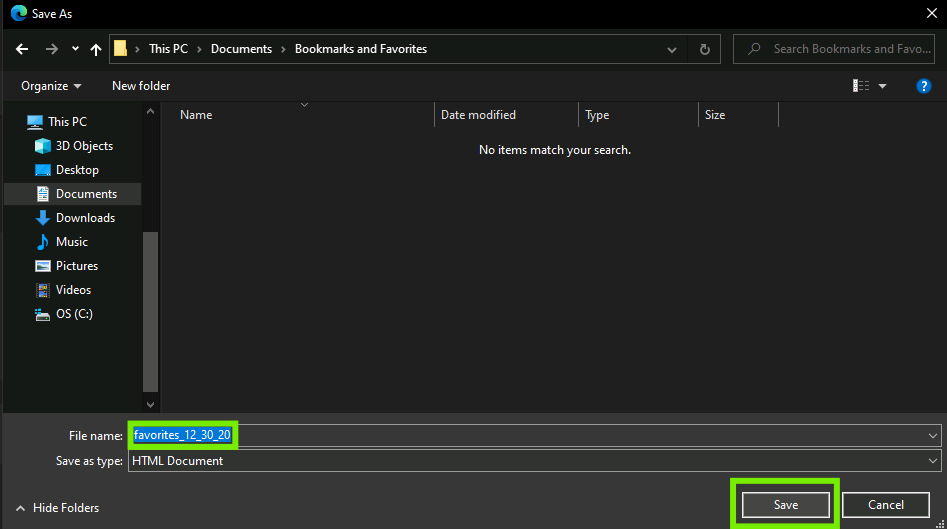
Great! We've exported the HTML file with our bookmarks from the first computer, and can transfer it to the second computer.
Importing Bookmarks and Favorites
Importing our bookmarks and favorites is easy to do as well. Let's go over to the second computer and get started:
- With our Edge browser open on the second computer, click the the three dots in the top-right side of the browser which will open some browser options. Then, click on Favorites
- Next, click on Import Favorites
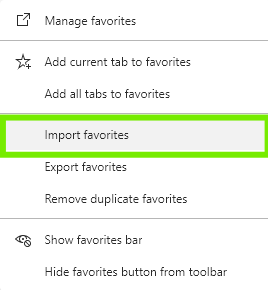
- Then, we'll get a drop-down menu, and be able to choose where we want to import the data from. Select Favorites or bookmarks HTML file, from the drop-down menu, and then click Choose File, which will open up a File Explorer window.
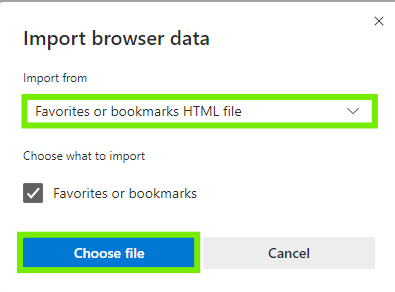
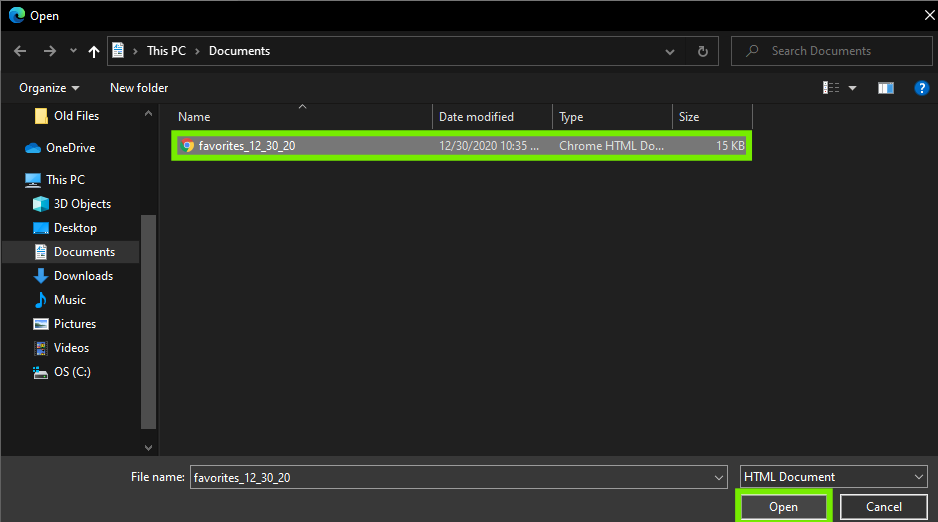
- Now, we'll be able to choose the favorites files we've transferred over. Navigate to the folder where the HTML File is, select the file, and click Open
- Once our favorites are imported, we should get a message to confirm

- Ok, we've imported our favorites into our new computer. But, let's check and make sure everything is there
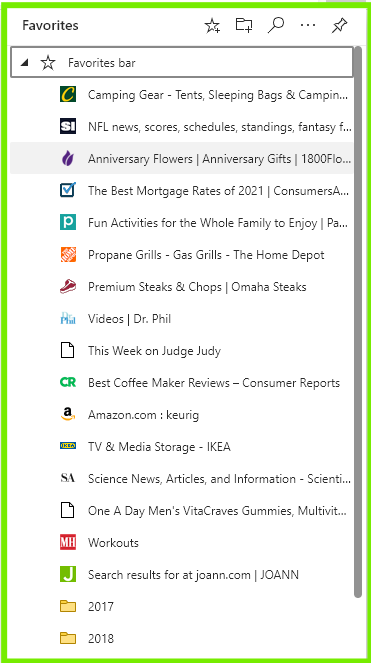
- Great! All the favorites we've imported are there, and now we can pick up where we left off with the old computer
I use a different browser, what do I do?
The process for exporting and importing bookmarks on other browsers should similar, if not the same. Here are links to steps for some of the other major browsers to get you started:
Can I transfer my Outlook content?
Yes. But, like bookmarks and favorites, Outlook content must be exported first. There are some specific actions to take depending on the Outlook platform and version that you use, so you'll want to take a look at this official link from Microsoft:
Import and Export Outlook Email, Contacts, and Calendar
We hope this was helpful! Feel free to reach out to us directly at: support@plugable.com with any questions or concerns.
I don't have a disc drive. How can I install the Easy Computer Sync transfer software?
As technology improves, modern computers are typically getting slimmer and lighter which is great! But, the tradeoff often is a computer without a disc drive. So, how do you install the Bravura Easy Computer Sync software without a disc drive? Don't worry, we've got you covered!
Download Bravura Easy Computer Sync
The Bravura Easy Computer Sync software can be downloaded and installed without the need for a disc drive. Click button below to go to the driver page and download the latest software:
After downloading, open the archive folder, and double-click the setup file to begin installing. Be sure to install the software on both computers to complete the connection.
Installation Instructions
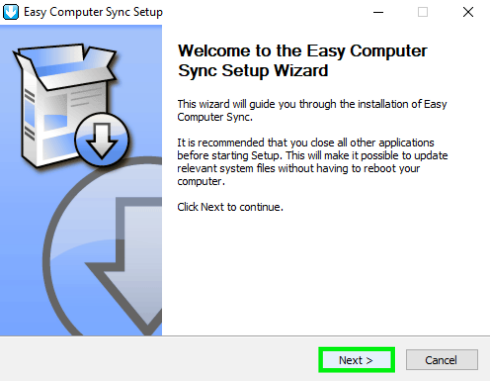
- Click Next, to continue
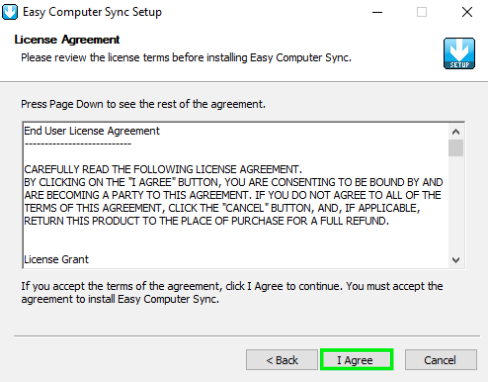
- Now, you can view the License Agreement. Take some time to read it over, then, click I Agree, when you're ready to continue
- Here you can choose the individual components of the installation and click next when you're ready to move on
- Click the button to Browse your computer, and pick the location to install the software. The default location is C:\Program Files (X86)Bravura\Easy Computer Sync\. Click Install, when you're ready to move on
- Click Finish, when the installation is complete, and then restart your computer to finalize the installation
We hope this was helpful! Feel free to reach out to us directly at: support@plugable.com if you have any further questions or concerns and we'll be glad to help you.
Can I use my Plugable Transfer Cable and software more then once?
Yes!
With our Plugable Transfer Cables you have the power to:
- Transfer more than once
- Transfer whenever you want, and transfer as much data as your want
- Install the Bravura Easy Computer Sync software on as many computers as you need
- Register the software on those computers with your unique Product Key
We hope this was helpful! Feel free to reach out to us directly at: support@plugable.com, and you can find our other support resources by clicking here.
Is this compatible with Windows 11?
Yes!
Our Plugable Transfer cables and Bravura Easy Computer Sync software are compatible with Windows 11.
We hope this was helpful! Feel free to reach out to us directly at support@plugable.com if you have any further questions.
Updating the Easy Computer Sync Software
The Bravura Easy Computer Sync software comes bundled with a software update tool in its programs folder. If you ever find yourself stuck on a “waiting for connection” screen on both your PCs it may be time to update the software so we can be sure they are on the same version.
For Windows 10 to check for updates, go to:
The Windows Start Menu > Programs > Easy Computer Sync > Get Updates
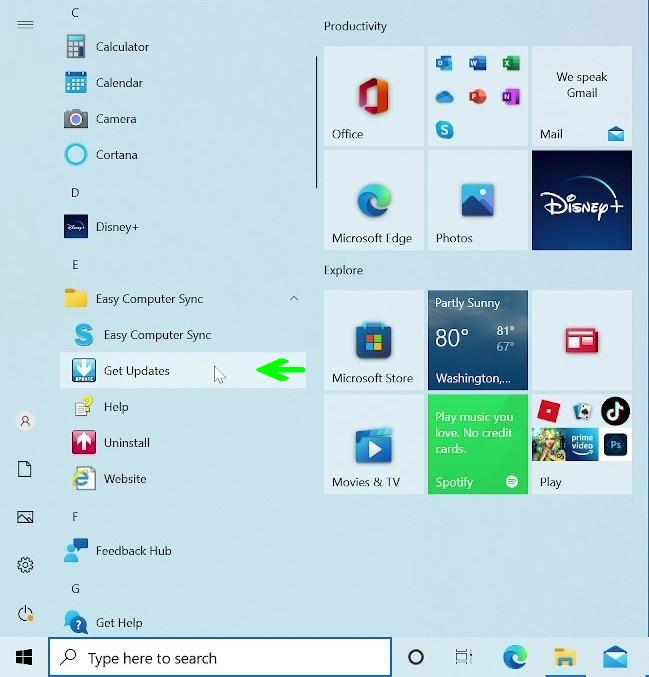
If an update is available the following download window will appear
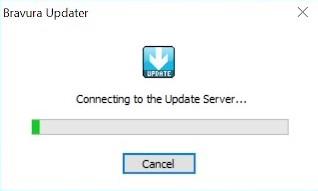
At this point close Easy Computer Sync on both PCs and open again to establish a connection.
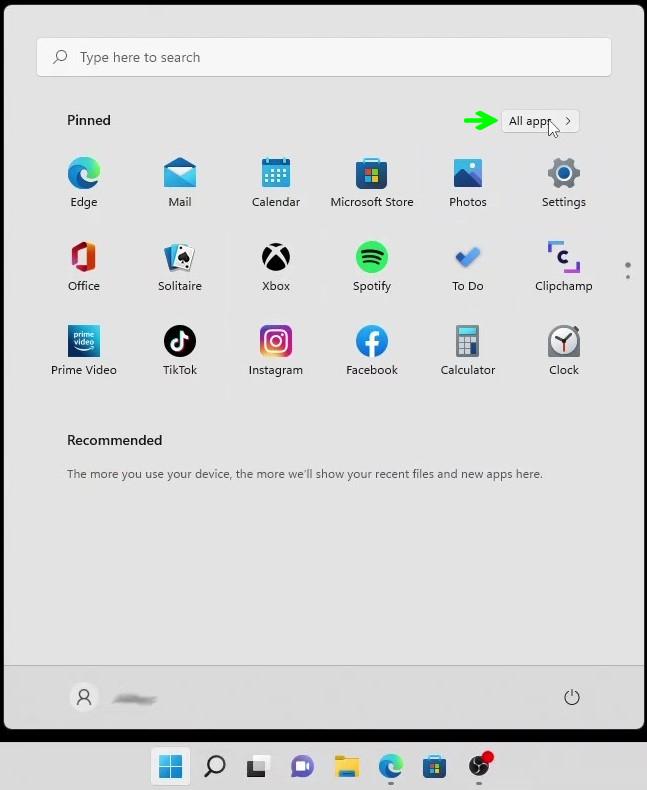
For Windows 11 to check for updates the navigation is slightly different. Go to: The Windows Start Menu > All Apps >
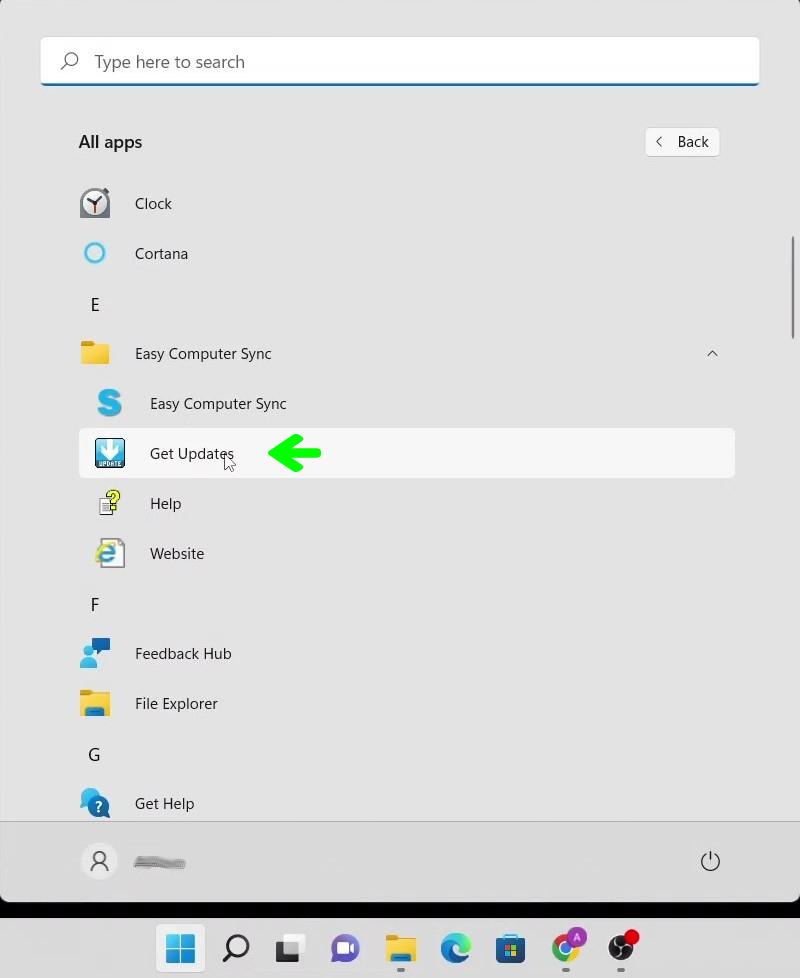
Navigate to Easy Computer Sync > Get Updates
At this point close Easy Computer Sync on both PCs and open again to establish a connection.
Also, assuming the “Automatically check for updates” option was selected during the installation, Easy computer Sync will periodically check for updates each time it launches, and notify you if one is available at the Welcome Screen.
Plugable Windows Transfer Cables—Downloading, Installing, and using the drivers and software
**This is a legacy article. Please check the product pages for our USB-EASY-TRAN, and USB3-TRAN transfer cables for up to date information.
Plugable Windows Transfer Cables transfer files between computers using the Bravura Easy Computer Sync software. Your purchase of a cable includes a full license to this software, which manages the connection and transfer process and includes all needed drivers.
A Product Key is required to use the Bravura Easy Computer Sync software and is included with the Windows Transfer Cable (a $19.95 retail value). This Product Key is a 16-character alphanumeric code located on a tag attached to the cable. The key can be used for any number of computers.
If you purchased your Windows Transfer Cable before December 2017:
Windows Transfer Cables purchased before December 2017 do not have the Product Key attached to the cable. Customers who purchased their cable before December 2017 should have received an email containing their Product Key. If you are unable to locate this key and purchased your Windows Transfer Cable before December 2017, please contact support@plugable.com for assistance.
There are three common scenarios for using a Windows Transfer Cable:
- Upgrading to a new computer
- Transferring files back and forth between two computers on an ongoing basis (synchronizing)
- One-time transfer of a few files or folders
The Bravura Easy Sync software is used for each scenario. Instructions for each scenario are given below after the install instructions.
Installation Instructions:
1. The first step, is to download and install the Easy Computer Sync software onto both computers. The download also includes and installs the most recent drivers for your Windows Transfer Cable.
2. After clicking the link above, you will typically see a dialog box like this:
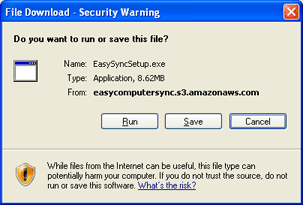
3. Click Run. The Easy Computer Sync installer will download to your computer. After the download finishes, you will see another dialog box like this:
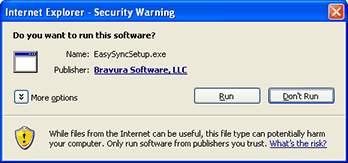
4. Again, click on Run to run the Easy Computer Sync installer. Now the installer will appear.
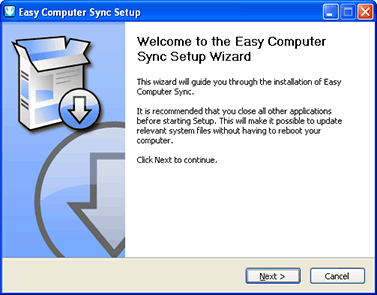
Typically, in each page of the installer, you should accept the default options and click Next, or the option similar to it. This installs the Easy Computer Sync on your computer, and starts it after the installer finishes.
During installation, you will be prompted for a Product Key for the Bravura software. This Product Key is a 16-character alphanumeric code located on a tag attached to the cable.
Note: Windows Transfer Cables purchased before December 2017 do not have the Product Key attached to the cable. Customers who purchased their cable before December 2017 should have received an email containing their Product Key. If you are unable to locate this key and purchased your Windows Transfer Cable before December 2017, please contact support@plugable.com with your Amazon order number.
Starting Easy Computer Sync
Once installed, there are three ways to start the Easy Computer Sync software:
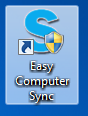
- Double-click its icon on your desktop.
- In Windows XP, Vista, or Windows 7, click on Start Menu > All Programs > Easy Computer Sync, and select “Easy Computer Sync,” or in the Windows 8, 8.1, and 10 Start menu, just type “Easy Computer Sync,” and click on it in the search results.
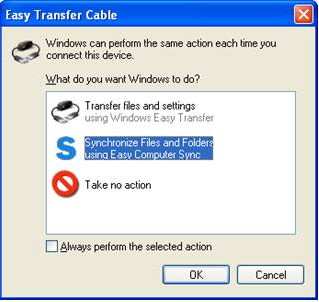
- Plug the Windows Transfer Cable into a USB port on your computer and select it from Autoplay menu if it appears:
Upgrading to a New Computer
1. Follow the instructions above to install the software on both the old computer and the new computer.
2. Plug the cable into a USB port on both computers. On Windows 8 and earlier computers, you may be prompted to start another program called Windows Easy Transfer in a window like the one below. Do not start Windows Easy Transfer. Instead, start the Easy Computer Sync software you just installed.
(If you don’t see this window when you plug in the cable, start Easy Computer Sync according to the instructions above. If a window asks you to allow the program to make changes to your computer, click Yes.)
3. Click Next on both computers until you reach a window that says “Waiting for connection.” When both computers are ready, this will change to “Connection Detected” and a new window will be displayed asking you to Select how you want to transfer data. Select, Transfer Data to New Computer. If the software is stuck on “Waiting for Connection” for more than a short time, please temporarily disable any antivirus and firewall software on your computer and try again.
4. You will be asked if this is your old or new computer. From your old computer, select This is my old computer. A window will appear asking you to select items to be transferred.
5. On the old computer, select the folders that contain the data you want to transfer to your new computer. You do not need to select anything on the new computer. Only the most commonly used folders are included by default. You can add more folders by clicking the Add Folder button. If your computer has a second drive or you want to customize your transfer beyond the default folders, you might find this blog post useful.
- Note: The Public Data option will transfer all items in your Shared/Public My Documents\Pictures\Music\Videos folders. Un-check this selection if you do not wish to transfer data from your Shared/Public folders.
- Tip: it is strongly recommended that you do not simply put a check mark in the “My Computer” selection, or the entire “C:” drive box below it. This will transfer a huge amount of unnecessary information to the new PC, wasting hard drive space and substantially increasing the time required for the transfer.
6. On the same window, click Options. For Transfer Files select Only to other computer. For If there is a conflict, select Make Copies. Click OK. The display will return to the previous window.
7. Click Next. The files in the folders you selected will be transferred to the new computer. On the final screen, you can click View Log to see a list of the transferred files.
Product Unboxing and Step-By-Step Instructions
Syncing Folders Between Two Computers
The Sync Files option lets you quickly select folders to synchronize between your computers.
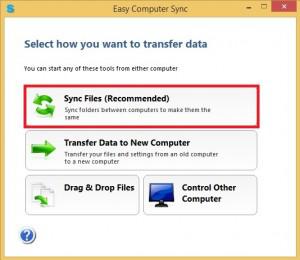
1. After a connection between the two computers is established through the cable, the Select how you want to transfer data window will appear. Select Sync Files. The Select Folders to Synchronize window will appear.
2. Place a check mark next to the folders you would like to synchronize between the two computers. Please note, this will not only copy data from the first PC to the second, but also from the second PC to the first.
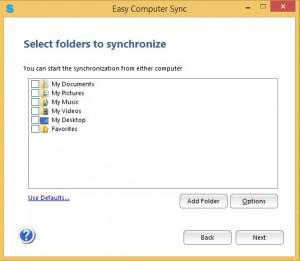
3. If you want to synchronize folders that are not in the list of default folders, select Add Folder. To show all non-hidden folders on the computer, select Show Protected Folders. See this blog post for more details on setting other folders and drives.
4. Click Options to set how duplicate files are handled. Information on these settings can be found here.
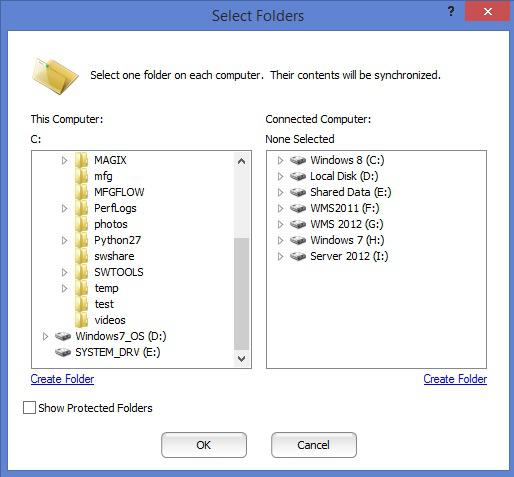
5. Click Next. The files in the folders you selected will be synced between the computers. On the final screen, you can click View Log to see a list of the transferred files.
One-time Transfer of a few files or folders
The Drag & Drop Files function allows you to transfer one or more manually selected files and folders to the second computer using a Windows File Explorer-style interface.
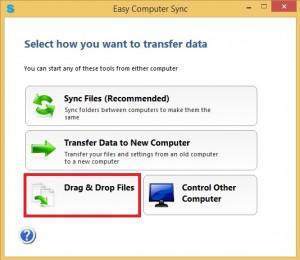
1. After a connection between the two computers is established through the cable, the Select how you want to transfer data window will appear. Select Drag & Drop files. The Simple File Transfer window will appear. This window has a menu section and four panes. The top-left pane shows the folders on the first computer (where you started Drag & Drop). The top-right pane shows the contents of the folder currently selected on the left. The bottom two panes show the same things for the second computer.
2. To see your user folders, such as Documents, Pictures, Music, and the like, click Show System Folders at the upper right of the menu section. They will appear in the folder pane under Users > Your_User_Name.
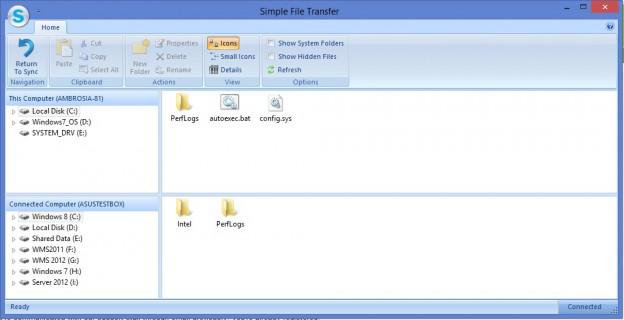
Tip:Please be aware that with the “Show System Folders” view enabled, you have access to copy data to and from protected folders on the drive. With great power comes great responsibility – be careful when transferring data via this method! Generally speaking, it is unlikely that you will need to move information to/from any of the “Program Files” or “Windows” folders, so it’s safest to ignore those folders unless you have a specific need to access them. Also, do not move any hidden folders under your User name unless you know exactly what you are doing. They could overwrite important information on the new computer.
Finding the information you want
Generally the most commonly transferred information is documents, pictures, music, and the like—the irreplaceable stuff. By default, most programs save this data in your User folders, a set of folders created by Windows for every user name on the system. The location of your User folders will differ depending on which version of Windows is on the system, and will (usually) share the same name as your Windows login.
- For Windows XP, the location will be: C:\Documents and Settings\Your_User_Name\My Documents\My Pictures, Music, Desktop, etc.
- For Windows Vista, 7, 8, 8.1, and 10, the location will be C:\Users\Your_User_Name\Documents, Pictures, Music, Desktop, etc.
If you have any problems using your transfer cable that isn’t answered here, please feel free to contact us at support@plugable.com
Are Plugable Transfer Cables Compatible With Windows S Mode?
Short answer: No. Plugable Transfer Cables are not compatible with Windows running in S Mode.
This is a limitation of Windows S Mode, not a defect with the cable.
What Is Windows S Mode?
Windows S Mode is a restricted version of Windows 10 or Windows 11 designed for improved security and performance.
When a system is in S Mode:
- Only apps from the Microsoft Store can be installed
- Traditional desktop applications (.exe, .msi) are blocked
- Kernel-level drivers and background services are restricted
S Mode is commonly found on entry-level laptops, education devices, and systems focused on security or manageability.
Why Plugable Transfer Cables Are Not Compatible
Plugable Transfer Cables require installing the desktop application, Bravura Easy Computer Sync, and a device driver to function correctly.
These components are required to:
- Establish a direct PC to PC data connection
- Manage file system access between both systems
- Enable high-speed data transfer over USB
Because Windows S Mode blocks:
- Installation of non-store desktop applications
- Installation of third-party drivers
The Bravura Easy Computer Sync software cannot be installed or executed while S Mode is enabled.
How Can I Circumvent This Limitation?
Option 1: Switch Out of Windows S Mode
You can permanently switch your system out of S Mode to enable full Windows functionality. More information regarding this process can be found on Microsoft's official Windows 10 and Windows 11 in S mode FAQ.
Important notes:
- Switching out of S Mode is free
- The change is permanent and cannot be reversed
- No data is lost during the switch
Steps:
- Open Settings
- Go to System, Activation
- Under Switch out of S Mode, select Go to the Store
- Click Get to disable S Mode
Once S Mode is disabled, you can install Bravura Easy Computer Sync and use the Plugable Transfer Cable.
Option 2: Use an Alternative Transfer Method
If you must remain in S Mode, consider one of these alternatives:
- Cloud storage services such as OneDrive or Google Drive
- External USB storage devices like flash drives or external SSDs
- Network-based file transfer over a local network
These options do not require third-party drivers or desktop installers.


- Choosing a selection results in a full page refresh.
