Hassle free, 90-Day Warranty
Fast, Free Shipping on Orders $35+
Lifetime Technical Support
30-Day Money Back Guarantee
Give Tech a Second Life
This refurbished Plugable product is fully tested, supported, and ready for use. Buying refurbished helps reduce e-waste while offering a lower-cost option for dependable tech.
Plugable Universal Docking Station for Dual 4K Monitors (B-Stock)
$209.99
$127.99
USD
SKU: UD-6950Z-BSTOCKFeatures
- Flexible Expandability— This versatile laptop docking station dual monitor setup includes dual HDMI and DisplayPort outputs, Gigabit Ethernet, audio jack, and six USB 3.0 ports. It supports both USB-C and USB 3.0 host connections - making it the perfect USB docking station for expanded connectivity.
- Dual 4K Monitors with HDMI and DisplayPort— Enjoy ultra-clear visuals with support for two 4K monitors via DisplayLink docking station technology - outputting 3840x2160 @ 60Hz using DisplayPort or HDMI. Ideal for multitasking and boosting productivity.
- Optimized for Work, Not Gaming— Best suited for web browsing, productivity, and office applications. This laptop dock does not support gaming or protected content (HDCP) playback, such as Netflix, Hulu, etc.
- Compatibility— Compatible with Windows 11/10/8.x/7, macOS 10.14+ (driver required) and ChromeOS 100+. This laptop docking station offers plug-and-play functionality for Windows and ChromeOS. Not compatible with Linux; manual driver installation required on Mac. Please note, this docking station does NOT charge the host computer
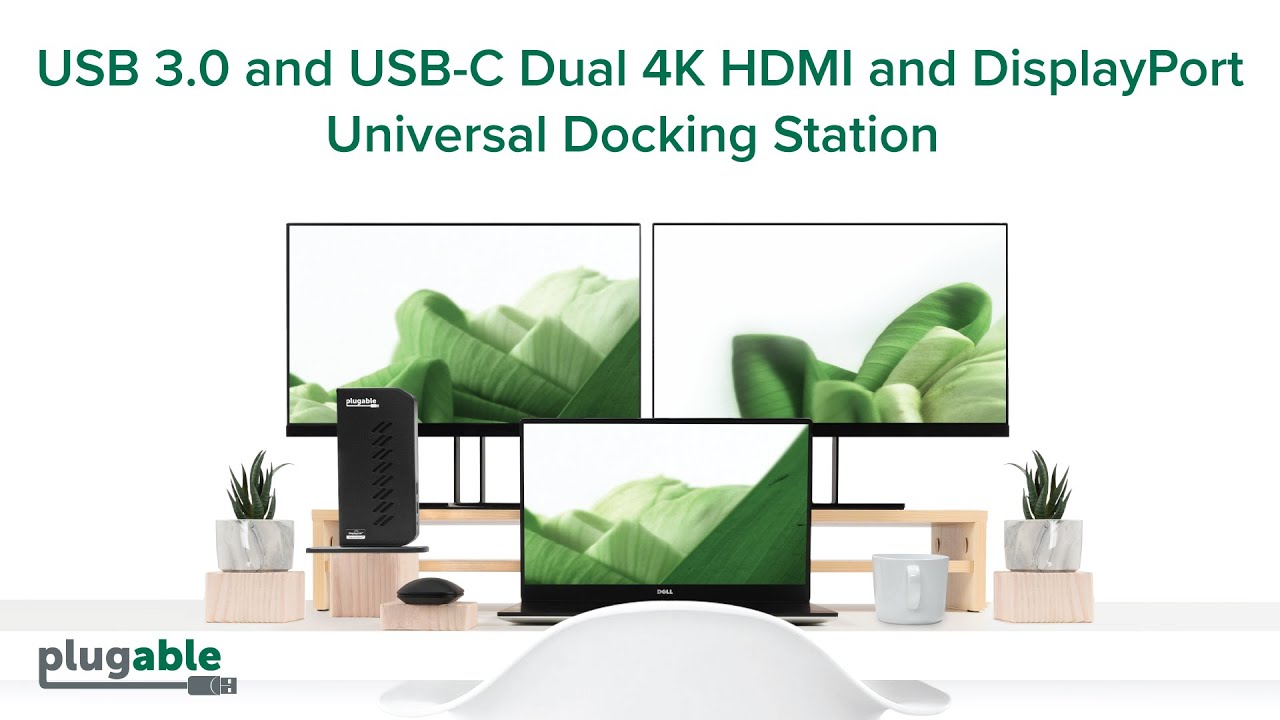
- Transform Your Workspace with Dual Monitors— Enhance your setup with a sleek vertical USB dock that supports dual monitor displays. Ideal for professionals using Windows, macOS, or seeking a reliable ChromeOS docking station experience with 4K productivity and clean cable management.
- 90-Day Warranty— All Plugable B-Stock products are covered by a 90-day limited warranty against any defects in materials or workmanship.
For volume orders or business inquiries contact sales@plugable.com
Free 3-Day Continental U.S. Shipping When Buying Direct!
| Dual 4K displays | Up to two 4K@60Hz displays via either HDMI or DisplayPort |
| 6x USB 5Gbps | Standard USB-A 5Gbps ports |
| Host Connection | USB 3.0 or USB-C connection to host, two different USB cables provided |
| 1x 3.5mm Audio Jack | TRRS Headset port, supports stereo stereo speakers/headphones or combination headsets |
A: Most modern computers running Windows, macOS and ChromeOS that have an available USB-A or USB-C port are compatible with the UD-6950Z
A: Windows 10 or later, macOS 11 or later (driver installation required), and ChromeOS version 100 or later
A: Yes, DisplayLink software must be installed on a Windows or Mac computer. This process is typically automatic on Windows, but must be manually installed on macOS. No installation required on ChromeOS.
A: The UD-6950Z supports up to two 3840x2160 resolution 60Hz refresh rate monitors. The UD-6950Z provides two video output groups, each with a choice of a DisplayPort or HDMI video output port.
A: No, the UD-6950Z does NOT charge the host computer. An alternative that will charge the host computer is the the Plugable UD-6950PDH docking station
In The Box
| Item and Quantity | Item Notes |
|---|---|
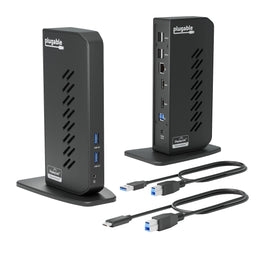
| 1x USB 3.0 & USB-C Docking Station | |
| 1x Quick Start Guide | |
| 1x USB 3.0 Cable | |
| 1x USB-C Cable | |
| 1x Power adapter |
Included Cables
| Port Type (Side 1) | Cable Specification | Port Type (Side 2) | Cable Length | External Power for Cable |
|---|---|---|---|---|
| Male USB-A | USB 3.0 (5Gbps) | USB-B (3.0) | 0.9m/2.95ft | No |
| Male USB-C | USB 3.0 (5Gbps) | USB-B (3.0) | 0.9m/2.95ft | No |
LEDs
| LED Number | Shape | Color | Status | Definition | Notes |
|---|---|---|---|---|---|
| 1 | Dot | Blue | Solid | Powered on |
Video
| Port | Placement | Specification | Max Resolution and Refresh Rate | HDCP | Chipset |
|---|---|---|---|---|---|
| 2x HDMI 4K or
DisplayPort++ (Output) |
Rear | DisplayPort 1.2 or HDMI 2.0 | 3840x2160 @ 60Hz 3840x2160 @ 60Hz3840x1600 @ 60Hz 3440x1440 @ 60Hz 2560x1440 @ 60Hz 2560x1080 @ 60Hz 1920x1080 @ 60Hz 1600x900 @ 60Hz 1280x1024 @ 60Hz 1280x800 @ 60Hz 1280x720 @ 60Hz 1152x864 @ 60Hz 1024x768 @ 60Hz 800x600 @ 60Hz 640x480 @ 60Hz |
Not Supported | DL-6950 DisplayLink |
Audio
| Port | Placement | Connection | Max Bit Depth and Sample Rate | Signal Output | Channels | Chipset |
|---|---|---|---|---|---|---|
| HDMI Output |
Rear | DisplayLink HDMI | Digital | 2 | DL-6950 DisplayLink |
|
| HDMI Output |
Rear | DisplayLink HDMI | Digital | 2 | DL-6950 DisplayLink |
|
| DisplayPort Output |
Rear | DisplayLink DisplayPort | Digital | 2 | DL-6950 DisplayLink |
|
| DisplayPort Output |
Rear | DisplayLink DisplayPort | Digital | 2 | DL-6950 DisplayLink |
|
| Headset Jack Bi-Directional |
Front | 3.5mm (TRS) | Analog | 2 | DL-6950 DisplayLink |
Power
| Port | Placement | Power Host / Device | Connection Type | AC Inlet | Notes | Voltage | Amperage | Wattage |
|---|---|---|---|---|---|---|---|---|
| Power Supply | Rear | Device | Region-specific Power Adapter | Direct AC plug | UL 60950-1 Certified | 20.0V | 2.0A | 40.0W |
USB To Devices
| Port | Placement | Version and Link Rate | Features | Voltage | Amperage | Wattage |
|---|---|---|---|---|---|---|
| 2x USB-A | Front | USB 3.0 (5Gbps) | 5V | 900mA | 4.5W | |
| 4x USB-A | Rear | USB 3.0 (5Gbps) | 5V | 900mA | 4.5W |
Connection To Host
| Port | Placement | Version and Link Rate | Features |
|---|---|---|---|
| 1x USB-A or USB-C | Rear | USB 3.0 (5Gbps) |
Wired Network
| Port | Placement | Version and Link Rate | Features | Chipset |
|---|---|---|---|---|
| DisplayLink Gigabit Ethernet | Rear | 1000BASE-T | DL-6950 DisplayLink |
Physical Stats
| Item | Size (H x W x D) or Length | Weight | SKU or Part Number |
|---|---|---|---|
| Dual DP or HDMI Display Docking Station | 19 x 7 x 13.5 centimeters 7.5 x 2.8 x 5.3 inches |
350 grams 12.3 ounces |
UD-6950Z |
| Laptop Compatibility | Compatible with most laptops and desktops running Windows 11 / 10 / 8.x / 7 , ChromeOS 100+, and macOS 10.14+. The box includes a USB 3.0 and USB-C cable to connect to the dock to your laptop. For best performance your system should have these specifications: CPU: 6th Generation Intel Core i3 or Intel Core i7, AMD: A10 @ 2.0GHz or better, GPU: Intel HD 520/AMD Radeon HD 8650/Nvidia GeForce 7xxM or better, RAM: 8GB or more, Most modern Windows systems meet these requirements. |
| Monitor Compatibility | Supports two high-resolution monitors up to 4K 60Hz (3840x2160 @ 60Hz) when connected to displays that support the desired resolution. While backwards compatible it is important to note: DisplayPort 1.2 monitors can support upto 4K 60Hz, DisplayPort 1.1 monitors can support up to 4K 30Hz, HDMI 2.0 displays can support up to 4K 60Hz, HDMI 1.4 displays can support up to 4K 30Hz |
| Software Compatibility | DisplayLink is a flexible and versatile technology that’s great for most users’ workflow. But there are a few scenarios where it’s not the right fit such as gaming and HDCP (copy-protected) content playback from Blu-ray/Netflix/Prime/iTunes/Hulu/etc. |
| Power and Charging | This dock does not provide power to the connected laptop or tablet—the laptop will still require a separate charger. |
macOS Installation and Setup
- Download and install the DisplayLink Manager for macOS.
- Detailed installation and configuration instructions can be found by clicking on the "INFO" button, or in the next step.
- Please follow the detailed instructions below to install and configure the DisplayLink software for your version of macOS:
- Connect the power supply to your wall socket or power strip, and then to the docking station.
- Connect the display to the docking station.
- Using the USB cable provided with the docking station, connect the dock to the computer through the dock's host USB port labelled with a Laptop icon .
Windows Installation and Setup
- Download and install the DisplayLink software.
- Connect the power supply to your wall socket or power strip, and then to the docking station.
- Connect the display to the docking station.
- Using the USB cable provided with the docking station, connect the dock to the computer through the dock's host USB port labelled with a Laptop icon .
ChromeOS Installation and Setup
- No driver download is necessary, through ChromeOS version 100 or later is required.
- Connect the power supply to your wall socket or power strip, and then to the docking station.
- Connect the display to the docking station.
- Using the USB cable provided with the docking station, connect the dock to the computer through the dock's host USB port labelled with a Laptop icon .
Current Drivers and Software
macOS users, please click the 'INFO' button in the table below for important installation instructions.
| Platform | Important Notes | Date | Version and Download |
|---|---|---|---|
| Windows 11 and 10 | Drivers will typically install automatically through Windows Update. See the following article for more information about installing the DisplayLink driver. |
June 29, 2026 | DisplayLink Software 12.2 M2 |
| macOS 26, 15, and 14 | macOS 14, 15, and 26 installation instructions for the DisplayLink Manager App available on our knowledge base. |
May 22, 2026 | DisplayLink Manager App 16.1 |
| ChromeOS | ChromeOS supported with latest software updates installed (version 100 or later) See the following article for more information on using DisplayLink products on ChromeOS. |
No driver installation needed |
Legacy Drivers for Older Systems
| Platform | Important Notes | Date | Version and Download |
|---|---|---|---|
| Windows 8.x and 7 | Drivers often install automatically through Windows Update. See the following article for more details about installing the DisplayLink driver. |
September 22, 2022 | DisplayLink Software 10.3 M0 |
| Windows Vista | January 7, 2015 | DisplayLink Software 7.7 M3 | |
| Windows XP | July 18, 2014 | DisplayLink Software 7.6 M2 | |
| macOS 13 | macOS 13 installation instructions for the DisplayLink Manager App available on our knowledge base. |
November 18, 2025 | DisplayLink Manager App version 14.2 |
| macOS 12 | macOS 12 installation instructions for the DisplayLink Manager App available on our knowledge base. |
August 27, 2024 | DisplayLink Manager App version 1.10.3 |
| macOS 11 | macOS 11 installation instructions for the DisplayLink Manager App available on our knowledge base. |
September 8, 2021 | DisplayLink Manager App version 1.9 |
| macOS 10.15 | DisplayLink Manager App Installation Instructions See the following article for more information about the macOS DisplayLink Manager app. |
September 8, 2021 | DisplayLink Manager App version 1.5 |
| macOS 10.14 | It is highly recommended to follow along our instructions on installing the legacy driver to ensure the driver loads properly. See the following article for more information about the macOS Legacy driver. |
August 13, 2020 | DisplayLink Software 5.2.5 |
Filter Help Articles and Frequent Questions by Category
Choose one or more filters within each category to narrow down the articles. Each selection will result in only displaying articles that include all of your choices.
Articles
Well how about that, it looks like we don't have any articles matching your filters! Try removing one of your choices or clear the filters to show all articles.
You can always contact support if you need help too!
- Choosing a selection results in a full page refresh.
Sign up to be notified when we're back in stock!
Please note: Not all products are available globally
Presale Signup
Please note: Not all products are available globally