Hassle free, 2-Year Warranty
Fast, Free Shipping on Orders $35+
Lifetime Technical Support
30-Day Money Back Guarantee
Give Tech a Second Life
This refurbished Plugable product is fully tested, supported, and ready for use. Buying refurbished helps reduce e-waste while offering a lower-cost option for dependable tech.
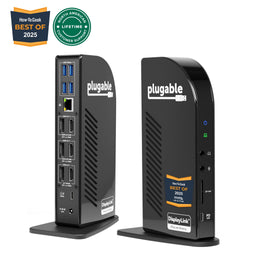
Plugable 14-in-1 USB C Docking Station Dual Monitor, 100W Charging, Dual 4K Displays 2x HDMI or 2x DisplayPort, Compatible with Mac, Windows, Thunderbolt, USB-C (5x USB, Ethernet, SD Card Reader) (Prior Version)
$152.99 USD
SKU: UD-6950PDH-DEALFeatures
- Fully Connected— 13-port USB C docking station dual monitor with twin 4K displays works with HDMI, DisplayPort or both, 5x USB 3.0 ports, SD and microSD card readers, audio in/out ports, an Ethernet port, and 100W charging—keeps all your plugs on your desk within easy reach
- Dual 4K Display— Ditch the adapters, with 2x HDMI ports and 2x DisplayPort ports, this Displaylink Docking Station adapts to you—connect two screens up to 4K 60Hz - even on Macs that would otherwise only support one
- How it Works— Some Macs only support a single extended monitor. This USB C dock uses DisplayLink technology to circumvent display limitations. It’s an ideal solution for multitaskers and M1/M2/M3/M4 MacBook, MacBook Air, and MacBook Pro users
- Works With— Ideal for traditional and hybrid office setups, this MacBook dock for multiple monitors is compatible with macOS 11+, Windows 10 and newer, and ChromeOS 100+ systems with Thunderbolt, USB4, or USB-C. Driver installation required. HDCP not supported
- 2-Year Coverage, Lifetime Support— Every Plugable product, including this docking station, is covered against defects for 2 years and comes with lifetime support. If you ever have questions, contact our North American-based team - even before purchase2-Year Coverage, Lifetime Support - Every Plugable product, including this laptop docking station, is covered against defects for 2 years and comes with lifetime support. If you ever have questions, contact our North American-based team - even before purchase
For volume orders or business inquiries contact sales@plugable.com
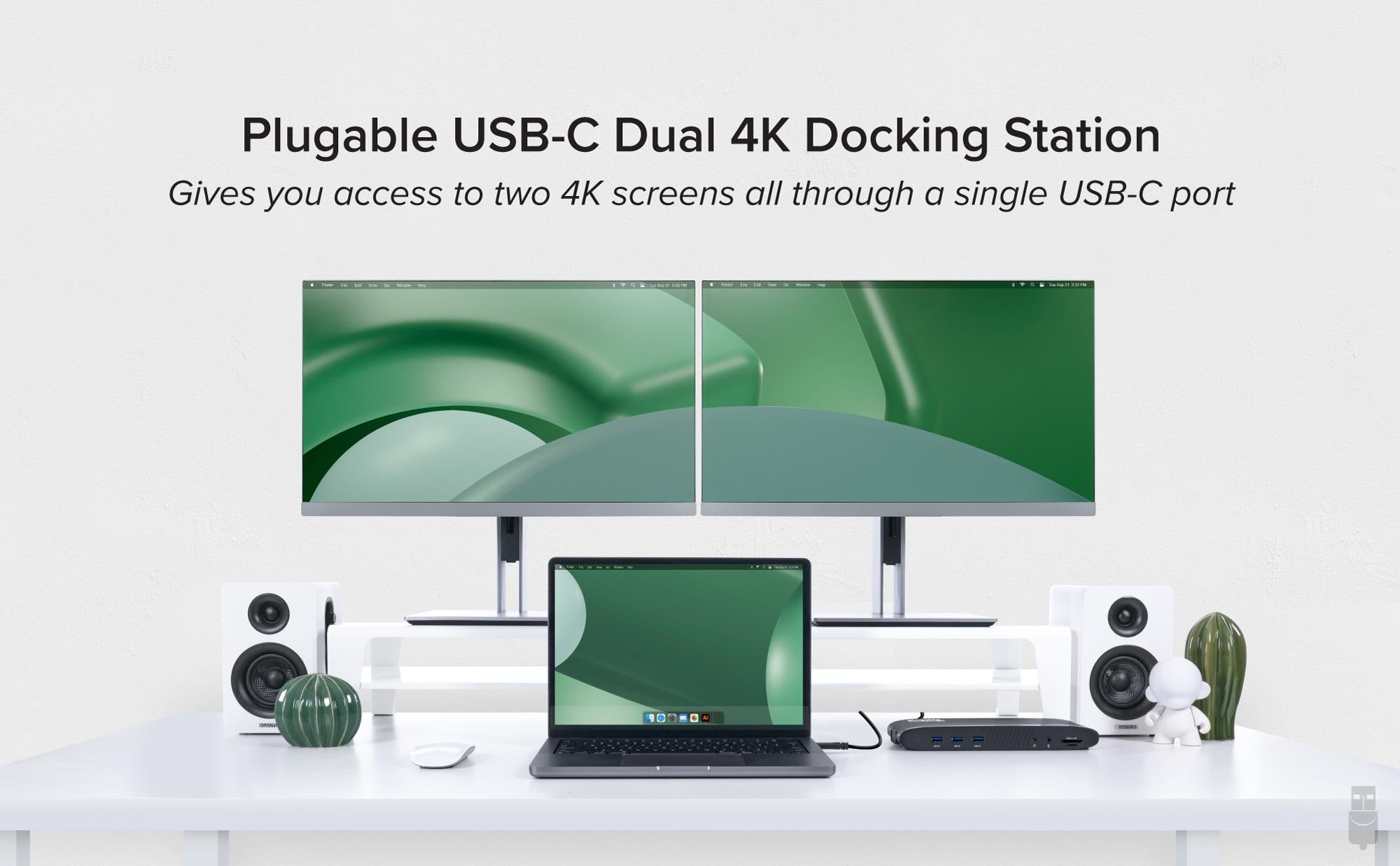
Expand Your Workstation
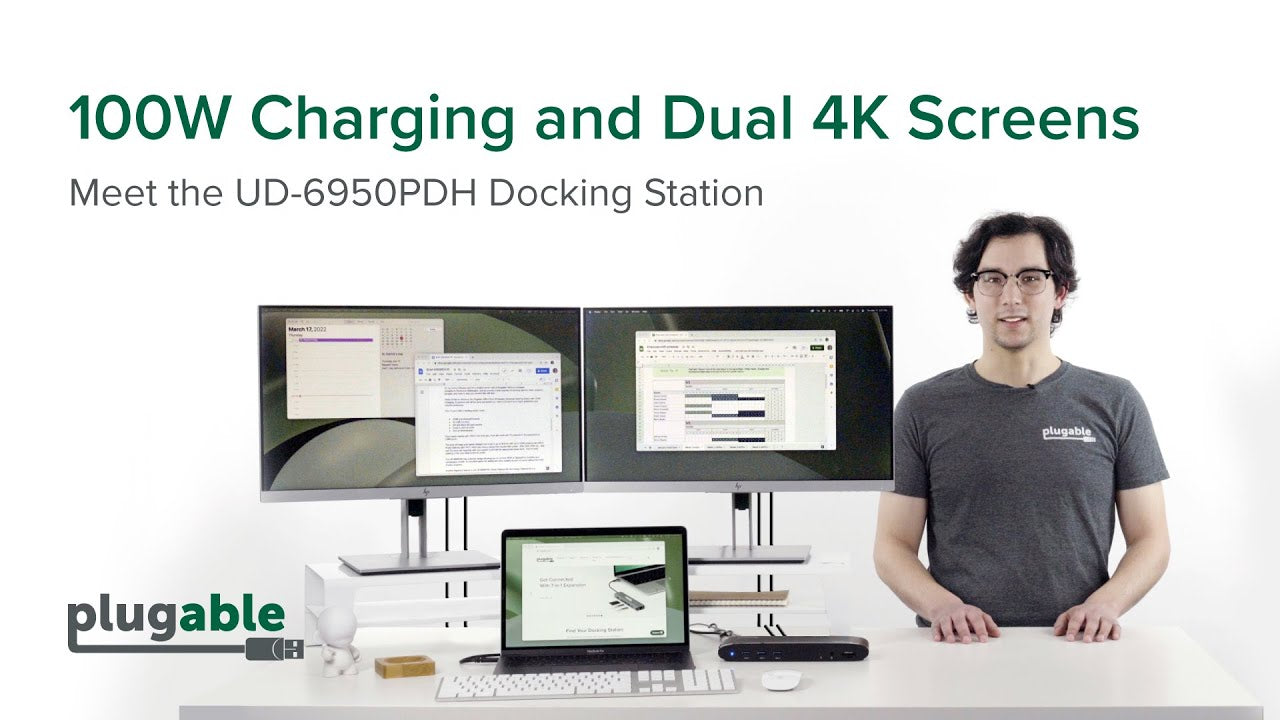
The Plugable UD-6950PDH USB-C HDMI and Display Port docking station dual monitor utilizes DisplayLink technology to offer dual 4K 60Hz monitor support for HDMI, DisplayPort, or a combination of both.This laptop docking station is an excellent option for adding two extra screens to your computer, even if it might otherwise only support one—like an M1, M2 or M3 MacBook. Pair that with 100W charging, 5x USB 3.0 ports, SD and microSD card readers, audio in and out ports, and an Ethernet port, because you can’t always count on WiFi in this place. All connected by a single 1m (3ft) USB-C cord back to your laptop.

HDMI, DisplayPort, or Both
With 2x HDMI ports, and 2x DisplayPort ports powered by DisplayLink USB graphics, this Plugable docking station ensures both of your monitors will reach resolutions up to 4K 60Hz for a smooth frame rate. If you’re going to use a high-resolution monitor, you're going to need a docking station with a high refresh rate to take advantage of all those pixels.
Just a heads up, this docking station requires a DisplayLink software download. This is typically automatic through Windows and ChromeOS, but you will need to download the DisplayLink Manager App to get full functionality on macOS.
4K Is Just the Start
The first thing you’ll notice when connecting to this laptop docking station is the crisp detail splashed across two 4K screens. But there’s a lot more to discover.
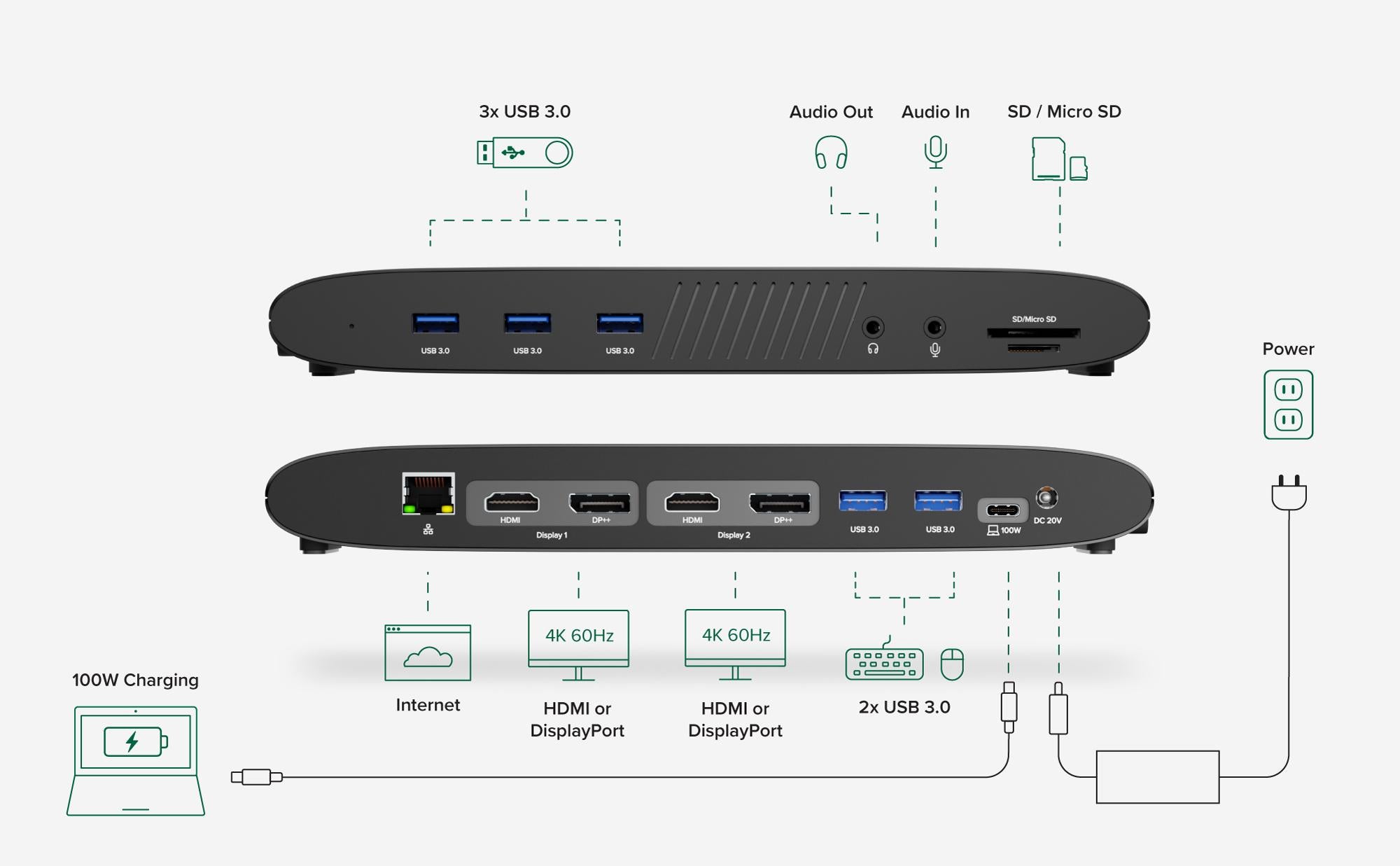
The UD-6950PDH has 5x USB 3.0 ports with transfer speeds up to 5Gbps.This USB-C laptop docking station also has audio in and out ports for your headphones and mic, SD and Micro SD card readers, and an Ethernet port, because you can’t always count on the WiFi in this place.

I Have the Power
Power Delivery—charging your laptop through a USB-C port—can get confusing. How much power is enough? How much is too much?
The UD-6950PDH laptop dock has you covered. With 100W charging, you have enough power to charge just about any laptop—even under a heavy workload. And if your laptop needs less power, the dock communicates with your computer to negotiate the perfect charge level.
| Laptop Compatibilty | Compatible with systems that have a USB4, Thunderbolt 4 / 3, or full-featured USB-C port and Windows 10, Windows 11, ChromeOS 100+, or macOS 11+, this dual display docking station lets you connect up to 2 monitors, even if your laptop only supports 1 |
| | Not compatible with: Linux/Unix; or ARM-based Windows operating systems (such as Surface RT). |
| Monitor Compatibility | Supports two high-resolution monitors up to 4K 60Hz (3840x2160 @ 60Hz) when connected to displays that support the desired resolution. While backwards compatible it is important to note:, • DisplayPort 1.2 monitors can support upto 4K 60Hz, • DisplayPort 1.1 monitors can support upto 4K 30Hz,• HDMI 2.0 displays can support up to 4K 60Hz, • HDMI 1.4 displays can support upto 4K 30Hz |
| Software Compatibility | DisplayLink is a flexible and versatile technology that’s great for most users’ workflow. But there are a few scenarios where it’s not the right fit such as gaming and HDCP (copy-protected) content playback from Blu-ray/Netflix/Prime/iTunes/Hulu/etc. |
| Power and Charging | With 100W charging, you have enough power to charge just about any laptop—even under a heavy workload. And if your laptop needs less power, the dock communicates with your computer to negotiate the perfect charge level. |
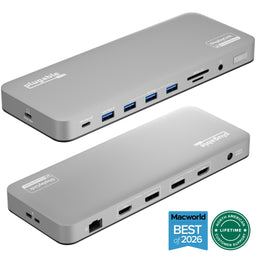
In The Box
| Item and Quantity | Item Notes |
|---|---|
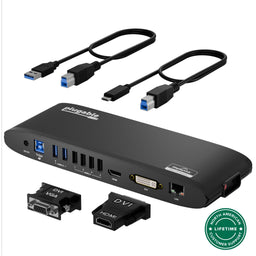
| 1x USB-C Dual 4K Docking Station | |
| 1x Quick Start Guide | |
| 1x USB-C Cable | |
| 1x Power Adapter |
Included Cables
| Port Type (Side 1) | Cable Specification | Port Type (Side 2) | Cable Length | External Power for Cable |
|---|---|---|---|---|
| Male USB-C | USB 3.2 Gen 2 (10Gbps) | USB-C | 1.0m/3.28ft | No |
LEDs
| LED Number | Shape | Color | Status | Definition | Notes |
|---|---|---|---|---|---|
| 1 | Dot | White | Solid | Powered on |
Video
| Port | Placement | Specification | Max Resolution and Refresh Rate | HDCP | Chipset |
|---|---|---|---|---|---|
| 2x HDMI 4K or
DisplayPort++ (Output) |
Rear | DisplayPort 1.2 or HDMI 2.0 | 3840x2160 @ 60Hz 3840x2160 @ 60Hz3840x1600 @ 60Hz 3440x1440 @ 60Hz 2560x1440 @ 60Hz 2560x1080 @ 60Hz 1920x1080 @ 60Hz 1600x900 @ 60Hz 1280x1024 @ 60Hz 1280x800 @ 60Hz 1280x720 @ 60Hz 1152x864 @ 60Hz 1024x768 @ 60Hz 800x600 @ 60Hz 640x480 @ 60Hz |
Not Supported | DL-6950 DisplayLink |
Audio
| Port | Placement | Connection | Max Bit Depth and Sample Rate | Signal Output | Channels | Chipset |
|---|---|---|---|---|---|---|
| HDMI Output |
Rear | DisplayLink HDMI | Digital | 2 | DL-6950 DisplayLink |
|
| HDMI Output |
Rear | DisplayLink HDMI | Digital | 2 | DL-6950 DisplayLink |
|
| DisplayPort Output |
Rear | DisplayLink DisplayPort | Digital | 2 | DL-6950 DisplayLink |
|
| DisplayPort Output |
Rear | DisplayLink DisplayPort | Digital | 2 | DL-6950 DisplayLink |
|
| Headset Jack Bi-Directional |
Front | 3.5mm (TRRS) | Analog | 2 | DL-6950 DisplayLink |
Power
| Port | Placement | Power Host / Device | Connection Type | AC Inlet | Notes | Voltage | Amperage | Wattage |
|---|---|---|---|---|---|---|---|---|
| Power Supply | Rear | Device | Region-specific Power Adapter | 20.0V | 6.5A | 130.0W | ||
| USB-C to Host | Rear | Host | USB-C Power Delivery | 20.0V | 5.0A | 100.0W |
USB To Devices
| Port | Placement | Version and Link Rate | Features | Voltage | Amperage | Wattage |
|---|---|---|---|---|---|---|
| 3x USB-A | Front | USB 3.0 (5Gbps) | 5V | 900mA | 4.5W | |
| 2x USB-A | Rear | USB 3.0 (5Gbps) | 5V | 900mA | 4.5W |
Connection To Host
| Port | Placement | Version and Link Rate | Features |
|---|---|---|---|
| 1x USB-C | Rear | USB 3.0 (5Gbps) | USB Power Delivery |
Wired Network
| Port | Placement | Version and Link Rate | Features | Chipset |
|---|---|---|---|---|
| DisplayLink Gigabit Ethernet | Rear | 1000BASE-T | DL-6950 DisplayLink |
Physical Stats
| Item | Size (H x W x D) or Length | Weight | SKU or Part Number |
|---|---|---|---|
| UD-6950PDH Docking Station | 2.45 x 22.5 x 8.5 centimeters 1 x 8.9 x 3.3 inches |
465 grams 16.4 ounces |
UD-6950PDH |
Card Reader
| Media Interface | Bus Interface | Bus Speed | Chipset |
|---|---|---|---|
| Micro SD | Ultra-High Speed I (UHS-I) | 104 MB/s | Genesys Logic GL3231S |
| SD or SDHC or SDXC or MMC | Ultra-High Speed II (UHS-II) | 312 MB/s | Genesys Logic GL3231S |
Recommended Use Cases
DisplayLink based docking stations, like this, are designed to expand a computer beyond its built-in limitations, allowing more displays to be connected and utilized by the computer. The DisplayLink software achieves this by emulating graphics hardware, this is great for office and light web-browsing applications, however 2D or 3D graphics applications, full screen video playback, video editing software, and games may not work as expected and are not recommended for use with this docking station.
Due to potential performance and software compatibility limitations we recommend fully updating the host computer's operating system, software, and drivers; this helps to reduce the potential for unexpected disconnections and poor performance. Driver updates may be found on the computer manufacturer's website, or directly from the component manufacturer (for example Intel Graphics Drivers can be downloaded from the computer manufacturer or from Intel).
Minimum System Requirements- Operating Systems:
- Windows 11, 10
- We recommend installing all Windows updates
- DisplayLink software installation requires administrative permissions
- macOS 11 (Big Sur), macOS 12 (Monterey)
- We recommend installing all Apple software updates
- DisplayLink Manager App installation requires administrative permissions
- USB Type-C port with Power Delivery (PD) support
- 2x HDMI or DisplayPort displays upto 3840x2160 (4K UHD) resolution with HDMI 2.0 or DisplayPort 1.2 inputs.
- USB-C Port with Power Delivery (PD), this docking station can replace a computer's original USB-C power supply rated up to 100W
Note: Not all computers with USB-C ports support USB-C Power Delivery. Please feel free to contact our support team and we will be happy to help determine if your laptop is compatible with our UD-6950PDH docking station.
Currently unsupported configurations and features
All operating systems:- Computer Gaming: most 2D and 3D games require hardware graphics acceleration which is not supported by the DisplayLink Graphics software, games may not launch correctly with the docking station connected to the computer 2D or 3D Graphics Applications: These applications often rely on hardware graphics acceleration not supported by the DisplayLink Graphics software, these applications may have reduced performance, capabilities, or compatibility when the docking station is connected
- HDCP (High-bandwidth Digital Content Protection) is not supported on DisplayLink controlled displays
- Display Rotation requires DisplayLink Manager 1.6 or newer and macOS 12.2 or newer, display rotation is not supported on macOS 10.15.6-7 2D or 3D Graphics Applications: These applications often rely on hardware graphics acceleration not supported by the DisplayLink Graphics software, these applications may have reduced performance, capabilities, or compatibility when the docking station is connected
- HDCP (High-bandwidth Digital Content Protection) is not supported, while this docking station is connected to the computer HDCP content will not play on any displays (including the built-in display or displays connected directly to the computer)
- HiDPI resolutions (Retina) is not supported with DisplayLink controlled displays. 4K UHD (3840x2160) displays will be limited to either 4K native resolution or 1080P (1920x1080) resolution without Retina scaling.
- While we try to support Linux with as many of our products as possible, we do not recommend our DisplayLink based docking stations with Linux at this time.
- Windows 11, 10
macOS Installation and Setup
- Download and install the DisplayLink Manager for macOS.
- Detailed installation and configuration instructions can be found by clicking on the "INFO" button, or in the next step.
- Please follow the detailed instructions below to install and configure the DisplayLink software for your version of macOS:
- Connect the power supply to your wall socket or power strip, and then to the docking station.
- Connect the display to the docking station.
- Using the USB cable provided with the docking station, connect the dock to the computer through the dock's host USB port labelled with a Laptop icon .
Windows Installation and Setup
- Download and install the DisplayLink software.
- Connect the power supply to your wall socket or power strip, and then to the docking station.
- Connect the display to the docking station.
- Using the USB cable provided with the docking station, connect the dock to the computer through the dock's host USB port labelled with a Laptop icon .
ChromeOS Installation and Setup
- No driver download is necessary, through ChromeOS version 100 or later is required.
- Connect the power supply to your wall socket or power strip, and then to the docking station.
- Connect the display to the docking station.
- Using the USB cable provided with the docking station, connect the dock to the computer through the dock's host USB port labelled with a Laptop icon .
Current Drivers and Software
macOS users, please click the 'INFO' button in the table below for important installation instructions.
| Platform | Important Notes | Date | Version and Download |
|---|---|---|---|
| Windows 11 and 10 | Drivers will typically install automatically through Windows Update. See the following article for more information about installing the DisplayLink driver. |
June 29, 2026 | DisplayLink Software 12.2 M2 |
| macOS 26, 15, and 14 | macOS 14, 15, and 26 installation instructions for the DisplayLink Manager App available on our knowledge base. |
July 17, 2026 | DisplayLink Manager App 16.2 |
| ChromeOS | ChromeOS supported with latest software updates installed (version 100 or later) See the following article for more information on using DisplayLink products on ChromeOS. |
No driver installation needed |
Legacy Drivers for Older Systems
| Platform | Important Notes | Date | Version and Download |
|---|---|---|---|
| Windows 8.x and 7 | Drivers often install automatically through Windows Update. See the following article for more details about installing the DisplayLink driver. |
September 22, 2022 | DisplayLink Software 10.3 M0 |
| Windows Vista | January 7, 2015 | DisplayLink Software 7.7 M3 | |
| Windows XP | July 18, 2014 | DisplayLink Software 7.6 M2 | |
| macOS 13 | macOS 13 installation instructions for the DisplayLink Manager App available on our knowledge base. |
November 18, 2025 | DisplayLink Manager App version 14.2 |
| macOS 12 | macOS 12 installation instructions for the DisplayLink Manager App available on our knowledge base. |
August 27, 2024 | DisplayLink Manager App version 1.10.3 |
| macOS 11 | macOS 11 installation instructions for the DisplayLink Manager App available on our knowledge base. |
September 8, 2021 | DisplayLink Manager App version 1.9 |
| macOS 10.15 | DisplayLink Manager App Installation Instructions See the following article for more information about the macOS DisplayLink Manager app. |
September 8, 2021 | DisplayLink Manager App version 1.5 |
| macOS 10.14 | It is highly recommended to follow along our instructions on installing the legacy driver to ensure the driver loads properly. See the following article for more information about the macOS Legacy driver. |
August 13, 2020 | DisplayLink Software 5.2.5 |
- Choosing a selection results in a full page refresh.
Sign up to be notified when we're back in stock!
Please note: Not all products are available globally
Presale Signup
Please note: Not all products are available globally