


Hassle free, 2-Year Warranty
Fast, Free Shipping on Orders $35+
Lifetime Technical Support
30-Day Money Back Guarantee
Plugable USB-C to HDMI Adapter for Triple Monitors (Windows Only)
$44.95 USD
SKU: USBC-MSTH3Amazon Rating : (121 Reviews)
Features
- Triple Display Expansion for Windows & ChromeOS— Connect up to three HDMI displays through a single USB-C connection on compatible Windows 10/11 and ChromeOS 100+ systems. Requires a USB-C, USB4, or Thunderbolt port that supports video output. Not for extended displays on macOS.
- Compatibility Checklist— Your computer must support DisplayPort Alt Mode and MST over USB-C for multi-monitor output. macOS does not support MST for extended displays, so connected monitors may mirror instead. Check your laptop specifications before purchase to confirm video and multi-display support.
- Dedicated Multi-Monitor Expansion— Add up to three HDMI display outputs from a compatible USB-C host for expanded productivity across office, hybrid, and multi-monitor workspaces. This adapter is built for video output and does not provide laptop charging, USB data, ethernet, or audio. No power adapter is needed, the adapter draws power directly from your laptop.
- Display Configurations— Supports up to 1x 8K 60Hz, 2x 4K 120Hz, or 3x 4K 60Hz when the host computer and connected displays support the required bandwidth. Maximum resolution and refresh rate depend on your computer's graphics capabilities and USB-C video support.
- Host Requirements— For maximum multi-display performance, including triple 4K 60Hz, the host should support DisplayPort 1.4 with DSC. Not all USB-C ports support video, and available display configurations can vary by computer hardware and port capabilities.
- Driverless, Portable & Supported— No software installation is required on supported Windows or ChromeOS systems. The compact, bus-powered adapter is easy to use at home, in the office, or while traveling and includes lifetime support from our North American team of connectivity experts.
For volume orders or business inquiries contact sales@plugable.com
Free 3-Day Continental U.S. Shipping When Buying Direct!


Tech Specs
| Host Interface | USB-C with DisplayPort Alt Mode* support, including USB4 and Thunderbolt ports |
| Video Protocol Support | For maximum resolution and refresh rate, computer must support DisplayPort 1.4 with Display Stream Compression (DSC), such as Intel 11th Gen CPUs and newer |
| Display | 1x HDMI Display up to 8K 60Hz or 2x HDMI Displays up to 4K 144Hz or 3x HDMI Displays up to 4K 60Hz *Max resolution and refresh rates dependent on host system video capabilities |
| Operating System | Windows 10 or 11, ChromeOS version 100+ that supports a full-featured USB-C port with DisplayPort Alt Mode or Thunderbolt 3/4. Macs do not support MST technology. |
| Features | HDR and HDCP 2.2 & 1.4 supported |
| Cable Length | 6.7in (17cm) |
A: No. Supports Windows 10/11 & ChromeOS (100+) systems with USB-C ports with DisplayPort Alt Mode or Thunderbolt. DP 1.4+DSC required for maximum resolutions. Standard “data-only” USB-C ports are not supported. Please check your manufacturer’s specs to confirm USB-C capabilities. Macs do not support MST.
A: Mac systems are not supported. Mac systems do not support MST and will only support mirrored displays (not extended/independent).
A: The USBC-MSTH3 is Plug-and-Play, requiring no drivers or software, and is compatible with systems that have a USB-C port supporting DisplayPort Alt Mode or Thunderbolt. Keeping your system up to date with the latest graphics and system drivers is strongly recommended
A: Monitors with an HDMI input are compatible with the USBC-MSTH3. For 4K@60Hz resolution, monitors must support HDMI 2.0 and use certified HDMI 2.0 cables. For 8K@60Hz resolution, monitors must support HDMI 2.1 and use certified HDMI 2.1 cables.
A: The USBC-MSTH3 connects directly to your system’s GPU for high-performance multi-monitor setups, making it ideal for applications like CAD, CGI, and gaming. It also enables streaming from services like Netflix, Hulu, and Amazon Prime Video.
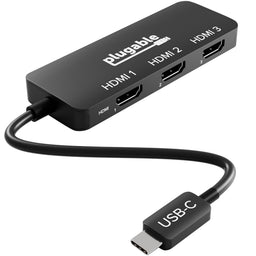 |
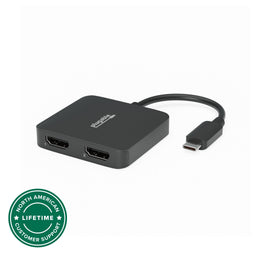 |
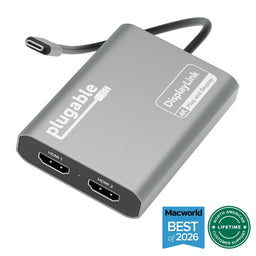 |
 |
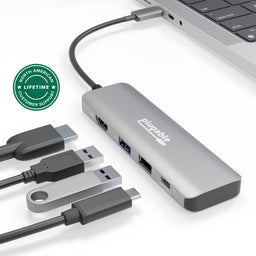 |
|
|---|---|---|---|---|---|
Connection to host |
USB-C, Thunderbolt, USB4 |
USB-C, Thunderbolt, USB4 |
USB-C, Thunderbolt, USB4 |
USB-C, Thunderbolt, USB4 |
USB-C, Thunderbolt, USB4 |
OS Compatibility |
Windows, ChromeOS |
Windows, ChromeOS |
macOS, Windows, ChromeOS |
macOS, Windows, ChromeOS |
macOS, Windows, ChromeOS |
Number of displays supported |
3x HDMI |
2x HDMI |
2x HDMI |
2x HDMI 2x DisplayPort |
1x HDMI |
Number of USB ports |
X |
X |
X |
X |
3 |
Driver Required |
No |
No |
Yes |
Yes |
No |
Filter Help Articles and Frequent Questions by Category
Choose one or more filters within each category to narrow down the articles. Each selection will result in only displaying articles that include all of your choices.
Articles
Well how about that, it looks like we don't have any articles matching your filters! Try removing one of your choices or clear the filters to show all articles.
You can always contact support if you need help too!
What Should I Check if My USBC-MSTH3 Displays Are Not Working Correctly?
Summary
The USBC-MSTH3 is a driverless USB-C to triple HDMI MST video adapter. If one, two, or all three connected displays are not working as expected, the most important items to check are the host computer's USB-C video capability, MST support, DisplayPort version, DSC support, operating system display mode, graphics driver version, HDMI cable rating, and monitor compatibility.
The adapter does not require Plugable drivers or DisplayLink software. It uses the host computer's built-in graphics hardware through USB-C DisplayPort Alternate Mode, USB4, or Thunderbolt video output.
Applicable To
- Plugable USB-C to Triple HDMI MST Video Adapter (USBC-MSTH3)
- Windows 10 or newer and ChromeOS 100 or newer
- USB-C, USB4, Thunderbolt 3, or Thunderbolt 4 host ports that support video output and MST
- Up to three HDMI displays connected through the adapter
Answer
Start by confirming that the computer, display settings, HDMI cables, and monitors meet the requirements for the USBC-MSTH3.
The USBC-MSTH3 must be connected to a USB-C, USB4, or Thunderbolt port that supports DisplayPort Alt Mode or equivalent video output. For multiple independent extended displays, the host system must also support Multi-Stream Transport (MST). If the host system does not support USB-C video output, the adapter will not provide video.
On Windows and ChromeOS, make sure the displays are set to extend rather than mirror. On macOS, multiple independent extended displays are not supported with this adapter because macOS does not support MST through standard MST hubs. Linux is also not officially recommended because MST behavior can vary by distribution, graphics stack, and driver support.
Driver and System Update Checks
The USBC-MSTH3 is plug-and-play on compatible Windows and Chrome OS systems. No Plugable driver is required.
Even though the adapter is driverless, display behavior can still depend on the host system's graphics drivers, firmware, and operating system updates. For best results:
- Run Windows Update or ChromeOS updates
- Install the latest graphics driver from the computer manufacturer or GPU manufacturer
- For Windows systems, check Intel, AMD, or NVIDIA graphics driver updates as appropriate
- Install BIOS, firmware, USB4, or Thunderbolt firmware updates from the computer manufacturer if external display issues continue
- Restart the computer after installing updates
Graphics driver and firmware updates can help resolve missing displays, lower-than-expected resolution options, flickering, blank screens, or displays that mirror when they should extend.
Connection Checks
Check the physical connection path before troubleshooting software settings.
- Connect the USBC-MSTH3 directly to the computer
- Avoid connecting through another dock, hub, extension cable, or USB-C adapter during testing
- Make sure the adapter's built-in USB-C cable is fully inserted
- Connect each monitor directly to the adapter with an HDMI cable
- Use HDMI cables rated for the resolution and refresh rate you want to use
- Confirm each monitor is set to the correct HDMI input
- Test each monitor and HDMI cable individually if only one or two displays are working
The USBC-MSTH3 is a video-only adapter. It does not charge the connected laptop, provide USB data ports, or provide Ethernet.
Display Mode Settings
On Windows:
- Open Settings.
- Go to System > Display.
- Select Detect if one or more displays are missing.
- Under Multiple displays, choose Extend these displays.
- Select each display and confirm the resolution, refresh rate, and display arrangement.
On ChromeOS:
- Open Settings.
- Go to Device > Displays.
- Disable mirroring if it is enabled.
- Arrange the displays as needed.
- Confirm the resolution and refresh rate for each display.
If the displays are mirrored on Windows or ChromeOS, the system display settings may need to be changed. If the displays are mirrored on macOS, that is expected behavior for this MST adapter.
Host System Requirements
The USBC-MSTH3 depends on the video capabilities of the host computer. The host port must support USB-C video output through one of the following:
- USB-C with DisplayPort Alternate Mode
- USB4 with DisplayPort support
- Thunderbolt 3 or Thunderbolt 4
A data-only USB-C port is not compatible.
For multiple independent external displays, the host system must also support MST. The host system's GPU must also be capable of driving the number of active displays you want to use.
On some laptops, the built-in display counts toward the total number of supported displays. If only two of three external monitors are detected, try closing the laptop lid or disabling the internal display, if supported by the computer manufacturer.
If a simple USB-C to HDMI adapter does not work with the computer’s USB-C port, the USBC-MSTH3 will likely not work either.
Expected Resolution by Host Capability
The USBC-MSTH3 does not create additional video bandwidth. It divides the video bandwidth provided by the host computer across the connected HDMI displays. Because of this, the maximum display configuration depends on the host system's DisplayPort version, MST support, DSC support, and available bandwidth.
Display Stream Compression (DSC) is a display technology that allows higher resolutions and refresh rates to fit within the available DisplayPort bandwidth. For triple 4K 60Hz, DisplayPort 1.4 with DSC or DisplayPort 2.1 is recommended.
Monitor and HDMI Cable Requirements
The monitors and HDMI cables must also support the desired resolution and refresh rate. For example:
- For triple 4K 60Hz, use HDMI 2.0 or newer monitors and HDMI cables rated for HDMI 2.0 or higher
- For dual 4K 144Hz, use HDMI 2.1 monitors and HDMI cables rated for HDMI 2.1
- For a single 8K 60Hz display, use an HDMI 2.1 monitor and HDMI cable rated for HDMI 2.1
Older, damaged, or lower-spec HDMI cables can cause lower available resolutions, lower refresh rates, flickering, blank displays, or unstable display detection.
macOS, Linux, and Mobile Device Expectations
The USBC-MSTH3 is designed primarily for supported Windows and ChromeOS systems.
macOS and iPadOS do not support MST in the same way as Windows and ChromeOS. Because of this:
- macOS is not recommended for multiple extended displays with the USBC-MSTH3
- A Mac may show mirrored displays instead of separate extended displays
- iPadOS supports only one external display
- Many phones and tablets do not support multiple independent external displays through MST adapters
Linux can support MST in some configurations, but results vary by distribution, graphics stack, kernel version, and driver support. Plugable does not officially recommend Linux for the USBC-MSTH3.
For Mac users who need multiple extended displays, a DisplayLink-based adapter or docking station may be a better fit, though those products require driver installation.
Common Symptoms and What They Usually Mean
Need Assistance?
If the USBC-MSTH3 is still not working as expected after checking the items above, contact Plugable Support at support@plugable.com. Please include the computer model, operating system version, graphics adapter, monitor models, HDMI cable type if known, how many displays are connected, and a description of what each display is doing.
Is My Laptop Compatible With Plugable Multi-Stream Transport (MST) Products?
For multiple independent displays using Multi-Stream Transport (MST), your computer must support DisplayPort video and MST through its USB-C, USB4, or Thunderbolt connection. Windows and ChromeOS support MST, while macOS does not support MST for multiple independent extended displays.
How Do I Check Whether My Laptop Is Compatible With MST?
Start by checking your computer's operating system and USB-C video capabilities.
| Platform | MST Support | Expected Behavior |
|---|---|---|
| Windows 10 / 11 | Supported | Multiple independent extended displays on compatible hardware |
| ChromeOS | Supported | Multiple independent extended displays on compatible hardware |
| macOS | Not supported | MST-connected displays cannot operate as multiple independent extended displays |
Your computer must provide DisplayPort video through the port connected to the Plugable product. A USB-C port that supports only USB data or charging cannot provide video to an MST dock, hub, or adapter.
Look for one of the following capabilities in your computer's specifications:
- USB-C with DisplayPort
- USB-C with DisplayPort Alt Mode
- USB4
- Thunderbolt 3
- Thunderbolt 4
- Thunderbolt 5
USB4 and Thunderbolt ports support DisplayPort video, but the number of displays, maximum resolution, and refresh rate still depend on the computer's graphics hardware and DisplayPort capabilities.
If your computer's specifications don't clearly identify its DisplayPort capabilities or MST support, contact the manufacturer to confirm.
How Does My Computer's Display Limit Affect MST Compatibility?
MST allows a single DisplayPort connection to carry multiple display streams, but it does not increase the maximum number of displays supported by your computer's graphics hardware.
For example, a Plugable product may support three external monitors while the connected computer supports only three displays in total. If the laptop's built-in display counts toward that limit, only two external displays may be available.
In some cases, closing the laptop lid and disabling the internal display may make another external display available. Display limits vary by processor, graphics hardware, operating system, and computer manufacturer.
How Does DisplayPort Bandwidth Affect MST Display Resolution?
MST divides the DisplayPort bandwidth available from the computer among the connected displays. Higher resolutions and refresh rates require more bandwidth.
| Host Display Capability | General MST Capability |
|---|---|
| No DisplayPort video over USB-C | No video output |
| DisplayPort 1.2 | Commonly supports dual 1080p 60Hz configurations |
| DisplayPort 1.4 | Supports higher resolutions and refresh rates depending on available bandwidth |
| DisplayPort 1.4 with DSC | Supports higher-bandwidth multi-display configurations on compatible products |
| DisplayPort 2.1 | Provides additional display bandwidth on compatible systems and products |
Display Stream Compression, or DSC, allows higher-resolution display signals to use less DisplayPort bandwidth. Whether DSC is required depends on the Plugable product, connected displays, and desired resolution and refresh rate.
Always refer to the specifications for your specific Plugable product to confirm its supported display configurations.
Which Plugable Products Use MST?
The following available Plugable products use DisplayPort Multi-Stream Transport as part of their display functionality.
| Model | Maximum External Displays | MST Use |
|---|---|---|
| UD-MSTH2 | 2 | Two displays through MST |
| UD-MSTH3 | 3 | Up to three displays through MST |
| UD-MSTHDC | 2 | Two displays through MST |
| USBC-MSTH2 | 2 | Two HDMI displays through MST |
| USBC-MSTH3 | 3 | Up to three HDMI displays through MST |
| USBC-11IN1E | 2 | Two HDMI displays through MST |
| UD-3900C4 | 4 | Hybrid design with two MST displays and two DisplayLink displays |
| TBT4-UDZ | Up to 4 | Uses built-in MST to support multiple displays on compatible Windows systems |
The UD-3900C4 is a hybrid docking station. HDMI 1 and HDMI 2 use DisplayLink technology, while HDMI 3 and HDMI 4 rely on the computer's native DisplayPort Alt Mode and MST capabilities.
The TBT4-UDZ uses MST differently depending on the host platform. Compatible Windows Thunderbolt 4 and USB4 systems can use MST to support up to four extended displays. Mac display support differs because macOS does not support DisplayPort MST, so refer to the TBT4-UDZ product specifications for Mac display configurations.
What Are My Options if I Use macOS?
macOS does not support DisplayPort MST for multiple independent extended displays from a single MST connection.
This doesn't mean every Plugable product with MST is unusable with a Mac. Some products, such as hybrid or Thunderbolt docking stations, may use other display technologies or separate native display connections.
If you need multiple independent extended displays on a Mac, consider a Plugable DisplayLink docking station or a compatible Thunderbolt docking station. Always check the specific product's Mac compatibility and your Mac model's native external display capabilities before choosing a solution.
Applicable To
- UD-MSTH2, UD-MSTH3, UD-MSTHDC, USBC-MSTH2, USBC-MSTH3, USBC-11IN1E, UD-3900C4, TBT4-UDZ
Does this Plugable MST video adapter come with a power supply?
This display adapter draws power from the USB-C port that it is connected to in order to function. So there is no need for an external power supply to operate this device but it is recommended to keep in mind that this will draw power from your computer.
Does the Plugable MST video adapter come with cables?
This device does not include any extra cables, but it does have a built-in USB-C cable for connecting to the host computer. For connecting displays, you will want to use a set of HDMI cables.
Could I use a USB Type-A adapter To connect the MST adapter with my computer if there is no USB-C port available?
This display adapter requires a connection that supports USB-C DisplayPort Alt Mode for extending the displays. The use of any adapter to convert a USB-C signal to USB Type-A would not have the capability of supporting display extensions. As such, this device would not function for extending displays when used in such a manner.
If your computer does not have a USB-C port, you may want to look into our USB 3.0 display adapters such as the following, which should be compatible:
- Plugable USB-C or USB 3.0 to Dual HDMI Adapter
- Plugable USB 3.0 and USB-C 4K DisplayPort and HDMI Dual Monitor Adapter
Note that each of these devices do require driver installation.
If I connect the Plugable MST adapter to a MacBook, would I be able to see two or three distinct screens, or would all screens display the same content?
When you connect this directly to a MacBook, you will only see mirrored content on both screens. This is because macOS and iPadOS are not designed to support Multi-Stream Transport (MST) which the Plugable USBC-MSTH2 and USBC-MSTH3 video adapters rely on to power two displays.
Does the MST adapter work on any USB-C port?
The USBC-MSTH2 will only work with a USB-C port or Thunderbolt port that supports DisplayPort Alt Mode for extending external displays.
If your computer does not support DisplayPort Alt Mode, you may want to look into our USB 3.0 display adapters such as the following, which should be compatible:
- Plugable USB-C or USB 3.0 to Dual HDMI Adapter
- Plugable USB 3.0 and USB-C 4K DisplayPort and HDMI Dual Monitor Adapter
Note that each of these devices do require driver installation.
No Sound? How to Change Your Default Audio Device to Your Plugable Product
If your computer is sending audio to the wrong speakers, headphones, microphone, dock, or other audio device, you can change the default audio output or input device in your operating system's sound settings. The steps below cover Windows, macOS, and Linux.
How Do I Set the Default Audio Device?
Common audio devices you may want to switch to include:
- Bluetooth headsets, headphones, and speakers
- Speakers built into a display, such as a TV or monitor
- A USB sound card, digital audio converter (DAC), or analog to digital converter (ADC)
- USB microphones
- Audio jacks on a docking station
These steps don't apply to the Plugable Performance NIX HDMI Capture Card (USBC-CAP60).
Set Audio Output Device
Set Default Playback Device in Windows
- Check that your audio device is properly connected and that any necessary drivers are installed.
- If the audio device has its own power or volume controls, make sure it is turned on and is not muted or set to the minimum volume.
- Open the Windows sound settings.
-
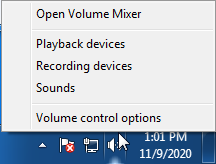
Windows 7/8.x: Right-click the speaker icon in the Windows taskbar and select Playback Devices. The Sound window will open with the Playback tab selected.
-
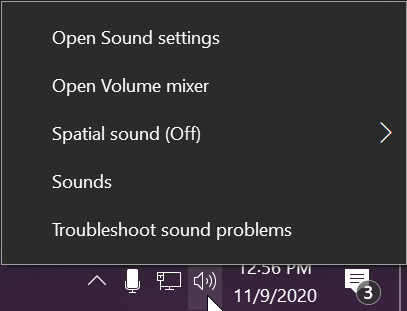
Windows 10/11: Right-click the speaker icon in the Windows taskbar and select Sound settings or Open Sound settings.
-
Windows 7/8.x: Right-click the speaker icon in the Windows taskbar and select Playback Devices. The Sound window will open with the Playback tab selected.
- In Windows 10 or Windows 11, select your preferred device under Output.
- If you need the classic Sound window, select More sound settings or Sound Control Panel, then select the Playback tab.
- Find the appropriate audio device.
- A Plugable USB 3.0 DisplayLink docking station or sound-enabled display adapter may appear as Plugable Audio.
- A Plugable Silicon Motion docking station or sound-enabled display adapter may appear as SMI USB Audio.
- A Plugable USB 2.0 docking station may appear as USB Multimedia Audio Device.
- A Plugable USB Audio adapter may appear as USB Audio Device.
- If you are using the classic Sound window, right-click the device and select Set as Default Device.
- Select OK to close the window.
Additional Configuration for Bluetooth
For Bluetooth pairing and configuration instructions:
Set Default Playback Device in macOS
- Open System Settings.
- On older versions of macOS, open System Preferences.
- Select Sound.
- Select Output.
- Select the audio device you want to use.
- A Plugable USB Audio adapter may appear as USB Audio Device.
Set Default Playback Device in Linux
- Confirm that the audio device is connected to the computer.
- If the audio device is self-powered, make sure it is powered on and is not muted or set to the minimum volume.
- Open the Settings application for your Linux distribution.
- Select Sound.
- Find the Output Device setting and select your preferred audio device.
- For additional audio controls, consider using PulseAudio Volume Control, package name pavucontrol, if supported by your Linux distribution.
Set Audio Recording Device
Set Default Recording Device in Windows
- Check that your audio device is properly connected and that any necessary drivers are installed.
- If the audio device has its own power or volume controls, make sure it is turned on and is not muted or set to the minimum volume.
- Open the Windows sound settings.
-
Windows 7/8.x: Right-click the speaker icon in the Windows taskbar and select Recording Devices. The Sound window will open with the Recording tab selected.
-
Windows 10/11: Right-click the speaker icon in the Windows taskbar and select Sound settings or Open Sound settings.
-
Windows 7/8.x: Right-click the speaker icon in the Windows taskbar and select Recording Devices. The Sound window will open with the Recording tab selected.
- In Windows 10 or Windows 11, select your preferred device under Input.
- If you need the classic Sound window, select More sound settings or Sound Control Panel, then select the Recording tab.
- Find the appropriate recording device.
- A Plugable USB 3.0 DisplayLink docking station or sound-enabled display adapter may appear as Plugable Audio.
- A Plugable USB 2.0 docking station may appear as USB Multimedia Audio Device.
- A Plugable USB Audio adapter may appear as USB Audio Device.
- If you are using the classic Sound window, right-click the device and select Set as Default Device.
- Select OK to close the window.
Additional Configuration for Bluetooth
For Bluetooth pairing and configuration instructions:
Set Default Recording Device in macOS
- Open System Settings.
- On older versions of macOS, open System Preferences.
- Select Sound.
- Select Input.
- Select the audio device you want to use.
- A Plugable USB Audio adapter may appear as USB Audio Device.
Set Default Recording Device in Linux
- Confirm that the audio device is connected to the computer.
- If the audio device is self-powered, make sure it is powered on and is not muted or set to the minimum volume.
- Open the Settings application for your Linux distribution.
- Select Sound.
- Find the Input Device setting and select your preferred recording device.
- For additional audio controls, consider using PulseAudio Volume Control, package name pavucontrol, if supported by your Linux distribution.
Applicable To
Windows, macOS, Linux, Plugable Docking Stations, USB-AUDIO, Plugable USB Audio Adapters
My Docking Station/Adapter Works Well With My Windows Laptop, but When I Close the Lid the Displays and Laptop Turn Off or Sleep. How Do I Fix This?
Windows defaults to putting the computer to sleep when the lid is closed, even if there are external displays and devices connected, we can change this setting to enable closing the lid while using a docking station.
Recommended Setup
To ensure the computer can reliably function with the lid closed there are some requirements and recommendations:
- The system should be powered: This can be from a USB Type-C Docking Station with host charging, or by connecting the laptop's original power source.
- There should be at least one external display connected, this can be through a docking station, or directly to the computer.
- There should be a keyboard and mouse connected, either through a docking station, USB Hub, or directly to the computer.
Windows 11 24H2 and Newer
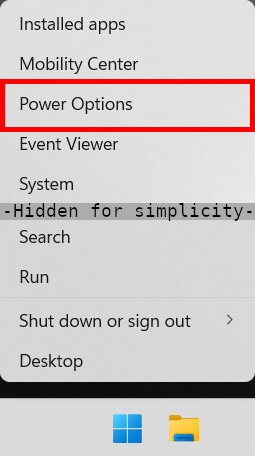
- Right-click on the Start menu and select Power Options from the context menu
- Expand the Lid, power & sleep button controls sub-section
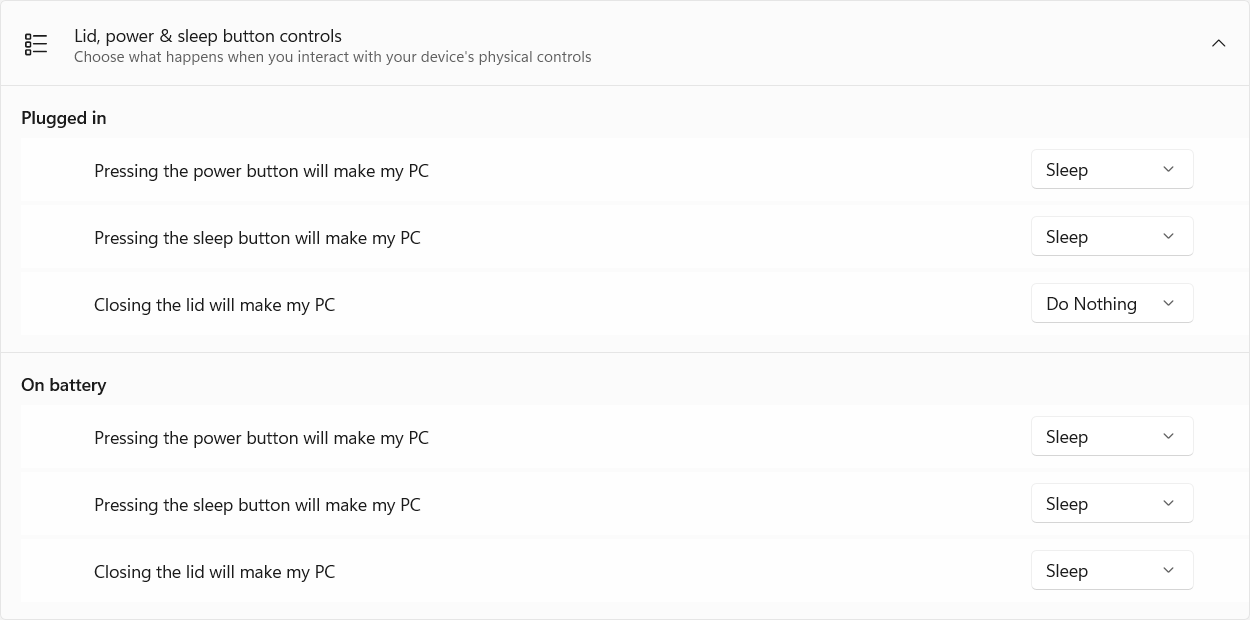
- Under Plugged in select Do Nothing from the Closing the lid will make my PC context menu
Windows 11 23H2 and Earlier
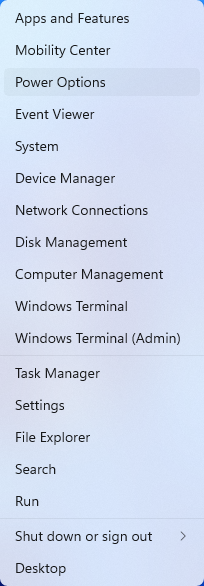
- Right-click on the Start menu and select Power Options from the context menu
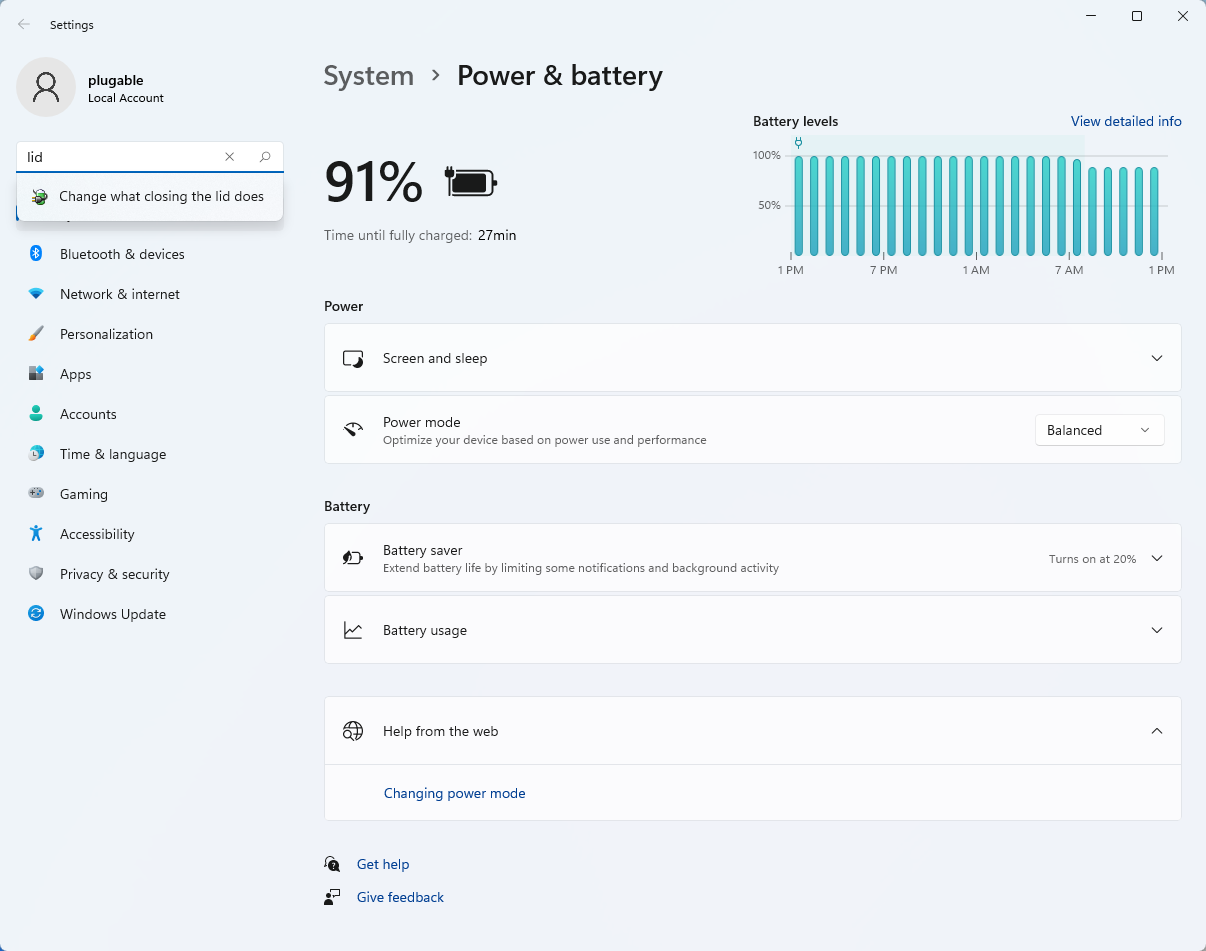
- In the upper left corner of the settings window, in the search box, type "lid" then select Change what closing the lid does from the search results
- Make sure the setting for When I close the lid under the Plugged In column is set to Do Nothing
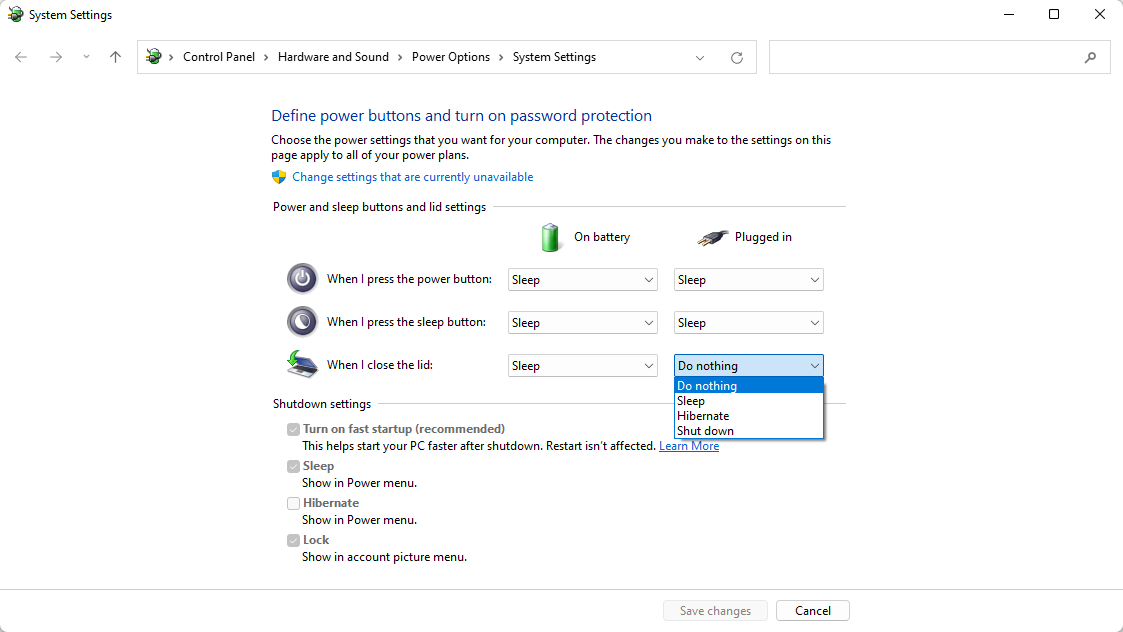
- Click the Save Changes button to apply the new settings.
Windows 10
- Start by right-clicking on the Start button and select Power Options from the menu.
- From the right side of the Power Options settings page, select the blue link for Additional power settings
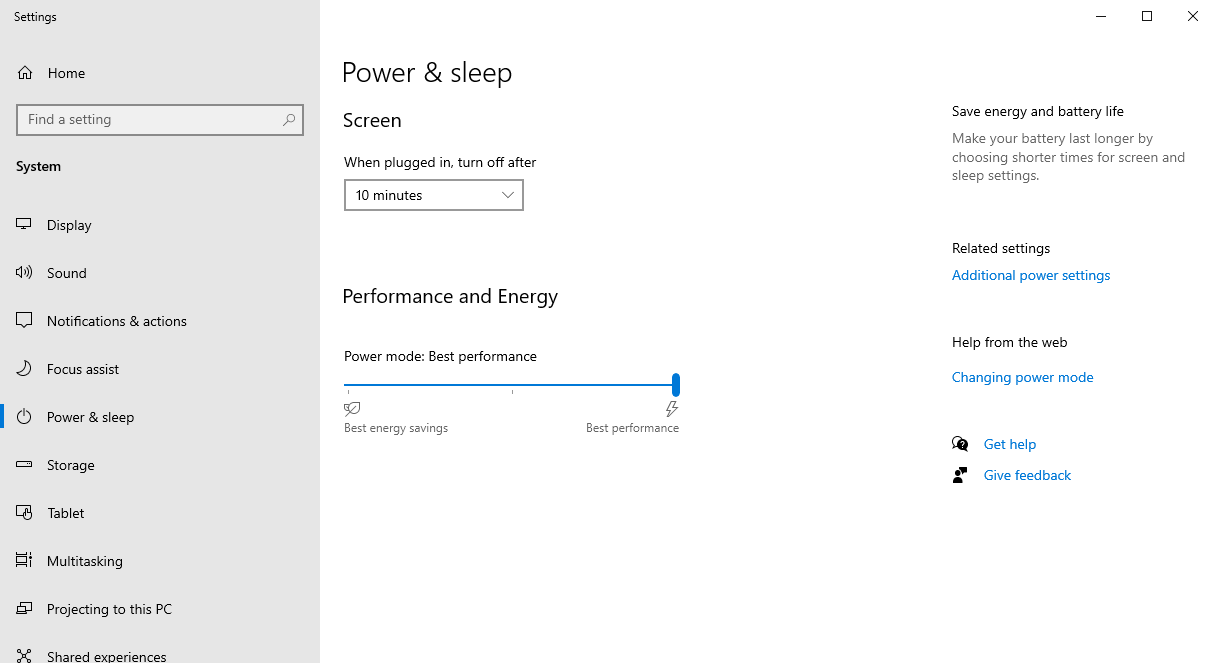
- From the choices present on the left-hand side of the Power Options window, please click on Choose what closing the lid does
- Make sure the setting for When I close the lid under the Plugged In column is set to Do Nothing
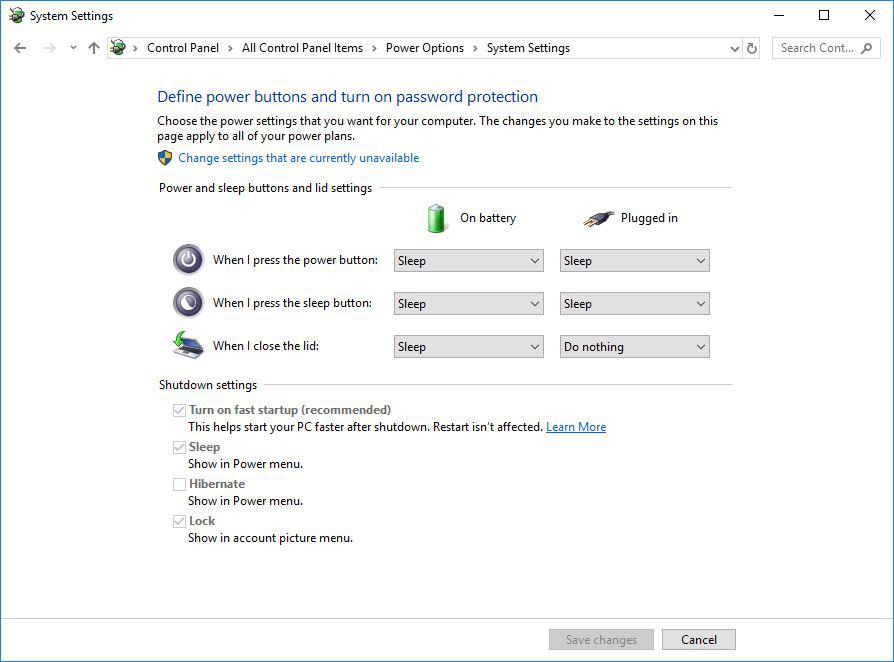
- Click the Save Changes button and restart the system (making sure that the laptop's power adapter is also connected) and test the behavior again.
Closing the lid should no longer put the computer into sleep mode when an external display and power source is connected, instead one of the external displays should now become the Primary display with the desktop icons instead of the laptop's built-in display.
When to open the lid?
The laptop lid may still need to be opened when performing any of the following:
- To power on the computer from a fully powered off state
- To log into the computer if logged out or if the computer is restarted with the lid closed
- To wake the computer from a deep sleep state (hibernation, or Windows hybrid sleep states)
If you have any questions please feel free to contact us at support@plugable.com and we'll be happy to help!
Why Do Plugable Electronics Generate Heat During Operation?
Yes, heat generation is a normal byproduct of operation for electronic devices and Plugable products as electrical energy is consumed and transferred. Power delivery, high-speed data transfers, and active peripheral usage naturally convert electrical energy into thermal energy. Plugable designs its products with thermal safety margins to ensure operational temperatures remain within safe limits.
Why Plugable Electronics Generate Heat
Electrical components generate heat as current flows through them, with higher power usage-such as charging host laptops or conducting fast data transfers-increasing thermal output. Many Plugable products, such as the TBT3-UDZ and TBT4-UDZ docking stations, feature aluminum enclosures engineered with internal thermal pads to function as heat sinks. This design transfers internal heat outward to radiate into the room. This protects internal components, however can cause the external surface to feel warm or hot. Higher ambient room temperatures, direct sunlight, and obstructions to air currents around the device may also contribute to increased surface heat. While Underwriters Laboratories (UL) sets a thermal safety threshold of 77°C (170.6°F), Plugable targets a lower operational ceiling of approximately 71°C (160°F) under the heaviest of loads.
How to Manage Heat Generation in Plugable Products
To keep operating temperatures as low as possible, ensure Plugable devices have sufficient ventilation around them and are not placed in enclosed spaces. Avoid connecting an excessive number of power-hungry USB accessories that exceed the power limits of your dock or hub, as higher power draw causes the unit to run warmer (for example USB fans, heaters, cup warmers etc). Expect temporary increases in surface temperature during intensive workloads such as simultaneous multi-device charging and high-bandwidth data transfer.
Conclusion
Experiencing heat from Plugable products is a normal aspect of the operation of high-performance devices. Users can rest assured that we prioritize the safety and efficiency of our devices. By understanding the factors influencing heat generation and following simple usage guidelines, users can make the most of their Plugable products while ensuring a reliable and efficient user experience.
Applicable To
- Plugable docking stations, including TBT3-UDZ and TBT4-UDZ models
- Plugable USB hubs, video adapters, and electronic accessories
- Electronic devices utilizing metal heat-dissipating enclosures
If you have any questions please feel free to contact us at support@plugable.com and we'll be happy to help!
How To: Set the Display Refresh Rate in Windows 11
Summary
Many modern displays support refresh rates higher than 60Hz. In some cases, the desired refresh rate may need to be selected manually in Windows 11. The resolutions and refresh rates available depend on the capabilities of the display, computer, graphics hardware, docking station or adapter, and the connection between them.
Applicable To
Windows 11 computers using built-in or external displays, including displays connected through compatible Plugable docking stations, video adapters, and cables.
Setting the Display Refresh Rate in Windows 11
1. Right-click on the desktop and select Display Settings from the drop-down menu
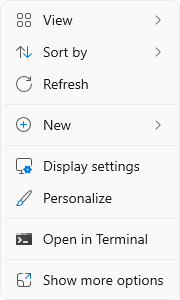
2. Scroll down to the Related settings subsection and select Advanced display

3. At the top of the Advanced display window, select the display you want to configure from the drop-down menu.

4. From the Choose a refresh rate drop-down menu select the desired refresh rate
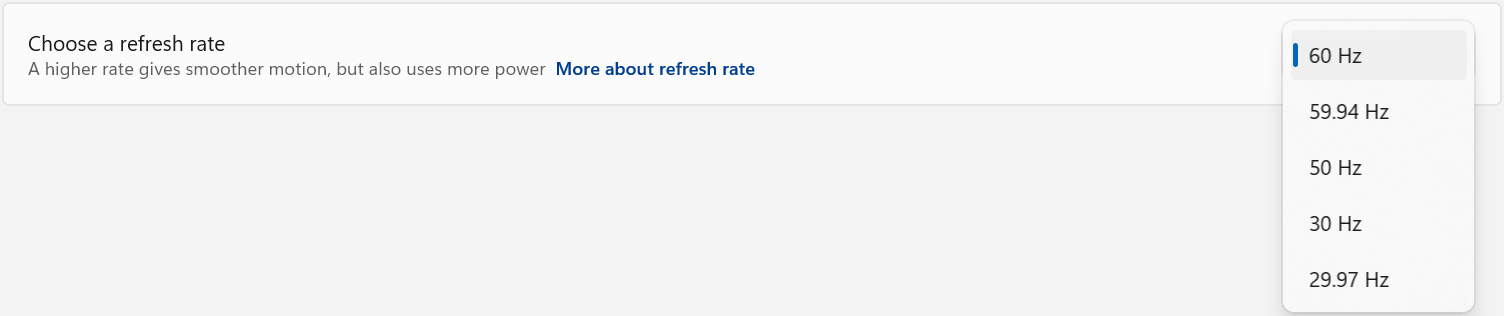
If the Desired Refresh Rate Is Not Listed
If the desired refresh rate is not available, confirm that the display, computer or graphics hardware, docking station or adapter, and video cable all support the desired resolution and refresh rate combination.
Some devices may support a higher refresh rate only at a lower display resolution. Check the specifications for each component in the display connection to confirm the supported resolution and refresh rate combinations.
Refresh Rate Limitations
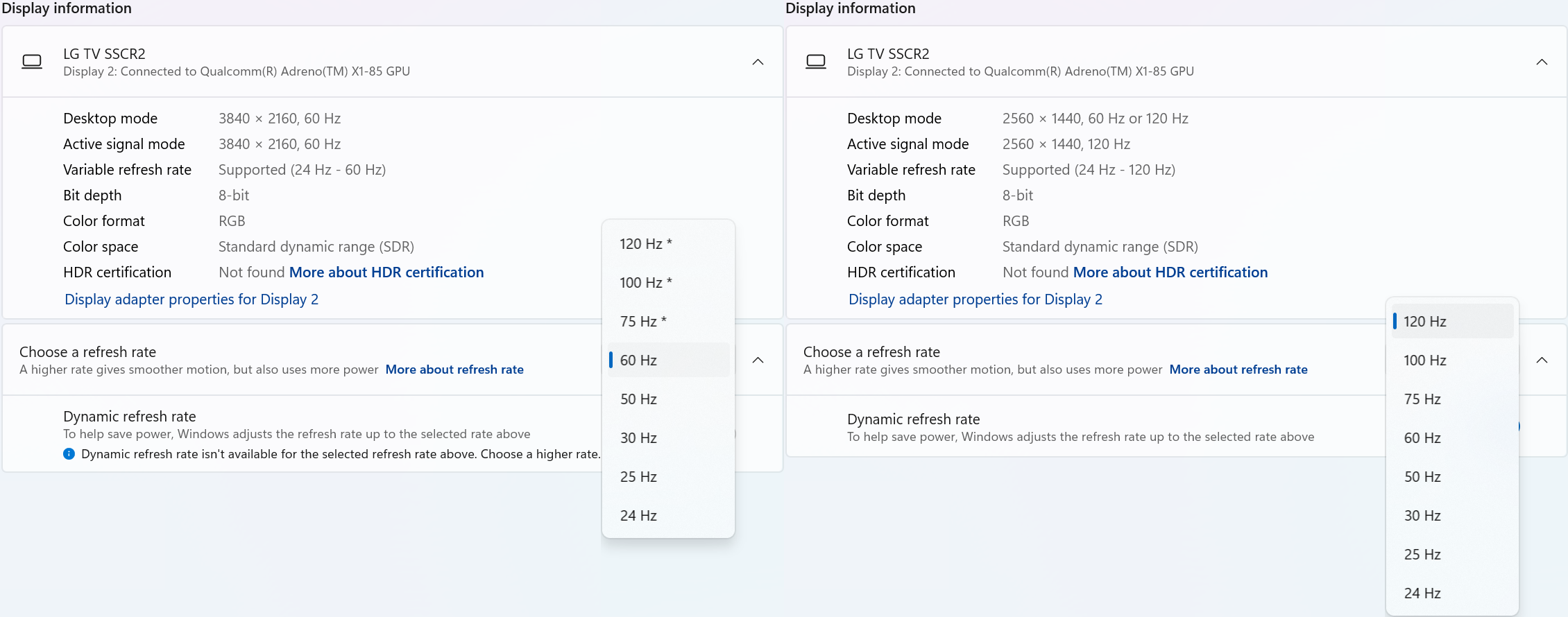
Windows 11 may display an asterisk (*) next to certain refresh rates in Settings > System > Display > Advanced display. The asterisk indicates that the selected refresh rate is not supported at the display's current resolution. Selecting one of these refresh rates will cause Windows to change the display resolution in order to achieve the selected refresh rate.
In the example below, the display supports 3840 × 2160 (4K UHD) at 60Hz and 2560 × 1440 (1440p) at 120Hz through the connected hardware. After selecting “120 Hz*”, Windows changes the display resolution from 3840 × 2160 to 2560 × 1440 so that the higher refresh rate can be used. Because the display is now operating at a lower resolution, the image may appear less sharp than when using the display's native 4K resolution. After selecting a lower refresh rate, Windows may retain the reduced display resolution. If the original resolution is not restored automatically, return to Settings > System > Display and manually select the desired resolution.
Dynamic Refresh Rate
Windows 11 also supports Dynamic Refresh Rate (DRR) on compatible hardware. When enabled, Windows can automatically adjust the display refresh rate based on what you are doing to provide smoother motion when needed while helping reduce power consumption at other times.
DRR requires a display that supports Variable Refresh Rate (VRR) and a refresh rate of at least 120Hz. If supported by the computer and display, DRR can be enabled or disabled under Settings > System > Display > Advanced display.
Need Assistance?
If the desired refresh rate is still unavailable after following the steps above, please contact Plugable Support at support@plugable.com.
When contacting support, please include:
- The Plugable product model
- Your computer model
- Your display model
- The resolution and refresh rate you are trying to use
- How the display is connected to the Plugable product
- The output from Plugable's diagnostic tool, PlugDebug
USB-C vs. Thunderbolt: Understanding the Differences
While USB-C and Thunderbolt share the same physical rounded rectangle connector they operate in fundamentally different ways.
The Main Differences Aren't Physical
USB 3 at 5Gbps and 10Gbps with Type-C - often simplified to USB-C - is both the hardware connector standard, and the included data types: USB 5Gbps or 10Gbps data rates, as well as optionally DisplayPort Alternate Mode video and USB Power Delivery for powering and charging both host computers, and downstream devices.
Thunderbolt, specifically Thunderbolt 3 and newer and USB4 use the same physical USB Type-C port, and support a backwards compatibility with USB-C devices, however the signaling and data structure is completely different. Both Thunderbolt and USB4 operate at between four to sixteen times the speed of USB 3. While USB offers optional display and charging, these are mandatory for Thunderbolt hosts. The way display data is transmitted is also different.
DisplayPort Alternate Mode for USB 3 occupies two or four of the physical data lanes in the USB Type-C connector and cable. Tunneled DisplayPort video in Thunderbolt (and USB4) packetizes the DisplayPort video data and transmits it within Thunderbolt/USB4 data packets. Tunneled DisplayPort allows for more native DisplayPort streams enabling multiple external displays at higher resolutions and refresh rates.
Power Delivery is the USB Type-C (as in the port) charging and power standard - this allows a power source and device to negotiate a voltage and maximum amperage both devices can support. For example a phone might negotiate a 9V 3A charge rate which is close to optimal for a phone size battery, while a notebook computer is more likely to negotiate 20V 5A both for improved battery charging and to power the system under moderate to heavy workloads.
Why USB-C and Thunderbolt Capabilities Differ
USB Type-C is a connector standard where features such as video output (DisplayPort Alt Mode) and USB Power Delivery (PD) are optional and depend on the host device manufacturer. In contrast, Thunderbolt sets mandatory performance and hardware requirements across data, video, and power protocols.
- USB 3.0 / 3.1 Gen 1: Up to 5Gbps data transfer speed.
- USB 3.2 Gen 2: Up to 10Gbps data transfer speed.
- USB 3.2 Gen 2x2: Up to 20Gbps data transfer speed. This is very rarely implemented and most computers do not support it.
- Thunderbolt 3: Up to 40Gbps data transfer speed, supports dual DisplayPort 1.2 enabling two 4K or a single 5K displays, USB, DisplayPort, PCIe over a single cable, and up to 100W Power Delivery.
- USB4: Up to 40Gbps data transfer speed, supports DisplayPort 1.4 either one or two external displays, PCIe, and optional Thunderbolt 3 compatibility, USB 3.2 Gen 2 10Gbps, and Power Delivery.
- Thunderbolt 4: Up to 40Gbps data transfer speed, supports dual 4K or single 8K displays, USB4 compatibility, USB 3.2 Gen 2 10Gbps, and Power Delivery.
- Thunderbolt 5: Up to 80Gbps bi-directional bandwidth (DisplayPort up to 120Gbps using Bandwidth Boost), supports dual 6K or single high-refresh-rate 8K displays, PCIe, and backward compatibility with Thunderbolt 4 and USB4, USB 3.2 Gen 2 10Gbps.
Effectively each tier from this list supports all of the features of the tier above as well as some new features. Thunderbolt 4 is Intel's implementation of USB4 with all optional features enabled.
How to Identify Ports and Ensure Compatibility
- Port Identification: Thunderbolt ports are usually marked with a lightning bolt symbol with a downward pointing triangle at the bottom point, this should be next to the port, while USB-C ports may be unmarked or feature symbols indicating power delivery (a simple lightning bolt is common) or DisplayPort capabilities ("DP" logo is often used). Always refer to device technical specifications for confirmation.
- Connecting Thunderbolt Devices to USB-C Ports: Thunderbolt 3, 4, or 5 devices connected to standard USB-C ports typically operate at reduced capabilities, such as lower speeds or fewer display outputs.
- Connecting USB-C Devices to Thunderbolt Ports: USB-C devices connected to Thunderbolt ports function normally, but cannot take advantage of full Thunderbolt features.
Applicable To
- Plugable docking stations, hubs, and video adapters
- USB-C standards (USB 3.0, 3.1 Gen 1, 3.2 Gen 2, 3.2 Gen 2x2, USB4)
- Thunderbolt standards (Thunderbolt 3, Thunderbolt 4, Thunderbolt 5)
If you have any questions please feel free to contact us at support@plugable.com and we'll be happy to help!
Can I connect this product to a computer's Thunderbolt/Thunderbolt 2 port?
Many users assume that USB-C devices can work with older Thunderbolt 2 Macs if they use a Thunderbolt 3 to Thunderbolt 2 adapter, such as the one made by Apple. However, this is not the case. These adapters are specifically designed to support Thunderbolt devices only - not standard USB-C peripherals.
While Thunderbolt 3 and USB-C share the same connector type, they use different underlying data protocols. Non-Thunderbolt USB-C devices, rely on USB standards for data and power. The Thunderbolt 3 to Thunderbolt 2 adapter does not carry USB signals; it only passes Thunderbolt data. Because of this, plugging a USB-C device into a Thunderbolt 2 Mac using this adapter will not work - the computer will not detect or communicate with the device.
If you need to connect peripherals to a Thunderbolt 2 system, we recommend using a USB-A dock or hub (if available on your system). This ensures compatibility without relying on unsupported adapter chains.
In short, even though the connectors may fit, USB-C devices are not compatible with Thunderbolt 2 Macs via Thunderbolt adapters - only Thunderbolt devices will work in that setup.
USBC-MSTH3 Compatibility and Supported Display Configurations
The Plugable USBC-MSTH3 is a USB-C to triple HDMI video adapter that uses DisplayPort Alternate Mode with Multi-Stream Transport (MST) to drive up to three displays from one compatible USB-C, USB4, or Thunderbolt port.
The adapter is designed for compatible Windows 10 or newer and ChromeOS 100 or newer systems. It does not require DisplayLink drivers or other software installation. It uses the host computer's built-in graphics capability, so the maximum number of displays, resolution, and refresh rate depend on the host system's USB-C video support, DisplayPort version, MST support, and available display bandwidth. Plugable lists the USBC-MSTH3 as supporting Windows 10 or newer and ChromeOS 100 or newer on systems with a USB-C, USB4, or Thunderbolt port with video output. Plugable also notes that maximum resolution and refresh rate depend on the host system's video capabilities.
Display Configuration Capabilities
The number and resolution of displays supported depend on the host system's DisplayPort version, MST support, DSC support, and available bandwidth. The connected monitors and HDMI cables must also support the desired resolution and refresh rate.
| Configuration | Max Resolution & Refresh Rate | Requirements |
|---|---|---|
| Single Display | Up to 8K @ 60Hz | HDMI 2.1 monitor and cable required |
| Dual Displays | Up to 4K @ 144Hz | HDMI 2.1 monitors and cables required |
| Triple Displays | Up to 4K @ 60Hz | HDMI 2.0 or newer monitors and cables required |
Note: One HDMI display up to 8K 60Hz, two HDMI displays up to 4K 144Hz, or three HDMI displays up to 4K 60Hz, with maximum resolution and refresh rate dependent on the host system's video capabilities.
System Requirements
To use the USBC-MSTH3, the host system must support USB-C video output through one of the following:
- USB-C with DisplayPort Alternate Mode
- USB4 with DisplayPort support
- Thunderbolt 3 or Thunderbolt 4
A data-only USB-C port is not compatible.
The host system must also support MST for multiple independent extended displays. If a simple USB-C to HDMI adapter does not work with the computer, the USBC-MSTH3 will likely not work either.
Full Compatibility
DisplayPort 2.1
DisplayPort 2.1 systems can support the highest display configurations available through the USBC-MSTH3, including up to one 8K 60Hz display, dual 4K 144Hz displays, or triple 4K 60Hz displays, assuming the monitors and HDMI cables also meet the required specifications.
Limited Compatibility
DisplayPort 1.4 with Display Stream Compression (DSC) - DisplayPort 1.4 systems with DSC can support higher-resolution configurations by using compression. Plugable lists DisplayPort 1.4 with DSC as supporting up to 8K 30Hz, dual 4K 120Hz, or triple 4K 60Hz.
DisplayPort 1.4 without DSC - DisplayPort 1.4 systems without DSC are more limited by available bandwidth. These systems may be limited to dual 4K 60Hz or triple 1080p 60Hz.
Basic Compatibility
DisplayPort 1.2 - DisplayPort 1.2 systems have significantly less available display bandwidth. These systems may be limited to dual 1080p 60Hz or single 4K 30Hz and are not recommended for triple-display use. DisplayPort 1.2 hosts support dual 1080p 60Hz or single 4K 30Hz. Not recommended for triple-display use.
Operating System Compatibility
| Operating System | Compatibility | |
|---|---|---|
| Windows 10 or newer | ✅ Full support | Full extended display support on compatible systems |
| Windows 11 | ✅ Full support | Full extended display support on compatible systems |
| ChromeOS 100 or newer | ✅ Full support | Full extended display support on compatible systems |
| macOS | ❌ Not recommended | macOS does not support MST for multiple independent extended displays through this adapter |
| Linux | ⚠️ Mixed results – not officially supported due to driver inconsistencies | MST behavior can vary by distribution, graphics stack, and driver support |
macOS Note - The USBC-MSTH3 is not recommended for Mac systems. macOS does not support MST for multiple independent extended displays through standard MST adapters. On a Mac, connected displays may mirror instead of extend. Mac systems do not support MST and will only support mirrored displays, not extended or independent displays, with the USBC-MSTH3.
Monitor and Cable Requirements
The host computer is only one part of the display chain. The monitors and HDMI cables must also support the resolution and refresh rate you want to use.
- For 4K 60Hz, use monitors that support HDMI 2.0 and HDMI cables rated for HDMI 2.0.
- For 8K 60Hz, use a monitor that supports HDMI 2.1 and an HDMI cable rated for HDMI 2.1.
Using older, damaged, or lower-spec HDMI cables can result in lower available resolutions, lower refresh rates, flickering, blank displays, or unstable display detection. Plugable notes that 4K 60Hz requires HDMI 2.0 monitors and certified HDMI 2.0 cables, while 8K 60Hz requires HDMI 2.1 monitors and certified HDMI 2.1 cables.
Important Notes:
- The USBC-MSTH3 is a video-only adapter.
- It does not charge the connected laptop.
- It does not provide USB data ports.
- It does not provide Ethernet.
- It does not use DisplayLink technology.
- It does not require DisplayLink drivers.
It uses the host computer's built-in graphics through USB-C DisplayPort Alternate Mode, USB4 with DisplayPort support, or Thunderbolt video output.
Before You Buy Checklist
- The computer runs Windows 10 or newer, Windows 11, or ChromeOS 100 or newer
- The USB-C, USB4, or Thunderbolt port supports video output
- The system supports MST
- The system's DisplayPort version is known
- DSC support is confirmed if triple 4K 60Hz is needed
- The monitors support the desired resolution and refresh rate
- The HDMI cables support the desired resolution and refresh rate
- The user needs extended displays, not mirrored displays
- The system is not a Mac if multiple independent extended displays are required
FAQ
Q: Can I use the USBC-MSTH3 with a MacBook?
A: The USBC-MSTH3 is not recommended for Mac systems. macOS does not support MST for multiple independent extended displays through this type of adapter. Displays may mirror instead of extend.
Q: Will the USBC-MSTH3 charge my laptop?
A: No. The USBC-MSTH3 is a video-only adapter and does not support USB-C Power Delivery pass-through charging.
Q: Does the USBC-MSTH3 require drivers?
A: No. The USBC-MSTH3 is plug and play on compatible Windows and ChromeOS systems. Updated graphics drivers and operating system updates are recommended for best results.
Q: How do I know if my system supports MST?
A: Check the computer manufacturer's specifications for USB-C DisplayPort Alternate Mode, USB4 with DisplayPort support, or Thunderbolt 3/4 support. You may also need to confirm the system's DisplayPort version and whether DSC is supported.
Q: What happens if my system does not support enough display bandwidth?
A: The system may limit the available resolutions, refresh rates, or number of active displays. For example, a lower-bandwidth system may support dual 1080p displays or one 4K display, but not triple 4K 60Hz.
Q: Why does one laptop support triple 4K 60Hz while another does not?
A: The USBC-MSTH3 depends on the host computer's graphics capability, USB-C video support, DisplayPort version, MST support, and DSC support. Two laptops can have the same USB-C connector shape but very different video capabilities.
Still Need Help?
If you have any questions or need help determining compatibility with your system, please reach out to our support team at support@plugable.com.
Update Graphics Drivers in Windows
Up to date graphics drivers are necessary for ensuring the best performance of your computer's built-in display, as well as the capability and compatibility with external displays and docking stations.
Windows has a built-in system update service: Windows Update, however this may not provide up to date drivers or timely updates. We often see systems with out of date drivers, in some cases systems may not receive updated graphics drivers for months or even years, leaving the computer with drivers incompatible with the installed version of Windows 11.
However, we can manually update the graphics drivers to ensure the best possible performance, reliability, and compatibility.
The first step is to identify the graphics hardware, then downloading, and installing the latest drivers.
Identifying Graphics Controller
For notebooks and many desktop computers, the primary graphics controller is embedded in the processor, both AMD and Intel provide graphics driver updates based on the processor model, as well as for discrete graphics controllers. Our first step is to identify up the processor or graphics hardware model details:
- Right-click on the Start Menu and select Settings from the pop-up menu
- From the left column select System and from the bottom of the right side select About
- From the top of the about page the processor details will be on the right side, and duplicated lower down on the page.

- In this example the processor is a 12th Gen Intel(R) Core(TM) i7-1260P, we'll keep that detail for the next step.
If your computer has two graphics controllers (it may show "Multiple GPUs Installed" under Graphics Card) then we can get the graphics card model details from the Windows System Information Utility.
- Open the Start menu and search for "msinfo32"
- Select the first result
- From the left-column expand the Components section, then select Display

- In this example the Intel Iris(R) Xe Graphics is enabled by the processor, while the Intel(R) Arc(TM) Pro B60 Graphics is a discrete graphics controller.
Downloading the Drivers
Intel Graphics
- In a web browser navigate to the Intel Driver Download Page
- In the "Search Drivers & Software" field, search for the Intel graphics card model or CPU model, "Arc Pro B60" in this example

- Select the appropriate "Intel Arc Pro Graphics - Windows" or similar entry from the search results, for modern hardware Intel will normally have at least one release per month, the list should return recent results within the last month
- Select the Download button to save the installer to your Downloads folder or selected location
AMD Graphics
AMD provides an Auto-Detect utility, this works relatively well and can be used to update the system available from the AMD Drivers and Support page.
This page also provides a search and browse option for finding drivers and specific compatibility details, we'll look up the drivers for an AMD Ryzen Pro 5650U processor with Radeon Graphics:
- Navigate to AMD Drivers and Support page
- From the Browse section, fill out the processor details and click the Submit button
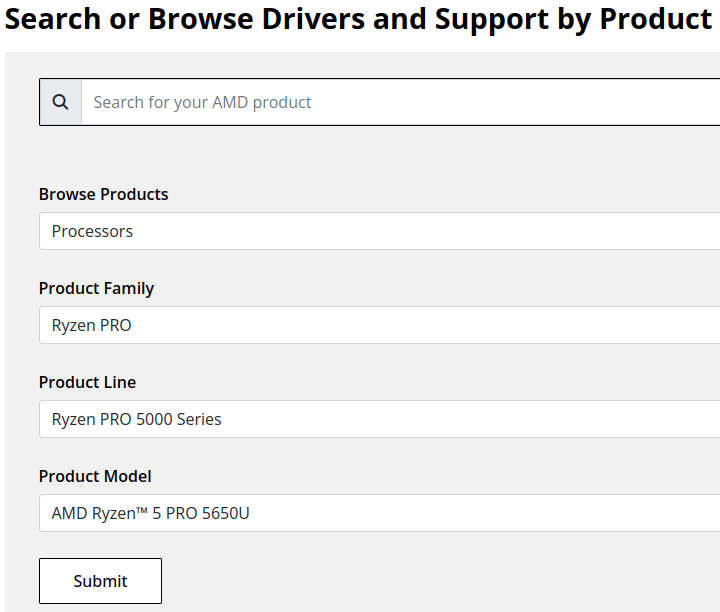
- Expand the "Windows 11 - 64-Bit Edition" section and select the Download button for the latest graphics drivers
NVIDIA Graphics
Like AMD, NVIDIA provides an automatic installation utility, as well as a Manual Driver Search on the NVIDIA Drivers support page. We will look up the drivers for an NVIDIA RTX 5080 graphics card.
- Navigate to NVIDIA Drivers support page
- Fill out the Manual Driver Search drop-downs and select the "Find" button when complete
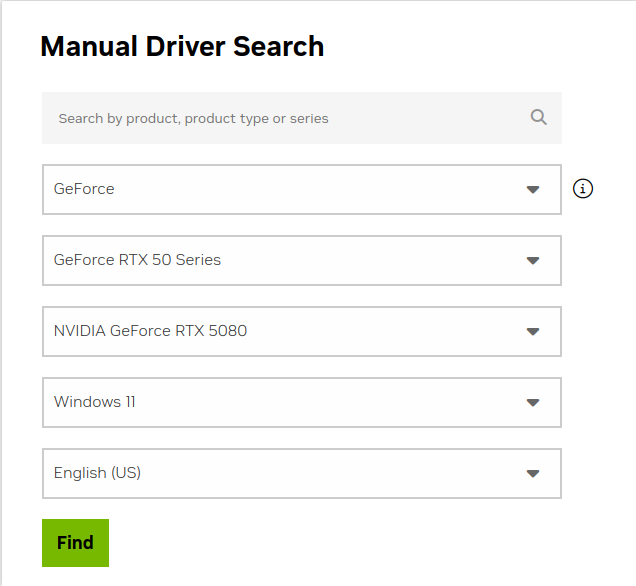
- From the search results, select the "View" button for the GeForce Game Ready Driver or NVIDIA Studio Driver (if you need the studio driver features)
- Select the green Download button for the latest graphics drivers
Installing the Graphics Drivers
For the most part this is relatively simple, we recommend disconnecting any external docking stations or devices that are not necessary for the driver installation, and for notebook computers connecting the system's original power supply.
Double-click on the downloaded driver installation executable and follow the on screen steps.
For more in-depth details on Intel, AMD, and NVIDIA's driver installation processes check out our step-by-step guides here:
- Intel Driver Installation In Detail
- AMD Driver Installation In Detail
- NVIDIA Driver Installation In Detail
If you have any questions or would like a recommendation, feel free to reach out to our support at support@plugable.com
How-To: Install the latest Intel Graphics Drivers
For a step-by-step guide to identify your graphics hardware and download the appropriate drivers, check out our KB article here
Download the drivers for your GPU or Processor Graphics
- In a web browser navigate to the Intel Driver Download Page
- In the Search Drivers & Software field, search for the Intel graphics card model or CPU model, "Arc Pro B60" in this example
- Select the appropriate Intel Arc Pro Graphics - Windows or similar entry from the search results, for modern hardware Intel will normally have at least one release per month, the list should return recent results within the last month
- Select the Download button to save the installer to your Downloads folder or selected location
Install the Intel Graphics Driver
To update the Intel Graphics Drivers to the latest version from Intel's website:
- Save and close any open applications
- Navigate to the downloaded graphics driver, then right-click on the saved driver installation file and select Run as administrator to start the installation process
- Allow the Intel driver installation through the User account control window, the drivers will be extracted
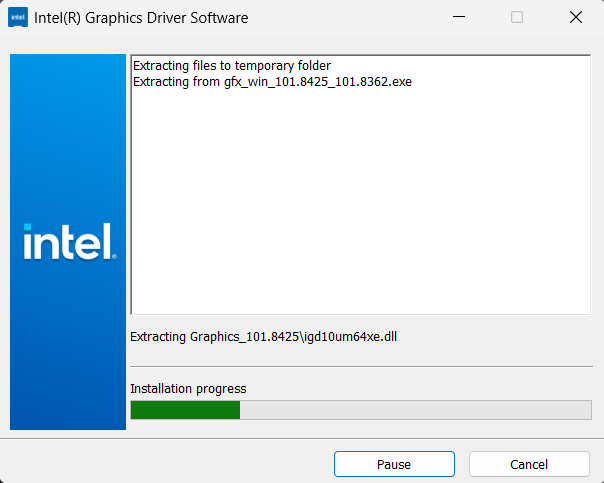
- When the extraction is complete select the Begin installation button

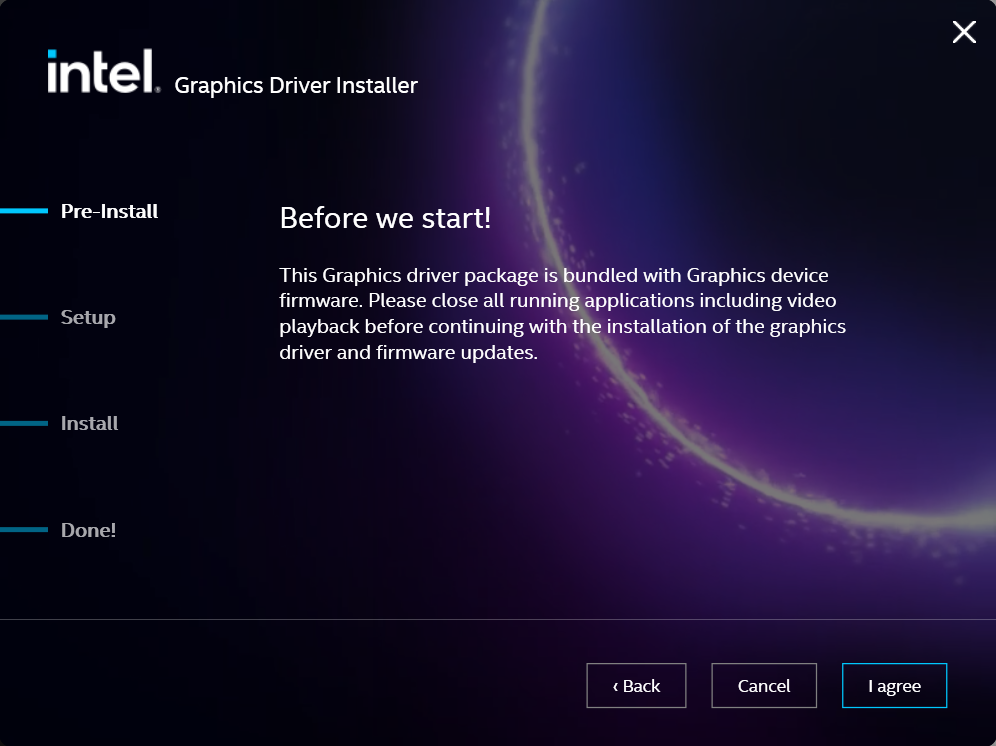
- Agree to the Intel Software License Agreement by selecting the I agree button
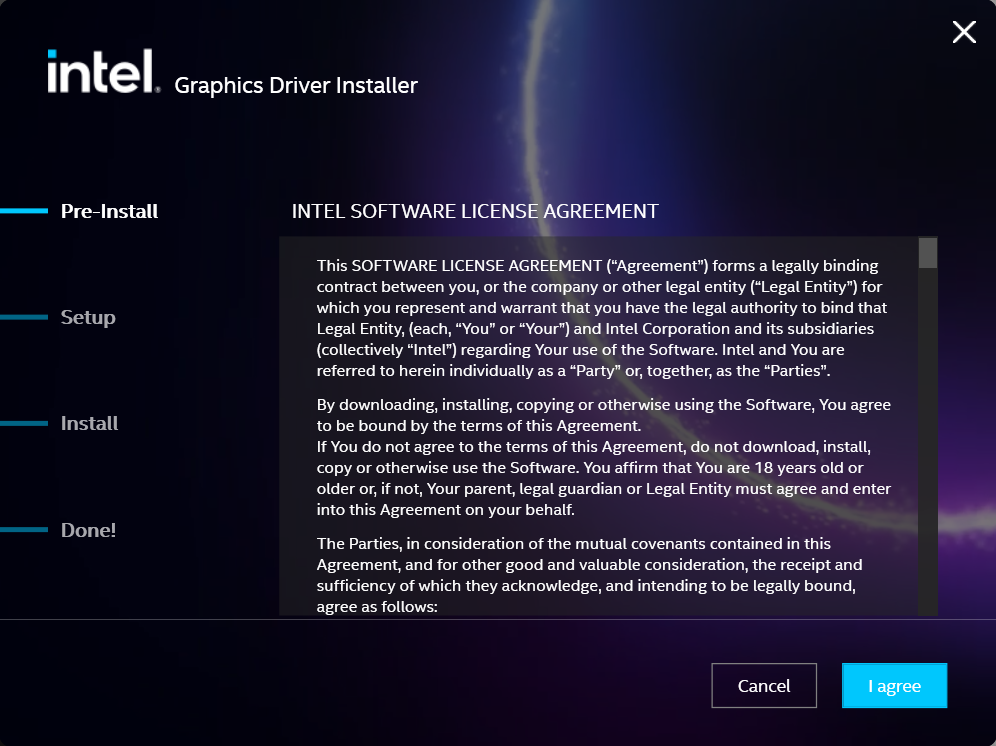
- Ensure all applications are saved and closed before selecting the I agree button
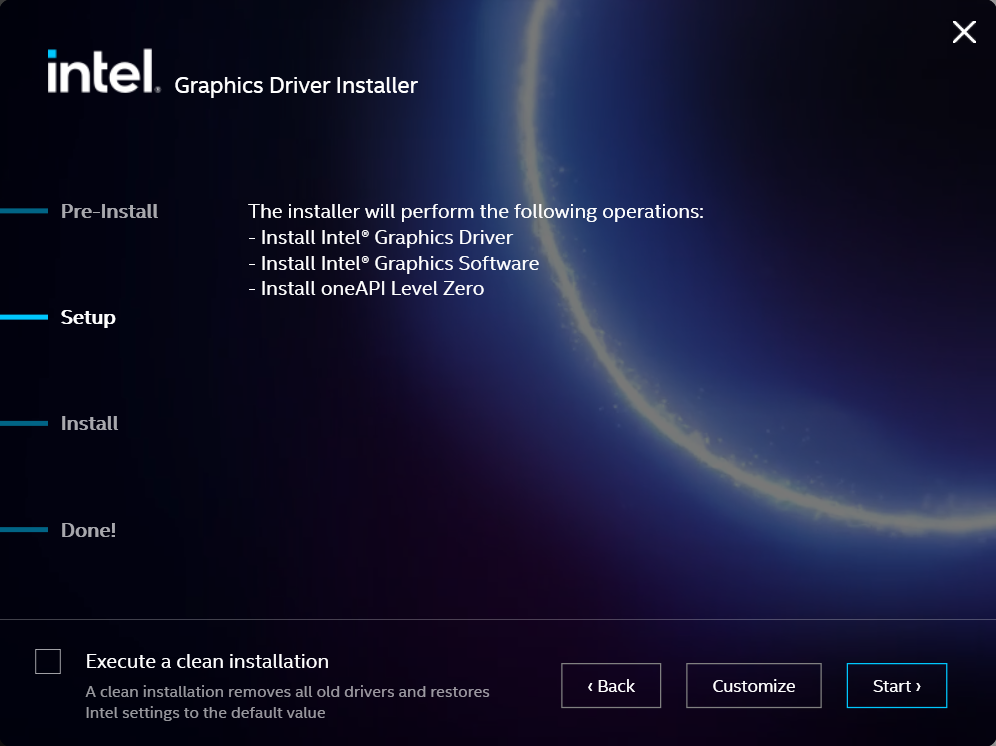
- For most installations, we recommend not selecting the Execute a clean installation checkbox. This option will remove previous driver versions and can lead to Windows Update reverting to an even older graphics driver. Select the Start button to proceed
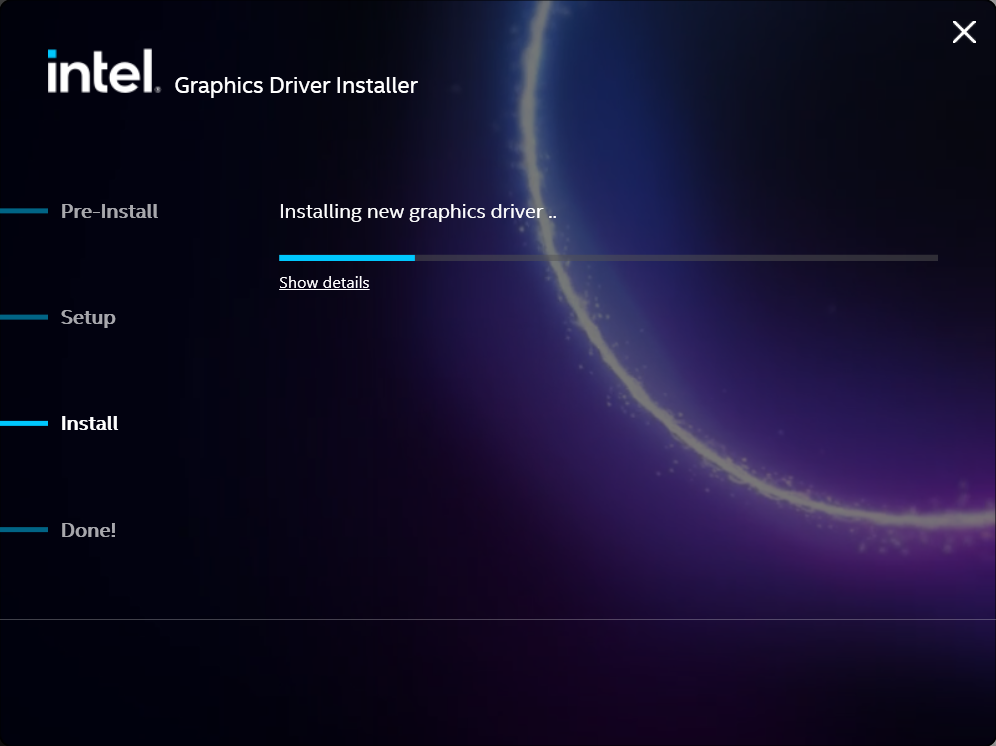
- The installation process will proceed, but can take some time to complete
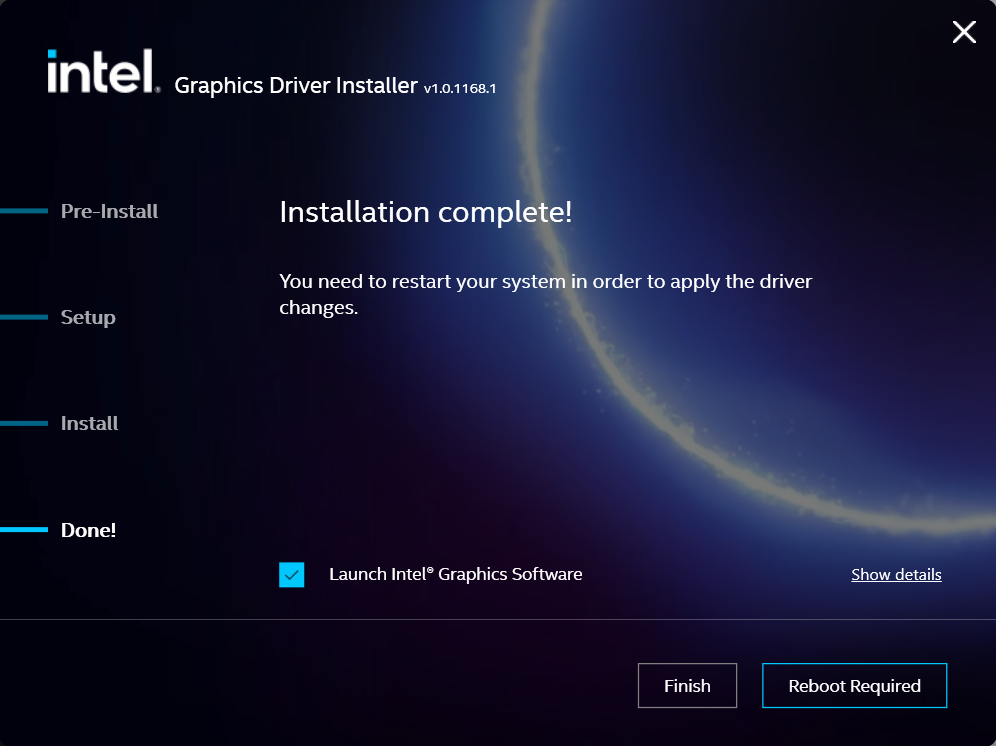
- When the installation has completed, deselect the Launch Intel Graphics Software checkbox - we don't need that right now, select the Reboot Now button to restart the computer applying the new graphics drivers
Windows should now detect the Intel Graphics Controller in the Device Manager and show the latest drivers.
If you have any questions or would like a recommendation, feel free to reach out to our support at support@plugable.com
How-To: Install the latest AMD Graphics Drivers
For a step-by-step guide to identify your graphics hardware and download the appropriate drivers, check out our KB article here
Download the drivers for your GPU or Processor Graphics
- In a web browser navigate to the AMD Drivers and Support page
- In the Search for your AMD product field, type in the model name, for example “RX 5600XT” for the AMD Radeon RX 5600 XT graphics controller, or a processor model like "AI 9 365", then select the best fitting result and select the Search button - note: Searching for a processor the "™" is required, so I recommend searching for the text after that symbol.
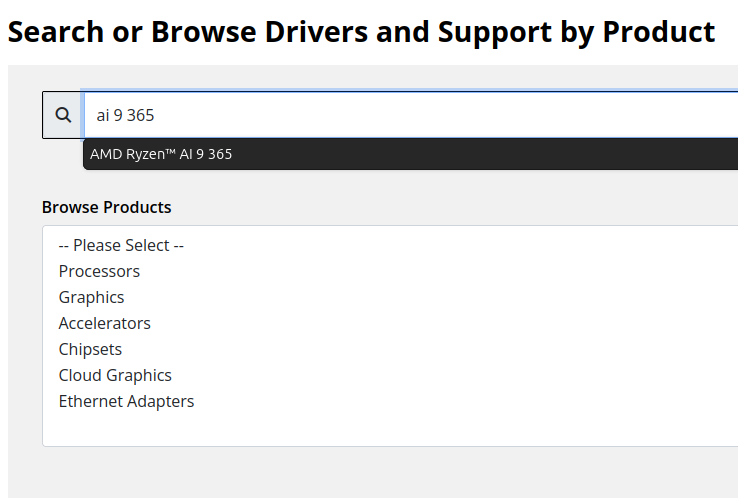
- On the results page, expand the section for Windows 11 64-bit then select the Download button for the latest AMD Software: Adrenalin Edition drivers, AMD may not provide a direct download for all hardware, in that case use the Auto-Detect and Install option
- Save the installer to your Downloads folder or selected location
Install the AMD Graphics Driver
To update the AMD Graphics Drivers to the latest version from AMD’s website:
- Save and close any open applications
- Navigate to the downloaded graphics driver, then right-click on the saved driver installation file and select Run as administrator to start the installation process
- Allow the Intel driver installation through the User account control window, the drivers will be extracted
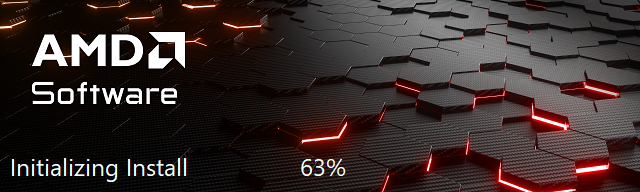
- For most users the express installation is fine, ensure all applications are saved and closed selecting the Accept & Express Install button. If you have been having issues with older graphics drivers causing crashes or errors the Factory Reset (Optional) checkbox may be selected, but it isn’t necessary for most installations.

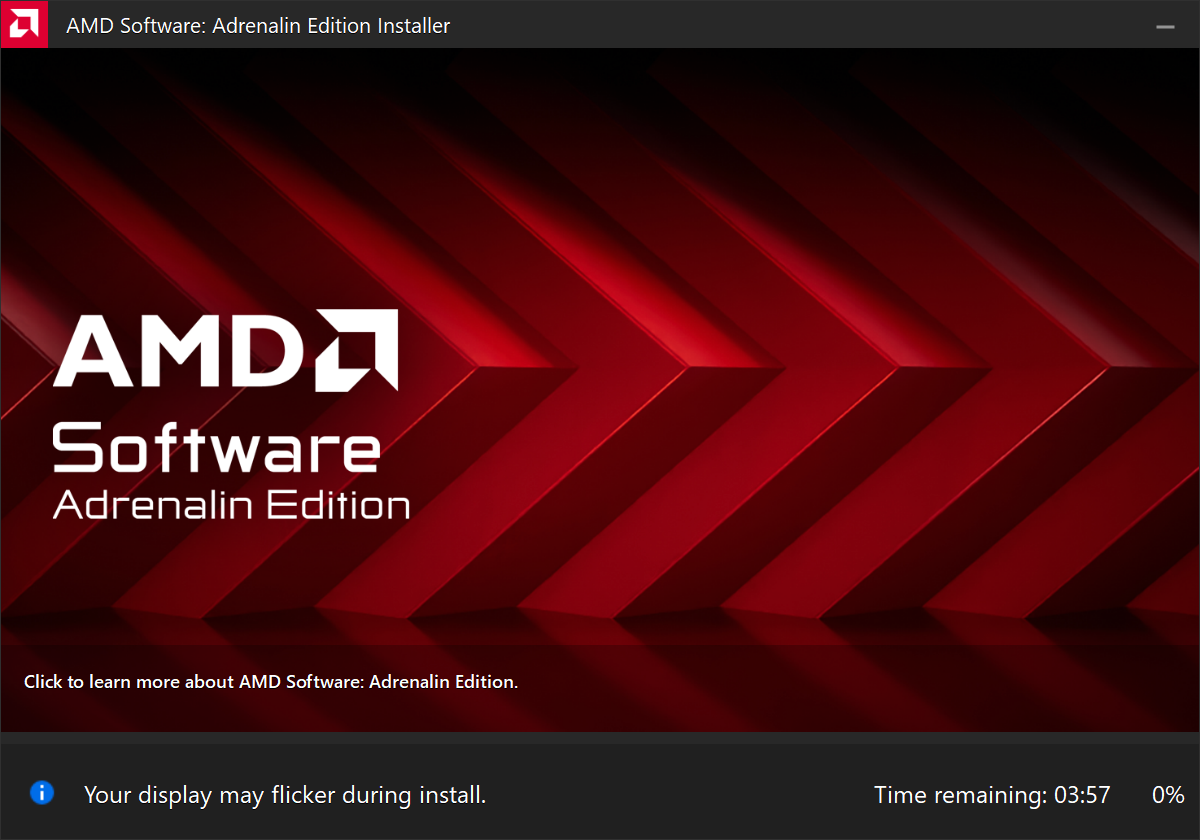
- The installation will proceed, the displays may flicker or flash off/on while the drivers are installing.
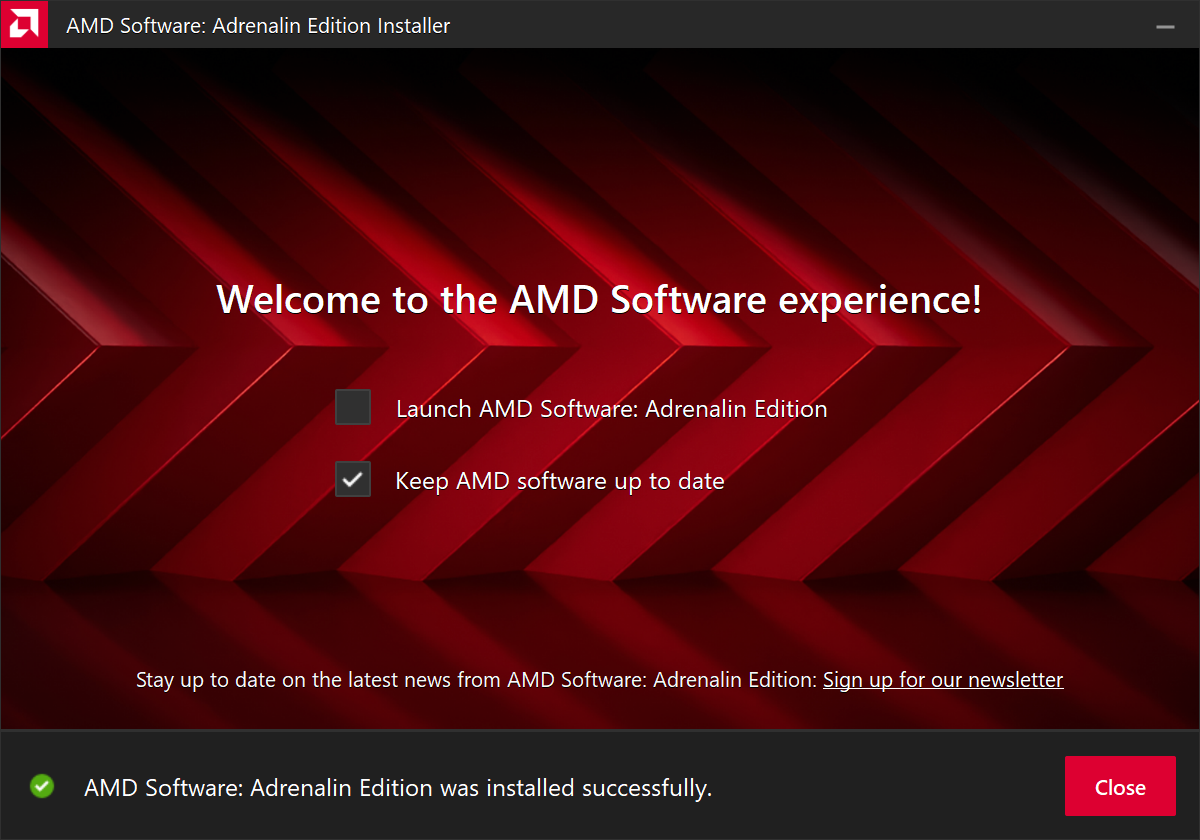
- When complete you will be prompted to Launch AMD Software: Adrenalin Edition and Keep AMD software up to date, you can uncheck the Launch AMD Software option
- Restart the computer to ensure the latest drivers are loaded from boot Start Menu > Power Icon > Restart
Windows should now detect the Intel Graphics Controller in the Device Manager and show the latest drivers.
If you have any questions or would like a recommendation, feel free to reach out to our support at support@plugable.com
How-To: Install the latest NVIDIA Graphics Drivers
For a step-by-step guide to identify your graphics hardware and download the appropriate drivers, check out our KB article here
Download the drivers for your GPU
Check your invoice for the specific model of NVIDIA graphics card, for this example we will use the RTX 5080 (the manufacturer is not relevant).
- In a web browser navigate to the NVIDIA Driver Download Page
- In the Manual Driver Search field, search for the NVIDIA graphics card model, "RTX 5080" in this example
- Select the GeForce RTX 50 Series | NVIDIA GeForce RTX 5080 | Windows 11 entry from the list
- Left-click the Find button
- Select either View buttons from the GeForce Game Ready Driver or NVIDIA Studio Driver
- Select the Download button to save the installer to your Downloads folder or selected location
Install the NVIDIA Graphics Driver
To update the NVIDIA Graphics Drivers to the latest version from NVIDIA's website:
- Save and close any open applications
- Navigate to the downloaded graphics driver, then right-click on the saved driver installation file and select Run as administrator to start the installation process
- Allow the NVIDIA driver installation through the User account control window
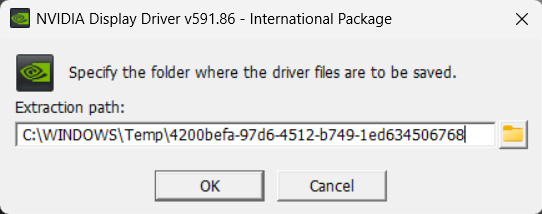
- Click OK to extract the NVIDIA Display Driver package contents
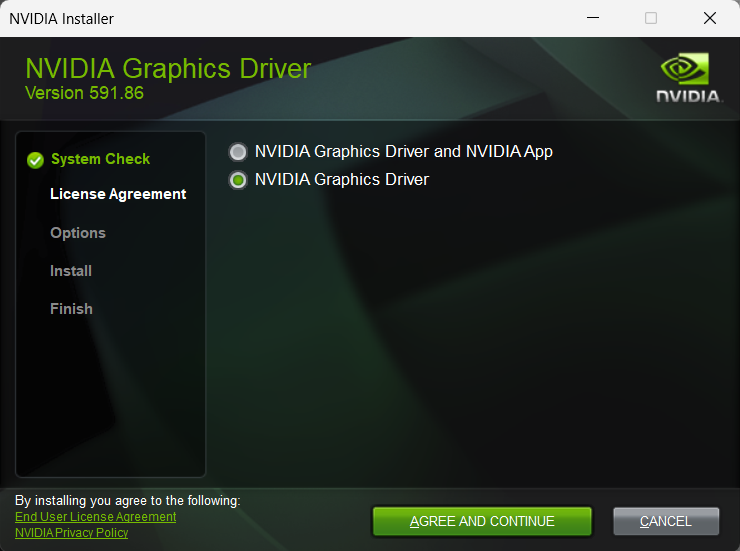
- At the System Check step, select either the NVIDIA Graphics Driver with NVIDIA App or the NVIDIA Graphics Driver alone, the NVIDIA App is gaming oriented and unnecessary for most users. Select AGREE AND CONTINUE
- At the License Agreement step, select the Express (Recommended) radio button then select NEXT to continue

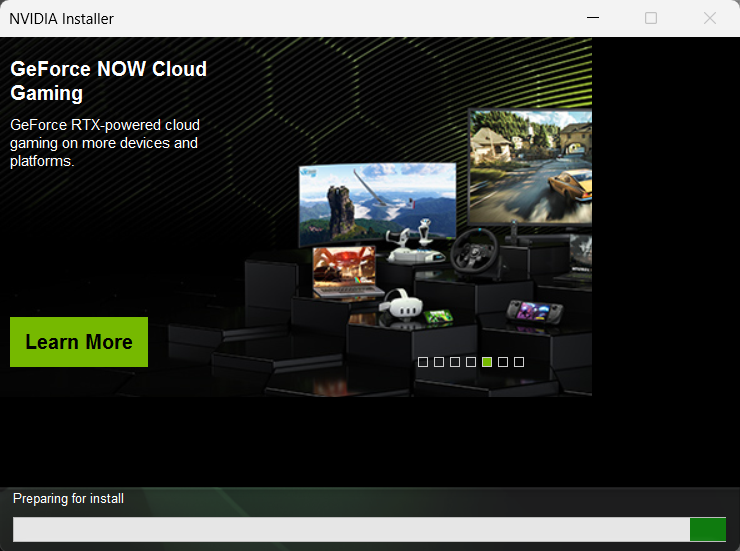
- The installation will take some time to complete
- When complete please restart the computer Start > Power > Restart
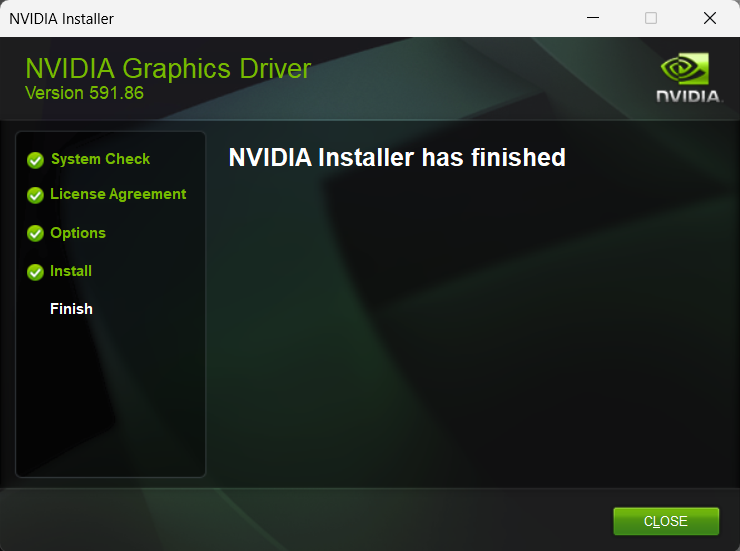
Windows should now detect the NVIDIA Graphics Controller in the Device Manager and show the latest drivers.
If you have any questions or would like a recommendation, feel free to reach out to our support at support@plugable.com
Is Target Display Mode Available With Plugable Docks and Adapters?
No, target display mode generally requires a direct Thunderbolt connection from a compatible MacBook or Mac Mini to a compatible iMac. Graphics adapters and docking stations do not pass the required Thunderbolt video data.
Why Target Display Mode Is Not Compatible With Docks or Adapters
Target Display Mode is a legacy feature that allows certain older Mac systems to use an older model iMac as an external display via a Mini DisplayPort or Thunderbolt data cable. Most Plugable docking stations and graphics adapters are USB devices that do not meet the specific Thunderbolt data requirements for 2011 through mid-2014 iMac systems. While Thunderbolt 3 or newer docks may provide video capability, they are generally recommended for Apple M-Series systems which do not support this feature.
iMac Models as Display
Apple provides system compatibility here but we can summarize it in the following:
24-inch and 27-inch iMac (2009 and 2010)
- macOS 10.13 “High Sierra” or earlier
- Compatible with Macs from 2019 or earlier with macOS 10.15 “Catalina” or earlier
- NOTE: some MacBooks in this range do not include a Mini DisplayPort output and may not be compatible
- Connected with a Mini DisplayPort cable
iMac models (2011 through mid-2014)
- macOS 10.13 “High Sierra” or earlier
- Compatible with Macs from 2019 or earlier with macOS 10.15 “Catalina” or earlier
- NOTE: some MacBooks in this range do not include a Mini DisplayPort output and may not be compatible
- Connected with a Thunderbolt or Thunderbolt 2 cable - these use the Mini DisplayPort connector
- NOTE: This is not compatible with Thunderbolt 3 (USB Type-C) cables
Alternative Options
For earlier 2009-2010 iMacs, it may be possible to use a USB Type-C to DisplayPort adapter paired with a DisplayPort to Mini DisplayPort cable. However, this configuration is untested and we do not support this configuration.
Our research has shown mixed results using these early model iMac systems with adapters, modern unsupported Apple hosts, or Windows computers. Because Target Display Mode is no longer supported by modern Apple hardware and software, there is no guaranteed workaround for newer systems.
Modern displays offer higher resolutions, multiple connection options: both DisplayPort and HDMI, and newer features like High Dynamic Range (HDR) and higher refresh rates than iMac systems. Many modern displays can support multiple host computers either by switching between inputs or with picture-by-picture or picture-in-picture modes.
Applicable To
- 24-inch and 27-inch iMac (2009 and 2010)
- iMac models (2011 through mid-2014)
- macOS 10.13 “High Sierra” or earlier
If you have any questions please feel free to contact us at support@plugable.com and we'll be happy to help!


- Choosing a selection results in a full page refresh.
