


Hassle free, 2-Year Warranty
Fast, Free Shipping on Orders $35+
Lifetime Technical Support
30-Day Money Back Guarantee
Plugable USB-C Portable Monitor with Protective Case/Stand, 100W Pass-Through Charging
$239.95 USD
SKU: USBC-PDMONAmazon Rating : (94 Reviews)
Features
- Why Choose this Award-Winning Monitor— The TAA-compliant Plugable USB-C portable monitor for laptop (USBC-PDMON) offers premium features like 2x 10Gbps USB-C ports for data, 100W PD pass-through (85W charging), and a crisp 15.6” IPS display. Recently named the "Best Portable Monitor for Mac 2026" by Macworld, it is also a proud Editor’s Choice selection by ZDNET, Macworld and WIRED
- The Monitor That Doubles as a Hub— Plug in and work instantly, no drivers needed. This essential portable hub for business professionals streamlines hybrid office and travel setups. It features 2x 10Gbps USB-C ports for peripherals, providing 10Gbps transfer speeds and 100W pass-through power (85W charging for the host). Compatible with most USB-C, USB4, and Thunderbolt hosts. The IPS panel offers up to 300 nits and wide viewing angles; use the monitors hardware buttons to adjust brightness
- 100W Charging + Cable Compatibility— Use a 100W USB-C charger (sold separately) to charge your host device with up to 85W while you use the portable monitor. For best results, connect the monitor directly to a video-capable USB-C (DP Alt Mode)/USB4/Thunderbolt port. Need a longer cable? Use a certified USB-C cable that explicitly supports DisplayPort Alt Mode + 100W PD + 10Gbps (or higher).
- Universal Compatibility - Portable display monitor works with Mac, Windows, Chrome, iPad, iPhone, and Android devices equipped with full-featured video-capable USB-C or Thunderbolt ports. Important— Host device and USB-C cable must support DP Alt Mode. Smartphones and Tablets may require supplemental power for display to function.
- What’s in the Box + Lifetime Support - This portable travel monitor for laptop ships with everything you need— USBC-PDMON 15.6" portable monitor, folding travel cover/stand, 1 meter (3.3ft) USB-C to USB-C cable,and Quick Start Guide. Designed with reliability at its core for IT deployments and home offices, and backed by lifetime support from our North American team of connectivity experts.
This product is TAA compliant
For volume orders or business inquiries contact sales@plugable.com
Free 3-Day Continental U.S. Shipping When Buying Direct!


| Display Panel | 15.6” Full HD IPS | 178° Wide Viewing Angle, Anti-Glare, 300 Nits Brightness |
| Maximum Resolution | 1920x1080 @ 60Hz. Sharp text and smooth video for productivity. |
| Power Delivery | 100W USB-C PD Pass-Through. Supports up to 85W host charging to power your laptop while using the monitor. |
| Expansion Hub | 2x USB-C 10Gbps ports. Connect high-speed hubs, SSDs, webcams, or peripherals without extra adapters. |
| Portability | Ultra-slim 0.4” profile and lightweight at 1.85lbs. Includes folding cover/stand. |
| Power Requirement | Bus-powered from most laptops. Phones and tablets require external USB-C power connected for the screen to operate. |
A: Yes! Works with iPhone 15 and above, USB-C iPads, and Android with video support. Note: Most mobile devices cannot power the screen alone. Connect a USB-C power adapter to the monitor's PD Pass-Through port to power both the screen and your device.
A: No. Most laptops can power the USBC-PDMON on their own. However, if you are using a phone/tablet, we recommend connecting a power adapter to the monitor for consistent performance.
A: Plug your laptop’s charger into the monitor’s PD Pass-Through port. The monitor uses 15W to power itself, and passes up to 85W to your laptop. This allows you to charge your laptop and run the display using just one cable to your computer.
A: Host USB-C port is data/charging-only (no DP Alt Mode), cable is charge-only (no video support). Check host USB-C port capabilities with your device manufacturer.
A: Included USB-C cable is 1.0 m (3.3 ft). For longer runs, use a USB-C cable that supports DP Alt Mode (video transfer) + Power Delivery + 10Gbps data. Charge-only cables won’t carry video.

1. Fold the protective cover of USBC-PDMON into a stand.

2. (Optional) Connect a USB-C power adapter to the PD pass-through capable USB-C port, labeled with a plug icon

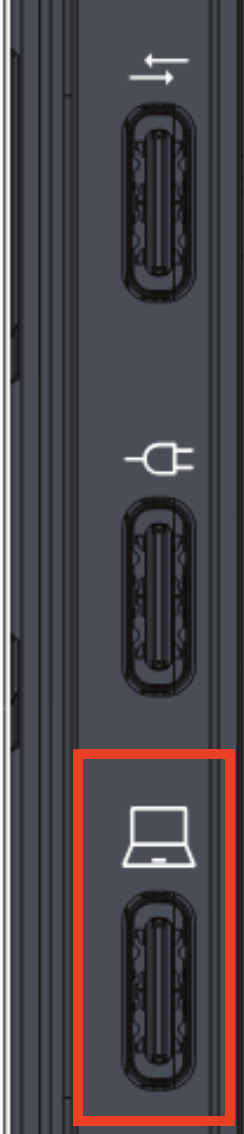
3. Connect the portable display to your host device using the included USB-C cable plugged into the USB-C host port, labeled with a laptop icon
Filter Help Articles and Frequent Questions by Category
Choose one or more filters within each category to narrow down the articles. Each selection will result in only displaying articles that include all of your choices.
Articles
Well how about that, it looks like we don't have any articles matching your filters! Try removing one of your choices or clear the filters to show all articles.
You can always contact support if you need help too!
USB Port Types
USB-A

pietz, CC BY-SA 3.0 , via Wikimedia Commons
This is the standard USB connection that most computers offered prior to the introduction of USB Type-C (USB-C). Even after the introduction of USB Type-C, this is still quite common.
It can provide data transfer rates up to the USB 3.1 Gen 2 (10 gbps) specification depending on the host and device, but does not directly support video in the way that USB-C Alternate Mode does. This limitation makes DisplayLink USB graphics adapters and docking stations ideal on systems that do not have USB-C, or in instances where more displays are needed beyond available video outputs of a PC.
USB-B

Fred the Oyster, CC BY-SA 4.0 , via Wikimedia Commons


IngenieroLoco, CC BY-SA 4.0, via Wikimedia Commons
This type of connection comes in a couple different styles depending on whether USB 3.0 and higher transfer rates are supported (bottom graphic). Usually this type of connection is used to plug into USB devices that do not have a fixed cable connected, such as USB docking stations, USB hubs, printers, and others.
USB Mini-B
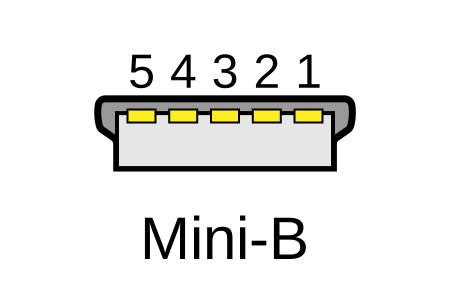
Fred the Oyster, CC BY-SA 4.0 , via Wikimedia Commons
One of the first connectors for charging a smartphone, wireless game controller (such as the Sixaxis and DualShock 3), and other small devices such as external hard drives. Not commonly used today, but is still used in some cases. Most devices using USB Mini B are using USB 2.0, though a USB 3.0 variant does exist. This specification also added USB On-The-Go (OTG) functionality, though it is more commonly implemented with Micro USB.
USB Micro-B

Fred the Oyster, CC BY-SA 4.0, via Wikimedia Commons
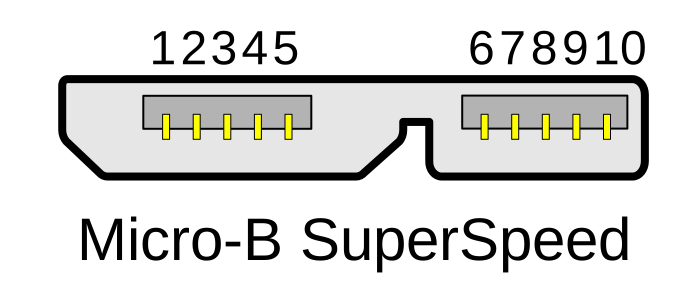
IngenieroLoco, CC BY-SA 4.0 , via Wikimedia Commons

A smaller connector that serves many of the same uses as the Mini B connector, with added optional features such as Mobile High-Definition Link (MHL) to allow devices like smartphones to output video to larger displays without requiring a dedicated port for video output.
The larger variant of USB-B is most commonly used for external hard drives for higher 5Gbps transfer rates.
USB-C, Thunderbolt™ 3, and Thunderbolt™ 4
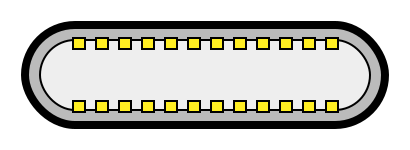
Niridya , CC0, via Wikimedia Commons
The most recent USB connection, USB Type-C (USB-C), represents a major change in what USB can do. The connector is smaller, can be connected in two orientations, is able to carry substantially more power and data, and can directly carry video signals of multiple types (HDMI, DisplayPort, etc.) Intel has also adapted the USB-C connector for use with Thunderbolt 3 and Thunderbolt 4.
It is important to note that while all Thunderbolt 3 and Thunderbolt 4 connections are USB-C, not all USB-C connections can be used with Thunderbolt 3 or Thunderbolt 4 devices.
More details regarding physical USB connections can be found on Wikipedia . The graphics depicted here are adapted from Wikimedia Commons by various artists under the Creative Commons Attribution-Share Alike 3.0 Unported license.
Do Plugable products support the Apple SuperDrive?
Unfortunately Plugable products do not support the Apple SuperDrive.
The Apple SuperDrive has stringent power requirements that can only be met by directly connecting the SuperDrive to your host laptop. As a result at this time Apple recommends only using their USB-C adapter cables. You can find more information on that here → How to connect the Apple USB SuperDrive
If you have purchased a Plugable product to use with your Apple SuperDrive, and would like some additional assistance please do not hesitate to reach out. You can do so by emailing support@plugable.com, or going to Plugable.com/Support.
Can I leave my notebook computer connected to a charging dock overnight, or should I discharge and recharge the notebook battery regularly?
We are often asked if it is okay to leave a notebook computer connected to one of our USB-C docking stations with Power Delivery for extended periods of time. The short answer is yes, it is no different from leaving the laptop connected to the manufacturer's original USB-C power supply for the same time. The long answer is yes for modern laptops, and maybe for older (1990s-early 2000s laptops) and involves going into the different battery technologies used in consumer electronics devices.
Another common question is if it is possible to use the docking station but to disable powering and charging the computer. When a modern notebook computer runs on battery power it will often set the system to a reduced power state which may impact performance, or connected devices and we recommend always powering the computer when using a desktop docking station. For all of our docking stations that provide power to the host computer this will not affect the lifespan of the computer's battery.
Modern Laptop Batteries: Lithium-Ion
Lithium-ion (li-ion) batteries are found in a wide range of consumer electronics from notebook computers and cell phones, to electric cars, power tools, and wearable electronics like wireless earbuds. Li-ion offers fast charging, high-current discharging, fairly long service live compared to other rechargeable battery technologies and are relatively inexpensive.
The life-span of a rechargeable battery depends on many factors including age, temperature history, charging patterns, the chemical composition of the specific battery, and usage. For example batteries stored at 100% charge will degrade faster than batteries stored at 50% charge, this is why most consumer electronics devices arrive from the manufacturer with between 25% to 75% charge.
Lithium-ion batteries are consumable components, however in most modern computers, cell phones, and tablets these are not user serviceable components. To help maintain the battery all modern computers and most consumer electronics will include battery charge and protection circuits. These can be fairly simple, charging up the battery at preset rates depending on the charge level to help maintain the battery life, or complex software controlled charging that monitors battery temperature, voltage and current draw to maintain the fastest charging while maintaining the battery longevity.
Modern notebook computers can be left connected to the original power cable or a docking station with charging capability for extended periods, and do not benefit from regular discharge/recharge cycles. Our docking stations with charging capability rely on USB Type-C Power Delivery to power and charge compatible computers. USB Type-C Power Delivery is a negotiated charging protocol between the host computer and the docking station or USB Type-C power supply, this allows the computer to draw only the power it requires, and even select the best voltage level for powering the computer. In combination with a computer's built-in battery charging controller the computer is capable of maintaining the battery's optimal state even when left connected to a power source for an extended period of time.
Legacy Laptop Batteries: NiCad and NiMH
Older laptops, from the 1990s and some early 2000s, as well as some consumer electronics, and most rechargeable AA or AAA battery replacements use Nickel-Cadmium (NiCad) or Nickel-Metal Hydride (NiMH) batteries. These batteries are slower to charge and discharge than li-ion batteries, and require very simple charge controllers, and in some cases can even be trickle-charged ( very low-current continuous charging ) if desired.
These batteries generally don't have smart charging controllers and to prolong the life of the battery required "training" or fully discharging and recharging the battery every so often. Many laptop manufacturers recommended fully charging and discharging a new laptop 2-3 times to train the battery, this is not necessary with modern laptops.
Conclusion
Modern notebook batteries are managed by the computer's built-in battery charging circuit, and require little to no user intervention to maintain optimal battery health. It does not harm the battery to leave the computer connected to an external power supply, so long as the computer is being used regularly. If the computer is to be stored for a prolonged period then discharging the battery to between 50-75% can help to maintain the battery life.
Batteries are consumable components and degrade over time, however modern notebook computers can extend the battery life generally to meet or exceed the life of the computer's other electronic components.
Which USB-C port on this product can be used to connect it to my computer?
For products which have multiple USB-C ports, normally only one port is capable of connecting the product to a computer. USB-C ports capable of connecting the product to a computer are sometimes called “Host” or “Upstream” ports.
On Plugable products with multiple USB-C ports, the dedicated port for connecting to the computer will be marked with a small laptop icon or the words “To host”.
A product may not be able to function if it is connected to a computer through a different USB-C port. These ports are also known as “Hub" or “Downstream” ports.
Does USBC-PDMON support touch functionality?
The USBC-PDMON is not a touch-enabled display, and as such it does not support touch inputs. We do not recommend pressing on the display’s surface, as this could potentially damage the display.
Does USBC-PDMON work with desktop computers?
The USBC-PDMON is an external display that requires that the host device supports video output via a USB Type-C port (also known as VESA Alt Mode video output).
Not all USB Type-C ports support video output. In our experience helping others, we have found that in many cases the USB Type-C port in a desktop computer will NOT support video output.
Please check with the manufacturer of your computer in order to determine if your computer supports video output via USB Type-C.
How can I adjust the brightness of the portable monitor?
The brightness of the USBC-PDMON’s display can be adjusted by using two physical buttons on the right-hand side of the unit with icons of the sun printed above them.
Pressing and releasing the button located underneath the ‘solid sun’ once will increase the brightness. Press and release the button again to continue increasing the brightness.
Pressing and releasing the button located underneath the ‘hollow sun’ once will decrease the brightness. Press and release the button again to continue decreasing the brightness.

Does USBC-PDMON have a built-in webcam?
The USBC-PDMON does not have a webcam built-in to the unit. However, an external webcam that uses a USB Type-C connection can be connected to one of the display’s ‘downstream’ USB Type-C ports.
Can USBC-PDMON duplicate my device's onboard display?
The USBC-PDMON can be used as an extension of your computer’s desktop environment, or used as a ‘duplicate’ (also known as ‘mirror’ or ‘clone’) of a device's built-in internal display. Please note, the monitor has no control over this configuration. The configuration must be done from within the host device.
Can I use USBC-PDMON if my computer doesn't have USB-C?
In order to be compatible with the USBC-PDMON, the host device must have a USB Type-C port or Thunderbolt port that supports video output.
If the host device has only HDMI, DisplayPort, Mini-DisplayPort, USB-A, or a USB-C port which does not support video output, then it's unfortunately incompatible with USBC-PDMON.
Why do my USB devices and video cut out when I disconnect my USB-C power supply from the PD Pass-Through port?
The USBC-PDMON supports USB Power Delivery, which allows the display to either receive power from an external power source (such as a USB Type-C charger) or receive power from the host device. In other words, the display can accept power from both ‘directions’.
The USBC-PDMON also has an internal USB hub which allows you to connect external devices such as USB storage drives.
When the ‘direction’ of the power source changes (for example if you disconnect an external power adapter and allow the host system to power the display), the USB hub inside the display will momentarily reset and the video signal will also be temporarily interrupted.
It is for this reason that we recommend that you ‘eject’ any USB devices connected to the display’s ‘downstream’ USB ports prior to changing the power source of the display.
What are the best practices for disconnecting the USBC-PDMON?
The best practice is to ‘eject’ any USB devices connected to the display’s ‘downstream’ USB ports prior to changing the power source of the display or physically disconnecting the display from the host system. This helps to ensure the integrity of the data on any USB devices is not compromised by an unexpected disconnection of the device.
My connected USB devices aren’t being detected. What can I do?
On occasion, the internal USB hub may stop working correctly. This can lead to your computer not detecting connected USB devices, or your computer may not recognize that the portable display is plugged in at all.
A common fix for these situations is to perform a power-cycle of the unit to reset its internal hub chipset. We've seen that this can often restore the unit back to a working state when one or more of its functions aren't quite working. It's important that the steps are followed in a specific order to ensure the unit’s internal USB hub fully resets. The steps are as follows:
- Disconnect all USB peripherals connected to the portable display
- Disconnect the USB-C power adapter from the portable display if one is present, then disconnect the portable display from the host device.
- Leave unplugged for at least 1 minute for power to dissipate.
- If you’re using PD pass-through, connect the USB-C power adapter to the PD pass-through USB-C port of the portable display
- Connect portable display to your host device using the included USB-C cable, then connect USB peripherals and test for functionality
Can the portable display be rotated to portrait mode?
The USBC-PDMON can be used in portrait or landscape mode, however the folding stand may not be stable for positioning the display in portrait mode. It’s recommended to use a tablet stand such as PT-STAND1 when positioning the portable monitor in portrait mode.
Please note, the monitor has no control over this configuration, so the display rotation must be configured from within the host device.
Can I use USBC-PDMON with my smartphone or tablet?
Yes, the USBC-PDMON can be used with several different models of USB-C equipped smartphones and tablets, including iPhones, iPads, and Android devices, although there are some important notes to keep in mind:
- The smartphone/tablet's USB-C port must support DP Alt mode video output in order to be able to send video to the monitor. Please confirm if your device's USB-C port supports this functionality by consulting its manufacturer's specifications.
- The USBC-PDMON can be powered solely by the USB Type-C connection to the host device, however that USB Type-C connection must be capable of providing 15W of power in order for this to work. If the host device is not capable of providing 15W, then the monitor must be powered by an external power source that can provide up to 15W of power (for example a charger that supports USB Power Delivery at a minimum of 15W)
In our experience helping others, many phones and tablets cannot output the required 15W of power through their USB-C ports, so a USB-C power adapter would be required.
Can the PD Pass-Through port be used for USB at the same time as power delivery?
The PD Pass-Through enabled USB-C port of USBC-PDMON is capable of providing PD to the portable display and computer while simultaneously connecting downstream USB devices. A USB-C hub capable of USB-C Power Delivery and USB data must be connected to the PD Pass-Through port of USBC-PDMON in order to use both functions at once.
I plugged USBC-PDMON into my USB-C port and it's not working, what do I do?
If the USBC-PDMON is not working as expected upon initial setup, please check the following:
A. Ensure that you are using only the USB Type-C cable that Plugable included in the box with the monitor in order to connect it to the host device. This is important because not all cables with USB Type-C connectors support video output
B. Ensure that the USB Type-C cable is connected to a port within the host device that supports USB Type-C video output
C. Ensure that the host device’s USB Type-C port can provide up to 15W of power. If your devices does not support 15W power output from its USB-C port, it may be necessary to connect a USB-C power supply to the PD pass-through USB-C port to power the display
D. Ensure that the USB Type-C cable is connected to the single USB Type-C Host port within the display. This port has a small icon of a laptop printed above it:
Does USBC-PDMON have built-in speakers?
The USBC-PDMON does not have internal speakers. However, an external audio device (such as speakers or headphones) that has a USB Type-C connection can be connected to one of the display’s ‘downstream’ USB Type-C ports.
Can I use USBC-PDMON with my MacBook, iMac, Mac Mini, or Mac Studio?
To the best of our knowledge, the USBC-PDMON is compatible with any Mac computer that is equipped with a USB Type-C or Thunderbolt port.
Please note, not all Macs have the ability to drive more than one external display via USB Type-C or Thunderbolt. Please consult Apple’s specifications for your Mac in order to determine the number of external displays supported.
Can you daisy-chain a second USBC-PDMON by connecting it to one of the USB-C ports?
The USBC-PDMON does NOT support ‘daisy chaining’ two units together. If using multiple USBC-PDMON devices with a single host computer, each monitor must be directly connected to the host via a USB Type-C cable.
Is the monitor capable of being powered solely by a USB-C connection?
The USBC-PDMON can be powered solely by a USB Type-C connection to the host device, however that USB Type-C connection must be capable of providing 15W of power in order for this to work.
Small devices such as phones or tablets may not be able to provide 15W, and if that is the case the monitor must be powered by an external power source that can provide up to 15W of power (for example a charger that supports USB Power Delivery at a minimum of 15W).
The colors on my portable monitor look wrong. How can I adjust them?
USBC-PDMON features a color mode button on the right-hand side of the unit which allows for quick adjustment of the colors shown on screen. The color mode can be cycled by pressing and releasing the color mode button:

Further adjustment of the colors on the display can be done through the host device’s color configuration options.
Does this portable monitor work with portable gaming consoles such as the Nintendo Switch or Steam Deck?
USBC-PDMON is not currently compatible with the Nintendo Switch.
It is compatible with the Steam Deck, although it's required to connect a USB-C power adapter to the PD Pass-Through USB-C port of the portable monitor for the monitor to function.
Does this portable monitor have an internal battery built-in?
The USBC-PDMON does not have an internal battery. The monitor must receive power from an external power source in order to operate.
The external power can be provided by a charger that supports USB Power Delivery at a minimum of 15W, or the monitor can be powered by the host device’s USB Type-C port as long as the port can provide up to 15W of power.
What is the width of the bezels on USBC-PDMON?
The bottom bezel of USBC-PDMON is 12.5mm. The bezel on the top and sides of the monitor is 7.5mm.
Understanding USB-C Alt Mode
What is Alt Mode, and how does it work?
USB-C is a truly versatile connection that supports a range of functions, including power delivery, data transfer, and video. Alt Mode leverages this versatility by repurposing high-speed data pins to enable alternative video data protocols. Many of our docking stations support this protocol, but there is a catch! To take advantage of this feature, your host system must support Alt Mode via the host USB-C port and controller. If the host system and device support Alt Mode, the USB-C ports automatically switch from its default data protocol to the required Alt Mode protocol for video.
How do I determine if my system supports Alt Mode?
Reviewing your manufacturer's system specifications or user manual is the easiest way to determine if your system supports Alt Mode via the USB-C port, but unfortunately, it’s not always consistent or straightforward. Below, we have included examples of how some system manufacturers mention the capabilities of the USB-C ports on their laptops. This information will usually be included in the user manuals or system specification sheets.
Please note that mention of DisplayPort or DP 1.2, 1,4, and 2.1 indicates Alt Mode support.
Lenovo
HP
Dell
Additionally, some manufacturers, but not all, will also include a DP symbol next to the port to illustrate its ability to support video. If your USB-C port is unmarked, check your user manual or consult the system specifications.
What about Thunderbolt 4 and USB4?
Unlike earlier iterations of USB-C, which use Alt Mode for video support, USB4 and Thunderbolt 4 primarily use video tunnelling to transmit video over the USB-C connection. Video tunnelling dynamically allocates bandwidth for video and data to ensure optimized performance. If a device does not fully support video tunnelling, your Thunderbolt 4 or USB4-capable system can fall back to Alt Mode, ensuring compatibility with devices that support Alt Mode for video. So you don’t have to worry about a Thunderbolt or USB4 connection supporting USB-C Alt Mode!
Troubleshooting For Alt Mode
When using a USB-C video cable, adapter, docking station, or hub, it's important to ensure that your laptop supports Alt Mode. If you encounter any issues, the following steps can help you troubleshoot and determine why video may not be working through your USB-C Alt Mode cable or device.
-
First and foremost, check to ensure that your system supports Alt Mode. This is vital as Alt Mode is an optional feature that not all manufacturers include on their systems.
- If your system does not support Alt Mode, unfortunately, this is a hardware limitation, and there is no workaround for achieving Alt Mode compatibility. However, it’s possible to still drive external monitors through DisplayLink.
- Reboot your system and perform a power reset on your docking station or hub (if applicable)
-
If you are using a docking station, ensure that you are using a USB-C cable that supports Alt Mode.
- Not all cables are created equal—USB-C cables that support USB 2.0 only or “charging only” cables are not built to support video. To ensure compatibility, all of our Alt Mode-capable products will come with a USB-C cable that supports this feature.
- Do not use USB-C to USB-A adapters, as they are not designed to support video transmission.
- Be sure to check your operating system's display settings. The connected display can sometimes be disabled within the display settings, or the resolution and refresh may need to be adjusted to match what your device or display can support.
- Check if your Alt Mode-capable device has any firmware updates listed specifically for Alt Mode.
- Ensure that your system is up to date with all its latest drivers, firmware, and BIOS, especially your USB and internal graphics controller. Outdated drivers can often lead to connectivity issues, and at times, a BIOS update is needed, which the system manufacturer will generally mention on their official support page.
- Check BIOS and UEFI settings; some manufacturers add settings that control USB-C functionality. Ensure that your settings are enabled and correctly configured for Alt Mode.
- Test out another USB-C port on your system if you have more than one. This is beneficial in determining if the issues are related to the specific port.
Benefits of USB-C Alt Mode
Alt Mode over USB-C provides a direct connection to the GPU, allowing you to take advantage of the capabilities of your built-in GPU. This ensures native-level performance without the need for extra software or drivers. As a result, your USB-C Alt Mode-connected display will have reduced latency compared to other methods of adding additional displays, making it perfect for users who require sharp and detailed visuals at optimal refresh rates. Unlike traditional video connectors like HDMI or DisplayPort, which only support video, a USB-C connection with Alt Mode is more flexible and multifunctional, allowing a single connection to carry video, data, and power delivery.
Alt Mode supported devices from Plugable
If your system supports Alt Mode or if you are looking to get more out of your laptop, especially Apple M1, M2, or M3 base chipsets (which are limited to one external display), we have compiled some options below that utilize Alt Mode or a combination of Alt Mode and DisplayLink for even more monitor expandability.
Plugable USB-C Docking Station with HDMI, 60W Laptop Charging
SKU: UD-CA1A
The UD-CA1A is a versatile docking station that enables you to connect a 4K HDMI display via Alt Mode. In addition, it comes equipped with high-speed Gigabit Ethernet, USB 3.0 ports, 3.5mm jacks for headphones and microphone, and will provide 60W of power delivery to your host device—all via a single USB-C port. It is compatible with macOS, Windows, ChromeOS, Linux, iOS, and iPadOS, making it the ideal solution for any setup. You can enjoy seamless plug-and-play functionality and save space with its sleek vertical design or lay it flat for a more subtle look.
Plugable USB-C 7-in-1 Hub with Ethernet
SKU: USBC-7IN1E
The USBC-7IN1E instantly transforms a single USB-C with Alt Mode or Thunderbolt port into a versatile hub featuring 2x USB 3.0 ports, a 4K HDMI output, Gigabit Ethernet, and SD and microSD card readers. For hosts that support Power Delivery over USB-C, this hub also supports 100W PD passthrough, allowing you to plug in your included USB-C power adapter to further simplify your setup for greater portable productivity.
The products mentioned above demonstrate the versatility of a single USB-C connection. Plugable offers a wide range of solutions to meet your needs. Whether you are looking for a full-featured docking station that utilizes DisplayLink and USB-C Alt mode, such as our UD-ULTC4K, or a USB-C cable that supports video, data, and charging, like our USBC-240W-1M, you can rest assured that we have you covered. If you have any questions or need help building a solution that takes full advantage of your laptop's USB-C connection, please reach out to us at support@plugable.com.
Replacement USB-C Cables for USBC-PDMON
If you need a replacement USB-C cable for your Plugable USBC-PDMON Portable Monitor, you have several options depending on your needs.
Requesting a Replacement from Plugable
If your cable has failed and your monitor is still within its two-year warranty, you can contact Plugable Support at support@plugable.com to inquire about obtaining a replacement.
Recommended Plugable Replacement Cable
Our recommended replacement cable is the Plugable USBC-C100.
- Length: 1 meter (3.3 feet)
- Full compatibility with USBC-PDMON
This cable supports the required features and is the most direct replacement option.
Longer Cable Options
We understand some users prefer a longer cable than 1 meter. Currently, Plugable offers the TBT4-40G2M. However, because it is an active Thunderbolt 4 cable, it is not an ideal match for the USBC-PDMON portable monitor.
At this time, we recommend sourcing a longer cable from a third-party vendor. When shopping, ensure the cable supports all of the following:
- 10Gbps data transfer
- DisplayPort Alternate Mode (DP Alt Mode) for video output
- Up to 100W USB-C Power Delivery for laptop pass-through charging
For best performance and reliability, we do not recommend using cables longer than 2 meters.
Need Help Choosing a Cable?
If you’re unsure about compatibility or would like recommendations for reliable third-party cables, we encourage you to reach out to Plugable Support at support@plugable.com. Our team will be happy to assist in finding the right solution for your setup.
Why isn't the display turning on when I connect USBC-PDMON to my smartphone?
USBC-PDMON requires ~15W of power to operate. If the monitor is connected to a device that cannot supply enough power, the display might not turn on. Oftentimes, devices like smartphones and tablets are limited in the amount of power they can provide, so it's common that this issue may occur when using USBC-PDMON with devices like these.
Solution:
To power the display directly and ensure it functions properly, follow these steps:
- Locate the Power Delivery Pass-through USB-C port on the right side of the USBC-PDMON, identified by a plug icon.
- Connect a USB-C power supply (e.g., a laptop or phone charger) to this port.
- The monitor will now draw power directly from the power supply.
Note: Make sure the USB-C power supply can deliver at least 15W to meet the USBC-PDMON's power requirements.
Why is the folding cover falling off of my USBC-PDMON portable monitor?
If your folding cover is detaching too easily from your USBC-PDMON portable monitor, it's likely not securely attached to the rear of the device. To fix this issue, please follow these steps to reattach the cover properly:
- Position the cover so it aligns correctly with the back of the monitor.
- Locate the pinch points in the plastic disc on the rear of the cover:
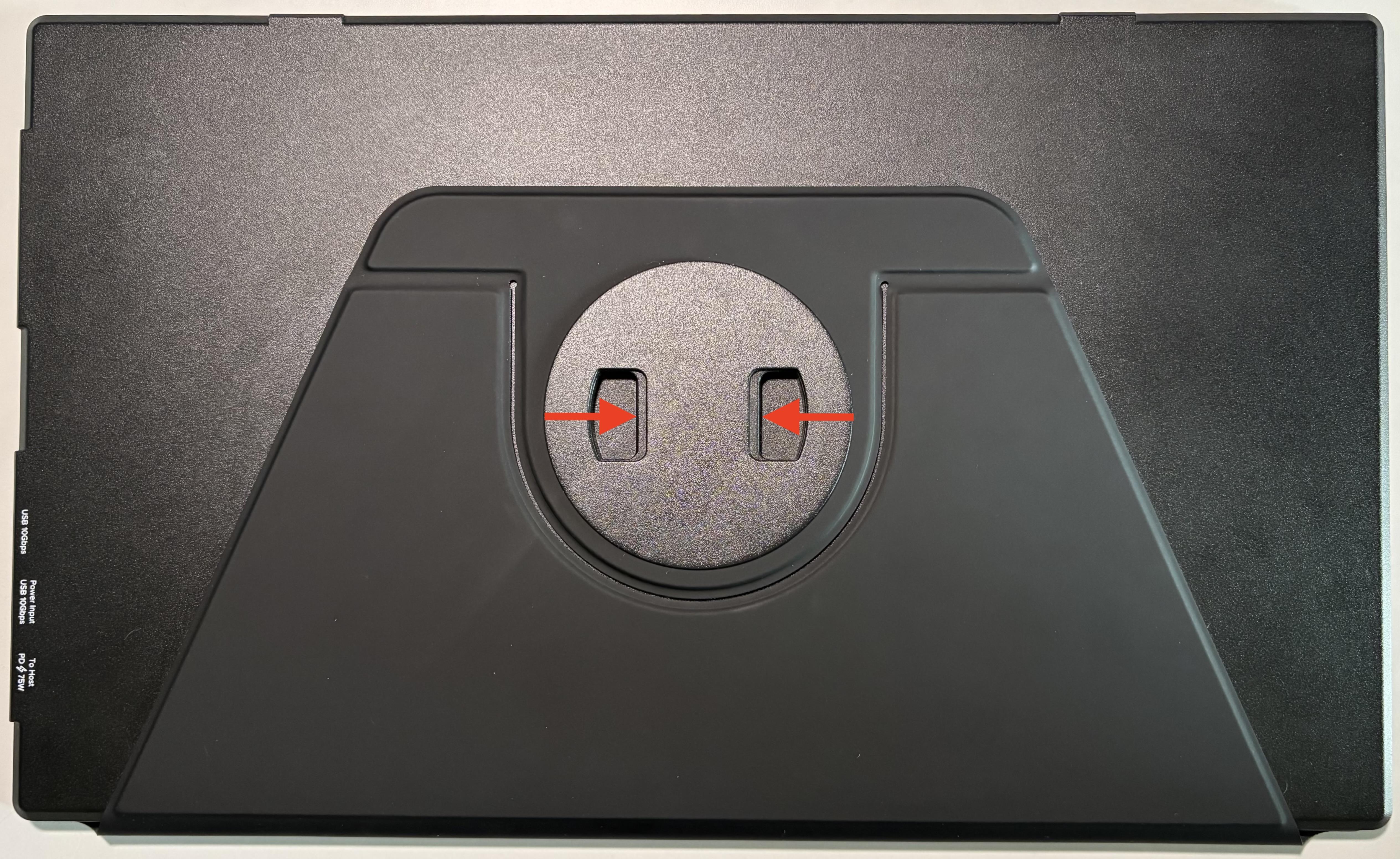
- Gently squeeze these points to disengage the latching mechanism.
- While squeezing the pinch points, gently push the cover into the back of the display until it clicks into place.
- Release the pinch points and check that the cover is securely connected to the portable monitor.
By ensuring the cover is properly aligned and secured with a click, it should stay firmly attached and prevent it from coming off unintentionally.
Which USB-C Power Adapters Are Compatible with USBC-PDMON?
USBC-PDMON is compatible with most USB-C Power Delivery compatible power adapters. Plugable offers a couple of options for these, such as the PS-EPR-140C1 and the USBC-PS-60W.
The PS-EPR-140C1, with a power output of up to 140W, is the best choice. It allows USBC-PDMON to deliver the full 85W power to your connected host, ensuring efficient charging and peak performance.
Alternatively, the USBC-PS-60W adapter provides up to 60W of power. When used with USBC-PDMON, it limits host charging to 45W due to the 15W power reservation for the portable monitor. This adapter is suitable for lower-power devices but may result in slower charging speeds compared to higher-wattage options.
You can also use your laptop’s included USB-C charger if you have one. Keep in mind that the maximum charging power delivered to the host will be limited to 15W less than the wattage of the laptop’s charger due to power reserved for USBC-PDMON. For example, if your laptop comes with a 75W charger, the laptop would be limited to 60W charging when connected through USBC-PDMON.
Is this safe to use if my computer doesn't support USB-C Power Delivery?
USB-C Power Delivery (PD) is negotiated between the power-sourcing equipment (e.g., a dock or multiport hub) and the connected host device. During this negotiation, the device offering power communicates its capabilities, and the host determines whether it can accept the power. If the host does not support Power Delivery, no power will be sent to the computer over the USB-C connection. This will allow you to take advantage of other capabilities such as data transfer or video output without risking damage to the computer.
Unlocking More Connectivity: Using a USB-C Dock with USBC-PDMON
The USBC-PDMON portable monitor includes multiple USB-C ports, one of which supports Power Delivery (PD) passthrough. Connecting a USB docking station to the USBC-PDMON’s USB hub ports can greatly expand the functionality of your setup by adding more USB ports, wired network access, and external display capabilities. This setup also simplifies cable management, as a single power adapter can power the dock, monitor, and laptop simultaneously. Additionally, DisplayLink technology allows for multiple extended displays, even on devices that do not natively support multi-display output over USB-C. However, there are some important things to keep in mind when setting up this configuration.
Key Considerations
- USB Graphics Technology Required – The docking station must use USB graphics technology such as DisplayLink or Silicon Motion for producing video on its outputs. Outputs that rely on Thunderbolt or USB-C Alt Mode will not work since the USB-C hub ports of USBC-PDMON do not output video.
- Power Delivery Considerations – If your dock supports USB-C power delivery, it's recommended to connect it to the USB-C port that supports PD passthrough. This allows the dock’s charging capability to pass through the USBC-PDMON to the host device. If the dock does not support power delivery, it can be plugged into either USB-C hub port on the USBC-PDMON.
Recommended Docking Stations
DisplayLink-based docks are recommended for this setup. Some compatible docks include:
- Plugable UD-6950PDH – A dual HDMI and DisplayPort dock using DisplayLink technology, with USB-C power delivery to charge the connected laptop, multiple USB ports, and Gigabit Ethernet.
- Plugable UD-3900Z – A docking station featuring dual HDMI DisplayLink-based outputs, multiple USB-A ports, and Gigabit Ethernet. This dock does not provide power to charge the connected computer.
Setup Instructions
- Install Applicable Drivers – Ensure the necessary docking station drivers are installed on your laptop to enable external displays.
- Power the Dock – Connect the dock’s power adapter (if applicable) to an AC outlet.
- Connect the Dock to USBC-PDMON – Plug the docking station into one of the USB-C hub ports on the USBC-PDMON. If the dock supports PD passthrough, use the PD Pass-through enabled USB-C port.
- Connect the USBC-PDMON to Your Laptop – Use the USB-C cable included with the USBC-PDMON to connect its host USB-C port to your laptop.
- Attach Peripherals – Connect your keyboard, mouse, and external drives to the USB ports on the dock.
- Attach Displays – Connect your additional monitors to the video output ports of your docking station.
Notes
- If the docking station does not support power delivery passthrough, the laptop may not receive power and will require a separate power adapter.
- Some docks may require a driver installation, such as DisplayLink docks for extended display functionality.
- If you experience display issues with the dock, verify that the docking station works as expected with a direct connection to the host device.
- The USB-C hub ports on the USBC-PDMON are not meant for video output and should be expected to drive additional displays directly.
Understanding Power Delivery vs. Pass-Through Power Delivery
When choosing a docking station or USB hub, it's important to understand the difference between Power Delivery (PD) and Pass-Through Power Delivery. While both terms refer to charging capabilities, they function differently and impact how power is distributed to connected devices.
What is Power Delivery (PD)?
USB Power Delivery (PD) is a fast-charging standard that allows devices to negotiate power levels dynamically. Key aspects include:
- Enables higher power transfer (up to 100W or more, depending on the device and cable).
- Ensures efficient charging by dynamically adjusting voltage and current.
- Commonly used in USB-C chargers, docking stations, and hubs that provide power directly to laptops, tablets, and smartphones.
Example: A USB-C docking station with PD output can charge a connected laptop while simultaneously powering other peripherals. Additionally, these tend to come with their own AC adapter.
What is Pass-Through Power Delivery?
Pass-Through Power Delivery refers to a hub or docking station that does not generate power itself but instead allows power to pass through from an external power adapter. Key aspects include:
- Requires a dedicated power adapter (e.g., a USB-C PD laptop charger) plugged into the docking station or hub.
- Typically, a portion of the incoming power is allocated to the dock’s functionality (such as data transfer and peripheral connections), and the remaining power is sent to the connected laptop or device.
- May reduce the total power available to the laptop compared to direct charging.
Example: A USB-C hub with pass-through PD allows a laptop's original USB-C PD charger to be connected to the hub, which then distributes power to the laptop while also supporting external peripherals.
Choosing the Right Option
- If you need a docking station that can directly charge your laptop, look for one with dedicated Power Delivery (PD) support.
- If your laptop already has a high-wattage charger and you want to maintain power while expanding connectivity, a pass-through PD hub may be a better choice.
- Be mindful of power limitations with pass-through charging, as some hubs may reserve power for their own operation, reducing the power available for the laptop.
Some examples of hubs with PD pass-through would be our USBC-9IN1E with 140w pass-through charging or our smaller USBC-4IN1 with 100w pass-through.
On the flip side, we have our docking stations that power your devices by themselves. Examples such as our UD-7400PD which is capable of 140w of charge and 5 displays.
Understanding these differences will help ensure you select the right docking station or USB-C hub for your setup. If you have any questions or would like a recommendation, feel free to reach out to our support at support@plugable.com
Can I connect this product to a computer's Thunderbolt/Thunderbolt 2 port?
Many users assume that USB-C devices can work with older Thunderbolt 2 Macs if they use a Thunderbolt 3 to Thunderbolt 2 adapter, such as the one made by Apple. However, this is not the case. These adapters are specifically designed to support Thunderbolt devices only - not standard USB-C peripherals.
While Thunderbolt 3 and USB-C share the same connector type, they use different underlying data protocols. Non-Thunderbolt USB-C devices, rely on USB standards for data and power. The Thunderbolt 3 to Thunderbolt 2 adapter does not carry USB signals; it only passes Thunderbolt data. Because of this, plugging a USB-C device into a Thunderbolt 2 Mac using this adapter will not work - the computer will not detect or communicate with the device.
If you need to connect peripherals to a Thunderbolt 2 system, we recommend using a USB-A dock or hub (if available on your system). This ensures compatibility without relying on unsupported adapter chains.
In short, even though the connectors may fit, USB-C devices are not compatible with Thunderbolt 2 Macs via Thunderbolt adapters - only Thunderbolt devices will work in that setup.
Optional Firmware Update for USBC-PDMON
We periodically release firmware updates for the Plugable USBC-PDMON to improve compatibility and resolve issues. This consolidated article outlines which units may benefit from updated firmware, and which specific fixes would be implemented in each update.
Firmware installation is optional and should only be applied if you are experiencing an issue that the updates address.
Who Should Install This Firmware Update?
Look at the first four digits of the monitor’s serial number.
Example serial number format: 4812-XXXXX
| Serial Number Prefix | Factory Firmware Version | Notes |
|---|---|---|
| Up to 4314 | v209 | Original firmware version |
| 4314 and above | v210 | Enhances video contrast when using the sRGB display mode |
| 4622 and above | v212 | Enables DDC/CI support for software-based brightness/contrast control |
| 4812 and above | v213 | Improved compatibility with certain Android smartphones that may negotiate incorrect display resolutions |
If your unit’s serial number is 4812 or higher, it is already up-to-date and does not require an update.
Should You Install the Update?
You may want to install the latest firmware if:
Your serial number is earlier than 4314 and you want improved sRGB contrast
Your serial number is earlier than 4622 and you want DDC/CI support for software brightness/contrast
Your serial number is earlier than 4812 and you are experiencing issues when connecting certain Android smartphones
If your monitor is working normally and you do not need these enhancements, updating is optional.
How to Install the Firmware Update
Requirements
- A Windows computer
- The Plugable USBC-PDMON connected to the computer via its included USB-C cable
- Firmware update tool (LINK)
Steps to Update the Firmware:
- Use the included USB-C cable to connect your USBC-PDMON to a Windows PC. No external power is required, but you may connect external power if desired.
- Download the firmware update tool from here: LINK
- Double-click the downloaded file to launch the update tool.
- The update tool will detect the current firmware version on the USBC-PDMON and display the message: "Current Monitor is ready to upgrade." if the update is applicable.
- Click the "Upgrade Now" button to begin the firmware installation.
- Once the update is complete, the tool will display “Current FW Version is up-to-date.” to verify that the update completed successfully
- Click the X button in the upper-right corner to exit the update tool.
Notes
- Firmware updates are optional and should only be installed if you require the enhancements listed above.
- The firmware update is cumulative - installing the latest firmware applies all earlier improvements.
- The firmware update tool is only compatible with Windows
- No additional software is required beyond the provided update tool.


- Choosing a selection results in a full page refresh.
