

Hassle free, 2-Year Warranty
Fast, Free Shipping on Orders $35+
Lifetime Technical Support
30-Day Money Back Guarantee
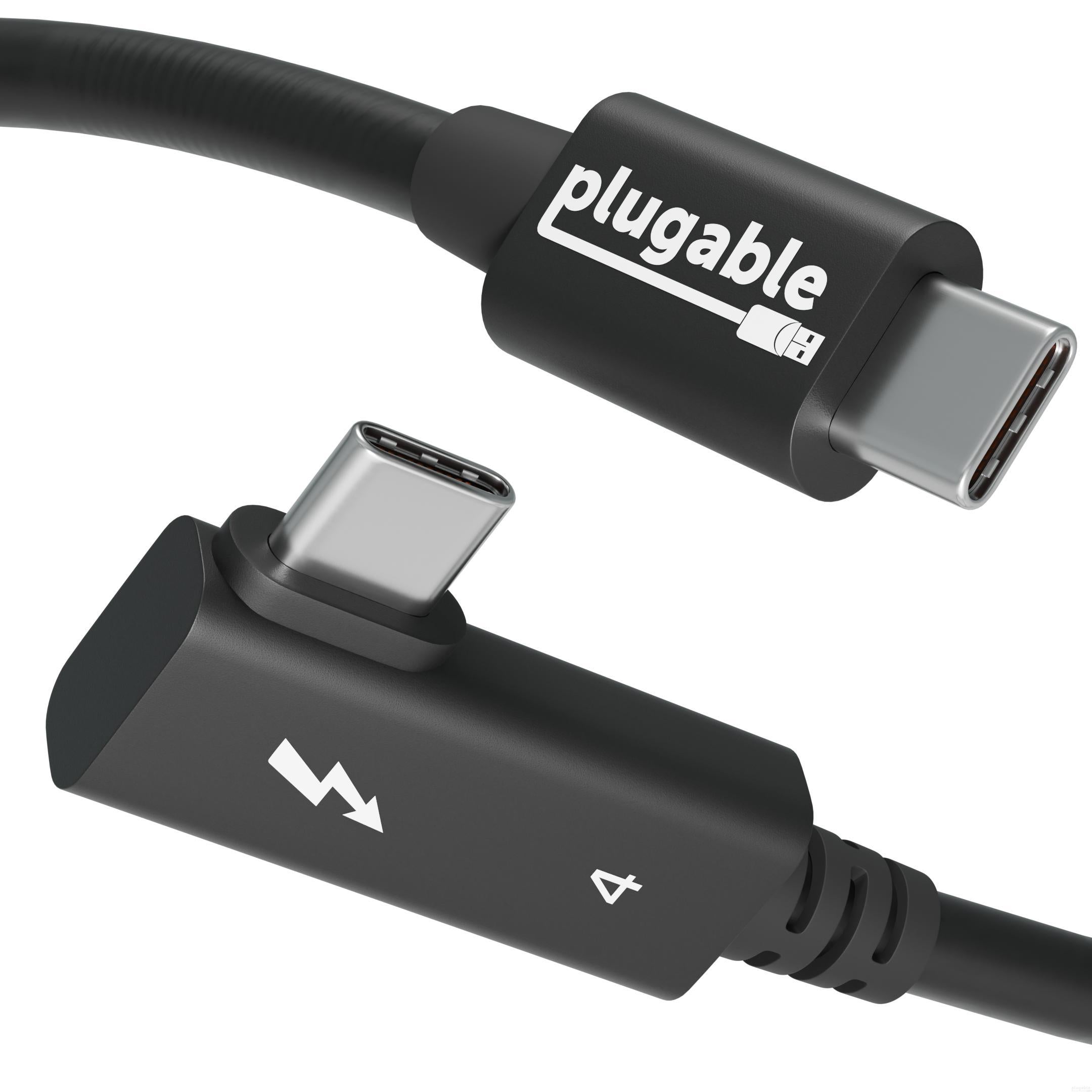
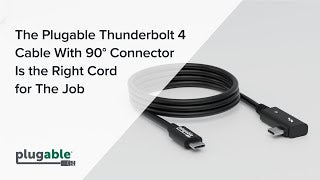
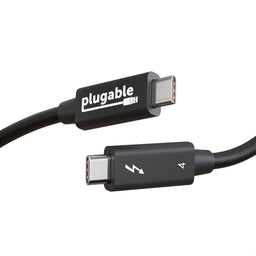
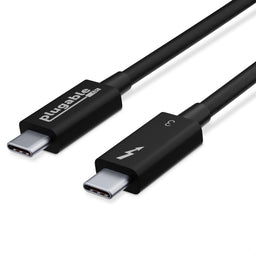
Plugable Thunderbolt 4 Cable with Right Angle Connection (2.6ft / 80cm)
$34.95 USD
SKU: TBT4-240W-80CMRAmazon Rating : (96 Reviews)
Features
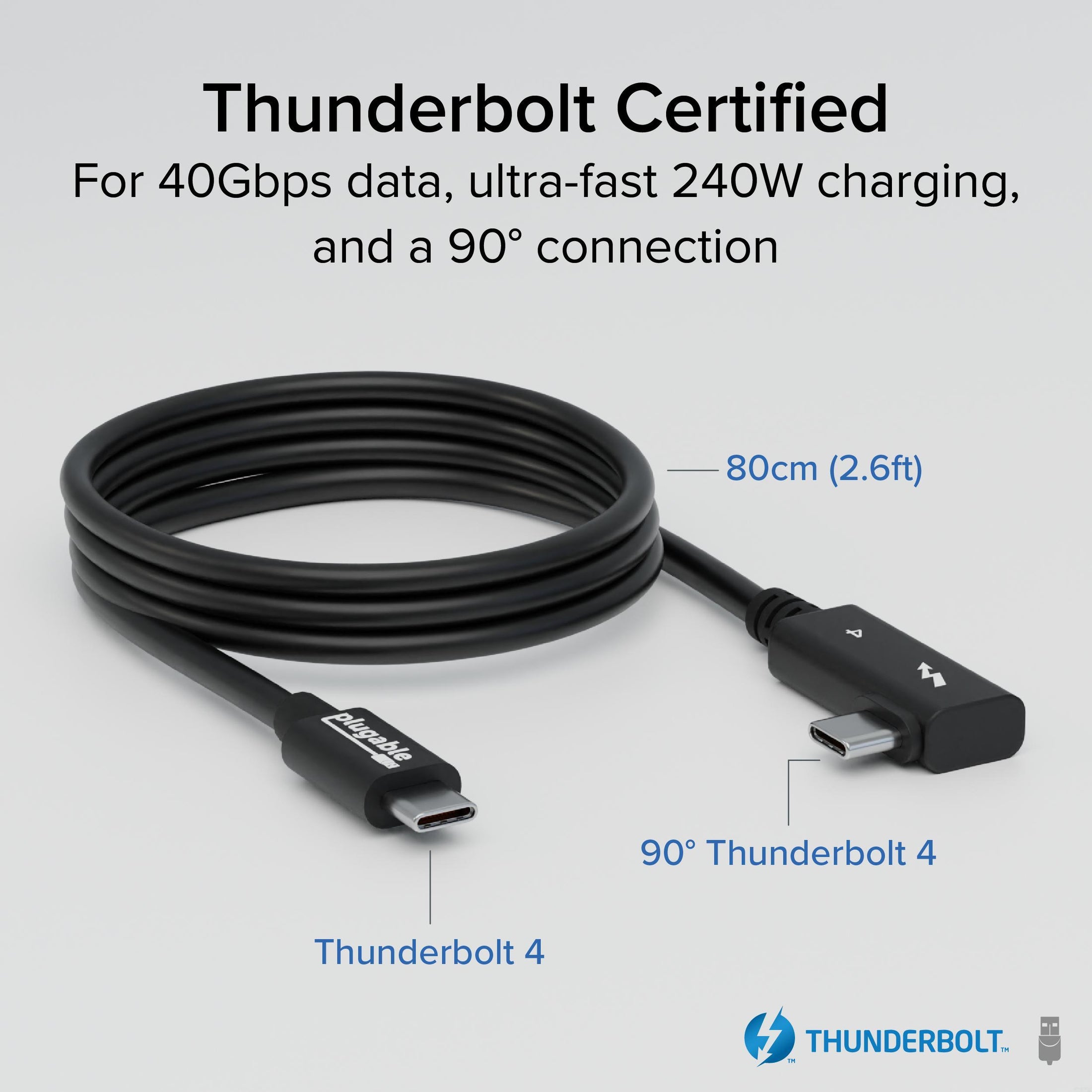
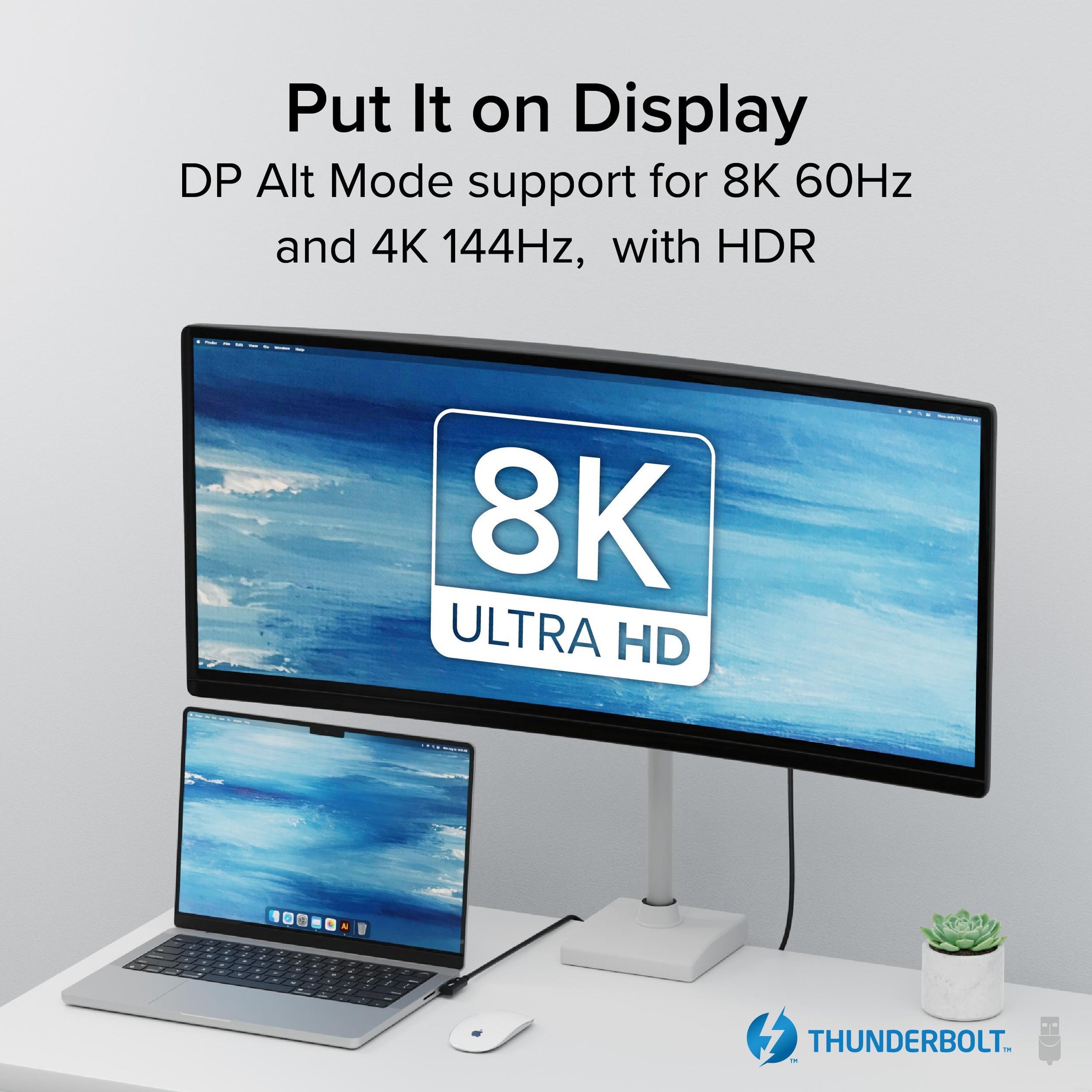
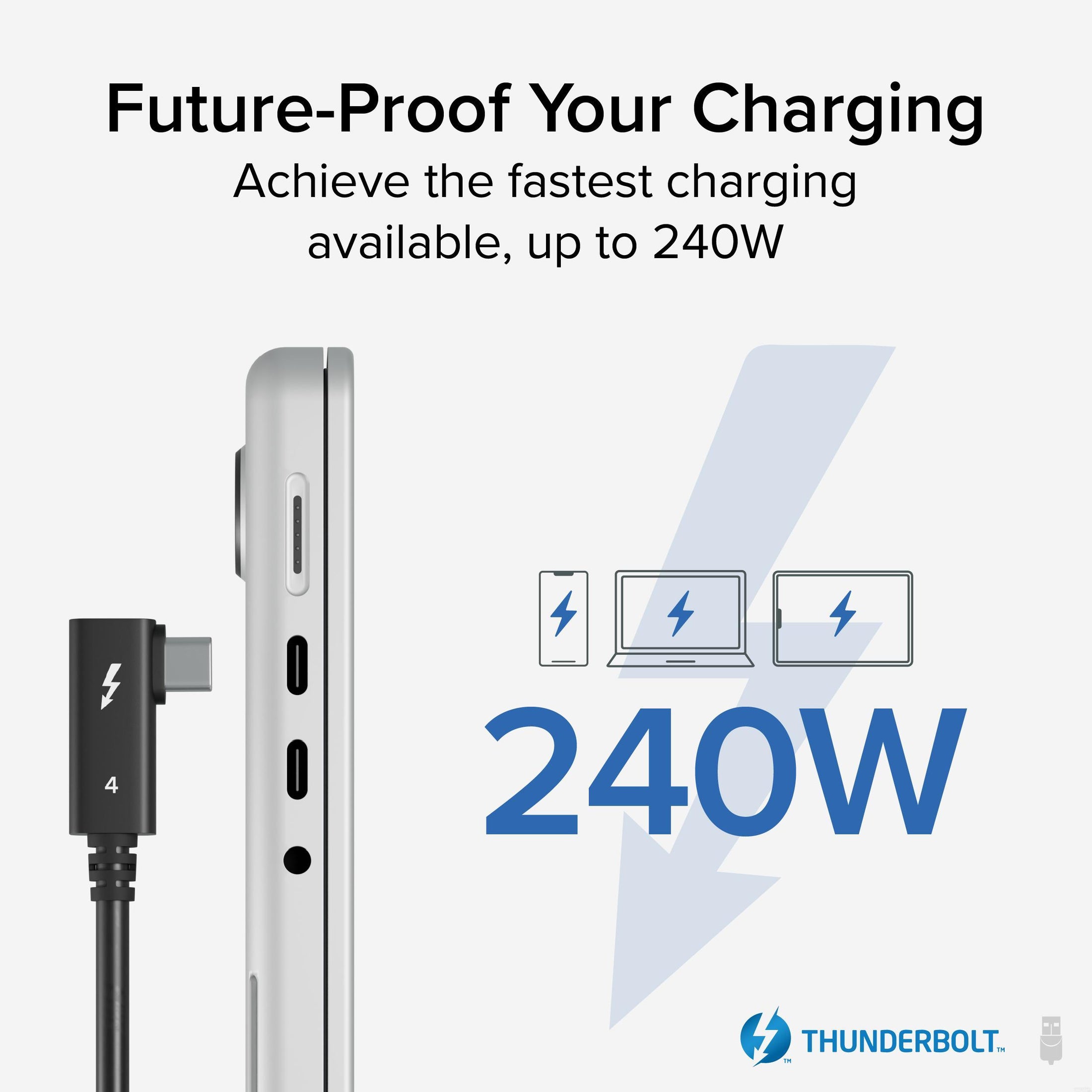
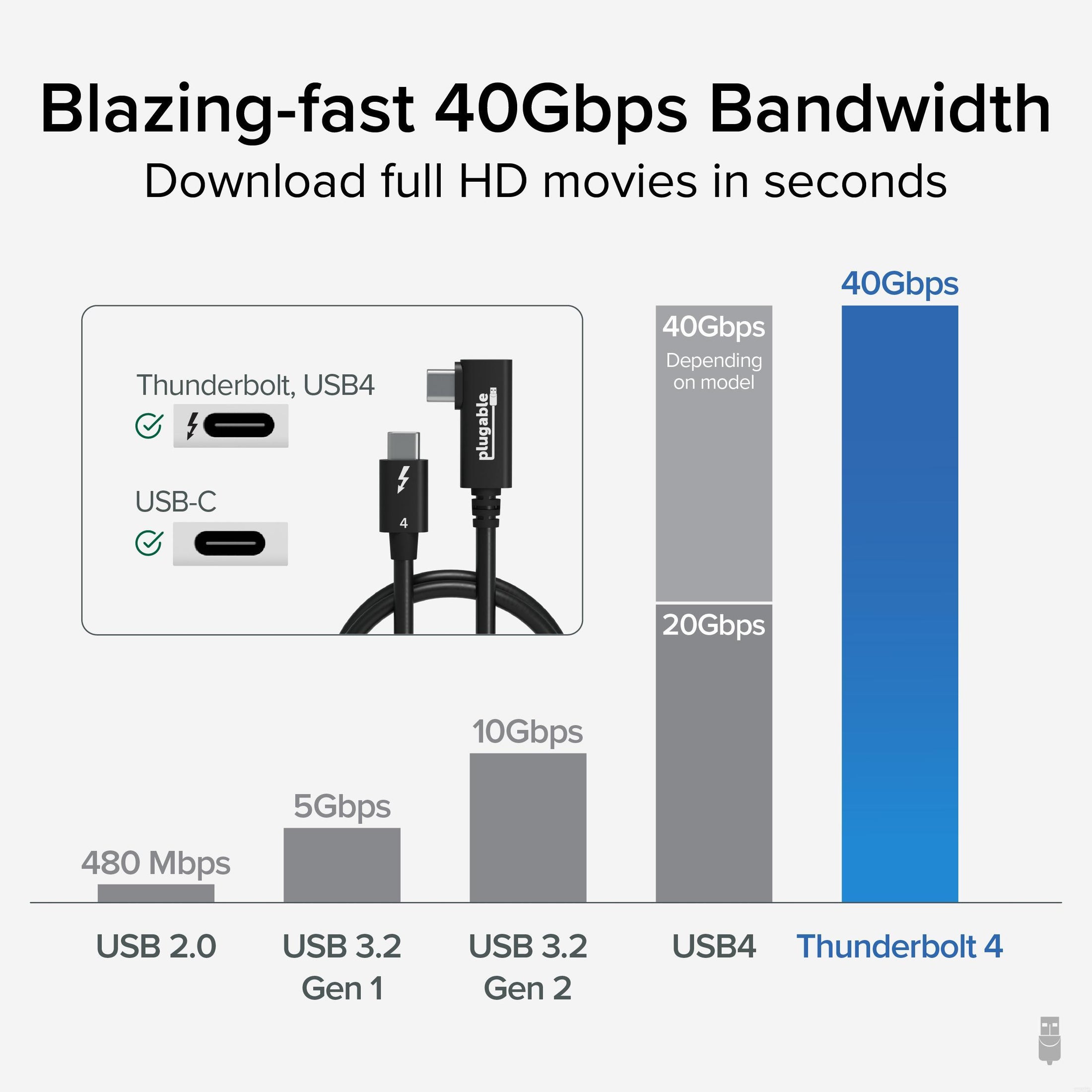
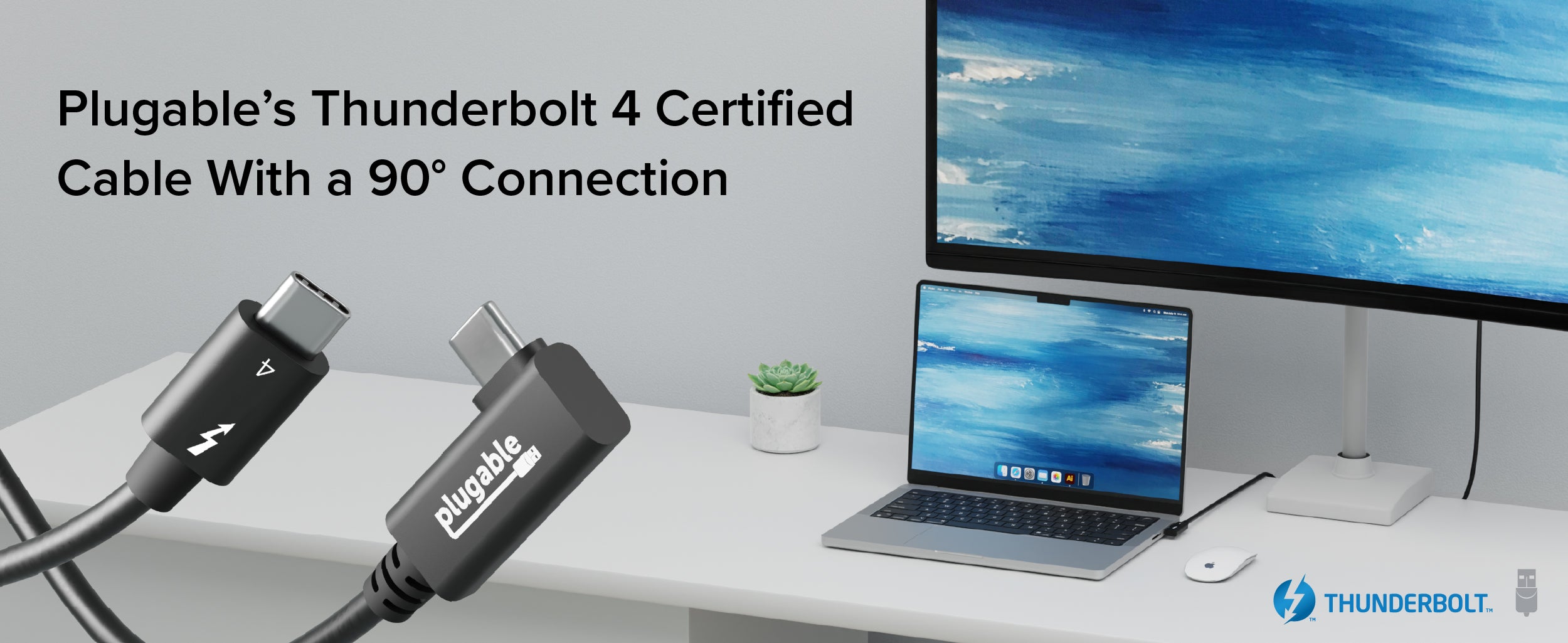
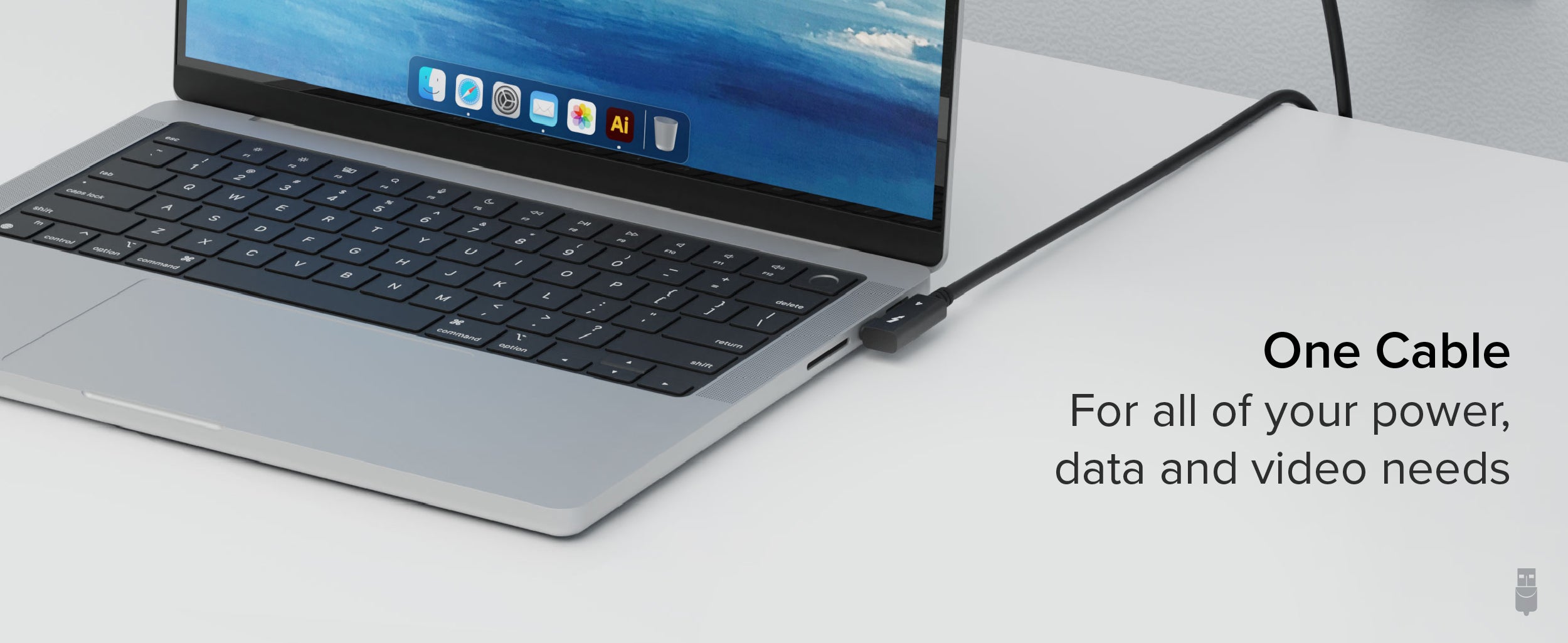
- Certified Thunderbolt Performance— The right cord for power, data, and video. 2.6ft (80cm) Certified Thunderbolt 4 cable with right angle connection (USB4, USB-C compatible) that supports powerful 240W EPR charging, 40Gbps transfer speeds, and dual 4K 120Hz or single 8K 60Hz video
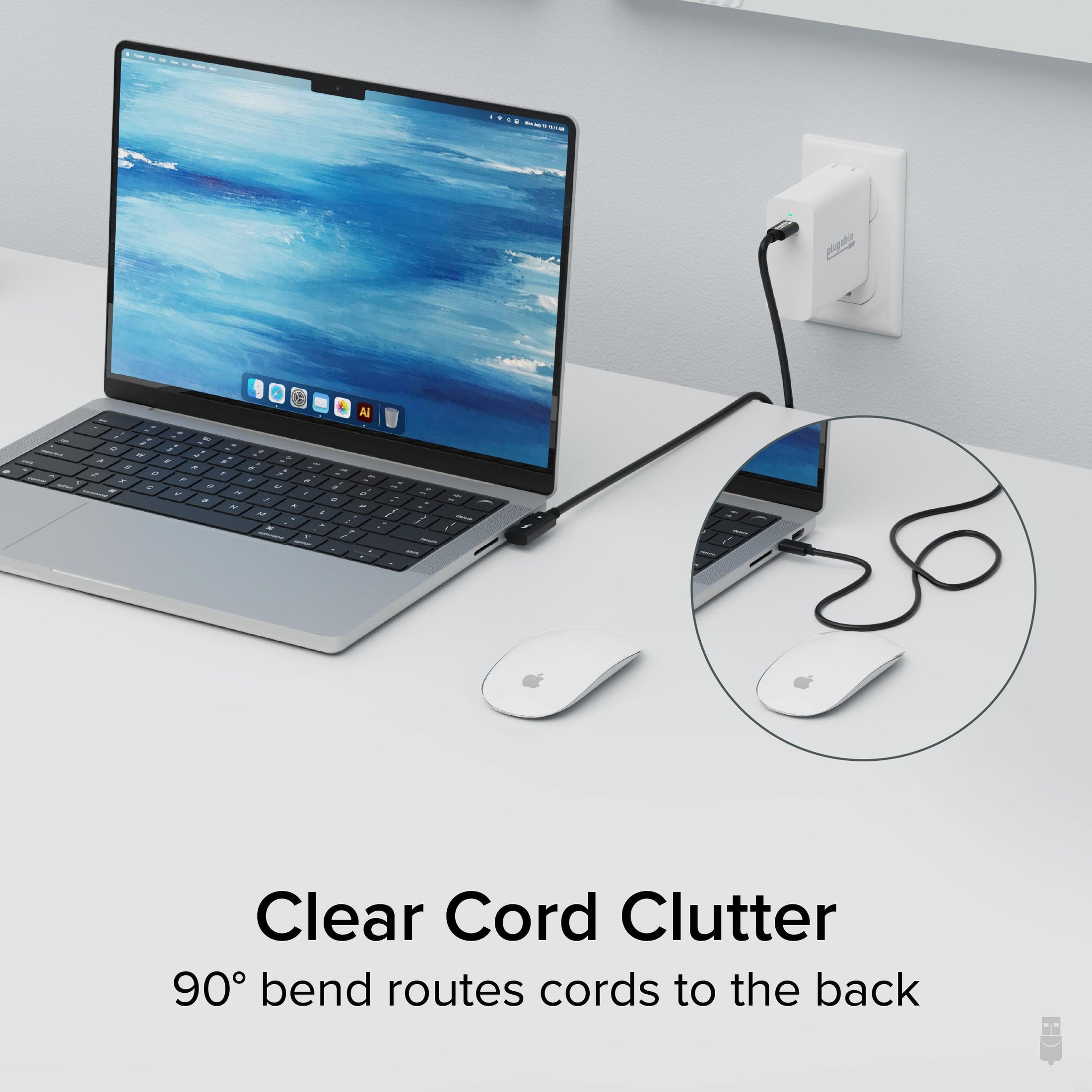
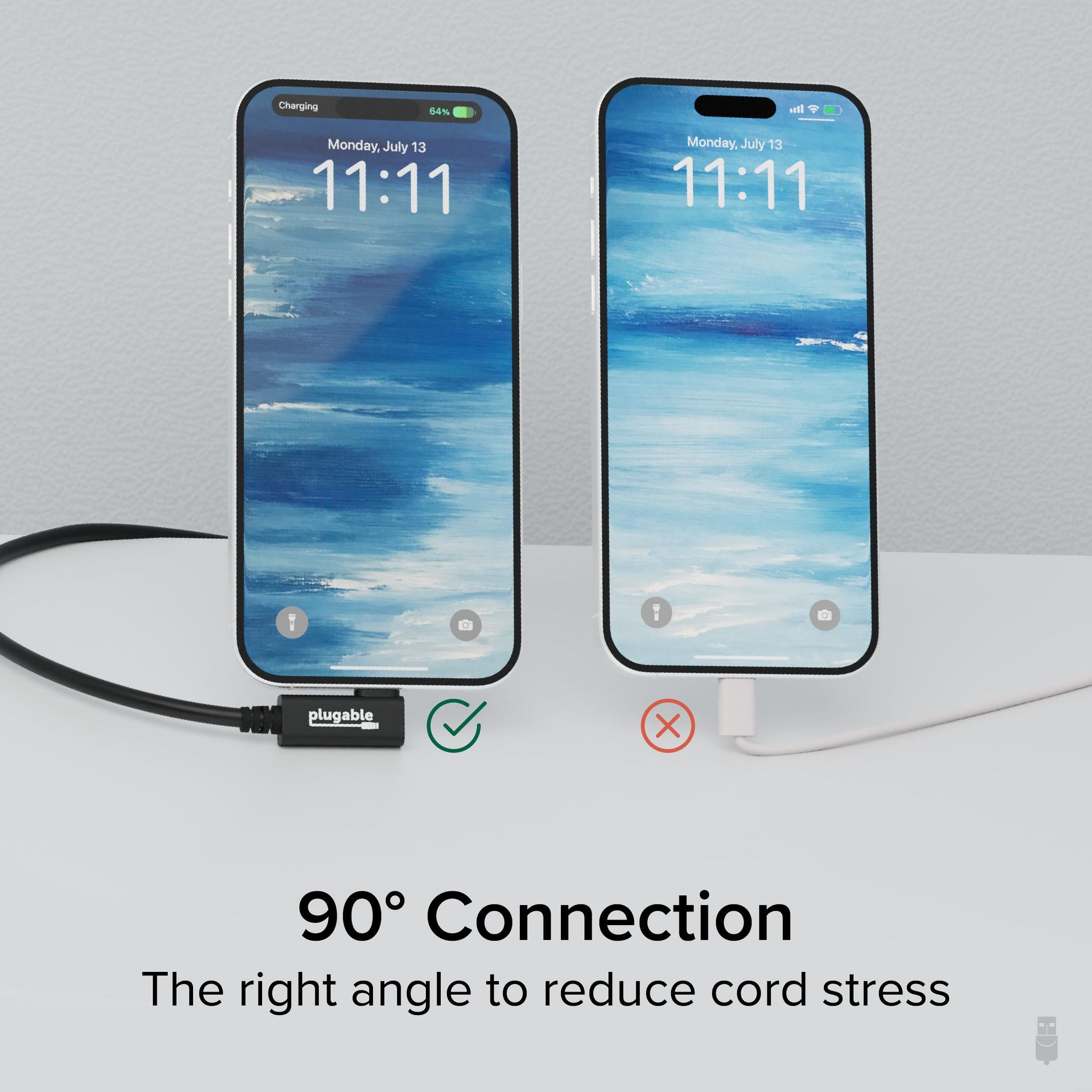
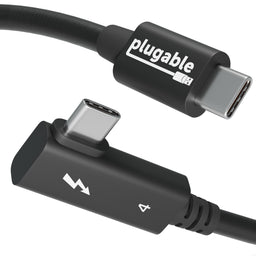
- The Right Angle Cable— These Thunderbolt cables feature a right angle connection to better direct the cord when connecting to a docking station or device, fitting in tight spaces. It’s also much better fit for your hand when holding your phone while it’s charging
- Incredibly Fast— Download full HD movies or transfer large files in seconds with ultra-quick data speeds up to 40Gb/s, and with support for up to 240W charging, these Thunderbolt 4 cables will have you charging at full speed
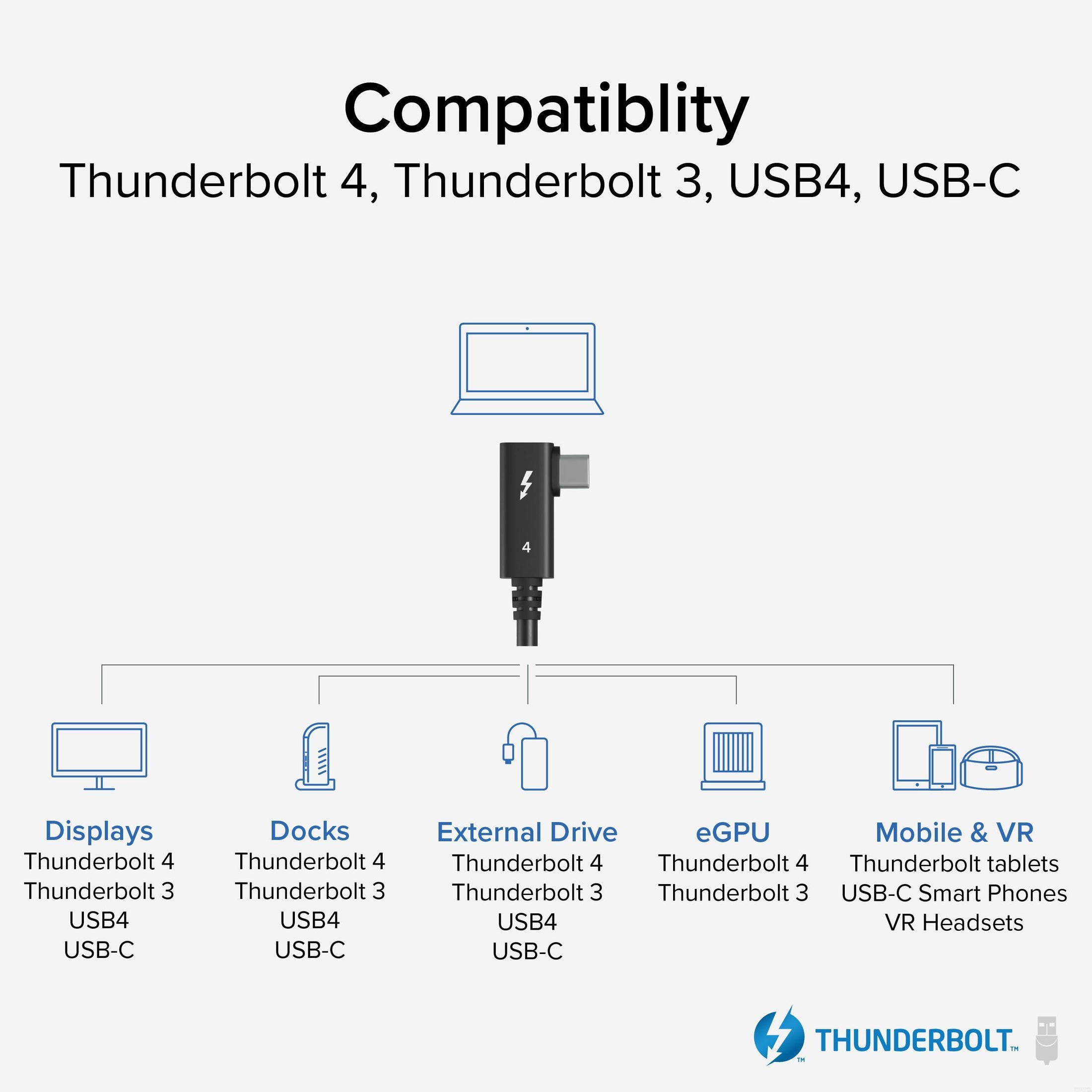
- Universal compatibility— Right angle Thunderbolt cable works with Thunderbolt, USB 4, and USB-C devices, including laptops, tablets, displays, smartphones, EGPUs, and docking stations. Supports Thunderbolt, DisplayPort, and USB devices, including up to 8K video. Thunderbolt Certified. Actual performance determined by connected devices
- 2-Year Coverage, Lifetime Support— Every Plugable product, including this thunderbolt 4 cable, is covered against defects for 2 years and comes with lifetime support. If you ever have questions, contact our North American-based team - even before purchase
Free 3-Day Continental U.S. Shipping on Orders Over $35!





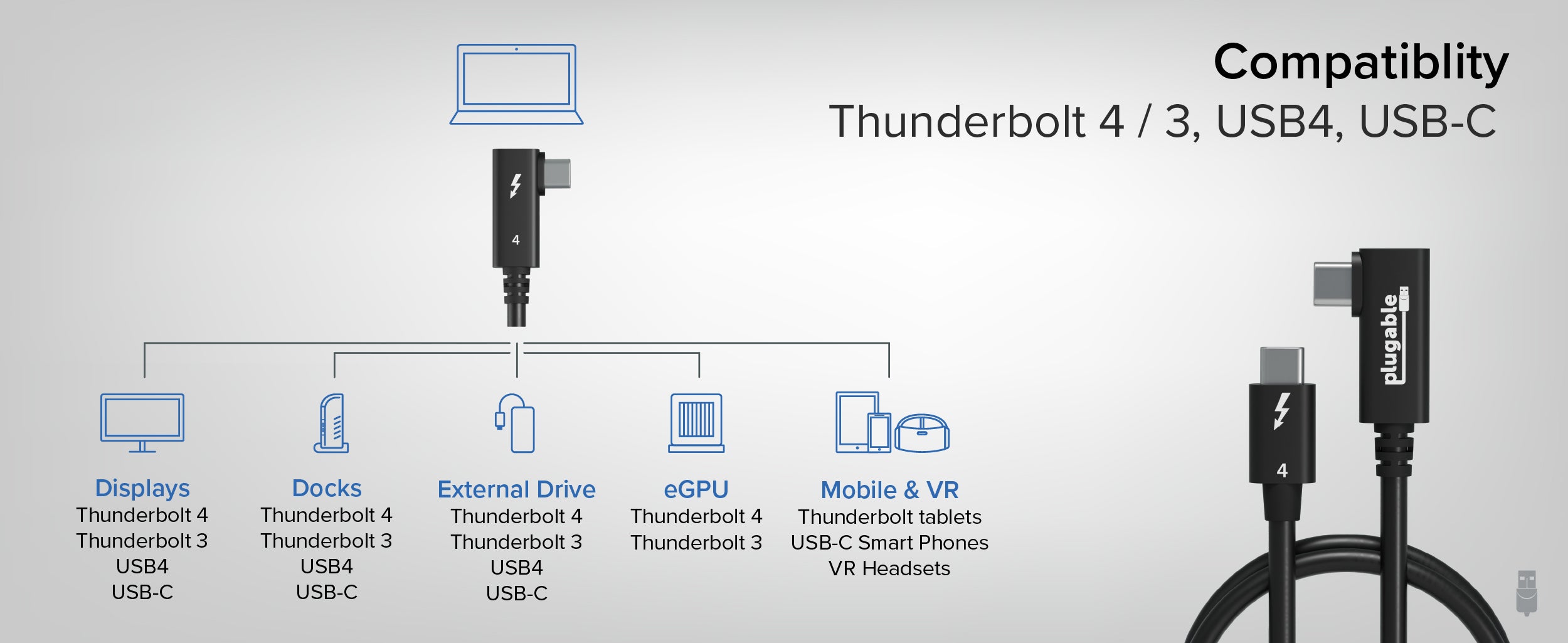
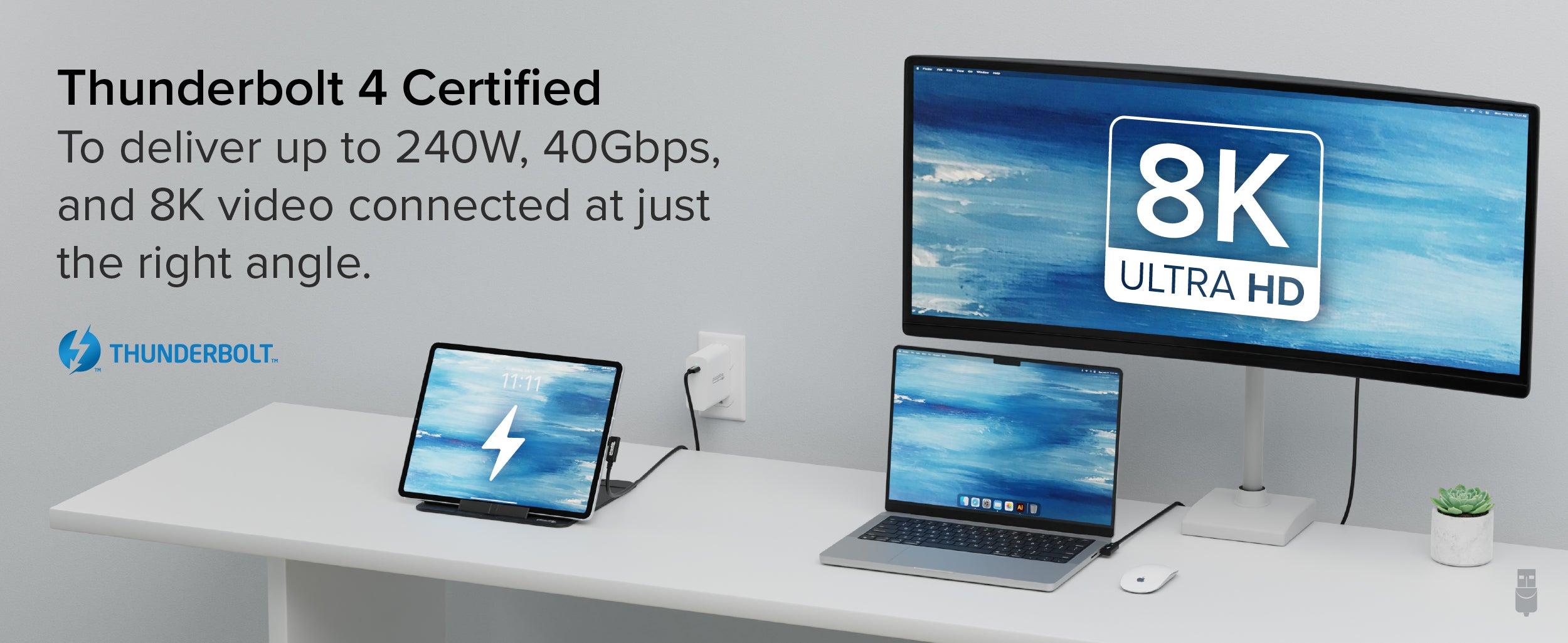
A: This cable can be used for virtually any use-case involving Thunderbolt or USB-C, including with docking stations, storage drives and media, high-resolution monitors/displays, eGPUs, mobile and VR devices, networking adapters, charging, and more.
A: Yes, 240W is the maximum charging rate, but lower wattages are also supported with this cable
A: No, only a single connector is a right-angle connector on this cable
A: This cable supports Thunderbolt, DisplayPort, and USB devices
A: This cable can support HDR, as well as displays up to 4K 144Hz or lower resolutions at higher refresh rates. Additionally, this cable can support an 8K resolution display, as well as the Apple Studio Display and Pro Display XDR
 |
 |
 |
 |
 |
|
|---|---|---|---|---|---|
Certifications |
Thunderbolt Certified |
- |
Thunderbolt, USB-IF Certified |
Thunderbolt Certified |
Thunderbolt Certified |
Passive/Active |
Passive |
Passive |
Passive |
Active |
Passive |
Length |
80cm (2.6ft) |
1m (3.3ft) |
1m (3.3ft) |
2m (6.6ft) |
80cm (2.6ft) |
Power Delivery |
240W 48V/5A |
240W 48V/5A |
240W 48V/5A |
100W 20V/5A |
100W 20V/5A |
Data Transfer Speed |
40Gbps |
20Gbps |
40Gbps |
40Gbps |
40Gbps |
Supported Resolutions |
2x 4K displays, one 8K display |
2x 4K displays, one 8K display |
2x 4K displays, one 8K display |
2x 4K displays, one 8K display |
2x 4K displays, one 8K display |
Compatibility |
Thunderbolt, USB4, USB-C |
USB-C, Thunderbolt, USB4 20Gbps mode |
Thunderbolt, USB4, USB-C |
Thunderbolt, USB4, USB-C |
Thunderbolt, USB4, USB-C |
Filter Help Articles and Frequent Questions by Category
Choose one or more filters within each category to narrow down the articles. Each selection will result in only displaying articles that include all of your choices.
Articles
Well how about that, it looks like we don't have any articles matching your filters! Try removing one of your choices or clear the filters to show all articles.
You can always contact support if you need help too!
Can I Use a Thunderbolt 4 Cable to Connect to a Thunderbolt or USB-C Device Such as a Phone, iPad, or Docking Stations?
Yes, this Thunderbolt 4 cable is compatible with any USB-C port for data transfer, charging, or video (capabilities will depend on peripheral used).
Do Thunderbolt 4 Cables Support USB-C Power Delivery for Host Charging?
Yes, Thunderbolt 4 cables can support up to 240W of power allowing you to keep your devices charged, but some cables may not offer the full 240W capability and instead offer a maximum of 100W of Power Delivery.
Are Thunderbolt 4 Cables Compatible With Thunderbolt 3 Computers and Devices?
Yes, Thunderbolt 4 cables are backward compatible with Thunderbolt 3 and USB-C devices.
Will My 240W Cable Work With Lower Wattage Devices?
Yes! Our 240W cables can transfer up to 240 watts of power, which means that it can also transfer lower wattages such as 45W, 60W, 85W, 100W, 140W, and anything in between.
How to Determine Your USB-C Port Video Capabilities
under
Understanding your laptop's video output capabilities is essential when connecting to external displays. This guide will help you identify what video technologies your laptop supports and how to find the relevant information.
Common Video Output Technologies
Modern laptops commonly use one or more of the following technologies to transmit video to external monitors:
1. Thunderbolt 3
- Supports video output using the DisplayPort protocol.
- Capable of driving up to two 4K displays at 60Hz or one 5K display at 60Hz.
- Uses a USB-C connector and features a lightning bolt symbol next to the port.

Note: An example of Thunderbolt 3 ports
2. Thunderbolt 4
- Provides improved performance over Thunderbolt 3.
- Supports up to two 4K displays at 60Hz or one 8K display.
- Uses a USB-C connector with the same lightning bolt symbol but may also include the number "4" for identification.
Note: Thunderbolt 4 has the same physical connection and “lightning” bolt icon as Thunderbolt 3
3. Thunderbolt 5 (As of 2024)
- Up to 80 Gbps bi-directional bandwidth (Double that of Thunderbolt 4’s 40 Gbps).
- Up to 120 Gbps bandwidth for displays (With Bandwidth Boost — 120 Gbps upstream and 40 Gbps downstream for display-intensive use cases).
- Support for dual 6K or 8K displays (Compared to Thunderbolt 4’s dual 4K support).
4. USB-C DisplayPort "Alt Mode"
- Allows video output directly through the USB-C port using DisplayPort technology.
- Commonly supports one 4K display at 60Hz, but capabilities may vary.
- Often marked with a DisplayPort ("DP") symbol, but this feature may also be specified in your system's documentation.

Note: An example of a USB-C port with DisplayPort capabilities
How to Identify Your Laptop's Video Capabilities
To determine what video technologies your laptop supports, follow these steps:
1. Check Your Laptop's User Manual:
- Locate your laptop's user manual (often available online from the manufacturer's support site).
- Search for keywords like "Thunderbolt," "DisplayPort Alt Mode," or "video output capabilities."

2. Visit the Manufacturer's Website:
- Go to the support page for your laptop model and find the technical specifications section.
- Look for details on Thunderbolt or USB-C video capabilities.

3. Inspect Your Laptop's Ports:
-
Check for identifying symbols next to USB-C ports:
- Thunderbolt 3/4 ports may have a lightning bolt symbol.
- DisplayPort Alt Mode may be marked with a "DP" icon.
“What if I do not have the above technologies?”: USB 3.0 (Type-A) and Display Expansion
While USB 3.0 (Type-A) ports do not support native video output, they can still be used to extend to two or more displays using software-based solutions like DisplayLink or Silicon Motion's InstantView. These technologies enable video through USB-A ports by utilizing dedicated drivers and software.
If your laptop lacks Thunderbolt or USB-C video capabilities, DisplayLink or InstantView may be a viable alternative for expanding your display setup. A few other things to consider:
- Not all USB-C ports support video output. Checking your laptop's documentation is crucial to confirm this capability.
- Thunderbolt ports are backward compatible with USB-C DisplayPort Alt Mode but provide enhanced performance and flexibility.
If you have further questions about connecting your Plugable docking station or adapter to your laptop, please reach out to our support team for guidance.
Can I connect this product to a computer's Thunderbolt/Thunderbolt 2 port?
Many users assume that USB-C devices can work with older Thunderbolt 2 Macs if they use a Thunderbolt 3 to Thunderbolt 2 adapter, such as the one made by Apple. However, this is not the case. These adapters are specifically designed to support Thunderbolt devices only - not standard USB-C peripherals.
While Thunderbolt 3 and USB-C share the same connector type, they use different underlying data protocols. Non-Thunderbolt USB-C devices, rely on USB standards for data and power. The Thunderbolt 3 to Thunderbolt 2 adapter does not carry USB signals; it only passes Thunderbolt data. Because of this, plugging a USB-C device into a Thunderbolt 2 Mac using this adapter will not work - the computer will not detect or communicate with the device.
If you need to connect peripherals to a Thunderbolt 2 system, we recommend using a USB-A dock or hub (if available on your system). This ensures compatibility without relying on unsupported adapter chains.
In short, even though the connectors may fit, USB-C devices are not compatible with Thunderbolt 2 Macs via Thunderbolt adapters - only Thunderbolt devices will work in that setup.
What is the maximum length Thunderbolt cable that can be used to connect a Plugable Thunderbolt docking station to the host computer?
All Thunderbolt docking stations include the appropriate Thunderbolt cable in order to connect the docking station to the host computer. As of this writing, all Plugable Thunderbolt host cables that are included with Plugable Thunderbolt docking stations are 1.0 meter (approximately 3.3) feet in overall length.
For reference, the specifications of all Plugable Thunderbolt cables are printed on a small white cable flag attached to the cable itself.
If the original 1.0 meter long Thunderbolt host cable is not sufficient for a specific use case, longer cables of up to 2.0 meters (approximately 6.6 feet) in overall length can be purchased separately from Plugable. An example of such a cable is the Plugable TBT4-40G2M cable
Plugable does NOT support using Thunderbolt host connection cables that are over 2.0 meters in overall length with any Plugable brand product.
Plugable does NOT support the use of any type of Thunderbolt extension cable or any type of signal repeater in conjunction with our products.
Please note, Plugable can only guarantee the performance and compatibility of Plugable brand cables.
Understanding Uni-Directional vs. Bi-Directional Video Cables
When connecting a laptop/dock to a monitor, the right direction matters. Many “converter” cables only work one way. If the cable’s intended direction doesn’t match your source (video output) and display (video input), you’ll get no signal. Even if the connectors fit.
Key terms
- Source (Output): Laptop, dock, GPU port sending video
- Display (Input): Monitor/TV/projector receiving video
- Uni-directional: Works only one way (e.g., DP to HDMI)
- Bi-directional: Works both ways (common with HDMI to/from DVI, DP to/from mDP)
- Active adapter: Has electronics to convert formats/directions (e.g., HDMI to DP)
- Passive adapter/cable: No electronics; relies on source capabilities (e.g., DP++ to HDMI)
What typically works and what doesn’t
Rule of thumb: For DP to/from HDMI, assume DP to HDMI unless the product explicitly says HDMI to DP (Active).
Docking stations: quick notes
- USB-C/Thunderbolt docks output standard HDMI/DP signals (direction rules above still apply)
- DisplayLink-based docks still output HDMI/DP at the port (same direction rules)
- DP MST/daisy-chain works only in DP domain; converting to HDMI at the first hop ends DP-specific features downstream
Resolution, refresh, and features
- Achievable resolution/refresh (e.g., 4K60) depends on source + cable/adapter + display
- Features like HDR, HDCP, and VRR may require active adapters and sufficient bandwidth
- For long runs or flaky links, prefer active solutions
Shopping checklist (esp. on Amazon)
- Check the pictures: Listings often show Source to Display with icons/arrows (match this to your setup)
- Read the title/bullets: Look for explicit direction (“DP to HDMI,” “HDMI to DP (Active)”)
- Scan specs: “Active” vs. “Passive,” DP++, supported resolutions, and any power needs
Quick examples
- Dock (DP out) to Monitor (HDMI in): DPtoHDMI cable/adapter; use active if DP++ isn’t supported or for higher reliability
- Laptop (HDMI out) to Monitor (DP in): Active HDMItoDP adapter required
- USB-C laptop (Alt Mode) to HDMI monitor: USB-CtoHDMI cable/adapter; not reversible
FAQs
Why doesn’t my “DP to HDMI” cable work from an HDMI laptop to a DP monitor?
It’s uni-directional (DP to HDMI). Your path is the reverse and needs an active HDMI to DP adapter.
Are “bi-directional” cables truly both ways?
Commonly for HDMI to/from DVI and DP to/from mDP. For DP to/from HDMI, true bi-directional products are uncommon—verify the exact directions in the listing images/text.


