





Hassle free, 2-Year Warranty
Fast, Free Shipping on Orders $35+
Lifetime Technical Support
30-Day Money Back Guarantee
Plugable USB-C Tablet / Phone / iPad Stand with Docking Station, 100W Charging
$64.95 USD
SKU: UDS-7IN1Amazon Rating : (274 Reviews)
Features
- 8 Port Hub— Get more from your mobile device with eight new ports, including an HDMI port, 2x USB 3.0 ports (5Gbps), SD card and Micro SD card, 100W pass-through charging, and an audio jack, all stashed away in the base of an easy to adjust stand
- Award-Winning Desktop Conversion— Winning the best budget iPad USB-C hub stand award from Macworld, it's more than just an iPad stand for desk - use your phone or tablet as a computer by adding a screen with resolutions up to 4K 30Hz, take advantage of the 2x USB ports to add a mouse and keyboard, and expand your storage space with SD and MicroSD slots
- 100W Charging— If there’s work to be done, or screens to scroll, that battery isn’t going to last forever. Get charged and stay charged with 100W pass-through charging (up to 91W output) using your mobile device’s USB-C power supply (no extra cords to carry)
- Compatibility— USB C hub compatible with Microsoft Surface Pro 9, Windows 10 tablets or newer, M1 and M2 iPads with iPadOS 16+, and USB-C phones and tablets that support Alt Mode like Samsung Galaxy S series devices and the iPhone 15
- 2-Year Coverage, Lifetime Support— Every Plugable product, including this USB hub with stand, is covered against defects for 2 years and comes with lifetime support. If you ever have questions, contact our North American-based team - even before purchase





Portable, Meet Productive
The Little Screen Becomes the Big Screen
The Plugable USB-C Docking Station with Tablet Stand or Phone Stand (UDS-7IN1) adds functionality to your Windows tablet, M1 or M2 iPad Air or iPad Pro and USB-C phones and tablets that support DisplayPort Alt Mode, like the Samsung Galaxy devices that support DeX. Let’s start with your screen, when it comes time to get actual work done, the pinch and zoom will only get you so far. Extend to a bigger screen with a 4K 30Hz capable HDMI port. It’s like going from fun-sized to full-sized. Note: Samsung DeX can support 1600x900, 1920x1080, and 2560x1440 resolutions only
8-in-1
Your content is looking real sharp on that big, 4K screen, but a bigger screen is just the start. What if you could add a real keyboard? And a real mouse? Then you’d be ready to get some real work done.
In addition to the 4K HDMI port, this hub lets you power up with 100W pass-through charging (91W output), add a mouse and keyboard (or whatever you need) to the two USB 3.0 (5Gbps) ports, expand with SD and MicroSD ports, and tune out with the audio jack.
Hub and Stand in One
As a hub, you get port expansion. As a stand, you get solid aluminum construction that manages to be incredibly durable and still light enough to carry with you. But don’t let its potential for portability fool you, the UDS-7IN1 still has enough heft to hoist your iPad Pro 12.9. And the feeling of quality continues through to the hinges, too. With enough tension to stay put when you tap away at the screen, you might be surprised by the satisfying slide you experience when adjusting the stand for the perfect angle. And if you do decide to take it with you, the UDS-7IN1 folds flat enough to fit in your bag.

4K Display
A 4K 30Hz capable HDMI port lets you extend your tablet or DeX phone to the big screen.
Note: Samsung DeX can support 1600x900, 1920x1080, and 2560x1440 resolutions only

8-in-1
Get the full desktop experience from your mobile device with eight new ports, including 1x HDMI, 2x USB 3.0 (5Gbps), SD & MicroSD, and an audio jack.

Adjusts to You
A stand sturdy enough to stay in place when you’re tapping on your tablet’s screen, responsive enough for easy adjustment.

Compatibility
Windows 10+, iPad M1+ with iPadOS 16+ (iPadOS 16.1+ for Stage Manager), USB-C phones/tablets with DisplayLink Alt Mode, like the Samsung Galaxy S22.
Filter Help Articles and Frequent Questions by Category
Choose one or more filters within each category to narrow down the articles. Each selection will result in only displaying articles that include all of your choices.
Articles
Well how about that, it looks like we don't have any articles matching your filters! Try removing one of your choices or clear the filters to show all articles.
You can always contact support if you need help too!
How to Connect Audio on iPad with the UDS-7IN1 Docking Station
Summary
This article explains how to route audio from an iPad to either the 3.5 mm audio jack or the HDMI port on the Plugable UDS-7IN1 docking station. These steps apply to iPadOS 26 and earlier versions that support USB-C audio.
Requirements
- iPad with a USB-C port (iPadOS 16 or newer recommended)
- Plugable UDS-7IN1 docking station
- For 3.5 mm audio: wired headphones, earbuds, or speakers with a 3.5 mm plug
- For HDMI audio: a display with built-in speakers or audio-out
- USB-C power adapter (optional, recommended for charging during use)
Instructions
Route audio through the 3.5 mm audio jack
- Connect the iPad’s USB-C power adapter to the rear USB-C Power Delivery port on the UDS-7IN1.
- Connect the iPad to the To Host USB-C port on the right side of the dock.
- Plug headphones or speakers into the 3.5 mm combo jack on the dock.
- On the iPad, swipe down from the top-right corner to open Control Center, then tap the AirPlay icon (a triangle with rings) within the media controls widget.
- From the list of outputs, select the dock’s USB audio device (listed as USB Audio Device).
- Play music or a video to confirm sound is coming from the headphones or speakers.
Route audio through the HDMI port
- Connect the iPad’s USB-C power adapter to the rear USB-C Power Delivery port on the UDS-7IN1.
- Connect the iPad to the To Host USB-C port.
- Attach an HDMI cable from the dock’s HDMI port to your display.
- On the display, set the correct HDMI input and ensure volume is up.
- On the iPad, swipe down from the top-right corner to open Control Center, then tap the AirPlay icon (a triangle with rings) within the media controls widget.
- Select the HDMI display (it may show the display’s model name).
- Play music or a video to confirm audio is routed to the display speakers.
Known limitations
- Communication apps (FaceTime, Skype) may ignore the 3.5 mm selection and instead route audio to built-in speakers or Bluetooth.
- The 3.5 mm port is a combination headset jack. While CTIA-standard 4-pole headsets are supported, not all apps recognize microphones.
- iPadOS supports only one audio output at a time. If both HDMI and the 3.5 mm jack are connected, you must choose one in Control Center.
Troubleshooting
- No sound (3.5 mm): Ensure the USB audio device is selected in Control Center. Fully insert the audio plug. Disconnect and reconnect the dock if needed.
- No sound (HDMI): Verify the display input and volume. In Control Center, confirm the display is selected. If the monitor lacks speakers, connect external speakers to the monitor’s audio-out.
- Headset mic not detected (3.5 mm): Use a CTIA-standard headset. If still not recognized, use the iPad’s built-in mic or a Bluetooth headset.
- Low or inconsistent volume: Check volume. Check Settings > Sounds & Haptics > Headphone Safety to ensure USB audio output isn’t limited.
Samsung DeX and iPadOS SD multiplexing
Dual read/write on the SD and MicroSD slots is not supported on the UDS-7IN1 when using DeX compatible devices. Currently, there are no available updates to provide simultaneous read/write when using the SD and micro SD ports. This is a limitation with DeX and not the hardware.
iPadOS will support dual read/write but is limited to a single process such as playing music or videos from either SD or MicroSD slot. This is a limitation with iPadOS and not the hardware.
Please note that multiplexing with the SD and microSD ports is available when using Windows or macOS.
Setting up and using the UDS-7IN1 with iPadOS and Stage Manager
Stage Manager expands the ability to resize, arrange, and overlap multiple windows enabling the user to multitask on the iPad screen or an external monitor that is connected to your UDS-7IN1. Stage Manager comes with many enhancements where you can now access the full resolution of your external monitor (up to a 6K resolution), move windows and apps between monitors, have a total of eight applications open at a time, and even create groups to help organize your workflow.
This document will cover some new features of Stage Manager and provide steps on how to set up your UDS-7IN1 with the iPad.
Stage Manager is supported with the following iPad models:
- iPad Pro 12.9-inch (3rd generation and later)
- iPad Pro 11-inch (1st generation and later)
- iPad Air (5th generation)
iPadOS 16.2 or later adds the ability to move apps and windows to an external display. The following models are supported:
- iPad Pro 12.9-inch (5th generation and later)
- iPad Pro 11-inch (3rd generation and later)
- iPad Air (5th generation)
We recommend updating iPadOS to the latest version. To update to the latest iPadOS go to Settings > General > Software Update.
Connecting your iPad to the UDS-7IN1
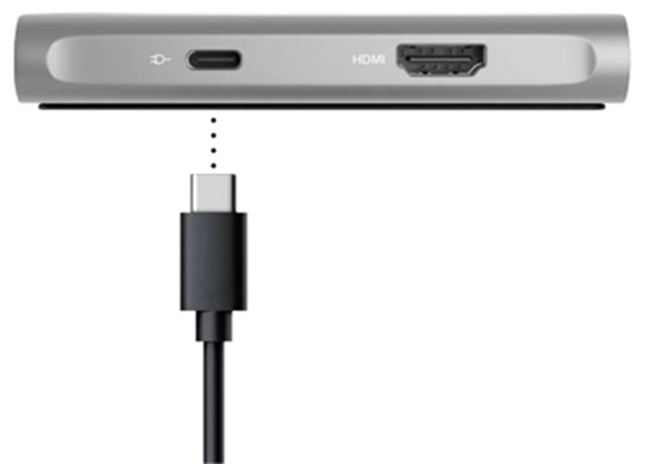
1. Connect the USB-C power adapter that came with your iPad (or iPhone) to the USB-C power passthrough port on the UDS-1IN1 (located on the back). **Please note that the UDS-7IN1 can support power input up to 100W.
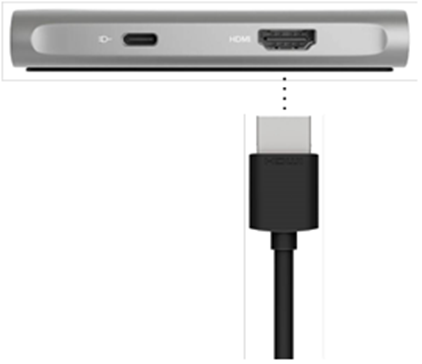
2. Next, use an HDMI to HDMI cable to connect your monitor. Connect the HDMI cable from the monitor to the back HDMI port on the UDS-7IN1.
Finally, connect your iPad (or iPhone) to the “To Host” USB-C port on the right side of the unit using the USB-C cable that came with the UDS-7IN1.
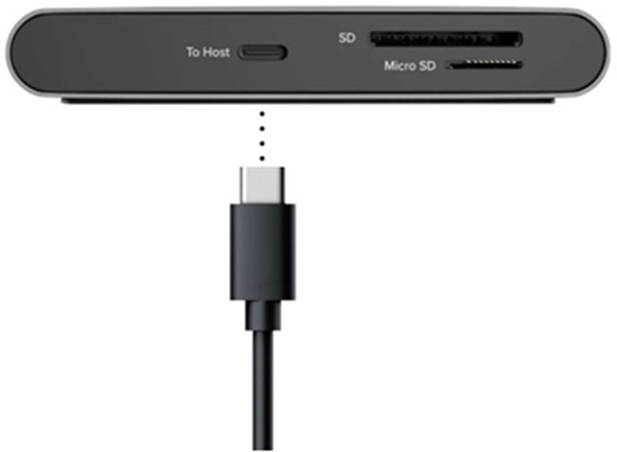
Once connected Stage Manager will automatically start and your iPad or iPhone will begin to display video to the external monitor.
Turning Stage Manager On and Off
- Swipe down from the top-right corner of your screen to open Control Center.
- Tap the Stage Manager button

Using your External Monitor in Extend or Mirror mode
To set your external monitor to mirror or extend you can do so by going to Settings > Display & Brightness > Arrangement.
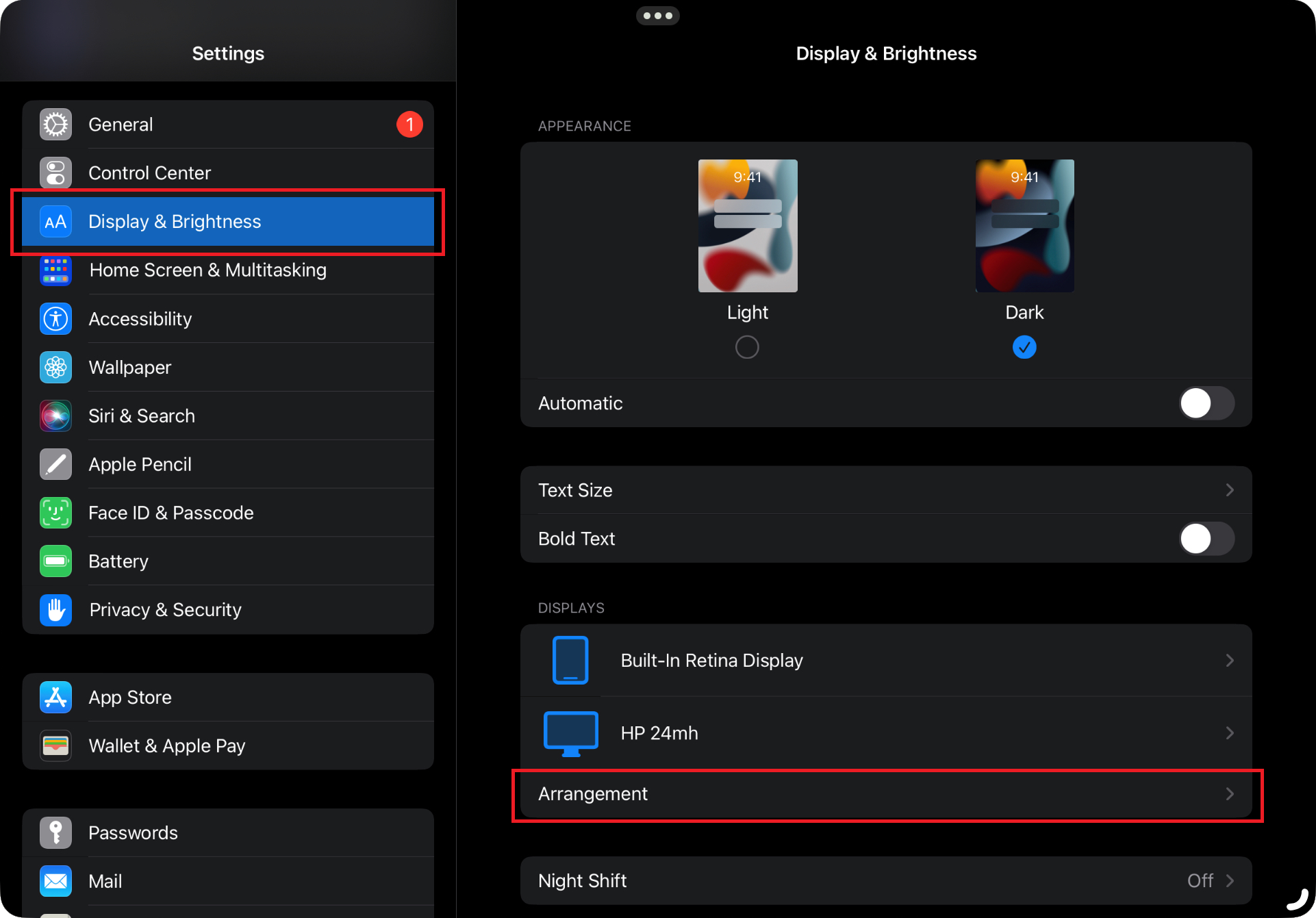
In the Arrangement setting, you can select or deselect the Mirror Display option and even arrange your external monitor to reflect how the monitor is orientated on the desktop.
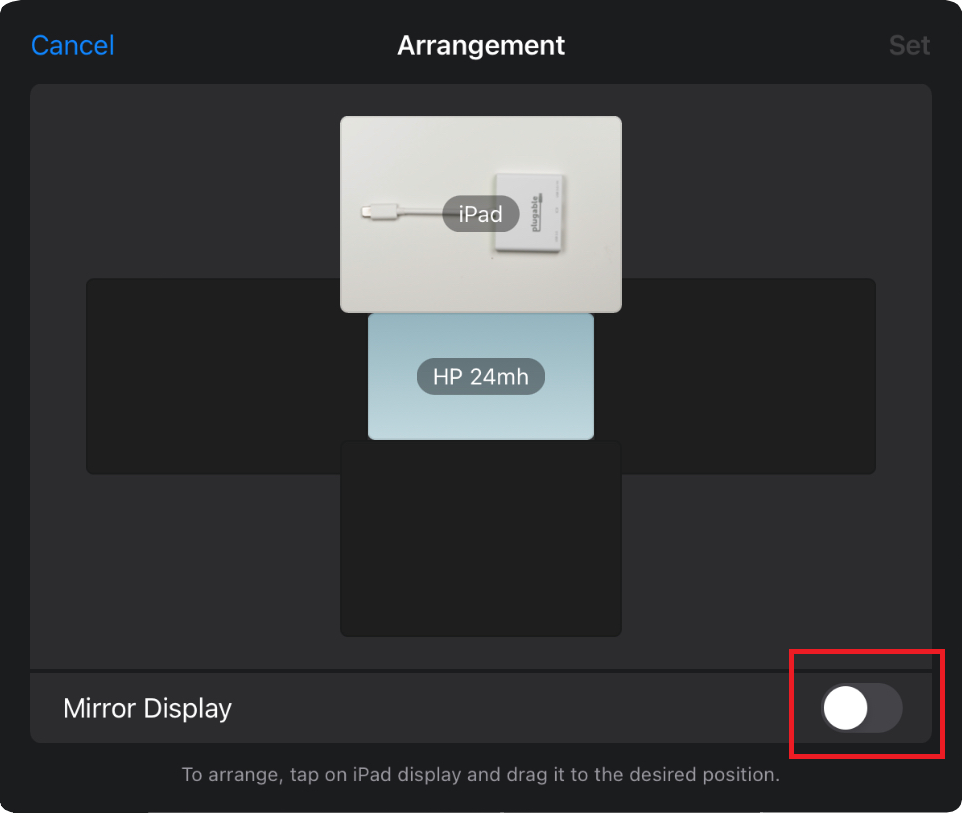
When the external monitor is set to mirror it will duplicate the iPad screen. When set to extend your external monitor will act as an extension of the iPad screen allowing the user to move applications by simply dragging the application to the monitor.
Grouping Applications
When using multiple applications you can group them together to help organize tasks or projects. When applications are grouped you can reposition, resize, and overlap windows.
To group applications into another app simply tap and hold the app (this can be done with dock apps as well) and drag the app to the currently open window.
Likewise, you can also,
- Tap the *** in the opened app and add another Window
- Add apps from the Library
- Tap and drag apps in the recent apps list
View or Disable recent Apps list
- Swipe down from the top-right corner of your screen to open Control Center.
- Touch and hold

- The Show Recent Apps and Dock will appear
Here you can select or deselect the recent Apps list
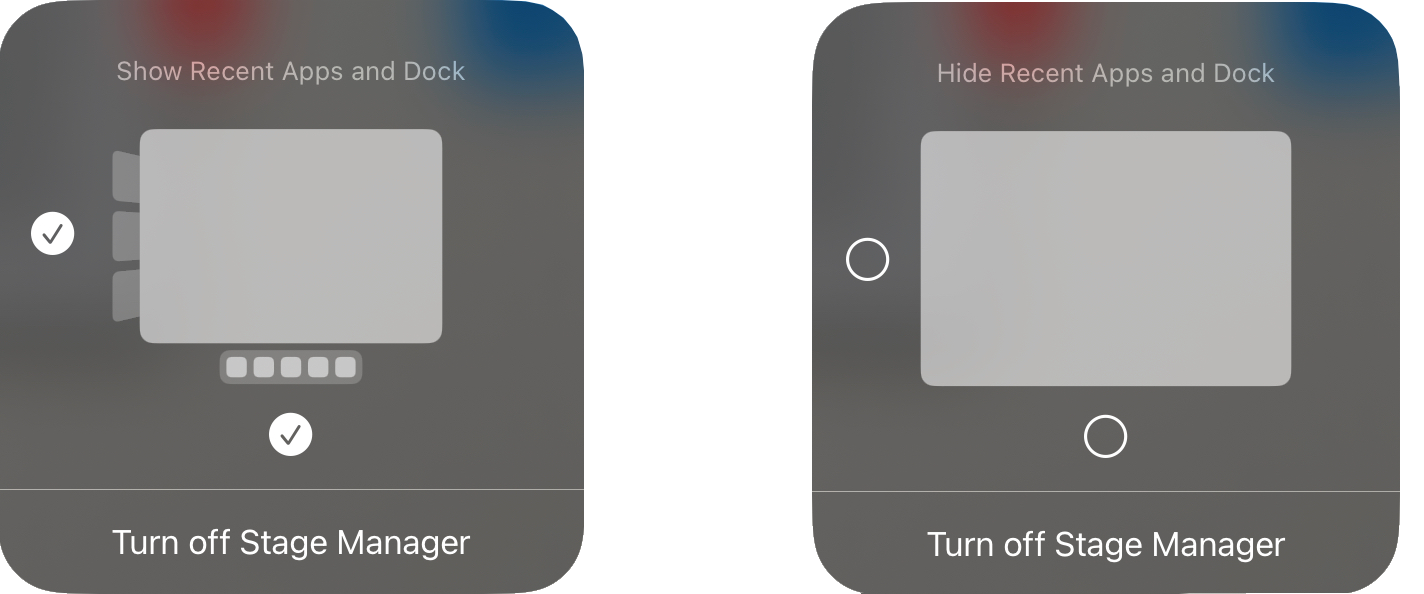
Moving Apps between Screens
To drag an app between your iPad screen and external monitor,
- Tap and hold the top of the app window and move it from one screen to the other
- Tap the *** in the opened app and select "Move to Display"
- If you want to move an app simply tap and hold the app icon and drag it from one screen to the other
Zooming
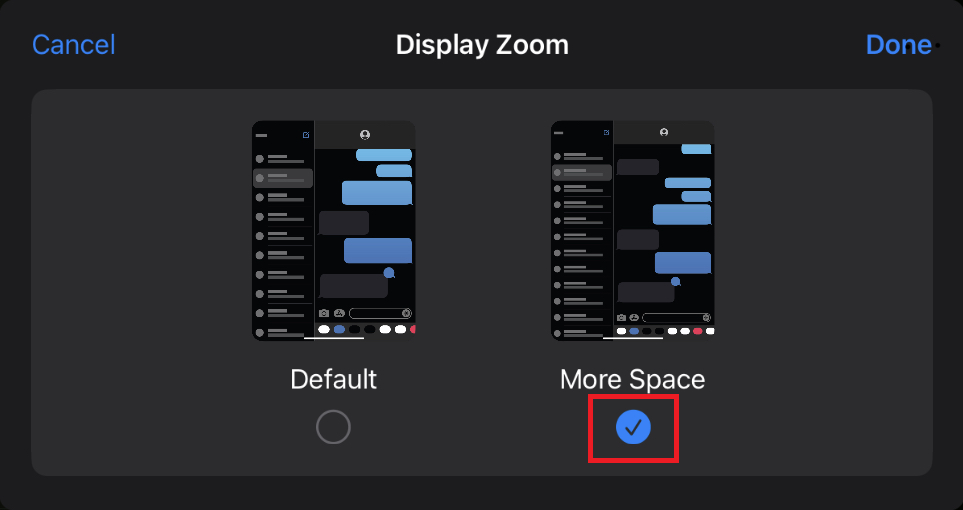
Enabling the Zoom feature will allow more space when using multiple apps. you are now able to have four “floating” app windows on the screen at a single time. And if you connect your iPad to an external monitor, you can have up to eight apps open at once.
To enable Zoom,
1. Open the Settings app on your iPad
2. Tap Display & Brightness in the left sidebar
3. Select the Display
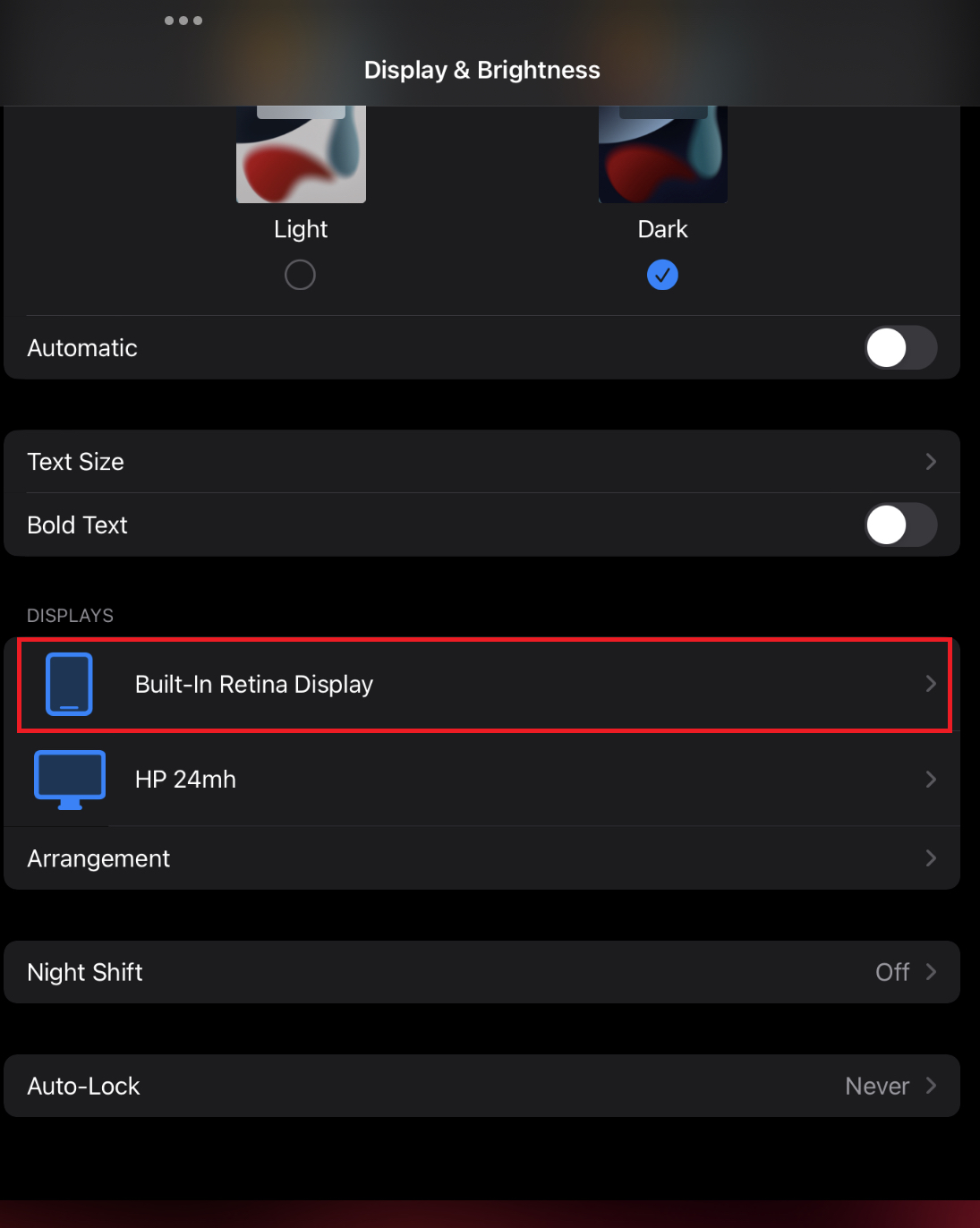
4. Under the Display section, tap Display Zoom
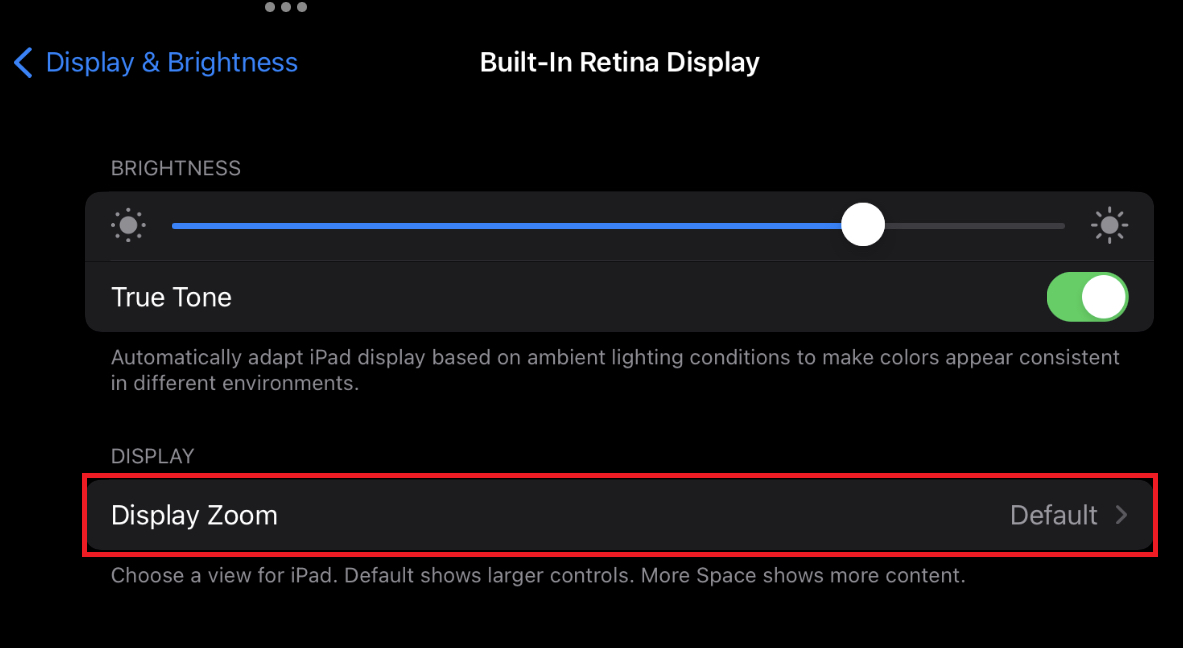
5. Select More Space from the list of options
Setting up your Samsung DeX compatible device with the UDS-7IN1
Summary
This article describes the connection and setup process for a Samsung device that supports Samsung DeX when used with the Plugable UDS-7IN1. These steps can also apply to most devices that support USB-C DisplayPort Alternate Mode, though behavior may vary depending on the operating system.
This article applies to Samsung phones and tablets that support wired Samsung DeX over USB-C DisplayPort Alt Mode. Menu names and options may vary slightly by device model and One UI version.
Connecting to your UDS-7IN1
1. Connect the USB-C power adapter that came with your device to the USB-C power passthrough port on the UDS-7IN1.
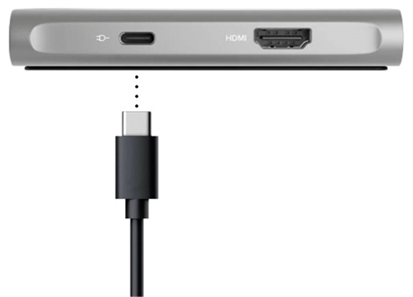
2. Next, connect your monitor to the HDMI port on your UDS-7IN1.
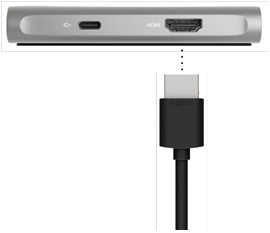
3. Now, connect your Samsung DeX device to the “To Host” USB-C port on the right side of the unit.
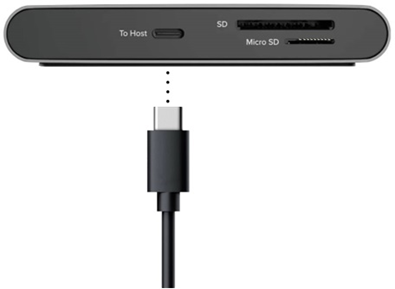
And that's it! You are now connected to the UDS-7IN1. DeX will automatically start displaying video to your external monitor and you can now use the additional ports on the dock. Please note that it may take a few seconds for DeX to display video on your external monitor.
DeX touchpad
Once DeX starts, you will have the option to use your device as a tablet or a touchpad. In most cases, DeX will default to the touchpad. The touchpad is useful because you can use your finger or an S Pen to move the cursor and navigate on your external monitor.
On the touchpad screen, there are three options to the right:
- Rotate touchpad. Rotates the touchpad depending on the orientation of your device screen.
- Gestures help. Provides a quick tutorial on touchpad gestures.
- Close touchpad. Closes the touchpad view.
If the touchpad does not launch automatically, you may need to adjust your DeX settings. See the FAQs below.
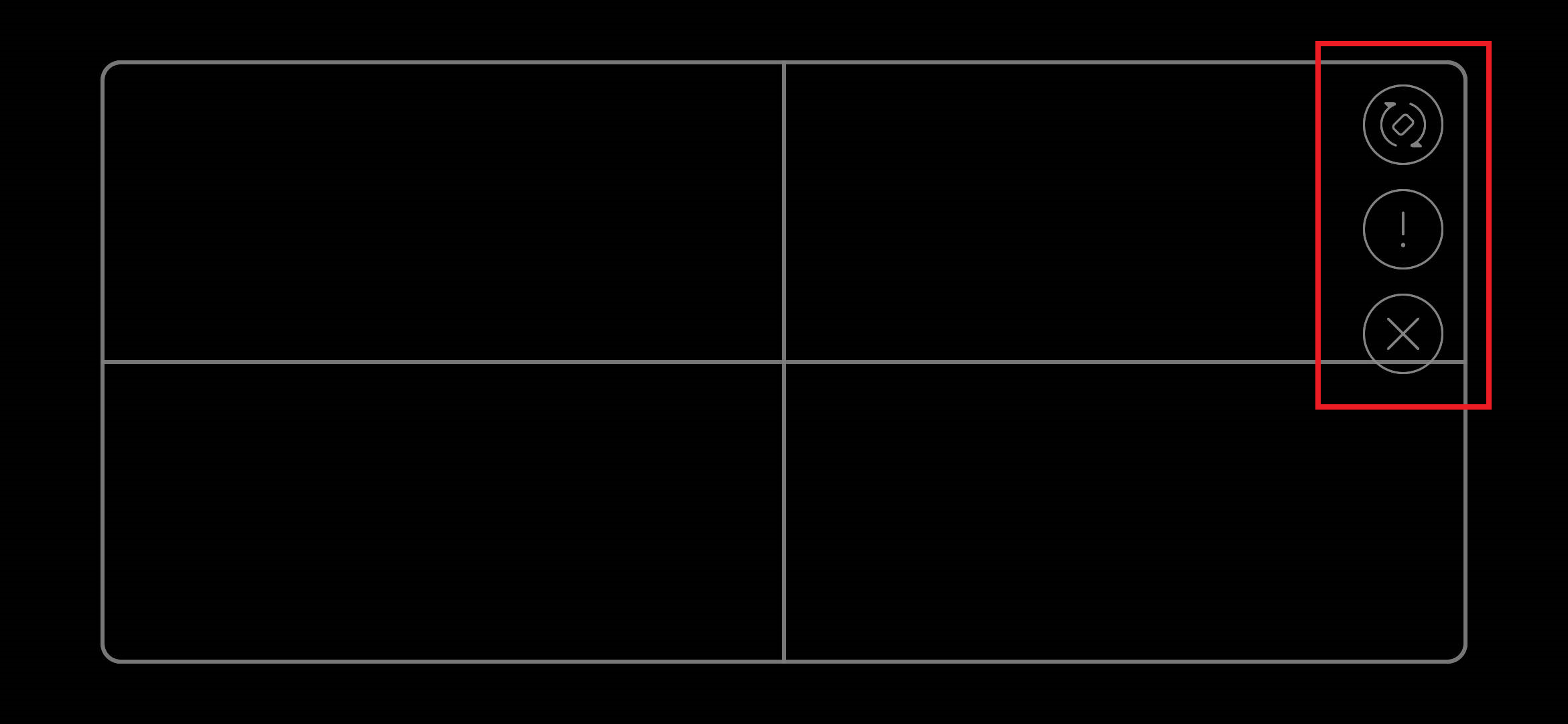
If the touchpad does not launch automatically, you may need to adjust your settings (see FAQ's below)
DeX Settings
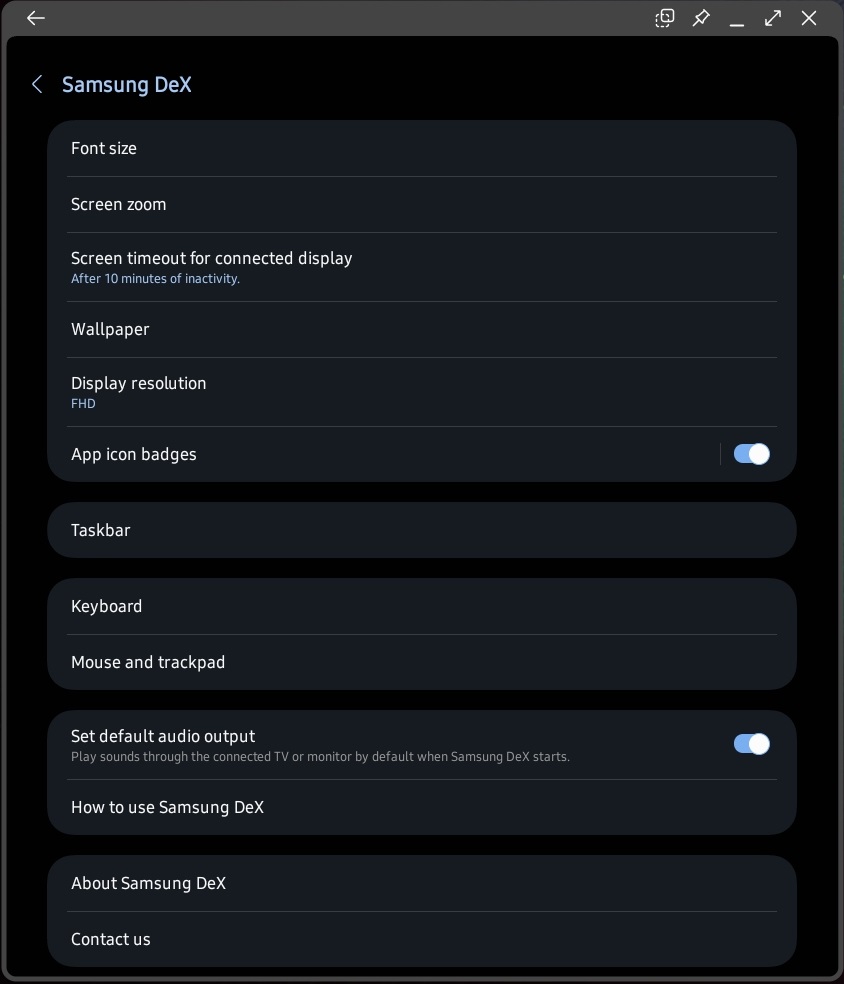
To access your DeX settings, open Settings from the DeX desktop, then select Samsung DeX.
Samsung DeX provides several options to customize your Desktop eXperience. For example, you can adjust the font size and zoom, change the wallpaper, change the desktop resolution, and select the audio output source so that audio plays through your phone or tablet or a monitor with built-in speakers.
FAQ's
I have everything connected and DeX is still not starting
For most users, DeX will automatically start when it detects an external display. If your device does not automatically start DeX, you can enable DeX first:
To enable DeX, go to Settings and search for DeX and click on Samsung DeX.
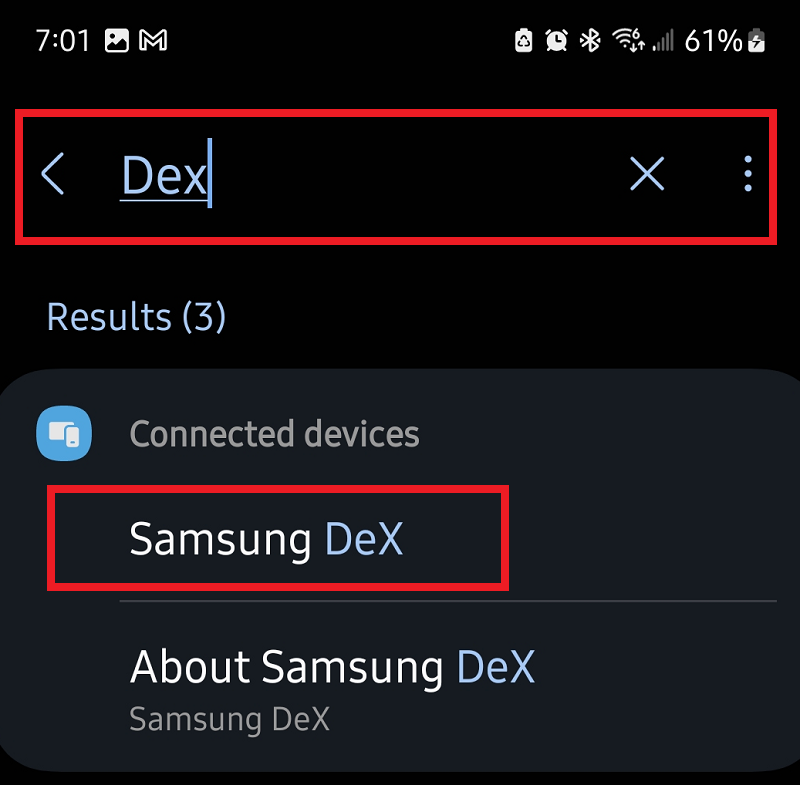
Next, scroll down until you see Samsung DeX and ensure that DeX is enabled by selecting the toggle switch.
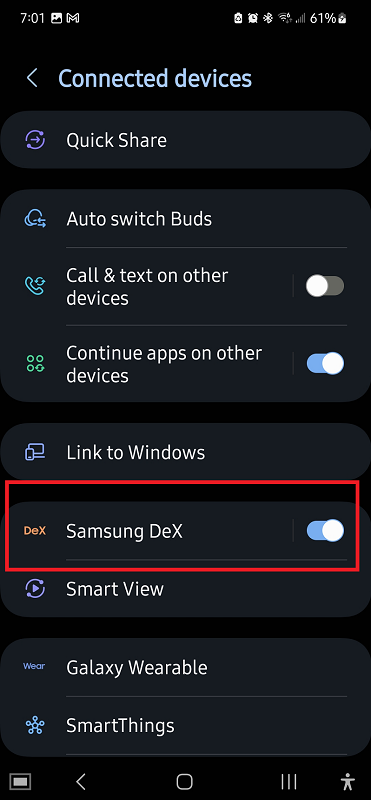
After confirming that DeX is enabled step through the Connecting to your UDS-7IN1 section again to connect your device to the UDS-7IN1.
Additional tips if DeX still does not start:
- Confirm the monitor is set to the correct HDMI input.
- Make sure the UDS-7IN1 is connected to power.
- If your device is in a thick case, remove the case and test again to ensure the USB C connection is fully seated.
- Try a different HDMI cable or a different monitor or TV input if available.
What if my touchpad does not start?
If the touchpad does not start right away you can access it anytime by selecting the touchpad icon in the lower left of your device screen.

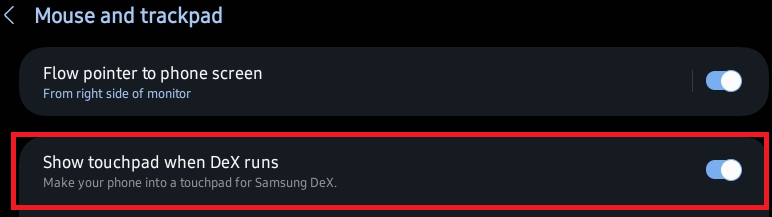
Additionally, you can set your touchpad to start automatically when DeX runs:
- On the DeX desktop, open Settings.
- Select Samsung DeX.
- Select Mouse and trackpad.
- Enable Show touchpad when DeX runs.
Why can’t I select 4K 60Hz in DeX Display settings?
If you are trying to reach 4K at 60Hz, that is beyond what the UDS-7IN1 video output supports, so it will not appear as an option in DeX Display settings.
Note: Available display resolutions in DeX are determined by both the video adapter’s hardware capabilities and Samsung’s software limitations for your specific device model.
If you need 4K at 60Hz, you will need a different video adapter or dock that supports HDMI 2.0 or newer, or DisplayPort output at the required bandwidth.
Can I use the SD and microSD slots at the same time in DeX?
The UDS-7IN1 card reader supports either the SD or microSD slot at a time. Only one card can be accessed at once.
Good Lock and MultiStar for higher DeX resolutions
Some Samsung phones and tablets can enable higher DeX display resolutions using the Good Lock app and its MultiStar module. If you are using a video adapter or hub that supports 4K at 60Hz, such as the Plugable USBC-9IN1E or USBC-4IN1 (for example), this can allow DeX to offer a 4K 60Hz option in Display settings.
Note: Availability of Good Lock and MultiStar varies by region and device model.
Important notes:
- The UDS-7IN1 HDMI port supports up to 4K at 30Hz. Good Lock and MultiStar cannot override the UDS-7IN1 hardware limit. If you are connected through the UDS-7IN1, the highest 4K option will be 4K 30Hz, or you may prefer 2560x1440 at 60Hz depending on your display and device.
- If you switch to a hub or adapter that supports 4K 60Hz, such as the Plugable USBC-9IN1E or USBC-4IN1, Good Lock and MultiStar may enable 4K 60Hz in DeX on supported Samsung devices.
To use MultiStar, first download the GoodLock app to your device.
1. Open the Samsung Galaxy Store and install Good Lock.
2. Open Good Lock and install the MultiStar module.
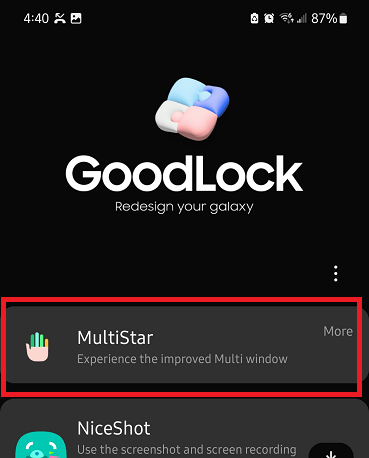
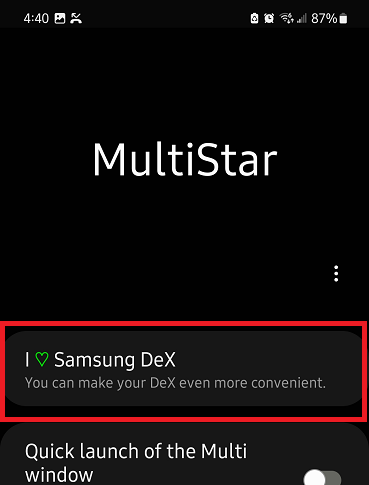
3. Next select I love Samsung DeX.
4. Now click on the toggle switch next to High resolutions for external display.
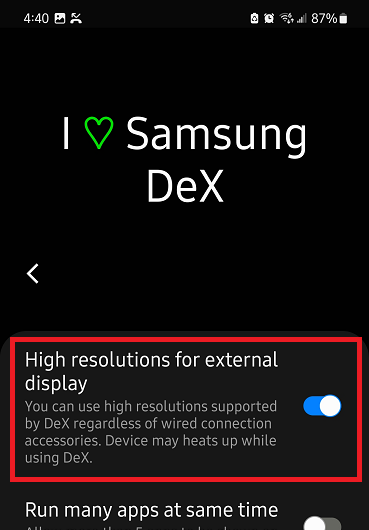
You will now have access to UHD 4K 60Hz resolution with a supported hub in your Display settings.
Questions? We're here to help! Feel free to contact support@plugable.com for questions or concerns when setting up your Samsung device with your UDS-7IN1.
Audio routing limitation when using FaceTime or Skype with iPadOS and the UDS-7IN1
Observation
When using wired headphones/headset and microphone with communication applications with iPadOS and the 3.5mm audio combination jack on the UDS-7IN1, a user may not be able to select their preferred audio output/input device.
- The issue resides with Apple's communication apps having a limitation with audio routing capabilities.
- This issue is not specific to the UDS-7IN1 and has been observed with other docking stations.
Affected communication applications
- FaceTime
- Skype
- (Siri is also known to be affected)
**Please note that applications such as Microsoft Teams or Zoom do not appear to have this limitation.
Workaround solution
We recommend using a Bluetooth headset or onboard system microphone to circumvent this limitation.
USB Port Types
USB-A

pietz, CC BY-SA 3.0 , via Wikimedia Commons
This is the standard USB connection that most computers offered prior to the introduction of USB Type-C (USB-C). Even after the introduction of USB Type-C, this is still quite common.
It can provide data transfer rates up to the USB 3.1 Gen 2 (10 gbps) specification depending on the host and device, but does not directly support video in the way that USB-C Alternate Mode does. This limitation makes DisplayLink USB graphics adapters and docking stations ideal on systems that do not have USB-C, or in instances where more displays are needed beyond available video outputs of a PC.
USB-B

Fred the Oyster, CC BY-SA 4.0 , via Wikimedia Commons


IngenieroLoco, CC BY-SA 4.0, via Wikimedia Commons
This type of connection comes in a couple different styles depending on whether USB 3.0 and higher transfer rates are supported (bottom graphic). Usually this type of connection is used to plug into USB devices that do not have a fixed cable connected, such as USB docking stations, USB hubs, printers, and others.
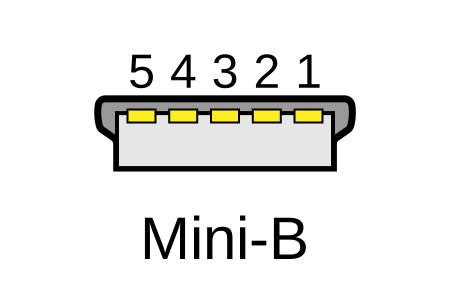
USB Mini-B
Fred the Oyster, CC BY-SA 4.0 , via Wikimedia Commons
One of the first connectors for charging a smartphone, wireless game controller (such as the Sixaxis and DualShock 3), and other small devices such as external hard drives. Not commonly used today, but is still used in some cases. Most devices using USB Mini B are using USB 2.0, though a USB 3.0 variant does exist. This specification also added USB On-The-Go (OTG) functionality, though it is more commonly implemented with Micro USB.
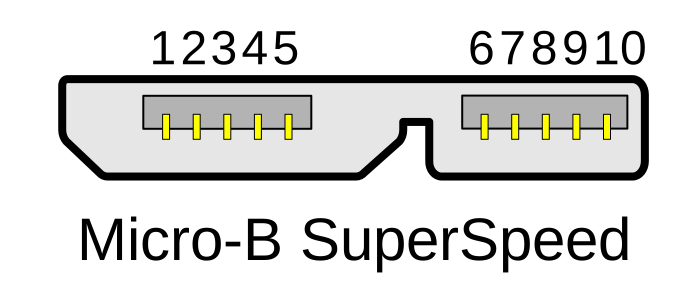
USB Micro-B

Fred the Oyster, CC BY-SA 4.0, via Wikimedia Commons
IngenieroLoco, CC BY-SA 4.0 , via Wikimedia Commons

A smaller connector that serves many of the same uses as the Mini B connector, with added optional features such as Mobile High-Definition Link (MHL) to allow devices like smartphones to output video to larger displays without requiring a dedicated port for video output.
The larger variant of USB-B is most commonly used for external hard drives for higher 5Gbps transfer rates.
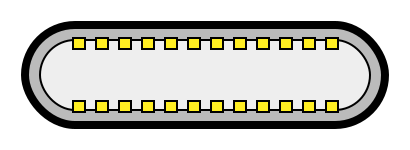
USB-C, Thunderbolt™ 3, and Thunderbolt™ 4
Niridya , CC0, via Wikimedia Commons
The most recent USB connection, USB Type-C (USB-C), represents a major change in what USB can do. The connector is smaller, can be connected in two orientations, is able to carry substantially more power and data, and can directly carry video signals of multiple types (HDMI, DisplayPort, etc.) Intel has also adapted the USB-C connector for use with Thunderbolt 3 and Thunderbolt 4.
It is important to note that while all Thunderbolt 3 and Thunderbolt 4 connections are USB-C, not all USB-C connections can be used with Thunderbolt 3 or Thunderbolt 4 devices.
More details regarding physical USB connections can be found on Wikipedia . The graphics depicted here are adapted from Wikimedia Commons by various artists under the Creative Commons Attribution-Share Alike 3.0 Unported license.
Does the HDMI Port Support 4K Resolution at 60Hz?
Yes, the USBC-MD103's HDMI port will support 4K at 60Hz if your host device supports DisplayPort 1.4.
Can I Connect a DisplayPort (DP) Monitor to the HDMI Port on This Device Using an Adapter or Cable?
No. Most DisplayPort to HDMI cables and adapters are one-way adapters from a DisplayPort Source (computer or docking station) to a HDMI Sink (television, computer monitor, or projector). These cables do not work in reverse.
DisplayPort uses packet-based data transmission, breaking the video stream into individual packets of data allows for longer cable runs, use in both copper and fiber-optic cables, and allows for higher bandwidth than other video formats. It is relatively easy to convert from DisplayPort to HDMI (computers with HDMI output ports already do this internally) and dual-mode DisplayPort outputs have built-in adapters to output a HDMI signal for use with passive DisplayPort to HDMI adapters.
HDMI uses a video signal, similar to DVI, this requires more power to operate at the same cable lengths as DisplayPort and requires significantly more processing power to create DisplayPort packet-based data.
Externally powered HDMI to DisplayPort adapters do exist, these generally have a USB or small barrel plug for power, and can convert from a HDMI Source to DisplayPort Sink. In most cases they have reduced resolution or refresh rates compared to modern signal sources and can introduce delay in the data connection between the display and computer potentially causing reduced connectivity or display performance problems.
We do not currently recommend using HDMI to DisplayPort adapter with our docking stations. In our testing they have been unreliable compared to a native DisplayPort connection. Many of our newer docking stations include both HDMI and DisplayPort outputs to reduce the need for additional adapters or adapter cables.
No Sound? How to Change Your Default Audio Device to Your Plugable Product
Whether you're on Windows, macOS, or Linux, it's common to add new audio devices to your computer.
Some examples of additional audio devices you may want to switch to include:
- Bluetooth headsets, headphones, and speakers
- Speakers built into a display, such as a TV or monitor
- A USB sound card, digital audio converter (DAC), or analog to digital converter (ADC)
- USB microphones
- Audio jacks on a docking station
These steps don't apply to the Plugable Performance NIX HDMI Capture Card (USBC-CAP60).
Here are the steps that you need to set a new default audio recording or output device on different operating systems.
Set Audio Output Device
Set Audio Recording Device
Set Default Playback Device in Windows
- Check that your device is properly connected, and that any necessary drivers are installed
- It is also a good idea to make sure that your sound device is turned on, and that the device's volume control is not at the absolute minimum setting
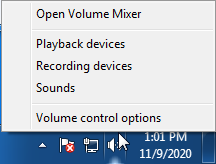
- Right-click on the speaker symbol in the Windows taskbar/system tray
-
Windows 7/8.x—Select Playback Devices. The Sound window will open with the Playback tab highlighted
-
Windows 10/11—Select Open Sound Settings then click the link under 'Related Settings' for Sound Control Panel, then click the Playback tab
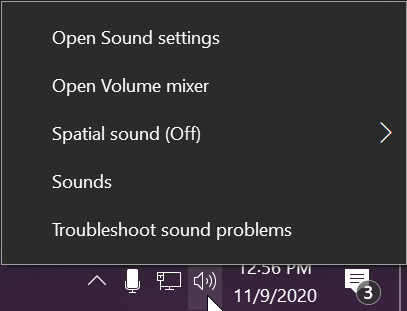
- Alternatively, after selecting Open Sound Settings, use the dropdowns under the Output header
-
Windows 7/8.x—Select Playback Devices. The Sound window will open with the Playback tab highlighted
- Find your device in the window
- A Plugable USB 3.0 docking station or sound-enabled display adapter will appear as Plugable Audio
- A Plugable USB 3.0 Silicon Motion docking station or sound-enabled display adapter will appear as SMI USB Audio
- A Plugable USB 2.0 docking station will appear as USB Multimedia Audio Device
- A Plugable USB Audio adapter will appear as USB Audio Device
- Right-click on the device you found in step 3 and select Set as Default Device. A check mark should appear next to your device, and sound should now play through it
- Click OK to exit the window
Additional Configuration for Bluetooth
Please see our pairing and configuration guide for Bluetooth devices.
Set Default Playback Device in macOS
- Open System Preferences
- Click Sound
- Select Output
- Select the most appropriate device
- A Plugable USB Audio adapter will appear as USB Audio Device
Set Default Playback Device in Linux
- Ensure that you audio device is connected to the PC
- If the audio device is self-powered, it is a good idea to make sure that it is powered on, and that the device's volume control is not at the absolute minimum setting
- Launch the 'Settings' application in your distro
- Go to the 'Sound' option
- Find the dropdown for your 'Output Device', and change it to your preferred output device
- For additional sound device controls, you may want to consider using Pulseaudio Volume Controls (package name pavucontrol)
Set Default Recording Device in Windows
- Check that your device is properly connected, and that any necessary drivers are installed
- It is also a good idea to make sure that your sound device is turned on, and that the device's volume control is not at the absolute minimum setting
- Right-click on the speaker symbol in the Windows taskbar/system tray
-
Windows 7/8.x—Select Recording Devices. The Sound window will open with the Recording tab highlighted
-
Windows 10/11—Select Open Sound Settings then click the link under 'Related Settings' for Sound Control Panel, then click the Recording tab
- Alternatively, after selecting Open Sound Settings, use the dropdowns under the Input header
-
Windows 7/8.x—Select Recording Devices. The Sound window will open with the Recording tab highlighted
- Find your device in the window
- A Plugable USB 3.0 DisplayLink docking station or sound-enabled display adapter will appear as Plugable Audio
- A Plugable USB 2.0 docking station will appear as USB Multimedia Audio Device
- A Plugable USB Audio adapter will appear as USB Audio Device
- Right-click on the device you found in step 3 and select Set as Default Device. A check mark should appear next to your device, and sound should now play through it
- Click OK to exit the window
Additional Configuration for Bluetooth
Please see our pairing and configuration guide for Bluetooth devices.
Set Default Recording Device in macOS
- Open System Preferences
- Click Sound
- Select Input
- Select the most appropriate device
- A Plugable USB Audio adapter will appear as USB Audio Device
Set Default Recording Device in Linux
- Ensure that you audio device is connected to the PC
- If the audio device is self-powered, it is a good idea to make sure that it is powered on, and that the device's volume control is not at the absolute minimum setting
- Launch the 'Settings' application in your distro
- Go to the 'Sound' option
- Find the dropdown for your 'Input Device', and change it to your preferred input device
- For additional sound device controls, you may want to consider using Pulseaudio Volume Controls (package name pavucontrol)
My Docking Station/Adapter Works Well With My Windows Laptop, but When I Close the Lid the Displays and Laptop Turn Off or Sleep. How Do I Fix This?
Most Windows notebook computers power management settings will default to putting the computer to sleep with the lid closed, regardless of any external displays, keyboard, or mouse connected to the computer. If this is happening but you would prefer the system to remain active with the lid closed utilizing the external display or displays, these settings can be changed by performing the following:
For Windows 10:
- Start by right-clicking on the Start button and select Power Options from the menu.
- From the right side of the Power Options settings page, select the blue link for Additional power settings
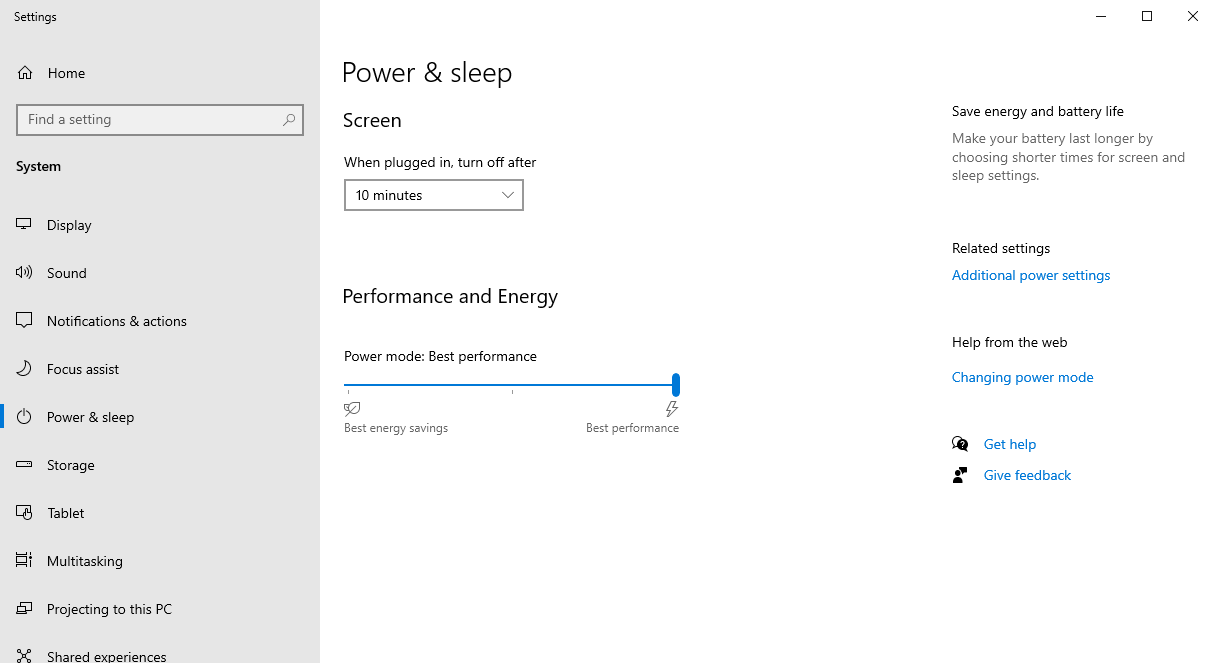
- From the choices present on the left-hand side of the Power Options window, please click on Choose what closing the lid does
- Make sure the setting for When I close the lid under the Plugged In column is set to Do Nothing
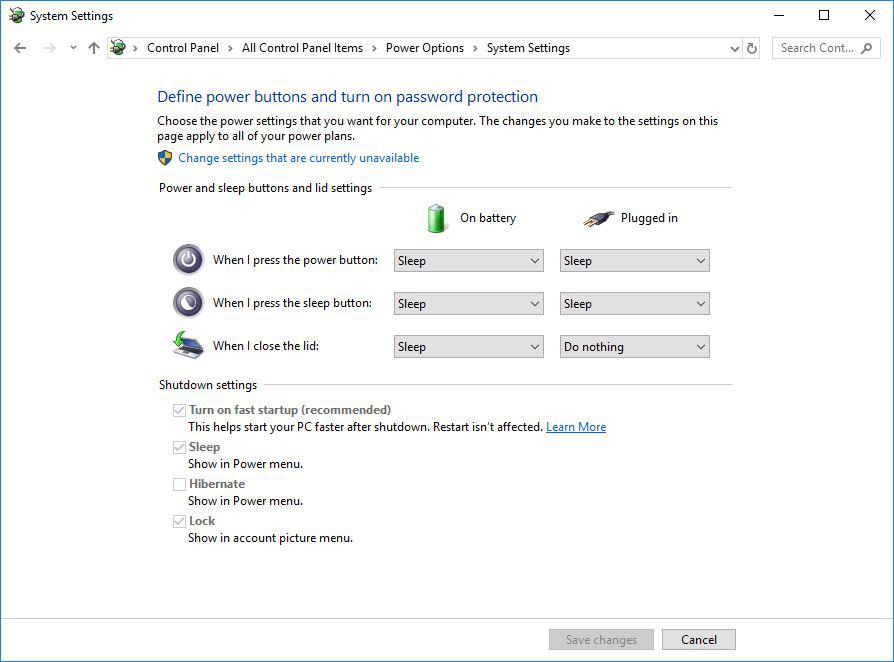
- Click the Save Changes button and restart the system (making sure that the laptop’s power adapter is also connected) and test the behavior again.
For Windows 11:
- Start by right-clicking on the Start button and select Power Options from the menu.
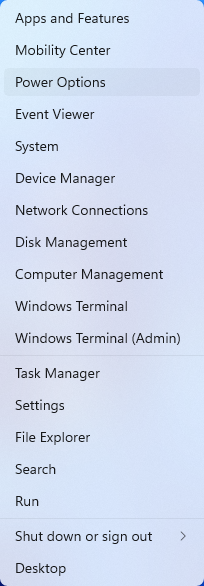
- In the upper left corner of the settings window, in the search box, type "lid" then select Change what closing the lid does from the search results
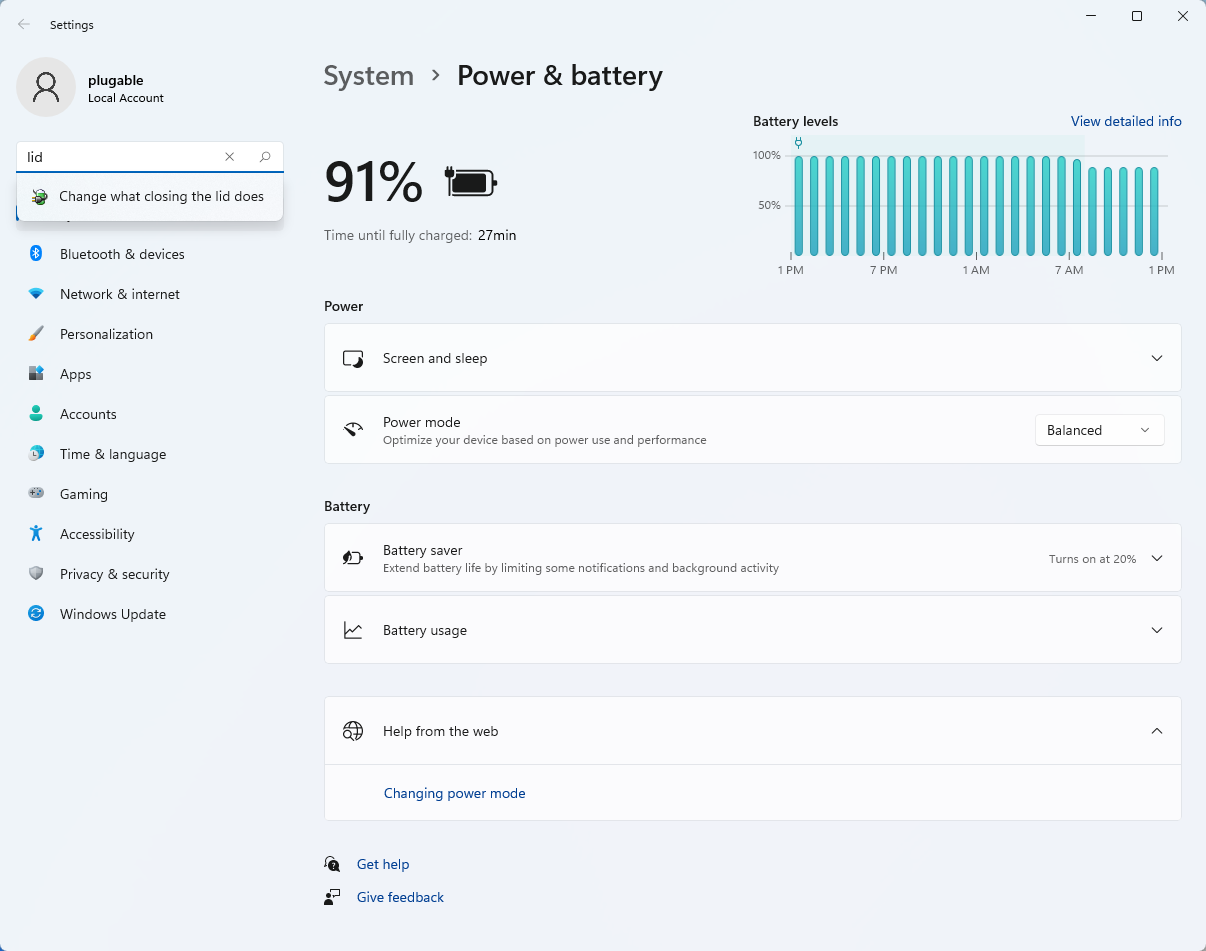
- Make sure the setting for When I close the lid under the Plugged In column is set to Do Nothing
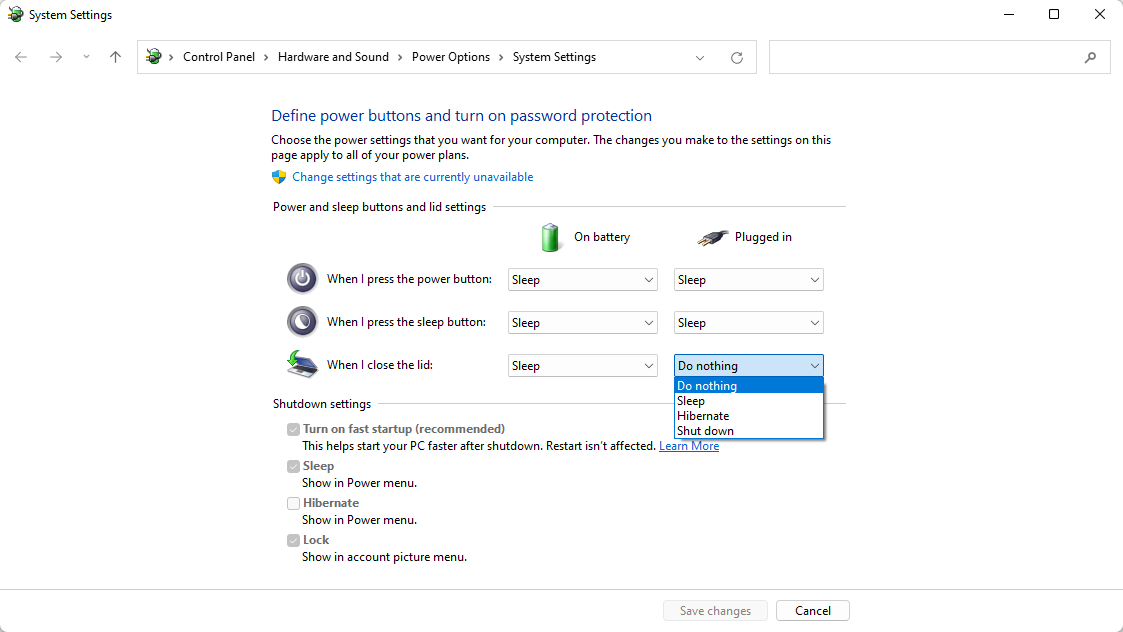
- Click the Save Changes button to apply the new settings.
Closing the lid should no longer put the computer into sleep mode when an external display and power source is connected, instead one of the external displays should now become the Primary display with the desktop icons instead of the laptop's built-in display.
The lid may still need to be opened to perform the following tasks:
- To power on the computer from a fully powered off state
- To log into the computer if logged out or if the computer is restarted with the lid closed
- To wake the computer from a deep sleep state ( hibernation, or Windows hybrid sleep states )
My Windows Computer Will Not Boot Properly When a Docking Station, USB Hub, USB Adapter, or USB Storage Drive Is Connected
If your Windows computer will not boot properly when a docking station (such as the Plugable UD-3900), USB hub (such as the Plugable USBC-HUB7C), or USB hub adapter (such as the Plugable USBC-7IN1E) is connected most often the cause is an external device connected to the product (for example an external USB storage drive) as opposed to the product itself.
There are also cases where an external USB storage device (such as a Plugable USBC-NVME SSD enclosure) is the only device connected that can sometimes produce a similar result.
If you are affected by this condition while using a docking station, USB hub, or USB hub adapter, please temporarily disconnect all of the external devices from the product. The only remaining connections should be the product's external power source (if it has one) and the cable connecting the product to the host computer.
While in this simplified physical configuration, reboot the host computer in order to test the behavior. Presuming the host computer boots as expected while in the simplified configuration, reconnect each external device back to the product one at a time and reboot after each one to test the behavior again. This process should isolate the source of the issue.
In cases where only an external USB storage device is in use, please temporarily disconnect the USB storage device from the host computer and then reboot in order to test the behavior again.
To expand further, in our experience helping others the most common cause of this behavior is an external USB storage drive connected to one of the product's USB ports. In some cases, a Windows computer may try to boot from an external storage drive by mistake as opposed to the host computer's built-in storage drive. Since most external USB storage drives are not 'bootable', this can interrupt the boot process.
If this behavior occurs, the most common way to mitigate the behavior is to access the host computer's System BIOS (also known as UEFI firmware) to change the 'boot order' settings to ensure that the host computer's internal storage drive is the first boot option. Doing so helps ensure that the host computer will not try to boot from an external USB storage device.
Every Windows host computer system is different, so the best resource for accessing the System BIOS and changing the settings is the manual for the host computer provided by the manufacturer of the host computer.
Docking Station Power Adapters
Below is a list of power adapter models used by Plugable docking stations. We offer refurbished replacement power adapters on eBay as they are available for purchase, however, we may not have replacement power adapters available for all of our docking stations.
If the power adapter for your docking station or region is not listed, out of stock on eBay or if you have any other questions regarding replacement power adapters for our docks please contact us at support@plugable.com and we will be happy to assist further.
We offer a 30-day return period for our replacement power adapters listed on eBay.
| Dock Models | Power Supply Model Number | Replacement Power Supply (if available) |
|---|---|---|
| USB 3.0 / USB-C Docking Stations | ||
| UD-3900 UD-3000 UD-5900 UD-PRO8 UD-3900C |
DSA-24PFS-05 |
|
| UD-3900H | P120W2000U |
|
| UD-3900PDZ - 100W (purchased from March 2025) | A18-135P1B |
|
| UD-3900Z | ADS-26SGP-12 12024E |
|
| UD-6950 | A16-045N3A |
|
| UD-6950H | P200W2000UG |
|
| UD-6950Z | ADS-40SGP-19 20040G |
|
| UD-CA1 UD-CA1A |
EA10953D-200 |
|
| UD-ULTCDL (MK1 original and MK2 updated version) Note: Check here to determine what version of dock you have |
A16-065N2A (MK1 model) A18-135P1B-Rev3 (MK2 model) Note: MK2 model adapters will work with MK1 docks |
|
| UD-ULTC4K (MK1 original and MK2 updated version) Note: Check here to determine what version of dock you have |
A16-100P1A (MK1 model) A18-135P1B-Rev3 (MK2 model) Note: MK2 model adapters will work with MK1 docks |
|
| UD-3900C4 |
A18-135P1B-Rev3 |
North America plug |
| UD-3900PDH UD-3900PDZ - 60W alternative power adapter |
PS200D06500G1 |
North America plug |
| UD-768PDZ |
PA-1131-72 v2 |
North America plug |
| UD-6950PDZ - 100W (purchased from February 2025) |
A18-135P1B |
North America plug |
| UD-MSTH2 |
ADS-110DL-19-1 200110E |
North America plug |
| UD-MSTHDC |
ADS-110DL-19-1 200110E |
North America plug |
| UD-CAM |
A16-100P1A |
|
| UD-CUBE |
EA1024CR-050 |
|
| UD-6950PDH |
PS200D06500G1 (v1 of dock*) F-J-SW202720006700 (v2 of dock with serial numbers 4157 or newer*) *For more details about v1 and v2 UD-6950PDH docks visit our Knowledge Base article |
North America plug (v1) North America plug (v2) |
| Thunderbolt / USB4 Docking Stations | ||
| TBT4-UDZ |
PA-1131-72 v2 |
North America plug |
| TBT3-UDC1 | PA-1131-72 v1 |
|
| TBT3-UDV | A18-135P1B-Rev1 |
|
| TBT3-UDZ | PA-1171-72 |
|
| TBT3-UDC3 | PA-1171-72 |
|
| TBT4-HUB3C | ADS-110DL-19-1 200110E |
|
| USB4-HUB3A |
ADS-110DL-19-1-200100E |
North America plug |
| TBT4-UD5 | FJ-SW202720006400 |
North America plug |
| TBT4-UDX1 | A18-135P1B-Rev4 A18-135P1B-Rev3 (Large Barrel) |
|
| TBT-6950PD | YW180A2-2100858 |
North America plug |
| UD-4VPD |
PA-1171-72 |
North America plug |
My Plugable Dock Is Missing a Component Such As the Power Supply, USB Cable, or Other Adapter.
If your package is missing one or more of the items that should be included with your Plugable dock (included items are listed on a chart on the side of the box), start by double checking if the part is still in the packaging. Pieces can occasionally get stuck in the corners under the main insert in the box.
If you are still unable to locate the piece, please contact support@plugable.com with the following information:
1. Amazon Order ID (or other proof of purchase) associated with your Plugable device.
2. A description of the parts that are missing from your order.
3. Your preferred shipping address (and a phone number associated with that address).
4. The serial number of your Plugable Dock.
Can I Connect My High Refresh Rate Monitor (e.g. 120Hz, 144Hz) to a Plugable Dock?
Most Plugable docks do not officially support monitors over 60Hz including 120Hz or 144Hz refresh rate unless otherwise specified on the Plugable product page or listing.
DisplayLink USB Graphics technology and Silicon Motion based docking stations and graphics adapters, like our USB 3.0 dual display and USB Type-C triple display docking stations, are limited to 60Hz fresh rate by the USB graphics controller hardware.
USB Type-C DisplayPort Alternate Mode docking station and ports on our USB Type-C Triple Display Docking Stations can support higher refresh rates, but may be limited by the computer's capability and available bandwidth to the docking station. Additionally, when paired with DisplayLink or Silicon Motion USB graphics, having displays at different refresh rates may reduce overall system performance. Due to this we normally recommend limiting all connected displays to 60Hz refresh rate when using DisplayLink and Silicon Motion graphics technology with directly connected, or USB Type-C DisplayPort Alternate Mode controlled displays.
Monitors with refresh rates higher then 60Hz may be connected to a docking station operating at up to 60Hz, or connected directly on the computer's HDMI or DisplayPort to ensure the display is powered by the system's native GPU.
Do Plugable products support the Apple SuperDrive?
Unfortunately Plugable products do not support the Apple SuperDrive.
The Apple SuperDrive has stringent power requirements that can only be met by directly connecting the SuperDrive to your host laptop. As a result at this time Apple recommends only using their USB-C adapter cables. You can find more information on that here → How to connect the Apple USB SuperDrive
If you have purchased a Plugable product to use with your Apple SuperDrive, and would like some additional assistance please do not hesitate to reach out. You can do so by emailing support@plugable.com, or going to Plugable.com/Support.
Can I leave my notebook computer connected to a charging dock overnight, or should I discharge and recharge the notebook battery regularly?
We are often asked if it is okay to leave a notebook computer connected to one of our USB-C docking stations with Power Delivery for extended periods of time. The short answer is yes, it is no different from leaving the laptop connected to the manufacturer's original USB-C power supply for the same time. The long answer is yes for modern laptops, and maybe for older (1990s-early 2000s laptops) and involves going into the different battery technologies used in consumer electronics devices.
Another common question is if it is possible to use the docking station but to disable powering and charging the computer. When a modern notebook computer runs on battery power it will often set the system to a reduced power state which may impact performance, or connected devices and we recommend always powering the computer when using a desktop docking station. For all of our docking stations that provide power to the host computer this will not affect the lifespan of the computer's battery.
Modern Laptop Batteries: Lithium-Ion
Lithium-ion (li-ion) batteries are found in a wide range of consumer electronics from notebook computers and cell phones, to electric cars, power tools, and wearable electronics like wireless earbuds. Li-ion offers fast charging, high-current discharging, fairly long service live compared to other rechargeable battery technologies and are relatively inexpensive.
The life-span of a rechargeable battery depends on many factors including age, temperature history, charging patterns, the chemical composition of the specific battery, and usage. For example batteries stored at 100% charge will degrade faster than batteries stored at 50% charge, this is why most consumer electronics devices arrive from the manufacturer with between 25% to 75% charge.
Lithium-ion batteries are consumable components, however in most modern computers, cell phones, and tablets these are not user serviceable components. To help maintain the battery all modern computers and most consumer electronics will include battery charge and protection circuits. These can be fairly simple, charging up the battery at preset rates depending on the charge level to help maintain the battery life, or complex software controlled charging that monitors battery temperature, voltage and current draw to maintain the fastest charging while maintaining the battery longevity.
Modern notebook computers can be left connected to the original power cable or a docking station with charging capability for extended periods, and do not benefit from regular discharge/recharge cycles. Our docking stations with charging capability rely on USB Type-C Power Delivery to power and charge compatible computers. USB Type-C Power Delivery is a negotiated charging protocol between the host computer and the docking station or USB Type-C power supply, this allows the computer to draw only the power it requires, and even select the best voltage level for powering the computer. In combination with a computer's built-in battery charging controller the computer is capable of maintaining the battery's optimal state even when left connected to a power source for an extended period of time.
Legacy Laptop Batteries: NiCad and NiMH
Older laptops, from the 1990s and some early 2000s, as well as some consumer electronics, and most rechargeable AA or AAA battery replacements use Nickel-Cadmium (NiCad) or Nickel-Metal Hydride (NiMH) batteries. These batteries are slower to charge and discharge than li-ion batteries, and require very simple charge controllers, and in some cases can even be trickle-charged ( very low-current continuous charging ) if desired.
These batteries generally don't have smart charging controllers and to prolong the life of the battery required "training" or fully discharging and recharging the battery every so often. Many laptop manufacturers recommended fully charging and discharging a new laptop 2-3 times to train the battery, this is not necessary with modern laptops.
Conclusion
Modern notebook batteries are managed by the computer's built-in battery charging circuit, and require little to no user intervention to maintain optimal battery health. It does not harm the battery to leave the computer connected to an external power supply, so long as the computer is being used regularly. If the computer is to be stored for a prolonged period then discharging the battery to between 50-75% can help to maintain the battery life.
Batteries are consumable components and degrade over time, however modern notebook computers can extend the battery life generally to meet or exceed the life of the computer's other electronic components.
Understanding Heat Generation in Electronics
It's not uncommon for users to notice a certain level of heat generation from electronics and by extension, Plugable products during operation. In this knowledge base article, we'll explore the reasons behind this heat generation and why it is considered a normal experience within reasonable limits.
Electronics, by their nature, generate heat during operation. This is primarily a result of the electrical current flowing through various components, such as integrated circuits, transistors, and other electronic elements. As Plugable products are designed to efficiently process and transfer data (among other functionality), some level of heat generation is inherent.
Factors Influencing Heat Generation:
- Power Consumption: The power consumption of a device directly influences the amount of heat it generates. Higher power usage, especially during data transfer or charging processes, can lead to increased heat.
- Enclosure Design: The design of the product's enclosure and its ability to dissipate heat play a crucial role. Adequate ventilation and heat sinks are often incorporated to manage and disperse generated heat effectively. This is evident in our TBT3-UDZ and TBT4-UDZ designs. The metal case in these docks are designed to function as a heatsink with thermal pads placed throughout the enclosure. This allows heat dissipation from inside to the outside, but will also make it feel as if the device is “too hot”.
- Ambient Temperature: The external environment may also play a role. Higher ambient temperatures can contribute to increased perceived heat from the product. This means that summer temperatures may increase the heat generation of not just Plugable products, but many other electronic devices.
Normal Heat Levels: While it is normal for electronic devices to generate heat, Plugable products are engineered to operate within safe temperature ranges. We conduct rigorous testing to ensure that the heat generated during normal operation falls within industry-standard safety parameters. While not all products are or need to be UL certified, we try to go by UL guidelines for thermal readings. The UL threshold is 77C/170.6F, and we aim for around 71C/160F.
Tips for Users:
- Ventilation: Ensure that Plugable products have sufficient ventilation around them. Avoid placing them in enclosed spaces where heat dissipation may be impeded.
- Usage Patterns: Intensive tasks such as high-speed data transfer or charging multiple devices simultaneously may result in increased heat generation. This is generally normal but may be more noticeable in such scenarios.
- Accessories: A number of our devices will allow for the connection of USB accessories and as such, these will require power. If too many “power-hungry” devices are connected, this will cause the device to run much hotter than expected. Be sure to keep in mind the power limits of your dock/device.
In conclusion, experiencing heat from Plugable products is a normal aspect of their operation. Users can rest assured that we prioritize the safety and efficiency of our devices. By understanding the factors influencing heat generation and following simple usage guidelines, users can make the most of their Plugable products while ensuring a reliable and efficient user experience.
Understanding USB-C Alt Mode
What is Alt Mode, and how does it work?
USB-C is a truly versatile connection that supports a range of functions, including power delivery, data transfer, and video. Alt Mode leverages this versatility by repurposing high-speed data pins to enable alternative video data protocols. Many of our docking stations support this protocol, but there is a catch! To take advantage of this feature, your host system must support Alt Mode via the host USB-C port and controller. If the host system and device support Alt Mode, the USB-C ports automatically switch from its default data protocol to the required Alt Mode protocol for video.
How do I determine if my system supports Alt Mode?
Reviewing your manufacturer's system specifications or user manual is the easiest way to determine if your system supports Alt Mode via the USB-C port, but unfortunately, it’s not always consistent or straightforward. Below, we have included examples of how some system manufacturers mention the capabilities of the USB-C ports on their laptops. This information will usually be included in the user manuals or system specification sheets.
Please note that mention of DisplayPort or DP 1.2, 1,4, and 2.1 indicates Alt Mode support.
Lenovo
HP
Dell
Additionally, some manufacturers, but not all, will also include a DP symbol next to the port to illustrate its ability to support video. If your USB-C port is unmarked, check your user manual or consult the system specifications.
What about Thunderbolt 4 and USB4?
Unlike earlier iterations of USB-C, which use Alt Mode for video support, USB4 and Thunderbolt 4 primarily use video tunnelling to transmit video over the USB-C connection. Video tunnelling dynamically allocates bandwidth for video and data to ensure optimized performance. If a device does not fully support video tunnelling, your Thunderbolt 4 or USB4-capable system can fall back to Alt Mode, ensuring compatibility with devices that support Alt Mode for video. So you don’t have to worry about a Thunderbolt or USB4 connection supporting USB-C Alt Mode!
Troubleshooting For Alt Mode
When using a USB-C video cable, adapter, docking station, or hub, it's important to ensure that your laptop supports Alt Mode. If you encounter any issues, the following steps can help you troubleshoot and determine why video may not be working through your USB-C Alt Mode cable or device.
-
First and foremost, check to ensure that your system supports Alt Mode. This is vital as Alt Mode is an optional feature that not all manufacturers include on their systems.
- If your system does not support Alt Mode, unfortunately, this is a hardware limitation, and there is no workaround for achieving Alt Mode compatibility. However, it’s possible to still drive external monitors through DisplayLink.
- Reboot your system and perform a power reset on your docking station or hub (if applicable)
-
If you are using a docking station, ensure that you are using a USB-C cable that supports Alt Mode.
- Not all cables are created equal—USB-C cables that support USB 2.0 only or “charging only” cables are not built to support video. To ensure compatibility, all of our Alt Mode-capable products will come with a USB-C cable that supports this feature.
- Do not use USB-C to USB-A adapters, as they are not designed to support video transmission.
- Be sure to check your operating system's display settings. The connected display can sometimes be disabled within the display settings, or the resolution and refresh may need to be adjusted to match what your device or display can support.
- Check if your Alt Mode-capable device has any firmware updates listed specifically for Alt Mode.
- Ensure that your system is up to date with all its latest drivers, firmware, and BIOS, especially your USB and internal graphics controller. Outdated drivers can often lead to connectivity issues, and at times, a BIOS update is needed, which the system manufacturer will generally mention on their official support page.
- Check BIOS and UEFI settings; some manufacturers add settings that control USB-C functionality. Ensure that your settings are enabled and correctly configured for Alt Mode.
- Test out another USB-C port on your system if you have more than one. This is beneficial in determining if the issues are related to the specific port.
Benefits of USB-C Alt Mode
Alt Mode over USB-C provides a direct connection to the GPU, allowing you to take advantage of the capabilities of your built-in GPU. This ensures native-level performance without the need for extra software or drivers. As a result, your USB-C Alt Mode-connected display will have reduced latency compared to other methods of adding additional displays, making it perfect for users who require sharp and detailed visuals at optimal refresh rates. Unlike traditional video connectors like HDMI or DisplayPort, which only support video, a USB-C connection with Alt Mode is more flexible and multifunctional, allowing a single connection to carry video, data, and power delivery.
Alt Mode supported devices from Plugable
If your system supports Alt Mode or if you are looking to get more out of your laptop, especially Apple M1, M2, or M3 base chipsets (which are limited to one external display), we have compiled some options below that utilize Alt Mode or a combination of Alt Mode and DisplayLink for even more monitor expandability.
Plugable USB-C Docking Station with HDMI, 60W Laptop Charging
SKU: UD-CA1A
The UD-CA1A is a versatile docking station that enables you to connect a 4K HDMI display via Alt Mode. In addition, it comes equipped with high-speed Gigabit Ethernet, USB 3.0 ports, 3.5mm jacks for headphones and microphone, and will provide 60W of power delivery to your host device—all via a single USB-C port. It is compatible with macOS, Windows, ChromeOS, Linux, iOS, and iPadOS, making it the ideal solution for any setup. You can enjoy seamless plug-and-play functionality and save space with its sleek vertical design or lay it flat for a more subtle look.
Plugable USB-C 7-in-1 Hub with Ethernet
SKU: USBC-7IN1E
The USBC-7IN1E instantly transforms a single USB-C with Alt Mode or Thunderbolt port into a versatile hub featuring 2x USB 3.0 ports, a 4K HDMI output, Gigabit Ethernet, and SD and microSD card readers. For hosts that support Power Delivery over USB-C, this hub also supports 100W PD passthrough, allowing you to plug in your included USB-C power adapter to further simplify your setup for greater portable productivity.
The products mentioned above demonstrate the versatility of a single USB-C connection. Plugable offers a wide range of solutions to meet your needs. Whether you are looking for a full-featured docking station that utilizes DisplayLink and USB-C Alt mode, such as our UD-ULTC4K, or a USB-C cable that supports video, data, and charging, like our USBC-240W-1M, you can rest assured that we have you covered. If you have any questions or need help building a solution that takes full advantage of your laptop's USB-C connection, please reach out to us at support@plugable.com.
How to Use Two External Displays with the Lid Closed on MacBook Air and MacBook Pro M3
Overview
With the release of Apple’s M3 CPU chips and the Sonoma 14.6 update your base MacBook Air and MacBook Pro systems with M3 chips can now host two external displays natively in clamshell mode. This guide will walk you through the process of setting up and using two external displays with the lid closed on your MacBook Air or MacBook Pro equipped with an Apple M3 chip.
Requirements
Before getting started, ensure you have the following:
- MacBook Air or MacBook Pro with an Apple M3 chip.
- macOS Sonoma 14.3 or later for an M3 MacBook Air or macOS Sonoma 14.6 or later for an M3 MacBook Pro.
- Two external displays with compatible video inputs (e.g., HDMI, DisplayPort, USB-C).
- A dock or graphics adapter can be used as well.
- External keyboard and mouse (wired or wireless).
- Power adapter or power source for your MacBook
- A docking station that provides adequate charge can be used in place of the native power adapter, be sure to check the wattage your dock provides.
Steps to Set Up Dual External Displays with the Lid Closed
1. Set Up Your External Keyboard and Mouse
- If you’re using a wired keyboard and mouse, connect them directly to your MacBook or Plugable dock.
- For wireless peripherals, ensure they are paired with your MacBook and functioning properly.
- An AC adapter/power cable of some kind will also need to be connected for clamshell mode to function properly. This adapter can be one from a docking station or the included Apple adapter.
2. Connect Your Displays
- Connect the first external display to your MacBook using the appropriate cable (e.g., HDMI, DisplayPort, USB-C)
- Close your laptop’s lid.
- Connect the second external display using a similar method.
- Ensure both displays are powered on and set to the correct input source.
3. Configure Display Settings
- Open System Settings on your MacBook.
- Go to Displays.
- You should see both external displays listed. Arrange them according to your preference by dragging the display icons.
- Adjust the resolution, refresh rate, and other settings as needed.
4. Enable "Clamshell Mode" (Lid Closed Mode)
- With your external displays connected and set up, close the lid of your MacBook.
- Your MacBook will automatically switch to "Clamshell Mode," where the internal display turns off, and the external displays become your primary screens.
- Ensure your MacBook is connected to a power source to prevent it from entering sleep mode.
5. Check the Display Arrangement
- With the lid closed, check that the external displays are functioning as expected.
- If necessary, re-open the Displays settings to adjust the arrangement, resolution, or other preferences.
Troubleshooting Tips
- No Display on External Monitors: If the external displays are not showing anything, open the lid of your MacBook and check the connections.
- MacBook Sleeps When Lid Is Closed: Make sure your MacBook is connected to a power adapter. Clamshell Mode requires the MacBook to be plugged into an external power source.
- Performance Issues: If you experience lag or performance drops, try lowering the resolution or refresh rate of the external displays.
Thunderbolt Dock Users
With these steps, one can use Plugable Thunderbolt docks to enjoy a dual-display setup without the need for additional software installation. The dock leverages the native capabilities of the MacBook Air M3 and MacBook Pro M3, providing a straightforward and efficient solution for expanding your workspace with additional USB ports, audio, and ethernet (as well as the dual displays).
Additional Resources
If you should need any assistance with your setup, please feel free to reach out to our support team at support@plugable.com.
How To: Set the Display Refresh Rate in Windows 11
Many modern displays can support above the default 60Hz refresh rate, however this may need to be manually set within Windows 11. Please note, not all computers, graphics adapters, and docking stations can support all resolutions and refresh rates.
Setting the Display Refresh Rate in Windows 11
1. Right-click on the desktop and select Display Settings from the drop-down menu
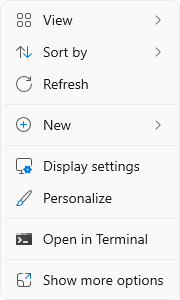
2. Scroll down to the Related settings subsection and select Advanced display

3. At the top of the Advanced display window, select the external display from the drop-down menu

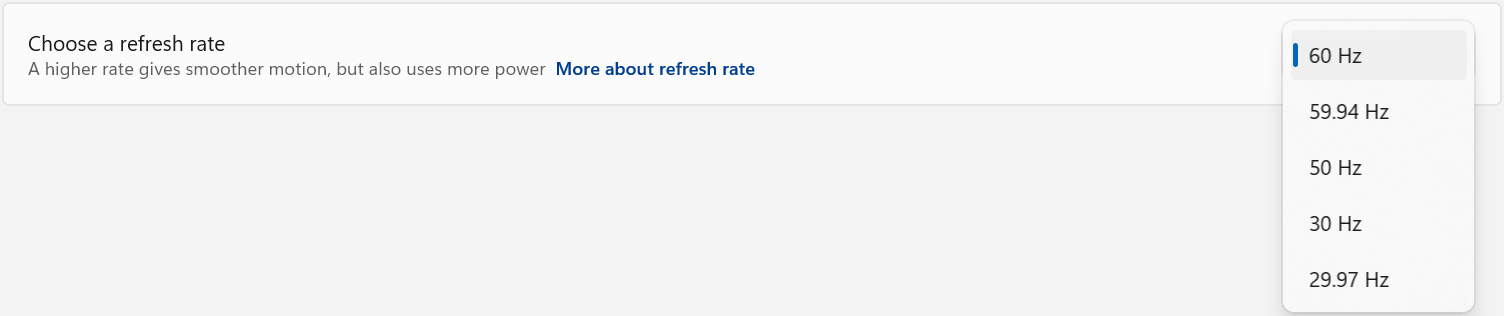
4. From the Choose a refresh rate drop-down menu select the desired refresh rate
Refresh Rate Limitations
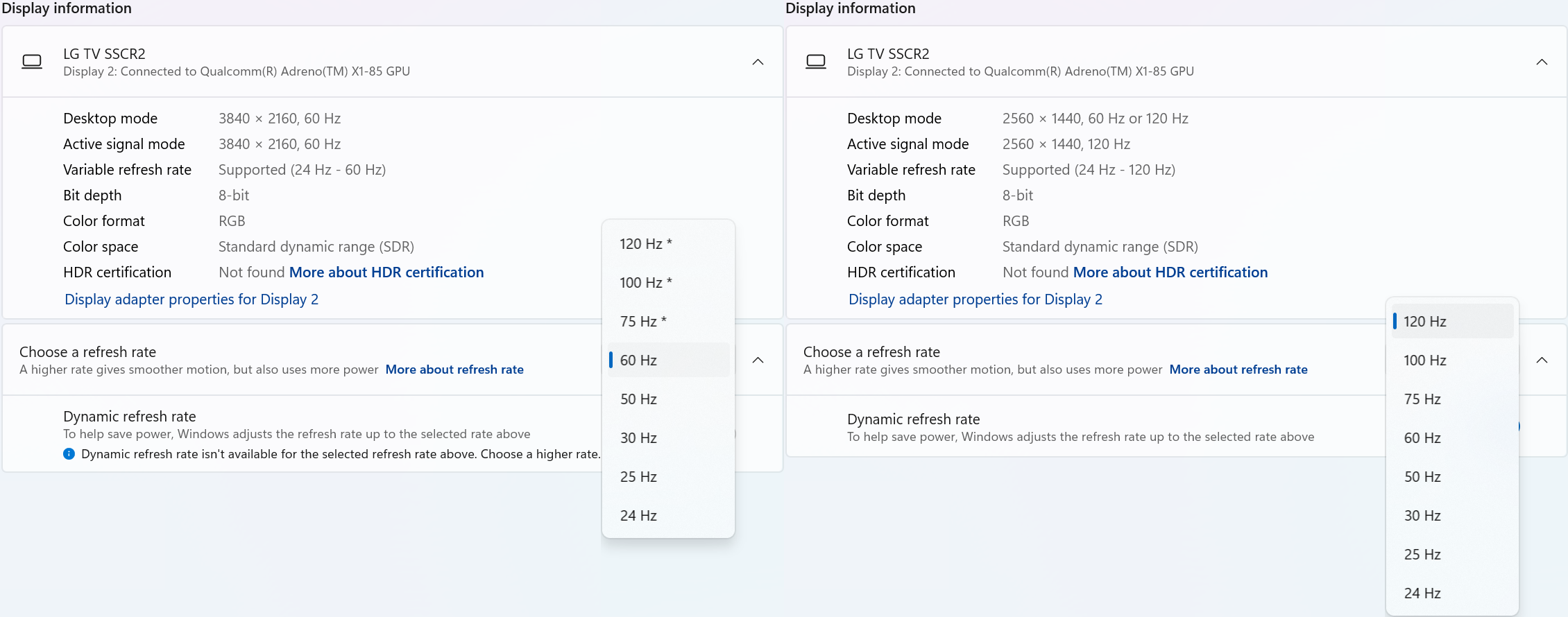
With Windows 24H2 and newer, dynamic refresh rates are supported, this allows the system to adjust the display refresh rate to save power, up to the selected refresh rate. As a consequence of this new mode, when selecting the display refresh rate you may see an asterisk. This indicates that selecting the specific refresh rate may reduce the display resolution or image quality in order to prioritize the refresh rate. This exposes the refresh rate option from the display even if the display cable or computer is incapable of supporting that refresh rate at the native resolution and is the intended behavior per Microsoft. [1]
In the screenshot below the left side shows the 4K 120Hz capable display limited to 60Hz refresh rate without asterisks, and on the right the same display after setting the refresh rate to “120 Hz*”, the “Desktop mode” resolution has been reduced to 2560 x 1440 (1440p) instead of 3840 x 2160 (4K UHD). Unlike when using the display scaling option this also causes a reduction in image quality. On the right side asterisks are no longer shown in the refresh rate list. Setting the refresh rate back to 60Hz does not change the resolution, you will have to go back one page and set the resolution manually.
References
[1] Windows Insider description of new behavior (https://blogs.windows.com/windows-insider/2023/08/31/announcing-windows-11-insider-preview-build-25941-canary-channel/)
Is this safe to use if my computer doesn't support USB-C Power Delivery?
USB-C Power Delivery (PD) is negotiated between the power-sourcing equipment (e.g., a dock or multiport hub) and the connected host device. During this negotiation, the device offering power communicates its capabilities, and the host determines whether it can accept the power. If the host does not support Power Delivery, no power will be sent to the computer over the USB-C connection. This will allow you to take advantage of other capabilities such as data transfer or video output without risking damage to the computer.
Is there a way to add more displays to my dock?
Extra displays can be added to your docking station by using USB graphics adapters. This allows you to expand your workspace beyond the number of displays natively supported by your dock or computer.
Here’s how it works:
- Ensure your dock has open USB-A or USB-C ports to connect the USB graphics adapter(s).
- Select a Plugable USB graphics adapter compatible with your operating system and monitor specifications. Feel free to contact Plugable support (support@plugable.com) for assistance in selecting the appropriate adapter for your setup.
- Download and install the driver from the "Downloads" section of the product page for the USB graphics adapter on Plugable's website.
- Plug the adapter into an available USB port on your docking station.
- Use an appropriate video cable (e.g., HDMI, DisplayPort) to connect the adapter to your monitor.
Important Considerations:
- Windows supports up to 8 DisplayLink/SiliconMotion-based monitors.
- macOS has a hard limit of 4 DisplayLink/SiliconMotion-based monitors.
- USB graphics adapters use bandwidth and system resources. Connecting multiple adapters can reduce performance.
Why is the Alt Mode video output on my dock not working?
Alt Mode video works by creating a direct pipeline from the host device's graphics processor through USB-C to the dock which allows it to output video to connected display. This relies on a few key factors to function correctly, including the host device's graphics processor, the host device's USB-C port, and the cable used to connect the dock.
It's recommended to check these possible causes if the Alt Mode video output on your dock is not working:
- USB-C Port Limitations: Not all USB-C ports support video output (Alt Mode). Check your host device's specifications to confirm it supports Alt Mode video output.
- Incompatible USB-C Cable: Some USB-C cables support power and data, but not Alt Mode video. Use the USB-C cable that was originally included in the box with your dock to ensure it supports Alt Mode video output.
- Incorrect Host Connection: Ensure you’re connecting to the correct USB-C port on the dock, typically labeled a laptop icon. Other USB-C ports on the dock may not function for connecting the dock to a host device, and using them could result in no function.
- Outdated Drivers: Ensure your operating system and graphics drivers are up to date. USB-C Alt Mode primarily relies on the laptops graphics processor to produce video, so outdated drivers can often cause issues.
Understanding Power Delivery vs. Pass-Through Power Delivery
When choosing a docking station or USB hub, it's important to understand the difference between Power Delivery (PD) and Pass-Through Power Delivery. While both terms refer to charging capabilities, they function differently and impact how power is distributed to connected devices.
What is Power Delivery (PD)?
USB Power Delivery (PD) is a fast-charging standard that allows devices to negotiate power levels dynamically. Key aspects include:
- Enables higher power transfer (up to 100W or more, depending on the device and cable).
- Ensures efficient charging by dynamically adjusting voltage and current.
- Commonly used in USB-C chargers, docking stations, and hubs that provide power directly to laptops, tablets, and smartphones.
Example: A USB-C docking station with PD output can charge a connected laptop while simultaneously powering other peripherals. Additionally, these tend to come with their own AC adapter.
What is Pass-Through Power Delivery?
Pass-Through Power Delivery refers to a hub or docking station that does not generate power itself but instead allows power to pass through from an external power adapter. Key aspects include:
- Requires a dedicated power adapter (e.g., a USB-C PD laptop charger) plugged into the docking station or hub.
- Typically, a portion of the incoming power is allocated to the dock’s functionality (such as data transfer and peripheral connections), and the remaining power is sent to the connected laptop or device.
- May reduce the total power available to the laptop compared to direct charging.
Example: A USB-C hub with pass-through PD allows a laptop's original USB-C PD charger to be connected to the hub, which then distributes power to the laptop while also supporting external peripherals.
Choosing the Right Option
- If you need a docking station that can directly charge your laptop, look for one with dedicated Power Delivery (PD) support.
- If your laptop already has a high-wattage charger and you want to maintain power while expanding connectivity, a pass-through PD hub may be a better choice.
- Be mindful of power limitations with pass-through charging, as some hubs may reserve power for their own operation, reducing the power available for the laptop.
Some examples of hubs with PD pass-through would be our USBC-9IN1E with 140w pass-through charging or our smaller USBC-4IN1 with 100w pass-through.
On the flip side, we have our docking stations that power your devices by themselves. Examples such as our UD-7400PD which is capable of 140w of charge and 5 displays.
Understanding these differences will help ensure you select the right docking station or USB-C hub for your setup. If you have any questions or would like a recommendation, feel free to reach out to our support at support@plugable.com
Can I connect this product to a computer's Thunderbolt/Thunderbolt 2 port?
Many users assume that USB-C devices can work with older Thunderbolt 2 Macs if they use a Thunderbolt 3 to Thunderbolt 2 adapter, such as the one made by Apple. However, this is not the case. These adapters are specifically designed to support Thunderbolt devices only - not standard USB-C peripherals.
While Thunderbolt 3 and USB-C share the same connector type, they use different underlying data protocols. Non-Thunderbolt USB-C devices, rely on USB standards for data and power. The Thunderbolt 3 to Thunderbolt 2 adapter does not carry USB signals; it only passes Thunderbolt data. Because of this, plugging a USB-C device into a Thunderbolt 2 Mac using this adapter will not work - the computer will not detect or communicate with the device.
If you need to connect peripherals to a Thunderbolt 2 system, we recommend using a USB-A dock or hub (if available on your system). This ensures compatibility without relying on unsupported adapter chains.
In short, even though the connectors may fit, USB-C devices are not compatible with Thunderbolt 2 Macs via Thunderbolt adapters - only Thunderbolt devices will work in that setup.
Why Isn’t My Plugable Dock Charging My Laptop?
If your Plugable docking station isn’t charging your laptop, it’s usually due to one of a few common causes. This guide offers some diagnostic checks you can perform to help pinpoint the issue.
Check if Your Dock Supports USB-C Power Delivery
Not all docks charge laptops. Docks fall into three categories:
- Built-in Power Delivery (PD): These include an AC power adapter and can provide 60W, 85W, or 100W to your laptop. A list of Plugable docking stations with built-in Power Delivery can be found here.
- PD Passthrough: These compact docks require a separate USB-C charger plugged into the dock to pass power through to your laptop. A list of Plugable docking stations with PD Passthrough can be found here.
- Host Charging Unsupported: Some docks do not offer any host charging functionality. These are designed solely for display expansion, data, or peripherals.
Tip: Check your Plugable dock’s product specifications for Power Delivery or charging support. If no charging is listed, the dock may not charge your laptop, and the system would need to be powered separately.
Verify the Dock’s Power Source
For your dock to charge your laptop, it needs to be adequately powered itself.
Check:
- Are you using the original Plugable AC adapter for a built-in PD dock?
- For PD passthrough docks, is your USB-C charger powerful enough for your laptop?
- Are you using a reputable, certified charger - not a low-wattage third-party adapter?
Use a Compatible USB-C to USB-C Host Cable
Cable issues can be a common cause of charging problems.
Check:
- Are you using the USB-C to USB-C cable that came with your Plugable dock? This can be identified through its included cable tag.
- If not, does your replacement cable explicitly support USB PD or Thunderbolt?
- Are you accidentally using a USB-C to USB-A cable, which cannot deliver charging to laptops?
- Could the cable be data-only or rated for lower wattage?
Confirm Your Laptop Supports USB-C or Thunderbolt Charging
Even with a PD-capable dock and cable, your laptop must support charging over the USB-C or Thunderbolt port in use.
Common compatibility issues:
- Some USB-C ports are data/video-only.
- Some laptops support charging only through a specific USB-C port.
- Gaming and enterprise laptops often use proprietary power adapters.
Tip: Check your laptop’s specifications or user manual for “USB-C charging” or “Power Delivery (PD) input” support.
Try a Hard Reset
Sometimes, a failed handshake between the dock and laptop prevents charging.
To reset the connection:
- Disconnect the dock from both your laptop and its power source.
- Wait 30–60 seconds.
- Reconnect power to the dock first, then reconnect it to your laptop.
This often resolves temporary communication issues that block charging.
Update Drivers and Firmware
System-level software can directly impact charging behavior - especially on newer laptops and docks.
Update:
- Your laptop’s BIOS or UEFI
- USB-C and Thunderbolt controller firmware and drivers
Tip: Visit your laptop manufacturer’s support site and search by model for the latest system updates.
Compare Power Requirements
If your laptop demands more power than the dock can supply, it may not charge - or may charge very slowly.
Check:
- What wattage does your original laptop charger provide? (Usually printed on the power adapter.)
- What is the maximum PD output your Plugable dock can provide?
- Does your laptop still slowly discharge while docked under heavy use?
Tip: For especially power-hungry laptops (like gaming or workstation models), consider connecting the laptop’s original charger along with the dock to ensure the laptop charges at full speed
Related: Overcoming Power Challenges: Efficiently Charging High-Demand Laptops While Docking
Can I connect my laptop charger to my laptop at the same time as my Plugable USB-C or Thunderbolt dock?
Yes, you can safely connect your laptop charger to your laptop at the same time a Plugable USB-C or Thunderbolt docking station is connected.
To expand further, all Plugable USB-C or Thunderbolt docking stations use a protocol known as USB Power Delivery (aka USB PD) in order to provide power to the host computer.
An external device using USB PD (such as a docking station) will provide power to the host computer only if the host computer requests it.
In cases where there are two external devices that can potentially provide power connected to the laptop, the host laptop will automatically determine the preferred source of power from which to charge.
If your laptop’s power adapter provides a higher rate of power than the Plugable docking station, then the laptop will only charge from the laptop’s power adapter and the Plugable docking station will not provide any power.
For example, let’s say your Plugable docking station can provide up to 96W of power to charge the host laptop. Let’s also say that the power adapter included with your laptop can provide 140W of power.
In this specific case, via the USB Power Delivery protocol the laptop will automatically determine that the 140W power source is preferable to the 96W power source. As a result, the laptop will only accept power from the 140W power source and the docking station will not provide any power.
Why Higher Voltage Power Supplies Are Included with USB 5V Hubs and Docks
Improved Voltage Regulation Under Load
When multiple USB devices are connected - especially high-draw peripherals like external drives or charging phones - the demand on the dock’s internal power can spike. If the power supply were delivering only 5V, any load increase might cause voltage “sag,” potentially leading to unstable or unreliable performance.
By starting with a higher voltage like 12V or 20V, the internal voltage regulators within the dock or hub can more reliably and efficiently step down that voltage to a consistent 5V, even under heavy load. It’s similar to having a reservoir above a village - you’ll have more reliable water pressure regardless of demand.
Greater Power Efficiency Over Distance
Transmitting power at higher voltage and lower current reduces energy loss due to resistance in the wires (which causes heat). By increasing the voltage we can decrease the amperage for the same power, and power loss in the line is directly proportional to amperage squared so even a small decrease in the amperage adds up quickly. Once the power reaches the dock, it's stepped down to the voltages needed for USB ports. This not only enhances efficiency but also makes compact, cooler-running designs possible.
Special Consideration for USB-C Docks
USB-C docks commonly include 20V power supplies, which serve a dual purpose:
- Supplying 5V for downstream USB devices
- Delivering up to 100W (or more) to host laptops via USB-C Power Delivery
With USB Power Delivery 3.1 (EPR), even higher voltages (up to 48V) are supported, enabling future docks and laptops to handle even more powerful devices like desktop replacement laptops or external GPUs.
Will Future Docks Use 48V Power Supplies?
It's likely. While 20V is common now (especially for consumer devices), 24V+ power supplies are widespread in industrial and telecom applications. As high-performance laptops and workstations demand more power, consumer docks may start including 24V, 36V, or even 48V adapters. These would align with USB PD 3.1 specs and simplify designs that support extended power ranges.
However, for now, 20V remains a sweet spot for cost, availability, and compatibility across a wide range of devices.
TL;DR
Higher voltages like 12V or 20V are used for better regulation and more efficient power delivery.
USB-C docks use 20V to support Power Delivery charging (up to 100W+).
USB PD 3.1 EPR opens the door to 48V systems, and while uncommon now, future docking stations may shift to 48V as demand grows.
Update Graphics Drivers in Windows
Up to date graphics drivers are necessary for ensuring the best performance of your computer's built-in display, as well as the capability and compatibility with external displays and docking stations.
Windows has a built-in system update service: Windows Update, however this may not provide up to date drivers or timely updates. We often see systems with out of date drivers, in some cases systems may not receive updated graphics drivers for months or even years, leaving the computer with drivers incompatible with the installed version of Windows 11.
However, we can manually update the graphics drivers to ensure the best possible performance, reliability, and compatibility.
The first step is to identify the graphics hardware, then downloading, and installing the latest drivers.
Identifying Graphics Controller
For notebooks and many desktop computers, the primary graphics controller is embedded in the processor, both AMD and Intel provide graphics driver updates based on the processor model, as well as for discrete graphics controllers. Our first step is to identify up the processor or graphics hardware model details:
- Right-click on the Start Menu and select Settings from the pop-up menu
- From the left column select System and from the bottom of the right side select About
- From the top of the about page the processor details will be on the right side, and duplicated lower down on the page.

- In this example the processor is a 12th Gen Intel(R) Core(TM) i7-1260P, we'll keep that detail for the next step.
If your computer has two graphics controllers (it may show "Multiple GPUs Installed" under Graphics Card) then we can get the graphics card model details from the Windows System Information Utility.
- Open the Start menu and search for "msinfo32"
- Select the first result
- From the left-column expand the Components section, then select Display

- In this example the Intel Iris(R) Xe Graphics is enabled by the processor, while the Intel(R) Arc(TM) Pro B60 Graphics is a discrete graphics controller.
Downloading the Drivers
Intel Graphics
- In a web browser navigate to the Intel Driver Download Page
- In the "Search Drivers & Software" field, search for the Intel graphics card model or CPU model, "Arc Pro B60" in this example

- Select the appropriate "Intel Arc Pro Graphics - Windows" or similar entry from the search results, for modern hardware Intel will normally have at least one release per month, the list should return recent results within the last month
- Select the Download button to save the installer to your Downloads folder or selected location
AMD Graphics
AMD provides an Auto-Detect utility, this works relatively well and can be used to update the system available from the AMD Drivers and Support page.
This page also provides a search and browse option for finding drivers and specific compatibility details, we'll look up the drivers for an AMD Ryzen Pro 5650U processor with Radeon Graphics:
- Navigate to AMD Drivers and Support page
- From the Browse section, fill out the processor details and click the Submit button
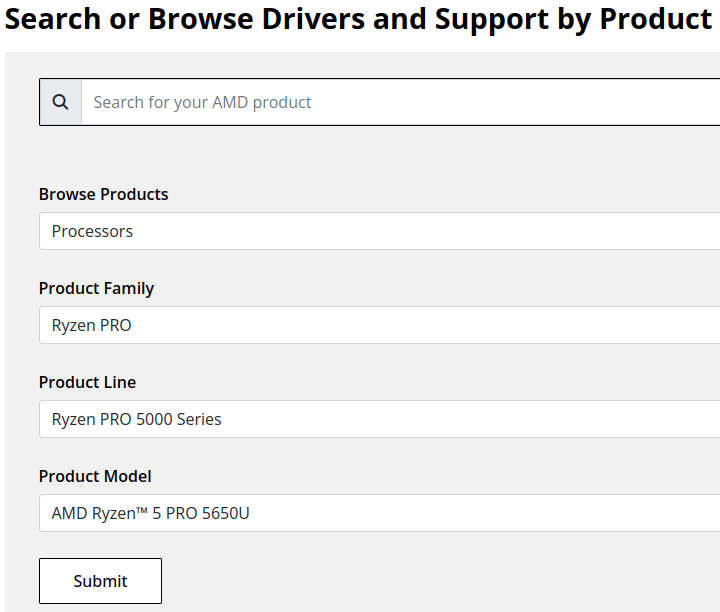
- Expand the "Windows 11 - 64-Bit Edition" section and select the Download button for the latest graphics drivers
NVIDIA Graphics
Like AMD, NVIDIA provides an automatic installation utility, as well as a Manual Driver Search on the NVIDIA Drivers support page. We will look up the drivers for an NVIDIA RTX 5080 graphics card.
- Navigate to NVIDIA Drivers support page
- Fill out the Manual Driver Search drop-downs and select the "Find" button when complete
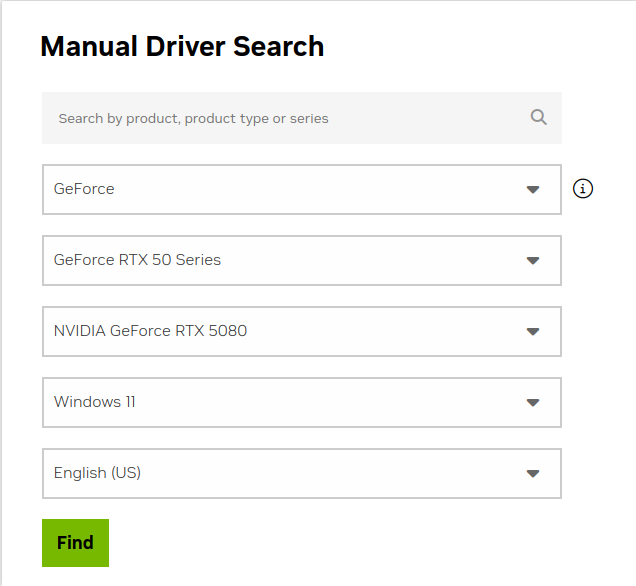
- From the search results, select the "View" button for the GeForce Game Ready Driver or NVIDIA Studio Driver (if you need the studio driver features)
- Select the green Download button for the latest graphics drivers
Installing the Graphics Drivers
For the most part this is relatively simple, we recommend disconnecting any external docking stations or devices that are not necessary for the driver installation, and for notebook computers connecting the system's original power supply.
Double-click on the downloaded driver installation executable and follow the on screen steps.
For more in-depth details on Intel, AMD, and NVIDIA's driver installation processes check out our step-by-step guides here:
- Intel Driver Installation In Detail
- AMD Driver Installation In Detail
- NVIDIA Driver Installation In Detail
If you have any questions or would like a recommendation, feel free to reach out to our support at support@plugable.com
How-To: Install the latest Intel Graphics Drivers
For a step-by-step guide to identify your graphics hardware and download the appropriate drivers, check out our KB article here
Download the drivers for your GPU or Processor Graphics
- In a web browser navigate to the Intel Driver Download Page
- In the Search Drivers & Software field, search for the Intel graphics card model or CPU model, "Arc Pro B60" in this example
- Select the appropriate Intel Arc Pro Graphics - Windows or similar entry from the search results, for modern hardware Intel will normally have at least one release per month, the list should return recent results within the last month
- Select the Download button to save the installer to your Downloads folder or selected location
Install the Intel Graphics Driver
To update the Intel Graphics Drivers to the latest version from Intel's website:
- Save and close any open applications
- Navigate to the downloaded graphics driver, then right-click on the saved driver installation file and select Run as administrator to start the installation process
- Allow the Intel driver installation through the User account control window, the drivers will be extracted
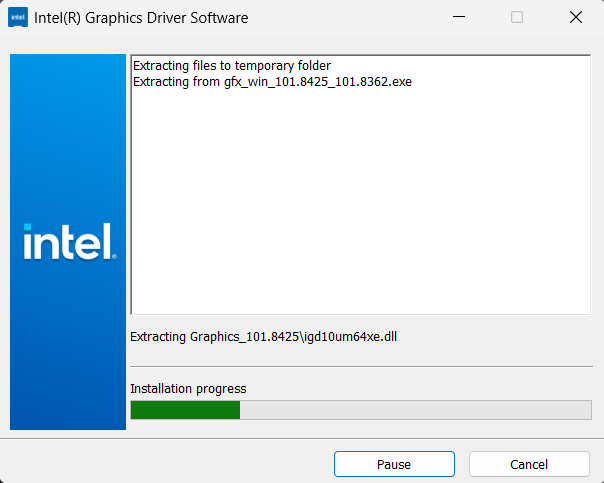
- When the extraction is complete select the Begin installation button

- Agree to the Intel Software License Agreement by selecting the I agree button
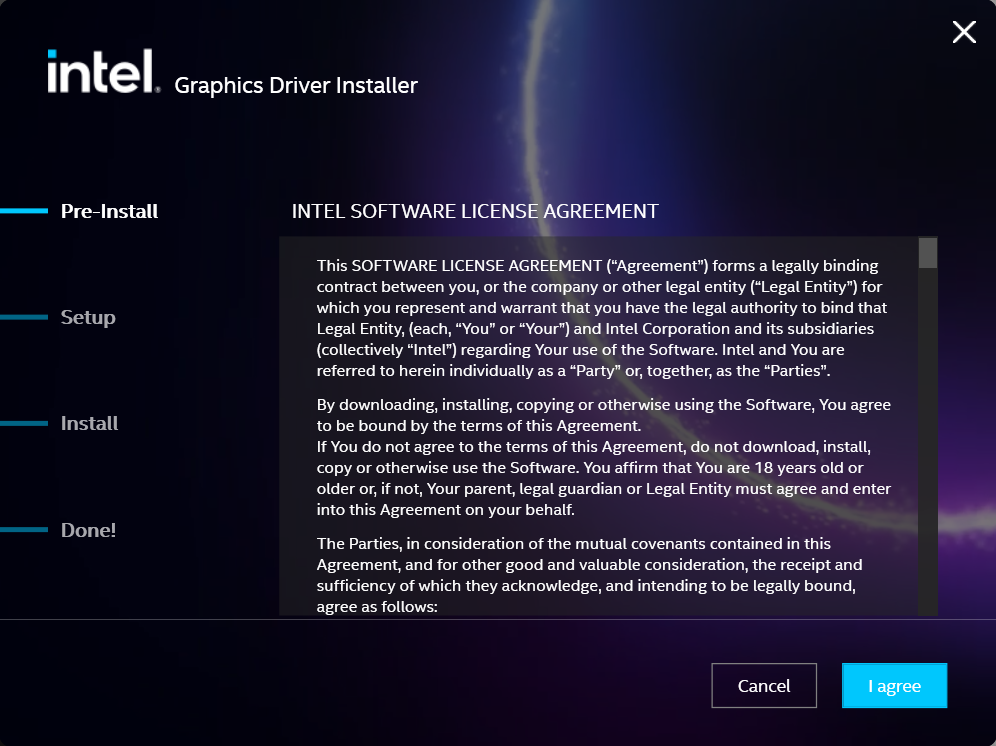
- Ensure all applications are saved and closed before selecting the I agree button
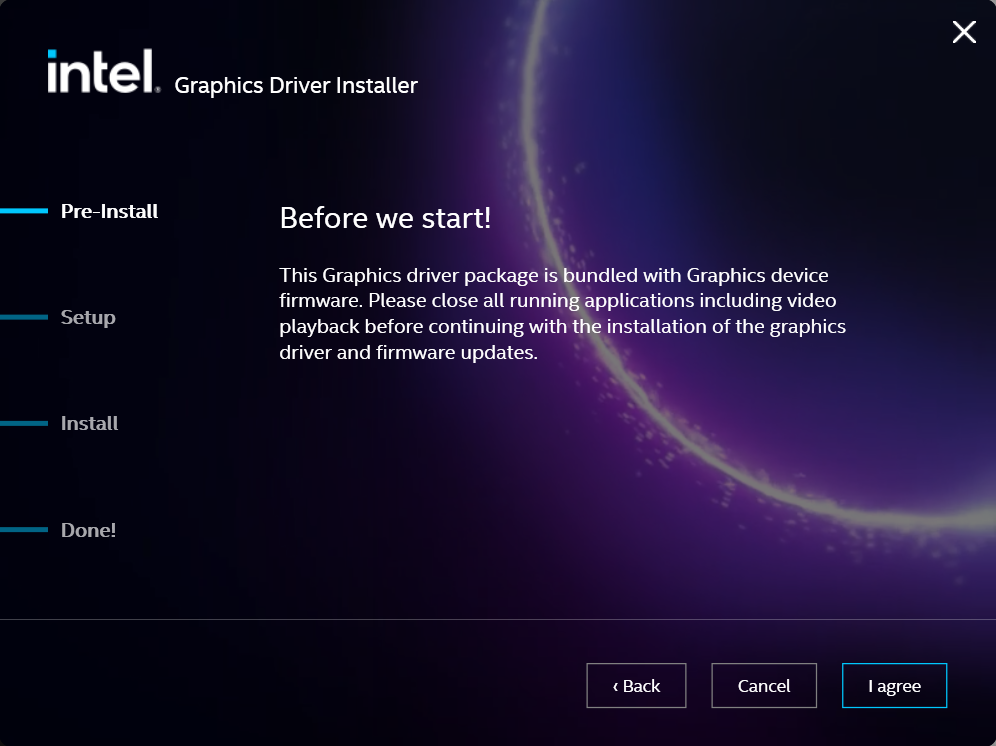
- For most installations, we recommend not selecting the Execute a clean installation checkbox. This option will remove previous driver versions and can lead to Windows Update reverting to an even older graphics driver. Select the Start button to proceed
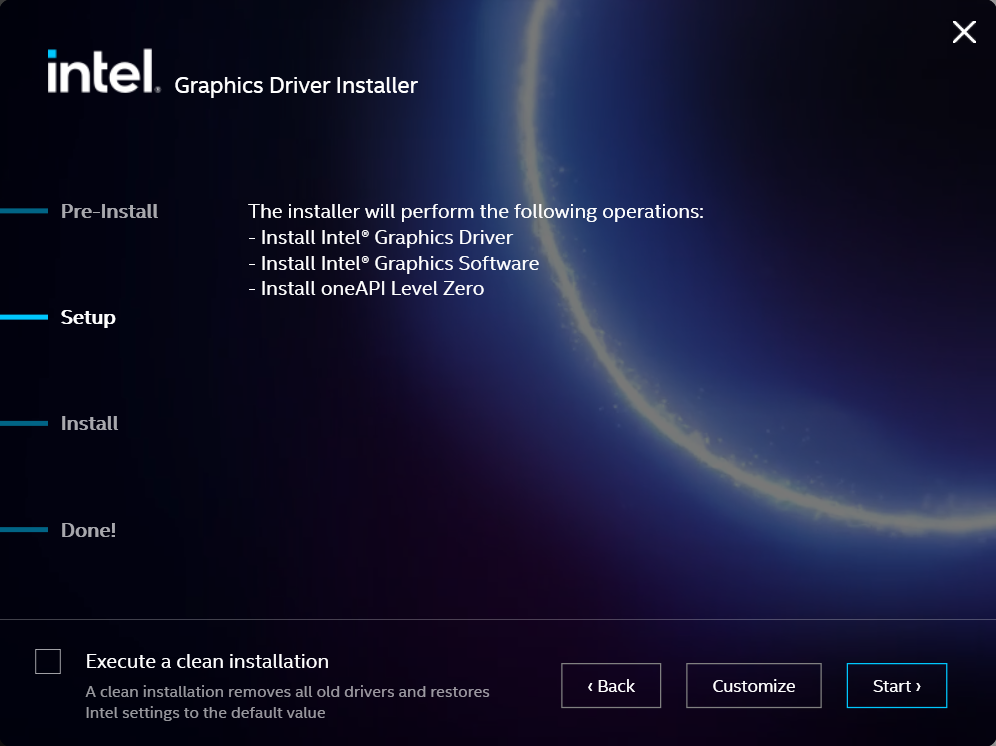
- The installation process will proceed, but can take some time to complete
- When the installation has completed, deselect the Launch Intel Graphics Software checkbox - we don't need that right now, select the Reboot Now button to restart the computer applying the new graphics drivers
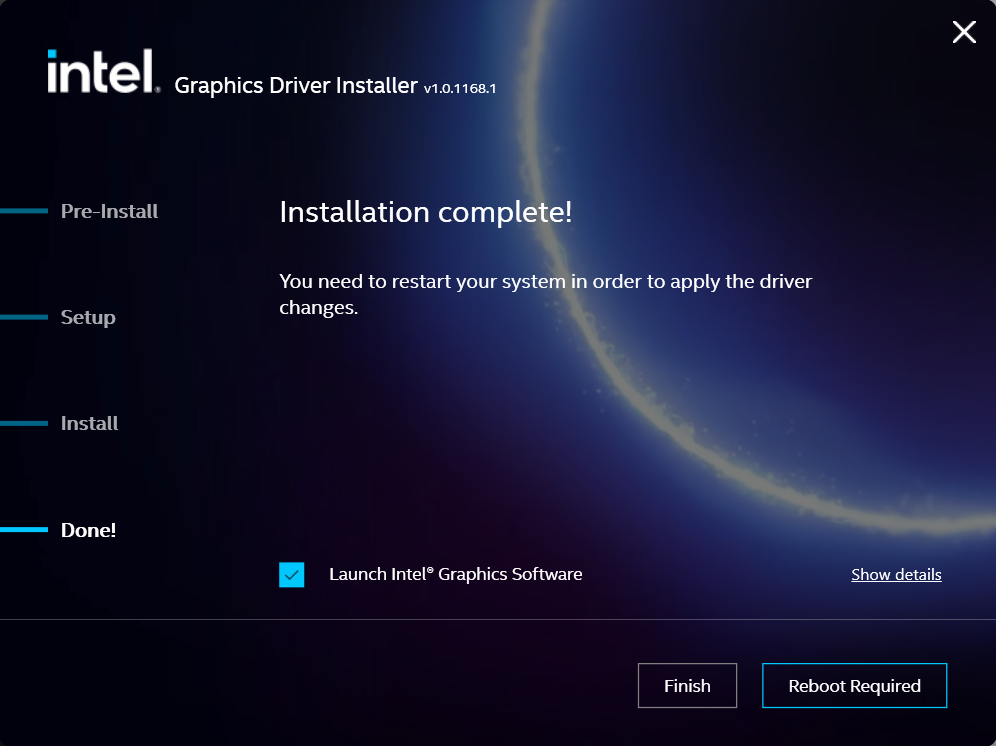
Windows should now detect the Intel Graphics Controller in the Device Manager and show the latest drivers.
If you have any questions or would like a recommendation, feel free to reach out to our support at support@plugable.com
How-To: Install the latest AMD Graphics Drivers
For a step-by-step guide to identify your graphics hardware and download the appropriate drivers, check out our KB article here
Download the drivers for your GPU or Processor Graphics
- In a web browser navigate to the AMD Drivers and Support page
- In the Search for your AMD product field, type in the model name, for example “RX 5600XT” for the AMD Radeon RX 5600 XT graphics controller, or a processor model like "AI 9 365", then select the best fitting result and select the Search button - note: Searching for a processor the "™" is required, so I recommend searching for the text after that symbol.
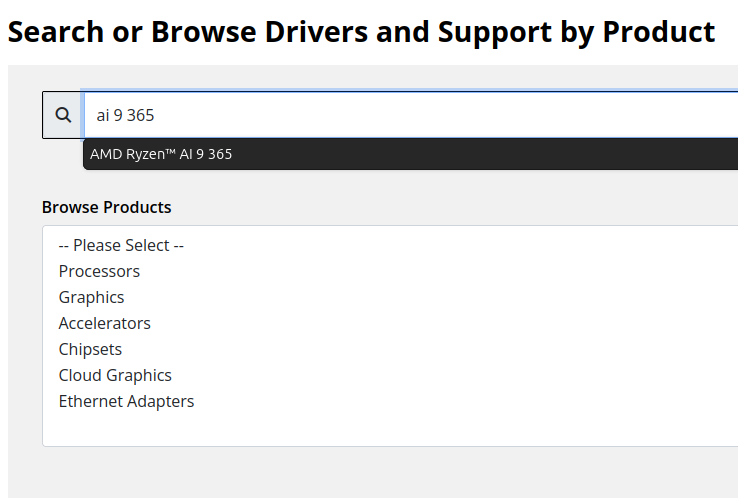
- On the results page, expand the section for Windows 11 64-bit then select the Download button for the latest AMD Software: Adrenalin Edition drivers, AMD may not provide a direct download for all hardware, in that case use the Auto-Detect and Install option
- Save the installer to your Downloads folder or selected location
Install the AMD Graphics Driver
To update the AMD Graphics Drivers to the latest version from AMD’s website:
- Save and close any open applications
- Navigate to the downloaded graphics driver, then right-click on the saved driver installation file and select Run as administrator to start the installation process
- Allow the Intel driver installation through the User account control window, the drivers will be extracted
- For most users the express installation is fine, ensure all applications are saved and closed selecting the Accept & Express Install button. If you have been having issues with older graphics drivers causing crashes or errors the Factory Reset (Optional) checkbox may be selected, but it isn’t necessary for most installations.

- The installation will proceed, the displays may flicker or flash off/on while the drivers are installing.
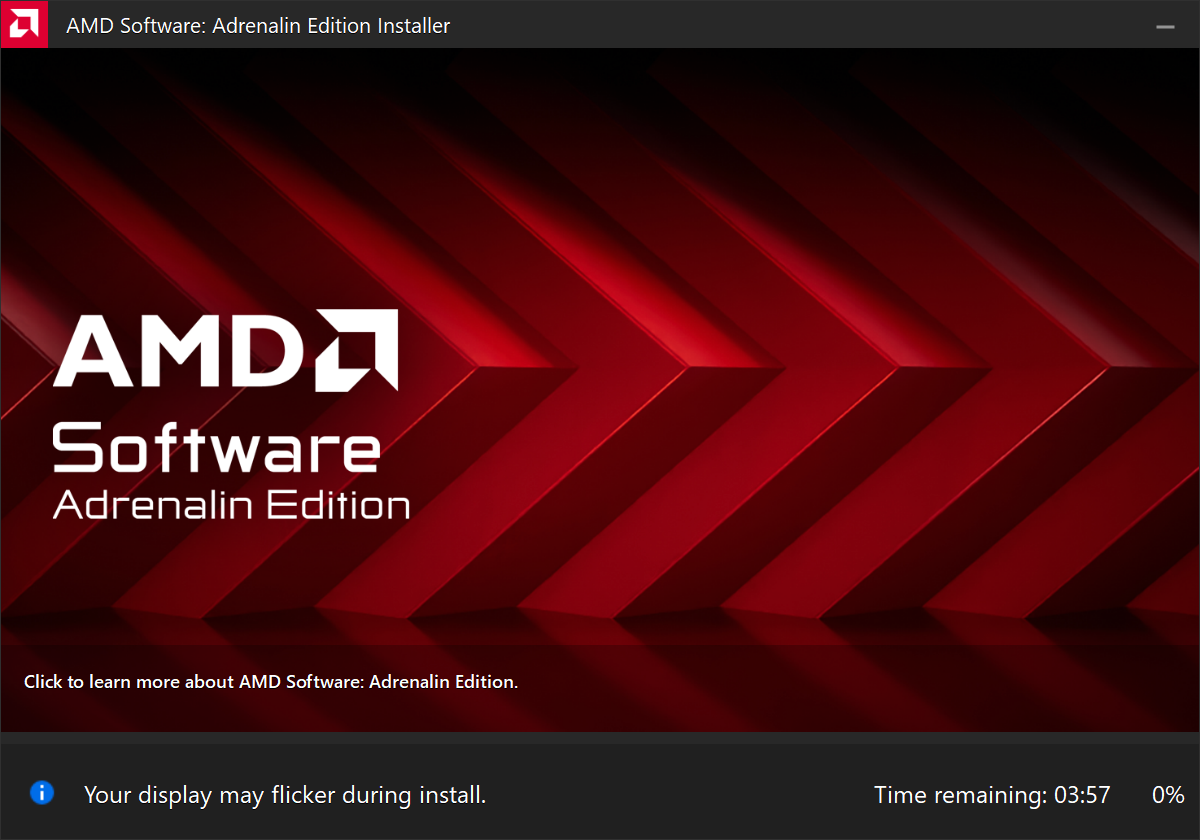
- When complete you will be prompted to Launch AMD Software: Adrenalin Edition and Keep AMD software up to date, you can uncheck the Launch AMD Software option
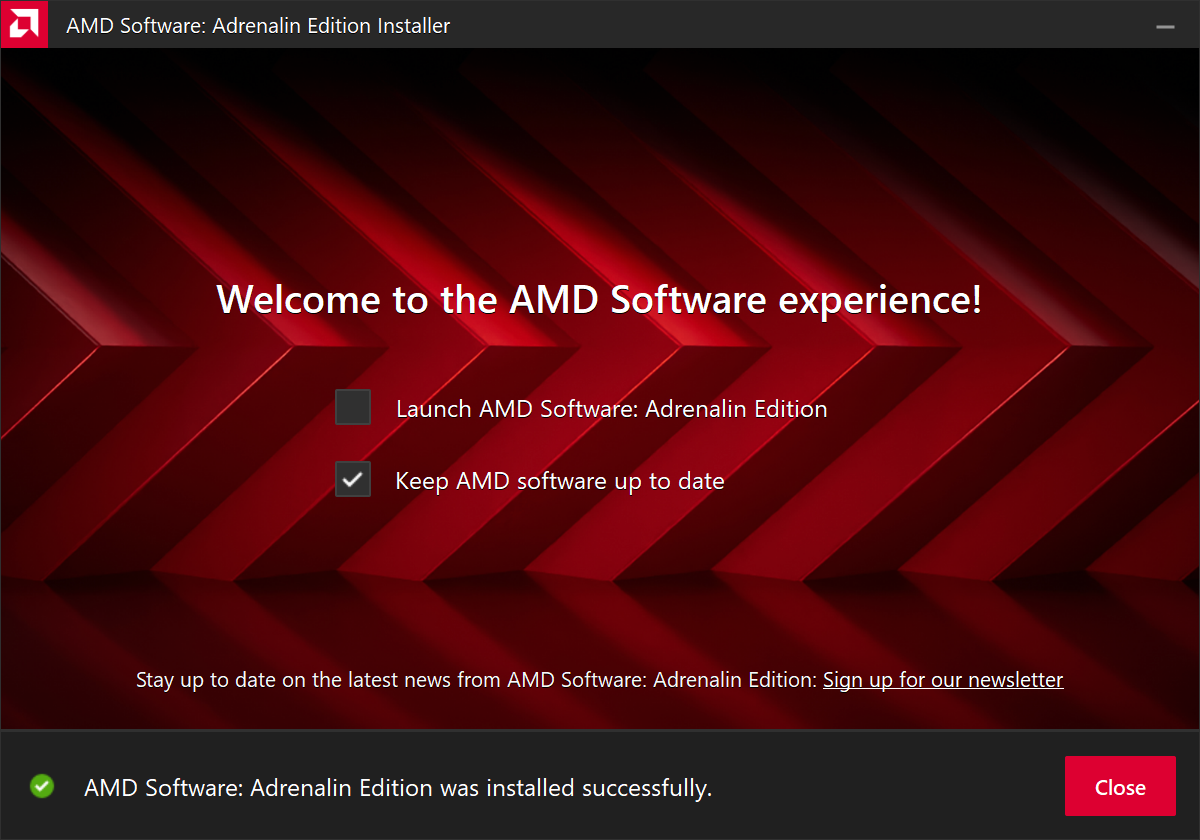
- Restart the computer to ensure the latest drivers are loaded from boot Start Menu > Power Icon > Restart
Windows should now detect the Intel Graphics Controller in the Device Manager and show the latest drivers.
If you have any questions or would like a recommendation, feel free to reach out to our support at support@plugable.com
How-To: Install the latest NVIDIA Graphics Drivers
For a step-by-step guide to identify your graphics hardware and download the appropriate drivers, check out our KB article here
Download the drivers for your GPU
Check your invoice for the specific model of NVIDIA graphics card, for this example we will use the RTX 5080 (the manufacturer is not relevant).
- In a web browser navigate to the NVIDIA Driver Download Page
- In the Manual Driver Search field, search for the NVIDIA graphics card model, "RTX 5080" in this example
- Select the GeForce RTX 50 Series | NVIDIA GeForce RTX 5080 | Windows 11 entry from the list
- Left-click the Find button
- Select either View buttons from the GeForce Game Ready Driver or NVIDIA Studio Driver
- Select the Download button to save the installer to your Downloads folder or selected location
Install the NVIDIA Graphics Driver
To update the NVIDIA Graphics Drivers to the latest version from NVIDIA's website:
- Save and close any open applications
- Navigate to the downloaded graphics driver, then right-click on the saved driver installation file and select Run as administrator to start the installation process
- Allow the NVIDIA driver installation through the User account control window
- Click OK to extract the NVIDIA Display Driver package contents
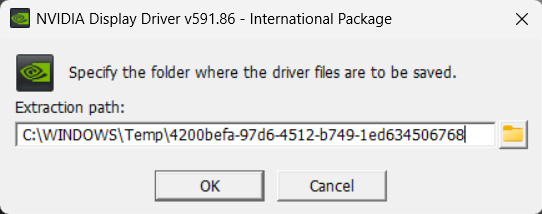
- At the System Check step, select either the NVIDIA Graphics Driver with NVIDIA App or the NVIDIA Graphics Driver alone, the NVIDIA App is gaming oriented and unnecessary for most users. Select AGREE AND CONTINUE
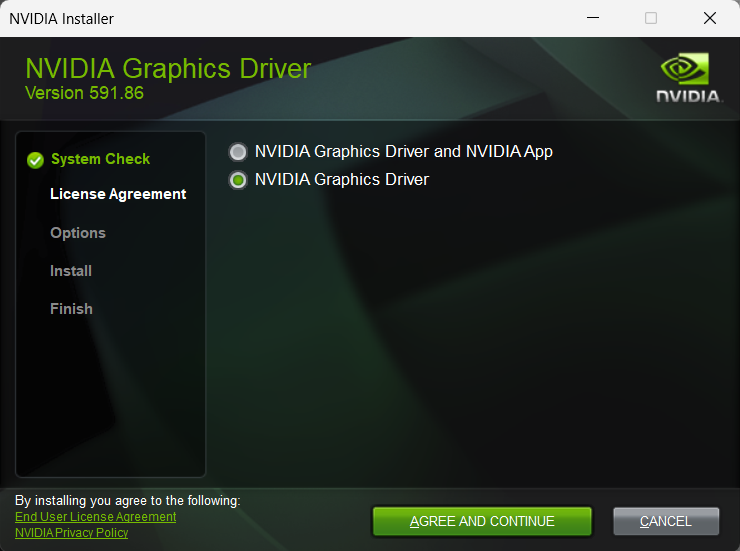
- At the License Agreement step, select the Express (Recommended) radio button then select NEXT to continue

- The installation will take some time to complete
- When complete please restart the computer Start > Power > Restart
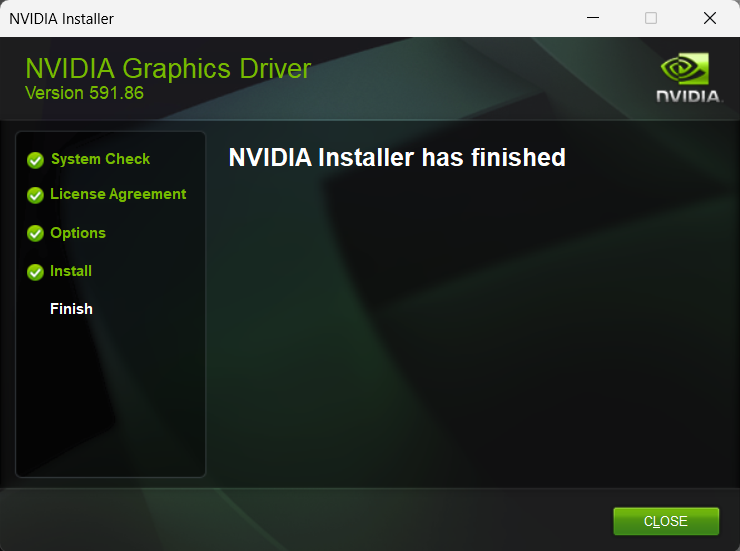
Windows should now detect the NVIDIA Graphics Controller in the Device Manager and show the latest drivers.
If you have any questions or would like a recommendation, feel free to reach out to our support at support@plugable.com
Is Target Display Mode Available With Plugable Docks and Adapters?
No, target display mode generally requires a direct Thunderbolt connection from a compatible MacBook or Mac Mini to a compatible iMac. Graphics adapters and docking stations do not pass the required Thunderbolt video data.
Why Target Display Mode Is Not Compatible With Docks or Adapters
Target Display Mode is a legacy feature that allows certain older Mac systems to use an older model iMac as an external display via a Mini DisplayPort or Thunderbolt data cable. Most Plugable docking stations and graphics adapters are USB devices that do not meet the specific Thunderbolt data requirements for 2011 through mid-2014 iMac systems. While Thunderbolt 3 or newer docks may provide video capability, they are generally recommended for Apple M-Series systems which do not support this feature.
iMac Models as Display
Apple provides system compatibility here but we can summarize it in the following:
24-inch and 27-inch iMac (2009 and 2010)
- macOS 10.13 “High Sierra” or earlier
- Compatible with Macs from 2019 or earlier with macOS 10.15 “Catalina” or earlier
- NOTE: some MacBooks in this range do not include a Mini DisplayPort output and may not be compatible
- Connected with a Mini DisplayPort cable
iMac models (2011 through mid-2014)
- macOS 10.13 “High Sierra” or earlier
- Compatible with Macs from 2019 or earlier with macOS 10.15 “Catalina” or earlier
- NOTE: some MacBooks in this range do not include a Mini DisplayPort output and may not be compatible
- Connected with a Thunderbolt or Thunderbolt 2 cable - these use the Mini DisplayPort connector
- NOTE: This is not compatible with Thunderbolt 3 (USB Type-C) cables
Alternative Options
For earlier 2009-2010 iMacs, it may be possible to use a USB Type-C to DisplayPort adapter paired with a DisplayPort to Mini DisplayPort cable. However, this configuration is untested and we do not support this configuration.
Our research has shown mixed results using these early model iMac systems with adapters, modern unsupported Apple hosts, or Windows computers. Because Target Display Mode is no longer supported by modern Apple hardware and software, there is no guaranteed workaround for newer systems.
Modern displays offer higher resolutions, multiple connection options: both DisplayPort and HDMI, and newer features like High Dynamic Range (HDR) and higher refresh rates than iMac systems. Many modern displays can support multiple host computers either by switching between inputs or with picture-by-picture or picture-in-picture modes.
Applicable To
- 24-inch and 27-inch iMac (2009 and 2010)
- iMac models (2011 through mid-2014)
- macOS 10.13 “High Sierra” or earlier
If you have any questions please feel free to contact us at support@plugable.com and we'll be happy to help!


- Choosing a selection results in a full page refresh.
