


Hassle free, 2-Year Warranty
Fast, Free Shipping on Orders $35+
Lifetime Technical Support
30-Day Money Back Guarantee
Plugable Thunderbolt 4 and USB4 Hub
$189.95 USD
SKU: TBT4-HUB3CAmazon Rating : (300 Reviews)
Features
- Certified Reliability— The Plugable Thunderbolt 4 and USB4 Hub with 60W charging is Thunderbolt certified and built on the Intel Goshen Ridge Chipset for maximum performance and compatibility with your USB-C, USB4, and Thunderbolt devices. Thunderbolt 4/USB4 host required for maximum hub performance.
- Thunderbolt 4 and USB4— This hub adds the fully featured Thunderbolt and USB-C ports your system may lack. Each of the three downstream Thunderbolt ports supports 40Gbps data transfer, 15W charging for phones, tablets, and high-performance peripherals. Video output for up to two 4K@60Hz or one 8K@30Hz display - depending on your host system’s capabilities, one USB-C to HDMI 2.0 video adapter is included for added flexibility.
- Compatibility— Windows (10+) and macOS (11+) Thunderbolt 4 and USB4 systems. Thunderbolt monitor hub supports up to 2x 4K screens at 60Hz, one 8K screen at 30Hz or 1x 6K on Apple silicon Macs. Functionality will be limited on USB-C only host systems. Thunderbolt 3 Windows systems not recommended.
- Mac Notes— Base M3 MacBook Air and Pro systems support dual extended displays in clamshell mode, or single display with lid open. Macs with base M1/M2 chips support one single extended display. Macs with base M4, M5 or Apple Pro/Max chips support dual displays with lid open. Intel Thunderbolt 3 Macs support 2x displays. Not compatible with MacBook Neo. Included external power adapter required for operation
- Expandable Enhancement— Connect multiple high performance SSDs to build a content creation powerhouse, and expand your setup further by daisy-chaining up to 6 additional Thunderbolt peripherals. Actual performance, charging, and display support will depend on host system capabilities. One USB-C to HDMI 2.0 video adapter is included for convenience.
For volume orders or business inquiries contact sales@plugable.com
Free 3-Day Continental U.S. Shipping When Buying Direct!


Built for Performance
You didn’t invest in a high-performance laptop to pair it with a limited Thunderbolt 4/USB4 hub. The TBT4-HUB3C, powered by Intel’s Goshen Ridge chipset, delivers full Thunderbolt 4 functionality - automatically adapting to the capabilities of your system. Connect an M1, M2, M3, or M4 Mac and enjoy a single-cable solution for USB-C and Thunderbolt devices like a 4K display and dual high-speed Thunderbolt SSDs. On a Thunderbolt 4-equipped Windows laptop like a Dell XPS? Easily swap one SSD for a second 4K monitor, no reconfiguration needed.
Even on older USB-C systems, the hub intelligently adjusts to deliver the best performance supported by your device. Whether you're transferring massive files or powering creative workflows, the TBT4-HUB3C is engineered to support data transfer rates up to 40Gbps and delivers 60W of USB-C Power Delivery to keep your laptop charged. The hub is also versatile when not connected to a host computer, because it can function as a standalone charging hub providing up to 15W of power to your connected devices. Included external power adapter is required for operation
Note: Performance and display support vary depending on the host system’s capabilities. Not all USB-C systems support video output or Thunderbolt features.


A: Yes, the TBT4-HUB3C can provide up to 60W of power to charge the host computer
A: Thunderbolt 4, Thunderbolt 3, and USB Type-C device
A: When connected to a host computer with Thunderbolt 4, you can connect up to two displays to the TBT4-HUB3C
A: We include one Plugable USB-C to HDMI video adapter in the box with the TBT4-HUB3C
A: No, the included external power adapter must be connected to the TBT4-HUB3C in order for the device to function.
Connecting everything together
1. Securely connect the power cable to the power adapter
2. Securely connect the power cable to a known-working power outlet.
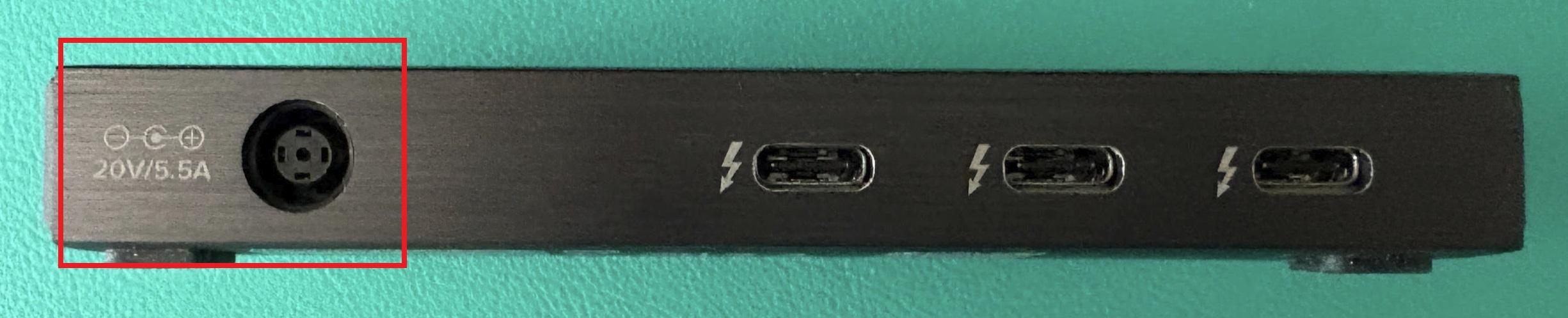
3. Once the power cable has been connected to the power adapter, connect the power adapter’s barrel connector to the circular power input port on the back of the hub.
When the hub is powered on, you will see a small solid white power indicator light on the front of the hub, towards the right-hand side.
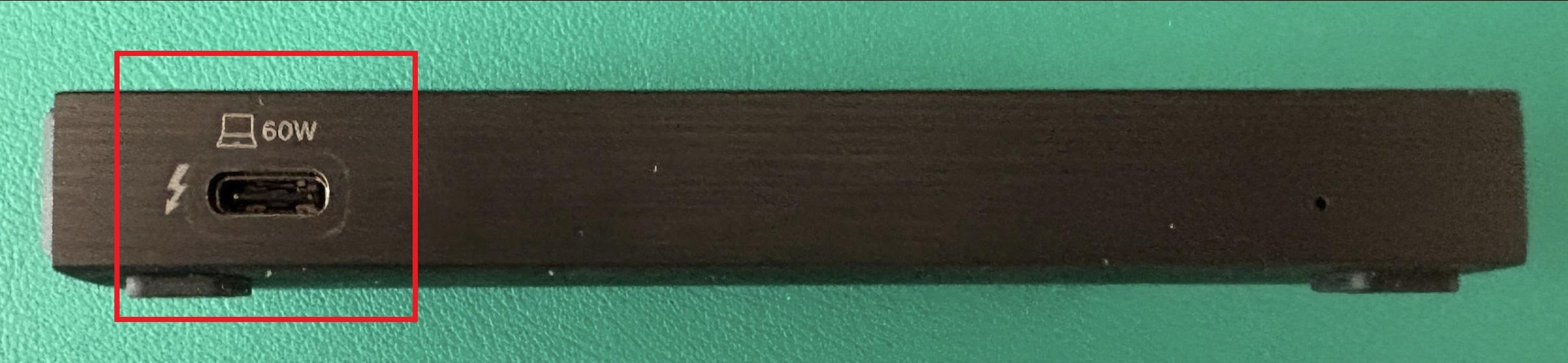
4. Connect one end of the included 0.8 meter long 40Gbps Thunderbolt 4 cable to the single Thunderbolt 4 port located on the front of the hub.
This port has a Thunderbolt lightning icon to the left of it, and a small laptop icon above it.

*** It is important that the Thunderbolt 4 cable is connected to the Thunderbolt 4 port on the front of the hub. The hub will not work if the cable is connected to a different port. ***
Connect the opposite end of the included Thunderbolt 4 cable to one of the Thunderbolt or USB-C ports of your computer.
5. When the hub is connected to your computer, the indicator light on the front of the hub will change from a white color to a green color. The green light indicates that the hub is connected to your computer.
Approval process
If the computer to which you are connecting the hub is running Windows and has Thunderbolt 4 or Thunderbolt 3 technology built-in, when you first connect the hub you may be prompted to ‘Approve’ or ‘Authenticate’ the device via the Intel Thunderbolt software that should already be installed on your Windows computer.
We have a video that demonstrates how to ‘Approve’ the device using the two different types of the Intel software (known as either the ‘Intel Thunderbolt Software’ or the ‘Intel Thunderbolt Control Center’) here → https://youtu.be/aRN2aEzmsyo
Depending on how your Windows computer is configured, the Approval process may happen automatically and as a result you may not be prompted to Approve the hub.
If the computer to which you are connecting the hub is running macOS and has Thunderbolt 3, Thunderbolt 4 or USB4 technology built-in, the approval process will happen automatically.
If the computer to which you are connecting the hub has USB-C technology built-in, the hub does not need to be approved (device Approval is not part of the USB-C standard).
Host charging
Once the hub has been connected to your computer, the hub can provide up to 60W of power to charge the computer provided that your computer supports being charged via Thunderbolt or USB-C.
Please note - not all Thunderbolt 3, Thunderbolt 4, or USB-C systems can be charged via their Thunderbolt or USB-C ports. Please consult your computer’s manual or technical specifications in order to determine if your computer supports charging via Thunderbolt or USB-C.
Hub port capability
You can then connect many different types of Thunderbolt and USB-C devices to the three Thunderbolt/USB-C ports on the back of the hub. The type of functionality provided by the three ports on the back of the hub is ultimately determined by the capabilities of the host computer.
To put that another way, if the host computer has Thunderbolt 4 technology built-in, then all three ports on the back of the hub will function as Thunderbolt 4 ports.
If the host computer has Thunderbolt 3 technology built-in, then all three ports on the back of the hub will function as Thunderbolt 3 ports.
*** Note, there are cases where Thunderbolt 3 systems may not be fully compatible with the hub and as a result the downstream ports may not function or function only as USB-C ports. As a result, we do not recommend using the hub in conjunction with Thunderbolt 3 systems ***
If the host computer has USB-C technology built-in, then all three ports on the back of the hub will function as USB-C ports.
Connecting displays to the hub
Included in the box with the hub is one Plugable USB-C to HDMI video adapter. You can connect this adapter to the hub in order to attach one HDMI display (up to 3840x2160 resolution at a 60Hz refresh rate) to the hub using a HDMI to HDMI video cable (a cable with a HDMI connector on both ends, not included).
Please note that the amount of displays that can be connected to the hub is ultimately determined by the capabilities of the host PC.
A computer that has Thunderbolt 4 technology will be capable of driving two displays via the hub. This is because the Thunderbolt 4 specification requires a single Thunderbolt 4 port to be capable of driving two displays.
A computer that has Thunderbolt 3 technology will be capable of driving one or two displays via the hub. This is because manufacturers have a choice when designing a Thunderbolt 3 system in regard to how many displays can be driven via a single Thunderbolt 3 port. Some Thunderbolt 3 PCs can support two displays, while other Thunderbolt 3 computers can support only one display.
A computer that has USB-C technology will be capable of driving only one display via the hub.
Please note that not all USB-C systems are capable of providing video output over USB-C. Please consult your computer’s manual or technical specifications in order to determine if your USB-C computer is capable of providing video output.
Connecting other devices to the hub
It is possible to connect many different types of Thunderbolt and USB-C devices to the three ports on the back of the hub.
Devices that are Thunderbolt 4, Thunderbolt 3 or USB-C can connect directly to the hub using Thunderbolt 4, Thunderbolt 3, and USB-C cables, respectively. Examples of some of these various types of devices are:
Storage drives
- Plugable USB-C storage drives --> https://plugable.com/collections/usb-type-c-storage-devices
USB-C video adapters
- Plugable USB-C to HDMI adapter (USBC-HDMI) --> https://plugable.com/products/usbc-hdmi
- Plugable USB-C to DisplayPort adapter (USBC-TDP) --> https://plugable.com/products/usbc-tdp
- Plugable USB-C to DVI adapter (USBC-DVI) --> https://plugable.com/products/usbc-dvi
- Plugable USB-C to VGA adapter (USBC-VGA) --> https://plugable.com/products/usbc-vga
USB 3.0 Type-C hubs
- Plugable USB 3.0 and USB-C 7-Port Charging Hub (USBC-HUB7BC) --> https://plugable.com/products/usbc-hub7bc
Devices that use a USB 3.0/3.1/3.2 Type-A connection can be connected to the hub by using a USB 3.0 Type-A to USB Type-C adapter, such as the Plugable USBC-AF3 → https://plugable.com/products/usbc-af3
Via the USBC-AF3 adapter, virtually any type of USB 3.0/3.1/3.2 Type-A device can be connected to the hub. Examples of some of these various types of devices are:
DisplayLink USB docking stations
- Plugable Dual HDMI USB Universal Docking Station (UD-3900Z) --> https://plugable.com/products/ud-3900z
- Plugable Dual 4K Display HDMI or DisplayPort Docking Station (UD-6950Z) --> https://plugable.com/products/ud-6950z
Device charging
Each of the three ports on the back of the hub have the ability to provide up to 15W of power to connected devices, and this is typically used to power an external device (such as a Thunderbolt or USB-C storage drive).
However, this power can also be used to charge devices that have an internal battery, for example a mobile phone or a tablet.
An additional useful component of this feature is that the charging capability can be used even when the hub is not connected to your computer.
To put that another way, when your computer is not connected to the hub, the hub can be used as a charging station for up to three different devices.
Filter Help Articles and Frequent Questions by Category
Choose one or more filters within each category to narrow down the articles. Each selection will result in only displaying articles that include all of your choices.
Articles
Well how about that, it looks like we don't have any articles matching your filters! Try removing one of your choices or clear the filters to show all articles.
You can always contact support if you need help too!
Why can't I drive two external extended displays with my Google Pixel phone?
Google Pixel phones support USB-C DisplayPort Alternate Mode for wired video output, but due to Android OS limitations, they cannot produce two extended external displays using MST, DisplayLink, or Thunderbolt docking technologies. This is a platform constraint, not a hardware or dock issue.
Understanding the Limitation
Google Pixel phones are limited by the Android operating system’s handling of external displays. While many Pixel models (such as the Pixel 7 and Pixel 8 series) support USB-C DisplayPort Alternate Mode, they can only output to a single external display at a time. Android is designed primarily for screen mirroring, and extended display support is extremely limited across Android phones.
Key Point:
Android OS currently restricts Pixel phones to one external display, regardless of the dock or adapter used.
Dock Behavior with Pixel Phones
MST Docks (e.g., Plugable UD-MSTH2)
MST (Multi-Stream Transport) requires the host device to support splitting one DisplayPort signal into multiple independent video streams. While common on Windows and many Chromebooks, Pixel phones do not support MST for extended displays.
When using an MST dock, a Pixel phone will:
- Output to one external display only, or
- Mirror the same content to two connected monitors
- Dual extended desktops are not supported
DisplayLink Docks
DisplayLink technology works on Android through a companion app (e.g., DisplayLink Presenter). However:
- Android only supports a single external display via DisplayLink
- DisplayLink docks cannot be used to achieve multiple extended monitors from a Pixel device
- DisplayLink is not recommended for dual display use on Android
Thunderbolt Docks
Google Pixel phones are not Thunderbolt-certified hosts. When connected to a Thunderbolt dock:
- They revert to basic USB-C DisplayPort Alternate Mode
- Only a single mirrored display is possible
Visual Summary
| Dock Type | Extended Displays | Mirroring | Notes |
|---|---|---|---|
| MST Dock | ❌ | ✅ | No MST support on Android |
| DisplayLink Dock | ❌ | ✅ | Requires DisplayLink app |
| Thunderbolt Dock | ❌ | ✅ | Functions as USB-C only |
Recommended Alternatives
If your goal is to use two independent external displays, consider the following instead:
- Windows laptops with DisplayPort MST support
- Chromebooks that support MST
Frequently Asked Questions
Q: Can I extend my Pixel’s screen to two monitors using any method?
A: No. As of now, Android does not support multiple extended displays. Only mirroring to one display is possible.
Q: Does DisplayLink allow multiple displays on Android?
A: No. Even with DisplayLink’s Android app, you are limited to one external display.
Q: Why do Windows and ChromeOS devices work with MST but not Android?
A: Android lacks support for DisplayPort MST and advanced GPU capabilities required for multiple display outputs. This is a software/platform-level limitation.
Conclusion
While Google Pixel phones are capable of driving a single external display, dual extended monitors are not possible due to Android OS restrictions. This applies across all dock types, including MST, DisplayLink, and Thunderbolt. For users requiring robust multi-display setups, we recommend using a Windows or Chromebook device that supports MST alongside a compatible docking station like the Plugable UD-MSTH2.
If you have any questions or need help selecting a compatible dock, reach out to our support team at support@plugable.com.
I just received my TBT4-HUB3C and tried to set it up, however things are not working as expected. What should I do?
We are sorry things are not working as expected while using your Plugable TBT4-HUB3C hub, and we would be happy to help.
In our experience helping others, we have found that most unexpected behavior can be resolved by checking the following items. If the information provided below does not help resolve the issue, please reach out to us directly via support@plugable.com and we will be happy to assist you further.
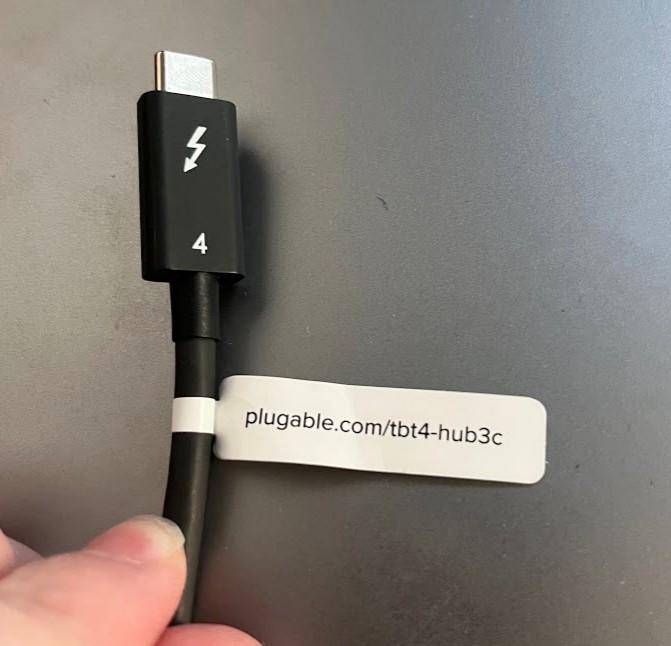
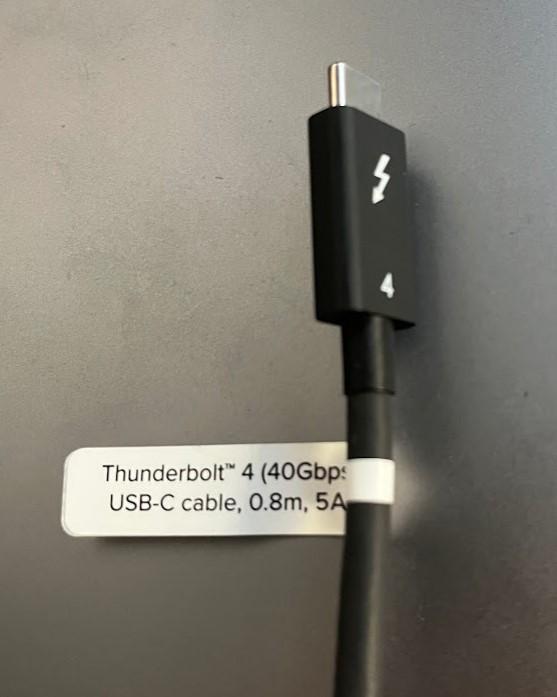
Can you please confirm that you are using only the 0.8 meter long 40Gbps Thunderbolt 4 cable that Plugable originally included in the box with the TBT4-HUB3C hub in order to connect the hub to your computer?
We ask because other cables can sometimes cause problems.
The Plugable Thunderbolt 4 cable has a small white cable 'flag' attached to it that provides the cable specifications on one side and the product model on the opposite side, and we have included inline below photos of both sides of the label for your reference:
Can you please confirm that the original Plugable Thunderbolt 4 cable is connected to the single Thunderbolt 4 host connection port located on the front of the TBT4-HUB3C hub?
We ask because if the cable is connected to any other port the hub will not work as expected.
For your reference, we have included inline below a photo of the hub with the Thunderbolt 4 host connection port highlighted in red:
For your reference, under ideal conditions when the TBT4-HUB3C is connected to a working power outlet there will be a solid white power indicator light located on the front of the unit.
When the TBT4-HUB3C is connected to a compatible host computer, the indicator light will change from white in color to green in color.
If the hub is not powering on or indicating a connection to the host computer, please check the following:
A. That the included power adapter is securely connected to the hubs’s power input port (the hub will not work if the power adapter is not connected)
B. That the power cable is securely connected to the power adapter
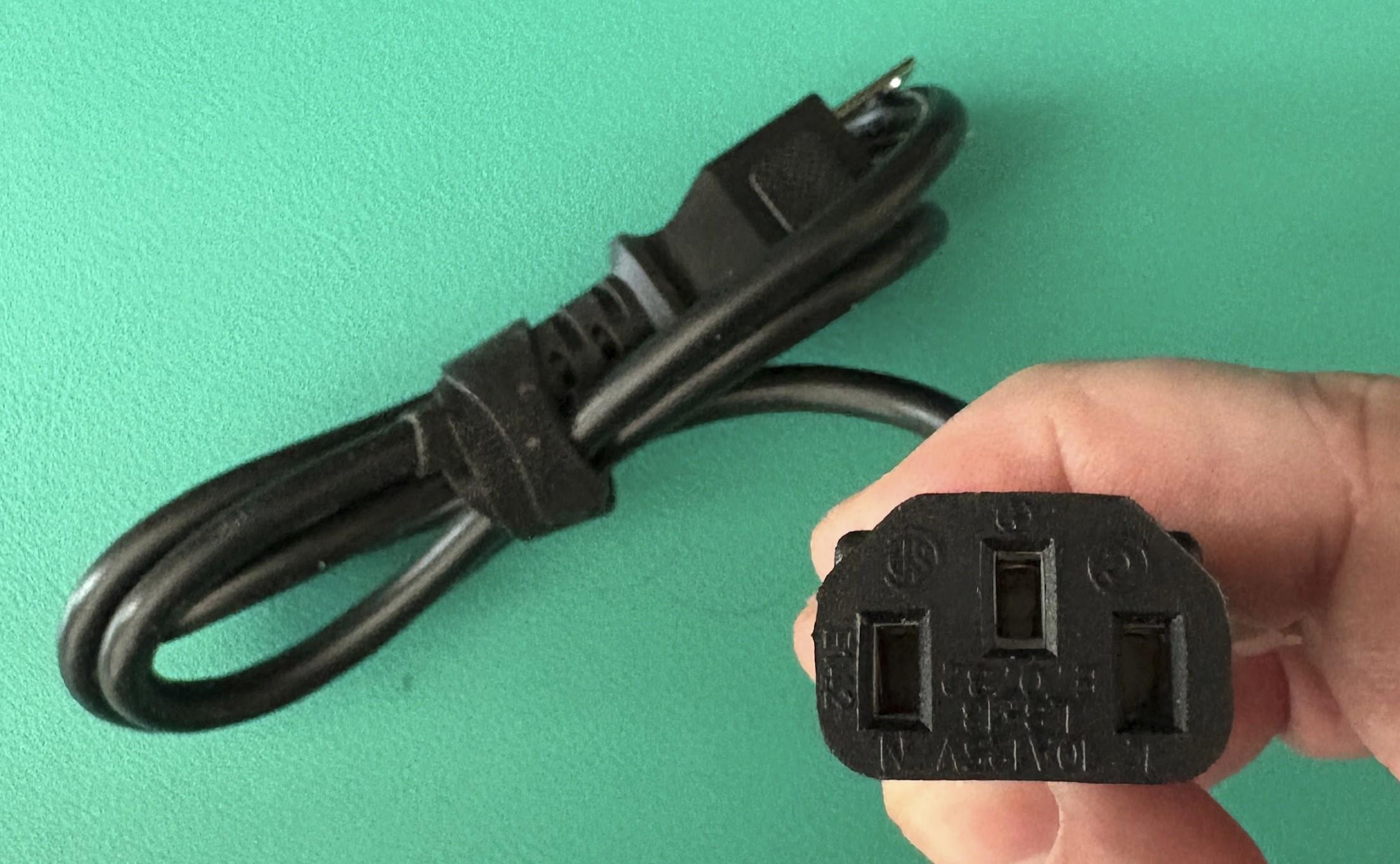
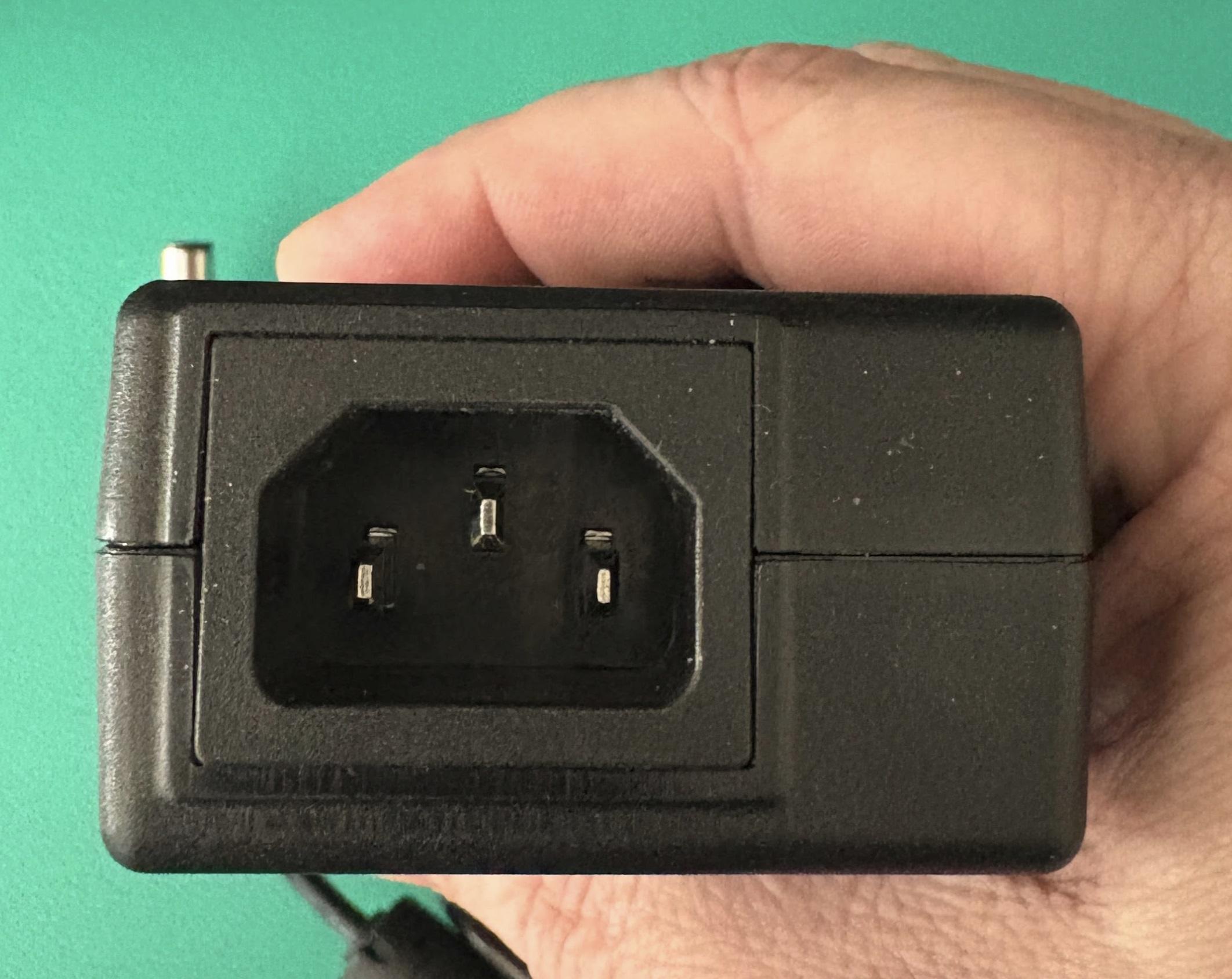
C. That the power cable is securely connected to the electrical power outlet
If the hub is powered on (white light present) but is not being detected by the host computer, please check the following:
D. That the Thunderbolt 4 cable is connected to the single Thunderbolt 4 host connection port located on the front of the hub (as described in checklist item #2 above).
E. That the Thunderbolt 4 cable is securely connected to a Thunderbolt 4 port within the host computer.
USB Port Types
USB-A

pietz, CC BY-SA 3.0 , via Wikimedia Commons
This is the standard USB connection that most computers offered prior to the introduction of USB Type-C (USB-C). Even after the introduction of USB Type-C, this is still quite common.
It can provide data transfer rates up to the USB 3.1 Gen 2 (10 gbps) specification depending on the host and device, but does not directly support video in the way that USB-C Alternate Mode does. This limitation makes DisplayLink USB graphics adapters and docking stations ideal on systems that do not have USB-C, or in instances where more displays are needed beyond available video outputs of a PC.
USB-B

Fred the Oyster, CC BY-SA 4.0 , via Wikimedia Commons


IngenieroLoco, CC BY-SA 4.0, via Wikimedia Commons
This type of connection comes in a couple different styles depending on whether USB 3.0 and higher transfer rates are supported (bottom graphic). Usually this type of connection is used to plug into USB devices that do not have a fixed cable connected, such as USB docking stations, USB hubs, printers, and others.
USB Mini-B
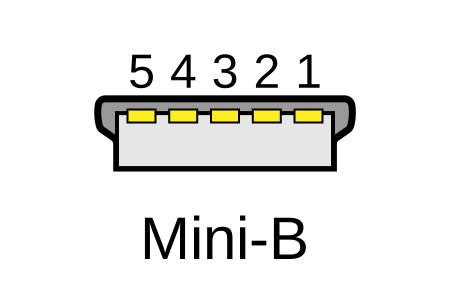
Fred the Oyster, CC BY-SA 4.0 , via Wikimedia Commons
One of the first connectors for charging a smartphone, wireless game controller (such as the Sixaxis and DualShock 3), and other small devices such as external hard drives. Not commonly used today, but is still used in some cases. Most devices using USB Mini B are using USB 2.0, though a USB 3.0 variant does exist. This specification also added USB On-The-Go (OTG) functionality, though it is more commonly implemented with Micro USB.
USB Micro-B

Fred the Oyster, CC BY-SA 4.0, via Wikimedia Commons
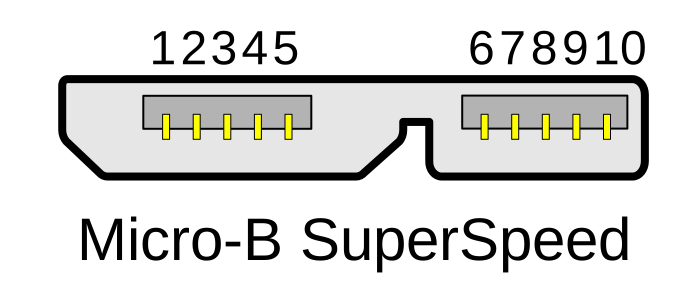
IngenieroLoco, CC BY-SA 4.0 , via Wikimedia Commons

A smaller connector that serves many of the same uses as the Mini B connector, with added optional features such as Mobile High-Definition Link (MHL) to allow devices like smartphones to output video to larger displays without requiring a dedicated port for video output.
The larger variant of USB-B is most commonly used for external hard drives for higher 5Gbps transfer rates.
USB-C, Thunderbolt™ 3, and Thunderbolt™ 4
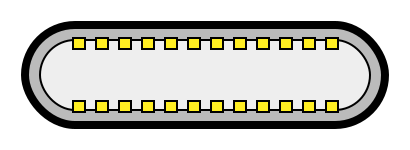
Niridya , CC0, via Wikimedia Commons
The most recent USB connection, USB Type-C (USB-C), represents a major change in what USB can do. The connector is smaller, can be connected in two orientations, is able to carry substantially more power and data, and can directly carry video signals of multiple types (HDMI, DisplayPort, etc.) Intel has also adapted the USB-C connector for use with Thunderbolt 3 and Thunderbolt 4.
It is important to note that while all Thunderbolt 3 and Thunderbolt 4 connections are USB-C, not all USB-C connections can be used with Thunderbolt 3 or Thunderbolt 4 devices.
More details regarding physical USB connections can be found on Wikipedia . The graphics depicted here are adapted from Wikimedia Commons by various artists under the Creative Commons Attribution-Share Alike 3.0 Unported license.
Self-Powered vs Bus-Powered USB Devices
While all USB ports provide some amount of power for attached devices, the available power may not be enough for certain high-current devices such as USB hubs or external hard drives. High-current devices usually come with their own power adapter, making them self-powered, in contrast to a bus-powered device that draws all of its power from the host computer's USB interface. Bus-powered devices can cause issues if they need more power than is available from the host machine.
Many of our devices that include power adapters, especially USB hubs, will function in either self-powered or bus-powered mode. However, even though the device may function, each additional device attached to the host computer reduces the total available bus power. If the power runs out, any USB device attached to the computer may suddenly disconnect. If this were to happen to a USB storage device, such an event could result in permanent data loss.
If a device comes with a power adapter, we recommend that the adapter stay connected at all times, otherwise the device may not function as designed.
Self-powered USB device - A device that takes all of its power from an external power supply
Bus-powered USB device - A device that takes all of its power from the host computer's USB interface.
Does the TBT4-HUB3C Hub Charge the Host PC?
The TBT4-USB3C hub can provide up to 60W of power to charge the host PC, provided that the PC supports being charged via Thunderbolt or USB-C.
Please note - not all Thunderbolt 3, Thunderbolt 4, or USB-C systems can be charged via their Thunderbolt or USB-C ports. Please consult your PC’s manual or technical specifications in order to determine if your PC supports charging via Thunderbolt or USB-C.
What Are the Capabilities of the TBT4-HUB3C Hub Ports, and What Types of Devices Can Be Connected?
You can then connect many different types of Thunderbolt and USB-C devices to the three ‘downstream’ Thunderbolt/USB-C ports on the back of the hub. The type of functionality provided by the three ports on the back of the hub is ultimately determined by the capabilities of the host computer.
To put that another way, if the host computer has Thunderbolt 4 technology built-in, then all three ports on the back of the hub will function as Thunderbolt 4 ports.
If the host PC has USB-C technology built-in, then all three ports on the back of the hub will function as USB-C ports.
If the host PC has Thunderbolt 3 technology built-in, then all three ports on the back of the hub will function as Thunderbolt 3 ports ***
*** Please note, the specifications of a Thunderbolt 3 host system can have an impact on the level of functionality of the hubs’s downstream ports ***
When a Thunderbolt 3 host system that has:
A. An Intel Titan Ridge Thunderbolt host controller
B. A DCH variant of the Thunderbolt host controller driver higher than version 1.41.613.1 installed
C. An internal Thunderbolt NVM firmware version of 41 or higher
Is connected to the hub, then all of the downstream ports will function as Thunderbolt 3 ports.
When a Thunderbolt 3 host system that has:
A. An Intel Alpine Ridge Thunderbolt host controller
B. A DCH variant of the Thunderbolt host controller driver installed
Is connected to the hub, then one downstream port will function as a Thunderbolt 3 port, and the other remaining ports will function as a USB Type-C port.
Can I Use My Display With a Native USB-C Video Input With the TBT4-HUB3C Hub?
External displays that have a native USB-C video input can be used in conjunction with the Plugable TBT4-HUB3C hub.
However, in our experience helping others we have found that some portable USB-C displays may not work as expected when an external USB-C power source is connected to the display.
If your portable USB-C display has an external USB-C power source, please disconnect the external power source from the display when using the display in conjunction with the hub.
The hub can provide up to 15W of power to the portable USB-C display, which will take the place of the external power source.
An example of such a display would be the ViewSonic VG1655 display → https://www.viewsonic.com/us/vg1655.html
A video that demonstrates the capabilities of this display is here → https://youtu.be/ferq4xz_A3M
What Does the Indicator Light on the Front of the TBT4-HUB3C Hub Mean?
When the hub is connected to a power outlet using the included power adapter, you will see a small solid white power indicator light on the front of the hub, towards the right-hand side. The white light indicates that the hub is powered on.
When the hub is connected to a PC, the indicator light on the front of the hub will change from a white color to a green color. The green light indicates that the hub is connected to the PC.
What Amount of Power Can the TBT4-HUB3C Hub Provide to Connected Devices?
Each of the three ports on the back of the hub have the ability to provide up to 15W of power to connected devices, and this is typically used to power an external device (such as a Thunderbolt or USB-C storage drive).
However, this power can also be used to charge devices that have an internal battery, for example a mobile phone or a tablet.
An additional useful component of this feature is that the charging capability can be used even when the hub is not connected to your PC.
To put that another way, when your PC is not connected to the hub, the hub can be used as a charging station for up to three different devices.
Do I Need To Install Any Drivers To Use the TBT4-HUB3C Hub?
There are no driver installations necessary in order to use the TBT4-HUB3C hub with a Thunderbolt 4 or USB-C host system running macOS or Windows.
Can I Connect External Displays to the TBT4-HUB3C? What Are the Hub’s Display Capabilities?
Included in the box with the hub is one Plugable USB-C to HDMI video adapter. You can connect this adapter to the hub in order to attach one HDMI display (up to 3840x2160 resolution at a 60Hz refresh rate) to the hub using a HDMI to HDMI video cable (a cable with a HDMI connector on both ends, not included).
Please note that the amount of displays that can be connected to the hub is ultimately determined by the capabilities of the host PC.
A PC that has Thunderbolt 4 technology will be capable of driving two displays via the hub. This is because the Thunderbolt 4 specification requires a single Thunderbolt 4 port to be capable of driving two displays.
A PC that has Thunderbolt 3 technology will be capable of driving one or two displays via the hub. This is because manufacturers have a choice when designing a Thunderbolt 3 system in regard to how many displays can be driven via a single Thunderbolt 3 port. Some Thunderbolt 3 PCs can support two displays, while other Thunderbolt 3 PCs can support only one display.
A PC that has USB-C technology will be capable of driving only one display via the hub.
Please note that not all USB-C systems are capable of providing video output over USB-C. Please consult your PC’s manual or technical specifications in order to determine if your USB-C PC is capable of providing video output.
What Kind of Devices Can Be Connected to the TBT4-HUB3C Hub?
It is possible to connect many different types of Thunderbolt and USB-C devices to the three ports on the back of the hub.
Devices that are Thunderbolt 4, Thunderbolt 3 or USB-C can connect directly to the hub using Thunderbolt 4, Thunderbolt 3, and USB-C cables, respectively. Examples of some of these various types of devices are:
Storage drives
USB-C video adapters
USB 3.0 Type-C hubs
Devices that are USB 3.0/3.1/3.2 Type-A can connect to the hub by using a USB Type-A to USB Type-C adapter, such as the Plugable USBC-AF3 → https://plugable.com/products/usbc-af3
Via a USBC-AF3 adapter, virtually any type of USB 3.0/3.1/3.2 Type-A device can be connected to the hub. Examples of some of these various types of devices are:
DisplayLink USB docking stations
Can the Plugable TBT4-HUB3C Hub Be Used Without Connecting the Included Power Adapter?
The TBT4-HUB3C requires that the included power adapter be connected to the hub in order for the hub to function properly. The hub will not work if the included power adapter is not connected.
The hub cannot be ‘bus powered’ from the host system’s Thunderbolt 4 port.
I Have Connected the Plugable TBT4-HUB3C to My Windows PC With Thunderbolt 3. Video Output via the Included USB-C to HDMI Adapter Is Working, However USB Devices Connected to the Hub Are Not. Why Is This?
I have connected the Plugable TBT4-HUB3C to my Windows PC with Thunderbolt 3. Video output via the included USB-C to HDMI adapter is working, however USB devices connected to the hub are not. Why is this?
Please note that the TBT4-HUB3C is officially supported in conjunction with Windows PCs that have Thunderbolt 4 technology built-in.
While the hub can work with some Thunderbolt 3 Windows PCs, the level of functionality of the hub when used with a Thunderbolt 3 Windows PC cannot be guaranteed.
That said, we have had reports that the hub needed to be manually Approved when used with some Windows Thunderbolt 3 systems before USB devices connected to the hub would function properly.
If USB devices are not working properly via the hub, please check the Approval status and manually Approve if necessary.
We have a video that demonstrates how to ‘Approve’ the device using the two different types of the Intel software (known as either the ‘Intel Thunderbolt Software’ or the ‘Intel Thunderbolt Control Center’) here → https://youtu.be/aRN2aEzmsyo
Docking Station Power Adapters
Below is a list of power adapter models used by Plugable docking stations. We offer refurbished replacement power adapters on eBay as they are available for purchase, however, we may not have replacement power adapters available for all of our docking stations.
If the power adapter for your docking station or region is not listed, out of stock on eBay or if you have any other questions regarding replacement power adapters for our docks please contact us at support@plugable.com and we will be happy to assist further.
We offer a 30-day return period for our replacement power adapters listed on eBay.
| Dock Models | Power Supply Model Number | Replacement Power Supply (if available) |
|---|---|---|
| USB 3.0 / USB-C Docking Stations | ||
| UD-3900 UD-3000 UD-5900 UD-PRO8 UD-3900C |
DSA-24PFS-05 |
|
| UD-3900H | P120W2000U |
|
| UD-3900PDZ - 100W (purchased from March 2025) | A18-135P1B |
|
| UD-3900Z | ADS-26SGP-12 12024E |
|
| UD-6950 | A16-045N3A |
|
| UD-6950H | P200W2000UG |
|
| UD-6950Z | ADS-40SGP-19 20040G |
|
| UD-CA1 UD-CA1A |
EA10953D-200 |
|
| UD-ULTCDL (MK1 original and MK2 updated version) Note: Check here to determine what version of dock you have |
A16-065N2A (MK1 model) A18-135P1B-Rev3 (MK2 model) Note: MK2 model adapters will work with MK1 docks |
|
| UD-ULTC4K (MK1 original and MK2 updated version) Note: Check here to determine what version of dock you have |
A16-100P1A (MK1 model) A18-135P1B-Rev3 (MK2 model) Note: MK2 model adapters will work with MK1 docks |
|
| UD-3900C4 |
A18-135P1B-Rev3 |
North America plug |
| UD-3900PDH UD-3900PDZ - 60W alternative power adapter |
PS200D06500G1 |
North America plug |
| UD-768PDZ |
PA-1131-72 v2 |
North America plug |
| UD-6950PDZ - 100W (purchased from February 2025) |
A18-135P1B |
North America plug |
| UD-MSTH2 |
ADS-110DL-19-1 200110E |
North America plug |
| UD-MSTHDC |
ADS-110DL-19-1 200110E |
North America plug |
| UD-CAM |
A16-100P1A |
|
| UD-CUBE |
EA1024CR-050 |
|
| UD-6950PDH |
PS200D06500G1 (v1 of dock*) F-J-SW202720006700 (v2 of dock with serial numbers 4157 or newer*) *For more details about v1 and v2 UD-6950PDH docks visit our Knowledge Base article |
North America plug (v1) North America plug (v2) |
| Thunderbolt / USB4 Docking Stations | ||
| TBT4-UDZ |
PA-1131-72 v2 |
North America plug |
| TBT3-UDC1 | PA-1131-72 v1 |
|
| TBT3-UDV | A18-135P1B-Rev1 |
|
| TBT3-UDZ | PA-1171-72 |
|
| TBT3-UDC3 | PA-1171-72 |
|
| TBT4-HUB3C | ADS-110DL-19-1 200110E |
|
| USB4-HUB3A |
ADS-110DL-19-1-200100E |
North America plug |
| TBT4-UD5 | FJ-SW202720006400 |
North America plug |
| TBT4-UDX1 | A18-135P1B-Rev4 A18-135P1B-Rev3 (Large Barrel) |
|
| TBT-6950PD | YW180A2-2100858 |
North America plug |
| UD-4VPD |
PA-1171-72 |
North America plug |
Do Plugable products support the Apple SuperDrive?
Unfortunately Plugable products do not support the Apple SuperDrive.
The Apple SuperDrive has stringent power requirements that can only be met by directly connecting the SuperDrive to your host laptop. As a result at this time Apple recommends only using their USB-C adapter cables. You can find more information on that here → How to connect the Apple USB SuperDrive
If you have purchased a Plugable product to use with your Apple SuperDrive, and would like some additional assistance please do not hesitate to reach out. You can do so by emailing support@plugable.com, or going to Plugable.com/Support.
Which USB-C port on this product can be used to connect it to my computer?
For products which have multiple USB-C ports, normally only one port is capable of connecting the product to a computer. USB-C ports capable of connecting the product to a computer are sometimes called “Host” or “Upstream” ports.
On Plugable products with multiple USB-C ports, the dedicated port for connecting to the computer will be marked with a small laptop icon or the words “To host”.
A product may not be able to function if it is connected to a computer through a different USB-C port. These ports are also known as “Hub" or “Downstream” ports.
Understanding Heat Generation in Electronics
It's not uncommon for users to notice a certain level of heat generation from electronics and by extension, Plugable products during operation. In this knowledge base article, we'll explore the reasons behind this heat generation and why it is considered a normal experience within reasonable limits.
Electronics, by their nature, generate heat during operation. This is primarily a result of the electrical current flowing through various components, such as integrated circuits, transistors, and other electronic elements. As Plugable products are designed to efficiently process and transfer data (among other functionality), some level of heat generation is inherent.
Factors Influencing Heat Generation:
- Power Consumption: The power consumption of a device directly influences the amount of heat it generates. Higher power usage, especially during data transfer or charging processes, can lead to increased heat.
- Enclosure Design: The design of the product's enclosure and its ability to dissipate heat play a crucial role. Adequate ventilation and heat sinks are often incorporated to manage and disperse generated heat effectively. This is evident in our TBT3-UDZ and TBT4-UDZ designs. The metal case in these docks are designed to function as a heatsink with thermal pads placed throughout the enclosure. This allows heat dissipation from inside to the outside, but will also make it feel as if the device is “too hot”.
- Ambient Temperature: The external environment may also play a role. Higher ambient temperatures can contribute to increased perceived heat from the product. This means that summer temperatures may increase the heat generation of not just Plugable products, but many other electronic devices.
Normal Heat Levels: While it is normal for electronic devices to generate heat, Plugable products are engineered to operate within safe temperature ranges. We conduct rigorous testing to ensure that the heat generated during normal operation falls within industry-standard safety parameters. While not all products are or need to be UL certified, we try to go by UL guidelines for thermal readings. The UL threshold is 77C/170.6F, and we aim for around 71C/160F.
Tips for Users:
- Ventilation: Ensure that Plugable products have sufficient ventilation around them. Avoid placing them in enclosed spaces where heat dissipation may be impeded.
- Usage Patterns: Intensive tasks such as high-speed data transfer or charging multiple devices simultaneously may result in increased heat generation. This is generally normal but may be more noticeable in such scenarios.
- Accessories: A number of our devices will allow for the connection of USB accessories and as such, these will require power. If too many “power-hungry” devices are connected, this will cause the device to run much hotter than expected. Be sure to keep in mind the power limits of your dock/device.
In conclusion, experiencing heat from Plugable products is a normal aspect of their operation. Users can rest assured that we prioritize the safety and efficiency of our devices. By understanding the factors influencing heat generation and following simple usage guidelines, users can make the most of their Plugable products while ensuring a reliable and efficient user experience.
Will 60W Be Enough to Charge My Laptop?
A common question we receive is whether it is okay to use a dock or hub that provides different wattage compared to the power adapter included with the laptop, especially if the dock or hub provides less power than the OEM charger. Short answer: for most use cases, it’s fine! And when using standards-compliant docks, hubs, and chargers like those from Plugable, it’s always safe.
When considering whether a dock or hub has enough power to charge a host, it is helpful to understand how little power is consumed most of the time you’re using your system.
Some details why 60W charging is more than sufficient for typical workloads:
All laptops will come with a power supply directly from the manufacturer. This power supply usually supports the maximum charging rate that the host can support (45W, 60W, 100W, 140W, etc.). However, modern systems are designed to be power efficient while managing their power consumption dynamically, typically using just a fraction of their maximum power draw under typical workloads. Additionally, to preserve battery longevity, most devices will reduce charging rate even when a higher wattage charger is connected. Note that Gaming or Workstation laptops, typically including 180W+ power adapters, may have special power requirements.
Even during high-power tasks such as video editing, hosts may only pull greater than 60W for brief periods of time. In these instances, you may notice the battery charges slower, or in some cases even slowly discharges. This is not indicative of a faulty power supply or a problem, just a difference in power consumption vs power delivery.
In some cases, for laptops that can charge at higher than 60W over USB-C, it can take longer for the 60W charger to fully charge a host from 0-100% than a 100W charger for example. However, this is usually only relevant for the first 50 or so percent, as the host limits the charging rate exponentially as the battery gets closer to being fully charged. In the 80-100% range, laptops are typically charging at less than 15W. This means that in a configuration where you are connected to the power adapter for long periods of time, like an entire work day, the 60W charger will be functionally identical to a higher wattage power adapter.
Windows laptops – particularly those from Dell, HP, or Lenovo – may send pop-ups in the OS or messages on boot warning you about a lower charging rate. The messages could be similar to the following:
- “You have plugged in a lower wattage power adapter, USB-C charging device, or power pass-through device. Your system will continue to work, but may not perform at its peak.”
- “Weak charging state, please check power charger.”
- “The AC power adapter wattage and type cannot be determined. The battery may not charge. The system will adjust the performance to match the power available.”
- “The connected AC adapter has a lower wattage than the recommended model – Please connect the AC adapter which was shipped with the system for best system performance”
- “For full performance, connect a higher power adapter”
Despite these warnings, most business and consumer laptops will indeed continue to charge with a lower wattage charger connected, and the messages can often be disabled in your laptop’s BIOS settings.
All this to say that in most use cases, the differences between 60W and higher wattage chargers are minimal, and 60W charging is likely enough to charge most laptops!
Plugable SKUs that feature 60W charging: TBT4-HUB3C, USB4-HUB3A, TBT3-UDC1, UD-3900PDZ, UD-6950PDZ, UD-MSTH2, UD-MSTHDC, USBC-PS-60W
Can I replace the original power adapter included in the box with my Plugable product with a different, 3rd-party power adapter?
Plugable recommends and supports using only the external power adapter originally included in the box with a Plugable product to power the device.
Plugable does NOT recommend or support using any type of alternate or 3rd-party power adapters in conjunction with our products that originally included a power adapter in the box.
This is because 3rd-party power adapters may not work as expected, and in some cases can potentially cause damage to the Plugable product.
Should you require a replacement for an original Plugable provided power adapter, Plugable offers a multitude of power adapters for purchase separately → LINK
Please also note, this provision does NOT apply to Plugable products that do NOT originally include a power adapter in the box with the product.
For example, the PS-10CC → LINK does not include a power adapter in the box with the product. The intention with the PS-10CC (and other similar products like the USBC-9IN1E → LINK) is to use a USB Type-C power adapter that supports USB Power Delivery that you already have in conjunction with the product.
This works because USB Power Delivery is an industry standard. Products that support USB Power Delivery are intended to work with a variety of different USB Type-C power adapters that support the USB Power Delivery standard.
What are the external display capabilities of Apple Mac laptops with an Apple M4 processor as compared to the previous M3, M2 and M1 generations?
As of this writing, there have been four generations of Apple CPUs, the M1, the M2, the M3, and the M4. Each generation has offered three variations, a ‘base’ model (without a suffix) and ‘Pro’ and ‘Max’ models.
Mac laptops based on Apple CPUs have varying native external display capabilities via Thunderbolt/USB-C connections.
Each generation offers different capabilities depending upon which generation and variation of Apple processor is in use.
As of this writing, the M4 generation is the most capable CPU in regard to native external display capabilities as compared to all previous generations and variations.
Apple Mac laptops with a base M4 processor or M4 Pro processor can support up to two external displays regardless of the state of the laptop lid.
Apple Mac laptops with a M4 Max processor can support up to a total of four external displays regardless of the state of the laptop lid.
Apple Mac laptops with base M3 processors can support one external display when the laptop lid is open and the laptop’s internal display is enabled. They can support up to two external displays when the laptop lid is closed and the laptop's internal display is disabled.
Apple Mac laptops with M3 Pro or M3 Max processors can support up to four external displays in total, regardless of the state of the laptop lid.
Apple Mac laptops with base M1 and M2 processors support one external display only.
Apple Mac laptops with M1 Pro and M2 Pro processors support up to two external displays.
Apple Mac laptops with M1 Max and M2 Max processors can support up to four external displays in total.
Do I need to approve or authenticate Thunderbolt devices when I connect them to my Windows or Mac computer?
Overview
For most modern Windows and Mac systems, Thunderbolt devices are automatically approved and will ‘just work’ once connected.
The main exception is Apple Mac laptops with Apple CPUs running macOS Ventura (13) or newer, where you’ll be prompted to manually approve the device the first time you connect it.
The summary table below provides the specific details at a glance, and the text that follows explains the table in more detail.
Thunderbolt Approval / Authentication Summary Table
Why Authentication Exists
To expand further, Thunderbolt 3, 4 and 5 are in essence external connections to the host computer’s internal PCI Express bus. This type of low-level and high speed connection warranted security protocols to prevent unauthorized access to user data.
Windows: From Intel Software to Native OS Support
When Thunderbolt 3 Windows systems were first introduced in late 2015 it was necessary to use Intel Thunderbolt software to manually authenticate and approve external Thunderbolt devices.
With the introduction of Thunderbolt 4 Windows systems in 2020, it was still necessary to have Intel Thunderbolt software installed on the host computer. However, in most cases the authentication and approval process would happen automatically greatly simplifying the process.
Starting with Windows 11 version 21H2 released in October of 2021, Microsoft integrated support for both USB4 and Thunderbolt into the Windows operating system → LINK
This means that with most modern Thunderbolt 4 and Thunderbolt 5 computers running the latest version of Windows 11 it is no longer necessary to install Intel Thunderbolt software on the host computer in order to manage Thunderbolt devices. In most cases, the authentication and approval process will still happen automatically.
macOS: From Intel CPUs to Apple CPUs
When Thunderbolt 3 Mac systems with Intel CPUs were first introduced in 2016, the authentication and approval mechanism was built-in to macOS and was transparent to the end user.
Apple introduced Mac computers based on Apple CPUs in 2020. Macs based on Apple CPUs running macoS 11 Big Sur or macOS 12 Monterey would automatically approve and authenticate Thunderbolt devices when connected.
macOS 13 Ventura was released in 2022 and for portable Macs with Apple CPUs Apple introduced a feature known as ‘Accessory Security’ (also known as ‘Restricted Mode’) → LINK
By default, portable Macs (i.e. laptops) with an Apple CPU running macOS 13 Ventura or newer version of macOS will require the end user to authenticate and approve a Thunderbolt device when initially connected.
Stationary Macs (i.e. desktops) with an Apple CPU running macOS 13 Ventura or newer version of macOS do NOT implement the ‘Accessory Security’ feature. As a result, Thunderbolt devices will be automatically approved and authenticated when initially connected.
Apple Macs with Intel CPUs (both laptop and desktops) running macOS 13 Ventura or newer do NOT implement the ‘Accessory Security’ feature. As a result, Thunderbolt devices will be automatically approved and authenticated when initially connected.
Why Higher Voltage Power Supplies Are Included with USB 5V Hubs and Docks
Improved Voltage Regulation Under Load
When multiple USB devices are connected - especially high-draw peripherals like external drives or charging phones - the demand on the dock’s internal power can spike. If the power supply were delivering only 5V, any load increase might cause voltage “sag,” potentially leading to unstable or unreliable performance.
By starting with a higher voltage like 12V or 20V, the internal voltage regulators within the dock or hub can more reliably and efficiently step down that voltage to a consistent 5V, even under heavy load. It’s similar to having a reservoir above a village - you’ll have more reliable water pressure regardless of demand.
Greater Power Efficiency Over Distance
Transmitting power at higher voltage and lower current reduces energy loss due to resistance in the wires (which causes heat). By increasing the voltage we can decrease the amperage for the same power, and power loss in the line is directly proportional to amperage squared so even a small decrease in the amperage adds up quickly. Once the power reaches the dock, it's stepped down to the voltages needed for USB ports. This not only enhances efficiency but also makes compact, cooler-running designs possible.
Special Consideration for USB-C Docks
USB-C docks commonly include 20V power supplies, which serve a dual purpose:
- Supplying 5V for downstream USB devices
- Delivering up to 100W (or more) to host laptops via USB-C Power Delivery
With USB Power Delivery 3.1 (EPR), even higher voltages (up to 48V) are supported, enabling future docks and laptops to handle even more powerful devices like desktop replacement laptops or external GPUs.
Will Future Docks Use 48V Power Supplies?
It's likely. While 20V is common now (especially for consumer devices), 24V+ power supplies are widespread in industrial and telecom applications. As high-performance laptops and workstations demand more power, consumer docks may start including 24V, 36V, or even 48V adapters. These would align with USB PD 3.1 specs and simplify designs that support extended power ranges.
However, for now, 20V remains a sweet spot for cost, availability, and compatibility across a wide range of devices.
TL;DR
Higher voltages like 12V or 20V are used for better regulation and more efficient power delivery.
USB-C docks use 20V to support Power Delivery charging (up to 100W+).
USB PD 3.1 EPR opens the door to 48V systems, and while uncommon now, future docking stations may shift to 48V as demand grows.


- Choosing a selection results in a full page refresh.
