


Hassle free, 2-Year Warranty
Fast, Free Shipping on Orders $35+
Lifetime Technical Support
30-Day Money Back Guarantee
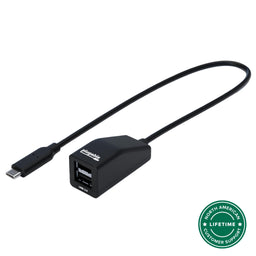
Plugable 2-Port USB Hub, USB-C to Dual USB-A 2.0
$16.99 USD
SKU: USBC-2PORTAmazon Rating : (52 Reviews)
Features
- USB-C to Dual USB-A— The Plugable USBC-2PORT is a bus-powered USB-C to dual USB-A 2.0 hub. Split a single USB-C port into two USB-A ports to connect legacy peripherals such as a mouse, keyboard, or flash drive
- Legacy Peripherals on your Modern Computer— Plug-and-Play dual USB 2.0 to USB C for things like wireless receivers, keyboards, mice, and flash drives at reliable speeds up to 480Mbps. Specially designed as a data-only splitter to reliably run your essential tools, it draws power directly from your laptop, no external power required
- Durable and Ultra-Portable— At just 32g, this lightweight USB c to USB A dual splitter is small enough to slip into your laptop bag (54.3 x 23 x 25mm). A solid 30-cm (11.8-inch) cable gives you plenty of reach, while built-in safeguards (over current protection) protect your laptop and connected devices
- Universal Type-C OS Compatibility— Driverless USB C to USB A splitter for Windows, macOS, ChromeOS, Linux, and Android. Designed for modern USB-C laptops like MacBooks and Chromebooks. This USB splitter supports standard USB 2.0 and legacy USB 1.1 peripherals with no driver installation needed. Not compatible with vehicle USB ports
- Lifetime Support— This double USB adapter has been designed with reliability at its core and was built to meet the deployment demands of IT departments and the ease of use necessary for home offices. Includes lifetime support from our North American team of connectivity experts
For volume orders or business inquiries contact sales@plugable.com
Free 3-Day Continental U.S. Shipping on Orders Over $35!


Tech Specs
| Driver requirement | Driverless; Plug-and-Play |
| Data Standard | USB 2.0 Maximum shared data rate 480 Mbps |
| Best for | Keyboards, mice, flash drives, USB audio, dongles, and other low-power USB peripherals |
| Not recommended for | Two bus-powered hard drives, high-power peripherals, or bandwidth-intensive USB 3.x devices |
A: Yes. The USBC-2PORT is designed for USB‑C computers running Windows, macOS, Linux, or ChromeOS. Connect it to a USB‑C port that supports USB data.
A: No. USB‑C describes the connector. This hub carries USB 2.0 data, with up to 480 Mbps shared across the two USB‑A ports. It does not add USB 3.x, USB4, or Thunderbolt performance.
A: No. This is a USB 2.0 data hub, not a charger, and it does not support USB Power Delivery. It provides up to 2.5W of shared bus power across connected devices, which is not enough for laptops or tablets and would charge a phone very slowly.
A: We do not recommend it. Two bus-powered hard drives may exceed the power available from the host connection, which can cause one or both drives to disconnect or operate unreliably. For multiple high-power storage devices, use a powered USB hub.
A: Compatibility depends on USB host support and the connected accessory. USB-C iPads, iPhone 15 and later, and many Android devices may work. Smart TVs and vehicle USB ports are not supported.
 |
 |
 |
 |
|
|---|---|---|---|---|
Host Connection |
USB-C |
USB-A |
USB-C |
USB-C/USB-A |
Number of USB Ports |
2 |
2 |
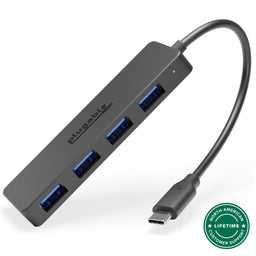
4 |
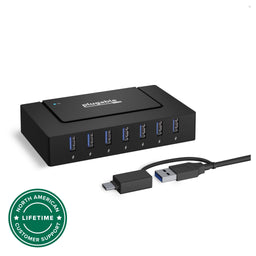
7 |
Data Transfer Rate |
480Mbps |
480Mbps |
5Gbps |
5Gbps |
USB-C Charging |
X |
X |
X |
X |
Power Adapter |
X |
X |
X |
60W |
Filter Help Articles and Frequent Questions by Category
Choose one or more filters within each category to narrow down the articles. Each selection will result in only displaying articles that include all of your choices.
Articles
Well how about that, it looks like we don't have any articles matching your filters! Try removing one of your choices or clear the filters to show all articles.
You can always contact support if you need help too!
USB Port Types
USB-A

pietz, CC BY-SA 3.0 , via Wikimedia Commons
This is the standard USB connection that most computers offered prior to the introduction of USB Type-C (USB-C). Even after the introduction of USB Type-C, this is still quite common.
It can provide data transfer rates up to the USB 3.1 Gen 2 (10 gbps) specification depending on the host and device, but does not directly support video in the way that USB-C Alternate Mode does. This limitation makes DisplayLink USB graphics adapters and docking stations ideal on systems that do not have USB-C, or in instances where more displays are needed beyond available video outputs of a PC.
USB-B

Fred the Oyster, CC BY-SA 4.0 , via Wikimedia Commons


IngenieroLoco, CC BY-SA 4.0, via Wikimedia Commons
This type of connection comes in a couple different styles depending on whether USB 3.0 and higher transfer rates are supported (bottom graphic). Usually this type of connection is used to plug into USB devices that do not have a fixed cable connected, such as USB docking stations, USB hubs, printers, and others.
USB Mini-B
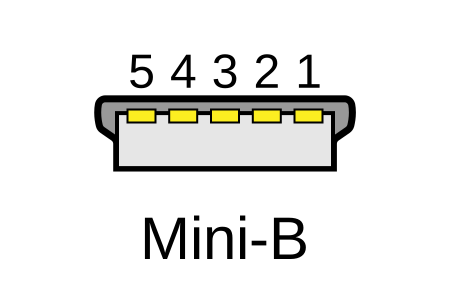
Fred the Oyster, CC BY-SA 4.0 , via Wikimedia Commons
One of the first connectors for charging a smartphone, wireless game controller (such as the Sixaxis and DualShock 3), and other small devices such as external hard drives. Not commonly used today, but is still used in some cases. Most devices using USB Mini B are using USB 2.0, though a USB 3.0 variant does exist. This specification also added USB On-The-Go (OTG) functionality, though it is more commonly implemented with Micro USB.
USB Micro-B

Fred the Oyster, CC BY-SA 4.0, via Wikimedia Commons
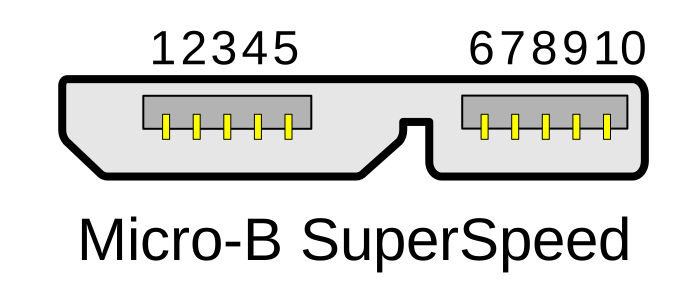
IngenieroLoco, CC BY-SA 4.0 , via Wikimedia Commons

A smaller connector that serves many of the same uses as the Mini B connector, with added optional features such as Mobile High-Definition Link (MHL) to allow devices like smartphones to output video to larger displays without requiring a dedicated port for video output.
The larger variant of USB-B is most commonly used for external hard drives for higher 5Gbps transfer rates.
USB-C, Thunderbolt™ 3, and Thunderbolt™ 4
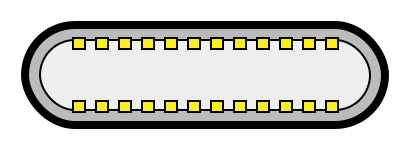
Niridya , CC0, via Wikimedia Commons
The most recent USB connection, USB Type-C (USB-C), represents a major change in what USB can do. The connector is smaller, can be connected in two orientations, is able to carry substantially more power and data, and can directly carry video signals of multiple types (HDMI, DisplayPort, etc.) Intel has also adapted the USB-C connector for use with Thunderbolt 3 and Thunderbolt 4.
It is important to note that while all Thunderbolt 3 and Thunderbolt 4 connections are USB-C, not all USB-C connections can be used with Thunderbolt 3 or Thunderbolt 4 devices.
More details regarding physical USB connections can be found on Wikipedia . The graphics depicted here are adapted from Wikimedia Commons by various artists under the Creative Commons Attribution-Share Alike 3.0 Unported license.
Self-Powered vs Bus-Powered USB Devices
What Is the Difference Between Self-Powered and Bus-Powered USB Devices?
Self-powered USB device - A device that takes all of its power from an external power supply
Bus-powered USB device - A device that takes all of its power from the host computer's USB interface.
Why High-Current Devices Require External Power
While all USB ports provide some amount of power for attached devices, the available power may not be enough for certain high-current devices such as USB hubs or external hard drives. Bus-powered devices can cause issues if they need more power than is available from the host machine, as each additional device attached to the host computer reduces the total available bus power. If the power runs out, any USB device attached to the computer may suddenly disconnect, which could result in permanent data loss for a USB storage device.
How to Use Devices with Included Power Adapters
Many devices that include power adapters, especially USB hubs, will function in either self-powered or bus-powered mode. If a device comes with a power adapter, it should stay connected at all times, otherwise the device may not function as designed.
Applicable To
USBC-11IN1E, USBC-10IN1E, USBC-9IN1E, USBC-7IN1E, USBC-7IN1, AD-6IN1, USBC-4IN1, USB3-HUB4A, USBC-HUB4A, AMS-5IN1E, USB4-HUB3A, TBT4-HUB3C, USBC-HUB7BC, USB3-HUB7C, USB3-HUB3ME
Do Plugable products support the Apple SuperDrive?
No, Plugable products do not support the Apple SuperDrive.
Why do Plugable products not support the Apple SuperDrive?
The Apple SuperDrive has stringent power requirements that can only be met by directly connecting the SuperDrive directly to the host computer. As a result at this time Apple recommends only using their USB-C adapter cables. Apple provides more information on this topic here → How to connect the Apple USB SuperDrive
Applicable To
- All Plugable brand products
Why Do Plugable Electronics Generate Heat During Operation?
Yes, heat generation is a normal byproduct of operation for electronic devices and Plugable products as electrical energy is consumed and transferred. Power delivery, high-speed data transfers, and active peripheral usage naturally convert electrical energy into thermal energy. Plugable designs its products with thermal safety margins to ensure operational temperatures remain within safe limits.
Why Plugable Electronics Generate Heat
Electrical components generate heat as current flows through them, with higher power usage-such as charging host laptops or conducting fast data transfers-increasing thermal output. Many Plugable products, such as the TBT3-UDZ and TBT4-UDZ docking stations, feature aluminum enclosures engineered with internal thermal pads to function as heat sinks. This design transfers internal heat outward to radiate into the room. This protects internal components, however can cause the external surface to feel warm or hot. Higher ambient room temperatures, direct sunlight, and obstructions to air currents around the device may also contribute to increased surface heat. While Underwriters Laboratories (UL) sets a thermal safety threshold of 77°C (170.6°F), Plugable targets a lower operational ceiling of approximately 71°C (160°F) under the heaviest of loads.
How to Manage Heat Generation in Plugable Products
To keep operating temperatures as low as possible, ensure Plugable devices have sufficient ventilation around them and are not placed in enclosed spaces. Avoid connecting an excessive number of power-hungry USB accessories that exceed the power limits of your dock or hub, as higher power draw causes the unit to run warmer (for example USB fans, heaters, cup warmers etc). Expect temporary increases in surface temperature during intensive workloads such as simultaneous multi-device charging and high-bandwidth data transfer.
Conclusion
Experiencing heat from Plugable products is a normal aspect of the operation of high-performance devices. Users can rest assured that we prioritize the safety and efficiency of our devices. By understanding the factors influencing heat generation and following simple usage guidelines, users can make the most of their Plugable products while ensuring a reliable and efficient user experience.
Applicable To
- Plugable docking stations, including TBT3-UDZ and TBT4-UDZ models
- Plugable USB hubs, video adapters, and electronic accessories
- Electronic devices utilizing metal heat-dissipating enclosures
If you have any questions please feel free to contact us at support@plugable.com and we'll be happy to help!
USB-C vs. Thunderbolt: Understanding the Differences
While USB-C and Thunderbolt share the same physical rounded rectangle connector they operate in fundamentally different ways.
The Main Differences Aren't Physical
USB 3 at 5Gbps and 10Gbps with Type-C - often simplified to USB-C - is both the hardware connector standard, and the included data types: USB 5Gbps or 10Gbps data rates, as well as optionally DisplayPort Alternate Mode video and USB Power Delivery for powering and charging both host computers, and downstream devices.
Thunderbolt, specifically Thunderbolt 3 and newer and USB4 use the same physical USB Type-C port, and support a backwards compatibility with USB-C devices, however the signaling and data structure is completely different. Both Thunderbolt and USB4 operate at between four to sixteen times the speed of USB 3. While USB offers optional display and charging, these are mandatory for Thunderbolt hosts. The way display data is transmitted is also different.
DisplayPort Alternate Mode for USB 3 occupies two or four of the physical data lanes in the USB Type-C connector and cable. Tunneled DisplayPort video in Thunderbolt (and USB4) packetizes the DisplayPort video data and transmits it within Thunderbolt/USB4 data packets. Tunneled DisplayPort allows for more native DisplayPort streams enabling multiple external displays at higher resolutions and refresh rates.
Power Delivery is the USB Type-C (as in the port) charging and power standard - this allows a power source and device to negotiate a voltage and maximum amperage both devices can support. For example a phone might negotiate a 9V 3A charge rate which is close to optimal for a phone size battery, while a notebook computer is more likely to negotiate 20V 5A both for improved battery charging and to power the system under moderate to heavy workloads.
Why USB-C and Thunderbolt Capabilities Differ
USB Type-C is a connector standard where features such as video output (DisplayPort Alt Mode) and USB Power Delivery (PD) are optional and depend on the host device manufacturer. In contrast, Thunderbolt sets mandatory performance and hardware requirements across data, video, and power protocols.
- USB 3.0 / 3.1 Gen 1: Up to 5Gbps data transfer speed.
- USB 3.2 Gen 2: Up to 10Gbps data transfer speed.
- USB 3.2 Gen 2x2: Up to 20Gbps data transfer speed. This is very rarely implemented and most computers do not support it.
- Thunderbolt 3: Up to 40Gbps data transfer speed, supports dual DisplayPort 1.2 enabling two 4K or a single 5K displays, USB, DisplayPort, PCIe over a single cable, and up to 100W Power Delivery.
- USB4: Up to 40Gbps data transfer speed, supports DisplayPort 1.4 either one or two external displays, PCIe, and optional Thunderbolt 3 compatibility, USB 3.2 Gen 2 10Gbps, and Power Delivery.
- Thunderbolt 4: Up to 40Gbps data transfer speed, supports dual 4K or single 8K displays, USB4 compatibility, USB 3.2 Gen 2 10Gbps, and Power Delivery.
- Thunderbolt 5: Up to 80Gbps bi-directional bandwidth (DisplayPort up to 120Gbps using Bandwidth Boost), supports dual 6K or single high-refresh-rate 8K displays, PCIe, and backward compatibility with Thunderbolt 4 and USB4, USB 3.2 Gen 2 10Gbps.
Effectively each tier from this list supports all of the features of the tier above as well as some new features. Thunderbolt 4 is Intel's implementation of USB4 with all optional features enabled.
How to Identify Ports and Ensure Compatibility
- Port Identification: Thunderbolt ports are usually marked with a lightning bolt symbol with a downward pointing triangle at the bottom point, this should be next to the port, while USB-C ports may be unmarked or feature symbols indicating power delivery (a simple lightning bolt is common) or DisplayPort capabilities ("DP" logo is often used). Always refer to device technical specifications for confirmation.
- Connecting Thunderbolt Devices to USB-C Ports: Thunderbolt 3, 4, or 5 devices connected to standard USB-C ports typically operate at reduced capabilities, such as lower speeds or fewer display outputs.
- Connecting USB-C Devices to Thunderbolt Ports: USB-C devices connected to Thunderbolt ports function normally, but cannot take advantage of full Thunderbolt features.
Applicable To
- Plugable docking stations, hubs, and video adapters
- USB-C standards (USB 3.0, 3.1 Gen 1, 3.2 Gen 2, 3.2 Gen 2x2, USB4)
- Thunderbolt standards (Thunderbolt 3, Thunderbolt 4, Thunderbolt 5)
If you have any questions please feel free to contact us at support@plugable.com and we'll be happy to help!
Can I connect this product to a computer's Thunderbolt/Thunderbolt 2 port?
Many users assume that USB-C devices can work with older Thunderbolt 2 Macs if they use a Thunderbolt 3 to Thunderbolt 2 adapter, such as the one made by Apple. However, this is not the case. These adapters are specifically designed to support Thunderbolt devices only - not standard USB-C peripherals.
While Thunderbolt 3 and USB-C share the same connector type, they use different underlying data protocols. Non-Thunderbolt USB-C devices, rely on USB standards for data and power. The Thunderbolt 3 to Thunderbolt 2 adapter does not carry USB signals; it only passes Thunderbolt data. Because of this, plugging a USB-C device into a Thunderbolt 2 Mac using this adapter will not work - the computer will not detect or communicate with the device.
If you need to connect peripherals to a Thunderbolt 2 system, we recommend using a USB-A dock or hub (if available on your system). This ensures compatibility without relying on unsupported adapter chains.
In short, even though the connectors may fit, USB-C devices are not compatible with Thunderbolt 2 Macs via Thunderbolt adapters - only Thunderbolt devices will work in that setup.
Why Higher Voltage Power Supplies Are Included with USB 5V Hubs and Docks
Maybe you are looking for a replacement power supply, or maybe you are just curious, but why would a USB hub - which provides 5V to USB devices - would include a power adapter rated at 12V or potentially higher?
Improved Voltage Regulation Under Load
When multiple USB devices are connected - especially high-draw peripherals like external drives or charging phones - the demand on the dock’s internal power can spike. If the power supply were delivering only 5V, any load increase might cause voltage "sag," potentially leading to unstable or unreliable performance.
By starting with a higher voltage like 12V or 20V, the internal voltage regulators within the dock or hub can more reliably and efficiently step down that voltage to a consistent 5V, even under heavy load. It’s similar to having a reservoir or water tower above a village - you’ll have more reliable water pressure regardless of demand.
Greater Power Efficiency Over Distance
Transmitting power at higher voltage and lower current reduces energy loss due to resistance in the wires (which causes heat). By increasing the voltage we can decrease the amperage for the same power, and power loss in the line is directly proportional to amperage squared so even a small decrease in the amperage adds up quickly. Once the power reaches the dock, it's stepped down to the voltages needed for USB ports. This not only enhances efficiency but also makes compact, cooler-running designs possible.
Special Consideration for USB-C Docks
USB-C docks commonly include 20V power supplies, which serve a dual purpose:
- Supplying 5V for downstream USB devices
- Delivering up to 100W (or more) to host laptops via USB-C Power Delivery
With USB Power Delivery 3.1 (EPR), even higher voltages (up to 48V) are supported, enabling future docks and laptops to handle even more powerful devices like desktop replacement laptops or external GPUs.
Will Future Docks Use 48V Power Supplies?
It's likely. While 20V is common now (especially for consumer devices), 24V+ power supplies are widespread in industrial and telecom applications. As high-performance laptops and workstations demand more power, consumer docks may start including 24V, 36V, or even 48V adapters. These would align with USB PD 3.1 specs and simplify designs that support extended power ranges.
However, for now, 12V and 20V remains as sweet spots for cost, availability, and compatibility across a wide range of devices.
In Summary
Higher voltages like 12V or 20V are used for better regulation and more efficient power delivery.
USB-C docks use 20V to support Power Delivery charging host computers or downstream devices (up to 100W).
USB PD 3.1 EPR opens the door to 48V systems, and while uncommon now, future docking stations may shift to 48V as demand grows.
If you have any questions please feel free to contact us at support@plugable.com and we'll be happy to help!
Will the USBC-2PORT Work if Plugged Into a Car's USB Port for Android Auto or Apple CarPlay?
No, the USBC-2PORT is not compatible with vehicle USB ports.
Why the USBC-2PORT Cannot Be Used in Vehicle USB Ports
In-car entertainment systems (including those running Apple CarPlay and Android Auto) require a direct, one-to-one data connection between the vehicle and the device. They lack the capability to read USB hubs or splitters. If you plug a splitter into your car's USB port, the car's system will likely fail to recognize any attached devices.
Applicable To
- USBC-2PORT
- Modern computers, laptops, phones, and tablets running standard operating systems like Windows, macOS, ChromeOS, Android, or Linux
What Devices Work Best With the USBC-2PORT? (Understanding USB 2.0)
The USBC-2PORT is a USB 2.0 hub, meaning it supports data transfer speeds of up to 480 Mbps. It is highly recommended for "legacy" or low-bandwidth peripherals, including wireless mouse and keyboard receivers, wired keyboards and mice, and standard USB flash drives (thumb drives).
Why High-Bandwidth Devices Are Not Recommended
Because USB 2.0 has a bandwidth limit of 480 Mbps, using this splitter with high-bandwidth devices is not recommended. You may experience latency, dropouts, or failure to connect when using 4K or high-resolution webcams, external NVMe SSDs for heavy file transfers, or USB display adapters.
Applicable To
- USBC-2PORT


- Choosing a selection results in a full page refresh.
