

Hassle free, 2-Year Warranty
Fast, Free Shipping on Orders $35+
Lifetime Technical Support
30-Day Money Back Guarantee
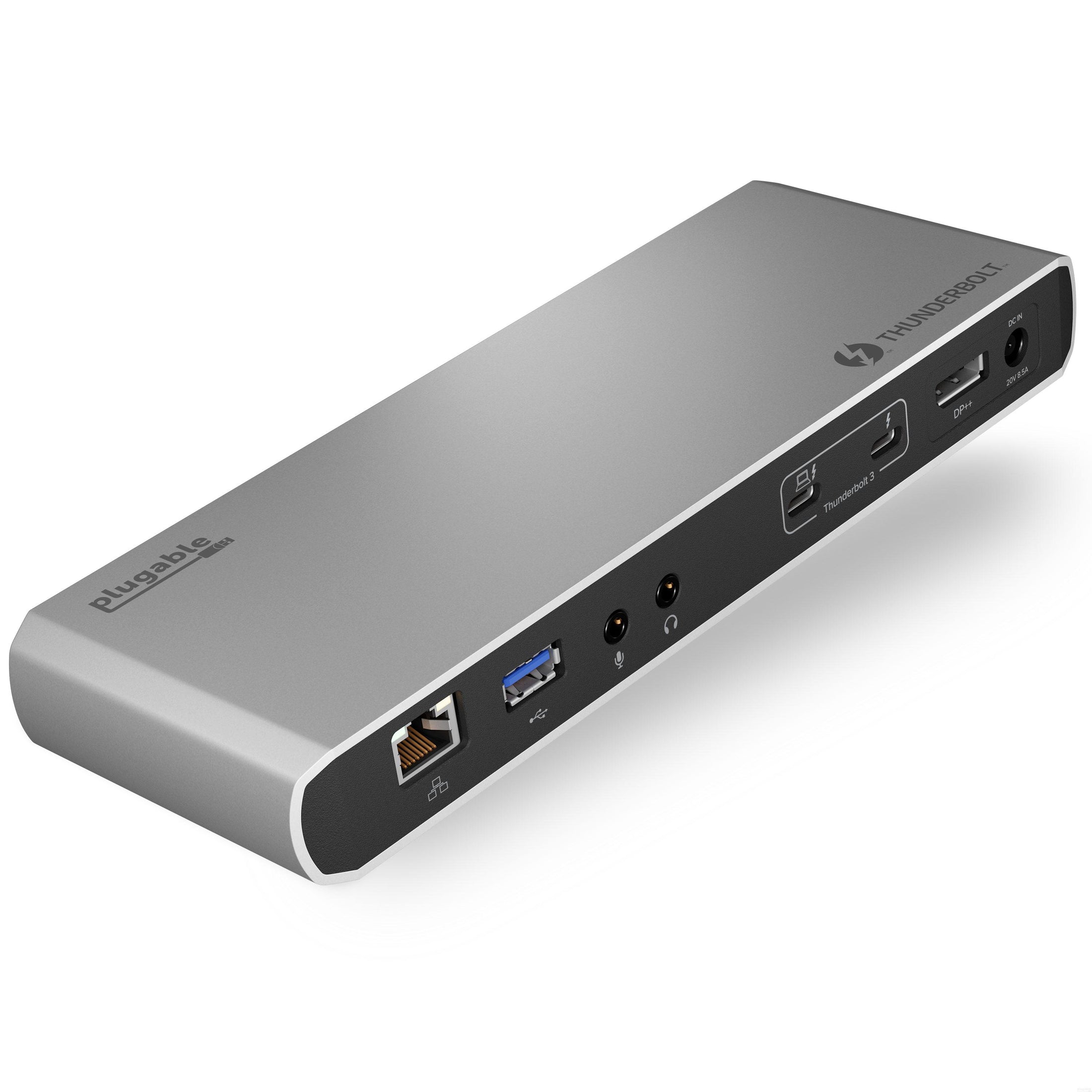
Plugable Thunderbolt™ 3 Docking Station with 85W Host Charging
$269.00 USD
SKU: TBT3-UD1-85WAmazon Rating : (78 Reviews)
Features
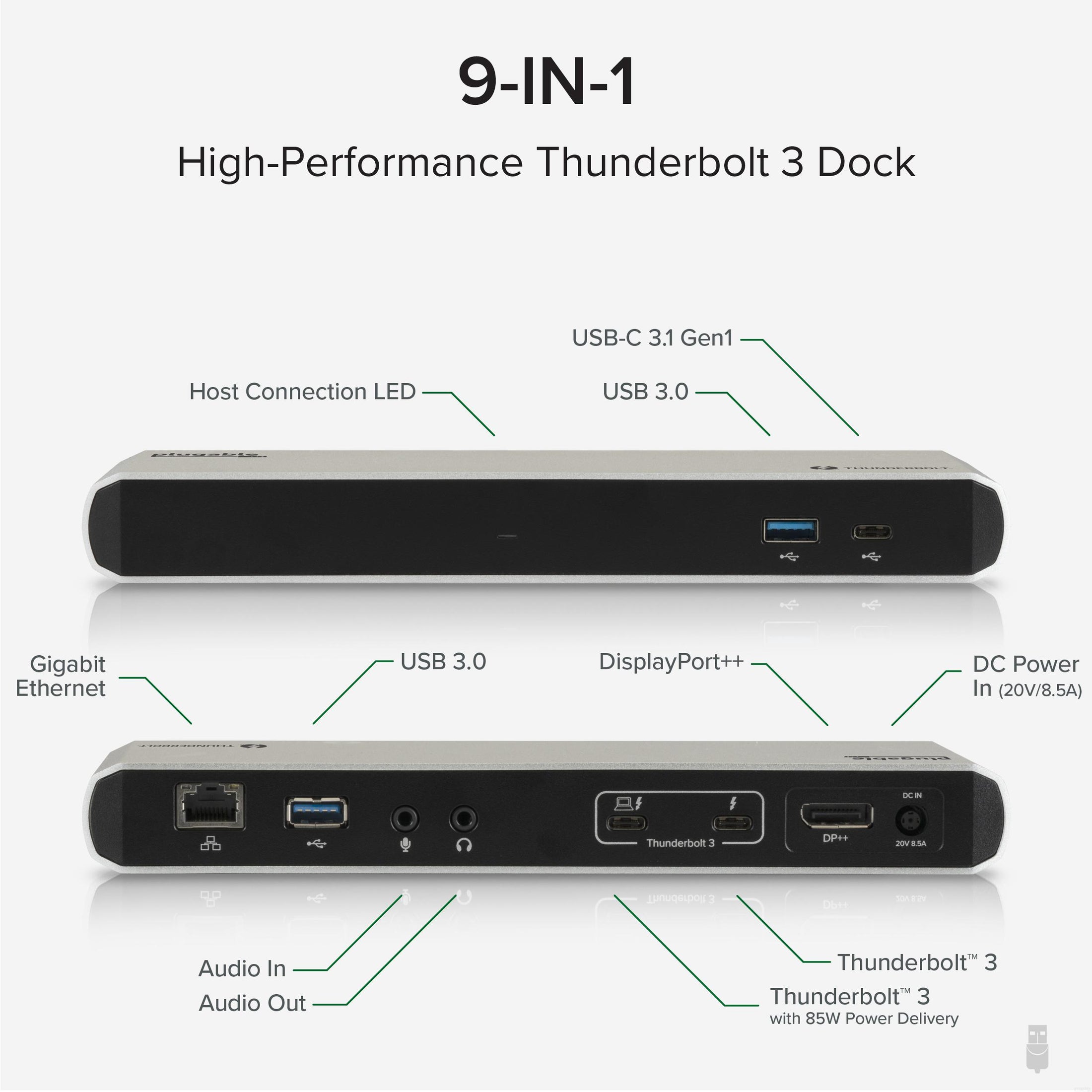
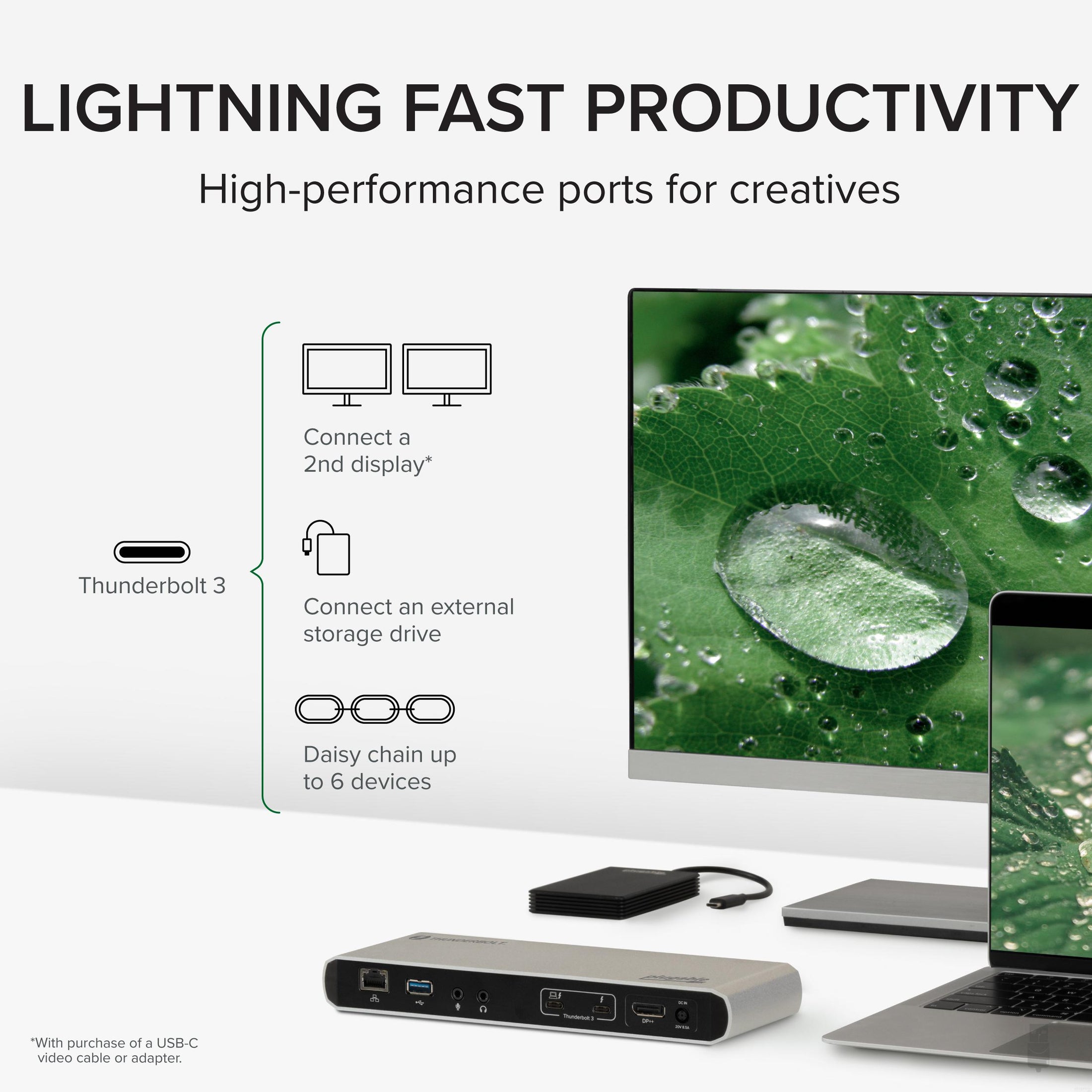
- 9 Ports of Connectivity— This Thunderbolt 3 laptop docking station enables an additional 4K monitor, Gigabit Ethernet, audio input, audio output, and USB expansion including 1x Thunderbolt 3, 1x USB-C, and 2x USB 3.0 ports
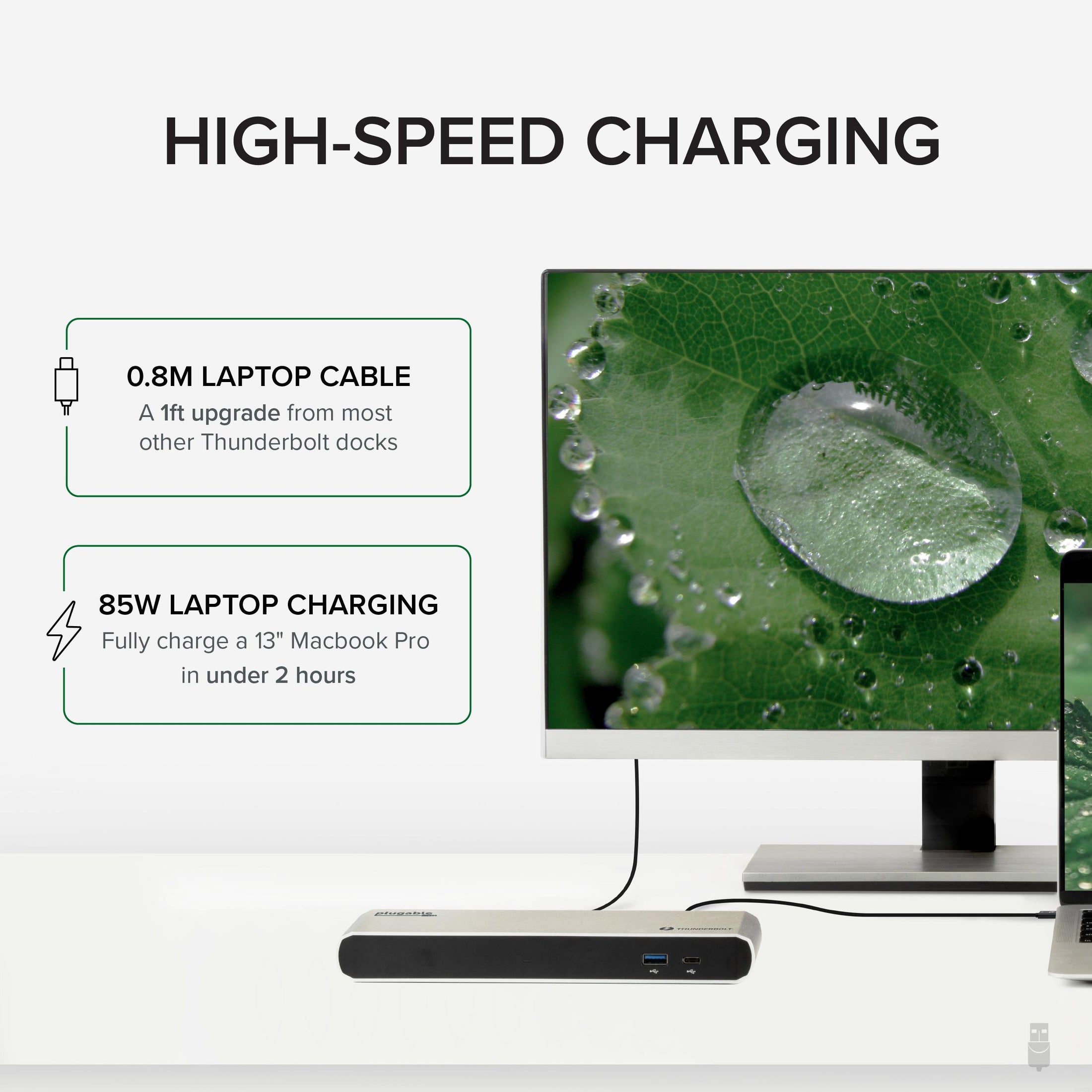
- 85W Laptop Charging— Included 0.8m Thunderbolt 3 cable provides up to 85W charging for compatible laptops; speeds comparable to most original laptop chargers
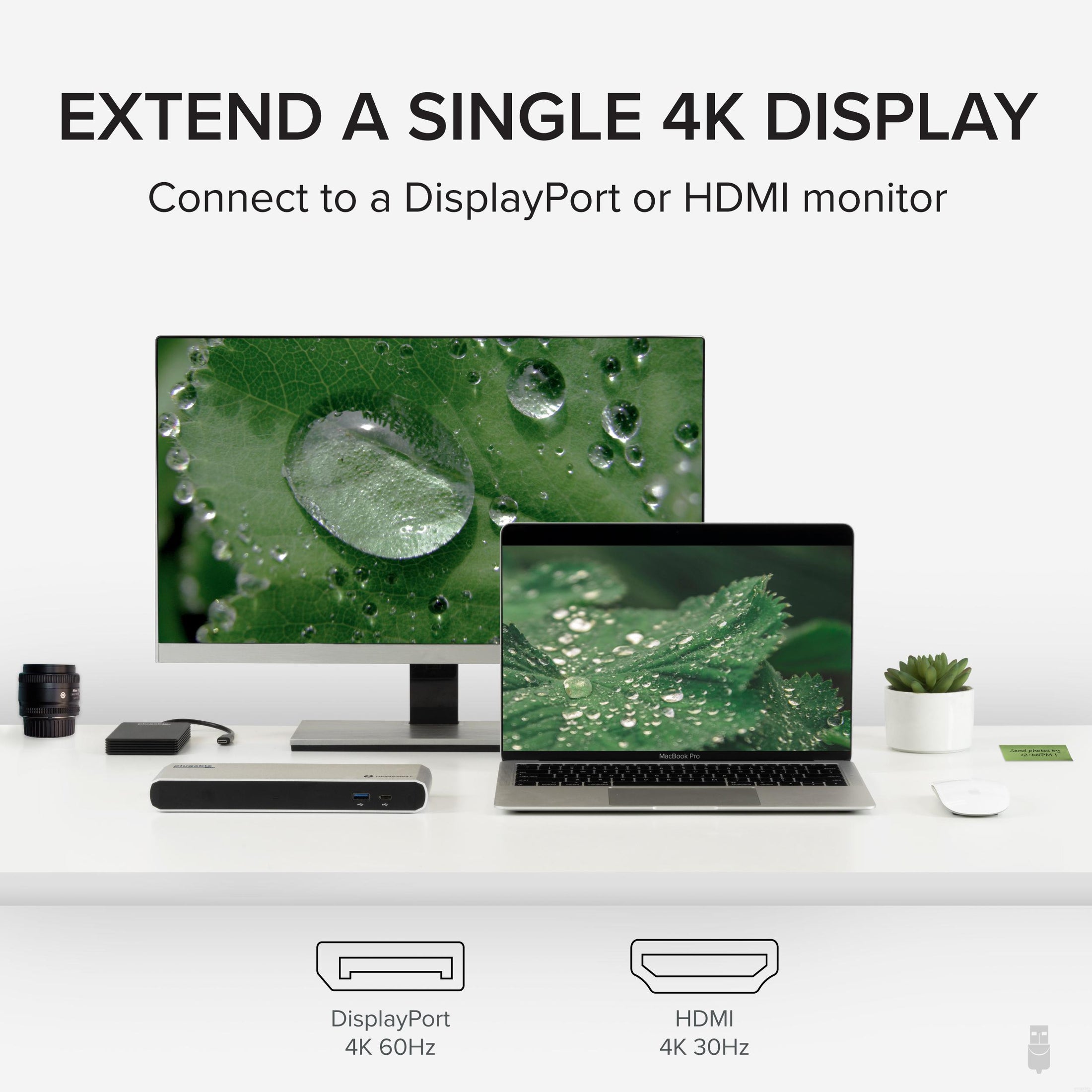
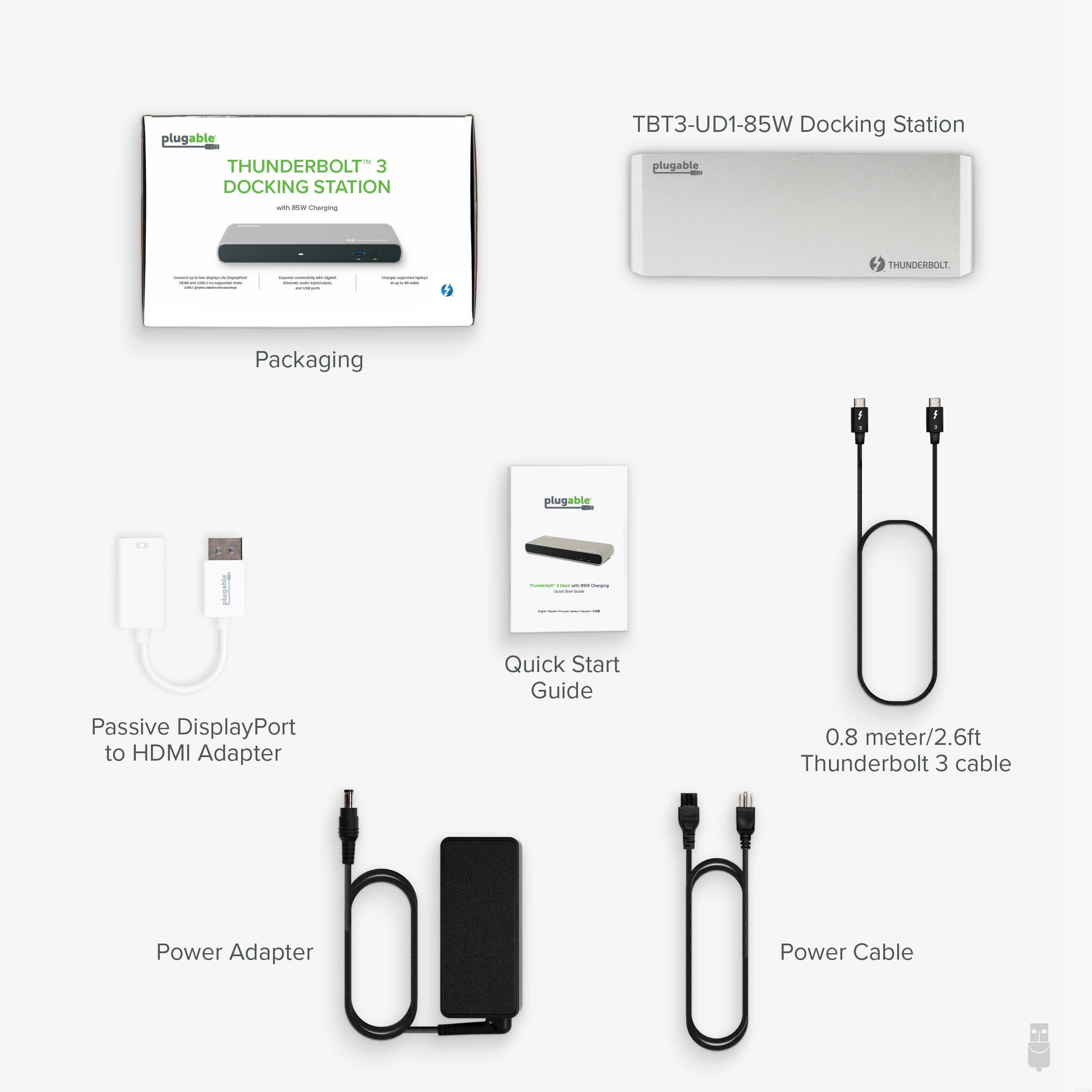
- 4K Video Output— Thunderbolt 3 docking station provides high-resolution graphics for a single display through either a DisplayPort (DP++) or HDMI equipped monitor up to 4K 30Hz. Passive DisplayPort to HDMI adapter included for connecting a HDMI display
- Compatibility— Ideal compatibility with 2016+ Macbook Pro; dock also supports specific Thunderbolt 3 PCs and Mac systems. See specific compatibility details below
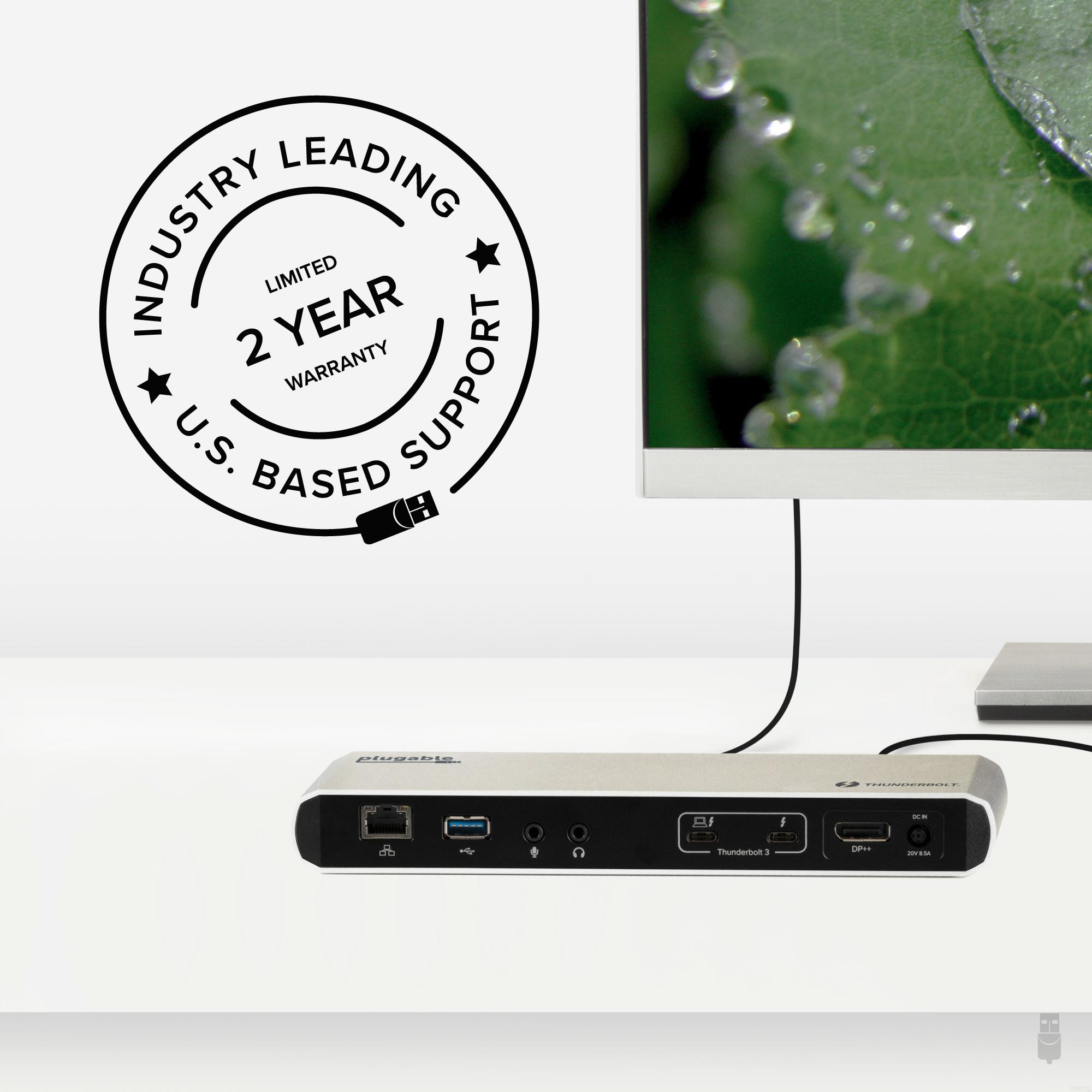
- 2-Year Coverage, Lifetime Support— Every Plugable product, including this thunderbolt 3 docking station, is covered against defects for 2 years and comes with lifetime support. If you ever have questions, contact our North American-based team - even before purchase
For volume orders or business inquiries contact sales@plugable.com
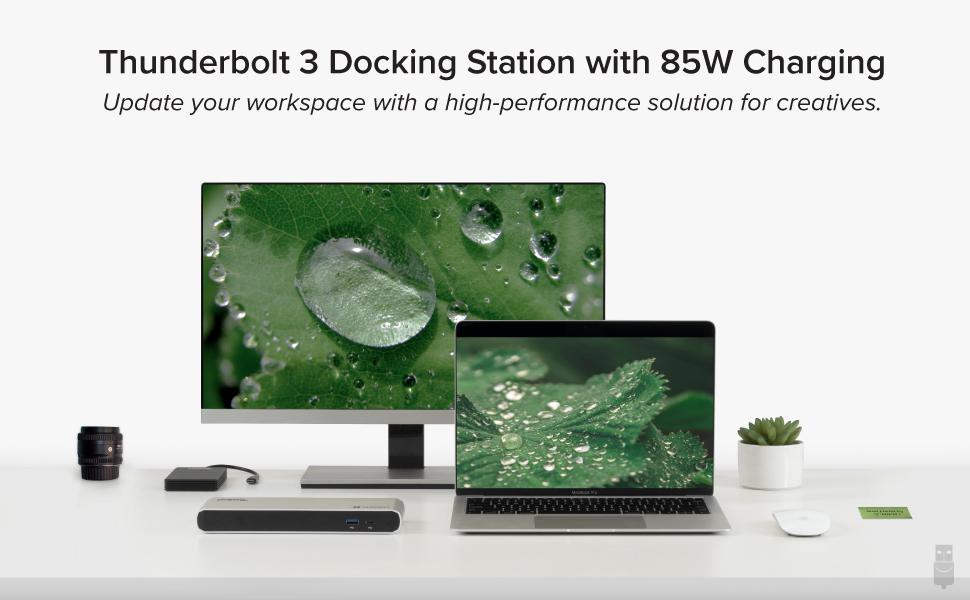
High-Performance Plugable Thunderbolt 3 Dock
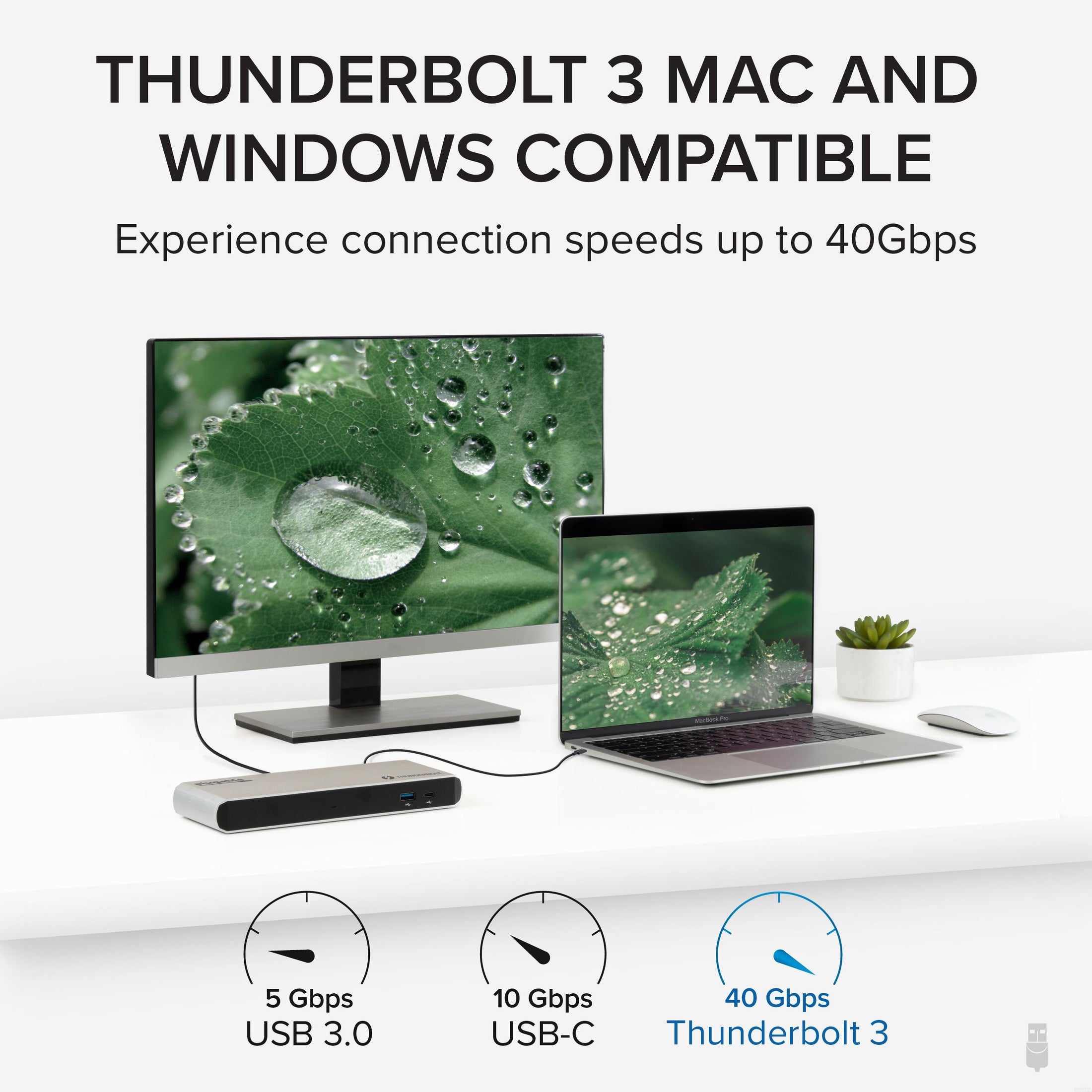
Experience high-performance expansion of your Thunderbolt 3-enabled Mac or compatible Windows Thunderbolt 3 system and gain 9 ports of connectivity with the Plugable Thunderbolt 3 Docking Station (TBT3-UD1-85W).
Display - Connect a single display up to 4K 60Hz (4096x2160 @ 60Hz) via the integrated DisplayPort++ port. Thunderbolt 3's massive 40Gbps bandwidth enables you to run your high resolution display connected through the dock at the full native performance of your system's graphics processor while also enabling access to your wired network and existing USB peripherals.
Ethernet - Supports connection to wired Gigabit Ethernet networks using the integrated Intel i210 Gigabit network adapter.
Audio ports - Provides 3.5mm analog audio input and output jacks for connecting stereo headphones and a microphone.
USB ports - Provides two extra USB 3.0 (5Gbps) ports and one USB-C (5Gbps) port for device connectivity (Front USB-C port does not support Thunderbolt devices or VESA DisplayPort Alternate Mode video output).
Compatible with Apple Thunderbolt 3 systems and certain Windows systems which have Thunderbolt 3. Some Windows Thunderbolt 3 systems may work, but not support all of the functionality offered by this dock. Please see important details regarding system compatibility below.
The ability to add a second display depends on design decisions made by your system manufacturer and requires additional hardware, sold separately.
Docking station will not function if attached to a non-Thunderbolt 3 capable USB-C port.

High Speed 85W Charging
When connected to a compatible host system, the dock can provide up to 85W of charging power.
Please note that not all Thunderbolt 3 systems can be charged via their Thunderbolt 3 ports. For example, high-end workstation class laptops may not be able to charge via Thunderbolt 3

High-speed connectivity to other Thunderbolt 3 Devices, or add a second display
Gain an extra Thunderbolt 3 port to connect your high-performance peripherals that need 40Gbps of speed or add an extra display with purchase of a Plugable USB-C adapter.
If you have a Thunderbolt 3 host system which supports two video outputs, a separate purchase of one of the following Plugable adapter cables or dongles is required in order to connect a second display: USBC-DP, USBC-HDMI-CABLE, USBC-VGA-CABLE, USBC-HDMI, USBC-DVI, USBC-VGA

Flexible Connectivity
The TBT3-UD1-85W dock has a built-in DisplayPort++ output to be used with DisplayPort monitors. Also included is a passive DisplayPort to HDMI adapter so that you can connect a HDMI monitor.
The included 0.8 meter long (2.6 ft) 40Gbps Thunderbolt 3 cable is 0.3 meters longer (1 foot) than the 0.5 meter cables included with other Thunderbolt 3 docks.
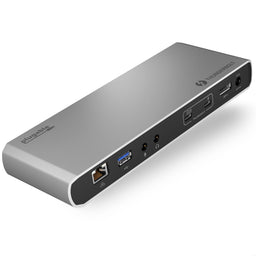 |
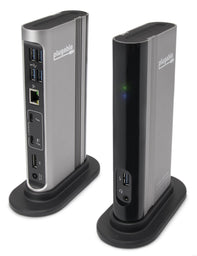 |
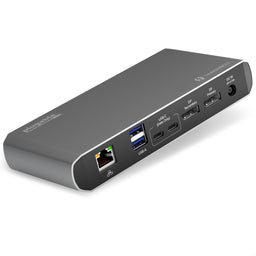 |
|
|---|---|---|---|
Designed for both Thunderbolt 3 and USB-C |
No |
No |
Yes |
Power Delivery to host |
85W |
60W |
60W |
Number of displays supported |
2 (with separate adapter) |
2 (with separate adapter) |
2 |
Video output types |
1x DisplayPort++ (or HDMI with included adapter) |
1x DisplayPort, 1x Thunderbolt 3 output (with separate adapter) |
2x DisplayPort |
Includes DisplayPort to HDMI adapter? |
Yes |
Yes |
No |
DisplayPort adapters support (e.g., DP to HDMI adapter) |
Supports passive or active adapters |
Only supports ACTIVE adapters |
Only supports ACTIVE adapters |
Orientation |
Horizontal |
Vertical or Horizontal |
Horizontal |
Filter Help Articles and Frequent Questions by Category
Choose one or more filters within each category to narrow down the articles. Each selection will result in only displaying articles that include all of your choices.
Articles
Well how about that, it looks like we don't have any articles matching your filters! Try removing one of your choices or clear the filters to show all articles.
You can always contact support if you need help too!
Why can't I drive two external extended displays with my Google Pixel phone?
Google Pixel phones support USB-C DisplayPort Alternate Mode for wired video output, but due to Android OS limitations, they cannot produce two extended external displays using MST, DisplayLink, or Thunderbolt docking technologies. This is a platform constraint, not a hardware or dock issue.
Understanding the Limitation
Google Pixel phones are limited by the Android operating system’s handling of external displays. While many Pixel models (such as the Pixel 7 and Pixel 8 series) support USB-C DisplayPort Alternate Mode, they can only output to a single external display at a time. Android is designed primarily for screen mirroring, and extended display support is extremely limited across Android phones.
Key Point:
Android OS currently restricts Pixel phones to one external display, regardless of the dock or adapter used.
Dock Behavior with Pixel Phones
MST Docks (e.g., Plugable UD-MSTH2)
MST (Multi-Stream Transport) requires the host device to support splitting one DisplayPort signal into multiple independent video streams. While common on Windows and many Chromebooks, Pixel phones do not support MST for extended displays.
When using an MST dock, a Pixel phone will:
- Output to one external display only, or
- Mirror the same content to two connected monitors
- Dual extended desktops are not supported
DisplayLink Docks
DisplayLink technology works on Android through a companion app (e.g., DisplayLink Presenter). However:
- Android only supports a single external display via DisplayLink
- DisplayLink docks cannot be used to achieve multiple extended monitors from a Pixel device
- DisplayLink is not recommended for dual display use on Android
Thunderbolt Docks
Google Pixel phones are not Thunderbolt-certified hosts. When connected to a Thunderbolt dock:
- They revert to basic USB-C DisplayPort Alternate Mode
- Only a single mirrored display is possible
Visual Summary
| Dock Type | Extended Displays | Mirroring | Notes |
|---|---|---|---|
| MST Dock | ❌ | ✅ | No MST support on Android |
| DisplayLink Dock | ❌ | ✅ | Requires DisplayLink app |
| Thunderbolt Dock | ❌ | ✅ | Functions as USB-C only |
Recommended Alternatives
If your goal is to use two independent external displays, consider the following instead:
- Windows laptops with DisplayPort MST support
- Chromebooks that support MST
Frequently Asked Questions
Q: Can I extend my Pixel’s screen to two monitors using any method?
A: No. As of now, Android does not support multiple extended displays. Only mirroring to one display is possible.
Q: Does DisplayLink allow multiple displays on Android?
A: No. Even with DisplayLink’s Android app, you are limited to one external display.
Q: Why do Windows and ChromeOS devices work with MST but not Android?
A: Android lacks support for DisplayPort MST and advanced GPU capabilities required for multiple display outputs. This is a software/platform-level limitation.
Conclusion
While Google Pixel phones are capable of driving a single external display, dual extended monitors are not possible due to Android OS restrictions. This applies across all dock types, including MST, DisplayLink, and Thunderbolt. For users requiring robust multi-display setups, we recommend using a Windows or Chromebook device that supports MST alongside a compatible docking station like the Plugable UD-MSTH2.
If you have any questions or need help selecting a compatible dock, reach out to our support team at support@plugable.com.
USB Port Types
USB-A

pietz, CC BY-SA 3.0 , via Wikimedia Commons
This is the standard USB connection that most computers offered prior to the introduction of USB Type-C (USB-C). Even after the introduction of USB Type-C, this is still quite common.
It can provide data transfer rates up to the USB 3.1 Gen 2 (10 gbps) specification depending on the host and device, but does not directly support video in the way that USB-C Alternate Mode does. This limitation makes DisplayLink USB graphics adapters and docking stations ideal on systems that do not have USB-C, or in instances where more displays are needed beyond available video outputs of a PC.
USB-B

Fred the Oyster, CC BY-SA 4.0 , via Wikimedia Commons

IngenieroLoco, CC BY-SA 4.0, via Wikimedia Commons
This type of connection comes in a couple different styles depending on whether USB 3.0 and higher transfer rates are supported (bottom graphic). Usually this type of connection is used to plug into USB devices that do not have a fixed cable connected, such as USB docking stations, USB hubs, printers, and others.
USB Mini-B
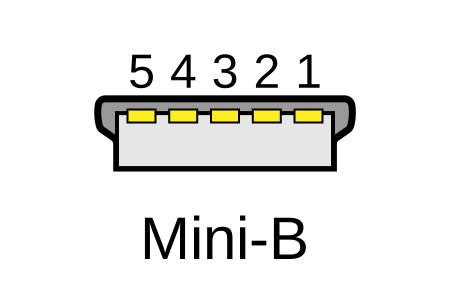
Fred the Oyster, CC BY-SA 4.0 , via Wikimedia Commons
One of the first connectors for charging a smartphone, wireless game controller (such as the Sixaxis and DualShock 3), and other small devices such as external hard drives. Not commonly used today, but is still used in some cases. Most devices using USB Mini B are using USB 2.0, though a USB 3.0 variant does exist. This specification also added USB On-The-Go (OTG) functionality, though it is more commonly implemented with Micro USB.
USB Micro-B

Fred the Oyster, CC BY-SA 4.0, via Wikimedia Commons
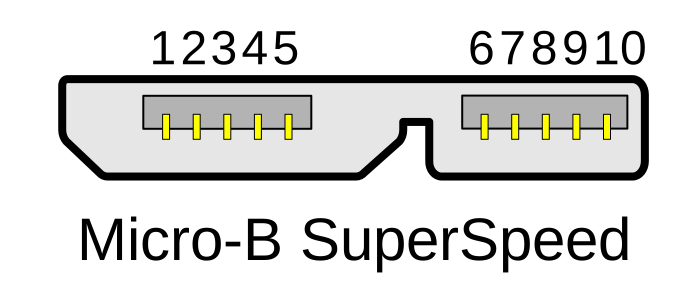
IngenieroLoco, CC BY-SA 4.0 , via Wikimedia Commons
A smaller connector that serves many of the same uses as the Mini B connector, with added optional features such as Mobile High-Definition Link (MHL) to allow devices like smartphones to output video to larger displays without requiring a dedicated port for video output.
The larger variant of USB-B is most commonly used for external hard drives for higher 5Gbps transfer rates.
USB-C, Thunderbolt™ 3, and Thunderbolt™ 4
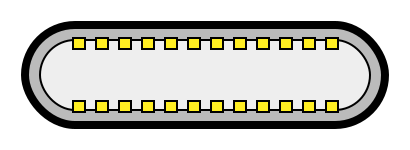
Niridya , CC0, via Wikimedia Commons
The most recent USB connection, USB Type-C (USB-C), represents a major change in what USB can do. The connector is smaller, can be connected in two orientations, is able to carry substantially more power and data, and can directly carry video signals of multiple types (HDMI, DisplayPort, etc.) Intel has also adapted the USB-C connector for use with Thunderbolt 3 and Thunderbolt 4.
It is important to note that while all Thunderbolt 3 and Thunderbolt 4 connections are USB-C, not all USB-C connections can be used with Thunderbolt 3 or Thunderbolt 4 devices.
More details regarding physical USB connections can be found on Wikipedia . The graphics depicted here are adapted from Wikimedia Commons by various artists under the Creative Commons Attribution-Share Alike 3.0 Unported license.
Is my ethernet adapter compatible with iPhone?
Our Plugable ethernet adapters are compatible with USB-C iPhone 15 and 16 / Pro / Pro Max running iOS 17 or newer. Our ethernet adapters are plug-and-play on iPhone, and ethernet connection is identified in the iOS settings app.
These following ethernet adapters from Plugable have been tested and verified to work with iPhone:
Understanding and Troubleshooting Network Performance
Computer networking is a complex topic. In this article, we'll be taking a deep dive on the nuances of network performance for those who need some additional explanation while striving to be concise, and to educate users of various experience levels relating computer hardware and computer networking.
If you just need to know how to perform a network performance test/benchmark, jump down to configuring iPerf.
Core Network Concepts
LAN vs WAN
With regards to network performance, it is crucial to first separate whether an issue is with Wide Area Network (WAN) performance, or if the issue is with Local Area Network (LAN) performance.
Your LAN is essentially the network inside your home or business. Many homes use a combination modem/router device provided by their Internet Service Provider (ISP). In some cases, especially in businesses, you may have a separate modem and router, along with other equipment connecting to the router such as a network switch.
Your modem, and the connection it establishes to your ISP—whether through coaxial cable, fiber, phone lines, or long-range wireless—essentially marks the point between the WAN and the LAN. The connection your modem makes to your ISP is the WAN, and any devices you connect through your router behind that modem belong to the LAN.
Link Rate
Almost every type of connection your computer makes to any piece of hardware will have a link rate of some kind. The link rate establishes how fast data can possibly be transferred across any given connection, but it does not guarantee how fast the hardware on either end of the connection will actually transfer data.
The concept of link rates, and their related bottlenecks, is likely best conveyed by giving an example of what connections might be involved in transferring a file from one computer on your LAN to another.
- 800Mbps—The file source is a USB 3.0 thumb drive capable of 100MB/s (800Mbps) read/write.
- 480Mbps—The USB 3.0 thumb drive is plugged into a USB 2.0 port on the PC, which has a maximum throughput of 480Mbps
- 1000Mbps—PC1's Ethernet connection establishes 1Gbps (1000Mbps) link to the router via Ethernet
- 300Mbps—The router connects to a second PC (we'll refer to this as PC2) via Wi-Fi, and it has established a 300Mbps link to the Wi-Fi adapter on PC2
- 480Mbps—The Wi-Fi adapter on PC2 is connected via a USB 2.0 port. The link rate of the USB connection to PC2 is at 480Mbps
- 6000Mbps—PC2 is going to store the file on an internal hard drive with a link rate of 6Gbps
- 1600Mbps—File Destination: SATA hard drive capable of 200MB/s (1600Mbps) read/write.
Following this chain, we see that 300Mbps is the slowest link rate established. This means that, regardless of the link rates established elsewhere, the absolute maximum the data can possibly be transferred is 300Mbps.
if we were to change the Wi-Fi connection to a wired Ethernet connection capable of 1Gbps, our performance bottleneck would then become the USB 2.0 connection to the USB drive where the file is stored.
Ports and Interfaces
Interfaces
A network interface represents connections, whether wired or wireless, that are made to form a network between devices.
Ports
Some may refer to physical hardware connections as "ports". For the purposes of networking, ports are logical constructs that can also be referred to as "network ports". Each network interface has 65,535 of these logical ports. Each port on a network interface is a separate data connection.
Benchmarking Network Adapter Performance
To properly benchmark network adapter performance, we need to:
- Use a simple LAN configuration
- Eliminate bottlenecks, especially link rate bottlenecks
Websites like speedtest.net, fast.com, and other performance tools in your web browser are going to use your WAN connection, and are not appropriate for determining if a network adapter is working well.
Transferring files from one computer to another on your LAN is typically not the best way to benchmark a network adapter. File transfers are bottlenecked by a number of things, including performance limitations of the disk the data is on, and often times a lack of establishing parallel network connections to perform the task.
One of the most accurate ways to benchmark network performance on a LAN is by using iPerf . To more effectively benchmark network adapter performance, it is best to establish a point-to-point connection between two PCs, rather than connecting through a router or switch.
Configuring iPerf
To test a connection using iPerf, you'll need at least two network interfaces, and preferably two computers. You'll also need to know the IP (Internet Protocol) address assigned to each network interface . One network interface will function as an iPerf server, and the other network interface will function as an iPerf client. Lastly, you'll need to download the version of iPerf 3.x that's appropriate for your computer's operating system and extract/install it .
Windows
- Make sure the drivers for both network interfaces involved in the test are using up-to-date drivers. Drivers for Plugable products can be found here.
- Download and extract iPerf for Windows
- Open Command Prompt
- Press Windows Key + R or + R, then enter
cmdin the window that appears - Search the Start Menu for
Command Prompt, and open it
- Press Windows Key + R or + R, then enter
- Navigate Command Prompt to the directory the directory where iPerf is located
- The
cdcommand is for 'change directory'- If you have a folder named 'iperf' on your Windows desktop, you can reach it in command prompt with the command
cd %USERPROFILE%\Desktop\iperf
- If you have a folder named 'iperf' on your Windows desktop, you can reach it in command prompt with the command
- The
- Run iperf in server mode via Command Prompt
iperf3.exe -s
macOS
- Usually it is best to install iperf on macOS using brew in Terminal
- Make sure the drivers for both network interfaces involved in the test are using up-to-date drivers
- Open Terminal
- Run iPerf in server mode
iperf3 -s
Linux
- Usually it is best to install iperf using the package manager in your Linux distro. For example, in Ubuntu, use
apt: sudo apt install iperf3
- Make sure the drivers for both network interfaces involved in the test are using up-to-date Drivers
- Open Terminal
- Run iPerf in server mode
iperf3 -s
Next, you'll need to run iPerf in client mode, targeting the IP address of the server/interface where iPerf is running in server mode. Additionally, we'll run the test for 30 seconds using -t 30 and with four parallel connections using -P 4. Running 4 parallel connections is optimal for saturating a network link.
Windows
- Open Command Prompt
- Press Windows Key + R or + R, then enter
cmdin the window that appears - Search the Start Menu for
Command Prompt, and open it
- Press Windows Key + R or + R, then enter
- Navigate Command Prompt to the directory the directory where iPerf is located
- The
cdcommand is for 'change directory'- If you have a folder named 'iperf' on your Windows desktop, you can reach it in command prompt with the command
cd %USERPROFILE%\Desktop\iperf
- If you have a folder named 'iperf' on your Windows desktop, you can reach it in command prompt with the command
- The
- Run iperf in client mode via Command Prompt (replace 192.168.0.200 with the IP address of the server/interface where iPerf is running in server mode)
iperf3.exe -c 192.168.0.200 -t 30 -P 4
macOS / Linux
- Open Terminal
- Run iPerf in client mode (replace 192.168.0.200 with the IP address of the server/interface where iPerf is running in server mode)
iperf3 -c 192.168.0.200 -t 30 -P 4
iPerf should start performing a network performance test. If the test fails to start, make sure that iPerf is not being blocked by your PC's/Mac's firewall.
Why iPerf is Ideal for Benchmarking
Unlike a file transfer, iPerf runs in memory on the PC and generates data to send using the CPU directly. This alleviates potential bottlenecks generated by storage devices, and allows you to explicitly control how many parallel connections are being used to transfer data rather than being unsure if parallel network connections are being used by other means.
Conclusion
There's a lot more to networking that isn't covered in this article, but we hope this helps explain enough to get an accurate measure of your network performance.
If you need assistance with your Plugable product that features network connectivity, please contact us for further assistance.
No Sound? How to Change Your Default Audio Device to Your Plugable Product
Whether you're on Windows, macOS, or Linux, it's common to add new audio devices to your computer.
Some examples of additional audio devices you may want to switch to include:
- Bluetooth headsets, headphones, and speakers
- Speakers built into a display, such as a TV or monitor
- A USB sound card, digital audio converter (DAC), or analog to digital converter (ADC)
- USB microphones
- Audio jacks on a docking station
These steps don't apply to the Plugable Performance NIX HDMI Capture Card (USBC-CAP60).
Here are the steps that you need to set a new default audio recording or output device on different operating systems.
Set Audio Output Device
Set Audio Recording Device
Set Default Playback Device in Windows
- Check that your device is properly connected, and that any necessary drivers are installed
- It is also a good idea to make sure that your sound device is turned on, and that the device's volume control is not at the absolute minimum setting
- Right-click on the speaker symbol in the Windows taskbar/system tray
-
Windows 7/8.x—Select Playback Devices. The Sound window will open with the Playback tab highlighted
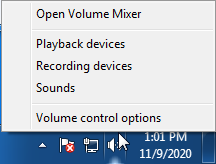
-
Windows 10/11—Select Open Sound Settings then click the link under 'Related Settings' for Sound Control Panel, then click the Playback tab
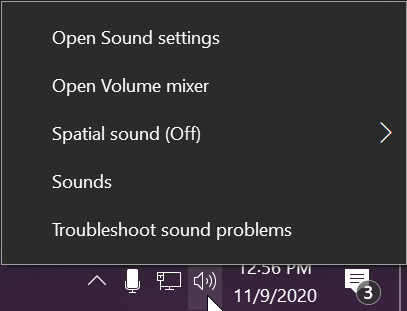
- Alternatively, after selecting Open Sound Settings, use the dropdowns under the Output header
-
Windows 7/8.x—Select Playback Devices. The Sound window will open with the Playback tab highlighted
- Find your device in the window
- A Plugable USB 3.0 docking station or sound-enabled display adapter will appear as Plugable Audio
- A Plugable USB 3.0 Silicon Motion docking station or sound-enabled display adapter will appear as SMI USB Audio
- A Plugable USB 2.0 docking station will appear as USB Multimedia Audio Device
- A Plugable USB Audio adapter will appear as USB Audio Device
- Right-click on the device you found in step 3 and select Set as Default Device. A check mark should appear next to your device, and sound should now play through it
- Click OK to exit the window
Additional Configuration for Bluetooth
Please see our pairing and configuration guide for Bluetooth devices.
Set Default Playback Device in macOS
- Open System Preferences
- Click Sound
- Select Output
- Select the most appropriate device
- A Plugable USB Audio adapter will appear as USB Audio Device
Set Default Playback Device in Linux
- Ensure that you audio device is connected to the PC
- If the audio device is self-powered, it is a good idea to make sure that it is powered on, and that the device's volume control is not at the absolute minimum setting
- Launch the 'Settings' application in your distro
- Go to the 'Sound' option
- Find the dropdown for your 'Output Device', and change it to your preferred output device
- For additional sound device controls, you may want to consider using Pulseaudio Volume Controls (package name pavucontrol)
Set Default Recording Device in Windows
- Check that your device is properly connected, and that any necessary drivers are installed
- It is also a good idea to make sure that your sound device is turned on, and that the device's volume control is not at the absolute minimum setting
- Right-click on the speaker symbol in the Windows taskbar/system tray
-
Windows 7/8.x—Select Recording Devices. The Sound window will open with the Recording tab highlighted
-
Windows 10/11—Select Open Sound Settings then click the link under 'Related Settings' for Sound Control Panel, then click the Recording tab
- Alternatively, after selecting Open Sound Settings, use the dropdowns under the Input header
-
Windows 7/8.x—Select Recording Devices. The Sound window will open with the Recording tab highlighted
- Find your device in the window
- A Plugable USB 3.0 DisplayLink docking station or sound-enabled display adapter will appear as Plugable Audio
- A Plugable USB 2.0 docking station will appear as USB Multimedia Audio Device
- A Plugable USB Audio adapter will appear as USB Audio Device
- Right-click on the device you found in step 3 and select Set as Default Device. A check mark should appear next to your device, and sound should now play through it
- Click OK to exit the window
Additional Configuration for Bluetooth
Please see our pairing and configuration guide for Bluetooth devices.
Set Default Recording Device in macOS
- Open System Preferences
- Click Sound
- Select Input
- Select the most appropriate device
- A Plugable USB Audio adapter will appear as USB Audio Device
Set Default Recording Device in Linux
- Ensure that you audio device is connected to the PC
- If the audio device is self-powered, it is a good idea to make sure that it is powered on, and that the device's volume control is not at the absolute minimum setting
- Launch the 'Settings' application in your distro
- Go to the 'Sound' option
- Find the dropdown for your 'Input Device', and change it to your preferred input device
- For additional sound device controls, you may want to consider using Pulseaudio Volume Controls (package name pavucontrol)
My Docking Station/Adapter Works Well With My Windows Laptop, but When I Close the Lid the Displays and Laptop Turn Off or Sleep. How Do I Fix This?
Most Windows notebook computers power management settings will default to putting the computer to sleep with the lid closed, regardless of any external displays, keyboard, or mouse connected to the computer. If this is happening but you would prefer the system to remain active with the lid closed utilizing the external display or displays, these settings can be changed by performing the following:
For Windows 10:
- Start by right-clicking on the Start button and select Power Options from the menu.
- From the right side of the Power Options settings page, select the blue link for Additional power settings
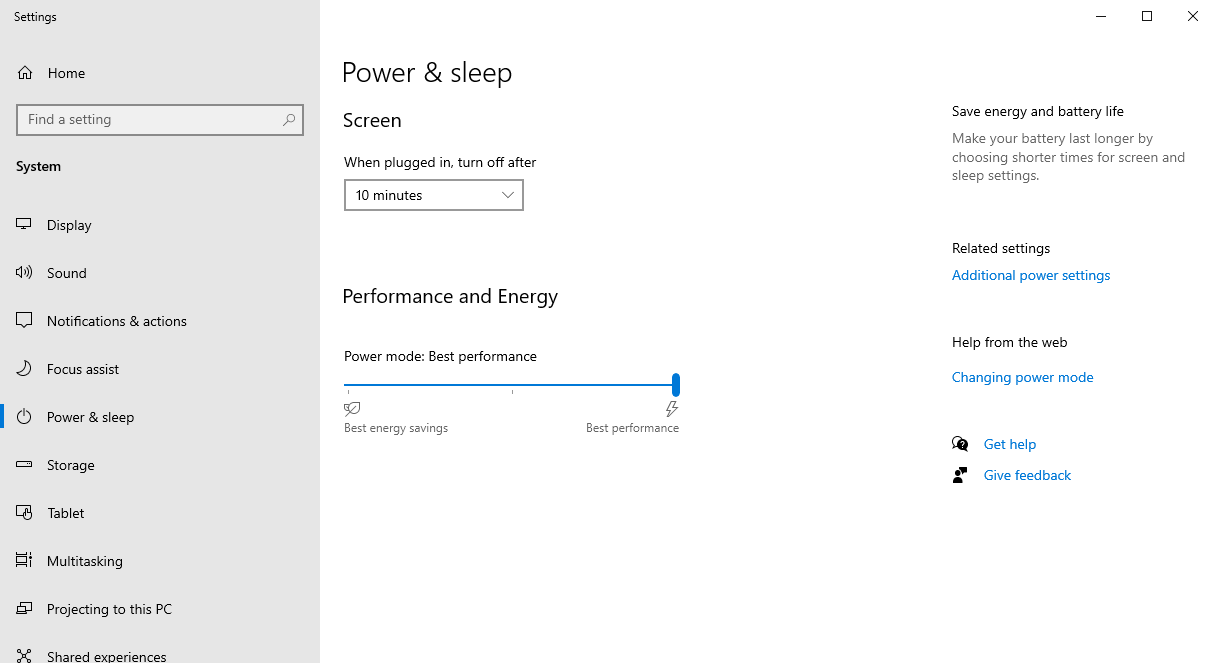
- From the choices present on the left-hand side of the Power Options window, please click on Choose what closing the lid does
- Make sure the setting for When I close the lid under the Plugged In column is set to Do Nothing
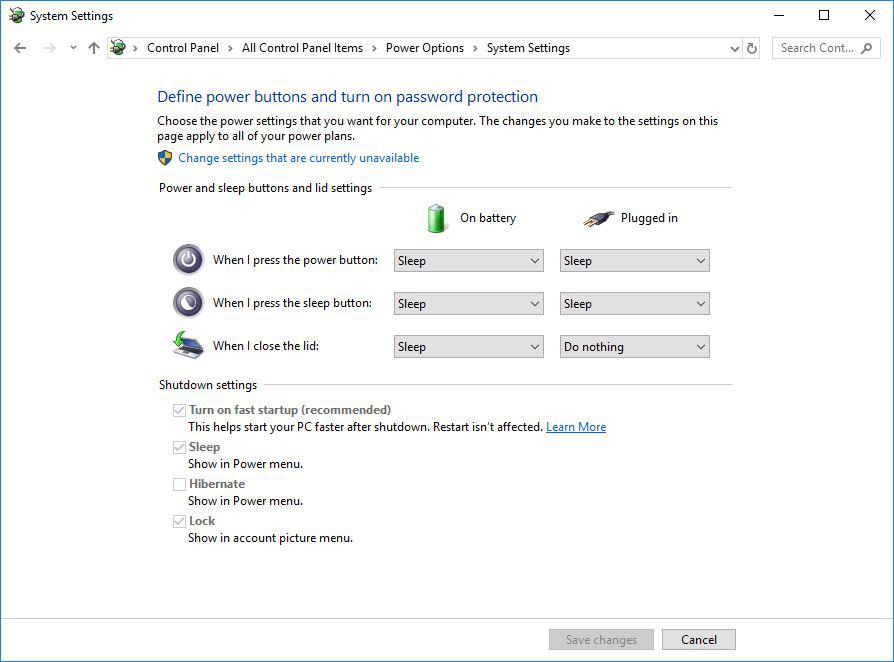
- Click the Save Changes button and restart the system (making sure that the laptop’s power adapter is also connected) and test the behavior again.
For Windows 11:
- Start by right-clicking on the Start button and select Power Options from the menu.
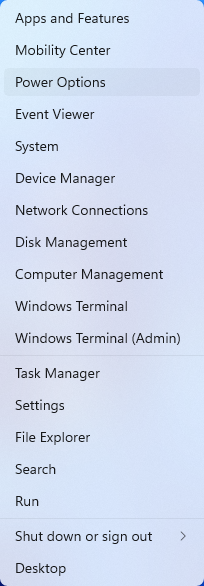
- In the upper left corner of the settings window, in the search box, type "lid" then select Change what closing the lid does from the search results
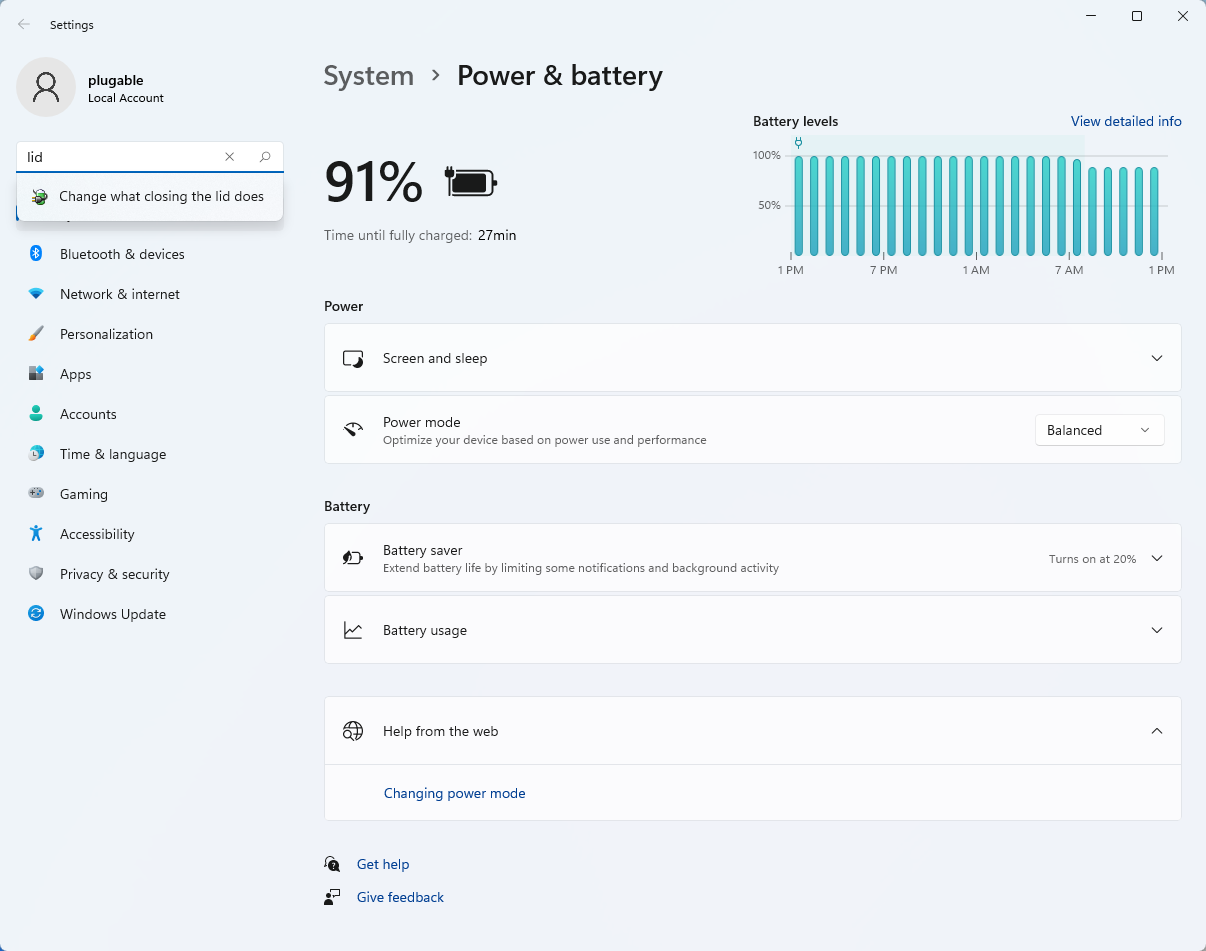
- Make sure the setting for When I close the lid under the Plugged In column is set to Do Nothing
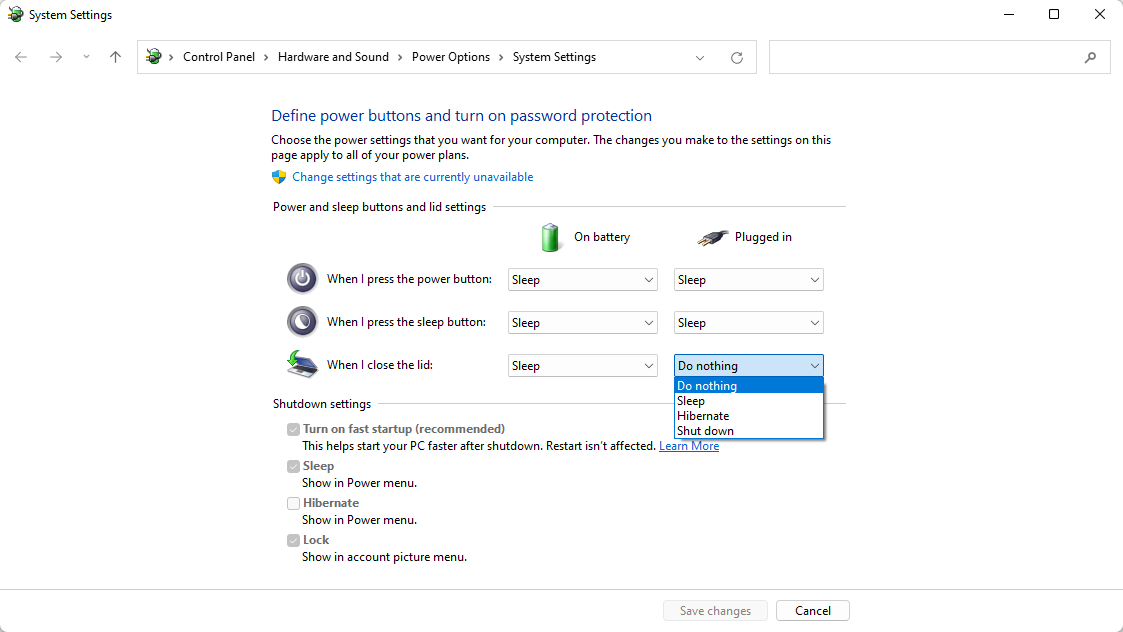
- Click the Save Changes button to apply the new settings.
Closing the lid should no longer put the computer into sleep mode when an external display and power source is connected, instead one of the external displays should now become the Primary display with the desktop icons instead of the laptop's built-in display.
The lid may still need to be opened to perform the following tasks:
- To power on the computer from a fully powered off state
- To log into the computer if logged out or if the computer is restarted with the lid closed
- To wake the computer from a deep sleep state ( hibernation, or Windows hybrid sleep states )
Does the TBT3-UD1-85W Charge/Power My System?
Yes, the dock will provide up to 85W of power to charge a compatible Thunderbolt 3 host system when the Thunderbolt 3 cable is connected to the dock’s charging Thunderbolt 3 port (indicated with the laptop icon above it). Please note that not all Thunderbolt 3 laptops can be charged via Thunderbolt 3.
What Does the White Led Light on the Front of the Dock Indicate?
The presence of the white LED light on the front of the dock indicates a Thunderbolt 3 connection to the host system has been established. The white light will only be present when the dock is connected to a Thunderbolt 3 host. It is normal and expected that this light will not be present when the dock is not connected to a host laptop.
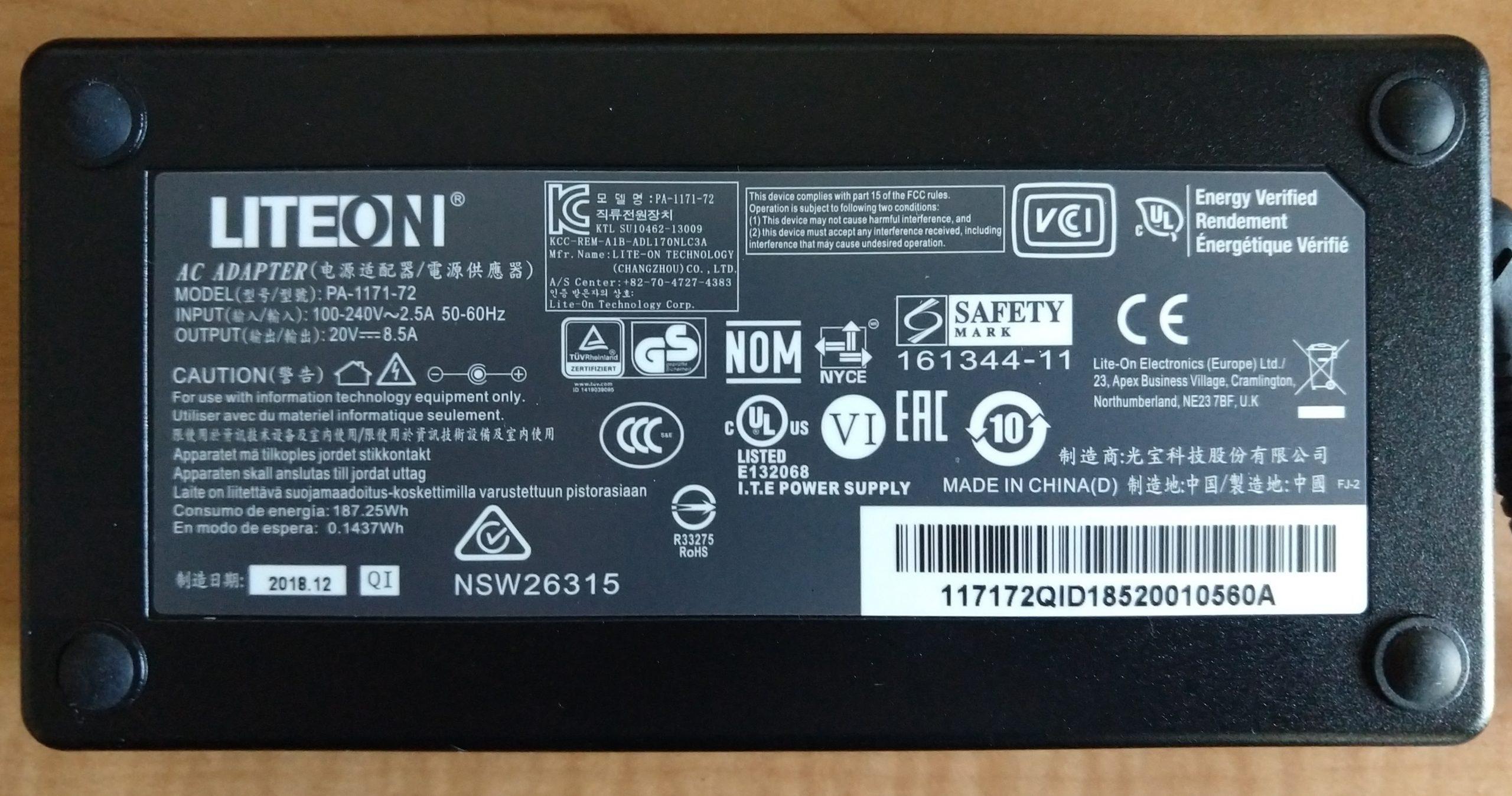
What Are the Specifications of the Power Adapter Included With the TBT3-UD1-85W?
A photo of the included power adapter’s specification label is provided below for reference:
I Have My Headphones or Speakers Connected to the Audio Output of the Dock, but I Do Not Hear Any Sound Coming Through. How Do I Fix This?
Both Windows and macOS have the ability to select a default device for sound output. If audio output via the dock is not working, please ensure that the ‘USB Audio CODEC’ device (which represents the dock’s analog audio output) is set as the default audio playback device. From within macOS this can be done via the Sound application within System Preferences. From within Windows this can be done by following these steps:
- Right-click on the speaker icon in the Task Tray in lower right-hand corner of the desktop (by the clock).
- From the menu that appears, select the ‘Playback devices’ option.
- From the ‘Sound’ window that opens, right-click on the entry that says ‘USB Audio CODEC’ and select ‘Set as default device’.
What Type of Audio Chipset Is Built-In to the Dock, and What Are Its Specifications?
The TBT3-UD1-85W and TBT3-UD1-83 docking stations have a Texas Instruments PCM2912A audio chipset. For detailed specifications, please see the Texas Instruments website here.
Which Plugable USB-C Alt Mode Adapters or DisplayPort Adapters Are Compatible With the Dock?
To convert the dock’s internal DisplayPort output to HDMI: Please use the included passive DisplayPort to HDMI adapter (maximum resolution of 4K@30Hz refresh)
To convert the DisplayPort output to DVI: Plugable DPM-DVIF Passive Adapter
To convert the DisplayPort output to VGA: Plugable DPM-VGAF Adapter
For systems which support a second display output through the docking station via USB-C/Thunderbolt 3 Alt Mode, please make a separate purchase of one of the following:
- USB-C to DisplayPort (6′ cable): Plugable USBC-DP Alt Mode Adapter Cable
- USB-C to HDMI (6′ cable): Plugable USBC-HDMI-CABLE Alt Mode Adapter Cable
- USB-C to VGA (6′ cable): Plugable USBC-VGA-CABLE Alt Mode Adapter Cable
- USB-C to HDMI (dongle): Plugable USBC-HDMI Adapter Dongle
- USB-C to DVI (dongle): Plugable USBC-DVI Alt Mode Adapter Dongle
- USB-C to VGA (dongle): Plugable USBC-VGA Alt Mode Adapter Dongle
Are There Any Compatibility Issues Between Specific Monitors and the Dock?
Certain monitors may be incompatible or limited to 4K at a 30Hz refresh rate when connected through the dock’s native DisplayPort output (this is an interoperability issue between the monitor display hardware and a chip in the dock; this issue is not limited to Plugable Thunderbolt 3 docking stations).
The following monitor models are known to be impacted:
- Asus PB287Q, PQ321Q
- Dell P2417H, P2715Q, P2415Q, UP3216Q
- LG 31MU97C-B, LG 24UD58-B, LG 27UD58-B, LG 27UD68-P
- Philips 288P6LJEB
- Sharp PN-K321
- Viewsonic VX2475Smhl-4K, VX43804K
- Samsung U28E590D
This limitation can be worked around in some cases by changing the monitor’s internal settings to use “DP 1.1”, which will limit the display to 4K@30Hz. The included passive DisplayPort to HDMI adapter can also be used, which will also limit resolution to 4K@30Hz. Alternatively, the display can be connected using a Plugable USB-C to DP or USB-C to HDMI adapter to connect the display (rather than the DisplayPort on the dock), which may allow 4K@60Hz functionality on affected displays.
I Have Been Using the Dock for a While on My Windows System and Everything Was Working Properly. Spontaneously, the USB Ports, Audio Port or Ethernet Port in the Dock Stopped Working but My Video Outputs Still Work. Why Is This?
In most cases, this type of behavior is caused by the dock to not being properly Authenticated/Approved as a Thunderbolt 3 device (Apple systems do this automatically, and as such do not apply here).
If not approved, the USB ports, Ethernet port and audio port within the dock will not work (video outputs always work regardless of Approval status). In most cases, this is caused by the Intel Thunderbolt software that handles the authentication process not working properly.
Should this occur, the best practice is to remove and reinstall the Intel Thunderbolt software to ensure it is in a good state and reset the dock, the procedure for doing so is below:
- Disconnect the Plugable Thunderbolt 3 dock from the system and remove its power cable so it turns off completely. Please keep it disconnected until prompted.
- Uninstall the Intel ‘Thunderbolt Software’ present on your system via the Control Panel -> Programs and Features.
- Restart the system, even if not prompted.
- Download and install the latest version of the Intel Thunderbolt Software published by your system manufacturer.
- Restart the system once again, even if not prompted.
- Reconnect the power cable to the Plugable Thunderbolt 3 dock, and then reconnect the Thunderbolt 3 cable from the dock to your system.
- You should be prompted to authenticate/approve the dock by the Intel Thunderbolt Software. Please approve the device using the ‘Always Connect’ option. * There is a chance the approval prompt will not pop-up automatically. If that is the case please just proceed with the next step for now. *
- Please test any non-functioning ports in the dock again.
In rarer cases, this can be caused by an incorrect setting within the Thunderbolt options within the system’s BIOS. System manufacturers typically enable ‘User Authorization’ or ‘No security’ Thunderbolt options in the BIOS by default. As their names imply, the respective options indicate that a Thunderbolt device must be authorized in order to work, or no authorization is needed. If other options such as ‘DisplayPort Only’ (Dell terminology) or ‘DisplayPort and USB only’ (Lenovo terminology) are selected, no Thunderbolt 3 devices will work. These options turn the port into a USB-C only port. Please ensure that the BIOS options are set as intended using your system manual as a guide.
Can I Connect a Second Display to the Second Thunderbolt 3 Port Within My Thunderbolt 3 Docking Station?
The ability to connect a second display to the Thunderbolt 3 docking station's second (also known as 'downstream') Thunderbolt 3 port is ultimately determined by the design internal decisions made by the host system's manufacturer.
To expand further, system manufacturers have discretion when designing their Thunderbolt 3 systems in regard to how may displays are supported via a single Thunderbolt 3 connection to the host. Some manufacturer's support two displays via a single Thunderbolt 3 connection, while others may only support one display via a single Thunderbolt 3 connection. We have produced a video that provides for more information on this topic for those who are curious here --> Link
Unfortunately, system manufacturer's specifications often do not include this level of detail. The best practice is to check directly with your system manufacturer to determine the host system's capabilities.
My Windows Computer Will Not Boot Properly When a Docking Station, USB Hub, USB Adapter, or USB Storage Drive Is Connected
If your Windows computer will not boot properly when a docking station (such as the Plugable UD-3900), USB hub (such as the Plugable USBC-HUB7C), or USB hub adapter (such as the Plugable USBC-7IN1E) is connected most often the cause is an external device connected to the product (for example an external USB storage drive) as opposed to the product itself.
There are also cases where an external USB storage device (such as a Plugable USBC-NVME SSD enclosure) is the only device connected that can sometimes produce a similar result.
If you are affected by this condition while using a docking station, USB hub, or USB hub adapter, please temporarily disconnect all of the external devices from the product. The only remaining connections should be the product's external power source (if it has one) and the cable connecting the product to the host computer.
While in this simplified physical configuration, reboot the host computer in order to test the behavior. Presuming the host computer boots as expected while in the simplified configuration, reconnect each external device back to the product one at a time and reboot after each one to test the behavior again. This process should isolate the source of the issue.
In cases where only an external USB storage device is in use, please temporarily disconnect the USB storage device from the host computer and then reboot in order to test the behavior again.
To expand further, in our experience helping others the most common cause of this behavior is an external USB storage drive connected to one of the product's USB ports. In some cases, a Windows computer may try to boot from an external storage drive by mistake as opposed to the host computer's built-in storage drive. Since most external USB storage drives are not 'bootable', this can interrupt the boot process.
If this behavior occurs, the most common way to mitigate the behavior is to access the host computer's System BIOS (also known as UEFI firmware) to change the 'boot order' settings to ensure that the host computer's internal storage drive is the first boot option. Doing so helps ensure that the host computer will not try to boot from an external USB storage device.
Every Windows host computer system is different, so the best resource for accessing the System BIOS and changing the settings is the manual for the host computer provided by the manufacturer of the host computer.
Network Prioritization - How to Set Service Order on macOS
If you find that your Plugable ethernet adapter or docking station is not connecting to the internet or is experiencing slower than expected speeds on your Mac then it may be related to its position in the macOS Network Service Order. This can apply to your Wi-Fi connection, ethernet, and even NAS systems.
macOS attempts to connect to the internet using the network service at the top of your list first. If your Wi-Fi or NAS (Network Attached Storage) is listed above your Plugable ethernet adapter, this often leads to users unknowingly using a slower wireless connection when they intended to use a wired one.
To ensure you are getting the full speed and stability of your wired connection, you must prioritize the Plugable ethernet adapter above Wi-Fi.
Navigate through these steps to Set Service Order:
- Click the Apple Menu () in the top-left corner of your screen and select System Settings.
- In the sidebar, click Network.
- Look for the Action Menu (a circle with three dots ...) located at the bottom right of the main window area.
- Click the three dots and select Set Service Order.…
- A list will appear showing all your network interfaces. Click and drag your Ethernet Adapter (often named "USB 10/100/1G/2.5G LAN" or “Plugable Docking Station”) to the very top of the list, above Wi-Fi.
- Click OK to save your changes.
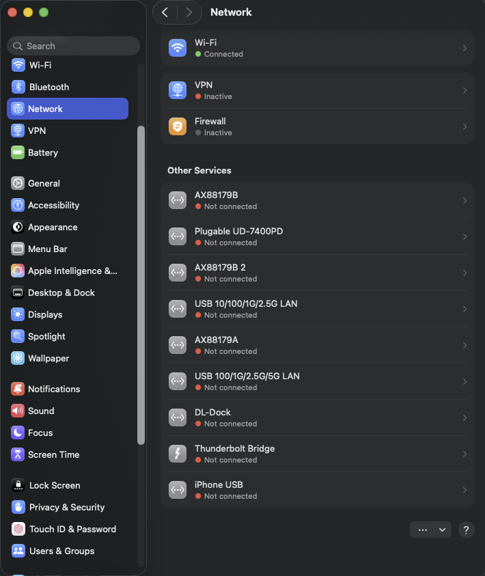
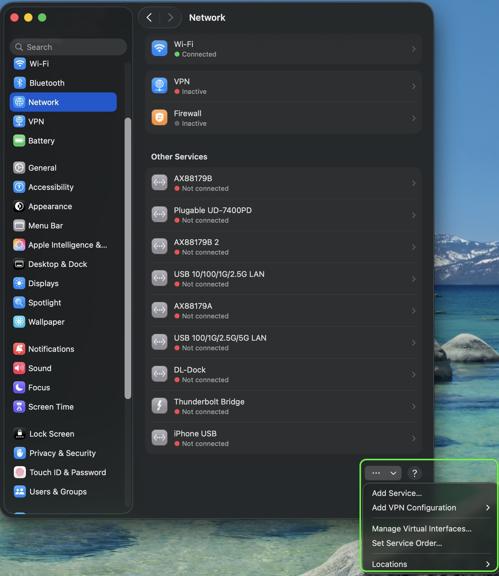
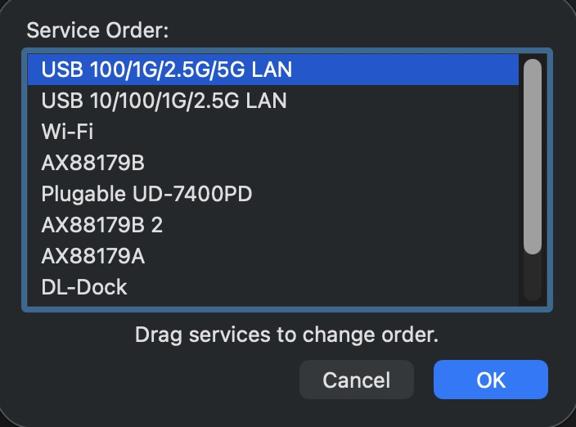
Your network traffic will now automatically prioritize the wired connection, ensuring you receive the best possible speeds and stability from your Plugable adapter.
Docking Station Power Adapters
Below is a list of power adapter models used by Plugable docking stations. We offer refurbished replacement power adapters on eBay as they are available for purchase, however, we may not have replacement power adapters available for all of our docking stations.
If the power adapter for your docking station or region is not listed, out of stock on eBay or if you have any other questions regarding replacement power adapters for our docks please contact us at support@plugable.com and we will be happy to assist further.
We offer a 30-day return period for our replacement power adapters listed on eBay.
| Dock Models | Power Supply Model Number | Replacement Power Supply (if available) |
|---|---|---|
| USB 3.0 / USB-C Docking Stations | ||
| UD-3900 UD-3000 UD-5900 UD-PRO8 UD-3900C |
DSA-24PFS-05 |
|
| UD-3900H | P120W2000U |
|
| UD-3900PDZ - 100W (purchased from March 2025) | A18-135P1B |
|
| UD-3900Z | ADS-26SGP-12 12024E |
|
| UD-6950 | A16-045N3A |
|
| UD-6950H | P200W2000UG |
|
| UD-6950Z | ADS-40SGP-19 20040G |
|
| UD-CA1 UD-CA1A |
EA10953D-200 |
|
| UD-ULTCDL (MK1 original and MK2 updated version) Note: Check here to determine what version of dock you have |
A16-065N2A (MK1 model) A18-135P1B-Rev3 (MK2 model) Note: MK2 model adapters will work with MK1 docks |
|
| UD-ULTC4K (MK1 original and MK2 updated version) Note: Check here to determine what version of dock you have |
A16-100P1A (MK1 model) A18-135P1B-Rev3 (MK2 model) Note: MK2 model adapters will work with MK1 docks |
|
| UD-3900C4 |
A18-135P1B-Rev3 |
North America plug |
| UD-3900PDH UD-3900PDZ - 60W alternative power adapter |
PS200D06500G1 |
North America plug |
| UD-768PDZ |
PA-1131-72 v2 |
North America plug |
| UD-6950PDZ - 100W (purchased from February 2025) |
A18-135P1B |
North America plug |
| UD-MSTH2 |
ADS-110DL-19-1 200110E |
North America plug |
| UD-MSTHDC |
ADS-110DL-19-1 200110E |
North America plug |
| UD-CAM |
A16-100P1A |
|
| UD-CUBE |
EA1024CR-050 |
|
| UD-6950PDH |
PS200D06500G1 (v1 of dock*) F-J-SW202720006700 (v2 of dock with serial numbers 4157 or newer*) *For more details about v1 and v2 UD-6950PDH docks visit our Knowledge Base article |
North America plug (v1) North America plug (v2) |
| Thunderbolt / USB4 Docking Stations | ||
| TBT4-UDZ |
PA-1131-72 v2 |
North America plug |
| TBT3-UDC1 | PA-1131-72 v1 |
|
| TBT3-UDV | A18-135P1B-Rev1 |
|
| TBT3-UDZ | PA-1171-72 |
|
| TBT3-UDC3 | PA-1171-72 |
|
| TBT4-HUB3C | ADS-110DL-19-1 200110E |
|
| USB4-HUB3A |
ADS-110DL-19-1-200100E |
North America plug |
| TBT4-UD5 | FJ-SW202720006400 |
North America plug |
| TBT4-UDX1 | A18-135P1B-Rev4 A18-135P1B-Rev3 (Large Barrel) |
|
| TBT-6950PD | YW180A2-2100858 |
North America plug |
| UD-4VPD |
PA-1171-72 |
North America plug |
My Plugable Dock Is Missing a Component Such As the Power Supply, USB Cable, or Other Adapter.
If your package is missing one or more of the items that should be included with your Plugable dock (included items are listed on a chart on the side of the box), start by double checking if the part is still in the packaging. Pieces can occasionally get stuck in the corners under the main insert in the box.
If you are still unable to locate the piece, please contact support@plugable.com with the following information:
1. Amazon Order ID (or other proof of purchase) associated with your Plugable device.
2. A description of the parts that are missing from your order.
3. Your preferred shipping address (and a phone number associated with that address).
4. The serial number of your Plugable Dock.
Can I Connect My High Refresh Rate Monitor (e.g. 120Hz, 144Hz) to a Plugable Dock?
Most Plugable docks do not officially support monitors over 60Hz including 120Hz or 144Hz refresh rate unless otherwise specified on the Plugable product page or listing.
DisplayLink USB Graphics technology and Silicon Motion based docking stations and graphics adapters, like our USB 3.0 dual display and USB Type-C triple display docking stations, are limited to 60Hz fresh rate by the USB graphics controller hardware.
USB Type-C DisplayPort Alternate Mode docking station and ports on our USB Type-C Triple Display Docking Stations can support higher refresh rates, but may be limited by the computer's capability and available bandwidth to the docking station. Additionally, when paired with DisplayLink or Silicon Motion USB graphics, having displays at different refresh rates may reduce overall system performance. Due to this we normally recommend limiting all connected displays to 60Hz refresh rate when using DisplayLink and Silicon Motion graphics technology with directly connected, or USB Type-C DisplayPort Alternate Mode controlled displays.
Monitors with refresh rates higher then 60Hz may be connected to a docking station operating at up to 60Hz, or connected directly on the computer's HDMI or DisplayPort to ensure the display is powered by the system's native GPU.
Do Plugable products support the Apple SuperDrive?
Unfortunately Plugable products do not support the Apple SuperDrive.
The Apple SuperDrive has stringent power requirements that can only be met by directly connecting the SuperDrive to your host laptop. As a result at this time Apple recommends only using their USB-C adapter cables. You can find more information on that here → How to connect the Apple USB SuperDrive
If you have purchased a Plugable product to use with your Apple SuperDrive, and would like some additional assistance please do not hesitate to reach out. You can do so by emailing support@plugable.com, or going to Plugable.com/Support.
My Plugable product with wired Ethernet is no longer working on macOS. What can I do?
Please Note
The below guide is an advanced troubleshooting step, and we do not recommend doing so unless you are comfortable manually altering files on your Apple product running macOS. You may not be able to perform the below troubleshooting step if you are unable to execute administrative credentials on your laptop. Please reach out to our support first if you do not wish to attempt the below instructions. You can do so at Plugable.com/Support
How to delete a specific Ethernet adapter from your Network devices on macOS
- Click on the Apple logo in the top left corner of your primary monitor, and select ‘System Preferences’
- Next select ‘Network’ in the ‘System Preferences' window.
- In the now visible list, please select the Plugable Ethernet, or Thunderbolt Ethernet device that may not be working as expected.
- Once selected click on the minus button in the bottom left of the network window.
- Click on Apply in the bottom right.
- Next click on the plus button in the bottom left of the network window, and add the previously removed device.
- Click on Apply in the bottom right.
- Test to see if this has resolved the unexpected behavior, and assure that your Ethernet is now working.
- If this does not resolve the problem, please proceed to the next section (As noted previously the next section is for advanced users only!)
Manually erase your macOS Network Settings to fully reset the Network configuration
(Advanced! Click to reveal)
- Open the ‘Finder’ app, then in the ‘Go’ menu at the top of your screen select ‘Computer’
- Click on ‘Macintosh HD’ then Library, Preferences, SystemConfiguration
- Copy the file named ‘NetworkInterfaces.plist’ to your desktop as a backup of your current configuration.
- Delete the original version of the ‘NetworkInterfaces.plist’ located in the SystemConfiguration directory.
- Restart your Mac
- Login to your Mac, and return to System Preferences → Network
- If the list is now empty, please re-add the Plugable or Thunderbolt network adapter by clicking on the plus button in the bottom left of the Network window. Once done click on 'Apply'.
- Test to see if this has resolved the unexpected network behavior
I am still unable to get my Ethernet connection working on my Mac
If this is the case please reach out to our support team. When you do please include a diagnostic log gathered using our PlugDebug tool (instructions are provided on the PlugDebug page). If you are not able to gather the PlugDebug diagnostics do not worry we are still here to help! Please reach out to our support team at support@plugable.com or Plugable.com/Support with a detailed description of your problem, and the model of Plugable product you are using.
Fixing "This Thunderbolt Application Is Not in Use Anymore and Can Be Safely Uninstalled" Error Message
Synopsis – If your Thunderbolt 3 driver or utility version types are mismatched within a Windows host system, you may receive an error message stating, “Application Cannot run – This Thunderbolt application is not in use anymore and can be safely uninstalled” when attempting to run the Intel Thunderbolt Software management utility or the Intel Thunderbolt Control Center utility. This prevents proper management of Thunderbolt devices on the host system. (This problem does not occur on Apple Mac systems.)
Before proceeding with this or any other procedure that makes changes to your system, please ensure you have a full system backup of any and all important data and create a fresh System Restore Point as a precaution. Plugable will not be able to help restore any data or return a system to a working state should things not work as expected. If you do not wish to take this risk, please do not follow this procedure
You will have to be logged on to the system as a User with ‘Administrator’ permissions in order to perform these steps
1. Disconnect any Thunderbolt 3 devices from the host system (this is done to prevent Windows Update from automatically loading any Thunderbolt drivers).
2. Right-click on the Windows Start button and select ‘Device Manager’.
3. Click on ‘View’ from the application menu bar, and click the option ‘Show hidden devices’ (this is necessary because the Thunderbolt controller will not be active if no Thunderbolt devices are connected).
4. Expand the ‘System Devices’ category. Scroll down until you find the entry for the ‘Thunderbolt Controller’.
5. Right-click on the ‘Thunderbolt Controller’ entry and select ‘Uninstall device’ from the context menu that appears.
6. From the ‘Uninstall Device’ window that appears, click to place a check mark within the ‘Delete the driver software for this device’ option.
7. Click the ‘Uninstall’ button.
8. Close Device Manager.
9. Click the search button on the taskbar (looks like a ‘O’) and search for the letters ‘cmd’.
10. Right-click on the ‘Command Prompt’ search result and select ‘Run as Administrator’ from the context menu. If prompted, enter your Administrator password.
11. From the Administrative Command Prompt window, enter ‘sc delete nhi’ (without the quotes) and press enter. You should receive a ‘SUCCESS’ indicator. ** Be very careful to type this command correctly **
This command deletes the ‘nhi’ Windows service presently installed on the system.
Thunderbolt 3 Support and Troubleshooting on Windows PCs
Overview and Drivers
In general, Plugable Thunderbolt 3 Docking Stations and Thunderbolt 3 Dual Display Adapters do not require the installation of any drivers when used with macOS or Windows. When connecting a Thunderbolt 3 device, the host operating system should install all the necessary drivers automatically.
However, there are certain instances with Windows systems where additional driver installation may be necessary when using our Thunderbolt 3 docking stations (these are NOT required on macOS systems):
TBT3-UDV Docking Station:
- Windows 10 – In general, no driver installations are required when using Windows 10. After initial connection if all functions of the dock are working as expected, then no additional action is required. However, when the TBT3-UDV is used with certain eighth generation Intel processor-based Windows 10 systems an updated USB 3.0 driver may need to be installed to ensure the best performance of USB peripherals attached to the TBT3-UDV. We recommend installing the updated Asmedia USB 3.0 drivers here. For additional details, please see our TBT3-UDV product page.
- Windows 7 – When using Windows 7 64-bit (32-bit systems are not supported), you will need to install a separate Intel Network Adapter driver and a driver for the Asmedia USB 3.0 Host Controller.
TBT3-UD1-83 / TBT3-UD1-85 Docking Stations:
- Windows 7 – When using Windows 7 64-bit (32-bit systems are not supported), you will need to install a separate Fresco USB 3.0 Host Controller driver and an Intel Network Adapter driver.
General Thunderbolt 3 Information
Before purchasing or using a new Thunderbolt™ 3 docking station or video adapter for use with your personal computer running Windows, you will want to make sure that your computer can support it and be aware of differences from basic USB devices:
Note: The following does not apply to Apple Thunderbolt 3 systems.
- Many early Thunderbolt 3 PCs require firmware and software updates before all adapters and docks will work.
- Dual display support is optional for Thunderbolt 3 PCs. How many displays are supported over Thunderbolt 3 depends on how the USB-C port has been wired on the system motherboard (up to a max of two), and is not changeable in software or by the Thunderbolt 3 graphics device.
- Support for PC charging (USB Power Delivery) on Thunderbolt 3 systems is optional. Many Thunderbolt 3-enabled PCs do not accept a charge over USB-C, and some PCs only will charge with their own branded power adapters.
- Unlike USB devices, Thunderbolt 3 devices must be manually authenticated (approved) for use by the user before the system will recognize them.
Additional detail
- Host computers equipped with Thunderbolt 3 have the ability to install various updates including NVM (Thunderbolt 3 related Non-volatile memory) and PD (Power Delivery) firmware, UEFI BIOS, supplemental Thunderbolt 3 software utilities (for authentication) and various drivers to resolve potential issues and increase compatibility with new Thunderbolt 3 products as they are released.
- System manufacturers have substantial discretion in how they implement various technical elements and features. As a result, compatibility information is complex. As a result many currently available Thunderbolt 3 systems are not fully compatible with our Thunderbolt 3 dual graphics adapters (we do our best to maintain compatibility tables of the individual product pages). Some systems may only be equipped with a single DisplayPort (DP) Alternate Mode (Alt Mode) line to the Thunderbolt 3 port which limits the port to a single display output. Due to this limitation some systems won’t be able to take advantage of our dual port Thunderbolt 3 graphics adapters regardless of firmware/software updates. This is a physical hardware limitation.
- Many system manufacturers ship systems with older firmware and may or may not have updated versions available for download at this time. The latest Thunderbolt 3 firmware for a specific system cannot be downloaded from Intel directly, as it first it has to be customized by the original system manufacturer. Intel has a Thunderbolt updates page with some update information, but as of this writing the list if fairly small. Currently our TBT3-HDMI2X-83 and TBT3-DP2X-83 adapters require the host system to have a Thunderbolt 3 firmware update with NVM version 14 or higher in order to work properly. The latest UEFI BIOS update from your system manufacturer must be installed before updating the NVM firmware.
Operating System Compatibility
Thunderbolt 3 technology is supported by any operating system which has driver support for Thunderbolt 3. Currently, Plugable supports Windows 10, 8.1, and 7 (64-bit only) and macOS 10.13 or later. Although support for Thunderbolt 3 devices under Linux is steadily evolving, Plugable does not support Thunderbolt 3 devices within a Linux environment at this time.
Authenticating a Newly Attached Device
Click here for this process.
General Thunderbolt 3 FAQ
Q: Can a Thunderbolt 3 dock or adapter work in any system with any USB-C (USB Type C) port?
A: It depends.
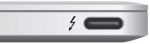
- Early Thunderbolt 3 docks and adapters will only work with Thunderbolt 3 USB-C computers and ports and connecting to a USB-C port without Thunderbolt 3 capability will not work. Note that computers and docks may have a mix of Thunderbolt 3 and other USB-C ports that look very similar. Look for the Thunderbolt icon on both sides of the connection to ensure compatibility:
- Current Titan Ridge based docking stations like our TBT3-UDC1 and TBT3-UDZ are backwards compatible with USB-C systems in most cases (with limitations).
Q: How can I identify the NVM version on my system?
A: See “Identifying the NVM” section below.
Q: What if a newer compatible NVM is not available from my system manufacturer?
A: Unfortunately the only option is to contact your system manufacturer and ask when a newer version will be available, and to let them know that until it is, certain accessories you are looking to use will not work.
Q: How can I identify if my system has the necessary two DisplayPort lines to provide dual display output through the Thunderbolt 3 port?
A: Unfortunately in many cases this information is very hard to discern based on the manufacturers published specifications. If your system is not among those listed in our compatibility table above, please contact your system manufacturer for confirmation of how many DisplayPort lines are routed to your Thunderbolt 3 port.
Q: I connected my Thunderbolt 3 dual display adapter and my monitor configuration changed by itself.
A: This may occur and is considered normal. You can change the main display back to your desired screen through the “Display settings” control panel.
Q: I connected my Thunderbolt 3 dual display adapter and am only getting a single output.
A: Depending on what Thunderbolt 3 equipped system you have, it may only support a single output because of the DP Alt Mode line configuration. See above “Known Host NVM Versions & DP Lines” to find out if your system has one or two lines.
Q: I connected my Thunderbolt 3 dual display adapter for the first time and my system crashed (hard lock).
A: Check to see if your system is running the latest Thunderbolt 3 software, NVM, UEFI BIOS, and all other updates from your system manufacturer. If everything is updated, unplug the adapter, reboot the system, and then reconnect.
Q: I connected my Thunderbolt 3 dual display adapter and am not getting any output to either display.
A: If your system has hybrid graphics (combination of built-in Intel GPU and AMD or NVIDIA discreet graphics) make sure the Intel GPU is set to be the primary GPU in the UEFI BIOS.
Support
If you have any questions feel free to contact our support team, we’re more than happy to help!
Thunderbolt and the Thunderbolt logo are trademarks of Intel Corporation in the U.S. and/or other countries.
Thunderbolt 3 Authentication
Thunderbolt 3 Windows systems may need to have newly attached Thunderbolt devices authenticated before they can be used. For most computers this process needs to be performed manually through the Legacy Thunderbolt utility installed on your computer. Newer Windows host systems (around November 2018 and newer) may be using an updated driver model, Declarative C
Note: If you are not certain if your computer requires for newly attached devices to be authenticated, please see here for more information: Do I need to approve or authenticate Thunderbolt devices when I connect them to my Windows or Mac computer?
Below we will cover both methods of authentication as well as how to check NVM on older systems to see if an update is required. These processes may vary depending on how the host system Thunderbolt security level is configured in the UEFI BIOS, however, most systems will be set for user authorization or secure connect.
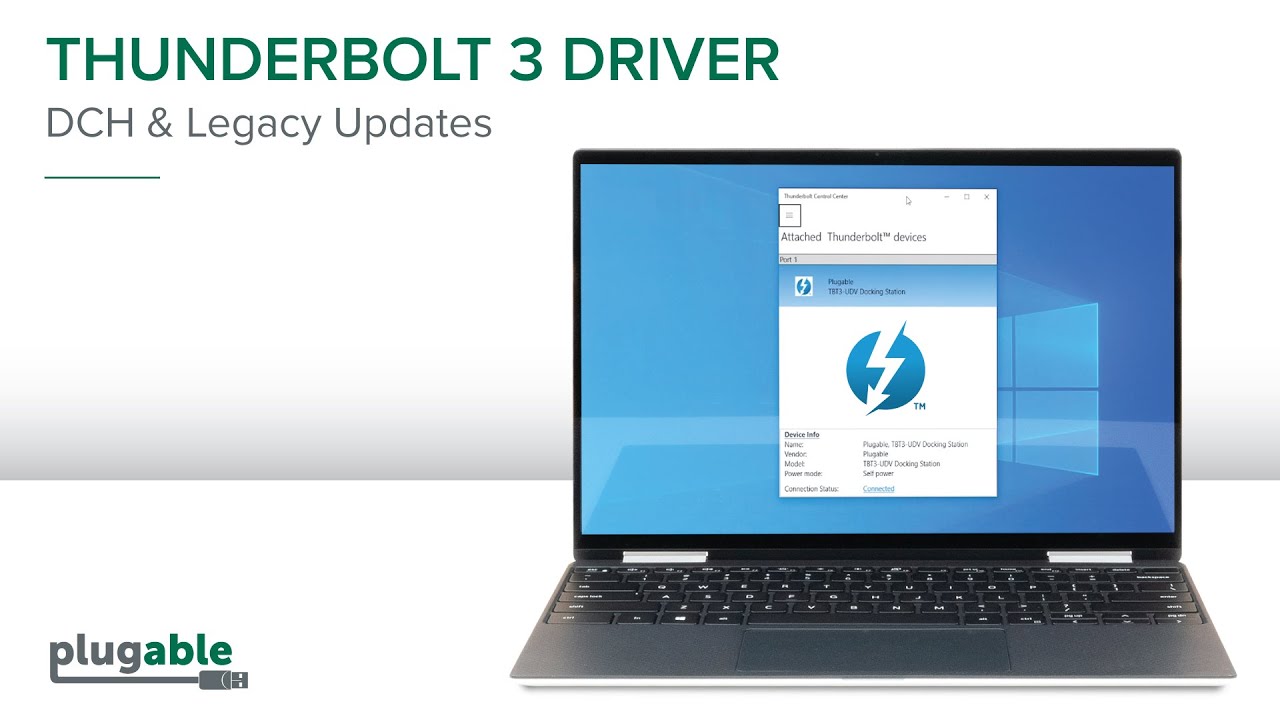
Thunderbolt 3 DCH and Legacy Driver:
Legacy Thunderbolt 3 Authentication (non DCH Thunderbolt 3 drivers & Thunderbolt Utility):

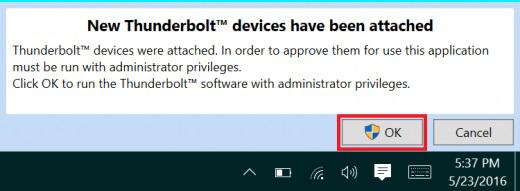
When first connecting a Thunderbolt 3 device to a Windows system, the device must first be authenticated through Intel’s Thunderbolt 3 software. After connecting a Thunderbolt 3 device the first thing that you should see (assuming that the system NVM, UEFI BIOS, drivers, etc are up to date and compatible) is an automatic notification above the system tray notifying you that a new device has been attached. You will want to click OK:
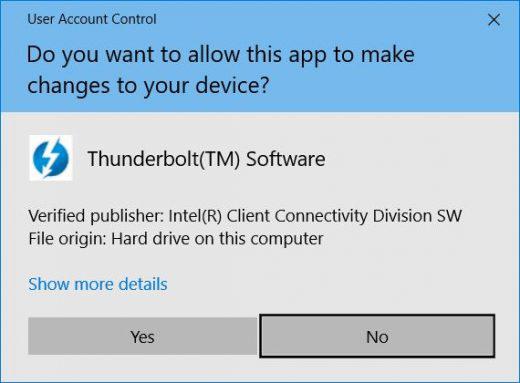
After clicking OK, you may get a Windows User Account Control (UAC) popup asking if you “want to allow this app to make changes to your PC?”. Click Yes:
After clicking yes you should see an application window appear where you will approve the Thunderbolt 3 device that was just attached:
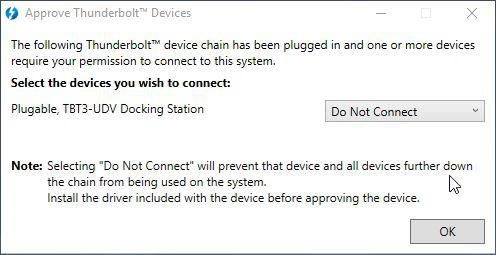
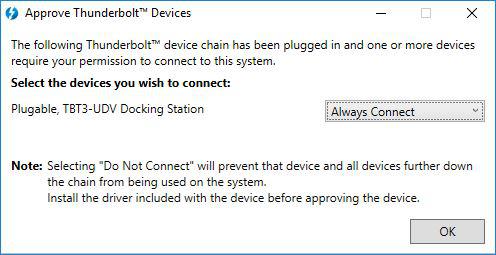
Click on the drop down menu where it says “Do Not Connect” and select “Always Connect”. Then click OK:
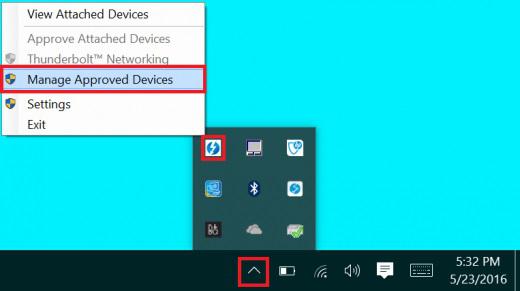
To view and manage the approved devices you can find the program sitting in the system tray. You may need to click the caret (up arrow icon) to show all of the running programs then right click on the Thunderbolt icon it and select Manage Approved Devices:
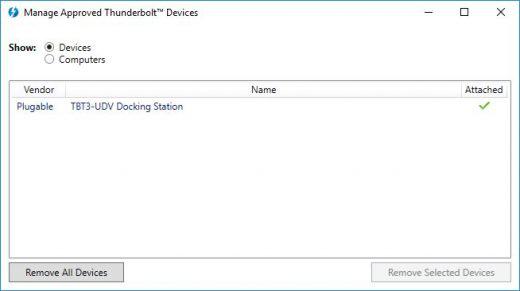
You may again get a Windows UAC prompt, click yes. After clicking yes the below window will open and you can see any approved devices and remove them if you choose.
Thunderbolt 3 Authentication (DCH Thunderbolt 3 drivers & Windows App Store Thunderbolt Utility):
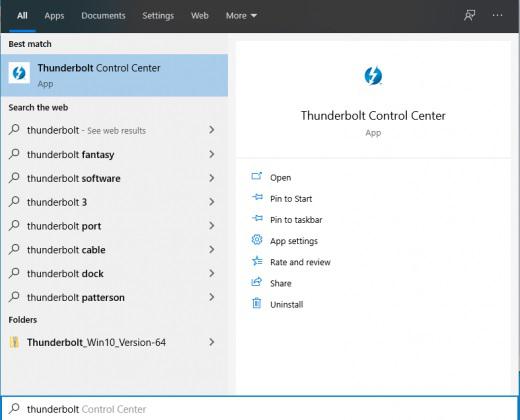
For systems running the DCH version of the Thunderbolt 3 drivers and the Windows Store Thunderbolt Control Center app, many newer hosts will automatically authenticate the attached device using secure connect. For systems where your attached Thunderbolt 3 device is not authenticated automatically via secure connect you can authenticate the device manually. Start by searching the start menu for Thunderbolt and selecting the Thunderbolt Control Center:
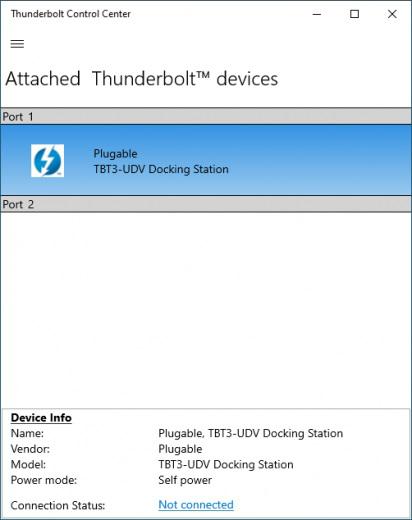
Here you should see your attached device:
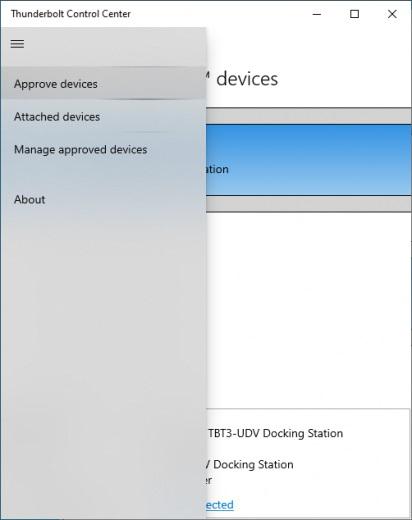
To approve the device click on the menu button (three horizontal lines) and then click “Approve devices”:
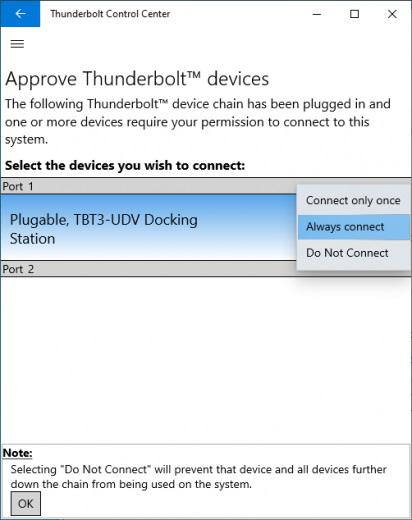
Next you can select “Always connect” and then press “OK” at the bottom of the application:
Your device should then automatically be approved the next time it is attached.
Checking NVM Version (Legacy)
How do I check which version of Thunderbolt 3 software and NVM firmware I am running in Windows?
To determine what version of NVM firmware your system has, the first step is to ensure you have the latest Thunderbolt software version which varies depending on the system manufacturer. You should be able to download it from your system manufacturer’s website.
Once installed you can open the software by searching the start menu for Thunderbolt:
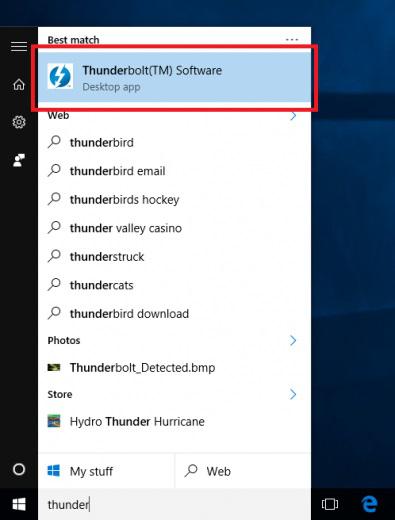
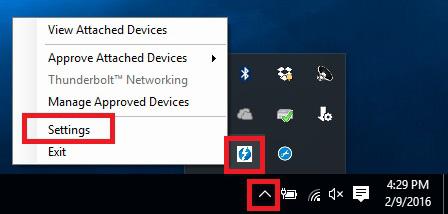
Once open you can find the program sitting in the system tray. You may need to click the caret (up arrow icon) to show all of the running programs then right click on the Thunderbolt icon and select Settings:
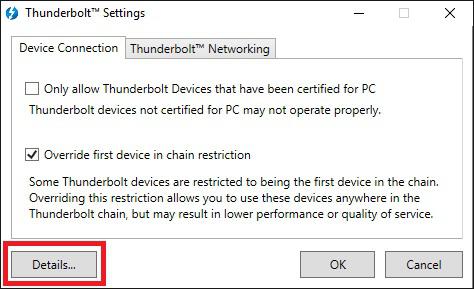
Now you should see the settings window. Click on Details to find out all of the Thunderbolt software and controller information:
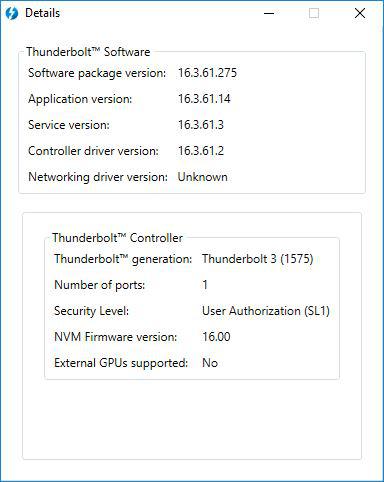
If a Thunderbolt 3 device has been connected to the system the Thunderbolt software will show you information about the controller. Below you can see the details from our Dell XPS 13 9350 system:
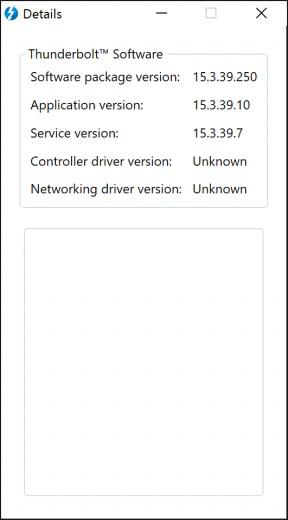
Unfortunately if a Thunderbolt device has not yet been connected to the system, the information about the NVM firmware may not be available within the utility:
Support
If you have any questions feel free to contact our support team, we’re more than happy to help!
Thunderbolt and the Thunderbolt logo are trademarks of Intel Corporation in the U.S. and/or other countries.
Understanding Heat Generation in Electronics
It's not uncommon for users to notice a certain level of heat generation from electronics and by extension, Plugable products during operation. In this knowledge base article, we'll explore the reasons behind this heat generation and why it is considered a normal experience within reasonable limits.
Electronics, by their nature, generate heat during operation. This is primarily a result of the electrical current flowing through various components, such as integrated circuits, transistors, and other electronic elements. As Plugable products are designed to efficiently process and transfer data (among other functionality), some level of heat generation is inherent.
Factors Influencing Heat Generation:
- Power Consumption: The power consumption of a device directly influences the amount of heat it generates. Higher power usage, especially during data transfer or charging processes, can lead to increased heat.
- Enclosure Design: The design of the product's enclosure and its ability to dissipate heat play a crucial role. Adequate ventilation and heat sinks are often incorporated to manage and disperse generated heat effectively. This is evident in our TBT3-UDZ and TBT4-UDZ designs. The metal case in these docks are designed to function as a heatsink with thermal pads placed throughout the enclosure. This allows heat dissipation from inside to the outside, but will also make it feel as if the device is “too hot”.
- Ambient Temperature: The external environment may also play a role. Higher ambient temperatures can contribute to increased perceived heat from the product. This means that summer temperatures may increase the heat generation of not just Plugable products, but many other electronic devices.
Normal Heat Levels: While it is normal for electronic devices to generate heat, Plugable products are engineered to operate within safe temperature ranges. We conduct rigorous testing to ensure that the heat generated during normal operation falls within industry-standard safety parameters. While not all products are or need to be UL certified, we try to go by UL guidelines for thermal readings. The UL threshold is 77C/170.6F, and we aim for around 71C/160F.
Tips for Users:
- Ventilation: Ensure that Plugable products have sufficient ventilation around them. Avoid placing them in enclosed spaces where heat dissipation may be impeded.
- Usage Patterns: Intensive tasks such as high-speed data transfer or charging multiple devices simultaneously may result in increased heat generation. This is generally normal but may be more noticeable in such scenarios.
- Accessories: A number of our devices will allow for the connection of USB accessories and as such, these will require power. If too many “power-hungry” devices are connected, this will cause the device to run much hotter than expected. Be sure to keep in mind the power limits of your dock/device.
In conclusion, experiencing heat from Plugable products is a normal aspect of their operation. Users can rest assured that we prioritize the safety and efficiency of our devices. By understanding the factors influencing heat generation and following simple usage guidelines, users can make the most of their Plugable products while ensuring a reliable and efficient user experience.
How To - Set a Network to Private or Public in Windows 10 & 11
The Windows Firewall may block some networking features when the local network is not set to Private. This article will describe the process for setting the local network, either wired Ethernet or Wi-Fi to be a Private network.
Windows 11
1 - Connect the computer to the network, either wired or wireless
2 - Open the Windows Settings - right-click on the Start Menu and select “Settings” from the pop-up menu
3 - On the left column select “Network & internet”
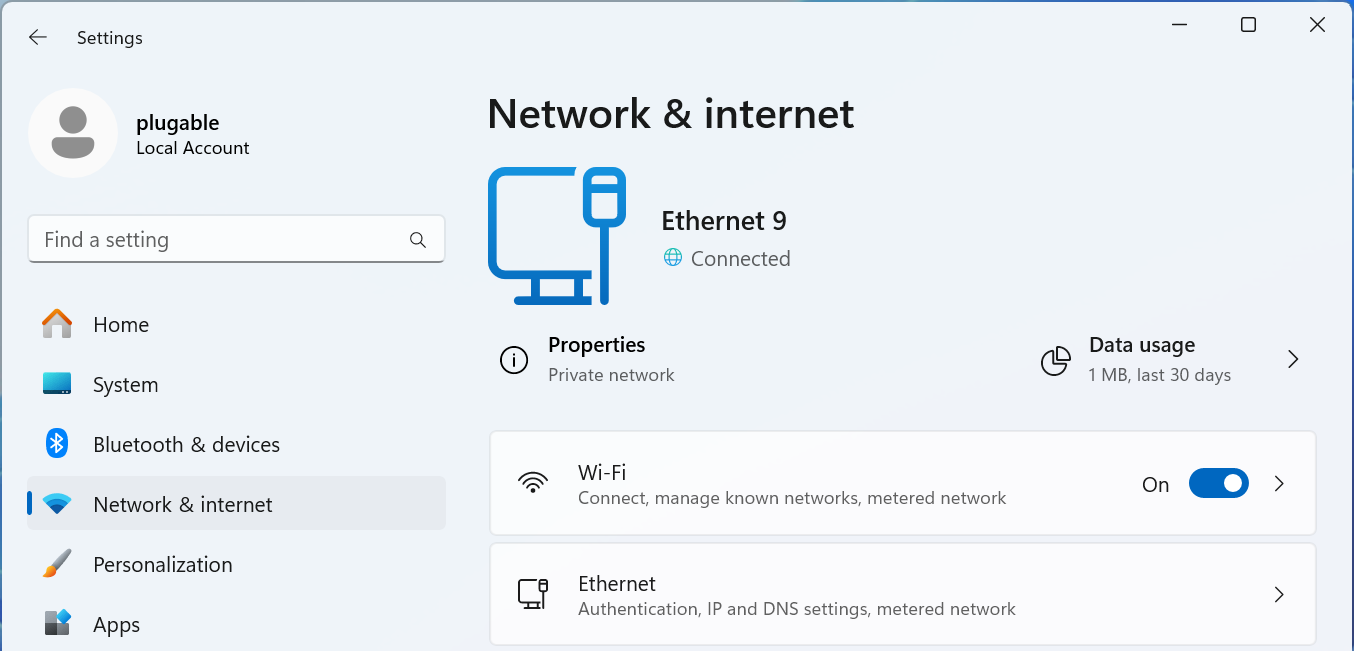
For Wired Networks
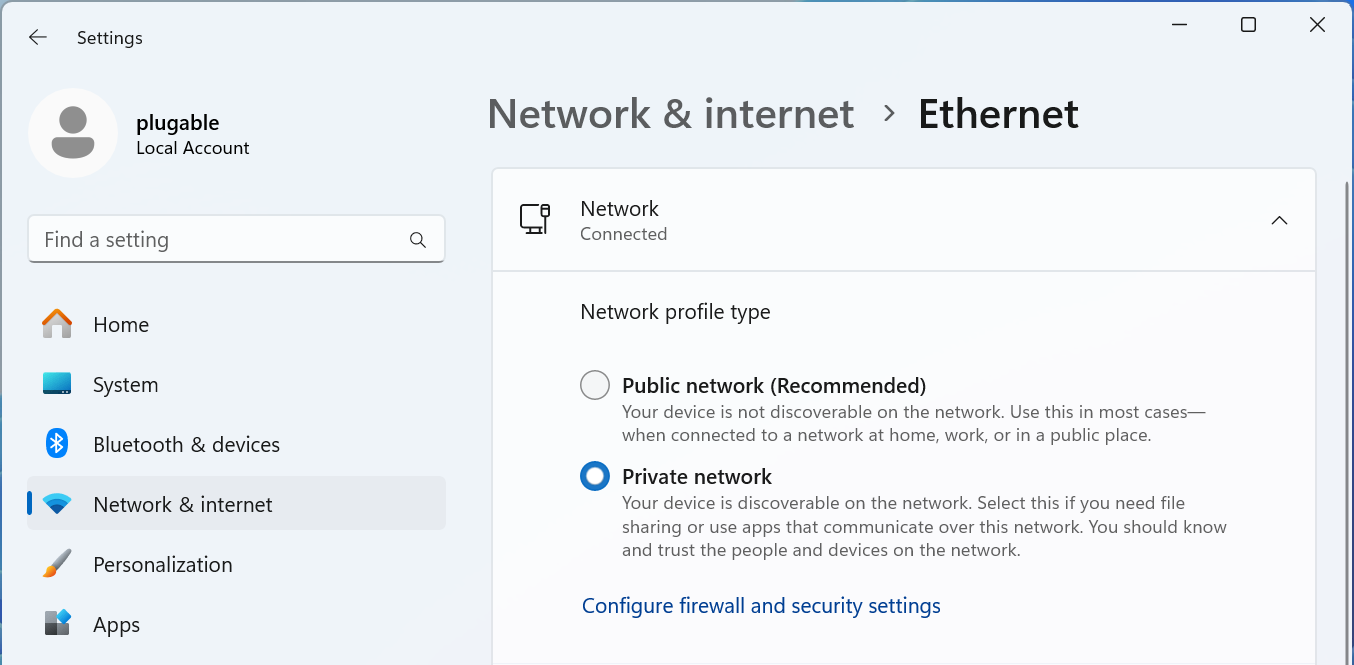
4 - Select the “Ethernet” option
5 - The connected network should be expanded, if not click on “Network Connected" to expand the section
6 - Select the “Network profile type” either “Public network” or “Private network” to suite your needs
For Wi-Fi Networks
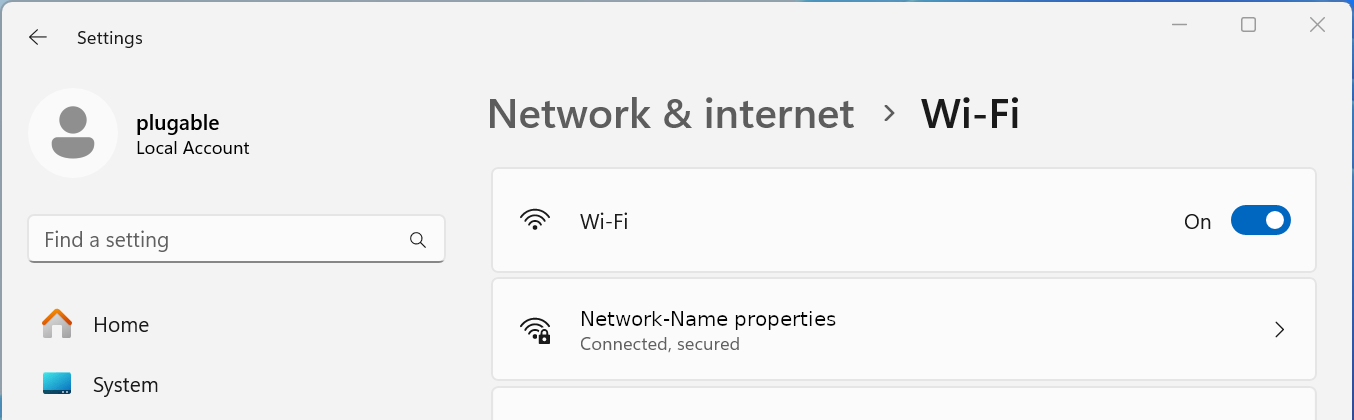
4 - Select the “Wi-Fi” option
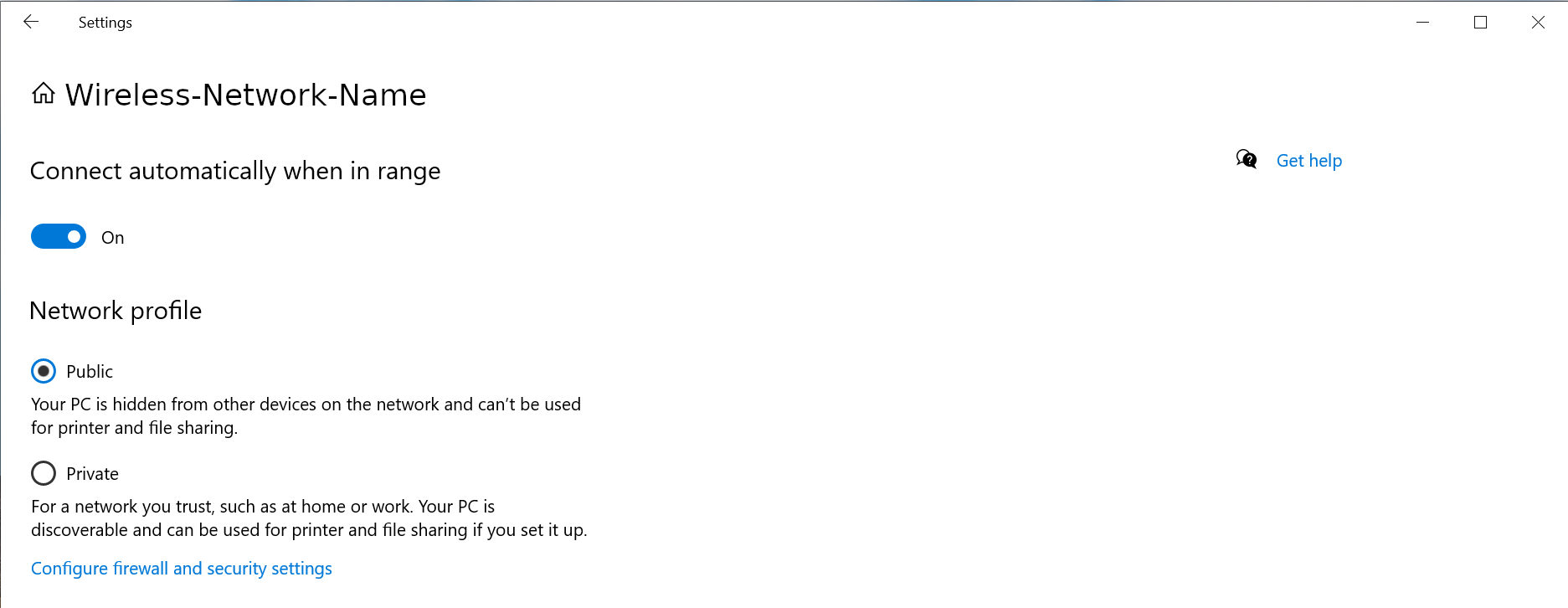
5 - Select your Wi-Fi network name “properties”
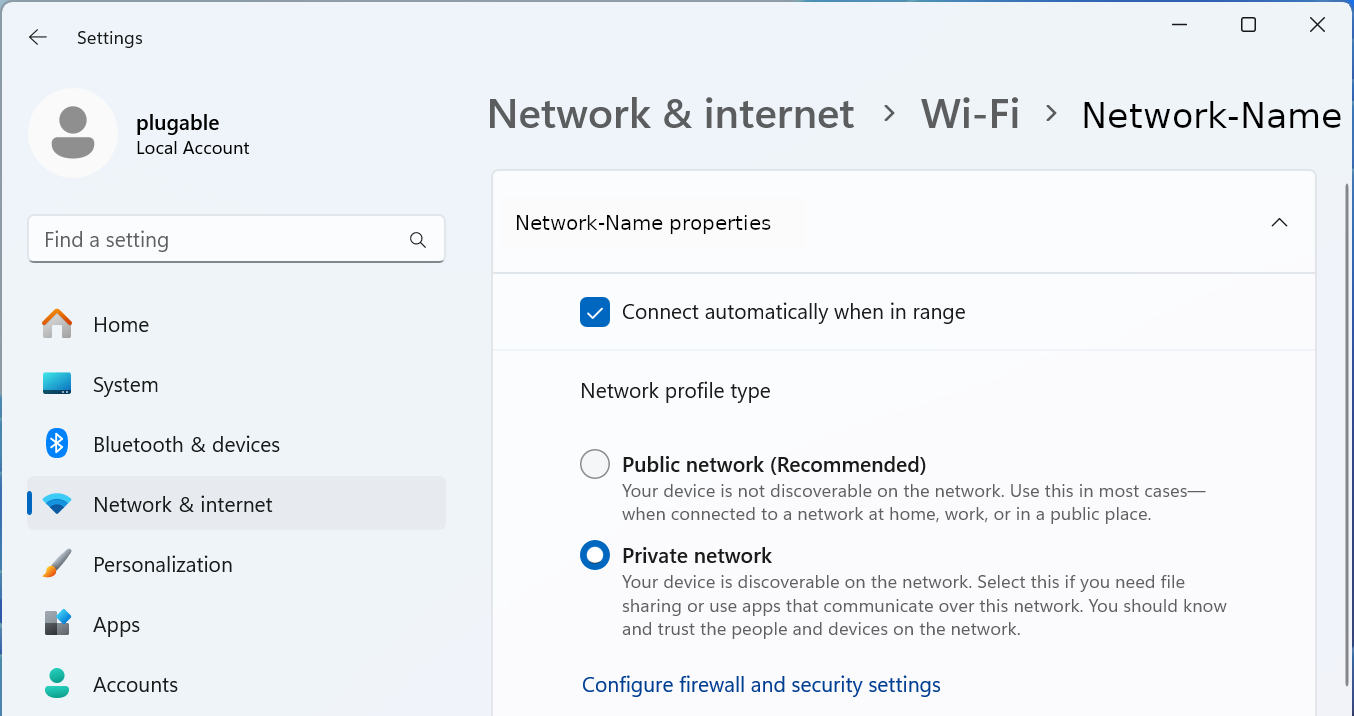
6 - Select the “Network profile type” either “Public network” or “Private network” to suite your needs
Windows 10
1 - Connect the computer to the network, either wired or wireless
2 - Open the Windows Settings - right-click on the Start Menu and select “Settings” from the pop-up menu
3 - Select “Network & Internet” fro the bottom section
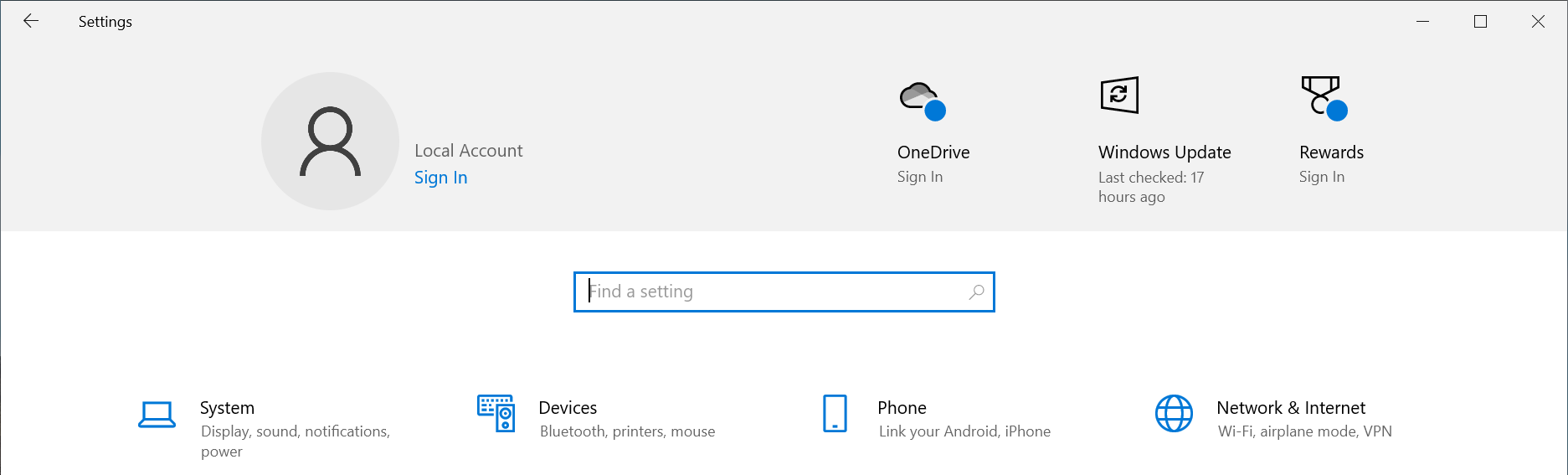
4 - Select the “Ethernet” option from the left pane
5 - Select the “Connected” network from the right pane
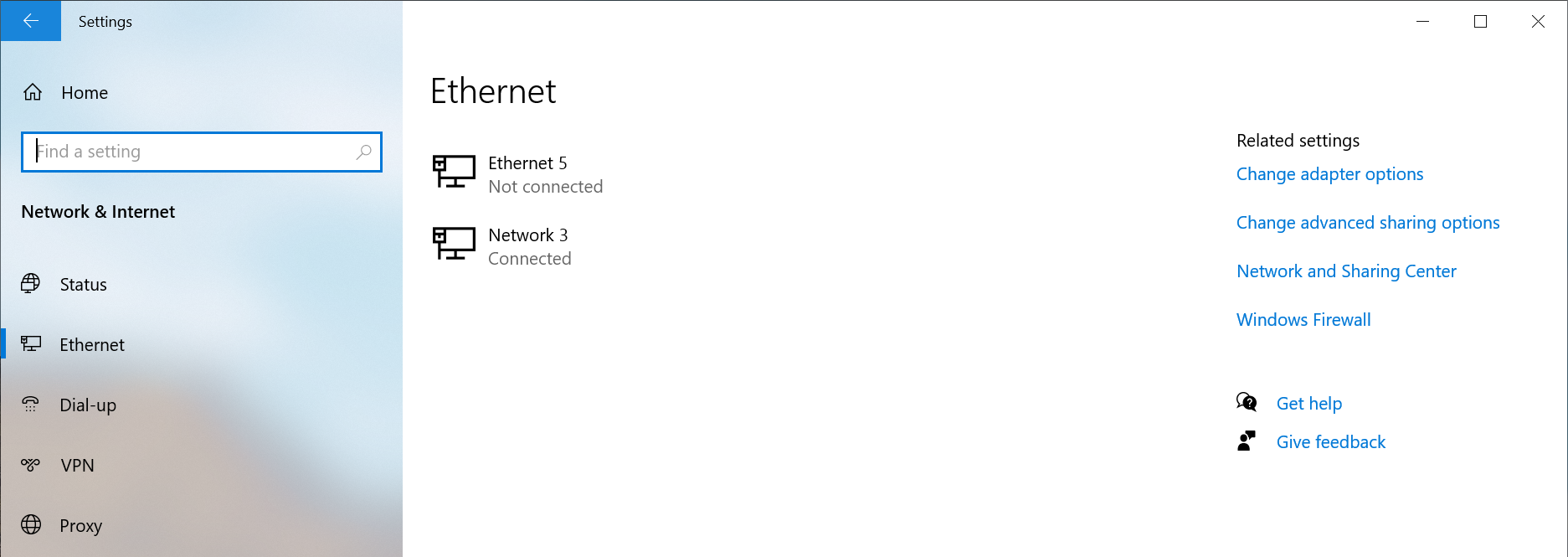
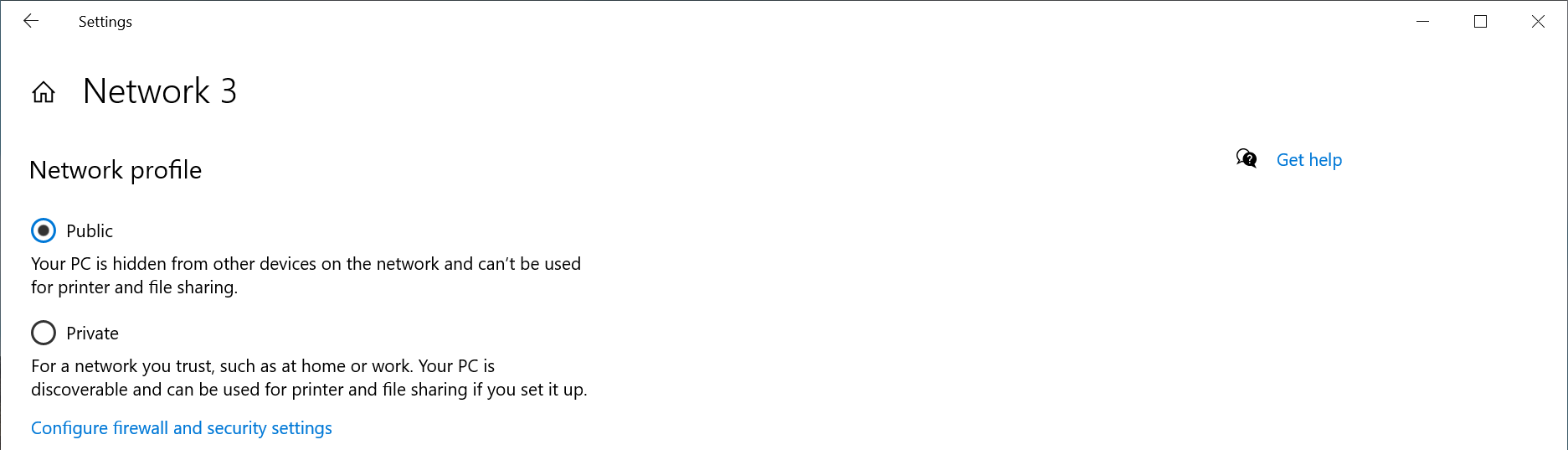
6 - Select the “Network profile type” either “Public network” or “Private network” to suite your needs
Windows PowerShell
If the option does not show up in the Windows Settings GUI, or if you prefer to use the terminal.
1 - Open a new terminal: Right-click on the Start Menu and select “Terminal”
2 - Run the following command to list the available networks
Get-NetConnectionProfile
PS C:\Users\plugable> Get-NetConnectionProfile
Name                     : Network
InterfaceAlias           : Ethernet Instance 0
InterfaceIndex           : 7
NetworkCategory          : Private
DomainAuthenticationKind : None
IPv4Connectivity         : Internet
IPv6Connectivity         : NoTraffic
3 - Run the following command to set the network to Private
Set-NetConnectionProfile -Name Network -NetworkCategory Private
Where “Network” is the network name from step #2 and “Private” can be either “Public" or “Private”
How to Use Two External Displays with the Lid Closed on MacBook Air and MacBook Pro M3
Overview
With the release of Apple’s M3 CPU chips and the Sonoma 14.6 update your base MacBook Air and MacBook Pro systems with M3 chips can now host two external displays natively in clamshell mode. This guide will walk you through the process of setting up and using two external displays with the lid closed on your MacBook Air or MacBook Pro equipped with an Apple M3 chip.
Requirements
Before getting started, ensure you have the following:
- MacBook Air or MacBook Pro with an Apple M3 chip.
- macOS Sonoma 14.3 or later for an M3 MacBook Air or macOS Sonoma 14.6 or later for an M3 MacBook Pro.
- Two external displays with compatible video inputs (e.g., HDMI, DisplayPort, USB-C).
- A dock or graphics adapter can be used as well.
- External keyboard and mouse (wired or wireless).
- Power adapter or power source for your MacBook
- A docking station that provides adequate charge can be used in place of the native power adapter, be sure to check the wattage your dock provides.
Steps to Set Up Dual External Displays with the Lid Closed
1. Set Up Your External Keyboard and Mouse
- If you’re using a wired keyboard and mouse, connect them directly to your MacBook or Plugable dock.
- For wireless peripherals, ensure they are paired with your MacBook and functioning properly.
- An AC adapter/power cable of some kind will also need to be connected for clamshell mode to function properly. This adapter can be one from a docking station or the included Apple adapter.
2. Connect Your Displays
- Connect the first external display to your MacBook using the appropriate cable (e.g., HDMI, DisplayPort, USB-C)
- Close your laptop’s lid.
- Connect the second external display using a similar method.
- Ensure both displays are powered on and set to the correct input source.
3. Configure Display Settings
- Open System Settings on your MacBook.
- Go to Displays.
- You should see both external displays listed. Arrange them according to your preference by dragging the display icons.
- Adjust the resolution, refresh rate, and other settings as needed.
4. Enable "Clamshell Mode" (Lid Closed Mode)
- With your external displays connected and set up, close the lid of your MacBook.
- Your MacBook will automatically switch to "Clamshell Mode," where the internal display turns off, and the external displays become your primary screens.
- Ensure your MacBook is connected to a power source to prevent it from entering sleep mode.
5. Check the Display Arrangement
- With the lid closed, check that the external displays are functioning as expected.
- If necessary, re-open the Displays settings to adjust the arrangement, resolution, or other preferences.
Troubleshooting Tips
- No Display on External Monitors: If the external displays are not showing anything, open the lid of your MacBook and check the connections.
- MacBook Sleeps When Lid Is Closed: Make sure your MacBook is connected to a power adapter. Clamshell Mode requires the MacBook to be plugged into an external power source.
- Performance Issues: If you experience lag or performance drops, try lowering the resolution or refresh rate of the external displays.
Thunderbolt Dock Users
With these steps, one can use Plugable Thunderbolt docks to enjoy a dual-display setup without the need for additional software installation. The dock leverages the native capabilities of the MacBook Air M3 and MacBook Pro M3, providing a straightforward and efficient solution for expanding your workspace with additional USB ports, audio, and ethernet (as well as the dual displays).
Additional Resources
If you should need any assistance with your setup, please feel free to reach out to our support team at support@plugable.com.
How To: Set the Display Refresh Rate in Windows 11
Many modern displays can support above the default 60Hz refresh rate, however this may need to be manually set within Windows 11. Please note, not all computers, graphics adapters, and docking stations can support all resolutions and refresh rates.
Setting the Display Refresh Rate in Windows 11
1. Right-click on the desktop and select Display Settings from the drop-down menu
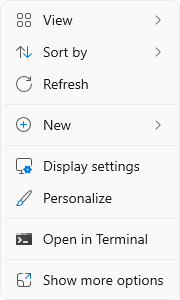
2. Scroll down to the Related settings subsection and select Advanced display

3. At the top of the Advanced display window, select the external display from the drop-down menu

4. From the Choose a refresh rate drop-down menu select the desired refresh rate
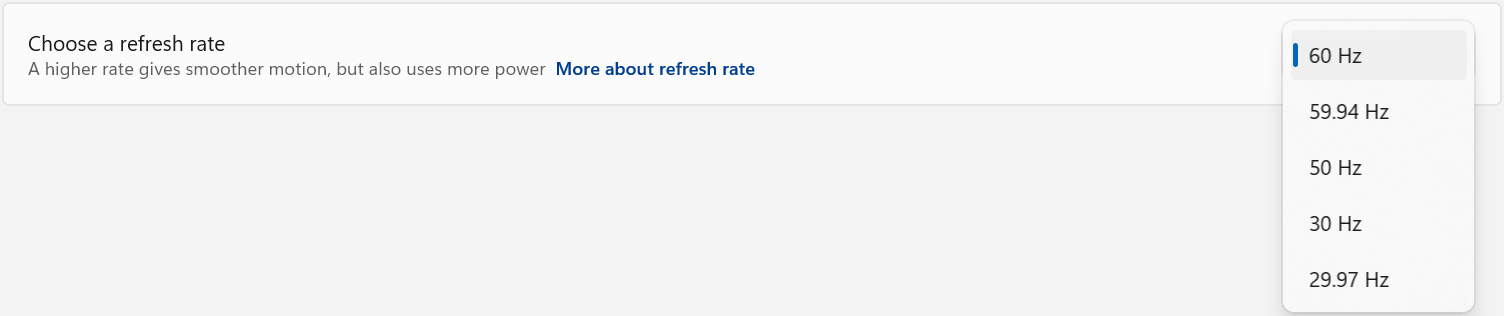
Refresh Rate Limitations
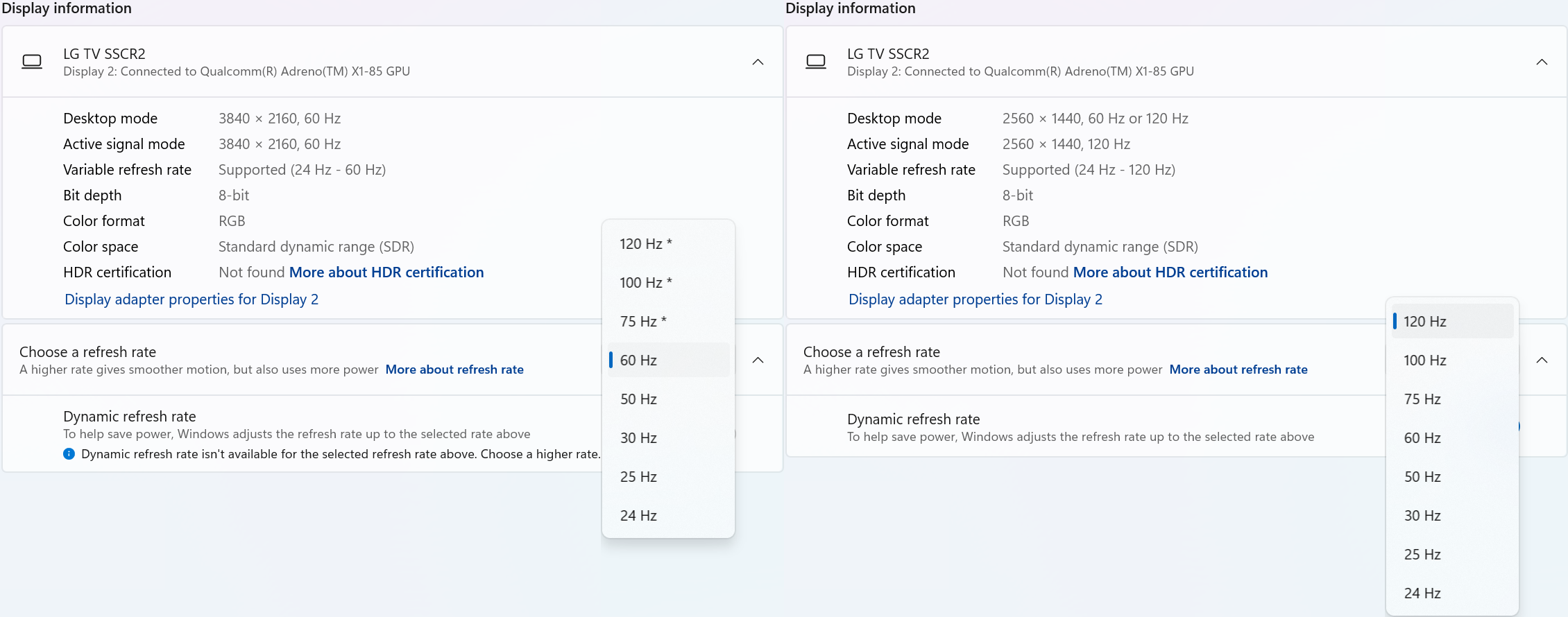
With Windows 24H2 and newer, dynamic refresh rates are supported, this allows the system to adjust the display refresh rate to save power, up to the selected refresh rate. As a consequence of this new mode, when selecting the display refresh rate you may see an asterisk. This indicates that selecting the specific refresh rate may reduce the display resolution or image quality in order to prioritize the refresh rate. This exposes the refresh rate option from the display even if the display cable or computer is incapable of supporting that refresh rate at the native resolution and is the intended behavior per Microsoft. [1]
In the screenshot below the left side shows the 4K 120Hz capable display limited to 60Hz refresh rate without asterisks, and on the right the same display after setting the refresh rate to “120 Hz*”, the “Desktop mode” resolution has been reduced to 2560 x 1440 (1440p) instead of 3840 x 2160 (4K UHD). Unlike when using the display scaling option this also causes a reduction in image quality. On the right side asterisks are no longer shown in the refresh rate list. Setting the refresh rate back to 60Hz does not change the resolution, you will have to go back one page and set the resolution manually.
References
[1] Windows Insider description of new behavior (https://blogs.windows.com/windows-insider/2023/08/31/announcing-windows-11-insider-preview-build-25941-canary-channel/)
Is there a way to add more displays to my dock?
Extra displays can be added to your docking station by using USB graphics adapters. This allows you to expand your workspace beyond the number of displays natively supported by your dock or computer.
Here’s how it works:
- Ensure your dock has open USB-A or USB-C ports to connect the USB graphics adapter(s).
- Select a Plugable USB graphics adapter compatible with your operating system and monitor specifications. Feel free to contact Plugable support (support@plugable.com) for assistance in selecting the appropriate adapter for your setup.
- Download and install the driver from the "Downloads" section of the product page for the USB graphics adapter on Plugable's website.
- Plug the adapter into an available USB port on your docking station.
- Use an appropriate video cable (e.g., HDMI, DisplayPort) to connect the adapter to your monitor.
Important Considerations:
- Windows supports up to 8 DisplayLink/SiliconMotion-based monitors.
- macOS has a hard limit of 4 DisplayLink/SiliconMotion-based monitors.
- USB graphics adapters use bandwidth and system resources. Connecting multiple adapters can reduce performance.
Can I replace the original power adapter included in the box with my Plugable product with a different, 3rd-party power adapter?
Plugable recommends and supports using only the external power adapter originally included in the box with a Plugable product to power the device.
Plugable does NOT recommend or support using any type of alternate or 3rd-party power adapters in conjunction with our products that originally included a power adapter in the box.
This is because 3rd-party power adapters may not work as expected, and in some cases can potentially cause damage to the Plugable product.
Should you require a replacement for an original Plugable provided power adapter, Plugable offers a multitude of power adapters for purchase separately → LINK
Please also note, this provision does NOT apply to Plugable products that do NOT originally include a power adapter in the box with the product.
For example, the PS-10CC → LINK does not include a power adapter in the box with the product. The intention with the PS-10CC (and other similar products like the USBC-9IN1E → LINK) is to use a USB Type-C power adapter that supports USB Power Delivery that you already have in conjunction with the product.
This works because USB Power Delivery is an industry standard. Products that support USB Power Delivery are intended to work with a variety of different USB Type-C power adapters that support the USB Power Delivery standard.
How Can I Check the Ethernet Adapter Link Rate on my Mac?
One helpful way to identify your ethernet link rate speed is through the System Settings app in macOS. This can help us identify if your Plugable ethernet adapter is negotiating either 1Gbps or 2.5Gbps network speeds. Some routers have a mix of 1Gbps or 2.5Gbps ports, and in the macOS System Settings this will be shown in the Speed field.
In this example, we will be analyzing our USBC-E2500, which is a 2.5Gbps ethernet adapter. This method applies to all of our ethernet adapters, such as:
Navigate to the Network section, select the entry named “USB 10/100/1G/2.5G LAN” with the Green - Connected icon. Expand the Details button, and go to Hardware.
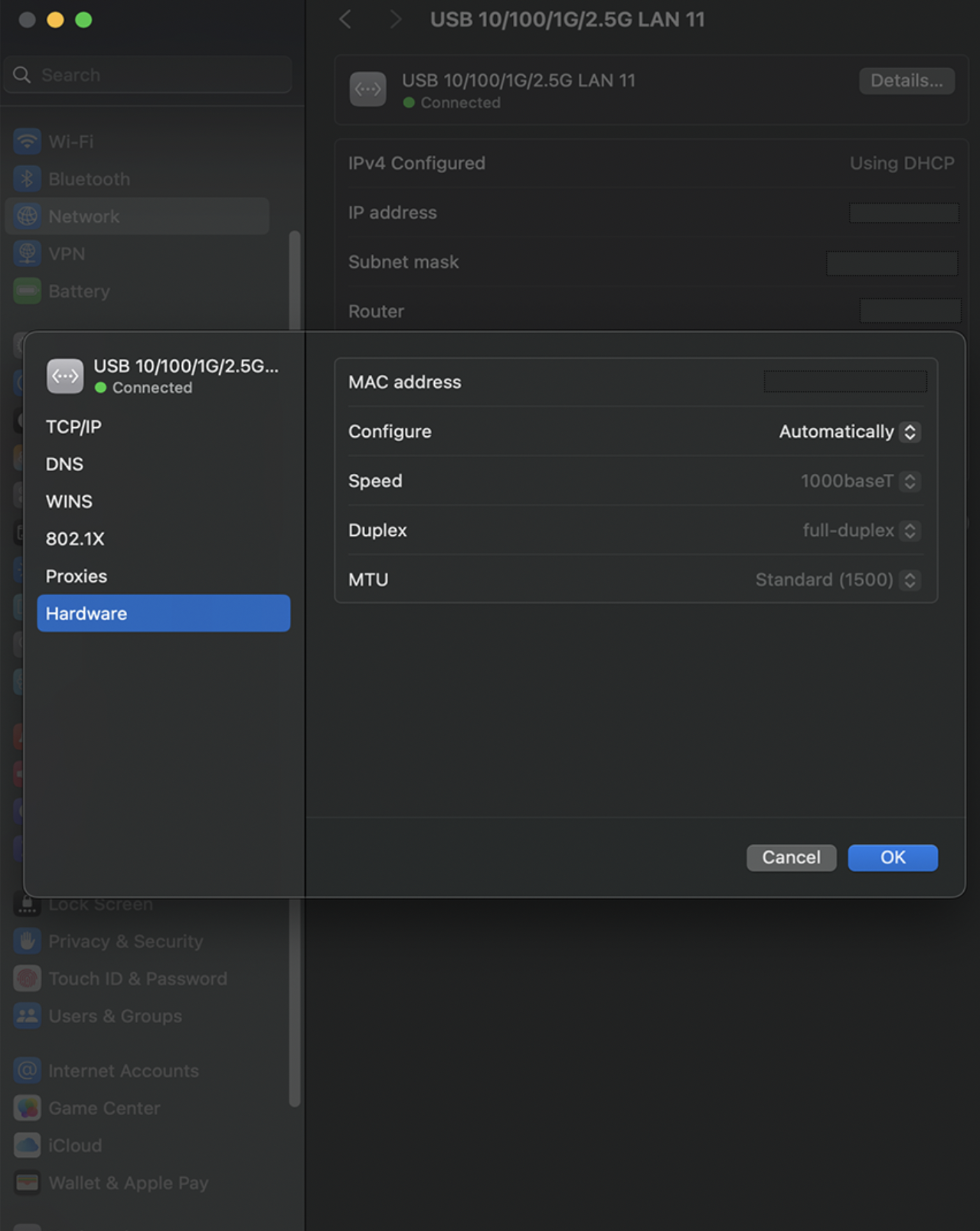
In the field that says Speed, you should see 2500Base-T if the ethernet adapter is connected to a 2.5G ethernet LAN port on your router. If you see 1000Base-T, this means the adapter is connected to a 1G ethernet LAN port. If you are expecting faster network speeds, please see your router's documentation on its multi-gig LAN port.
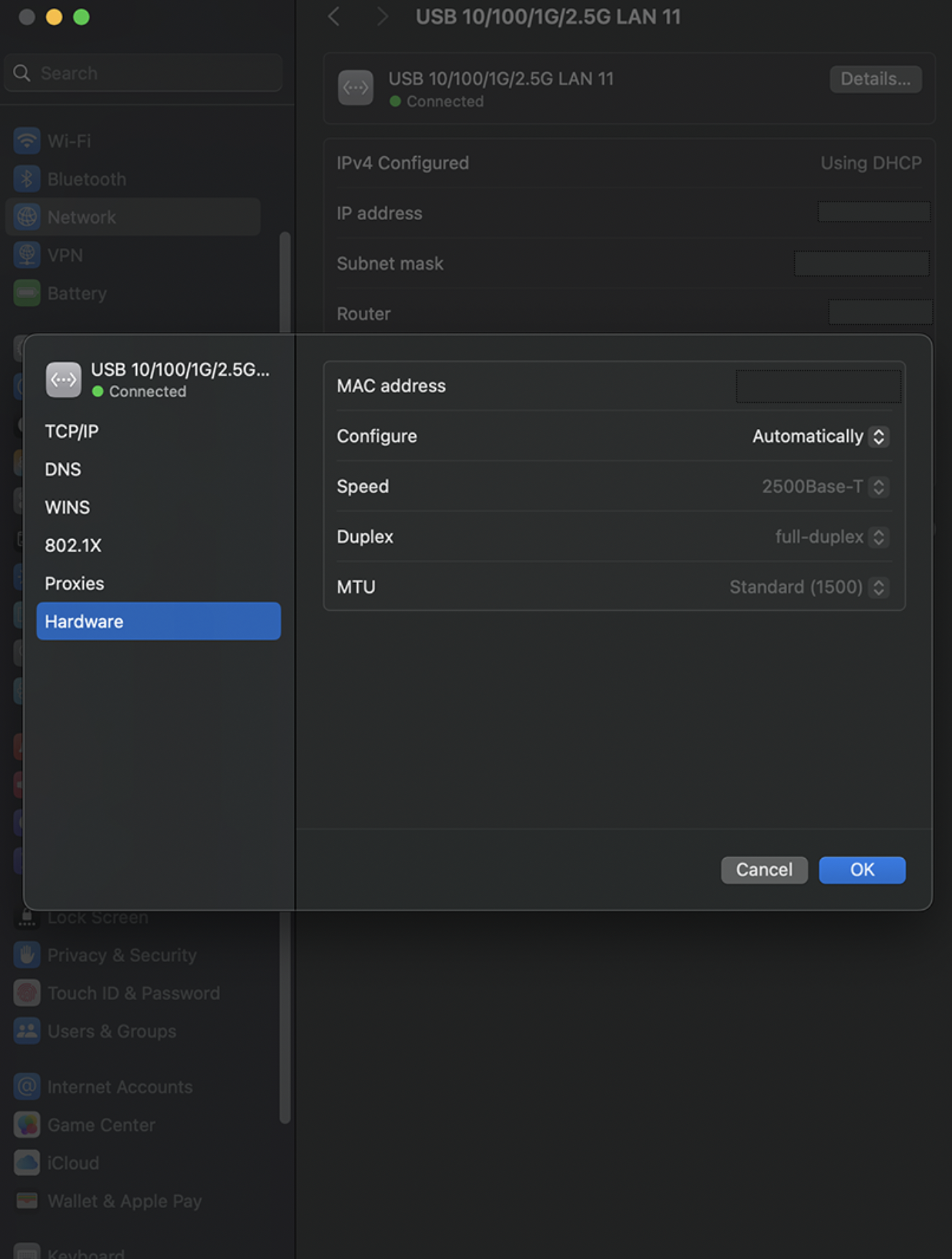
Choosing the Right USB Type-C Cable for Your Docking Station
At Plugable, we rigorously test our docking stations with the included accessories to ensure they work seamlessly together. One key reason for using the included cable is that not all USB Type-C cables on the market support the same features. Therefore we strongly recommend using the USB Type-C or Thunderbolt cable that comes with your Plugable dock for best results.
Understanding the differences between charging and data cables is essential to fully enable your new docking station, or if you are ever in need of a replacement or longer cable for your docking station. Let’s break it down.
USB Type-C Cables: Charging vs. Data
USB Type-C cables may look identical, but their capabilities can vary significantly. Unfortunately, the USB specifications do not require cables to be clearly labeled, which can make identifying the right cable a challenge.
There are two main categories:
USB Type-C Charging Cables
Charging cables are among the most common Type-C cables available. They typically support:
✔ USB 2.0 data (up to 480Mbps)
✔ USB Power Delivery for charging devices
These cables are often included with smartphones, tablets, and some laptops. They are also frequently sold specifically for charging purposes. However, they lack the necessary conductors for high-speed data transfer and video output.
Fully Featured USB Type-C Cables
Fully featured USB Type-C cables offer full functionality and are required for docking stations. The cables we include with our USB Type-C docks support:
✔ USB4 or USB 3.0/3.1 data (5Gbps or faster)
✔ USB 2.0 data
✔ USB Power Delivery
✔ USB Type-C DisplayPort Alternate Mode for video output
These cables ensure full compatibility with our docking stations, allowing for both high-speed data transfer and external display support.
Thunderbolt Data Cables
Thunderbolt cables are a specialized subset of USB Type-C data cables. They are Intel-certified and typically marked with the Thunderbolt logo (⚡).
✔ Interchangeable with USB Type-C data cables when using USB 3.x devices
✔ Required for Thunderbolt devices to ensure proper functionality
If you're using a Thunderbolt docking station or device, a certified Thunderbolt cable is essential for maximum performance.
What Makes These Cables Different?
The key difference lies in the internal wiring:
🚫 Charging cables lack the conductors required for high-speed data (USB 5Gbps or higher) and video output. Even if a device supports USB Type-C DisplayPort Alternate Mode, a charging cable won’t transmit video.
✅ Data cables include additional wiring to support higher data rates, video output, and greater flexibility in bandwidth allocation.
How Can I Tell the Difference?
🔎 Charging cables are generally thinner and may have smaller connector grips, as they often lack electronic markers. They are typically advertised as:
- "Charging cable"
- "480Mbps data rate"
- Advertised primarily for phones and tablets, not laptops
🔎 Data cables are usually thicker and slightly more expensive due to their additional complexity. Look for statements such as:
- "USB 3.0/3.1," "USB4," or "Thunderbolt"
- "5Gbps" or faster data rates
- Mention of video support for use with external displays
⚠ Cable Length Matters!
Fully featured data cables are typically limited to 1 meter (3.3 feet) to comply with USB Type-C specifications. Charging cables, on the other hand, can be much longer.
Need a Longer or Replacement Cable?
If you need a replacement or a longer cable for your USB Type-C or Thunderbolt docking station, consider these options:
For USB 3.1/3.2 Type-C Docking Stations:
🔗 USB Type-C 10Gbps 1m (3.3ft) Cable
For Thunderbolt & USB4, and USB 3 Type-C Docking Stations:
🔗 Thunderbolt 4 40Gbps 1m (3.3ft) Cable
🔗 Thunderbolt 4 40Gbps 0.8m (3ft) 90° Right-Angle Cable
🔗 Thunderbolt 4 40Gbps 2m (6.6ft) Cable
Note: The USB Type-C 10Gbps cable is only recommended for USB 3.x docking stations, not Thunderbolt docks.
Do Plugable docking stations support automatic Ethernet hardware address (also known as Media Access Control or MAC address) pass through from the host computer?
Plugable does not officially support automatic or automated MAC address pass through functionality from the host computer with any of our currently available docking station products.
As of this writing, the only current exception is the upcoming UD-7400PD docking station → LINK and we speak to its capabilities in this regard here → LINK
However, when our docking station products are used within a Windows environment such behavior can be approximated by other means. The methods to do so and their complexity can vary depending upon the Ethernet network technology on which the dock is based.
To be clear, Plugable does not officially support these approximated solutions. However, we wanted to mention them should they prove helpful to others.
With that said, Plugable docking stations will vary in regard to the Ethernet network chipset used within the product. For general reference, the specific Ethernet chipset used within the product will be listed within the 'Specifications' tab of the docking station's product page.
For example, here are the specifications for the Plugable UD-6950Z docking station which is based on DisplayLink technology, which also provides the Ethernet network chipset functionality.
Note, all Plugable docking station products based on DisplayLink technology will have the DisplayLink logo printed on the product. For general reference, we have a list of all of our DisplayLink-based docking stations available here --> LINK
A DisplayLink-based Ethernet adapter can be configured to use a 'virtual' MAC address that is manually configured within the Windows Device Manager via the adapter's 'Advanced' settings tab, specifically the 'MAC Address' field.
Manually entering a hexadecimal value for the MAC Address field will override the MAC address stored in the Ethernet chipset within the docking station product (in so far as it is presented to the Windows operating system).
To be clear, this only affects the current Windows installation. This does NOT change the Ethernet MAC address stored within the dock itself.
Further to this, Synaptics (the separate company from Plugable who created the DisplayLink technology and also developed the software), have additional options available for configuring a DisplayLink-based MAC address. Some of these options provide a certain level of automation, while others require manual inputs.
DisplayLink outlines the available options within this knowledge base article --> LINK which for general reference is part of their broader 'Corporate Deployment' knowledge base category --> LINK
To be clear, since DisplayLink develops the software DisplayLink also supports the Corporate Deployment options directly.
Should additional assistance be required in regard to the Corporate Deployment options, please contact DisplayLink directly for further assistance --> LINK
Plugable also offers docking station products based on a variety of Realtek, Intel, and ASIX Ethernet network chipsets. For those products, the only option available is to manually configure a 'virtual' MAC address in a similar manner to what we described above.
However, please note that the description of the option to do so within Device Manager will vary. For example, for Intel Ethernet chipsets the option will be called, 'Locally Administered Address'. When using Realtek Ethernet chipsets the option will be called, 'Network Address'.
My Monitors Occasionally Swap Positions on macOS. How Do I Fix This? (BetterDisplay)
There is currently a known bug on Apple Silicon Mac’s that causes some sets of displays to swap positions on wake from sleep. This issue occurs with sets of identical model displays, as this issue is basically macOS misidentifying these displays as one another, causing them to swap positions.
Because this is a macOS issue, there is not much that can be done to fully remedy this issue until Apple addresses it themselves. However, there is an application called BetterDisplay that has been confirmed by customers to help resolve this issue.
BetterDisplay:
To download BetterDisplay, you can find the latest releases on GitHub below:
https://github.com/waydabber/BetterDisplay
Note that there is a premium upgrade that costs money, and the initial download includes a 14 day free trial. But for the purpose of this specific issue, the free version will still have all the features that we need.
Simply click on the “Download app for macOS” button and follow the instructions to install the application. You will get notified that this app is downloaded from the internet. Click Open to open the application:

Start the app from the Applications folder or from Launchpad / Spotlight. Once you launch the app, you should see a page similar to the one below:

Once the app is opened, we are going to want to change the Display Identification Method to “basic + extended identifiers”. This is supposed to make it easier for BetterDisplay to identify and correctly position identical monitors.
To find this setting:
- Ensure that the displays are in the correct arrangement to start
- Select one of your monitors at the top of the settings menu
- Select the “Additional settings…” under the “General Settings”
- Scroll down and find “Display identification method”
- Select “basic + extended identifiers”
This should hopefully resolve the display swapping positions issue!

Notes:
We do not officially support this application, as it just came recommended to us to solve this specific issue. If you run into issues with this application, consult the documentation provided by the developer on the BetterDisplay Github.
The developer has stated that this will not work on DisplayLink based docking stations or graphics adapters. This fix is primarily intended for natively connected displays.
What are the external display capabilities of Apple Mac laptops with an Apple M4 processor as compared to the previous M3, M2 and M1 generations?
As of this writing, there have been four generations of Apple CPUs, the M1, the M2, the M3, and the M4. Each generation has offered three variations, a ‘base’ model (without a suffix) and ‘Pro’ and ‘Max’ models.
Mac laptops based on Apple CPUs have varying native external display capabilities via Thunderbolt/USB-C connections.
Each generation offers different capabilities depending upon which generation and variation of Apple processor is in use.
As of this writing, the M4 generation is the most capable CPU in regard to native external display capabilities as compared to all previous generations and variations.
Apple Mac laptops with a base M4 processor or M4 Pro processor can support up to two external displays regardless of the state of the laptop lid.
Apple Mac laptops with a M4 Max processor can support up to a total of four external displays regardless of the state of the laptop lid.
Apple Mac laptops with base M3 processors can support one external display when the laptop lid is open and the laptop’s internal display is enabled. They can support up to two external displays when the laptop lid is closed and the laptop's internal display is disabled.
Apple Mac laptops with M3 Pro or M3 Max processors can support up to four external displays in total, regardless of the state of the laptop lid.
Apple Mac laptops with base M1 and M2 processors support one external display only.
Apple Mac laptops with M1 Pro and M2 Pro processors support up to two external displays.
Apple Mac laptops with M1 Max and M2 Max processors can support up to four external displays in total.
What information is helpful to provide when contacting Plugable support for assistance?
Here are a few things that you can do when contacting Plugable for assistance that can help expedite the process:
1. Provide a clear, detailed description of the issue, and if possible the steps necessary to recreate it
At first glance this may appear somewhat obvious, however a clear detailed description will help prevent our support engineers from making any incorrect assumptions.
If the unexpected behavior is repeatable, then a list of the steps necessary to recreate the issue will help provide us with important context.
2. Provide the model number of your Plugable product
All Plugable brand products have their model number or ‘stock keeping unit’ (aka SKU) printed somewhere on the product. For example, ‘UD-3900’ or ‘TBT4-UDZ’
When contacting us for assistance, providing the model number will help us route your request to the appropriate support engineer.
3. Provide the purchase information for your Plugable product, such as the Amazon Order ID number
Providing us with the order information for your purchase allows us to do two things:
A. Be sure that we understand precisely which product you are using (we make a lot of different products)
B. Help confirm the unit’s warranty status.
4. Provide us with a diagnostic file from your computer, gathered when the issue is actively occurring or just after the event
Rather than have our customers manually compile and provide information about their computer, we created the PlugDebug utility which automates the process of collecting various pieces of diagnostic information from both Windows and macOS systems.
A PlugDebug file gathered while the issue is occurring (or just after the issue has occurred) will provide important information that will allow us to help troubleshoot the issue.
5. If possible, photographs or a video of the issue
While not always necessary, in some cases having photographs of the problem and/or a video that documents the issue will allow us to ‘see’ what is happening, which in turn may help provide clues to the cause.
Now, to be clear it is not always necessary (nor is it required) to provide all of the information we described above in order for us to be of help. However, the more information we have available the faster are able to help.
As always, if you require assistance with a Plugable product please reach out to us directly via support@plugable.com and we will be happy to assist.
What kind of power adapters come with Plugable products, and how can they be used in different parts of the world?
Introduction
At Plugable, we make a lot of different products that can help make your computing efforts more efficient and productive.
Many of those products (such as our extensive line of docking stations → LINK) require an external power adapter in order to function.
In the course of helping our customers, we often receive questions in regard to what type of power adapter is included with the product and how those power adapters can be used in different parts of the world.
This knowledge base article will help answer those questions.
Power Adapter Types
To put it simply, in general there are two types of power adapters included with a Plugable product.
WALL PLUG
The first type is typically referred to as a ‘wall plug’ or in some cases as a ‘wall wart’ due to its size being larger than that of a standard electrical plug.
This is a small AC to DC power adapter that is completely self contained and plugs directly into an electrical power outlet.
For example, here are photos of the ‘wall plug’ included in the box with the Plugable UD-6950Z docking station.
UD-6950Z U.S. Style Wall Plug Power Adapter:
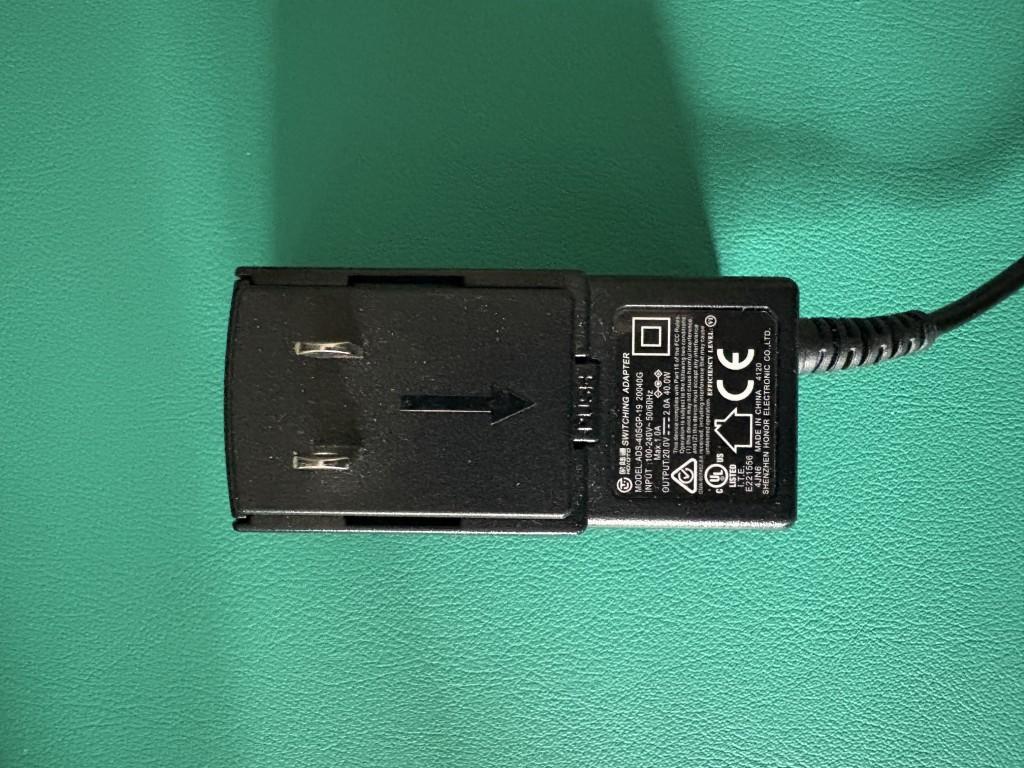
UD-6950Z U.S Style Wall Plug Power Adapter with Prong removed:
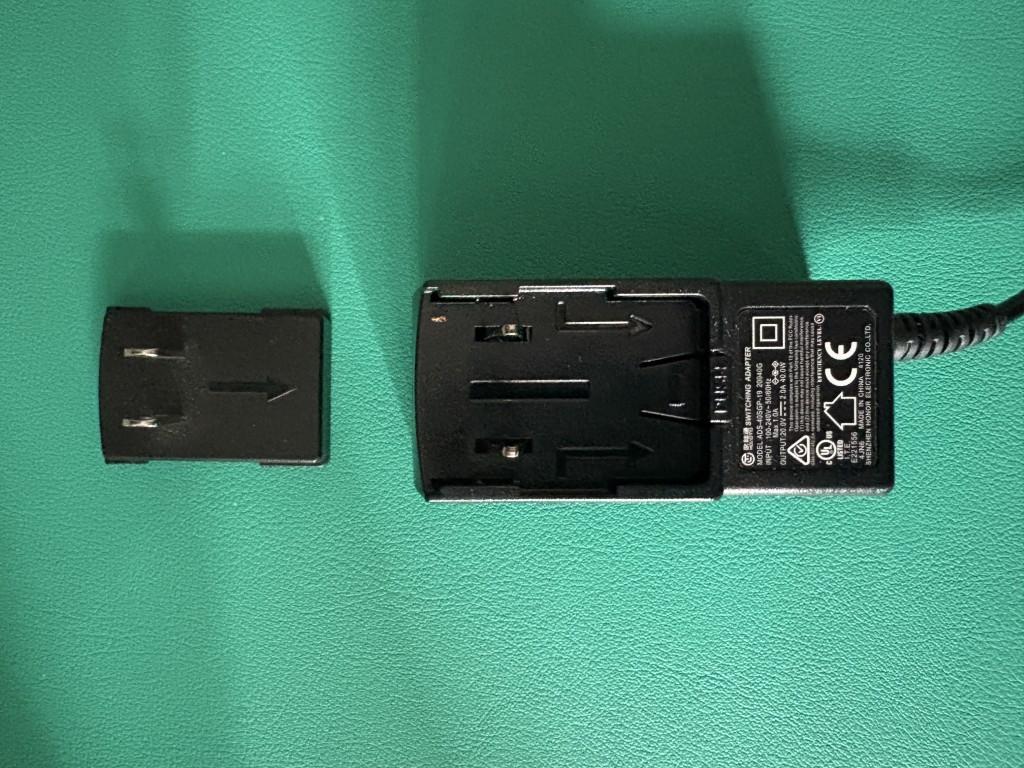
Most ‘wall plug’ style power adapters included with Plugable products support all of the electrical voltages and electrical frequencies used throughout the world.
Note, you can double-check the specifications by looking at the label printed on the wall plug power adapter, or by reviewing the ‘Power’ specifications located on each Plugable product page.
However, the electrical ‘prong’ (the small plastic piece that provides the blades that insert into the electrical power outlet) included with the wall plug will only be for the country in which the product was sold.
To put that another way and using the aforementioned UD-6950Z as an example, if the UD-6950Z is purchased from Amazon.com within the United States, the electrical prong included with the wall plug power adapter will be for a United States style power outlet only.
If the wall plug power adapter needs to be used in a different part of the world, a small inexpensive ‘travel style’ adapter that converts the United States style plug to the local plug type is required.
POWER ADAPTER BRICK
The second type is typically referred to simply as a ‘power adapter’ or by some as a ‘power adapter brick’.
The power adapter is a combination of two separate components. One component is the power adapter itself, which is typically rectangular in shape and why some people refer to it as a ‘brick’.
The second component is the power cable that connects to the power brick. This cable has an electrical wall plug on one end and an industry standard connector on the opposite end.
Looking at two different example power adapters will allow us to expand further.
Let’s look at the power adapter and power cable for our TBT4-UDZ Thunderbolt 4 docking station:
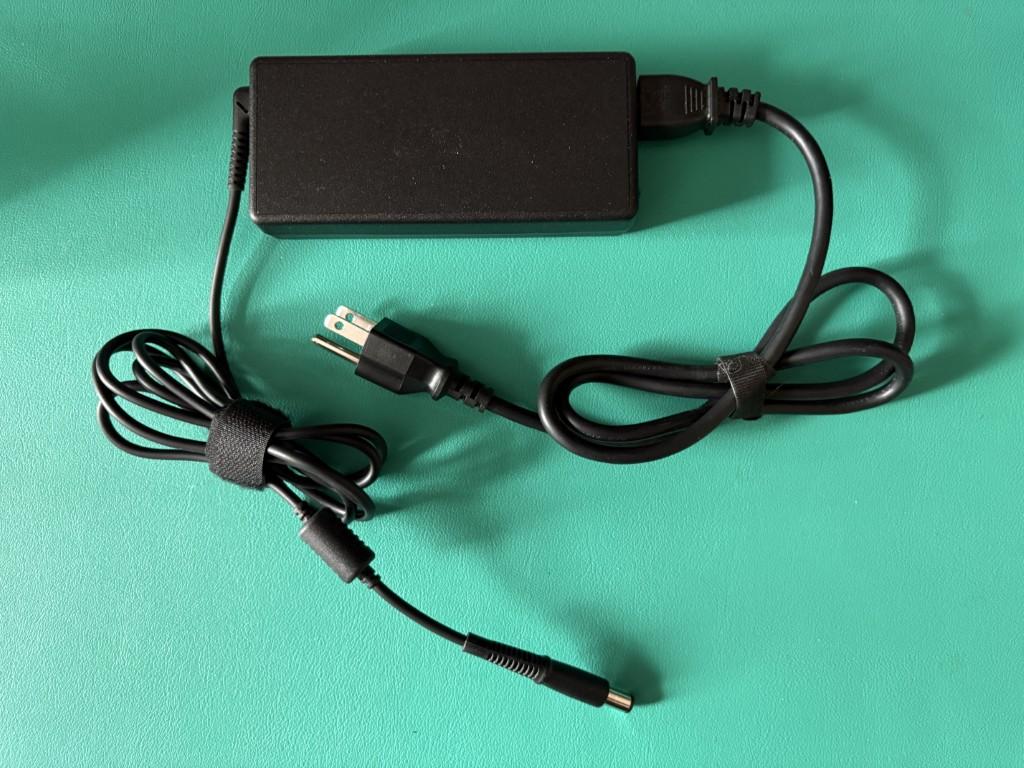
Within the power adapter brick, there is a female inlet:
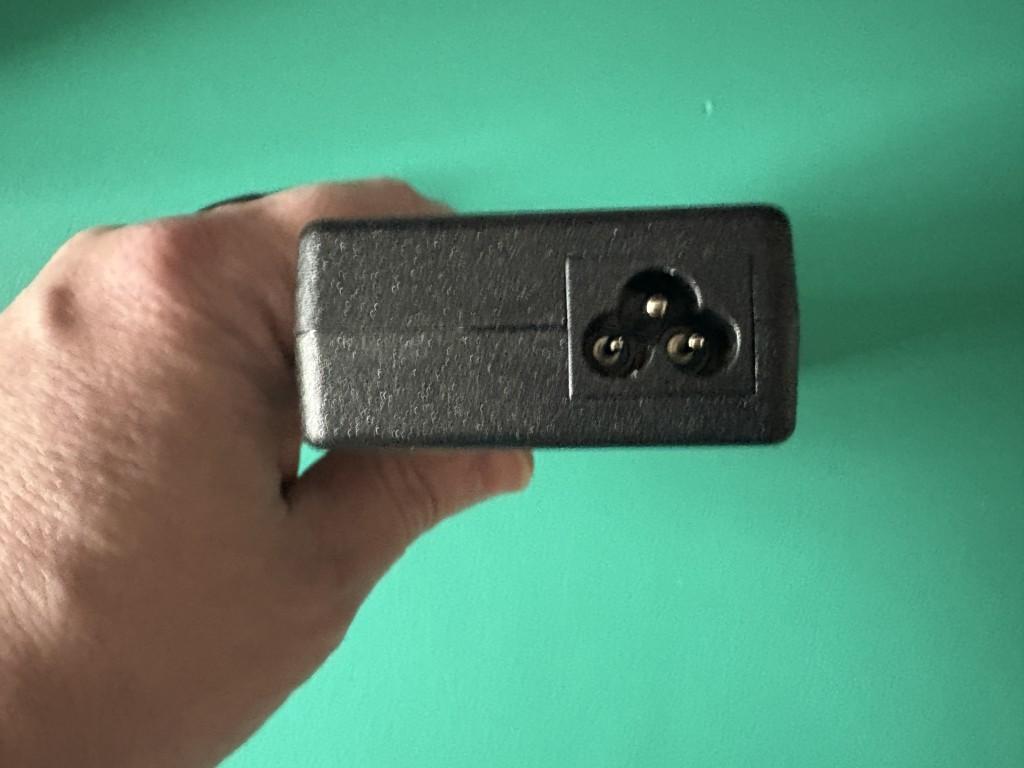
On one end of the power cable, there is an electrical wall plug.
On the opposite end of the power cable, there is a male connector. This connector will be inserted into the power brick.
There is an international standard that governs the shapes and sizes of the connectors in use, specifically IEC 60320 → LINK
In this example, the male connector on the end of the power cable is known as a ‘C5’ connector:
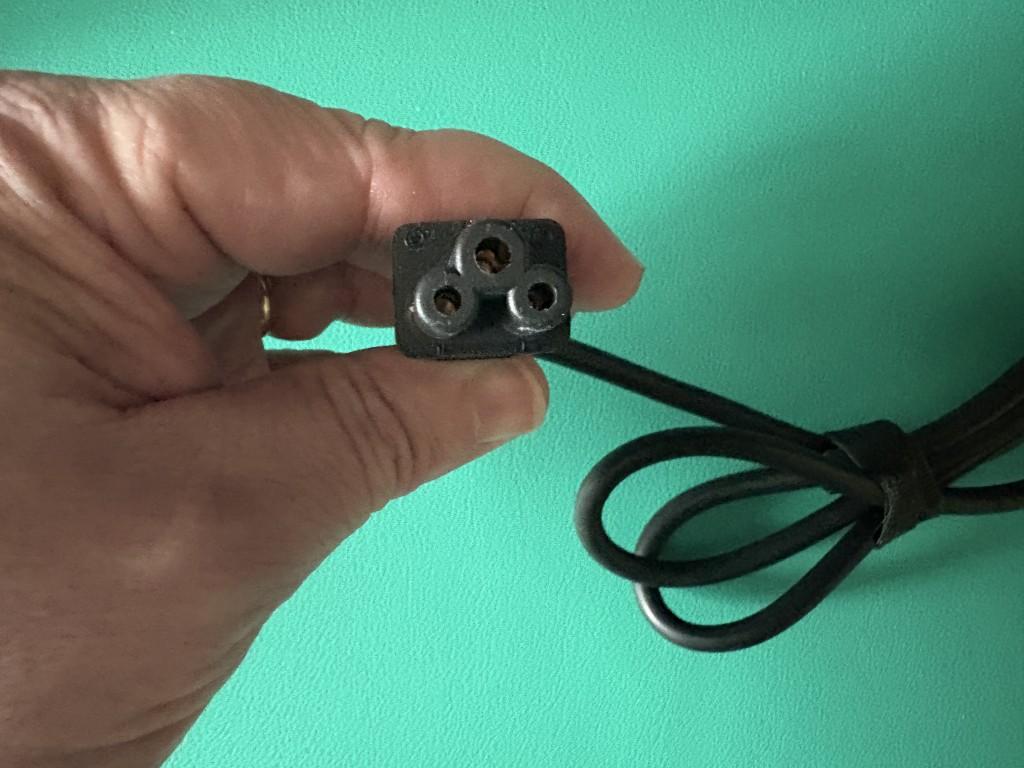
In this example, the female inlet is known as a ‘C6’ connector.
Some refer to this type of connection as a ‘Mickey Mouse’ connection, because the overall shape of the connector visually resembles the outline of a silhouette of the cartoon character Mickey Mouse.
Now, let’s look at the power adapter and power cable for our USB4-HUB3A Thunderbolt 4 hub.
Within the power adapter brick, there is a female inlet:
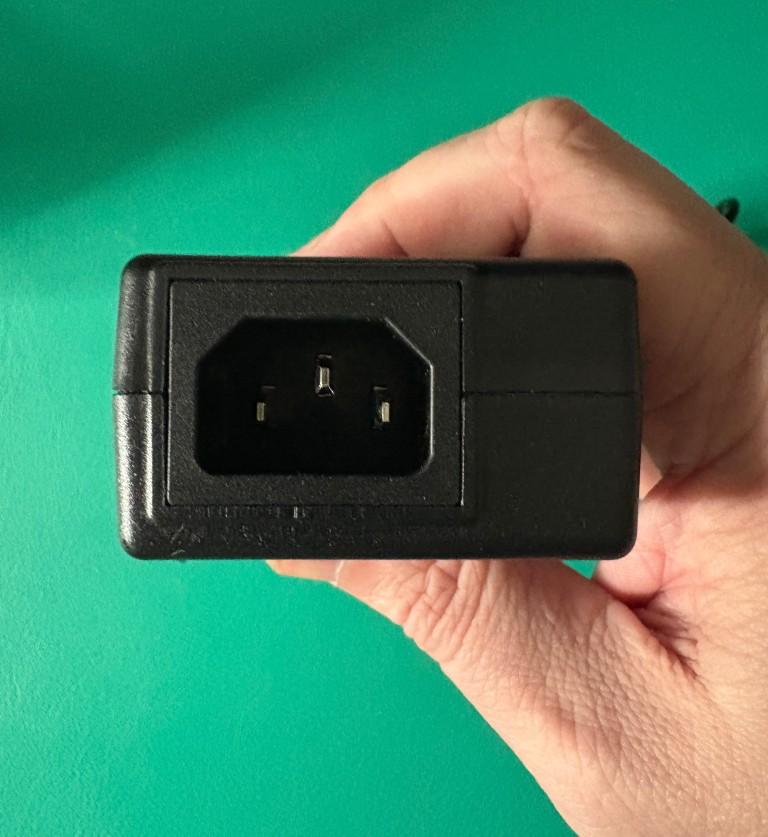
On one end of the power cable, there is an electrical wall plug.
On the opposite end of the power cable, there is a male connector. This connector will be inserted into the power brick.
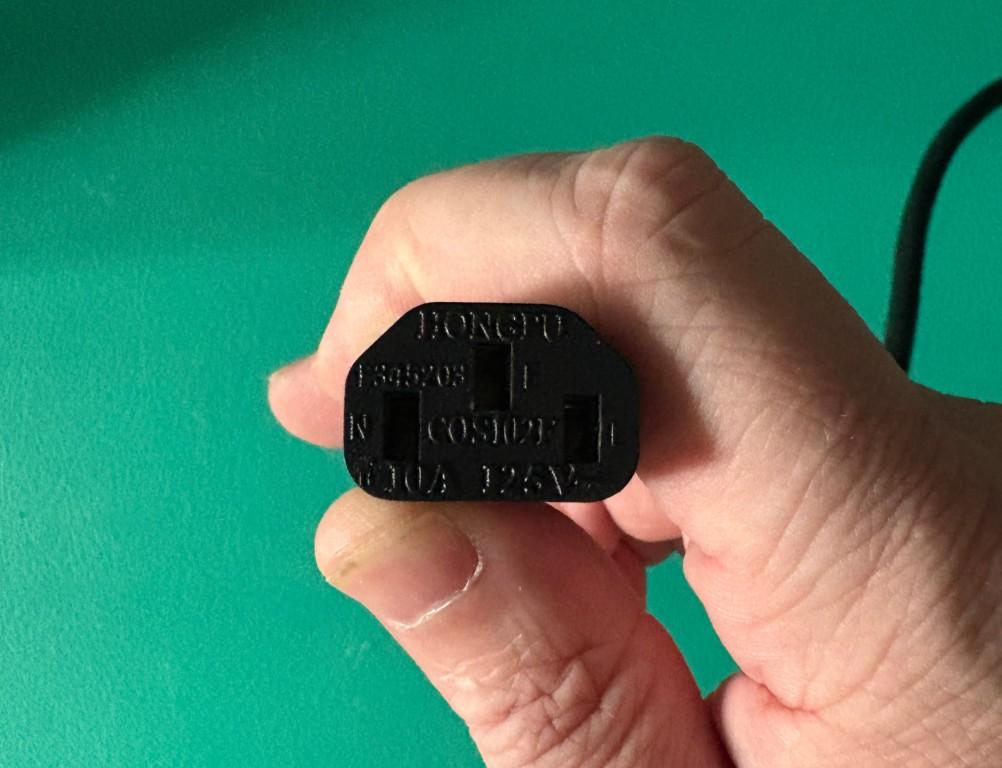
Note that the shapes on the inlet and connector are different as compared to the TBT4-UDZ example we looked at previously, however as was the case before the IEC 60320 standard governs the design.
In this example, the male connector on the end of the power cable is known as a ‘C13’ connector.
In this example, the female inlet is known as a ‘C14’ connector.
While the cables are different, the benefit of both cables being based on a common standard is that replacement cables for use in different parts of the world can typically be sourced locally.
Most Plugable power adapters support the electrical frequency and electrical voltages used throughout the world.
Note, you can double-check the specifications by looking at the label printed on the wall plug power adapter, or by reviewing the ‘Power’ specifications located on each Plugable product page.
If necessary, the power cable can be replaced with a different one with the necessary wall plug in order to use the product in different parts of the world.
Note, when replacing the cable with a different one please be sure to purchase a cable from a reputable brand and that also meets the electrical specifications printed on the power adapter.
Summary
In summary, there are two different types of power adapters included with Plugable products and the power adapters support the electrical voltage and frequency used throughout the world.
However, the plug that inserts into the power outlet will be specific to the region in which the product was sold.
If a wall plug type power adapter is in use, then a ‘travel style’ adapter is needed to convert the power adapter for use in a different part of the world.
If a power adapter brick is in use, then an industry standard replacement power cable can be used to convert the power adapter brick for use in a different part of the world.
Should you have any additional questions, please reach out to us via support@plugable.com and we will be happy to assist you further.
Why Isn’t My Plugable Dock Charging My Laptop?
If your Plugable docking station isn’t charging your laptop, it’s usually due to one of a few common causes. This guide offers some diagnostic checks you can perform to help pinpoint the issue.
Check if Your Dock Supports USB-C Power Delivery
Not all docks charge laptops. Docks fall into three categories:
- Built-in Power Delivery (PD): These include an AC power adapter and can provide 60W, 85W, or 100W to your laptop. A list of Plugable docking stations with built-in Power Delivery can be found here.
- PD Passthrough: These compact docks require a separate USB-C charger plugged into the dock to pass power through to your laptop. A list of Plugable docking stations with PD Passthrough can be found here.
- Host Charging Unsupported: Some docks do not offer any host charging functionality. These are designed solely for display expansion, data, or peripherals.
Tip: Check your Plugable dock’s product specifications for Power Delivery or charging support. If no charging is listed, the dock may not charge your laptop, and the system would need to be powered separately.
Verify the Dock’s Power Source
For your dock to charge your laptop, it needs to be adequately powered itself.
Check:
- Are you using the original Plugable AC adapter for a built-in PD dock?
- For PD passthrough docks, is your USB-C charger powerful enough for your laptop?
- Are you using a reputable, certified charger - not a low-wattage third-party adapter?
Use a Compatible USB-C to USB-C Host Cable
Cable issues can be a common cause of charging problems.
Check:
- Are you using the USB-C to USB-C cable that came with your Plugable dock? This can be identified through its included cable tag.
- If not, does your replacement cable explicitly support USB PD or Thunderbolt?
- Are you accidentally using a USB-C to USB-A cable, which cannot deliver charging to laptops?
- Could the cable be data-only or rated for lower wattage?
Confirm Your Laptop Supports USB-C or Thunderbolt Charging
Even with a PD-capable dock and cable, your laptop must support charging over the USB-C or Thunderbolt port in use.
Common compatibility issues:
- Some USB-C ports are data/video-only.
- Some laptops support charging only through a specific USB-C port.
- Gaming and enterprise laptops often use proprietary power adapters.
Tip: Check your laptop’s specifications or user manual for “USB-C charging” or “Power Delivery (PD) input” support.
Try a Hard Reset
Sometimes, a failed handshake between the dock and laptop prevents charging.
To reset the connection:
- Disconnect the dock from both your laptop and its power source.
- Wait 30–60 seconds.
- Reconnect power to the dock first, then reconnect it to your laptop.
This often resolves temporary communication issues that block charging.
Update Drivers and Firmware
System-level software can directly impact charging behavior - especially on newer laptops and docks.
Update:
- Your laptop’s BIOS or UEFI
- USB-C and Thunderbolt controller firmware and drivers
Tip: Visit your laptop manufacturer’s support site and search by model for the latest system updates.
Compare Power Requirements
If your laptop demands more power than the dock can supply, it may not charge - or may charge very slowly.
Check:
- What wattage does your original laptop charger provide? (Usually printed on the power adapter.)
- What is the maximum PD output your Plugable dock can provide?
- Does your laptop still slowly discharge while docked under heavy use?
Tip: For especially power-hungry laptops (like gaming or workstation models), consider connecting the laptop’s original charger along with the dock to ensure the laptop charges at full speed
Related: Overcoming Power Challenges: Efficiently Charging High-Demand Laptops While Docking
Do I need to approve or authenticate Thunderbolt devices when I connect them to my Windows or Mac computer?
Overview
For most modern Windows and Mac systems, Thunderbolt devices are automatically approved and will ‘just work’ once connected.
The main exception is Apple Mac laptops with Apple CPUs running macOS Ventura (13) or newer, where you’ll be prompted to manually approve the device the first time you connect it.
The summary table below provides the specific details at a glance, and the text that follows explains the table in more detail.
Thunderbolt Approval / Authentication Summary Table
Why Authentication Exists
To expand further, Thunderbolt 3, 4 and 5 are in essence external connections to the host computer’s internal PCI Express bus. This type of low-level and high speed connection warranted security protocols to prevent unauthorized access to user data.
Windows: From Intel Software to Native OS Support
When Thunderbolt 3 Windows systems were first introduced in late 2015 it was necessary to use Intel Thunderbolt software to manually authenticate and approve external Thunderbolt devices.
With the introduction of Thunderbolt 4 Windows systems in 2020, it was still necessary to have Intel Thunderbolt software installed on the host computer. However, in most cases the authentication and approval process would happen automatically greatly simplifying the process.
Starting with Windows 11 version 21H2 released in October of 2021, Microsoft integrated support for both USB4 and Thunderbolt into the Windows operating system → LINK
This means that with most modern Thunderbolt 4 and Thunderbolt 5 computers running the latest version of Windows 11 it is no longer necessary to install Intel Thunderbolt software on the host computer in order to manage Thunderbolt devices. In most cases, the authentication and approval process will still happen automatically.
macOS: From Intel CPUs to Apple CPUs
When Thunderbolt 3 Mac systems with Intel CPUs were first introduced in 2016, the authentication and approval mechanism was built-in to macOS and was transparent to the end user.
Apple introduced Mac computers based on Apple CPUs in 2020. Macs based on Apple CPUs running macoS 11 Big Sur or macOS 12 Monterey would automatically approve and authenticate Thunderbolt devices when connected.
macOS 13 Ventura was released in 2022 and for portable Macs with Apple CPUs Apple introduced a feature known as ‘Accessory Security’ (also known as ‘Restricted Mode’) → LINK
By default, portable Macs (i.e. laptops) with an Apple CPU running macOS 13 Ventura or newer version of macOS will require the end user to authenticate and approve a Thunderbolt device when initially connected.
Stationary Macs (i.e. desktops) with an Apple CPU running macOS 13 Ventura or newer version of macOS do NOT implement the ‘Accessory Security’ feature. As a result, Thunderbolt devices will be automatically approved and authenticated when initially connected.
Apple Macs with Intel CPUs (both laptop and desktops) running macOS 13 Ventura or newer do NOT implement the ‘Accessory Security’ feature. As a result, Thunderbolt devices will be automatically approved and authenticated when initially connected.
Why Higher Voltage Power Supplies Are Included with USB 5V Hubs and Docks
Improved Voltage Regulation Under Load
When multiple USB devices are connected - especially high-draw peripherals like external drives or charging phones - the demand on the dock’s internal power can spike. If the power supply were delivering only 5V, any load increase might cause voltage “sag,” potentially leading to unstable or unreliable performance.
By starting with a higher voltage like 12V or 20V, the internal voltage regulators within the dock or hub can more reliably and efficiently step down that voltage to a consistent 5V, even under heavy load. It’s similar to having a reservoir above a village - you’ll have more reliable water pressure regardless of demand.
Greater Power Efficiency Over Distance
Transmitting power at higher voltage and lower current reduces energy loss due to resistance in the wires (which causes heat). By increasing the voltage we can decrease the amperage for the same power, and power loss in the line is directly proportional to amperage squared so even a small decrease in the amperage adds up quickly. Once the power reaches the dock, it's stepped down to the voltages needed for USB ports. This not only enhances efficiency but also makes compact, cooler-running designs possible.
Special Consideration for USB-C Docks
USB-C docks commonly include 20V power supplies, which serve a dual purpose:
- Supplying 5V for downstream USB devices
- Delivering up to 100W (or more) to host laptops via USB-C Power Delivery
With USB Power Delivery 3.1 (EPR), even higher voltages (up to 48V) are supported, enabling future docks and laptops to handle even more powerful devices like desktop replacement laptops or external GPUs.
Will Future Docks Use 48V Power Supplies?
It's likely. While 20V is common now (especially for consumer devices), 24V+ power supplies are widespread in industrial and telecom applications. As high-performance laptops and workstations demand more power, consumer docks may start including 24V, 36V, or even 48V adapters. These would align with USB PD 3.1 specs and simplify designs that support extended power ranges.
However, for now, 20V remains a sweet spot for cost, availability, and compatibility across a wide range of devices.
TL;DR
Higher voltages like 12V or 20V are used for better regulation and more efficient power delivery.
USB-C docks use 20V to support Power Delivery charging (up to 100W+).
USB PD 3.1 EPR opens the door to 48V systems, and while uncommon now, future docking stations may shift to 48V as demand grows.
Can I Use My Thunderbolt Dock With an iPad?
In general, iPad's with USB-C can connect to our Thunderbolt docks, but the functionality will depend on the specifications of the USB-C port on the iPad.
All iPad's with USB-C will be able to be charged when connected to a dock with power delivery.
In general, iPad's can support up to one external display when connected to a Thunderbolt dock. Resolutions and refresh rates depend on the model of iPad, as well as the docking station model.
iPad compatible USB devices and peripherals (mouse, keyboard, storage, Ethernet, etc.) can be used with the dock. The USB-C port on the iPad can vary from USB 2.0 to 40Gbps Thunderbolt, so note that transfer speeds on the downstream USB ports will be limited based on the capabilities of the host port.
iPad Pro's with the M-Series chipset support 40Gbps Thunderbolt, which means that you will get the most functionality out of a Thunderbolt dock connected to these iPad's.
How To - Set a Custom MAC Address in Windows
What is the MAC address?
The MAC address (Medium Access Control address) is a unique network address for each Network Interface Controller to identify the hardware on the network segment. The address is generally expressed as six hexadecimal digits, sometimes separated by a '-', ':', or without a separator.
The MAC address is assigned by the hardware manufacturer during production, however many network controllers allow the operating system (via the drivers) to override the MAC address, this is handled at the operating system level and does not change the address stored in the adapter.
The first three octets (first three hexadecimal values, six characters) identify the network hardware manufacturer while the last three octets should be unique within each hardware manufacturer's product line. For example Plugable's MAC addresses all begin with "8CAE4C", with lower values typically representing older companies, "000000" belongs to Xerox for example, some companies have multiple ranges of MAC addresses.
Why it can be useful to override the manufacturer's address?
Setting a custom MAC address can provide anonymity when connecting to public networks. It can also be used by an IT Network Administrator to provide specific access rights to computers based on the connection.
It can also be useful for Network Administrators for testing, troubleshooting, and maintenance to simulate different devices without having access to that specific device.
Changing the Mac Address in Windows
The MAC address can be manually set from the Device Manager:
1. Right-click on the Start Menu and select Device Manager from the pop-up window
2. Expand the Network adapters section and double-click on the network adapter to be modified
3. From the network adapter properties pop-up window, select the Advanced tab
4. Under the Property: category, scroll down to and select "Network Address"
5. In the Value: field, enter the new MAC Address in hexadecimal format, the field has a maximum of 12 characters so do not use any separators between octets
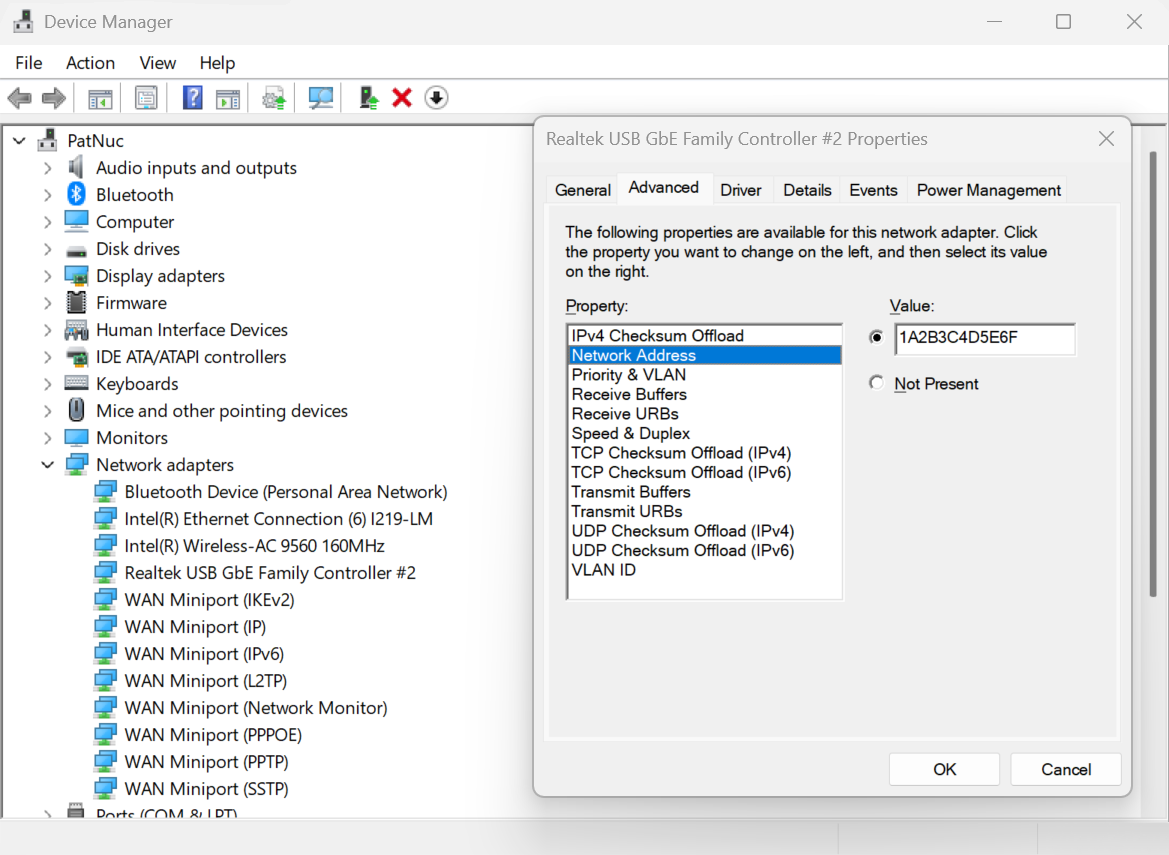
6. Select the OK button to proceed
You can also check the MAC Address from the command line
1. Right-click on the Start Menu and select Terminal or Windows PowerShell
2. Type in the following command ipconfig /all or ipconfig /all | findstr C:/"Physical Address" to filter just the Physical Address lines.
3. Scroll through the output to find the target network adapter and Physical Address
How To - Set a Custom MAC Address in Linux
What is the MAC address?
The MAC address (Medium Access Control address) is a unique network address for each Network Interface Controller to identify the hardware on the network segment. The address is generally expressed as six hexadecimal digits, sometimes separated by a '-', ':', or without a separator.
The MAC address is assigned by the hardware manufacturer during production, however many network controllers allow the operating system (via the drivers) to override the MAC address, this is handled at the operating system level and does not change the address stored in the adapter.
The first three octets (first three hexadecimal values, six characters) identify the network hardware manufacturer while the last three octets should be unique within each hardware manufacturer's product line. For example Plugable's MAC addresses all begin with "8CAE4C", with lower values typically representing older companies, "000000" belongs to Xerox for example, some companies have multiple ranges of MAC addresses.
Why it can be useful to override the manufacturer's address?
Setting a custom MAC address can provide anonymity when connecting to public networks. It can also be used by an IT Network Administrator to provide specific access rights to computers based on the connection.
It can also be useful for Network Administrators for testing, troubleshooting, and maintenance to simulate different devices without having access to that specific device.
Checking the MAC Address in Linux
The MAC Address can be checked from the terminal:
1. Open a bash shell
2. Read the address from the /sys directory:
cat /sys/class/net//address
or from the ip command to print out all of the hardware MAC Addresses
ip -o link | awk '$2 != "lo:" {print $2, $17}'Changing the MAC Address in Linux
Temporary change until system reboot
1. Open a bash shell
2. Run the following command to set the MAC Address for a specific network device.
sudo ip link set dev <devicename> down
sudo ip link set dev <devicename> address <mac address>
sudo ip link set dev <devicename> up
3. Confirm the new MAC address
Permanently change the MAC Address
This can depend on your distribution's specific network services and settings. This example will create a new systemd unit file to change the MAC Address on startup.
1. Open a bash shell
2. Create a new systemd unit file "/etc/systemd/system/changemac@.service with the following contents the mac address should be colon separated:
[Unit]
Description=Change MAC Address %i
Wants=network-pre.target
Before=network-pre.target

[Service]
Type=oneshot
ExecStart=/usr/bin/ip link set dev %i down
ExecStart=/usr/bin/ip link set dev %i address <mac address>
ExecStart=/usr/bin/ip link set dev %i up
RemainAfterExit=yes
User=root

[Install]
wantedBy=multi-user.target
3. Enable the service with the following command
sudo systemctl enable --now changemac@<interface_name>
4. Reboot the computer, the MAC address should be set to the new address
Update Graphics Drivers in Windows
Up to date graphics drivers are necessary for ensuring the best performance of your computer's built-in display, as well as the capability and compatibility with external displays and docking stations.
Windows has a built-in system update service: Windows Update, however this may not provide up to date drivers or timely updates. We often see systems with out of date drivers, in some cases systems may not receive updated graphics drivers for months or even years, leaving the computer with drivers incompatible with the installed version of Windows 11.
However, we can manually update the graphics drivers to ensure the best possible performance, reliability, and compatibility.
The first step is to identify the graphics hardware, then downloading, and installing the latest drivers.
Identifying Graphics Controller
For notebooks and many desktop computers, the primary graphics controller is embedded in the processor, both AMD and Intel provide graphics driver updates based on the processor model, as well as for discrete graphics controllers. Our first step is to identify up the processor or graphics hardware model details:
- Right-click on the Start Menu and select Settings from the pop-up menu
- From the left column select System and from the bottom of the right side select About
- From the top of the about page the processor details will be on the right side, and duplicated lower down on the page.

- In this example the processor is a 12th Gen Intel(R) Core(TM) i7-1260P, we'll keep that detail for the next step.
If your computer has two graphics controllers (it may show "Multiple GPUs Installed" under Graphics Card) then we can get the graphics card model details from the Windows System Information Utility.
- Open the Start menu and search for "msinfo32"
- Select the first result
- From the left-column expand the Components section, then select Display

- In this example the Intel Iris(R) Xe Graphics is enabled by the processor, while the Intel(R) Arc(TM) Pro B60 Graphics is a discrete graphics controller.
Downloading the Drivers
Intel Graphics
- In a web browser navigate to the Intel Driver Download Page
- In the "Search Drivers & Software" field, search for the Intel graphics card model or CPU model, "Arc Pro B60" in this example

- Select the appropriate "Intel Arc Pro Graphics - Windows" or similar entry from the search results, for modern hardware Intel will normally have at least one release per month, the list should return recent results within the last month
- Select the Download button to save the installer to your Downloads folder or selected location
AMD Graphics
AMD provides an Auto-Detect utility, this works relatively well and can be used to update the system available from the AMD Drivers and Support page.
This page also provides a search and browse option for finding drivers and specific compatibility details, we'll look up the drivers for an AMD Ryzen Pro 5650U processor with Radeon Graphics:
- Navigate to AMD Drivers and Support page
- From the Browse section, fill out the processor details and click the Submit button
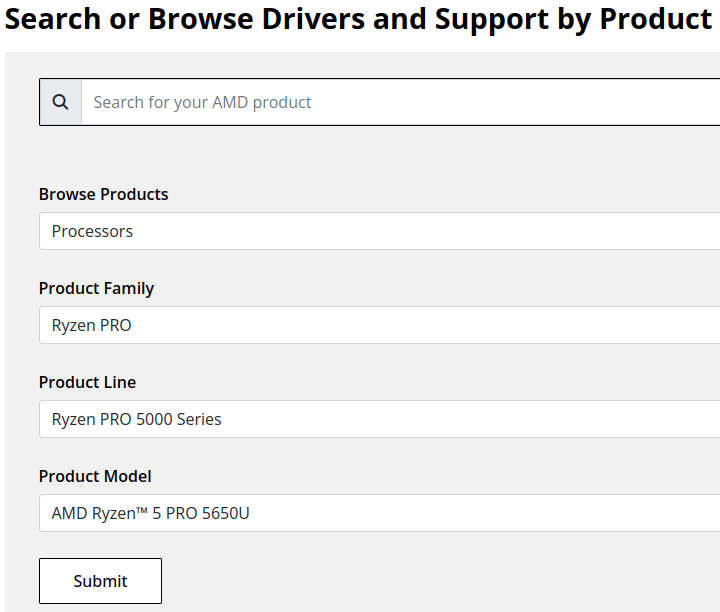
- Expand the "Windows 11 - 64-Bit Edition" section and select the Download button for the latest graphics drivers
NVIDIA Graphics
Like AMD, NVIDIA provides an automatic installation utility, as well as a Manual Driver Search on the NVIDIA Drivers support page. We will look up the drivers for an NVIDIA RTX 5080 graphics card.
- Navigate to NVIDIA Drivers support page
- Fill out the Manual Driver Search drop-downs and select the "Find" button when complete
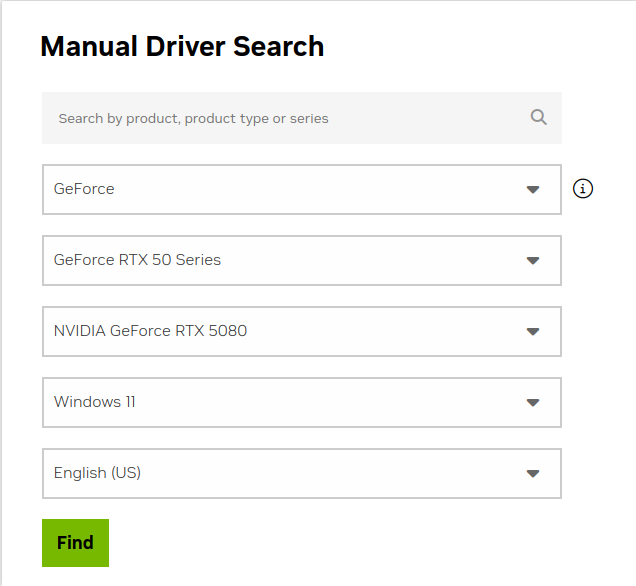
- From the search results, select the "View" button for the GeForce Game Ready Driver or NVIDIA Studio Driver (if you need the studio driver features)
- Select the green Download button for the latest graphics drivers
Installing the Graphics Drivers
For the most part this is relatively simple, we recommend disconnecting any external docking stations or devices that are not necessary for the driver installation, and for notebook computers connecting the system's original power supply.
Double-click on the downloaded driver installation executable and follow the on screen steps.
For more in-depth details on Intel, AMD, and NVIDIA's driver installation processes check out our step-by-step guides here:
- Intel Driver Installation In Detail
- AMD Driver Installation In Detail
- NVIDIA Driver Installation In Detail
If you have any questions or would like a recommendation, feel free to reach out to our support at support@plugable.com
How-To: Install the latest Intel Graphics Drivers
For a step-by-step guide to identify your graphics hardware and download the appropriate drivers, check out our KB article here
Download the drivers for your GPU or Processor Graphics
- In a web browser navigate to the Intel Driver Download Page
- In the Search Drivers & Software field, search for the Intel graphics card model or CPU model, "Arc Pro B60" in this example
- Select the appropriate Intel Arc Pro Graphics - Windows or similar entry from the search results, for modern hardware Intel will normally have at least one release per month, the list should return recent results within the last month
- Select the Download button to save the installer to your Downloads folder or selected location
Install the Intel Graphics Driver
To update the Intel Graphics Drivers to the latest version from Intel's website:
- Save and close any open applications
- Navigate to the downloaded graphics driver, then right-click on the saved driver installation file and select Run as administrator to start the installation process
- Allow the Intel driver installation through the User account control window, the drivers will be extracted
- When the extraction is complete select the Begin installation button

- Agree to the Intel Software License Agreement by selecting the I agree button
- Ensure all applications are saved and closed before selecting the I agree button
- For most installations, we recommend not selecting the Execute a clean installation checkbox. This option will remove previous driver versions and can lead to Windows Update reverting to an even older graphics driver. Select the Start button to proceed
- The installation process will proceed, but can take some time to complete
- When the installation has completed, deselect the Launch Intel Graphics Software checkbox - we don't need that right now, select the Reboot Now button to restart the computer applying the new graphics drivers
Windows should now detect the Intel Graphics Controller in the Device Manager and show the latest drivers.
If you have any questions or would like a recommendation, feel free to reach out to our support at support@plugable.com
How-To: Install the latest AMD Graphics Drivers
For a step-by-step guide to identify your graphics hardware and download the appropriate drivers, check out our KB article here
Download the drivers for your GPU or Processor Graphics
- In a web browser navigate to the AMD Drivers and Support page
- In the Search for your AMD product field, type in the model name, for example “RX 5600XT” for the AMD Radeon RX 5600 XT graphics controller, or a processor model like "AI 9 365", then select the best fitting result and select the Search button - note: Searching for a processor the "™" is required, so I recommend searching for the text after that symbol.
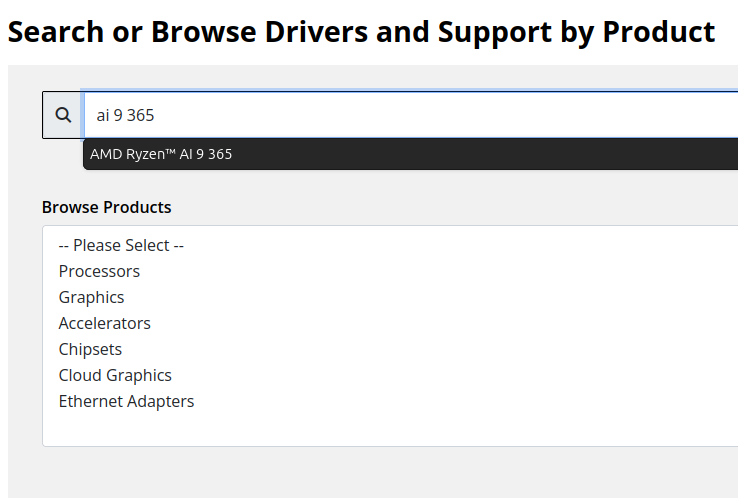
- On the results page, expand the section for Windows 11 64-bit then select the Download button for the latest AMD Software: Adrenalin Edition drivers, AMD may not provide a direct download for all hardware, in that case use the Auto-Detect and Install option
- Save the installer to your Downloads folder or selected location
Install the AMD Graphics Driver
To update the AMD Graphics Drivers to the latest version from AMD’s website:
- Save and close any open applications
- Navigate to the downloaded graphics driver, then right-click on the saved driver installation file and select Run as administrator to start the installation process
- Allow the Intel driver installation through the User account control window, the drivers will be extracted
- For most users the express installation is fine, ensure all applications are saved and closed selecting the Accept & Express Install button. If you have been having issues with older graphics drivers causing crashes or errors the Factory Reset (Optional) checkbox may be selected, but it isn’t necessary for most installations.

- The installation will proceed, the displays may flicker or flash off/on while the drivers are installing.
- When complete you will be prompted to Launch AMD Software: Adrenalin Edition and Keep AMD software up to date, you can uncheck the Launch AMD Software option
- Restart the computer to ensure the latest drivers are loaded from boot Start Menu > Power Icon > Restart
Windows should now detect the Intel Graphics Controller in the Device Manager and show the latest drivers.
If you have any questions or would like a recommendation, feel free to reach out to our support at support@plugable.com
How-To: Install the latest NVIDIA Graphics Drivers
For a step-by-step guide to identify your graphics hardware and download the appropriate drivers, check out our KB article here
Download the drivers for your GPU
Check your invoice for the specific model of NVIDIA graphics card, for this example we will use the RTX 5080 (the manufacturer is not relevant).
- In a web browser navigate to the NVIDIA Driver Download Page
- In the Manual Driver Search field, search for the NVIDIA graphics card model, "RTX 5080" in this example
- Select the GeForce RTX 50 Series | NVIDIA GeForce RTX 5080 | Windows 11 entry from the list
- Left-click the Find button
- Select either View buttons from the GeForce Game Ready Driver or NVIDIA Studio Driver
- Select the Download button to save the installer to your Downloads folder or selected location
Install the NVIDIA Graphics Driver
To update the NVIDIA Graphics Drivers to the latest version from NVIDIA's website:
- Save and close any open applications
- Navigate to the downloaded graphics driver, then right-click on the saved driver installation file and select Run as administrator to start the installation process
- Allow the NVIDIA driver installation through the User account control window
- Click OK to extract the NVIDIA Display Driver package contents
- At the System Check step, select either the NVIDIA Graphics Driver with NVIDIA App or the NVIDIA Graphics Driver alone, the NVIDIA App is gaming oriented and unnecessary for most users. Select AGREE AND CONTINUE
- At the License Agreement step, select the Express (Recommended) radio button then select NEXT to continue

- The installation will take some time to complete
- When complete please restart the computer Start > Power > Restart
Windows should now detect the NVIDIA Graphics Controller in the Device Manager and show the latest drivers.
If you have any questions or would like a recommendation, feel free to reach out to our support at support@plugable.com
Is Target Display Mode Available With Plugable Docks and Adapters?
No, target display mode generally requires a direct Thunderbolt connection from a compatible MacBook or Mac Mini to a compatible iMac. Graphics adapters and docking stations do not pass the required Thunderbolt video data.
Why Target Display Mode Is Not Compatible With Docks or Adapters
Target Display Mode is a legacy feature that allows certain older Mac systems to use an older model iMac as an external display via a Mini DisplayPort or Thunderbolt data cable. Most Plugable docking stations and graphics adapters are USB devices that do not meet the specific Thunderbolt data requirements for 2011 through mid-2014 iMac systems. While Thunderbolt 3 or newer docks may provide video capability, they are generally recommended for Apple M-Series systems which do not support this feature.
iMac Models as Display
Apple provides system compatibility here but we can summarize it in the following:
24-inch and 27-inch iMac (2009 and 2010)
- macOS 10.13 “High Sierra” or earlier
- Compatible with Macs from 2019 or earlier with macOS 10.15 “Catalina” or earlier
- NOTE: some MacBooks in this range do not include a Mini DisplayPort output and may not be compatible
- Connected with a Mini DisplayPort cable
iMac models (2011 through mid-2014)
- macOS 10.13 “High Sierra” or earlier
- Compatible with Macs from 2019 or earlier with macOS 10.15 “Catalina” or earlier
- NOTE: some MacBooks in this range do not include a Mini DisplayPort output and may not be compatible
- Connected with a Thunderbolt or Thunderbolt 2 cable - these use the Mini DisplayPort connector
- NOTE: This is not compatible with Thunderbolt 3 (USB Type-C) cables
Alternative Options
For earlier 2009-2010 iMacs, it may be possible to use a USB Type-C to DisplayPort adapter paired with a DisplayPort to Mini DisplayPort cable. However, this configuration is untested and we do not support this configuration.
Our research has shown mixed results using these early model iMac systems with adapters, modern unsupported Apple hosts, or Windows computers. Because Target Display Mode is no longer supported by modern Apple hardware and software, there is no guaranteed workaround for newer systems.
Modern displays offer higher resolutions, multiple connection options: both DisplayPort and HDMI, and newer features like High Dynamic Range (HDR) and higher refresh rates than iMac systems. Many modern displays can support multiple host computers either by switching between inputs or with picture-by-picture or picture-in-picture modes.
Applicable To
- 24-inch and 27-inch iMac (2009 and 2010)
- iMac models (2011 through mid-2014)
- macOS 10.13 “High Sierra” or earlier
If you have any questions please feel free to contact us at support@plugable.com and we'll be happy to help!




